> ## Documentation Index
> Fetch the complete documentation index at: https://craft-support.mintlify.site/llms.txt
> Use this file to discover all available pages before exploring further.
# Download Invoices and Manage Billing
> Find your invoices, download receipts, and manage billing details for your Craft subscription.
Your invoices and billing details for **Stripe** and **Paddle** subscriptions are available directly inside Craft, in the Billing & Subscription view. App Store and Setapp subscriptions are managed by Apple and Setapp respectively.
See the [Payment Methods Guide](/en/account-and-subscription/billing/payment-methods) to identify your subscription type.
## Open Billing & Subscription
### Step 1: Open Settings
Click the **Space name** at the top of the sidebar to open Settings.
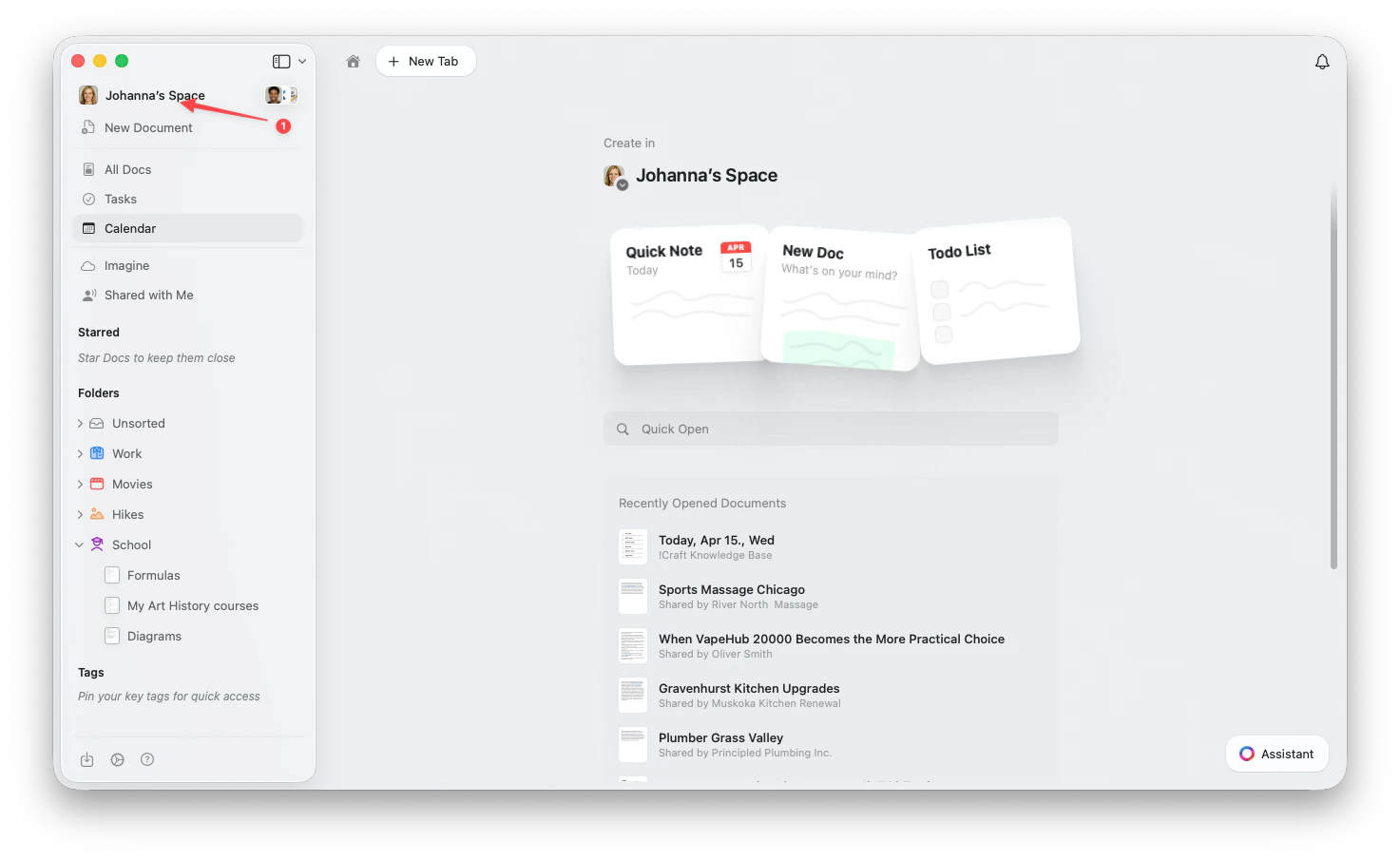 Click the **Space name** in the top-left corner.
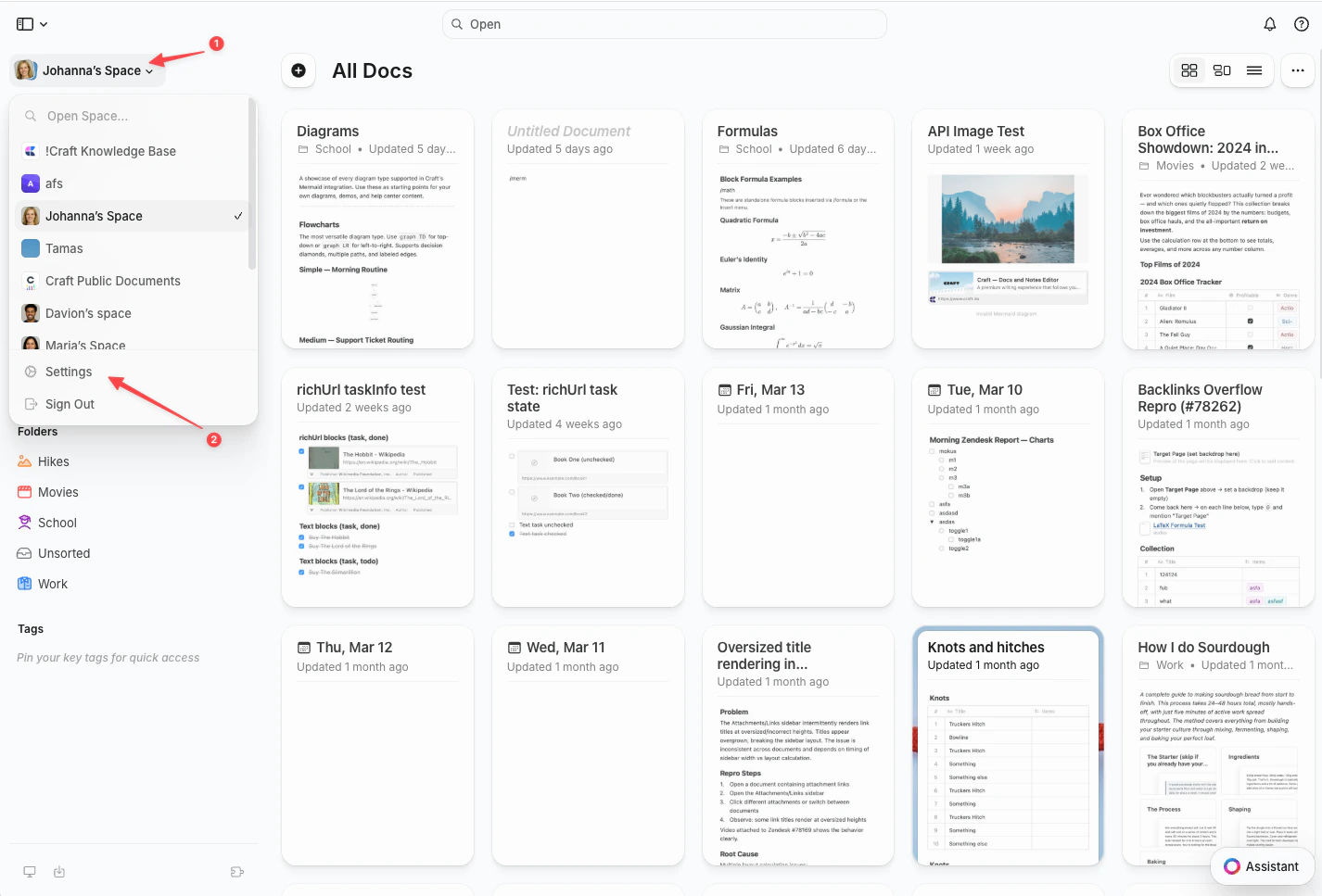
Click **Settings** at the bottom of the dropdown.
Click the **Space name** in the top-left corner.
Click **Settings** at the bottom of the dropdown.
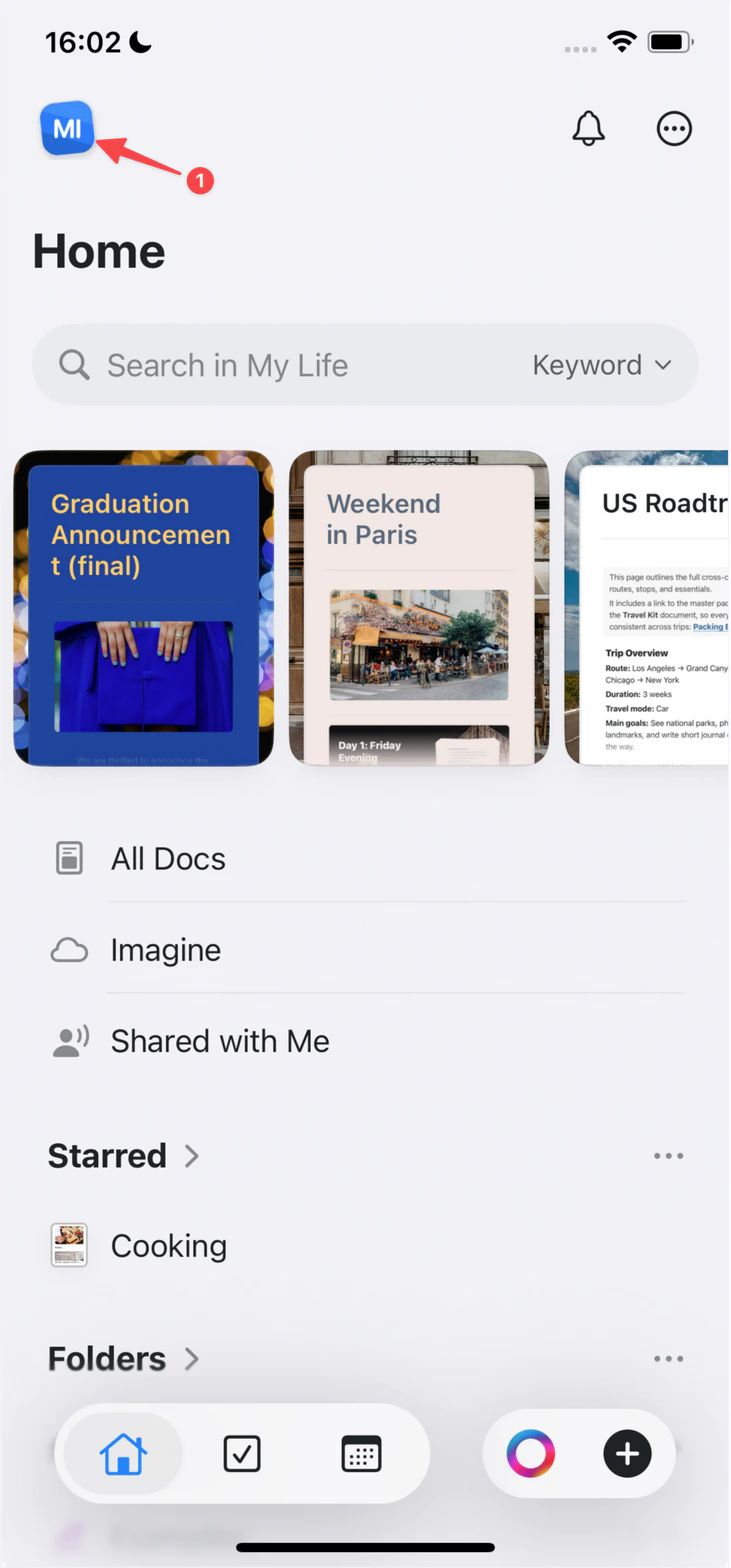
 Tap the **Space icon** in the top-left corner.
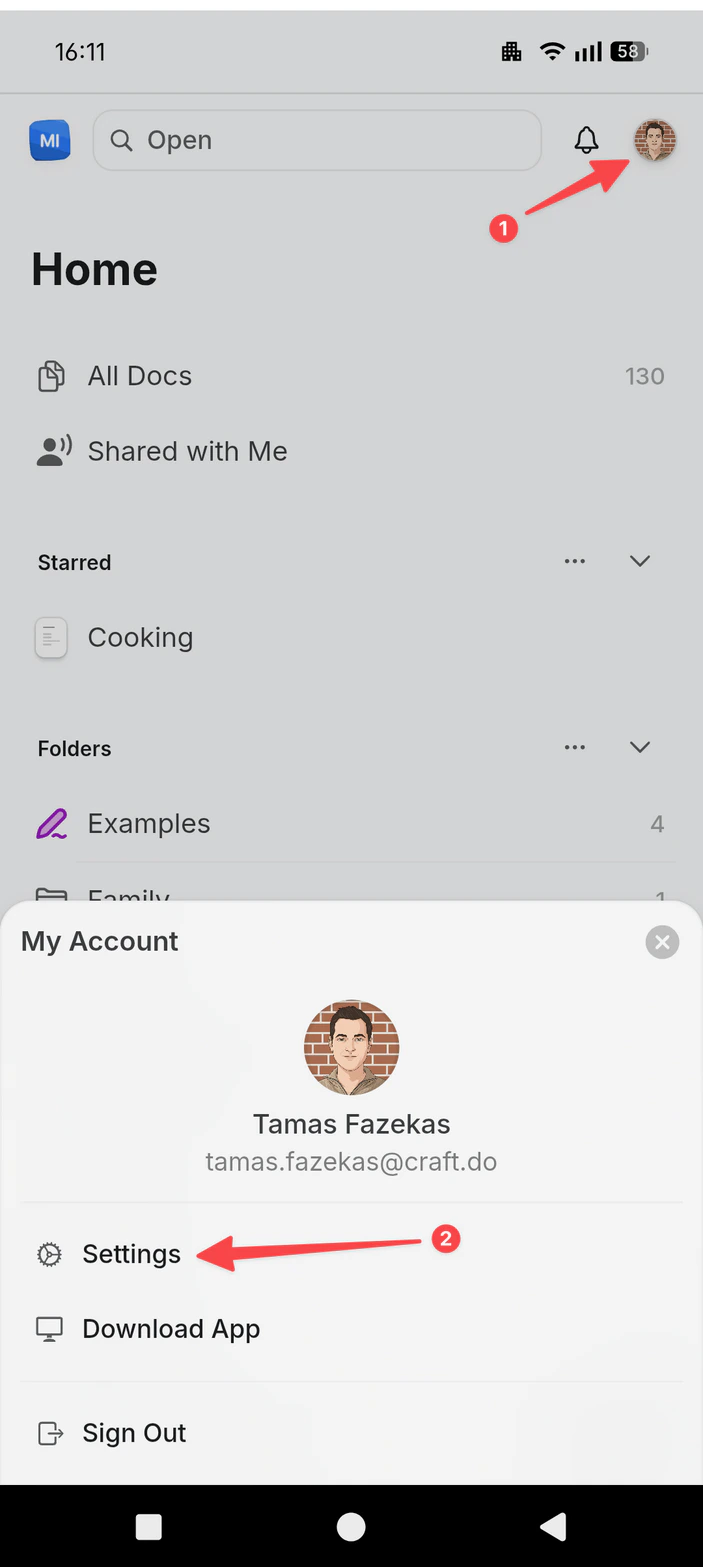
 Tap **Settings**.
Tap your **profile picture** in the top-right corner.
Tap **Settings**.
Tap **Settings**.
Tap your **profile picture** in the top-right corner.
Tap **Settings**.
 ### Step 2: Go to My Subscriptions
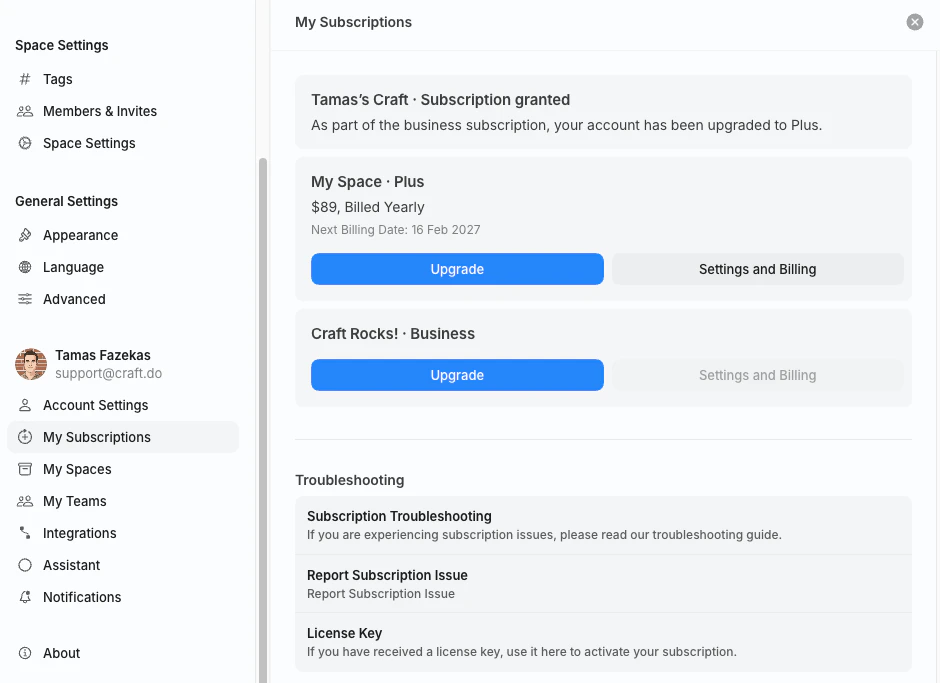
In the Settings sidebar, select **My Subscriptions**. You'll see a card for each subscription on your account — your personal space (e.g. *My Space · Plus*) and any business or team subscriptions you own.
### Step 2: Go to My Subscriptions
In the Settings sidebar, select **My Subscriptions**. You'll see a card for each subscription on your account — your personal space (e.g. *My Space · Plus*) and any business or team subscriptions you own.
 ### Step 3: Open Settings and Billing
On the subscription you want to manage, click **Settings and Billing**. This opens the **Billing & Subscription** view for that subscription.
Only the **subscription owner** (the account that purchased the plan) sees the **Settings and Billing** button. If you're a member of a team space someone else owns, ask the owner to download the invoice for you.
## What's in the Billing & Subscription View
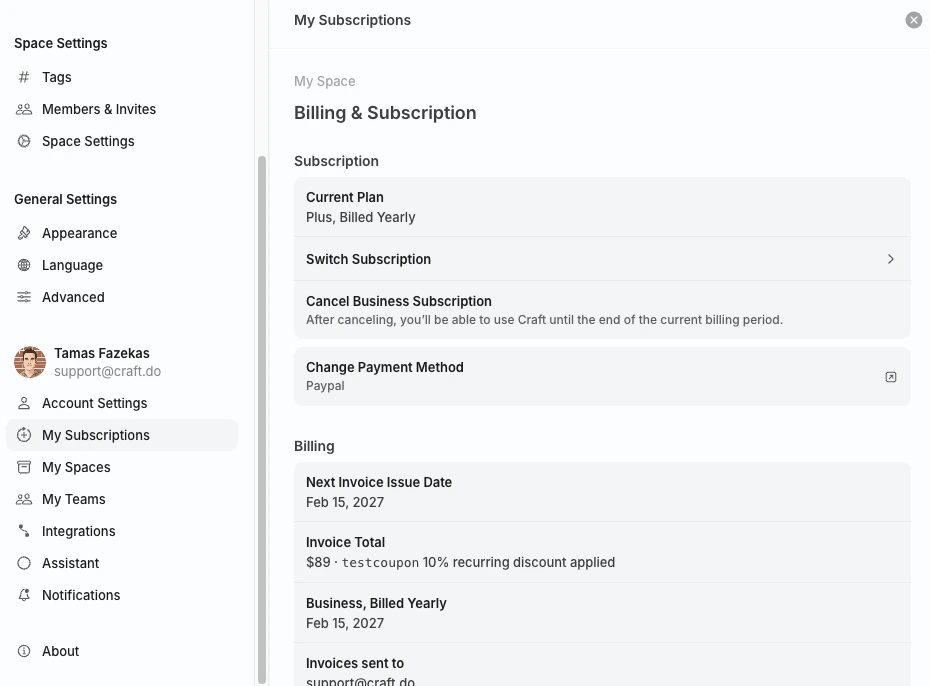
The Billing & Subscription view has three sections.
### Step 3: Open Settings and Billing
On the subscription you want to manage, click **Settings and Billing**. This opens the **Billing & Subscription** view for that subscription.
Only the **subscription owner** (the account that purchased the plan) sees the **Settings and Billing** button. If you're a member of a team space someone else owns, ask the owner to download the invoice for you.
## What's in the Billing & Subscription View
The Billing & Subscription view has three sections.
 ### Subscription
| Item | What it does |
| ------------------------- | -------------------------------------------------------------------------------------------------------------------------------------------------------------------------- |
| **Current Plan** | Shows the active plan (e.g. *Plus, Billed Yearly*). |
| **Switch Subscription** | Change your billing cycle (monthly ↔ yearly) or move to a different plan. |
| **Cancel Subscription** | Cancel the subscription. You keep access until the end of the current billing period. See [Cancel Subscription](/en/account-and-subscription/billing/cancel-subscription). |
| **Change Payment Method** | Opens the Stripe billing portal to update your card or payment method. See [Update Payment Method](/en/account-and-subscription/billing/update-payment-method). |
### Billing
| Item | What it shows |
| --------------------------- | ------------------------------------------------------------------------------------------------------------------------------------------------------------------------ |
| **Next Invoice Issue Date** | When your next invoice will be generated. |
| **Invoice Total** | The amount of the next invoice, including any active discount codes. See [Discount Codes](/en/account-and-subscription/billing/discount-codes). |
| **Renewal info** | The plan that will renew and the date it renews on. |
| **Invoices sent to** | The email address that receives invoices and billing notifications. To change it, see [Change Billing Email](/en/account-and-subscription/billing/change-billing-email). |
### Invoices
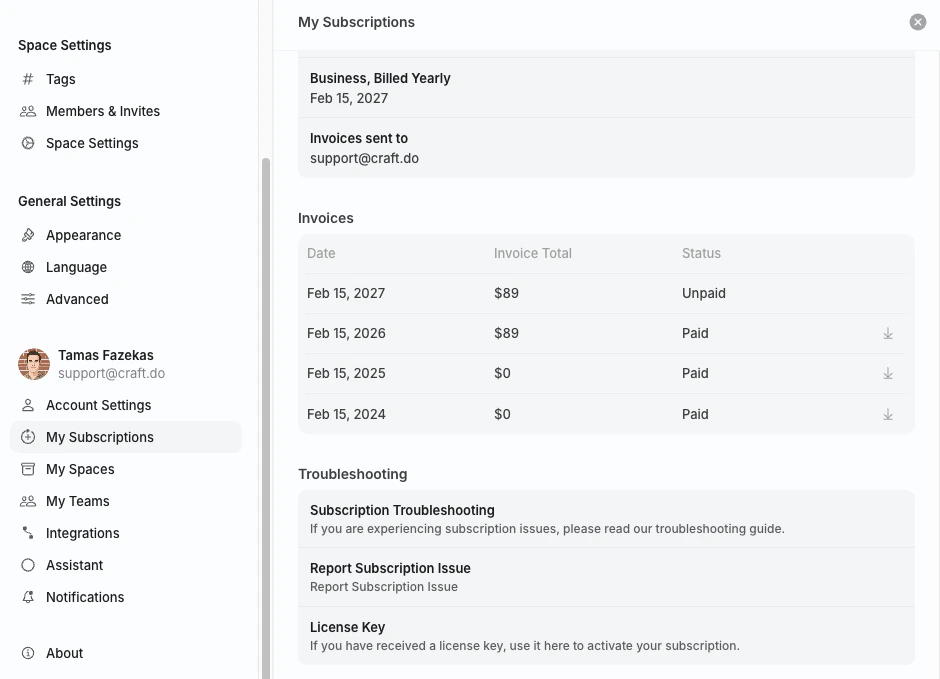
The **Invoices** table at the bottom of the view lists every invoice issued for this subscription, with the date, total, and status.
### Subscription
| Item | What it does |
| ------------------------- | -------------------------------------------------------------------------------------------------------------------------------------------------------------------------- |
| **Current Plan** | Shows the active plan (e.g. *Plus, Billed Yearly*). |
| **Switch Subscription** | Change your billing cycle (monthly ↔ yearly) or move to a different plan. |
| **Cancel Subscription** | Cancel the subscription. You keep access until the end of the current billing period. See [Cancel Subscription](/en/account-and-subscription/billing/cancel-subscription). |
| **Change Payment Method** | Opens the Stripe billing portal to update your card or payment method. See [Update Payment Method](/en/account-and-subscription/billing/update-payment-method). |
### Billing
| Item | What it shows |
| --------------------------- | ------------------------------------------------------------------------------------------------------------------------------------------------------------------------ |
| **Next Invoice Issue Date** | When your next invoice will be generated. |
| **Invoice Total** | The amount of the next invoice, including any active discount codes. See [Discount Codes](/en/account-and-subscription/billing/discount-codes). |
| **Renewal info** | The plan that will renew and the date it renews on. |
| **Invoices sent to** | The email address that receives invoices and billing notifications. To change it, see [Change Billing Email](/en/account-and-subscription/billing/change-billing-email). |
### Invoices
The **Invoices** table at the bottom of the view lists every invoice issued for this subscription, with the date, total, and status.
 ## Download an Invoice
Follow the steps above to open the **Billing & Subscription** view for your subscription.
The table is below the Subscription and Billing sections.
On any **Paid** invoice, click the **download arrow (↓)** on the right of the row to download a PDF copy.
The download arrow only appears on **Paid** invoices. If your most recent invoice shows **Unpaid**, wait until payment clears, or contact [support@craft.do](mailto:support@craft.do) if you need a copy sooner.
Add them **before** the next invoice is issued. See [VAT Information](/en/account-and-subscription/billing/vat-information). Historical invoices reflect the details on file when they were generated.
## App Store Subscriptions (iOS / macOS)
If you subscribed through the App Store on an iPhone, iPad, or Mac, **Apple manages all billing**. Craft cannot generate or download App Store invoices on Apple's behalf.
To find your receipts:
* **Email**: Apple emails a receipt for every purchase to the email address on your Apple ID.
* **Apple ID purchase history**: View past receipts at [reportaproblem.apple.com](https://reportaproblem.apple.com).
* **Apple Support**: For copies, refunds, or VAT-compliant invoices, visit [Apple's billing support](https://support.apple.com/billing).
## Setapp
Setapp manages billing for users who access Craft through their Setapp membership. Receipts and invoices are available in your Setapp account at [my.setapp.com](https://my.setapp.com).
## Troubleshooting
Only the **subscription owner** sees the **Settings and Billing** button. If you joined a team space someone else owns, the owner has to download invoices.
Invoices are generated using the billing details on file at the time of the charge. You can update details for **future** invoices in the Stripe billing portal — see [VAT Information](/en/account-and-subscription/billing/vat-information). For corrections to historical invoices, contact [support@craft.do](mailto:support@craft.do) with the invoice number.
Apple is the merchant of record for App Store subscriptions, so VAT invoices are issued by Apple, not Craft. Visit [Apple's billing support](https://support.apple.com/billing) to request a VAT-compliant invoice.
## Related Articles
Stripe, App Store, and Setapp explained
Change the card or payment details on file
Add VAT or company details to your invoices
Update the email that receives invoices
End your Craft subscription
Apply or review active discount codes
For general troubleshooting, sync, or platform-specific issues, see the [Troubleshooting Guide](/docs/introduction/troubleshooting).
## Download an Invoice
Follow the steps above to open the **Billing & Subscription** view for your subscription.
The table is below the Subscription and Billing sections.
On any **Paid** invoice, click the **download arrow (↓)** on the right of the row to download a PDF copy.
The download arrow only appears on **Paid** invoices. If your most recent invoice shows **Unpaid**, wait until payment clears, or contact [support@craft.do](mailto:support@craft.do) if you need a copy sooner.
Add them **before** the next invoice is issued. See [VAT Information](/en/account-and-subscription/billing/vat-information). Historical invoices reflect the details on file when they were generated.
## App Store Subscriptions (iOS / macOS)
If you subscribed through the App Store on an iPhone, iPad, or Mac, **Apple manages all billing**. Craft cannot generate or download App Store invoices on Apple's behalf.
To find your receipts:
* **Email**: Apple emails a receipt for every purchase to the email address on your Apple ID.
* **Apple ID purchase history**: View past receipts at [reportaproblem.apple.com](https://reportaproblem.apple.com).
* **Apple Support**: For copies, refunds, or VAT-compliant invoices, visit [Apple's billing support](https://support.apple.com/billing).
## Setapp
Setapp manages billing for users who access Craft through their Setapp membership. Receipts and invoices are available in your Setapp account at [my.setapp.com](https://my.setapp.com).
## Troubleshooting
Only the **subscription owner** sees the **Settings and Billing** button. If you joined a team space someone else owns, the owner has to download invoices.
Invoices are generated using the billing details on file at the time of the charge. You can update details for **future** invoices in the Stripe billing portal — see [VAT Information](/en/account-and-subscription/billing/vat-information). For corrections to historical invoices, contact [support@craft.do](mailto:support@craft.do) with the invoice number.
Apple is the merchant of record for App Store subscriptions, so VAT invoices are issued by Apple, not Craft. Visit [Apple's billing support](https://support.apple.com/billing) to request a VAT-compliant invoice.
## Related Articles
Stripe, App Store, and Setapp explained
Change the card or payment details on file
Add VAT or company details to your invoices
Update the email that receives invoices
End your Craft subscription
Apply or review active discount codes
For general troubleshooting, sync, or platform-specific issues, see the [Troubleshooting Guide](/docs/introduction/troubleshooting).