> ## Documentation Index
> Fetch the complete documentation index at: https://craft-support.mintlify.site/llms.txt
> Use this file to discover all available pages before exploring further.
# Multiple Accounts
> Manage and switch between multiple Craft accounts on the same device.
While merging two accounts isn't currently possible, you can add and switch between multiple accounts in the Craft app. This is useful if you have separate personal and work accounts, or manage content for multiple organizations.
Adding multiple accounts is currently available on iOS and macOS only.
## Add Another Account
You can sign in to multiple Craft accounts on the same device and switch between them instantly.
Click your profile picture in the top-right corner (next to the bell icon)
Click the **Add Account** icon (plus sign)
Sign in with your additional account credentials
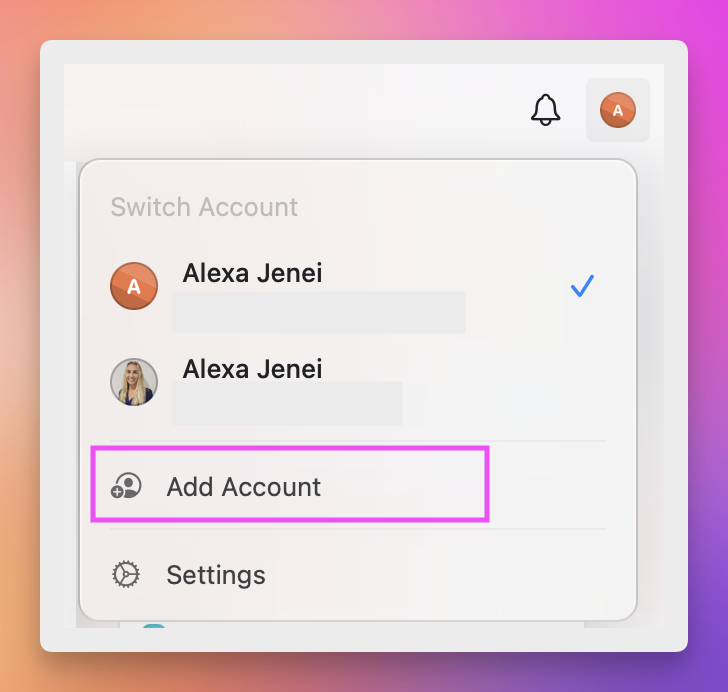 Tap your profile picture in the top-right corner
Tap the **Add Account** icon (plus sign)
Sign in with your additional account credentials
After adding an account, all its spaces and documents will be accessible alongside your primary account.
## Switch Between Accounts
Once you've added multiple accounts, you can quickly switch between them from the profile menu.
Click or tap your profile picture in the top-right corner
Select the account you want to switch to from the account list
The app will immediately switch to the selected account, showing all its spaces and documents.
## Move Documents Between Accounts
You can transfer individual documents from one account to another while preserving the document content.
Right-click on the document you want to move
Select **Move to...** from the context menu
Choose **To Another Space**
Select the destination space in your other account
**To move multiple documents**: Hold **Shift** while selecting documents, then follow the same steps.
Long-press on the document you want to move
Tap **Move to...** from the menu
Choose **To Another Space**
Select the destination space in your other account
**To move multiple documents**: Tap and hold to select the first document, then tap additional documents before choosing **Move to...**.
When moving documents between accounts:
* **Folders cannot be moved** – only individual documents
* **Block links will break** – internal links to other documents won't transfer
* **Published page URLs will change** – you'll need to republish and update links
* **Comments are not transferred** – document comments will be lost
## Best Practices
* **Use descriptive profile photos**: Set different profile pictures for each account to make them easy to identify at a glance
* **Organize by workspace type**: Consider using separate accounts for fundamentally different types of work rather than just for different projects
* **Export before major moves**: If you're planning to move many documents between accounts, consider exporting them first as a backup
## Related Articles
Learn about organizing content within spaces
Get started with your Craft account
Tap your profile picture in the top-right corner
Tap the **Add Account** icon (plus sign)
Sign in with your additional account credentials
After adding an account, all its spaces and documents will be accessible alongside your primary account.
## Switch Between Accounts
Once you've added multiple accounts, you can quickly switch between them from the profile menu.
Click or tap your profile picture in the top-right corner
Select the account you want to switch to from the account list
The app will immediately switch to the selected account, showing all its spaces and documents.
## Move Documents Between Accounts
You can transfer individual documents from one account to another while preserving the document content.
Right-click on the document you want to move
Select **Move to...** from the context menu
Choose **To Another Space**
Select the destination space in your other account
**To move multiple documents**: Hold **Shift** while selecting documents, then follow the same steps.
Long-press on the document you want to move
Tap **Move to...** from the menu
Choose **To Another Space**
Select the destination space in your other account
**To move multiple documents**: Tap and hold to select the first document, then tap additional documents before choosing **Move to...**.
When moving documents between accounts:
* **Folders cannot be moved** – only individual documents
* **Block links will break** – internal links to other documents won't transfer
* **Published page URLs will change** – you'll need to republish and update links
* **Comments are not transferred** – document comments will be lost
## Best Practices
* **Use descriptive profile photos**: Set different profile pictures for each account to make them easy to identify at a glance
* **Organize by workspace type**: Consider using separate accounts for fundamentally different types of work rather than just for different projects
* **Export before major moves**: If you're planning to move many documents between accounts, consider exporting them first as a backup
## Related Articles
Learn about organizing content within spaces
Get started with your Craft account