> ## Documentation Index
> Fetch the complete documentation index at: https://craft-support.mintlify.site/llms.txt
> Use this file to discover all available pages before exploring further.
# Change Profile Photo
> Update your profile picture to personalize your workspace and help collaborators recognize you.
Your profile photo in Craft helps personalize your workspace and makes it easier for collaborators to recognize you.
## Where Your Profile Photo Appears
Your profile image is shown in:
* Shared documents
* Comments
* Space or team settings
## Change Your Profile Photo
Click the **Space name** at the top of the sidebar to open Settings.
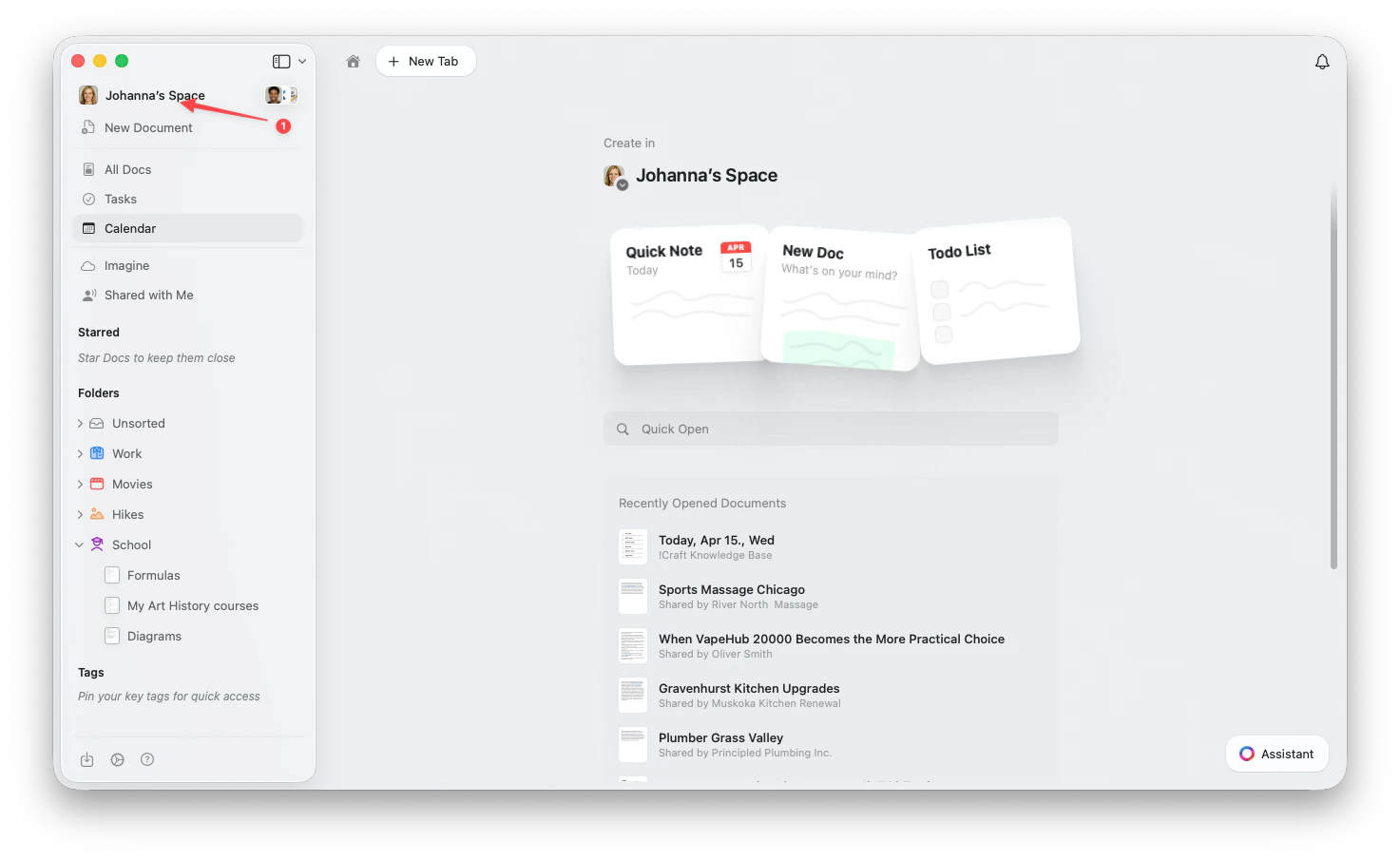 Click the **Space name** in the top-left corner.
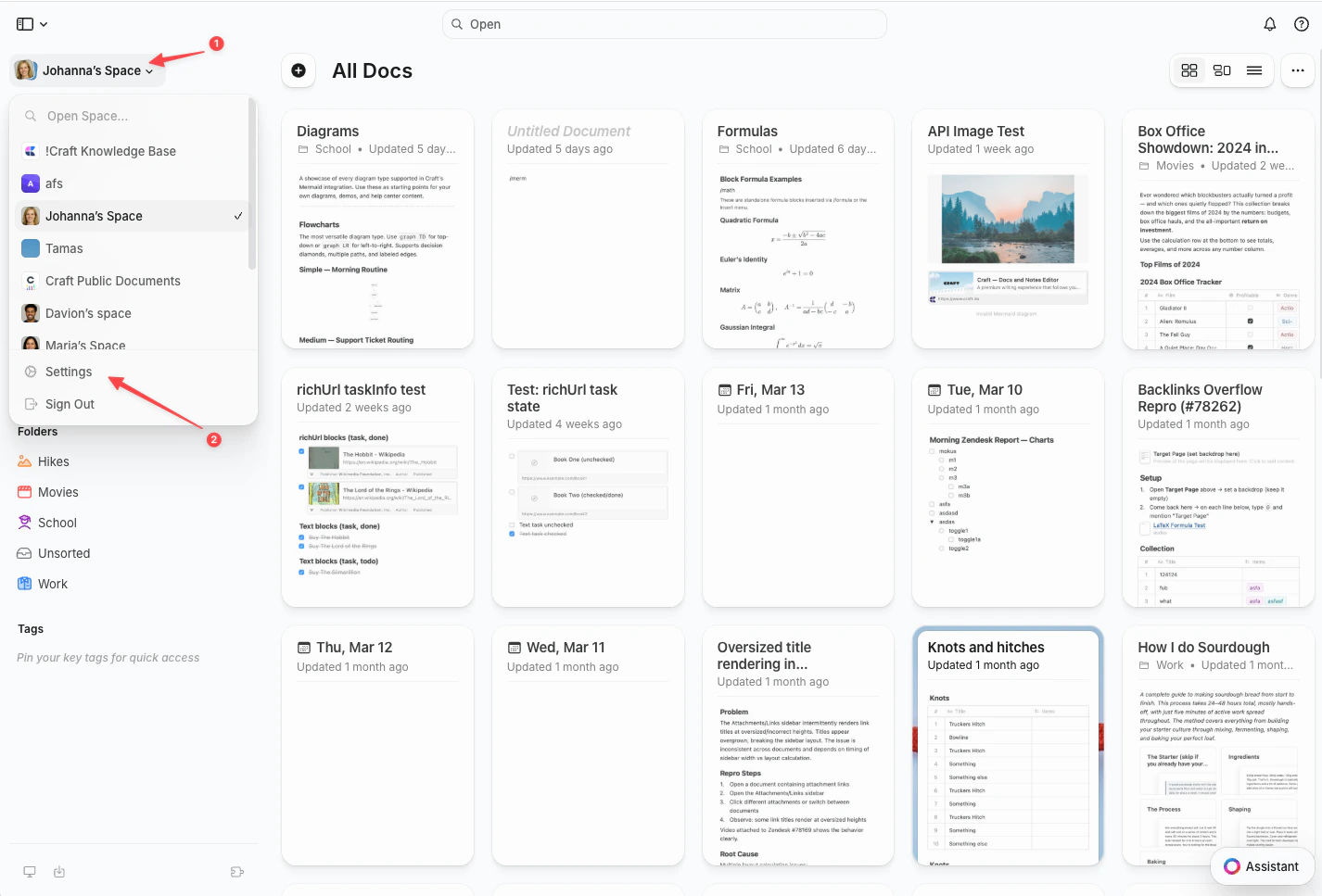
Click **Settings** at the bottom of the dropdown.
Click the **Space name** in the top-left corner.
Click **Settings** at the bottom of the dropdown.
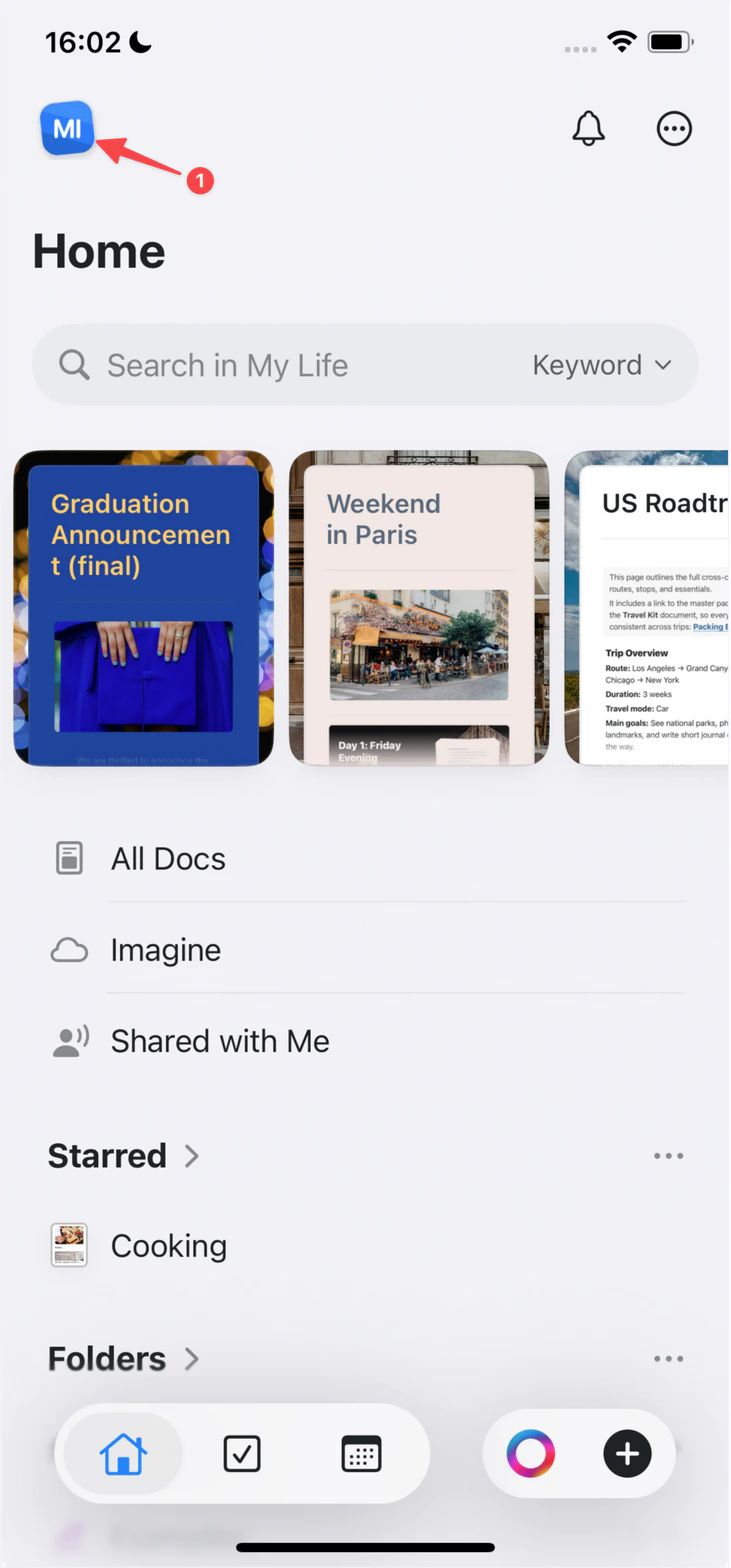
 Tap the **Space icon** in the top-left corner.
 Tap **Settings**.
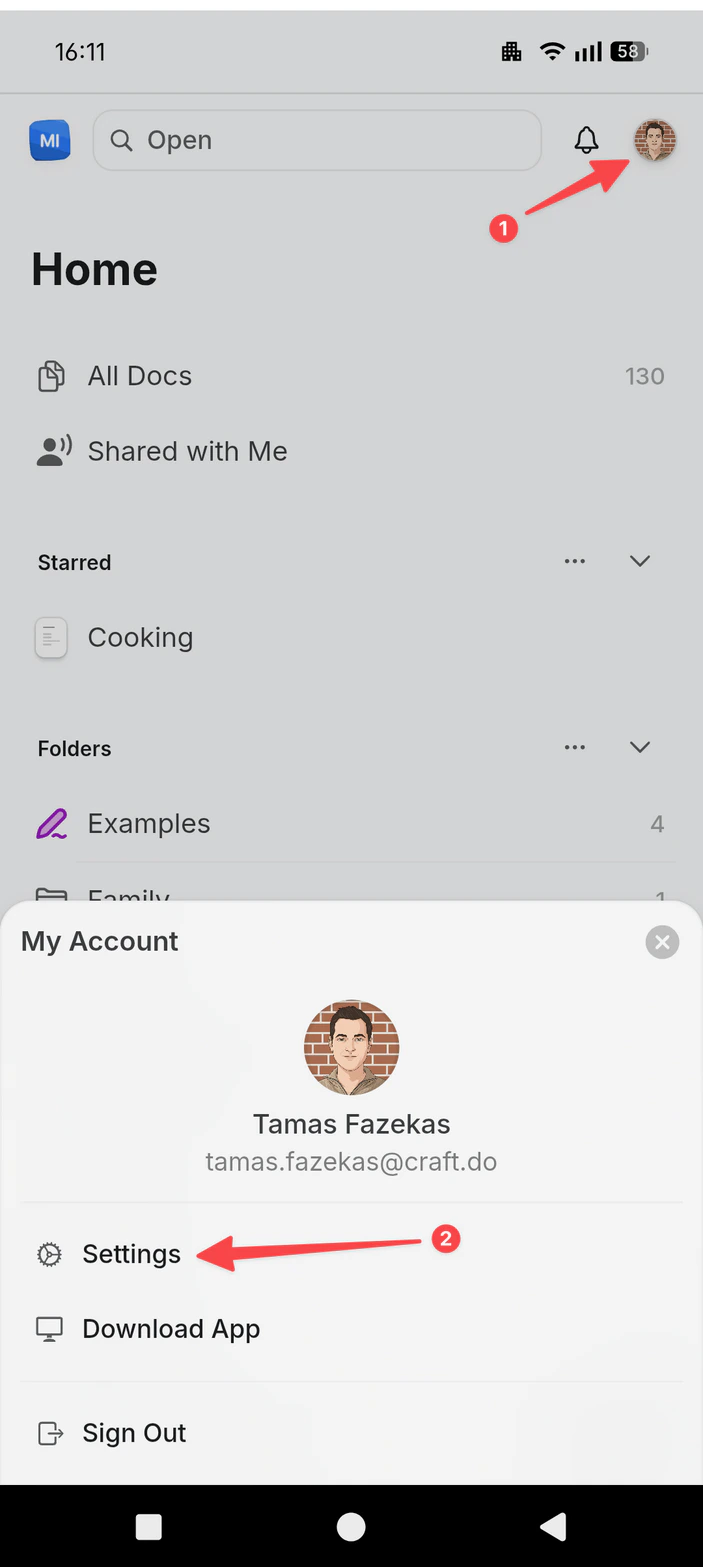
Tap your **profile picture** in the top-right corner.
Tap **Settings**.
Tap **Settings**.
Tap your **profile picture** in the top-right corner.
Tap **Settings**.
 Go to **My Account**
Click or tap your profile image to upload a new photo
Select an image from your device (JPG, JPEG, or PNG)
Your new photo will automatically update across all your devices.
Your profile picture is linked to your Craft account, not to individual spaces. If you don't see the update right away, try restarting the app.
Go to **My Account**
Click or tap your profile image to upload a new photo
Select an image from your device (JPG, JPEG, or PNG)
Your new photo will automatically update across all your devices.
Your profile picture is linked to your Craft account, not to individual spaces. If you don't see the update right away, try restarting the app.