> ## Documentation Index
> Fetch the complete documentation index at: https://craft-support.mintlify.site/llms.txt
> Use this file to discover all available pages before exploring further.
# Custom App Icon
> Set a custom icon for the Craft app on macOS.
Custom app icons are only available on macOS.
You can personalize your Craft app by setting a custom icon on your Mac.
## Set a Custom Icon
Download your preferred app icon from [Craft's icon gallery](https://www.craft.do/s/dhXngIMJLQu96b)
Open the **Applications** folder on your Mac
Right-click on **Craft** and select **Get Info**
Drag and drop the `.icns` file to the small Craft logo in the top-left corner
Restart the Craft app
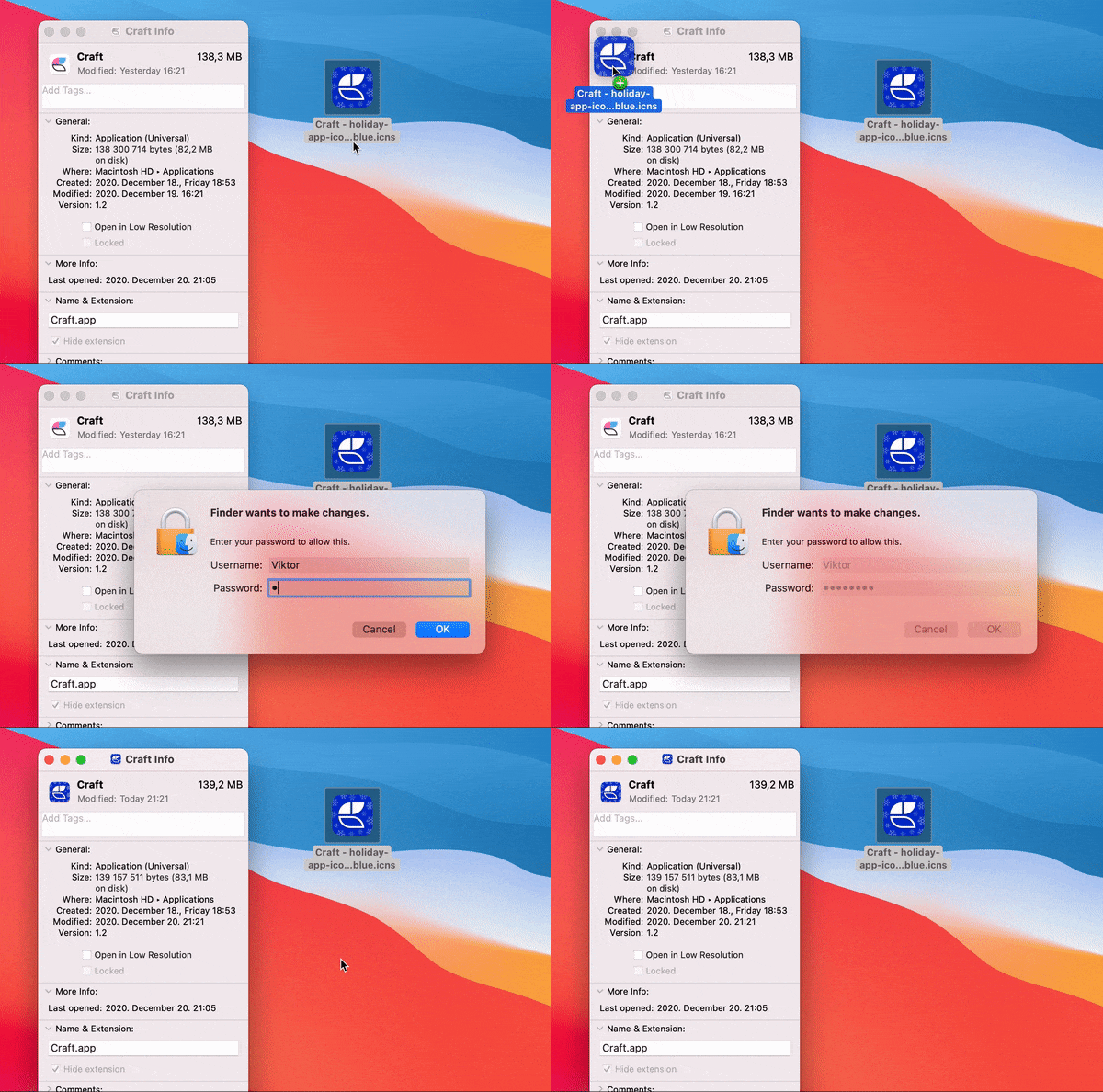 The custom icon will reset to default whenever the app updates. This is a behavior imposed by the App Store.
## Delete a Custom Icon
To reset your icon back to the default:
Go to the **Applications** folder on your Mac
Right-click on **Craft** and select **Get Info**
Click the app icon in the top-left corner
Press **Delete** on your keyboard
The custom icon will reset to default whenever the app updates. This is a behavior imposed by the App Store.
## Delete a Custom Icon
To reset your icon back to the default:
Go to the **Applications** folder on your Mac
Right-click on **Craft** and select **Get Info**
Click the app icon in the top-left corner
Press **Delete** on your keyboard