> ## Documentation Index
> Fetch the complete documentation index at: https://craft-support.mintlify.site/llms.txt
> Use this file to discover all available pages before exploring further.
# Languages
> Craft supports multiple languages across different platforms for a localized experience.
Craft supports multiple languages across different platforms, allowing users worldwide to enjoy a localized experience.
## Supported Languages
### Apple Devices (Mac, iPad, iOS)
Craft is available in the following languages on Apple devices:
* English
* Spanish
* French
* German
* Italian
* Japanese
* Korean
* Chinese (Simplified)
* Chinese (Traditional)
* Hungarian
Craft follows your **system language settings** automatically.
### Change Language on Apple Devices
Click the **Space name** at the top of the sidebar to open Settings.
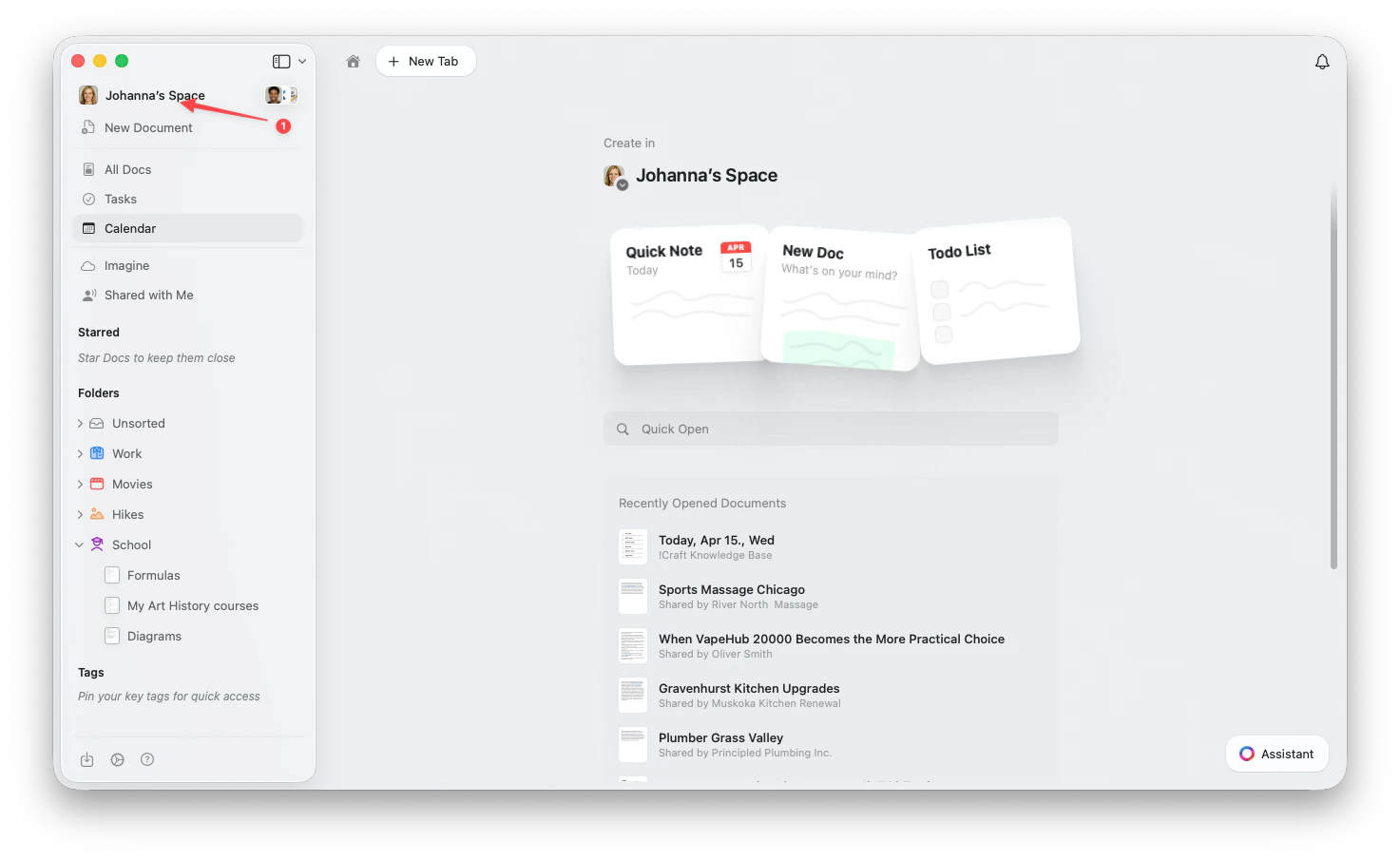 Click the **Space name** in the top-left corner.
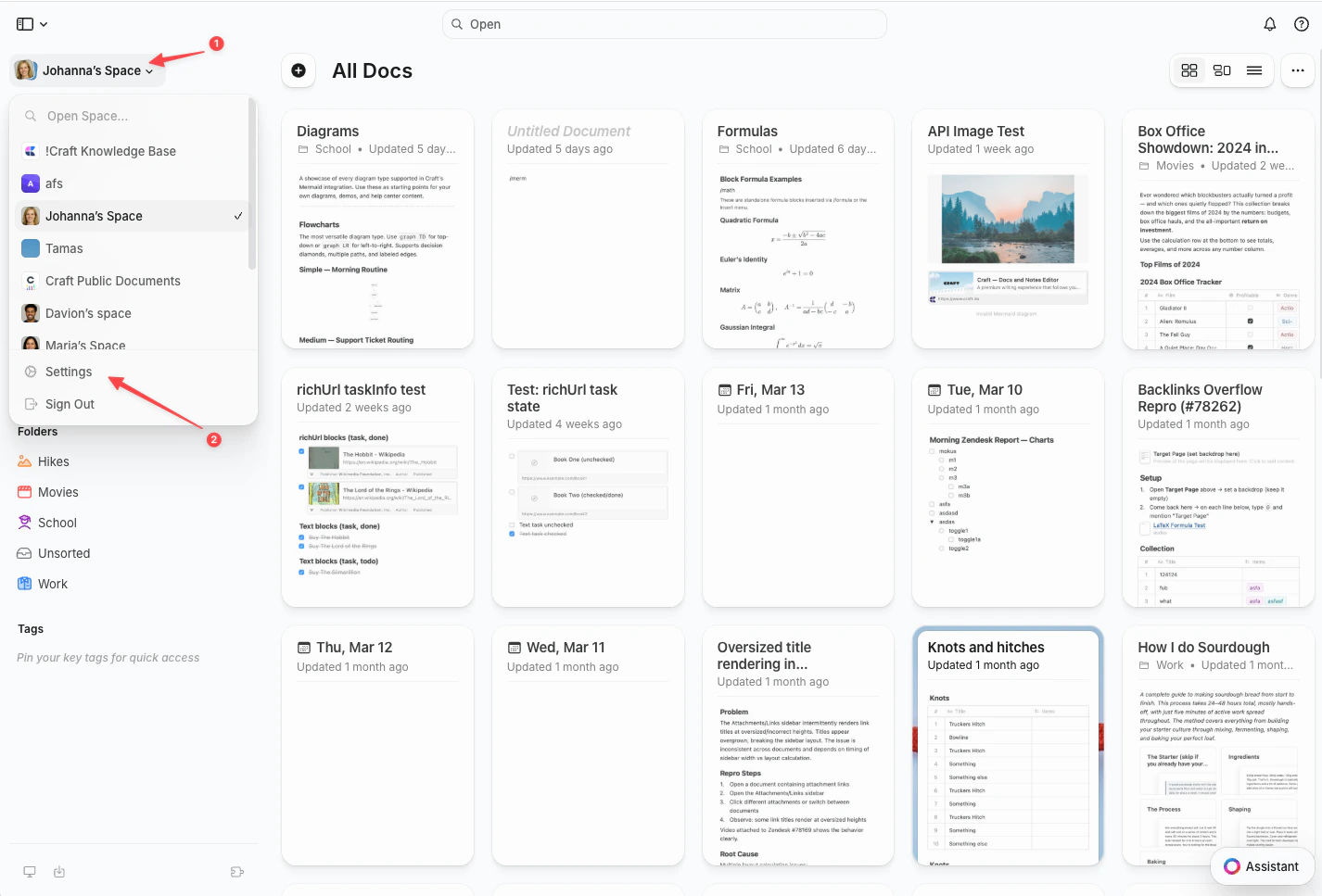
Click **Settings** at the bottom of the dropdown.
Click the **Space name** in the top-left corner.
Click **Settings** at the bottom of the dropdown.
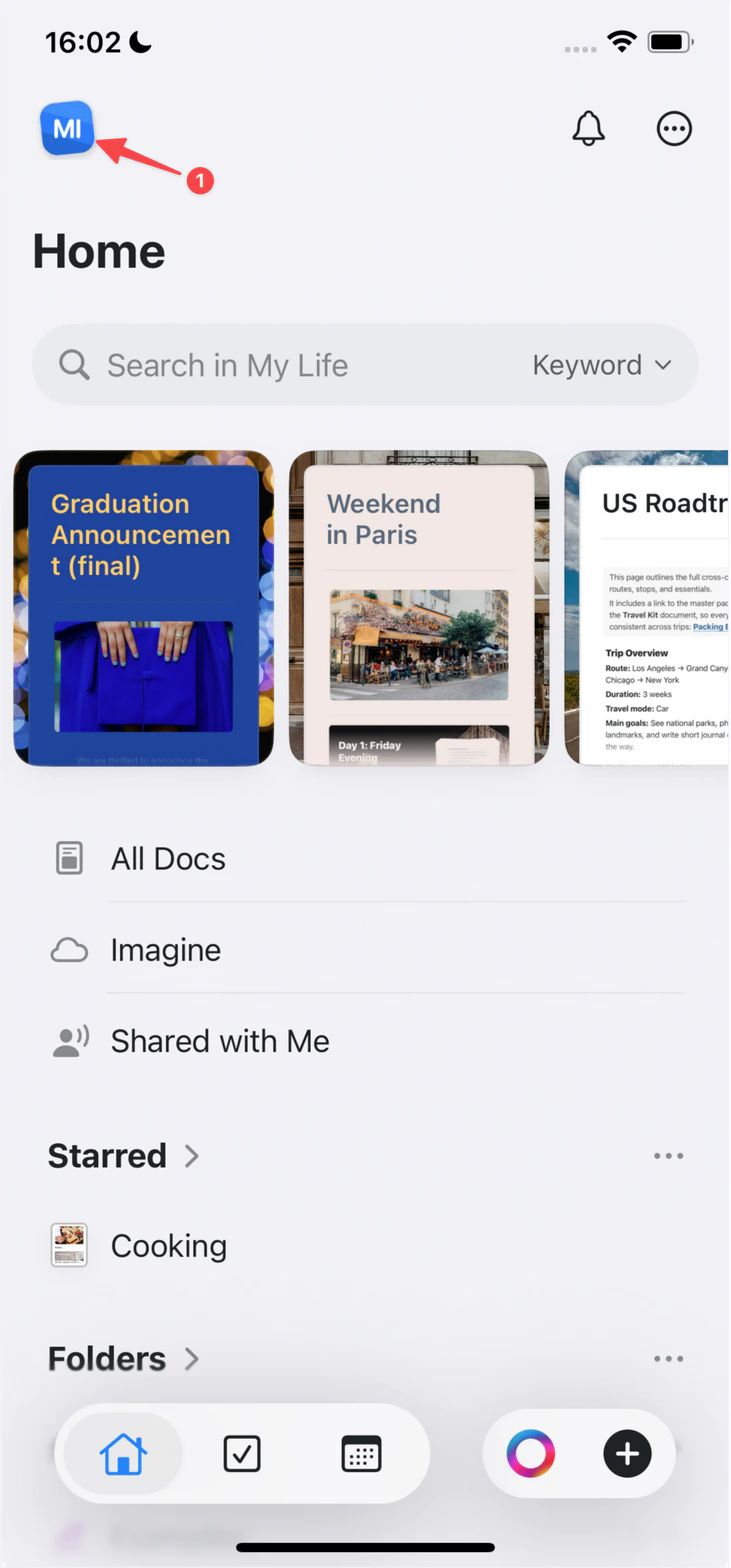
 Tap the **Space icon** in the top-left corner.
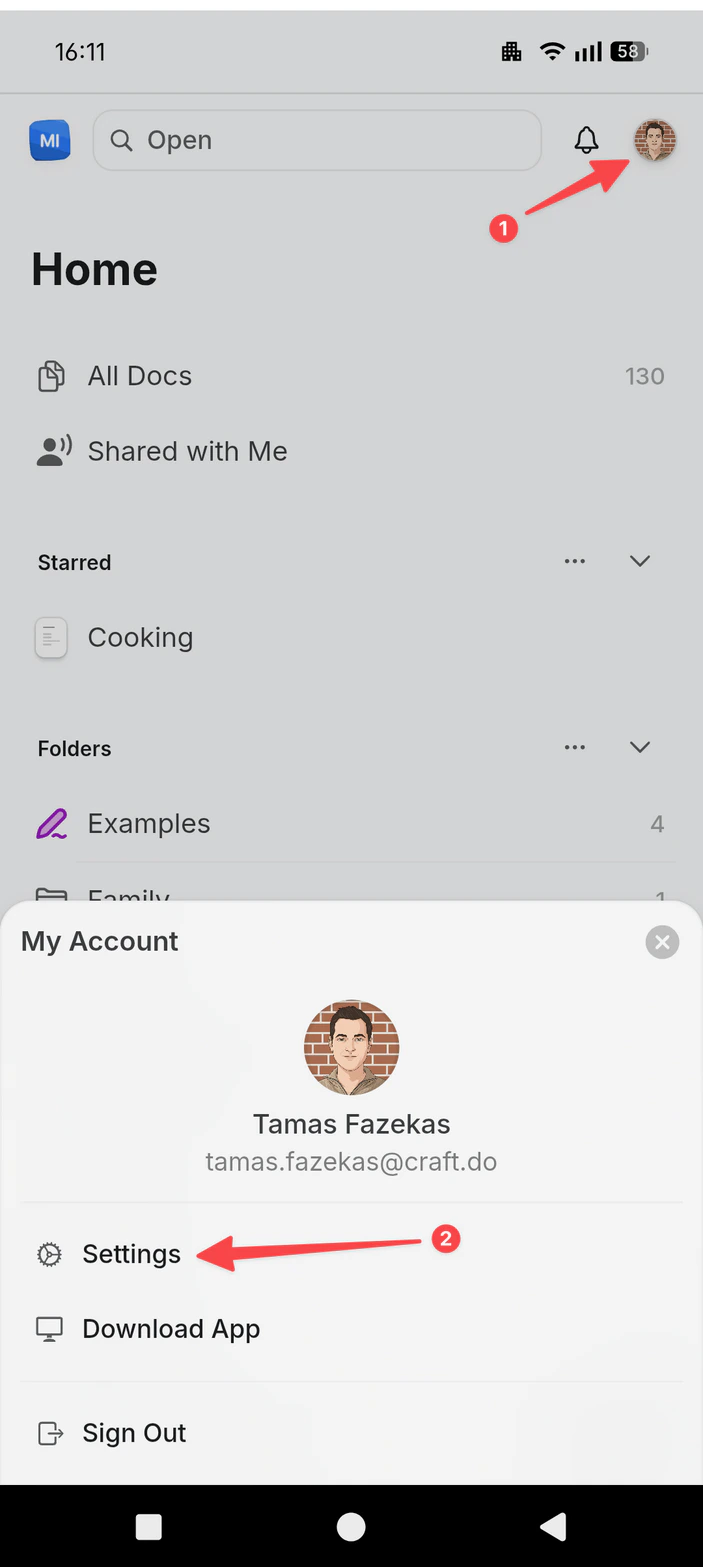
 Tap **Settings**.
Tap your **profile picture** in the top-right corner.
Tap **Settings**.
Tap **Settings**.
Tap your **profile picture** in the top-right corner.
Tap **Settings**.
 Click **Language and Spelling** and choose your preferred language
### Web and Windows
Craft's Web and Windows apps are available in:
* English
* Spanish
* French
* German
* Italian
* Japanese
* Korean
* Chinese (Simplified)
* Chinese (Traditional)
### Change Language on Web or Windows
Click the **Space name** at the top of the sidebar to open Settings.
Click the **Space name** in the top-left corner.
Click **Settings** at the bottom of the dropdown.
Tap the **Space icon** in the top-left corner.
Tap **Settings**.
Tap your **profile picture** in the top-right corner.
Tap **Settings**.
Click **Language** and choose your preferred language
If you find any translation inconsistencies, please let us know at [support@craft.do](mailto:support@craft.do). We appreciate your feedback!
## Help Center Language
Currently, Craft's Help Center articles are primarily in **English**, but we're working to expand support content in more languages.
Click **Language and Spelling** and choose your preferred language
### Web and Windows
Craft's Web and Windows apps are available in:
* English
* Spanish
* French
* German
* Italian
* Japanese
* Korean
* Chinese (Simplified)
* Chinese (Traditional)
### Change Language on Web or Windows
Click the **Space name** at the top of the sidebar to open Settings.
Click the **Space name** in the top-left corner.
Click **Settings** at the bottom of the dropdown.
Tap the **Space icon** in the top-left corner.
Tap **Settings**.
Tap your **profile picture** in the top-right corner.
Tap **Settings**.
Click **Language** and choose your preferred language
If you find any translation inconsistencies, please let us know at [support@craft.do](mailto:support@craft.do). We appreciate your feedback!
## Help Center Language
Currently, Craft's Help Center articles are primarily in **English**, but we're working to expand support content in more languages.