> ## Documentation Index
> Fetch the complete documentation index at: https://craft-support.mintlify.site/llms.txt
> Use this file to discover all available pages before exploring further.
# Keep on Device Folders
> Keep folders and their assets available offline on your device.
Craft allows you to take **entire folders and their assets on device**, ensuring you can access your **images, files, and other attachments** without an internet connection. While documents have always been available offline, this feature extends to **all assets within a top-level folder**, making it easier to work seamlessly when offline.
On-Device Folders is available on macOS, iPad, and iPhone.
## How to Enable On-Device Folders
Open Craft on your Mac, iPad, or iPhone
Locate the folder you want to store on your device
Tap the **three-dot menu (⋯)** next to the folder
Select **"Keep On Device"**
The folder and all its assets will be stored locally on your device.
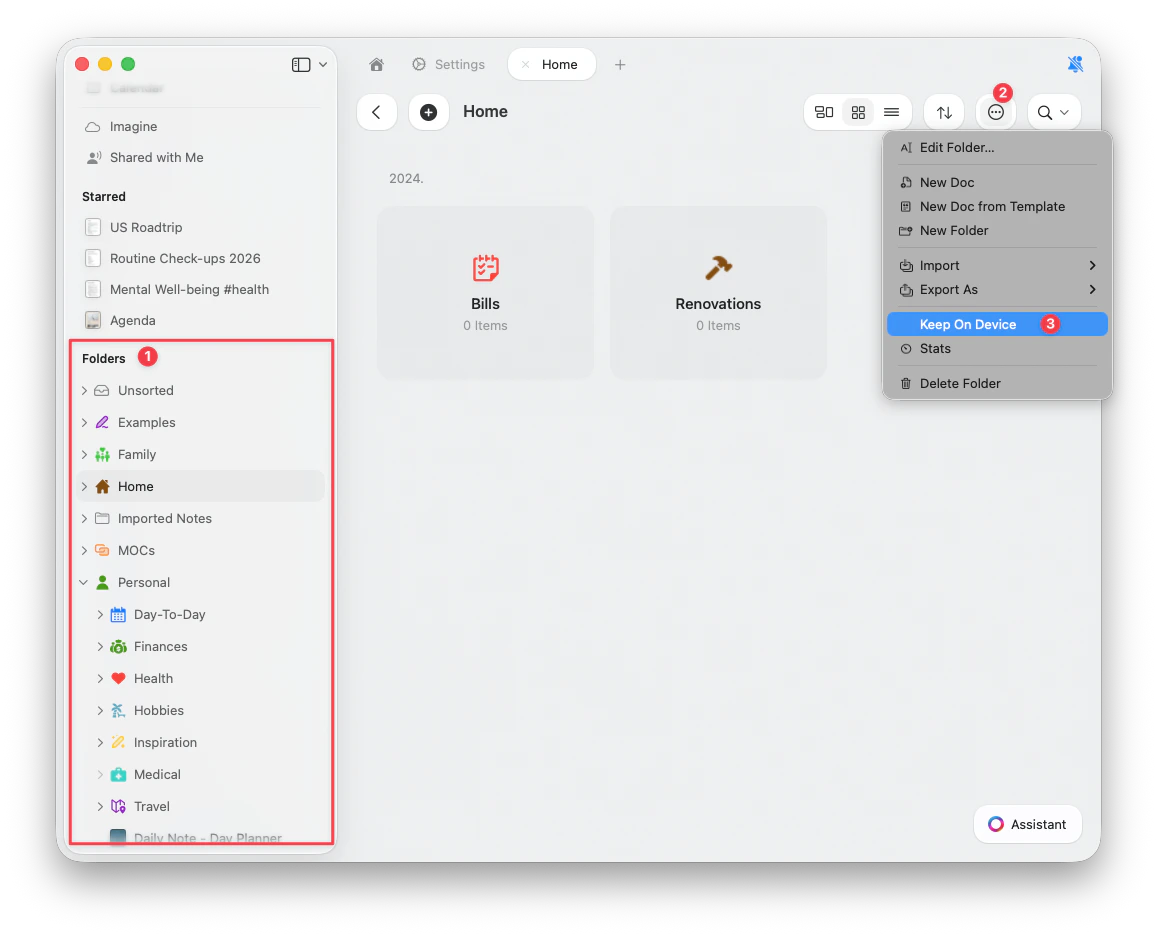 All nested folders inside the selected folder will be included in the download. Individual nested folders cannot be stored separately.
## How On-Device Folders Work
* Once a folder is stored on device, **all images, files, and attachments** within it will be available locally, even without an internet connection
* Any **changes made while offline** will sync once your device reconnects to the internet
* Documents have always been available offline – this feature specifically ensures **assets** (images, files) are also available
On-Device Folders downloads **Craft documents and their assets** for offline access. It does **not**:
* Map or link external Mac/iPad folders into Craft
* Act as a file manager for non-Craft files
* Replace cloud sync (your documents still sync when online)
If you're looking to store Craft documents **entirely locally** without cloud sync, see [External Locations](/en/account-and-subscription/storage-and-recovery/external-locations) instead. Note that External Locations have significant limitations including no sharing or collaboration features.
## Limitations and Important Notes
### Folder Eligibility
* The "Keep On Device" option **only appears on top-level folders** in the sidebar
* It is not available on subfolders, individual documents, or the space home page
* All nested content inside a top-level folder is included automatically
### Sync and Device Storage
* The **On-Device Folder** setting applies individually to each device
* While the content within the folder **will sync across all your devices**, you need to manually enable **On-Device** mode on each device where you want the folder stored locally
* **Ensure your device has enough storage** before enabling this feature – Craft will display a warning if space is limited
### Downloading Process
* **Downloads only occur when the app is open in the foreground** – background downloads are not currently supported
* Moving an **on-device folder** into another folder **will remove its on-device setting** – if moved back, the setting must be re-enabled
### Editing and Updates
* **On-device folders do not update automatically** when changes are made offline (e.g., sketching on a draft, cropping a cover image)
* Changes will sync once you're back online
### File Types and Restrictions
* **Whiteboards cannot be edited while on device** – attempting to do so will result in an error
* **Mention profile images will not be downloaded** in the first iteration, though they may still appear in Craft's cache
## Best Practices
* Ensure you have enough device storage before storing large folders
* Keep Craft open while downloading folders to your device
* Re-enable on-device access if you move a folder back to its original location
* Plan for manual updates when making edits to on-device content – sync only triggers once back online
## When to Use On-Device Folders
On-Device Folders are ideal for:
* Traveling or working in areas with limited connectivity
* Presentations where you need guaranteed access to images and media
* Projects with large media files that you frequently access
* Ensuring critical folders are always accessible regardless of internet connection
By enabling on-device folders, you can work uninterrupted, whether you're traveling, in low-connectivity areas, or simply prefer local storage for certain files.
All nested folders inside the selected folder will be included in the download. Individual nested folders cannot be stored separately.
## How On-Device Folders Work
* Once a folder is stored on device, **all images, files, and attachments** within it will be available locally, even without an internet connection
* Any **changes made while offline** will sync once your device reconnects to the internet
* Documents have always been available offline – this feature specifically ensures **assets** (images, files) are also available
On-Device Folders downloads **Craft documents and their assets** for offline access. It does **not**:
* Map or link external Mac/iPad folders into Craft
* Act as a file manager for non-Craft files
* Replace cloud sync (your documents still sync when online)
If you're looking to store Craft documents **entirely locally** without cloud sync, see [External Locations](/en/account-and-subscription/storage-and-recovery/external-locations) instead. Note that External Locations have significant limitations including no sharing or collaboration features.
## Limitations and Important Notes
### Folder Eligibility
* The "Keep On Device" option **only appears on top-level folders** in the sidebar
* It is not available on subfolders, individual documents, or the space home page
* All nested content inside a top-level folder is included automatically
### Sync and Device Storage
* The **On-Device Folder** setting applies individually to each device
* While the content within the folder **will sync across all your devices**, you need to manually enable **On-Device** mode on each device where you want the folder stored locally
* **Ensure your device has enough storage** before enabling this feature – Craft will display a warning if space is limited
### Downloading Process
* **Downloads only occur when the app is open in the foreground** – background downloads are not currently supported
* Moving an **on-device folder** into another folder **will remove its on-device setting** – if moved back, the setting must be re-enabled
### Editing and Updates
* **On-device folders do not update automatically** when changes are made offline (e.g., sketching on a draft, cropping a cover image)
* Changes will sync once you're back online
### File Types and Restrictions
* **Whiteboards cannot be edited while on device** – attempting to do so will result in an error
* **Mention profile images will not be downloaded** in the first iteration, though they may still appear in Craft's cache
## Best Practices
* Ensure you have enough device storage before storing large folders
* Keep Craft open while downloading folders to your device
* Re-enable on-device access if you move a folder back to its original location
* Plan for manual updates when making edits to on-device content – sync only triggers once back online
## When to Use On-Device Folders
On-Device Folders are ideal for:
* Traveling or working in areas with limited connectivity
* Presentations where you need guaranteed access to images and media
* Projects with large media files that you frequently access
* Ensuring critical folders are always accessible regardless of internet connection
By enabling on-device folders, you can work uninterrupted, whether you're traveling, in low-connectivity areas, or simply prefer local storage for certain files.