> ## Documentation Index
> Fetch the complete documentation index at: https://craft-support.mintlify.site/llms.txt
> Use this file to discover all available pages before exploring further.
# Recovering Deleted Content
> Learn how to recover deleted documents, folders, pages, and blocks in Craft.
Craft provides several ways to recover deleted content depending on what was deleted and when.
## Recovering Documents
### Recently Deleted Folder
All deleted documents are automatically moved to the **Recently Deleted** folder, where they are kept for **30 days**.
Navigate to the **Recently Deleted** folder in your sidebar
Find the document you want to recover
Right-click on the document and select **Restore**
After 30 days, documents in Recently Deleted are permanently removed and cannot be recovered.
## Recovering Folders
When you delete a folder, the folder structure is removed but **all documents within the folder remain accessible** from the **All Documents** view.
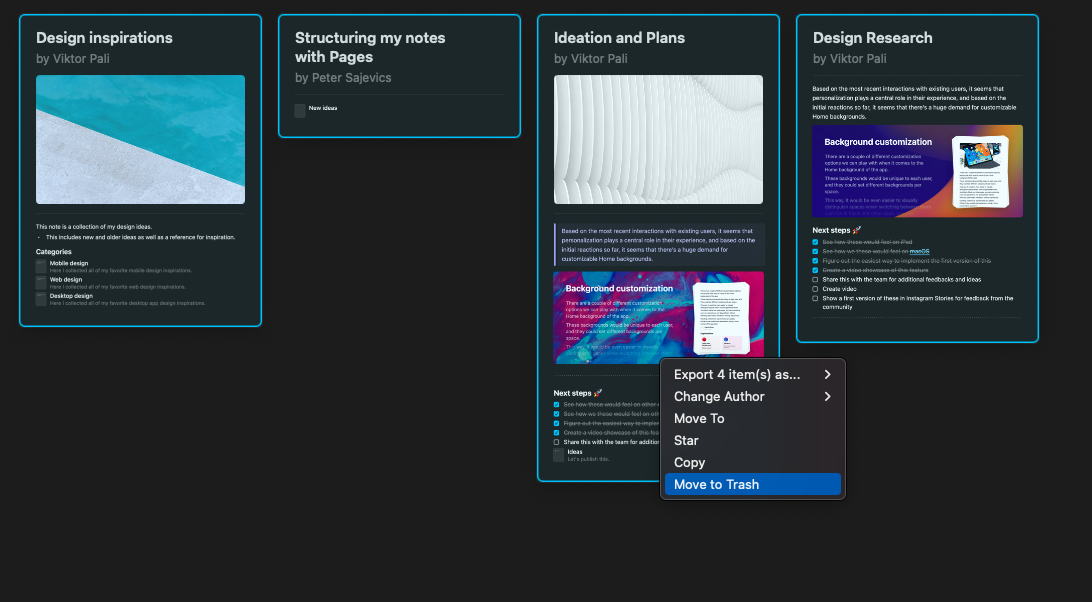
If you want to delete all the content of a folder:
Open the folder
Highlight all the documents in the folder
Move them to Trash
 ## Recovering Pages and Blocks
Pages (documents within documents) are treated as blocks and will **not** go to the Recently Deleted folder.
To recover deleted pages or blocks, you have two options:
### Option 1: Undo Action
Immediately after deleting a page or block, use the undo command:
* **macOS**: Press `Cmd + Z`
* **iOS/iPadOS**: Tap the undo button or shake your device
* **Windows/Web**: Press `Ctrl + Z`
### Option 2: Restore from Version History
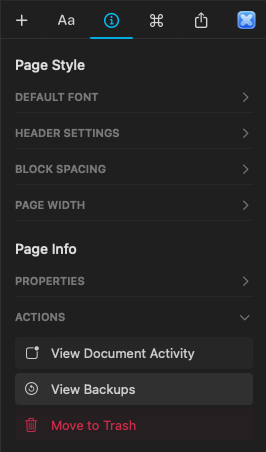
If you can't use undo, you can restore an earlier version of the document that contained the deleted page or block:
Open the document where the page or block was deleted
Click the **Info** tab in the right sidebar
Select **View Backups**
Choose a backup from before the deletion occurred
Restore that version to recover the deleted content
## Recovering Pages and Blocks
Pages (documents within documents) are treated as blocks and will **not** go to the Recently Deleted folder.
To recover deleted pages or blocks, you have two options:
### Option 1: Undo Action
Immediately after deleting a page or block, use the undo command:
* **macOS**: Press `Cmd + Z`
* **iOS/iPadOS**: Tap the undo button or shake your device
* **Windows/Web**: Press `Ctrl + Z`
### Option 2: Restore from Version History
If you can't use undo, you can restore an earlier version of the document that contained the deleted page or block:
Open the document where the page or block was deleted
Click the **Info** tab in the right sidebar
Select **View Backups**
Choose a backup from before the deletion occurred
Restore that version to recover the deleted content
 ## Recovering Deleted Spaces
Currently, **deleted spaces cannot be restored manually** from the app once they have been removed. All content inside a deleted space is also deleted permanently and is **not sent to the Recently Deleted folder**.
If you believe a space was deleted by mistake, contact the Craft support team as soon as possible. While we cannot guarantee recovery, we will investigate and check if there's anything we can do.
When contacting support, provide:
* The name of the deleted space
* The email address associated with your Craft account
* An approximate date of when the space was deleted
## Document History
If you can't find deleted content using undo or version history, you can try searching for it using **Document History** — a dedicated microsite that lets you search through recent content changes and snapshots.
Document History is available on **Web only** and requires a **paid plan** (Plus or Business).
### What Document History Can Do
* **Search content** across recent document changes (including deletions) and snapshots
* **Browse a timeline** showing snapshots for a document and document movements between folders
### How to Access Document History
Navigate to the **Recently Deleted** folder
Click the **three-dot menu** (⋯) on the document
Select **Find in History**
### Good to Know
* Document History searches **text blocks only** — other block types are not included
* **Deleted documents** cannot be searched — the document must still exist in Recently Deleted
* Searchable history depends on your plan: **Plus** covers the last **30 days**, **Business** covers the last **180 days**
* All **space members** can access Document History for their space
* Snapshots are still created every hour, but Document History may also find content that was created and deleted between snapshots
* This feature is in **early access** — think of it as a place to try searching for lost content rather than a guaranteed recovery tool
## Preventing Accidental Deletion
To reduce the risk of losing important content:
* Be cautious when deleting, especially for spaces and pages
* Make regular backups by exporting your documents
* Ensure only trusted members have admin rights in shared spaces
* Use version history to create regular snapshots of important documents
## Need More Help?
If you can't recover your content using these methods, please reach out to our support team at [support@craft.do](mailto:support@craft.do). We're here to help!
## Related Articles
Learn how Craft automatically backs up your documents
Create backups by exporting your content
Monitor your storage usage per space
## Recovering Deleted Spaces
Currently, **deleted spaces cannot be restored manually** from the app once they have been removed. All content inside a deleted space is also deleted permanently and is **not sent to the Recently Deleted folder**.
If you believe a space was deleted by mistake, contact the Craft support team as soon as possible. While we cannot guarantee recovery, we will investigate and check if there's anything we can do.
When contacting support, provide:
* The name of the deleted space
* The email address associated with your Craft account
* An approximate date of when the space was deleted
## Document History
If you can't find deleted content using undo or version history, you can try searching for it using **Document History** — a dedicated microsite that lets you search through recent content changes and snapshots.
Document History is available on **Web only** and requires a **paid plan** (Plus or Business).
### What Document History Can Do
* **Search content** across recent document changes (including deletions) and snapshots
* **Browse a timeline** showing snapshots for a document and document movements between folders
### How to Access Document History
Navigate to the **Recently Deleted** folder
Click the **three-dot menu** (⋯) on the document
Select **Find in History**
### Good to Know
* Document History searches **text blocks only** — other block types are not included
* **Deleted documents** cannot be searched — the document must still exist in Recently Deleted
* Searchable history depends on your plan: **Plus** covers the last **30 days**, **Business** covers the last **180 days**
* All **space members** can access Document History for their space
* Snapshots are still created every hour, but Document History may also find content that was created and deleted between snapshots
* This feature is in **early access** — think of it as a place to try searching for lost content rather than a guaranteed recovery tool
## Preventing Accidental Deletion
To reduce the risk of losing important content:
* Be cautious when deleting, especially for spaces and pages
* Make regular backups by exporting your documents
* Ensure only trusted members have admin rights in shared spaces
* Use version history to create regular snapshots of important documents
## Need More Help?
If you can't recover your content using these methods, please reach out to our support team at [support@craft.do](mailto:support@craft.do). We're here to help!
## Related Articles
Learn how Craft automatically backs up your documents
Create backups by exporting your content
Monitor your storage usage per space