> ## Documentation Index
> Fetch the complete documentation index at: https://craft-support.mintlify.site/llms.txt
> Use this file to discover all available pages before exploring further.
# Check Storage Usage
> Monitor your storage usage and space statistics, and understand storage limits.
Craft allows you to monitor your storage usage and other space statistics per space. This feature is available on the Mac, iPad, and iOS apps.
## How to Check Storage Usage
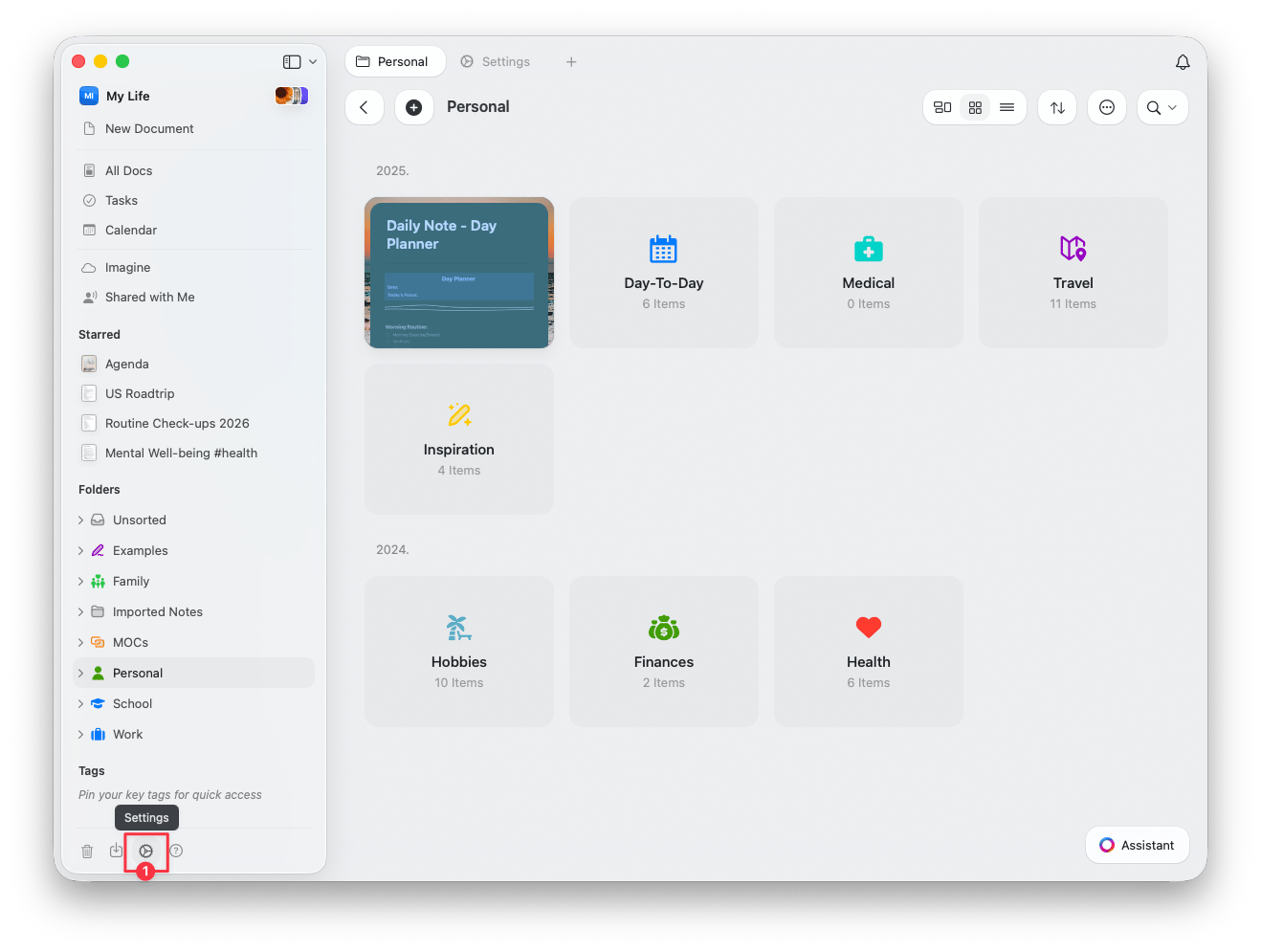
Click the **Settings** icon (gear) at the bottom of the left sidebar.
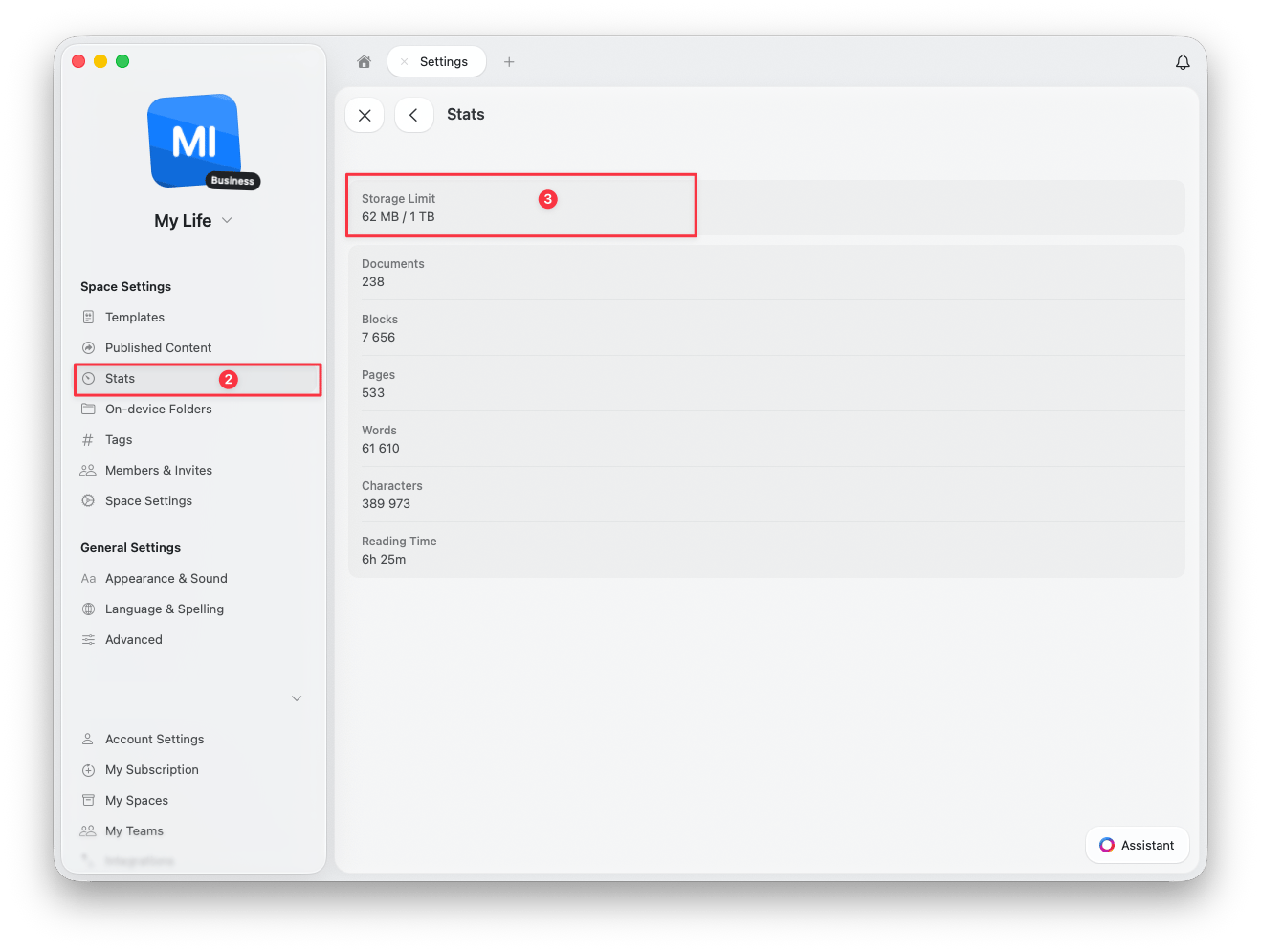
 Under **Space Settings**, select **Stats**.
The Stats panel shows your **Storage Limit** at the top, along with other space statistics.
Under **Space Settings**, select **Stats**.
The Stats panel shows your **Storage Limit** at the top, along with other space statistics.
 ## Available Stats
The Stats panel also shows additional information about the selected space:
* **Storage Limit** -- your current usage and total storage allowance
* **Documents** -- total number of documents in the space
* **Blocks** -- total number of content blocks
* **Pages** -- total number of pages (including subpages)
* **Words** -- total word count across all documents
* **Characters** -- total character count
* **Reading Time** -- estimated time to read all content in the space
Storage usage and space statistics are currently only available on macOS, iPad, and iOS. Windows and Web users cannot view these stats at this time.
## Understanding Storage Limits
### Free Plan
* **1,500 blocks** content limit
* **1 GB** storage
* **25 MB** media upload limit
### Plus, Family, Team, and Business Plans
* Each space can hold up to **1 TB** of content
* Once a space reaches this limit, you'll need to remove content to continue adding new material
* You can create up to 5 spaces (on Plus and Family plans) to distribute and organize your content
The 1 TB cap ensures optimal sync and app performance. Craft will notify you if you're nearing the limit.
## Block Limit Per Space (Mac, iOS, iPad)
Each space has a limit of **300,000 content blocks** on the Mac, iOS, and iPad apps. This limit exists to ensure reliable syncing across your devices. On the web app, there is no such limit.
If you reach this limit, you'll see a notification suggesting you upgrade your plan. If you're already on Plus (or another paid plan), the message can be confusing because your plan does include unlimited content. The limit is per space, not per account, and is related to sync performance rather than your subscription.
We plan to revisit this restriction in the future. For now, the best approach is to spread your content across multiple spaces.
### What to Do If You Hit the Limit
* **Move content to another space** to bring the block count below 300,000
* Organize your spaces by topic, project, or purpose (e.g. work, personal, archive)
* Move documents you don't access often into a separate space for long-term storage
You can check how many blocks a space contains in the space settings (see above).
## Tips for Managing Storage
* Regularly review and delete old or unused content
* Use compressed media files when possible
* Spread content across multiple spaces to stay within limits
* Check version history and delete old backups if needed
If you need help managing your storage or have questions about limits, feel free to reach out to our support team.
## Related Articles
Compare storage limits across plans
Learn how to recover deleted content
Store content on your device or cloud provider
## Available Stats
The Stats panel also shows additional information about the selected space:
* **Storage Limit** -- your current usage and total storage allowance
* **Documents** -- total number of documents in the space
* **Blocks** -- total number of content blocks
* **Pages** -- total number of pages (including subpages)
* **Words** -- total word count across all documents
* **Characters** -- total character count
* **Reading Time** -- estimated time to read all content in the space
Storage usage and space statistics are currently only available on macOS, iPad, and iOS. Windows and Web users cannot view these stats at this time.
## Understanding Storage Limits
### Free Plan
* **1,500 blocks** content limit
* **1 GB** storage
* **25 MB** media upload limit
### Plus, Family, Team, and Business Plans
* Each space can hold up to **1 TB** of content
* Once a space reaches this limit, you'll need to remove content to continue adding new material
* You can create up to 5 spaces (on Plus and Family plans) to distribute and organize your content
The 1 TB cap ensures optimal sync and app performance. Craft will notify you if you're nearing the limit.
## Block Limit Per Space (Mac, iOS, iPad)
Each space has a limit of **300,000 content blocks** on the Mac, iOS, and iPad apps. This limit exists to ensure reliable syncing across your devices. On the web app, there is no such limit.
If you reach this limit, you'll see a notification suggesting you upgrade your plan. If you're already on Plus (or another paid plan), the message can be confusing because your plan does include unlimited content. The limit is per space, not per account, and is related to sync performance rather than your subscription.
We plan to revisit this restriction in the future. For now, the best approach is to spread your content across multiple spaces.
### What to Do If You Hit the Limit
* **Move content to another space** to bring the block count below 300,000
* Organize your spaces by topic, project, or purpose (e.g. work, personal, archive)
* Move documents you don't access often into a separate space for long-term storage
You can check how many blocks a space contains in the space settings (see above).
## Tips for Managing Storage
* Regularly review and delete old or unused content
* Use compressed media files when possible
* Spread content across multiple spaces to stay within limits
* Check version history and delete old backups if needed
If you need help managing your storage or have questions about limits, feel free to reach out to our support team.
## Related Articles
Compare storage limits across plans
Learn how to recover deleted content
Store content on your device or cloud provider