> ## Documentation Index
> Fetch the complete documentation index at: https://craft-support.mintlify.site/llms.txt
> Use this file to discover all available pages before exploring further.
# Custom Prompts
> Create reusable AI instructions for consistent, personalized results tailored to your workflow.
Custom prompts let you save reusable instructions for the Assistant. Instead of rewriting the same request every time, you can apply one prompt and get consistent results.
## What are custom prompts?
Custom prompts are reusable instructions you create for recurring tasks.
Common uses include:
* Rewriting text in a preferred tone
* Structuring notes or documentation
* Translating content to a target language
* Summarizing in a fixed format
* Generating task lists or plans
* Creating consistent captions and alt text
## Accessing custom prompts
Click the **Space name** at the top of the sidebar to open Settings.
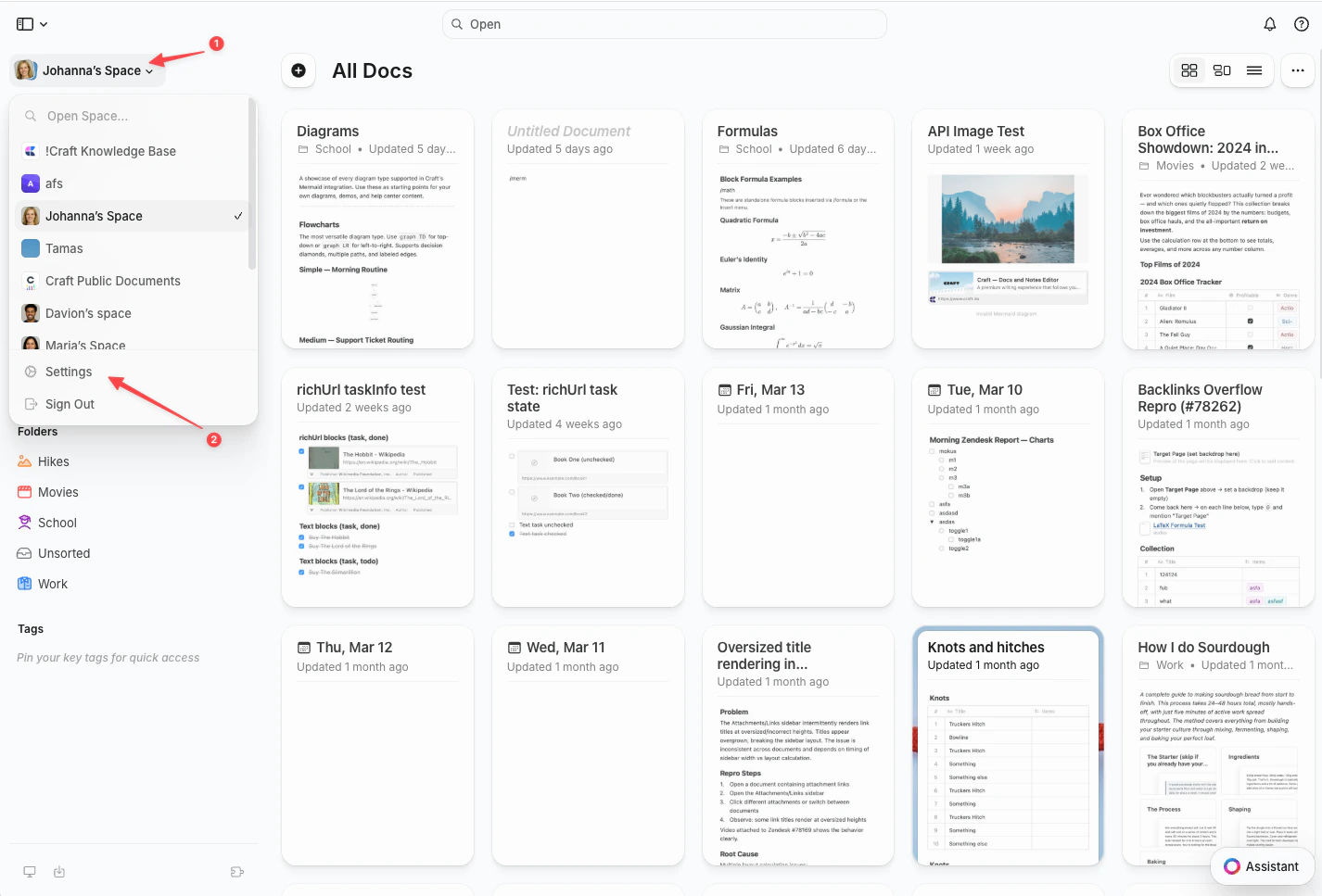
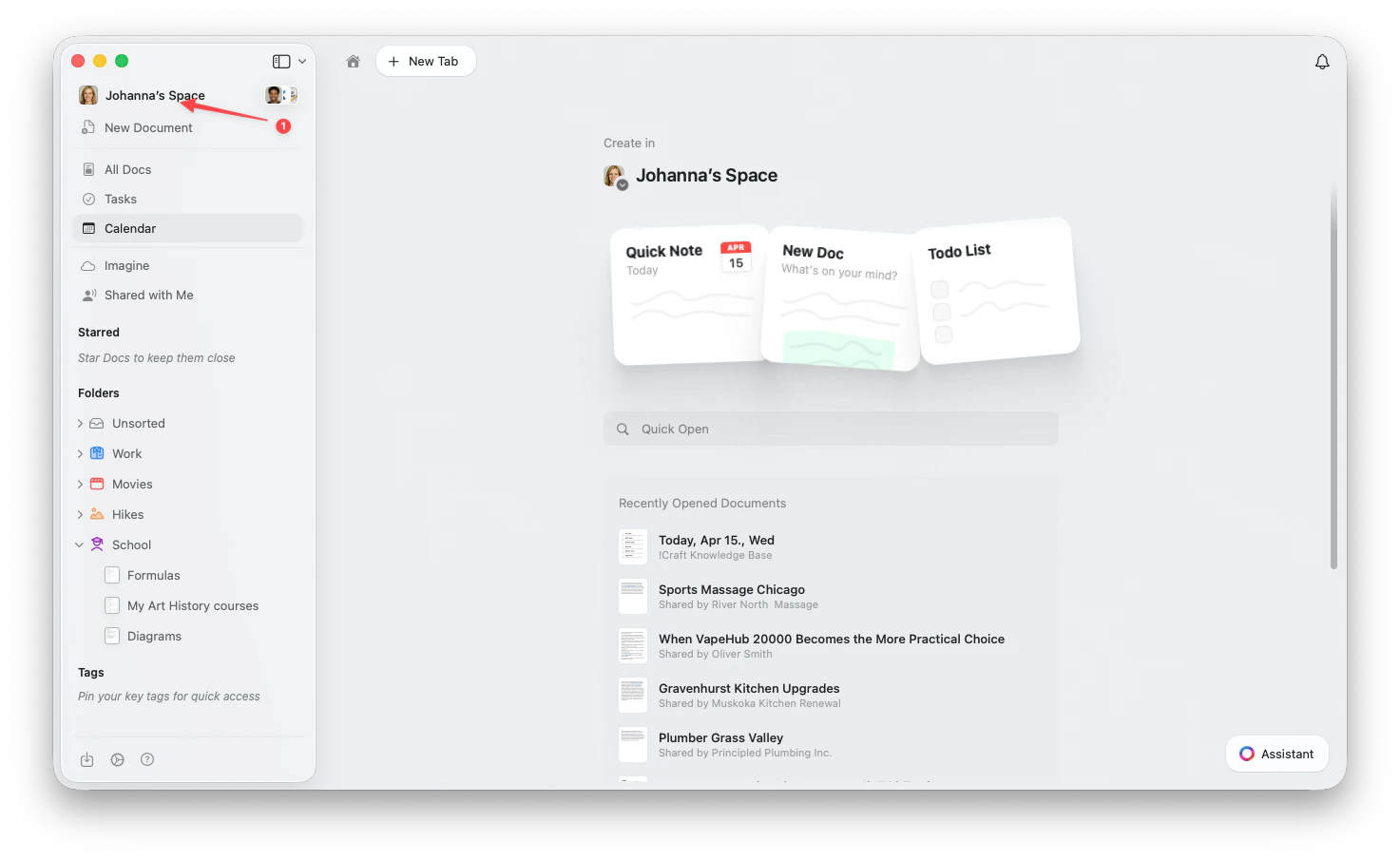 Click the **Space name** in the top-left corner.
Click **Settings** at the bottom of the dropdown.
Click the **Space name** in the top-left corner.
Click **Settings** at the bottom of the dropdown.
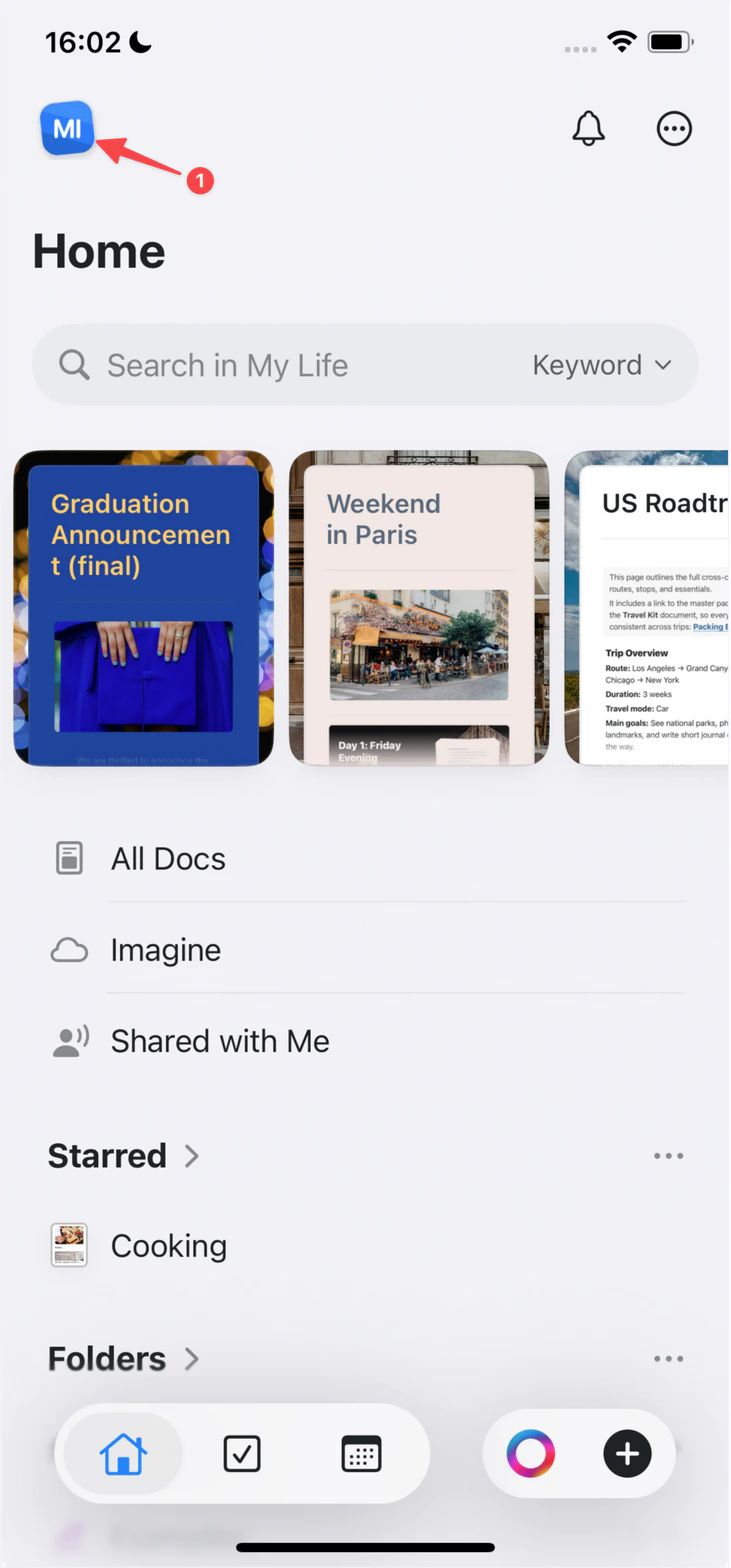
 Tap the **Space icon** in the top-left corner.
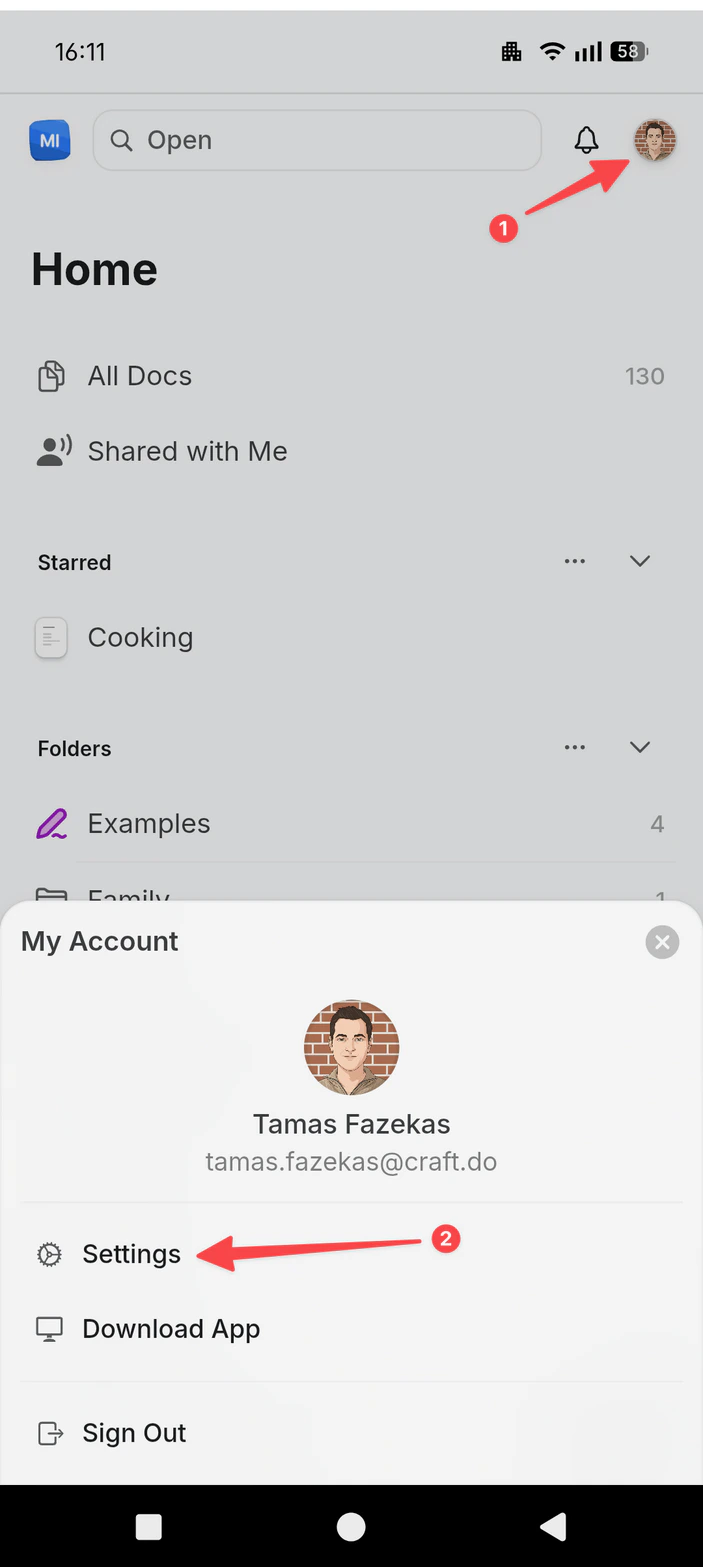
 Tap **Settings**.
Tap your **profile picture** in the top-right corner.
Tap **Settings**.
Tap **Settings**.
Tap your **profile picture** in the top-right corner.
Tap **Settings**.
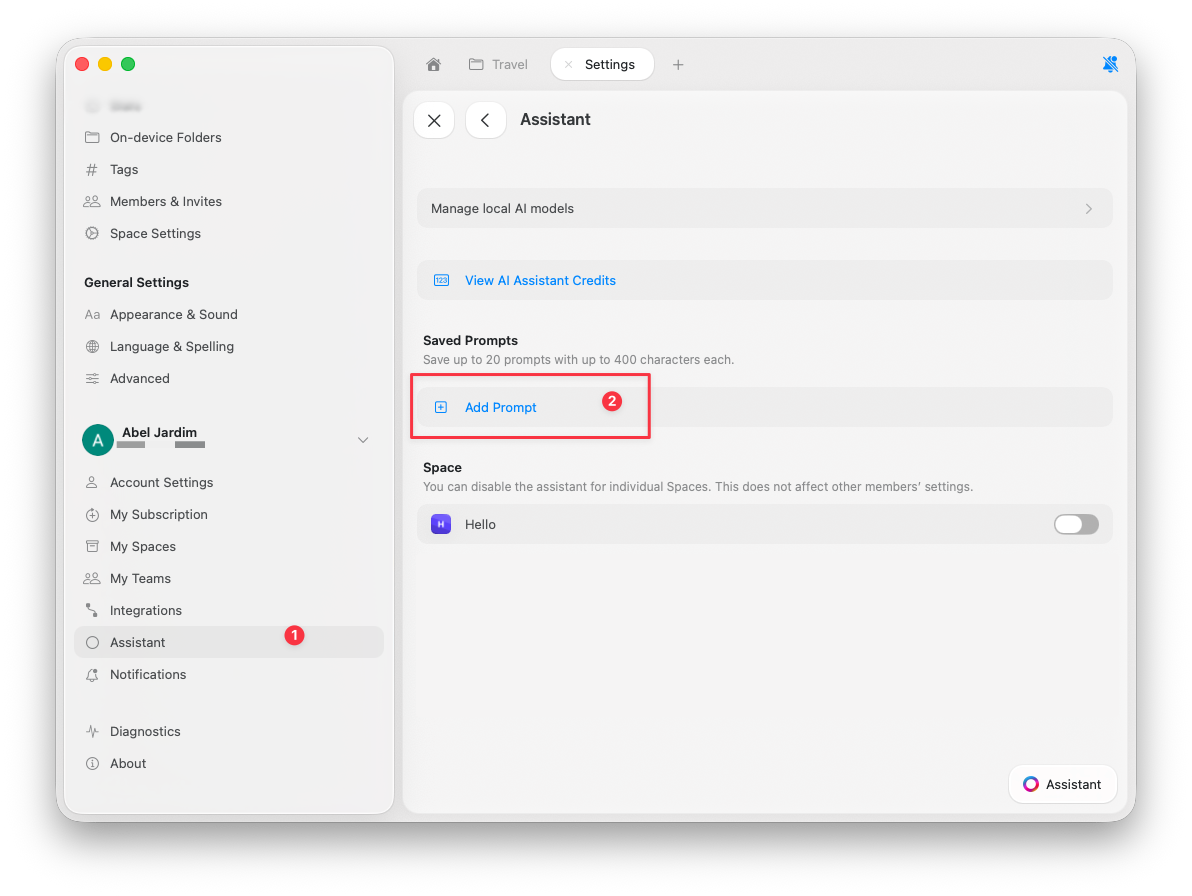
 Go to **Assistant**.
Scroll to **Saved Prompts**.
Click **Add Prompt**.
Go to **Assistant**.
Scroll to **Saved Prompts**.
Click **Add Prompt**.
 ## Creating effective prompts
The best prompts are specific and format-aware.
* ✓ "Summarize this in 3 bullet points focused on action items"
* ✗ "Summarize this"
* ✓ "Rewrite in a friendly tone for a blog intro"
* ✗ "Make this better"
## Example prompts
```
Title: Meeting Summary
Prompt: Extract key decisions, action items, and next steps from this note. Format as:
- Decisions: [list]
- Action Items: [list with owners]
- Next Steps: [list with dates]
```
```
Title: Restyle Document
Prompt: Restyle this document with colored section headings, callout boxes for key points, and subtle dividers between sections.
```
```
Title: Create Subpages
Prompt: Break this document into subpages, one per major section, and keep a short table of contents on the parent page.
```
```
Title: Restructure Notes
Prompt: Reorganize these notes into clear sections with headings: Context, Decisions, Action Items, and Follow-ups.
```
## Limits
* Up to **20 saved prompts**
* Maximum **1,000 characters** per prompt
## Using custom prompts
Open the Assistant panel.
Find your saved prompt in quick actions.
Select it to apply.
You can search prompts by name in the Assistant panel.
## Editing prompt support
Editing-oriented prompts require **Execute** mode with a **Fast** or **Max** model.
## Managing your prompts
**Edit a prompt:**
* Go to Settings → Assistant → Saved Prompts
* Select the prompt
* Update title or content
* Save
**Delete a prompt:**
* Go to Settings → Assistant → Saved Prompts
* Click delete on the prompt
* Confirm
## Related Articles
Learn the basics of working with the Assistant
Apply prompts directly to documents in Execute mode
Select the right model for your prompts
Create prompts for consistent text formatting and styling
## Creating effective prompts
The best prompts are specific and format-aware.
* ✓ "Summarize this in 3 bullet points focused on action items"
* ✗ "Summarize this"
* ✓ "Rewrite in a friendly tone for a blog intro"
* ✗ "Make this better"
## Example prompts
```
Title: Meeting Summary
Prompt: Extract key decisions, action items, and next steps from this note. Format as:
- Decisions: [list]
- Action Items: [list with owners]
- Next Steps: [list with dates]
```
```
Title: Restyle Document
Prompt: Restyle this document with colored section headings, callout boxes for key points, and subtle dividers between sections.
```
```
Title: Create Subpages
Prompt: Break this document into subpages, one per major section, and keep a short table of contents on the parent page.
```
```
Title: Restructure Notes
Prompt: Reorganize these notes into clear sections with headings: Context, Decisions, Action Items, and Follow-ups.
```
## Limits
* Up to **20 saved prompts**
* Maximum **1,000 characters** per prompt
## Using custom prompts
Open the Assistant panel.
Find your saved prompt in quick actions.
Select it to apply.
You can search prompts by name in the Assistant panel.
## Editing prompt support
Editing-oriented prompts require **Execute** mode with a **Fast** or **Max** model.
## Managing your prompts
**Edit a prompt:**
* Go to Settings → Assistant → Saved Prompts
* Select the prompt
* Update title or content
* Save
**Delete a prompt:**
* Go to Settings → Assistant → Saved Prompts
* Click delete on the prompt
* Confirm
## Related Articles
Learn the basics of working with the Assistant
Apply prompts directly to documents in Execute mode
Select the right model for your prompts
Create prompts for consistent text formatting and styling