> ## Documentation Index
> Fetch the complete documentation index at: https://craft-support.mintlify.site/llms.txt
> Use this file to discover all available pages before exploring further.
# Editing with Craft Assistant
> Let the Assistant make changes directly in your documents — add content, apply styling, create subpages, and more.
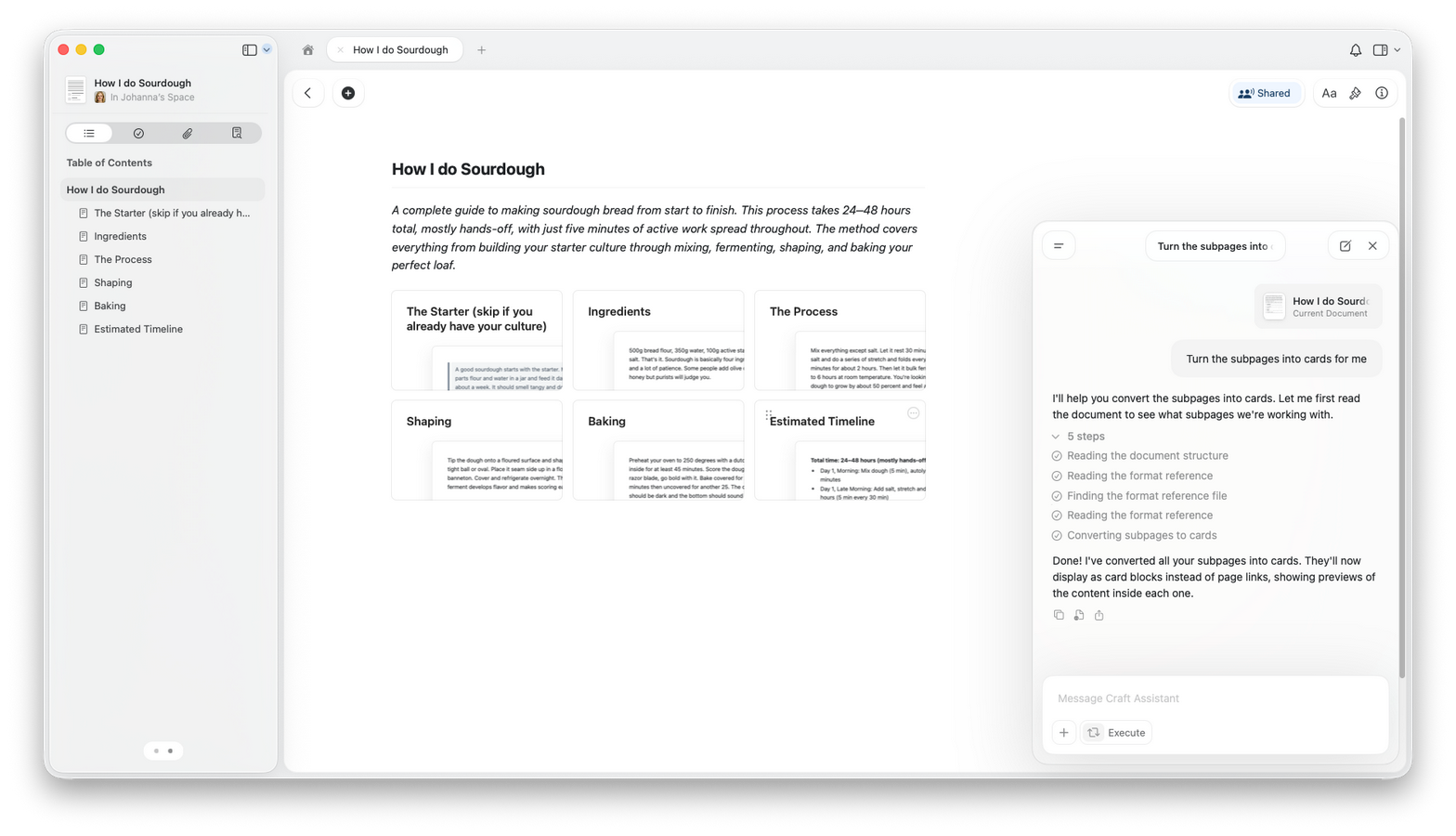
Craft Assistant can update your documents directly. You can ask it to add content, apply styling, create subpages, reorganize sections, and more.
## Explore and Execute modes
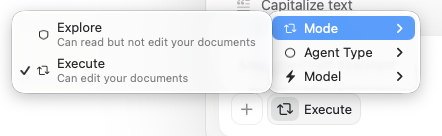
Craft Assistant has two modes:
* **Explore** — The Assistant reads your document and proposes changes. You review and approve before anything is modified.
* **Execute** — The Assistant reads your document and applies changes directly. You see edits appear in real time.
Use the mode selector at the bottom of the Assistant panel to switch between them.
 ## What the Assistant can do in Execute mode
The Assistant can:
* **Create and modify text** — headings, paragraphs, lists, callouts, and code blocks
* **Style your document** — highlights, colors, backgrounds, dividers, and visual styling
* **Create subpages** — add new pages nested inside your document
* **Create new documents** — add documents in your Space or duplicate existing ones
* **Create folders** — organize content into new folders
* **Move documents and folders** — rearrange your Space structure
* **Delete content** — remove blocks, documents, or folders
* **Reorganize sections** — move and restructure content
## Sessions
* Sessions **sync across your devices**.
* You can run **multiple sessions in parallel**.
* A session pauses after **5 minutes** of inactivity. Your conversation history is preserved — reopen previous sessions anytime from the session list.
* A **notification dot** appears when a background session completes.
## Starting an editing session
Open the document you want to edit.
Open the Assistant panel.
Switch to **Execute** mode.
Describe what you want to change.
Review the result in your document.
## What the Assistant can do in Execute mode
The Assistant can:
* **Create and modify text** — headings, paragraphs, lists, callouts, and code blocks
* **Style your document** — highlights, colors, backgrounds, dividers, and visual styling
* **Create subpages** — add new pages nested inside your document
* **Create new documents** — add documents in your Space or duplicate existing ones
* **Create folders** — organize content into new folders
* **Move documents and folders** — rearrange your Space structure
* **Delete content** — remove blocks, documents, or folders
* **Reorganize sections** — move and restructure content
## Sessions
* Sessions **sync across your devices**.
* You can run **multiple sessions in parallel**.
* A session pauses after **5 minutes** of inactivity. Your conversation history is preserved — reopen previous sessions anytime from the session list.
* A **notification dot** appears when a background session completes.
## Starting an editing session
Open the document you want to edit.
Open the Assistant panel.
Switch to **Execute** mode.
Describe what you want to change.
Review the result in your document.
 ## Undo and reverting
**⌘Z (Ctrl+Z)** undoes the full last Assistant action as one step — not individual edits, but everything the Assistant did in its last response. You can undo multiple actions by pressing ⌘Z repeatedly.
You can also ask the Assistant to revert or adjust what it changed.
## Tips for better results
* Be specific about what you want changed.
* Start with smaller edits before large rewrites.
* Try **Fast** first — it handles most edits well and uses less of your quota. Switch to **Max** for complex multi-section restructuring.
* Review changes after each request.
## Which models support editing
| Model | Can edit | Notes |
| ------------- | -------- | ----------------------- |
| **Max** | Yes | Best for complex edits |
| **Fast** | Yes | Good for quick edits |
| **Core** | No | Read-only conversations |
| **On-device** | No | Read-only, local models |
## Usage
Editing uses more of your quota than read-only conversations because the Assistant performs multiple steps (reading, planning, and applying). Exact usage depends on document size and request complexity. Use **Fast** for simpler edits to stay efficient.
## Platform availability
Full editing support at document-level and space-level.
Full editing support at document-level and space-level on iPad and iPhone.
Assistant is available. Execute mode is coming later.
Assistant is available. Execute mode is coming later.
## Related Articles
Learn how to start conversations and work with modes
Pick the best model for editing tasks
Understand AI usage for editing and other tasks
Create reusable editing instructions
Get AI feedback before applying edits
## Undo and reverting
**⌘Z (Ctrl+Z)** undoes the full last Assistant action as one step — not individual edits, but everything the Assistant did in its last response. You can undo multiple actions by pressing ⌘Z repeatedly.
You can also ask the Assistant to revert or adjust what it changed.
## Tips for better results
* Be specific about what you want changed.
* Start with smaller edits before large rewrites.
* Try **Fast** first — it handles most edits well and uses less of your quota. Switch to **Max** for complex multi-section restructuring.
* Review changes after each request.
## Which models support editing
| Model | Can edit | Notes |
| ------------- | -------- | ----------------------- |
| **Max** | Yes | Best for complex edits |
| **Fast** | Yes | Good for quick edits |
| **Core** | No | Read-only conversations |
| **On-device** | No | Read-only, local models |
## Usage
Editing uses more of your quota than read-only conversations because the Assistant performs multiple steps (reading, planning, and applying). Exact usage depends on document size and request complexity. Use **Fast** for simpler edits to stay efficient.
## Platform availability
Full editing support at document-level and space-level.
Full editing support at document-level and space-level on iPad and iPhone.
Assistant is available. Execute mode is coming later.
Assistant is available. Execute mode is coming later.
## Related Articles
Learn how to start conversations and work with modes
Pick the best model for editing tasks
Understand AI usage for editing and other tasks
Create reusable editing instructions
Get AI feedback before applying edits