> ## Documentation Index
> Fetch the complete documentation index at: https://craft-support.mintlify.site/llms.txt
> Use this file to discover all available pages before exploring further.
# Obsidian
> Import your vault from Obsidian into Craft with backlinks and attachments.
If you're moving from Obsidian to Craft, here's a simple guide to import your content.
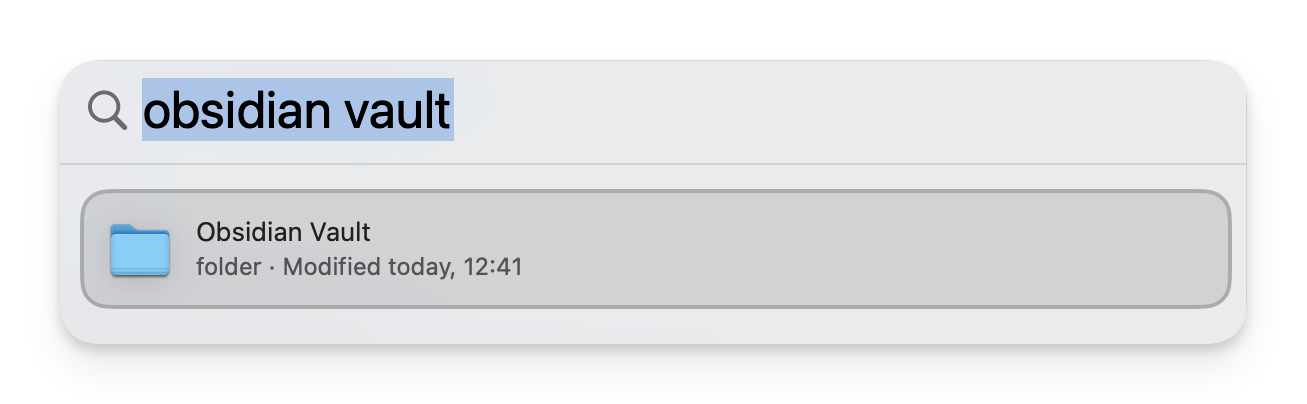
## Locate your Obsidian Vault Folder on Mac using Spotlight Search
**Press `Cmd + Space`** to open Spotlight Search on your Mac.
**Type the name of your Obsidian Vault** into the search bar (e.g., "Obsidian Vault").
**Select the vault folder** from the search results to open it in Finder.
**Verify the contents**
Inside the folder, verify that it contains your Markdown files (`.md`) and any associated media, such as images or PDFs.
 ## Import the Vault into Craft
**Open the Craft app** on your Mac, iPad, or iPhone.
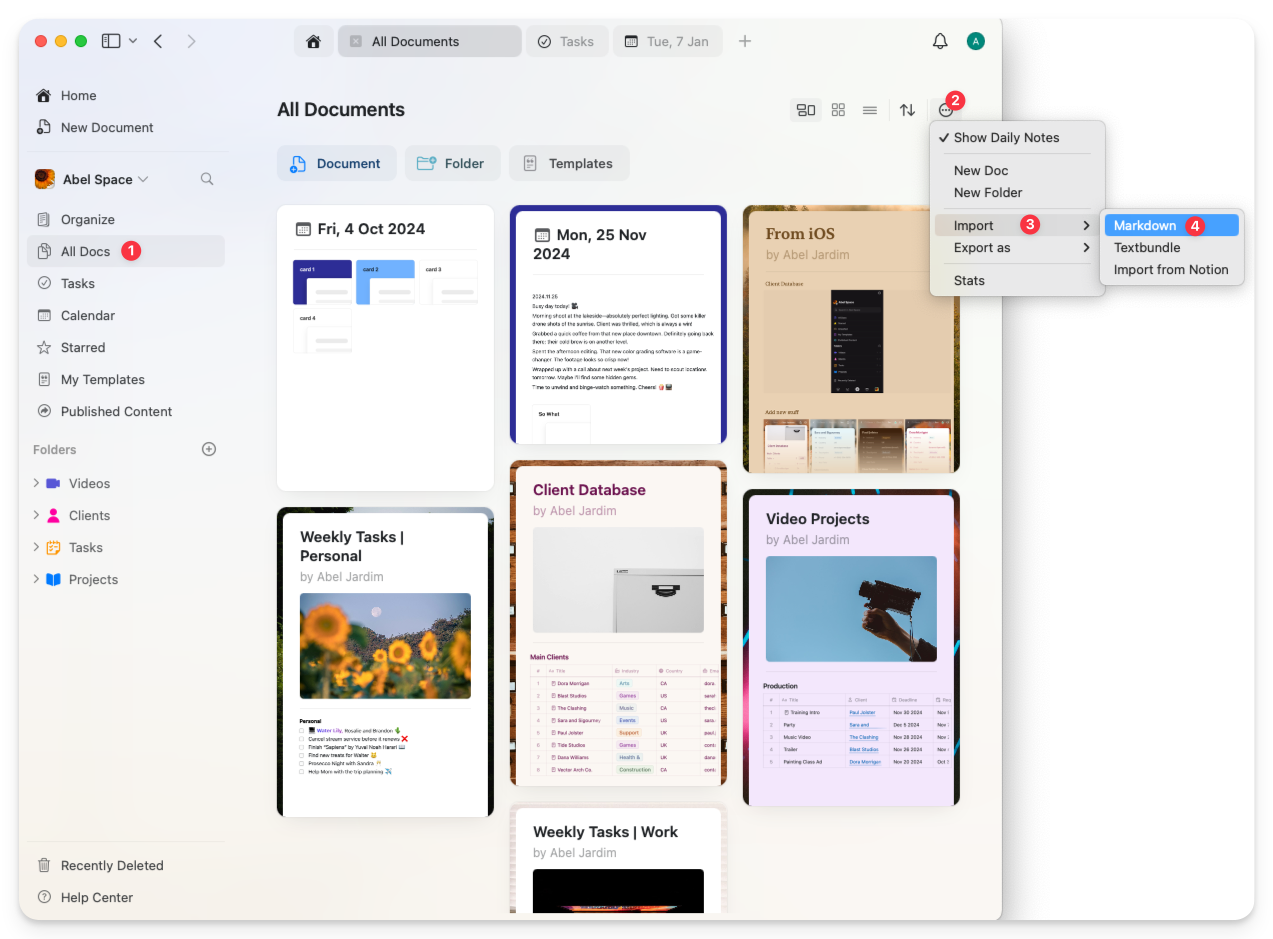
**Navigate** to the **"Organize"** or **"All Documents"** view in Craft.
**Import your files**
You can either:
* **Drag and drop** the vault folder or specific Markdown files directly into Craft, or
* Use the **Import** function:
* Go to **three-dot menu (⋯) > Import > Markdown**
* Select the folder or Markdown files from your vault
## Import the Vault into Craft
**Open the Craft app** on your Mac, iPad, or iPhone.
**Navigate** to the **"Organize"** or **"All Documents"** view in Craft.
**Import your files**
You can either:
* **Drag and drop** the vault folder or specific Markdown files directly into Craft, or
* Use the **Import** function:
* Go to **three-dot menu (⋯) > Import > Markdown**
* Select the folder or Markdown files from your vault
 ## Organize your imported content
* Craft will automatically convert Markdown files into documents.
* Media files (e.g., images) stored in the same folder will also be imported and embedded into the documents.
* Folder structures from Obsidian will be preserved as nested documents in Craft.
- **Markdown Compatibility**: Your text, links, headings, and lists will transfer seamlessly since Craft supports Markdown.
- **Attachments**: Make sure all media files are stored in the same folder as the Markdown files for proper import.
- **Backup Your Vault**: Before importing, create a backup of your Obsidian Vault to ensure your data is safe.
## Organize your imported content
* Craft will automatically convert Markdown files into documents.
* Media files (e.g., images) stored in the same folder will also be imported and embedded into the documents.
* Folder structures from Obsidian will be preserved as nested documents in Craft.
- **Markdown Compatibility**: Your text, links, headings, and lists will transfer seamlessly since Craft supports Markdown.
- **Attachments**: Make sure all media files are stored in the same folder as the Markdown files for proper import.
- **Backup Your Vault**: Before importing, create a backup of your Obsidian Vault to ensure your data is safe.