> ## Documentation Index
> Fetch the complete documentation index at: https://craft-support.mintlify.site/llms.txt
> Use this file to discover all available pages before exploring further.
# TextBundle
> Import TextBundle and TextPack files into Craft with images and attachments.
TextBundle is an open file format designed to make text documents with embedded images and attachments portable across different applications. Craft supports importing both TextBundle (`.textbundle`) and TextPack (`.textpack`) files, preserving your content structure, formatting, and media.
## What is TextBundle?
TextBundle packages a Markdown file together with its associated media files (images, attachments) into a single bundle. This makes it easy to move documents between apps without losing embedded content or dealing with broken image links.
**Key features:**
* Markdown-based content with metadata
* Embedded images and attachments stay together
* Preserves document structure and formatting
* Widely supported across note-taking apps
## Importing TextBundle Files
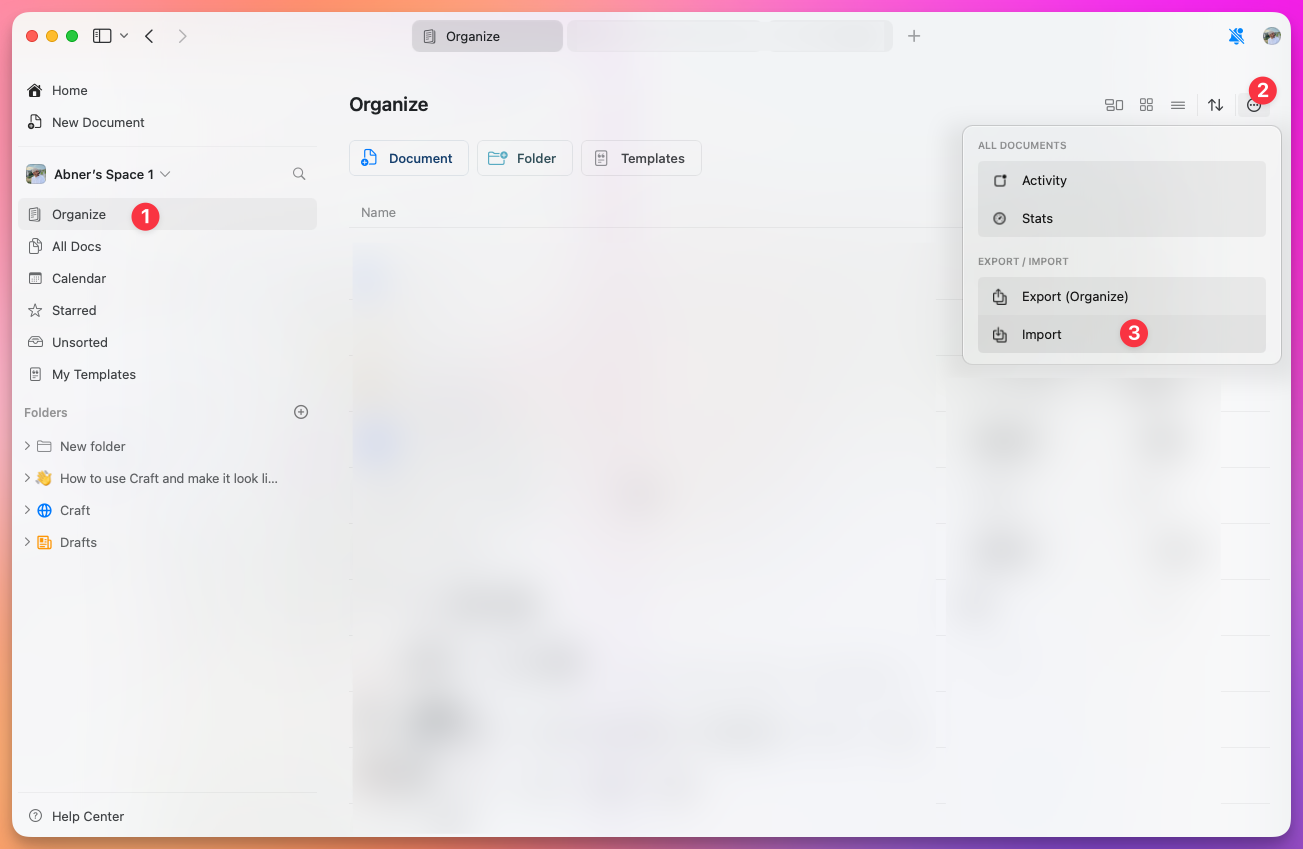
Open Craft and navigate to **All Documents**, **Organize**, or **Unsorted** view
Click or tap the three-dot menu (⋯) in the upper right corner
Select **Import** from the Import / Export section
Choose your TextBundle or TextPack file
 Craft will create a new document with your content, including all embedded images and attachments in their original locations within the text.
The web application currently supports importing individual Markdown files only. TextBundle import is not available on the web version. Use the desktop or mobile apps to import TextBundle files.
## What Gets Imported
When you import a TextBundle file, Craft preserves:
* **Text content** – All Markdown formatting converts to Craft blocks
* **Headings and structure** – Document hierarchy maintained
* **Images** – Embedded images appear in the correct locations
* **Attachments** – Files included in the bundle are imported
* **Links** – Both internal and external links preserved
## Import Limitations
To ensure reliable performance, Craft has built-in limits for importing:
* **Maximum 1,000 files** per import operation
* **Large bundles** may take longer to process
* **Unsupported Markdown features** may not convert perfectly
If you need to import more than 1,000 files, split them into smaller batches and import separately.
## After Importing
Once imported, your TextBundle content becomes native Craft documents. You can:
* Edit and format using Craft's full feature set
* Add new blocks, pages, and media
* Organize into folders and collections
* Share or publish your documents
## Related Topics
Learn about all import options in Craft
Learn how to export your Craft documents
Craft will create a new document with your content, including all embedded images and attachments in their original locations within the text.
The web application currently supports importing individual Markdown files only. TextBundle import is not available on the web version. Use the desktop or mobile apps to import TextBundle files.
## What Gets Imported
When you import a TextBundle file, Craft preserves:
* **Text content** – All Markdown formatting converts to Craft blocks
* **Headings and structure** – Document hierarchy maintained
* **Images** – Embedded images appear in the correct locations
* **Attachments** – Files included in the bundle are imported
* **Links** – Both internal and external links preserved
## Import Limitations
To ensure reliable performance, Craft has built-in limits for importing:
* **Maximum 1,000 files** per import operation
* **Large bundles** may take longer to process
* **Unsupported Markdown features** may not convert perfectly
If you need to import more than 1,000 files, split them into smaller batches and import separately.
## After Importing
Once imported, your TextBundle content becomes native Craft documents. You can:
* Edit and format using Craft's full feature set
* Add new blocks, pages, and media
* Organize into folders and collections
* Share or publish your documents
## Related Topics
Learn about all import options in Craft
Learn how to export your Craft documents