> ## Documentation Index
> Fetch the complete documentation index at: https://craft-support.mintlify.site/llms.txt
> Use this file to discover all available pages before exploring further.
# Email to Craft
> Forward emails directly to Craft to capture ideas and turn messages into tasks or documents.
**Email to Craft** allows you to forward emails directly into your Craft workspace – turning them into tasks, documents, or Daily Notes. Whether you're managing newsletters, reminders, or to-dos, this feature helps you stay organized without leaving your inbox.
## How to Set It Up
Open any Craft app (Mac, iPad, iPhone, or Web). If you're using the Web app on a desktop, you can also access the setup page directly via this link: [Email to Craft Settings page](https://docs.craft.do/email-to-craft).
Go to **Settings → Integrations → Email to Craft → Configure**.
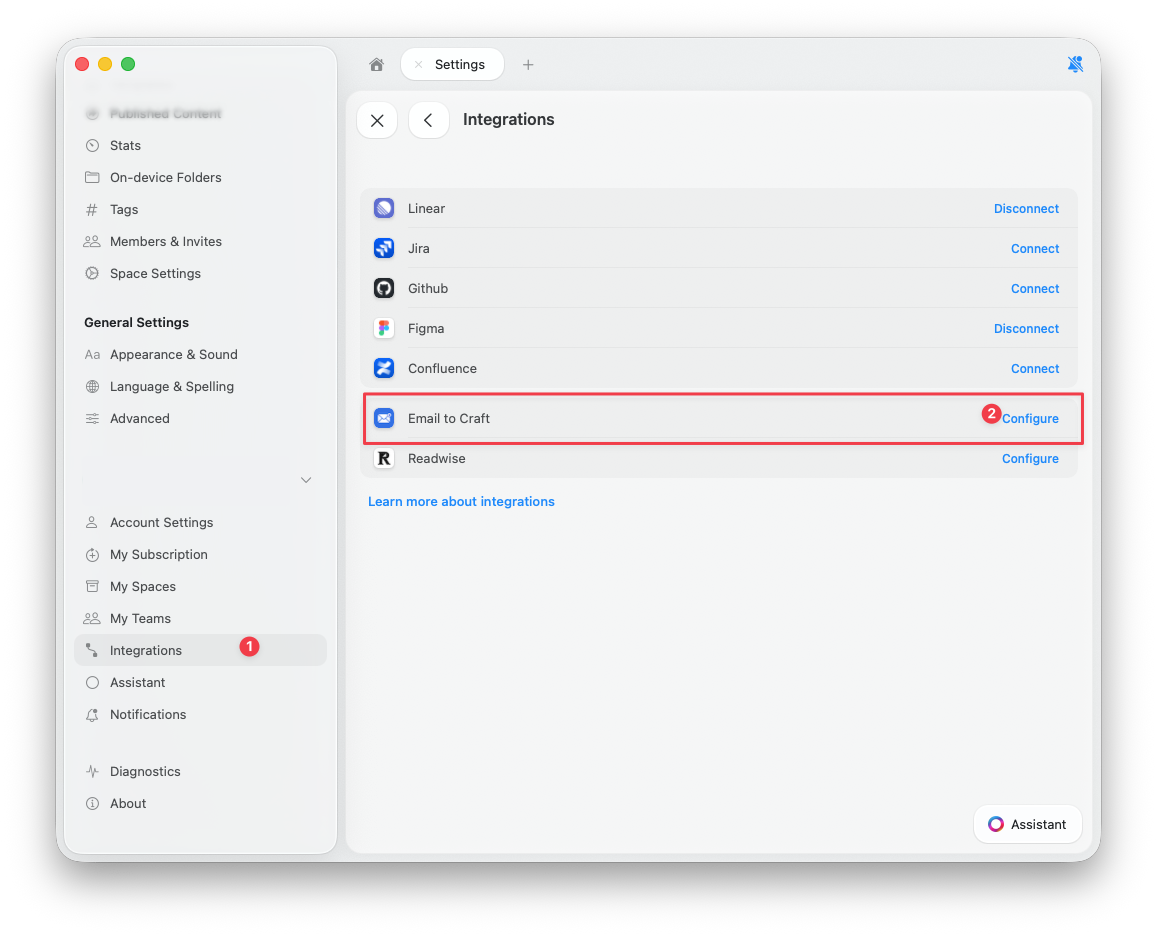
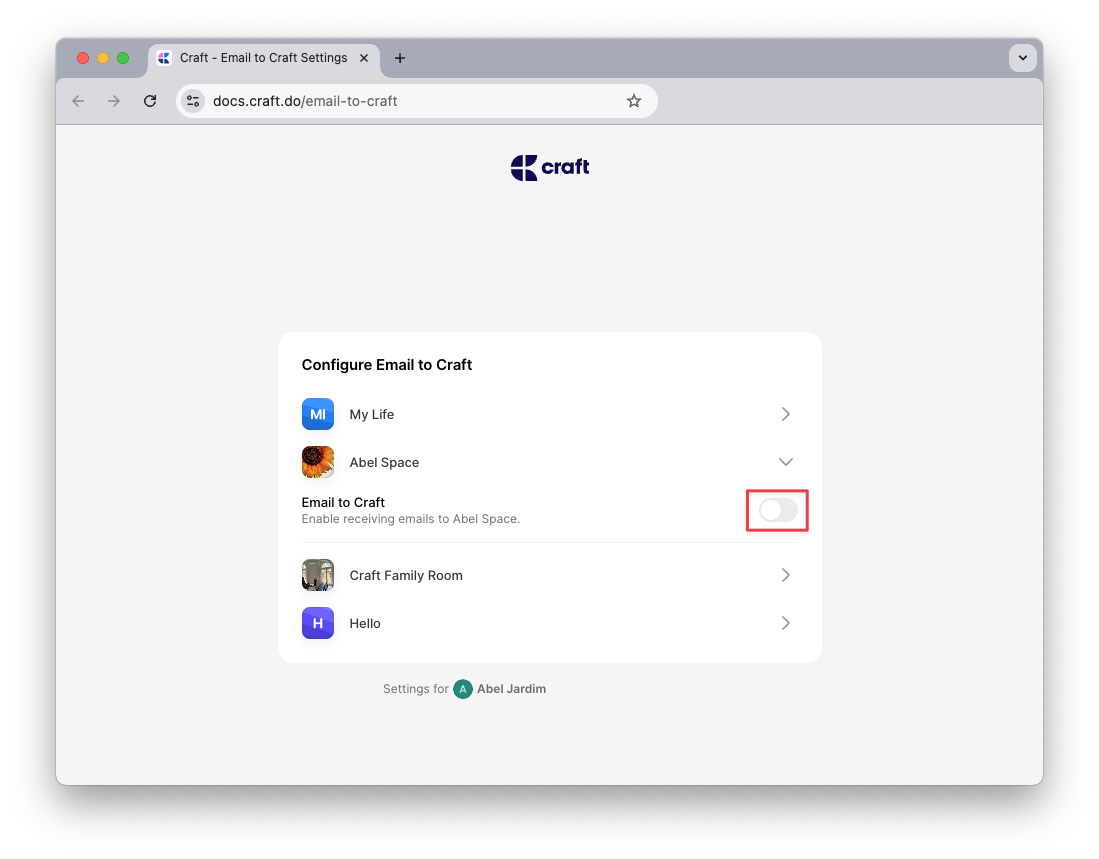
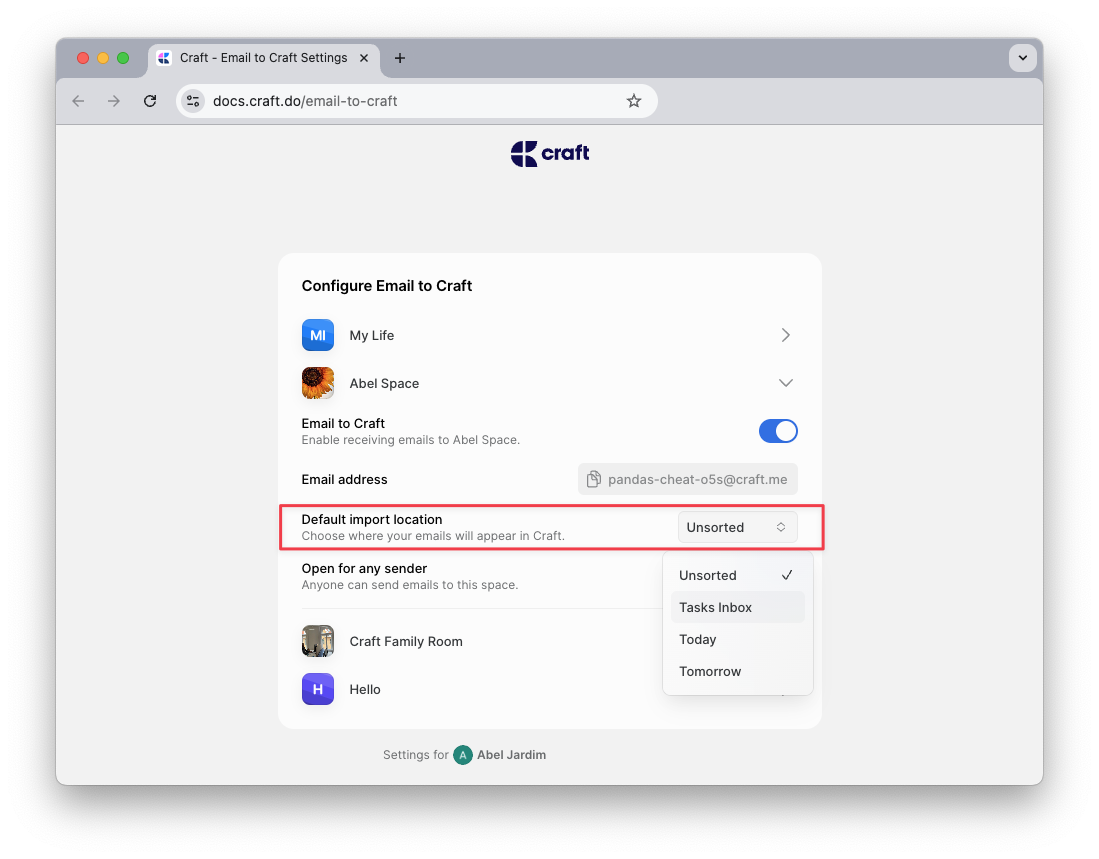
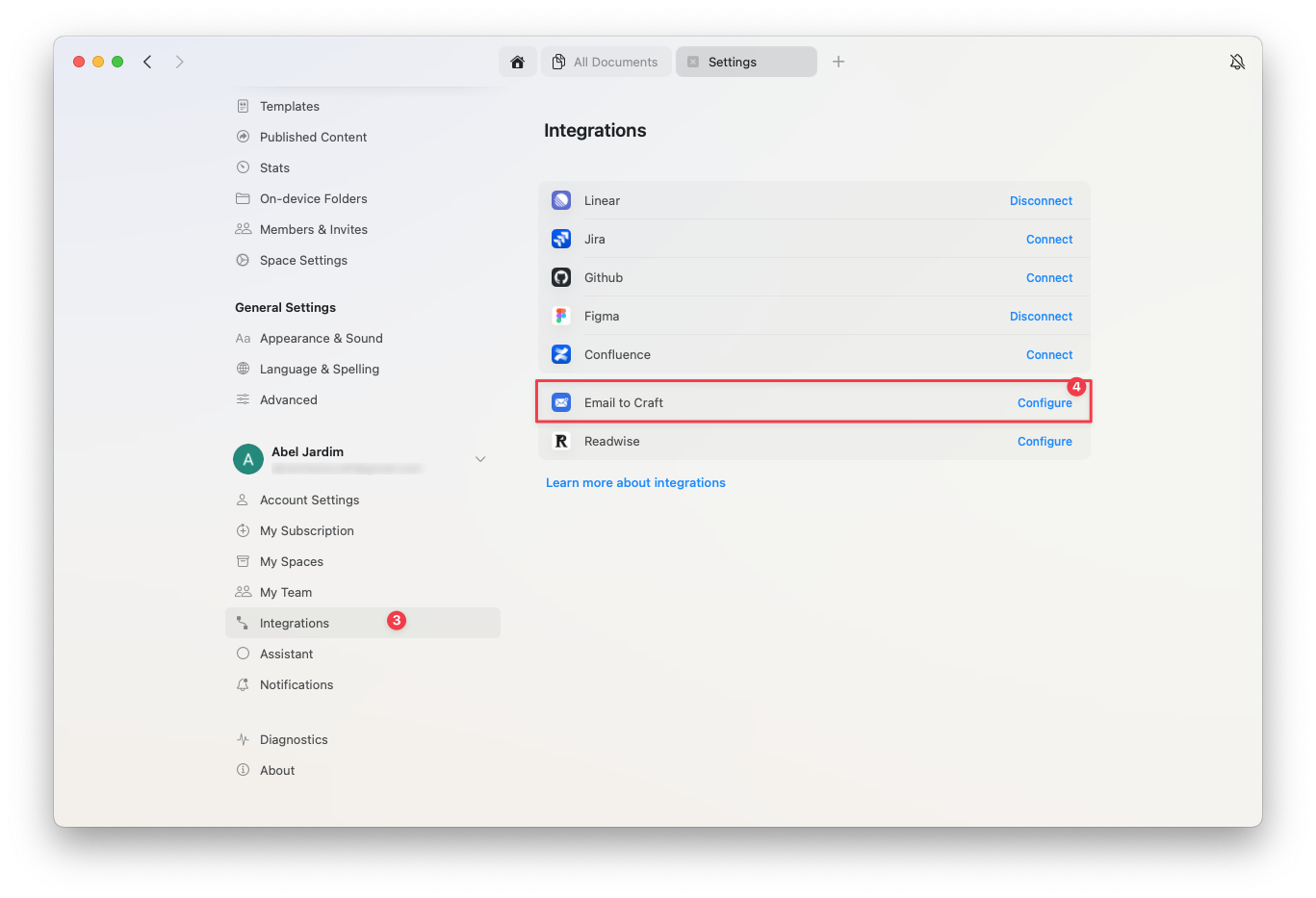 Select the Craft space where you want to receive forwarded emails and enable the Email to Craft feature.
 A unique email address will be generated – this is where you'll forward emails to import them into Craft.
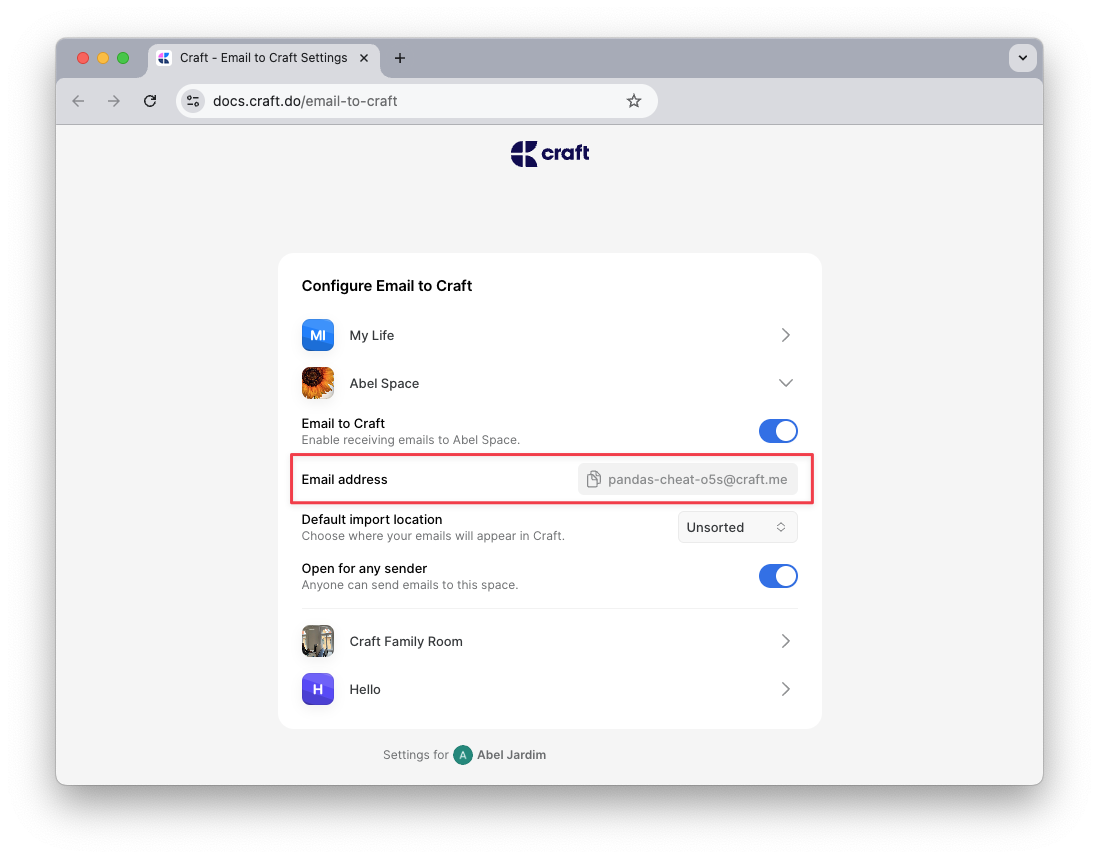 From the same settings page, you can also define the default behavior for how incoming emails are handled.
 ## How It Works
Craft uses simple markers in the subject line to determine what should happen to the forwarded email. These include task markers, location markers, and deadlines.
### Create a Task
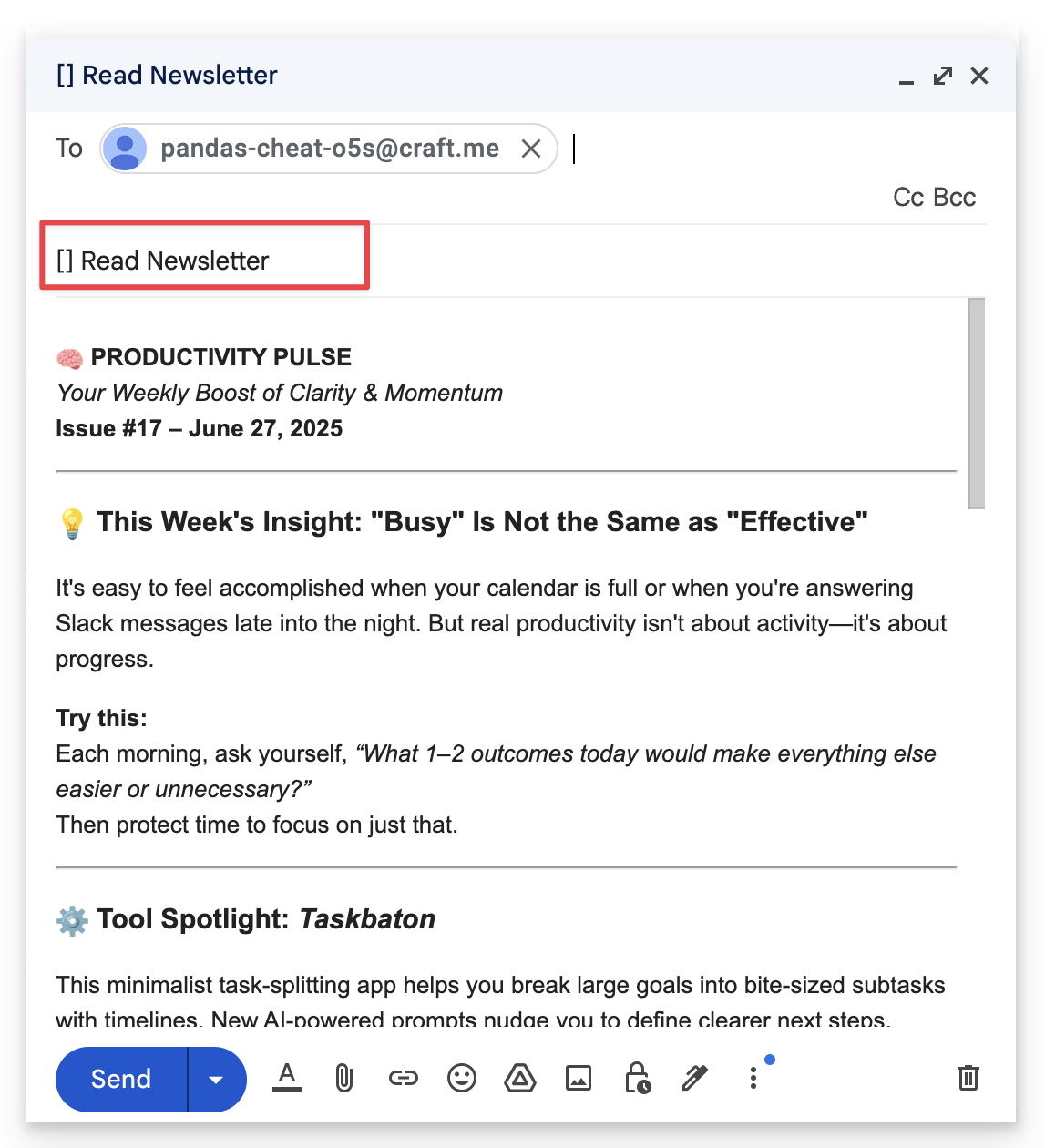
To turn your email into a task, begin the subject line with **`[ ]`**.
**Example**: `[ ] Read newsletter`
## How It Works
Craft uses simple markers in the subject line to determine what should happen to the forwarded email. These include task markers, location markers, and deadlines.
### Create a Task
To turn your email into a task, begin the subject line with **`[ ]`**.
**Example**: `[ ] Read newsletter`
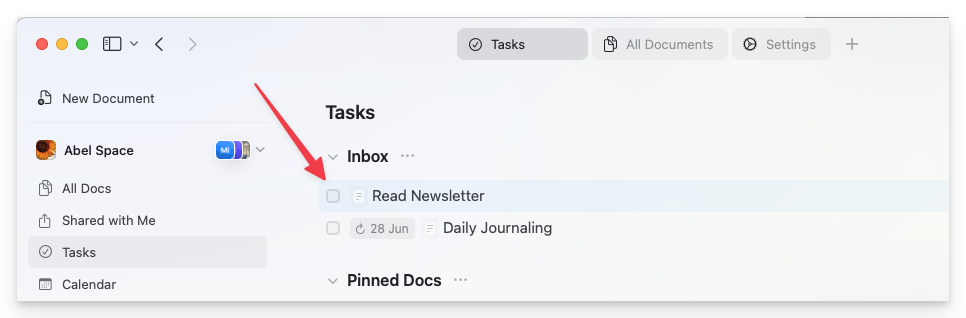
 The task will be added to your **Task Inbox** unless you specify a different location (see below).
 ### Choose a Location
Use the **`>`** marker to set where the email should be sent:
* **`>today`**, **`>tomorrow`**, or **`>yesterday`** – Adds the content to the corresponding Daily Note
* **`>YYYY-MM-DD`** – Adds the content to that day's Daily Note
* **`>unsorted`** – Creates a new standalone document in the Unsorted folder
**Example**: `[ ] Team meeting notes >2025-07-01`
### Add a Deadline
To set a deadline for a task, use the **`!`** marker:
* **`!today`**, **`!tomorrow`**, or **`!YYYY-MM-DD`** – Sets the deadline for the task
**Example**: `[ ] Submit report >today !tomorrow`
This creates a task in today's Daily Note with a deadline for tomorrow.
## Default Behavior
If you don't include any markers in the subject line, Craft will apply your **default import setting**, which you can configure on the [Email to Craft Settings page](https://docs.craft.do/email-to-craft).
## Attachments
* Attachments such as PDFs, images, and documents are supported and will be imported into the Craft document
* **Videos** are imported as **downloadable file blocks**, not as embedded video players
* Some email providers may not automatically forward attachments – use **"Forward with attachments"** to ensure they're included. For Gmail, see [this article](https://support.google.com/mail/thread/28000081/how-can-i-forward-an-email-thread-that-includes-attachments?hl=en)
## Formatting
Craft's email import adapts to your email content and formatting to ensure clean and polished results:
* Bullet points and line breaks are preserved
* Task markers like **`[ ]`** or **`[x]`** within the email body will convert to checklist items
* Divider lines like **`---`** will be recognized as section breaks
## Troubleshooting
If your forwarded email doesn't appear in Craft:
* Confirm the email address you're sending from is authorized in your **Email to Craft** settings
* Make sure subject markers (**`[ ]`**, **`>today`**, **`!tomorrow`**) are correctly formatted
* If you're using automated forwarding or redirecting (e.g., via Gmail or Apple Mail), ensure full emails and attachments are sent
## Use Cases
Email to Craft is perfect for:
* **Newsletter management**: Forward newsletters to read and organize in Craft
* **Task capture**: Turn emails into actionable tasks with deadlines
* **Daily logging**: Send yourself emails that automatically go to today's Daily Note
* **Reference collection**: Forward important emails for long-term reference
* **Meeting notes**: Email yourself meeting notes that land in the right Daily Note
## Quick Reference
| Subject Line | Result |
| ----------------------------- | ------------------------------- |
| `[ ] Review document` | Task in inbox |
| `[ ] Call client >today` | Task in today's Daily Note |
| `[ ] Submit report !tomorrow` | Task with tomorrow's deadline |
| `Meeting notes >2025-01-15` | Document in Jan 15 Daily Note |
| `Research article >unsorted` | New document in Unsorted folder |
Learn more about managing tasks in Craft
Organize your day with Daily Notes
### Choose a Location
Use the **`>`** marker to set where the email should be sent:
* **`>today`**, **`>tomorrow`**, or **`>yesterday`** – Adds the content to the corresponding Daily Note
* **`>YYYY-MM-DD`** – Adds the content to that day's Daily Note
* **`>unsorted`** – Creates a new standalone document in the Unsorted folder
**Example**: `[ ] Team meeting notes >2025-07-01`
### Add a Deadline
To set a deadline for a task, use the **`!`** marker:
* **`!today`**, **`!tomorrow`**, or **`!YYYY-MM-DD`** – Sets the deadline for the task
**Example**: `[ ] Submit report >today !tomorrow`
This creates a task in today's Daily Note with a deadline for tomorrow.
## Default Behavior
If you don't include any markers in the subject line, Craft will apply your **default import setting**, which you can configure on the [Email to Craft Settings page](https://docs.craft.do/email-to-craft).
## Attachments
* Attachments such as PDFs, images, and documents are supported and will be imported into the Craft document
* **Videos** are imported as **downloadable file blocks**, not as embedded video players
* Some email providers may not automatically forward attachments – use **"Forward with attachments"** to ensure they're included. For Gmail, see [this article](https://support.google.com/mail/thread/28000081/how-can-i-forward-an-email-thread-that-includes-attachments?hl=en)
## Formatting
Craft's email import adapts to your email content and formatting to ensure clean and polished results:
* Bullet points and line breaks are preserved
* Task markers like **`[ ]`** or **`[x]`** within the email body will convert to checklist items
* Divider lines like **`---`** will be recognized as section breaks
## Troubleshooting
If your forwarded email doesn't appear in Craft:
* Confirm the email address you're sending from is authorized in your **Email to Craft** settings
* Make sure subject markers (**`[ ]`**, **`>today`**, **`!tomorrow`**) are correctly formatted
* If you're using automated forwarding or redirecting (e.g., via Gmail or Apple Mail), ensure full emails and attachments are sent
## Use Cases
Email to Craft is perfect for:
* **Newsletter management**: Forward newsletters to read and organize in Craft
* **Task capture**: Turn emails into actionable tasks with deadlines
* **Daily logging**: Send yourself emails that automatically go to today's Daily Note
* **Reference collection**: Forward important emails for long-term reference
* **Meeting notes**: Email yourself meeting notes that land in the right Daily Note
## Quick Reference
| Subject Line | Result |
| ----------------------------- | ------------------------------- |
| `[ ] Review document` | Task in inbox |
| `[ ] Call client >today` | Task in today's Daily Note |
| `[ ] Submit report !tomorrow` | Task with tomorrow's deadline |
| `Meeting notes >2025-01-15` | Document in Jan 15 Daily Note |
| `Research article >unsorted` | New document in Unsorted folder |
Learn more about managing tasks in Craft
Organize your day with Daily Notes