> ## Documentation Index
> Fetch the complete documentation index at: https://craft-support.mintlify.site/llms.txt
> Use this file to discover all available pages before exploring further.
# Working with Spaces
> Create, customize, and manage your Craft Spaces to organize your content.
Spaces are the primary way to organize your content in Craft. Each Space acts as a separate workspace with its own documents and Space-level settings.
## Creating a New Space
Click the **Space name** at the top of the sidebar to open Settings.
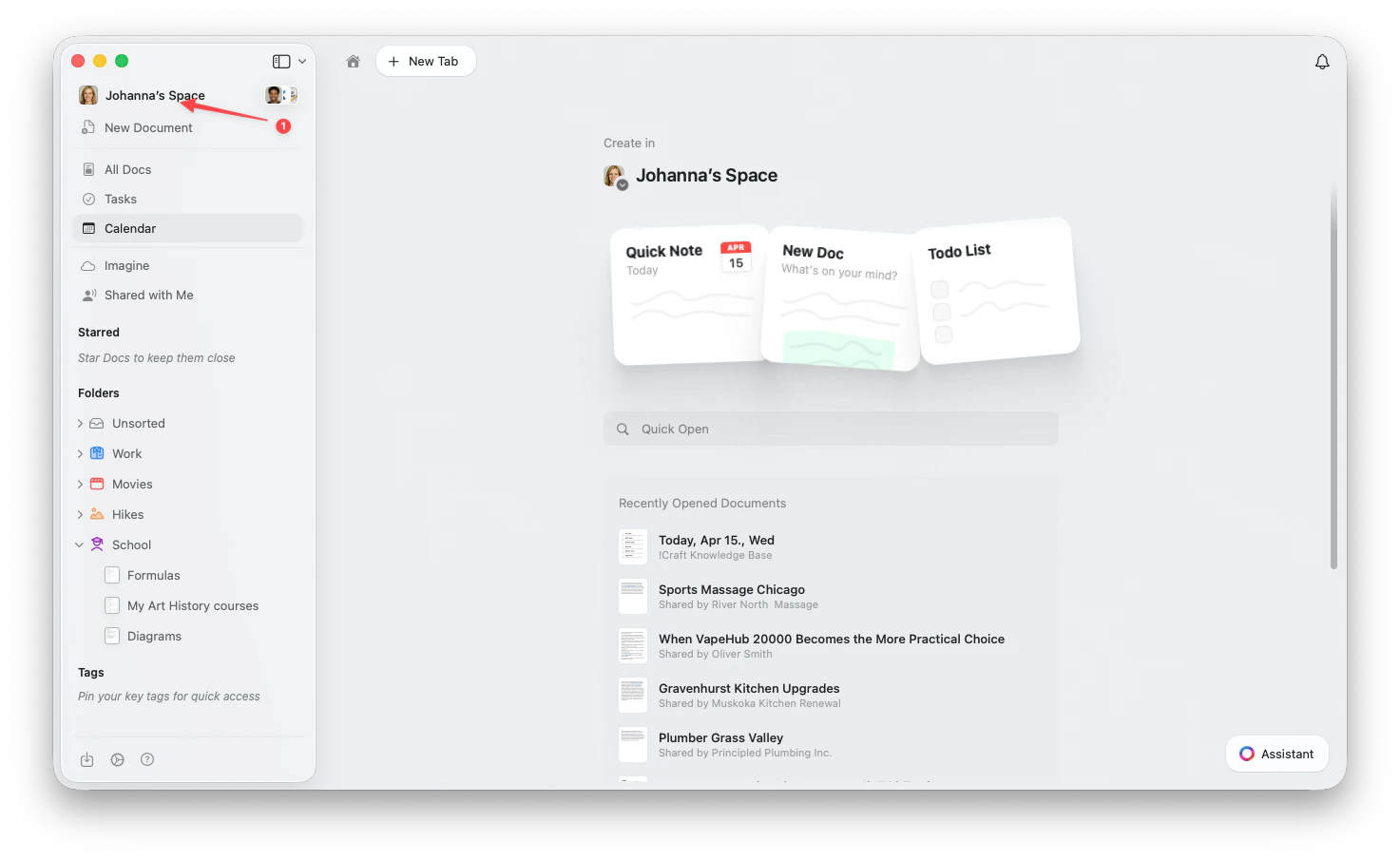 Click the **Space name** in the top-left corner.
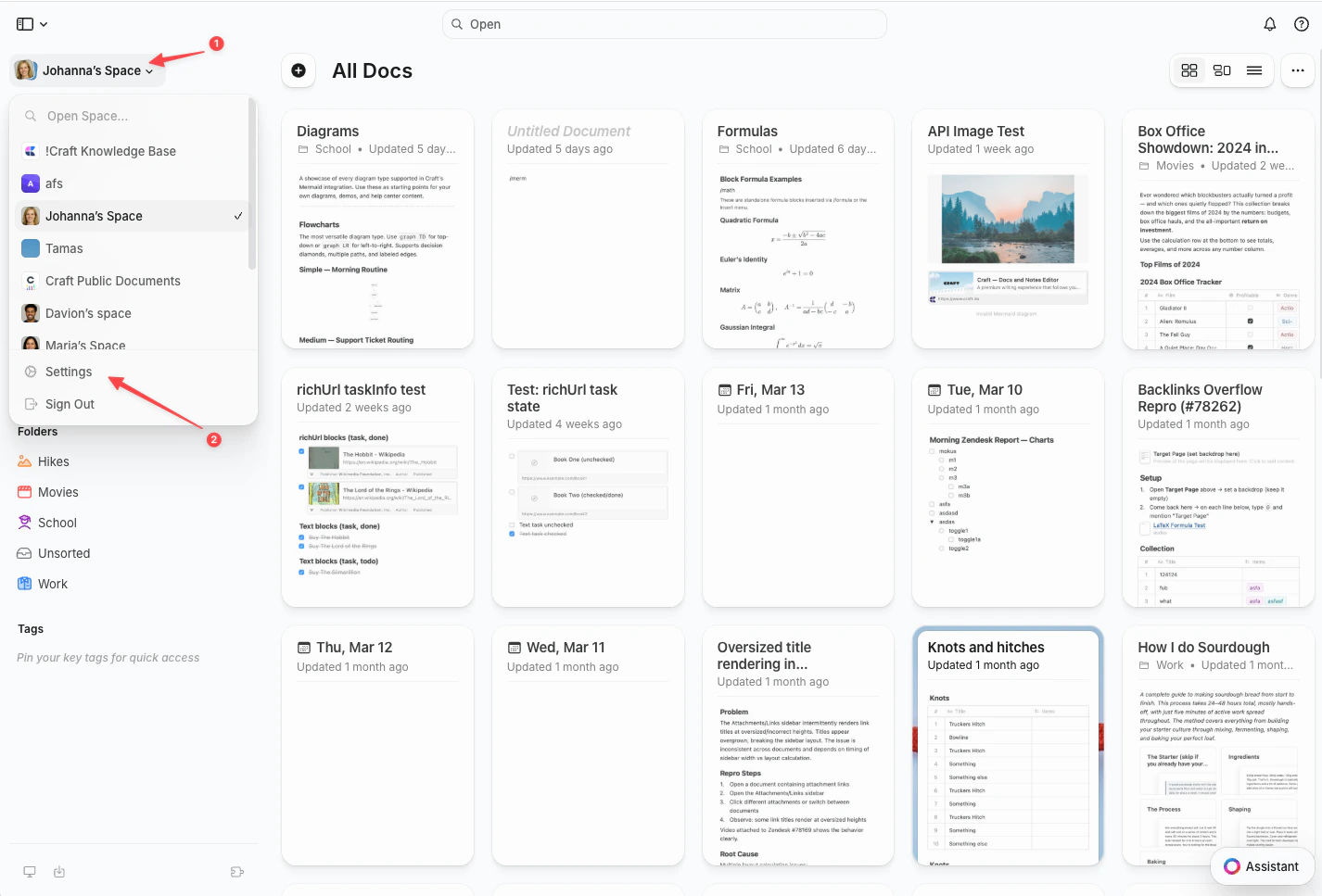
Click **Settings** at the bottom of the dropdown.
Click the **Space name** in the top-left corner.
Click **Settings** at the bottom of the dropdown.
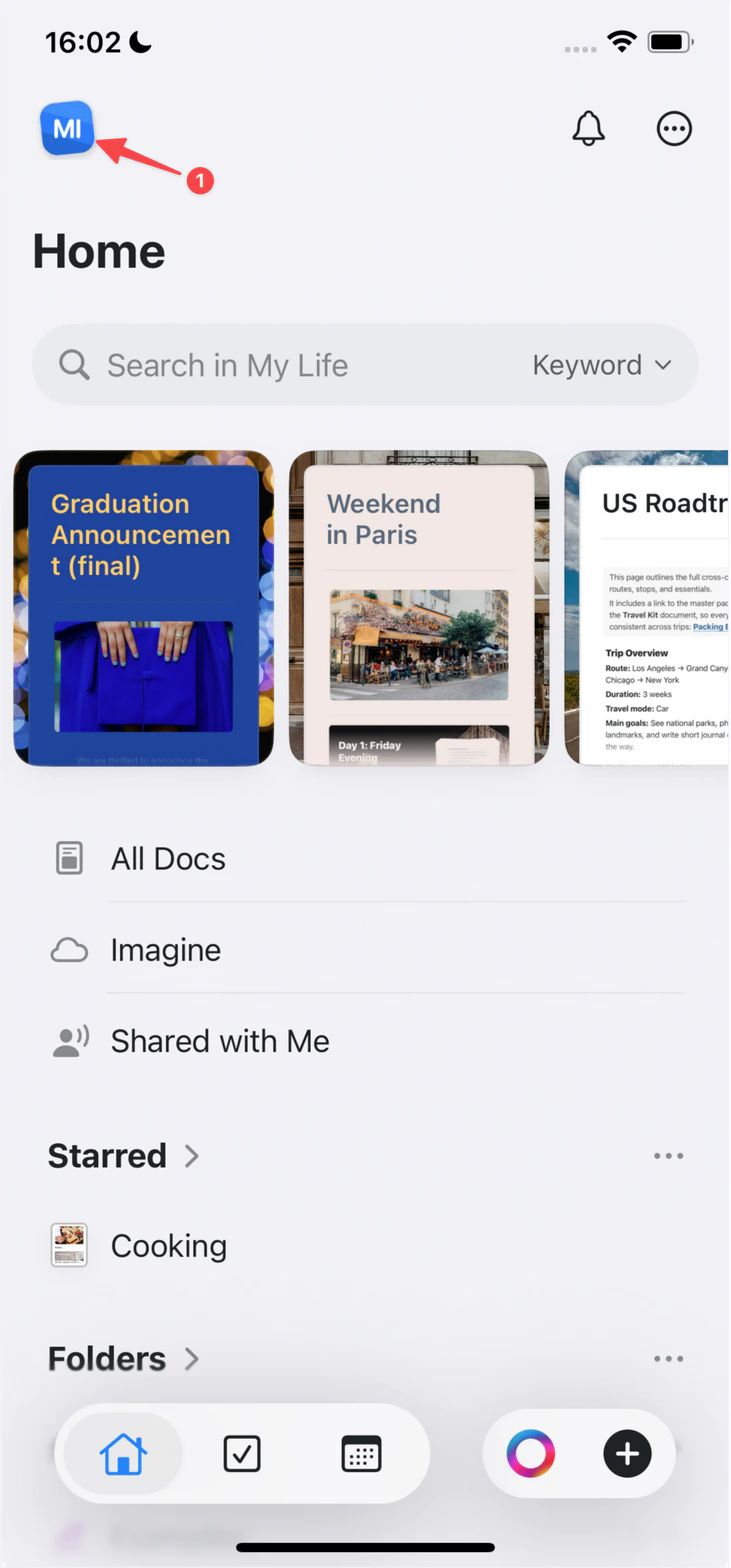
 Tap the **Space icon** in the top-left corner.
 Tap **Settings**.
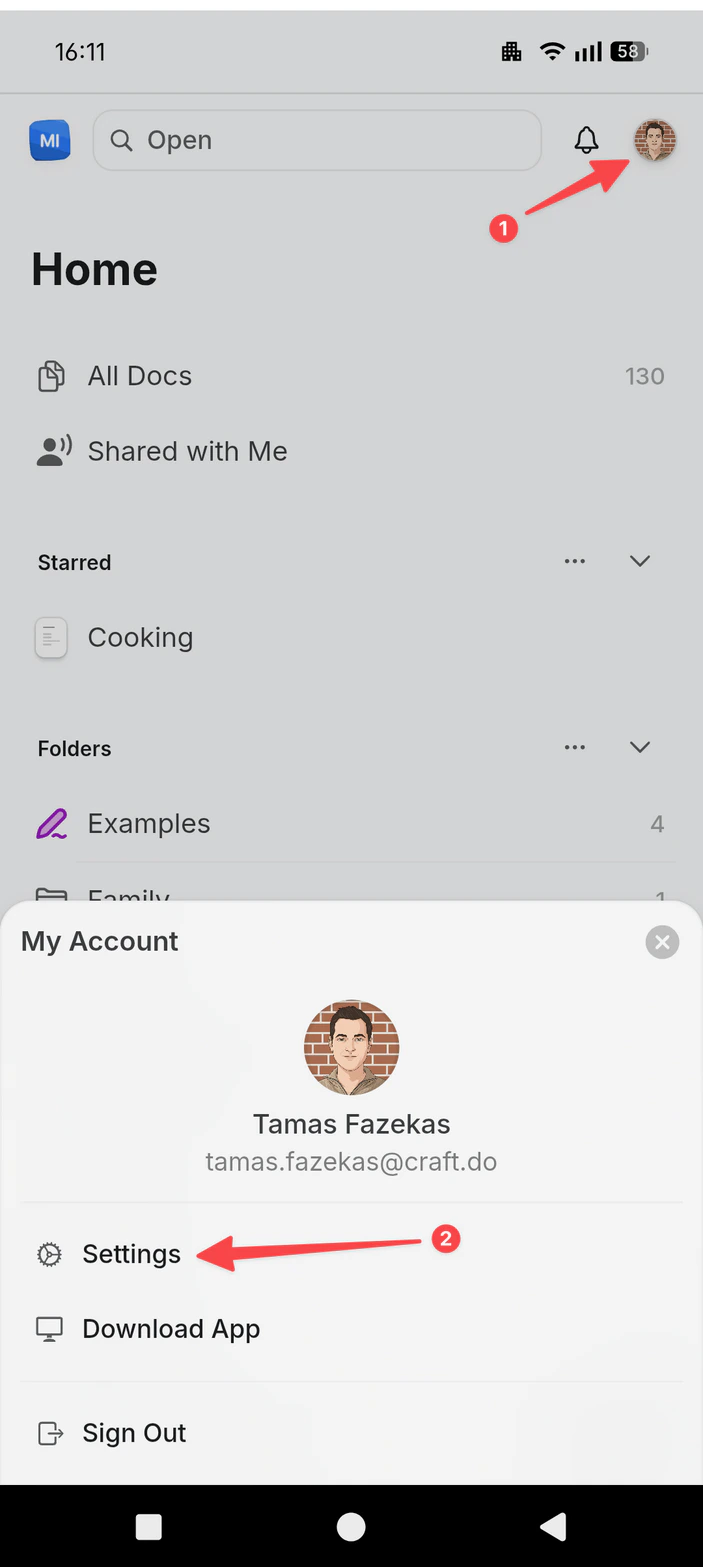
Tap your **profile picture** in the top-right corner.
Tap **Settings**.
Tap **Settings**.
Tap your **profile picture** in the top-right corner.
Tap **Settings**.
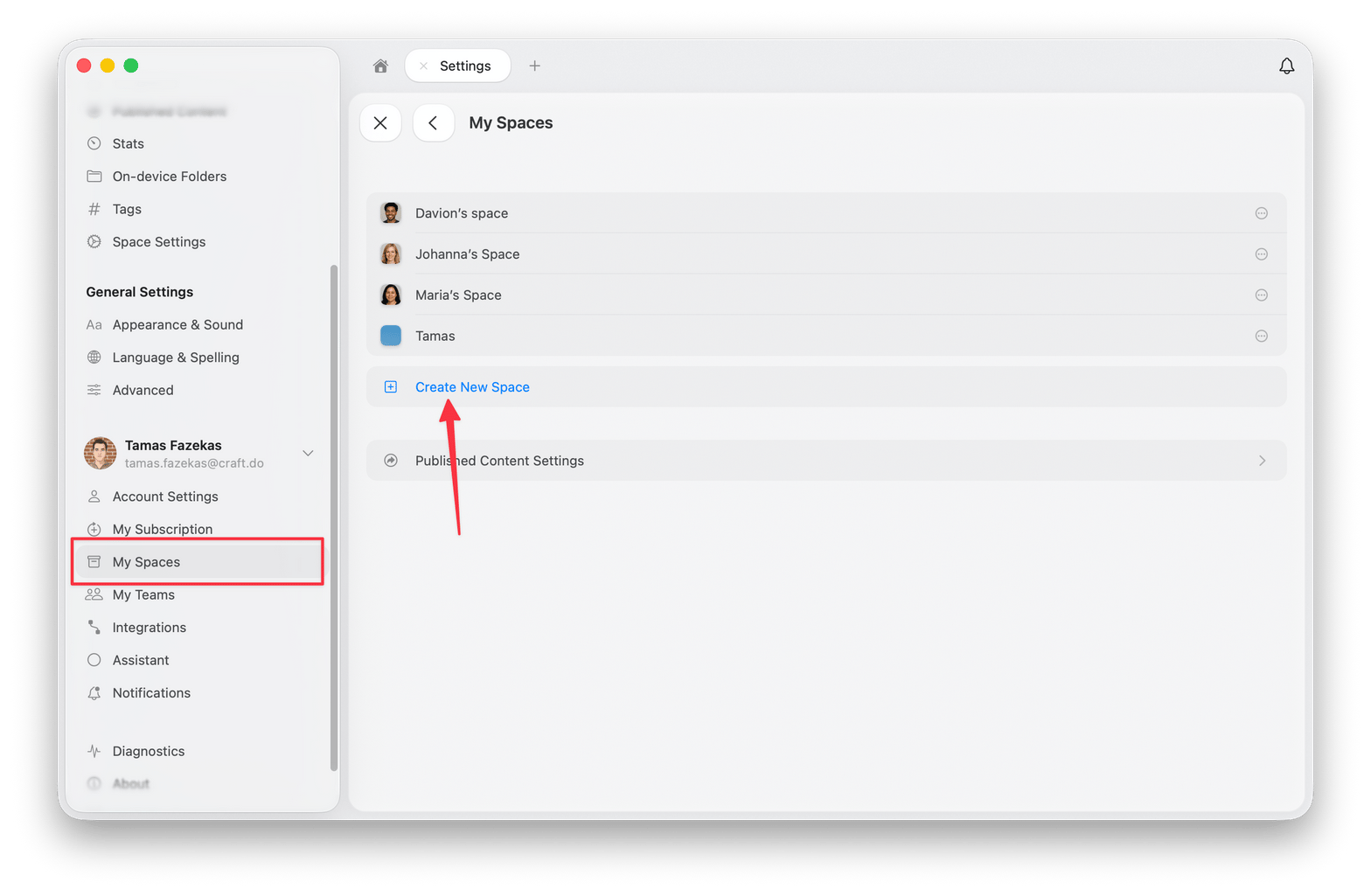
 Select **My Spaces** in the settings panel.
Click **Create New Space** in the My Spaces panel.
Give your Space a name and configure the initial settings.
Select **My Spaces** in the settings panel.
Click **Create New Space** in the My Spaces panel.
Give your Space a name and configure the initial settings.
 ## Space Settings
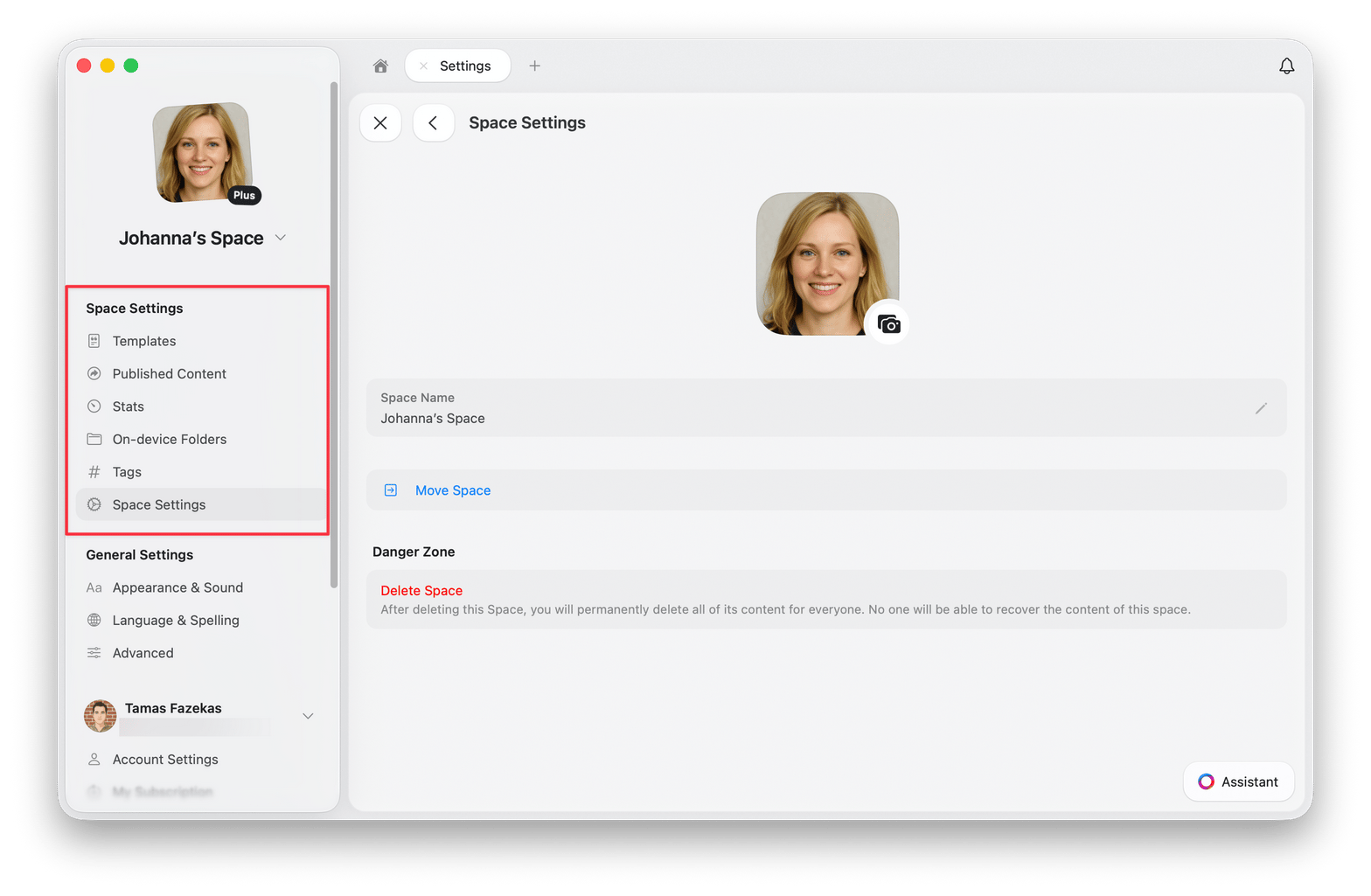
Access Space Settings through **Settings → Space Settings**. The Space Settings section appears near the top of the settings panel.
## Space Settings
Access Space Settings through **Settings → Space Settings**. The Space Settings section appears near the top of the settings panel.
 ### Available Options
* **Templates** - View and edit all templates created in this Space
* **Published Content** - Manage published pages and view their analytics
* **Stats** - Check storage limit, document count, blocks, pages, words, characters, and reading time
* **On-device Folders** - See which folders are downloaded locally
* **Tags** - Enable or disable tags and add custom tag rules
* **Members & Invites** - Manage Space members and pending invitations, if the Space is shared
* **Space Settings** - Change the Space name, move the Space, leave the Space, or delete the Space
## Moving Documents Between Spaces
You can move individual documents between Spaces to reorganize your content.
Right-click on the document in the sidebar.
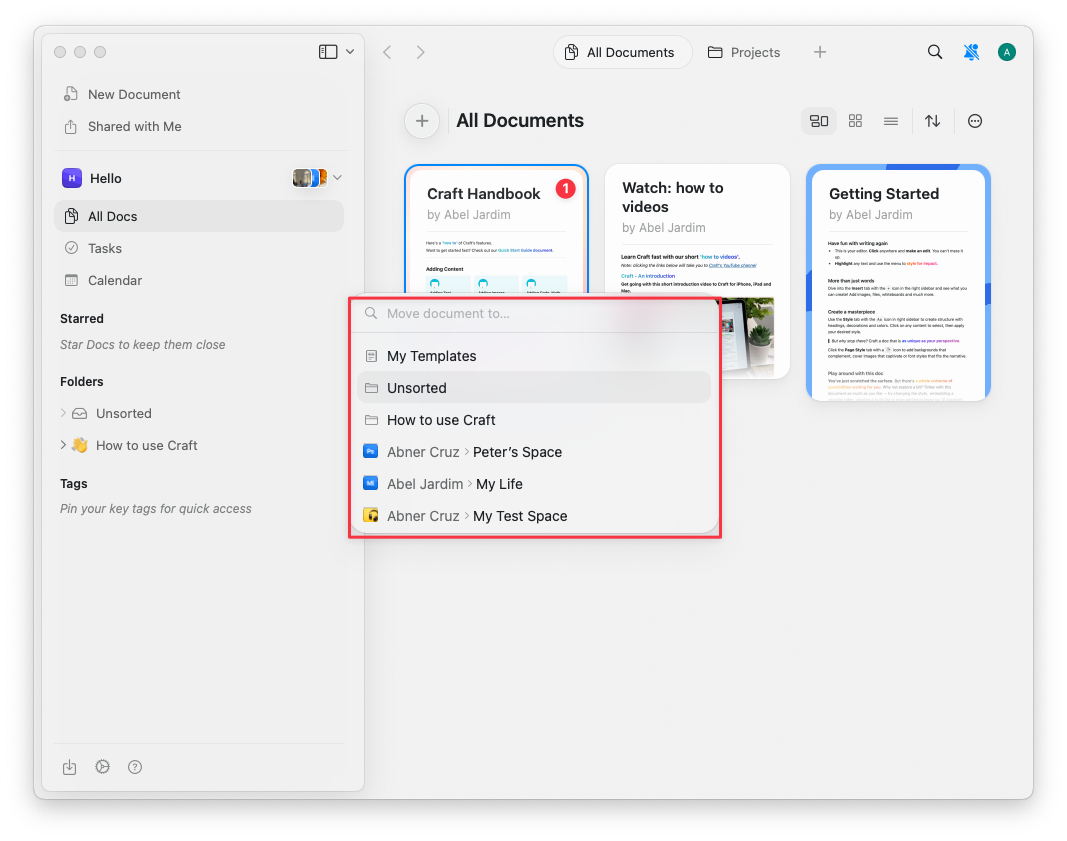
Select **Move To** from the context menu.
Choose the destination Space.
Tap and hold the document in the sidebar.
Select **Move To** from the menu.
Choose the destination Space.
Tap and hold the document in the sidebar.
Select **Move To** from the menu.
Choose the destination Space.
### Available Options
* **Templates** - View and edit all templates created in this Space
* **Published Content** - Manage published pages and view their analytics
* **Stats** - Check storage limit, document count, blocks, pages, words, characters, and reading time
* **On-device Folders** - See which folders are downloaded locally
* **Tags** - Enable or disable tags and add custom tag rules
* **Members & Invites** - Manage Space members and pending invitations, if the Space is shared
* **Space Settings** - Change the Space name, move the Space, leave the Space, or delete the Space
## Moving Documents Between Spaces
You can move individual documents between Spaces to reorganize your content.
Right-click on the document in the sidebar.
Select **Move To** from the context menu.
Choose the destination Space.
Tap and hold the document in the sidebar.
Select **Move To** from the menu.
Choose the destination Space.
Tap and hold the document in the sidebar.
Select **Move To** from the menu.
Choose the destination Space.
 * Folders cannot be moved between Spaces (only individual documents)
* Moved documents appear in **All Documents** and **Unsorted** in the destination Space
* Block links are preserved, but shared links and comments are lost
## Deleting a Space
To delete a Space:
Click the **Space name** at the top of the sidebar to open Settings.
Click the **Space name** in the top-left corner.
Click **Settings** at the bottom of the dropdown.
Tap the **Space icon** in the top-left corner.
Tap **Settings**.
Tap your **profile picture** in the top-right corner.
Tap **Settings**.
Go to **Space Settings**.
Scroll to the bottom and click **Delete Space**.
Confirm the deletion (this action cannot be undone).
* Folders cannot be moved between Spaces (only individual documents)
* Moved documents appear in **All Documents** and **Unsorted** in the destination Space
* Block links are preserved, but shared links and comments are lost
## Deleting a Space
To delete a Space:
Click the **Space name** at the top of the sidebar to open Settings.
Click the **Space name** in the top-left corner.
Click **Settings** at the bottom of the dropdown.
Tap the **Space icon** in the top-left corner.
Tap **Settings**.
Tap your **profile picture** in the top-right corner.
Tap **Settings**.
Go to **Space Settings**.
Scroll to the bottom and click **Delete Space**.
Confirm the deletion (this action cannot be undone).
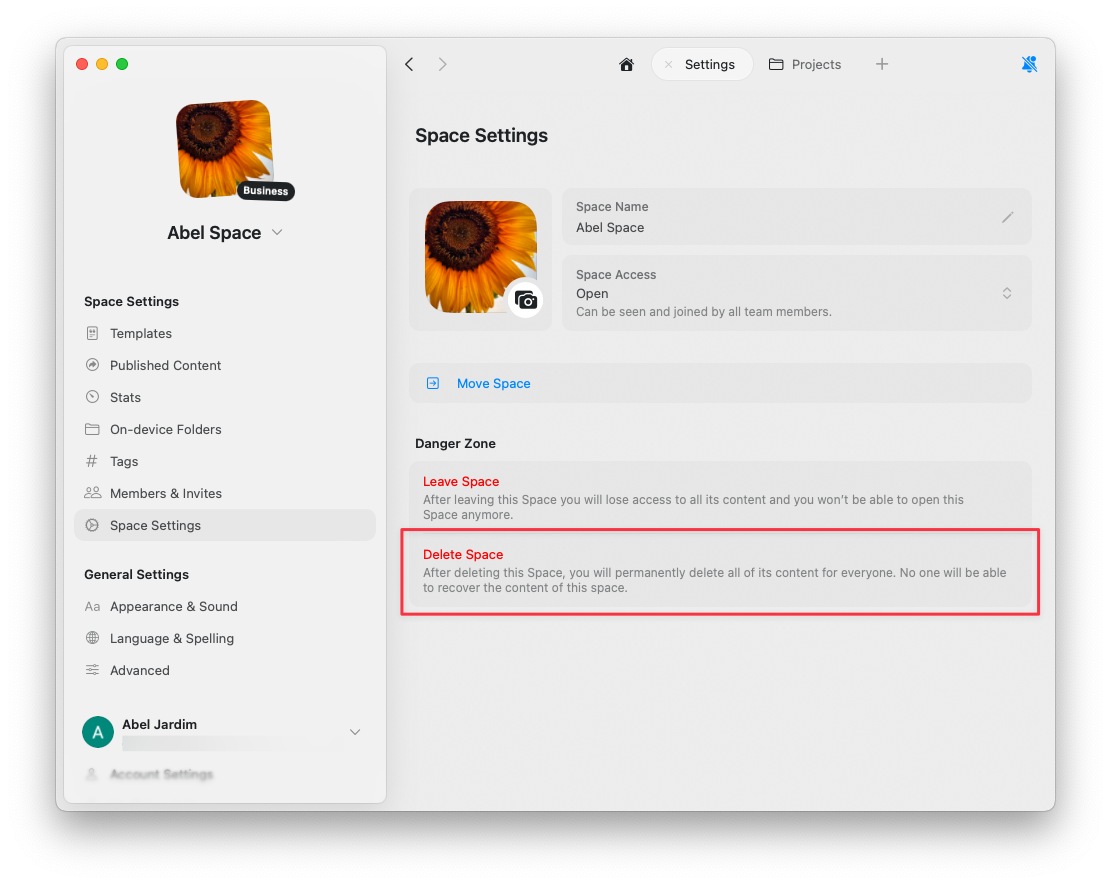 If the Delete Space option is greyed out, you're viewing your default Space. Default Spaces (created automatically when you signed up) cannot be deleted as they're a core part of your account structure.