> ## Documentation Index
> Fetch the complete documentation index at: https://craft-support.mintlify.site/llms.txt
> Use this file to discover all available pages before exploring further.
# iOS Gestures
> Use intuitive gestures on iPhone and iPad to select, indent, and navigate faster.
Craft on iOS provides intuitive gestures designed to make writing and editing on your phone or tablet feel natural and efficient. These gestures help you work faster without navigating through menus.
## Swipe to Select a Block
Quickly select any block by swiping left or right across it. This is faster than tapping the selection circle, especially when working with multiple blocks.
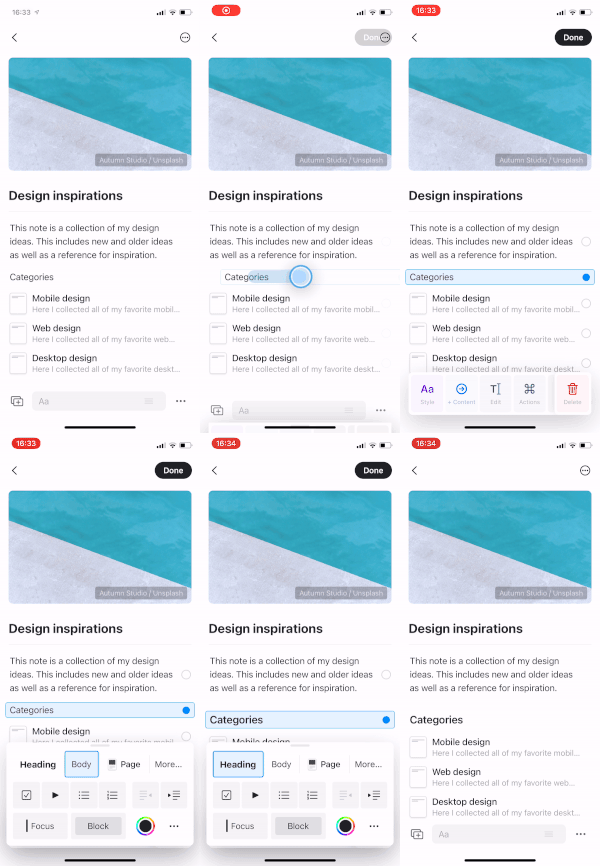 This gesture works anywhere on the block – you don't need to aim for a specific button.
## Select Multiple Blocks
Once you've selected a block, you have two ways to extend your selection:
* **Tap** the selection circles on additional blocks to add them one by one
* **Swipe up or down** to quickly select consecutive blocks
This gesture works anywhere on the block – you don't need to aim for a specific button.
## Select Multiple Blocks
Once you've selected a block, you have two ways to extend your selection:
* **Tap** the selection circles on additional blocks to add them one by one
* **Swipe up or down** to quickly select consecutive blocks
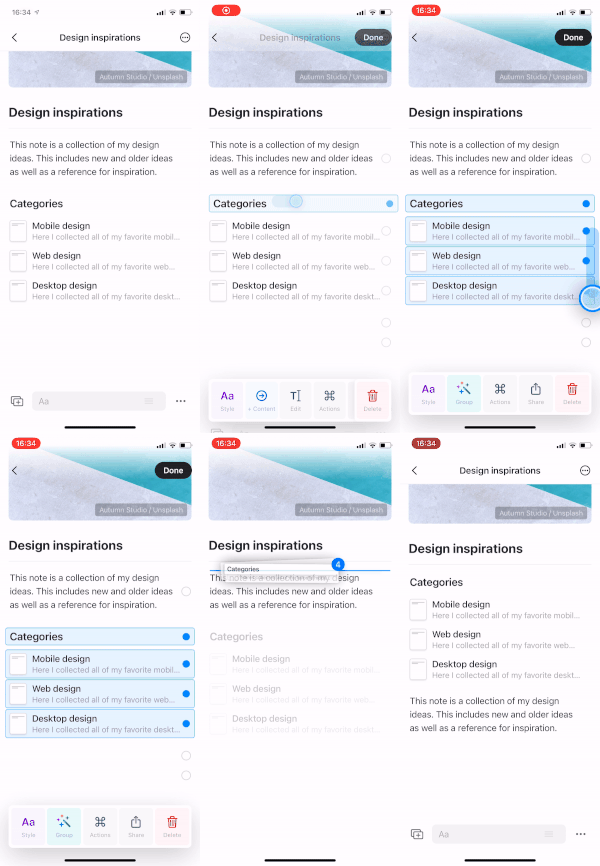 This is particularly useful when you want to move, delete, or style several blocks at once.
## Swipe to Indent
When editing a block, swipe left or right to quickly change its indentation level. This works while you're actively typing or editing.
This is particularly useful when you want to move, delete, or style several blocks at once.
## Swipe to Indent
When editing a block, swipe left or right to quickly change its indentation level. This works while you're actively typing or editing.
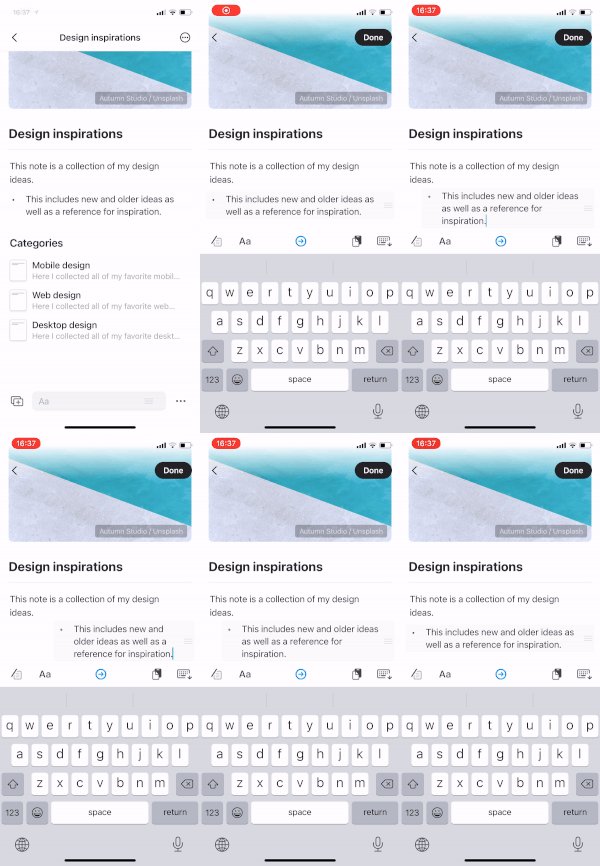 This gesture only works when the block is in edit mode (cursor visible). It differs from swipe to select, which works when the block is not being edited.
## Two-Finger Tap for Search
Tap anywhere with two fingers to instantly open search. This works throughout the app, making it easy to find content or navigate to different documents without reaching for the search button.
This gesture only works when the block is in edit mode (cursor visible). It differs from swipe to select, which works when the block is not being edited.
## Two-Finger Tap for Search
Tap anywhere with two fingers to instantly open search. This works throughout the app, making it easy to find content or navigate to different documents without reaching for the search button.
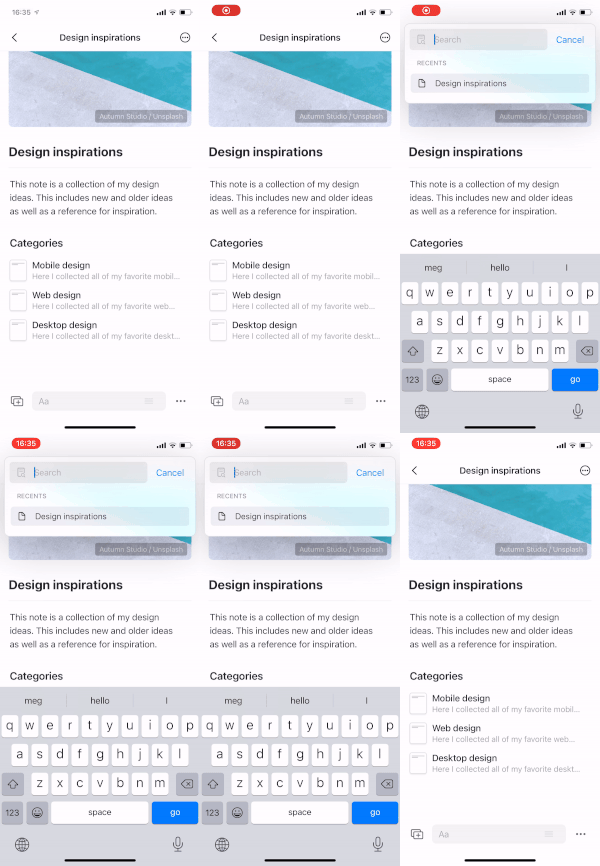 Search is one of the fastest ways to navigate in Craft. Use this gesture to quickly jump between documents, find specific content, or access recent pages.
## Other iOS Gestures
In addition to these editing-focused gestures, iOS also supports:
* **Swipe left on a document** in the sidebar to reveal options like Star, Share, and Delete
* **Pull down on a document** to refresh and sync the latest changes
* **Long press** on elements to reveal contextual menus
These gestures combine to create a fluid, mobile-first editing experience that matches how you naturally interact with your iPhone or iPad.
Search is one of the fastest ways to navigate in Craft. Use this gesture to quickly jump between documents, find specific content, or access recent pages.
## Other iOS Gestures
In addition to these editing-focused gestures, iOS also supports:
* **Swipe left on a document** in the sidebar to reveal options like Star, Share, and Delete
* **Pull down on a document** to refresh and sync the latest changes
* **Long press** on elements to reveal contextual menus
These gestures combine to create a fluid, mobile-first editing experience that matches how you naturally interact with your iPhone or iPad.