> ## Documentation Index
> Fetch the complete documentation index at: https://craft-support.mintlify.site/llms.txt
> Use this file to discover all available pages before exploring further.
# Navigation
> Master essential features for navigating Craft and working with your documents.
Learn the core navigation features that help you move through Craft efficiently and customize your workspace.
## Zooming Documents
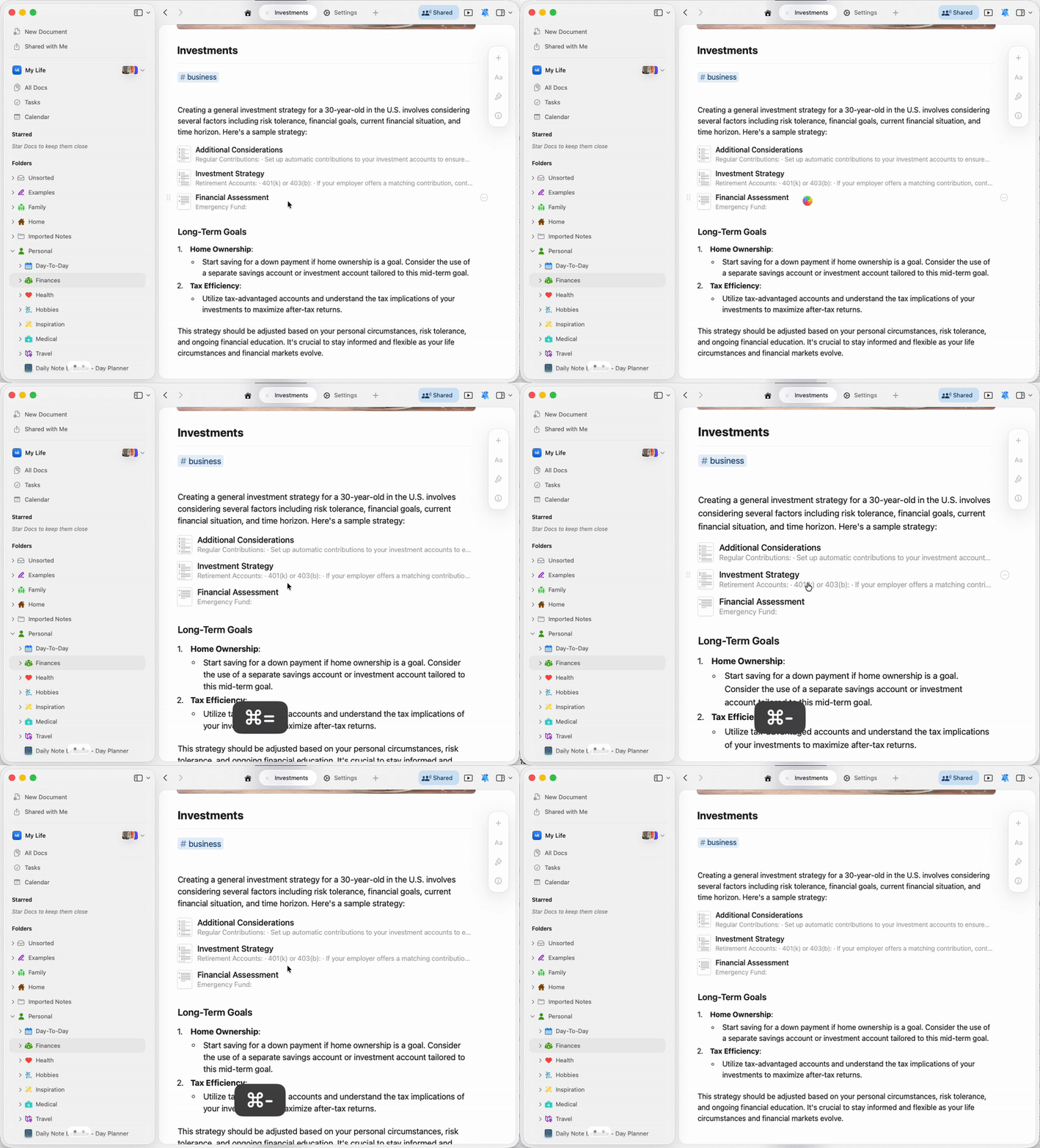
Adjust the text size in your documents for better readability using the zoom feature (macOS).
**Zoom In:** `Cmd +`
**Zoom Out:** `Cmd -`
**Reset Zoom:** `Cmd 0`
 * Zoom affects only document content, not the app interface
* Zoom level applies to all open Craft windows
* This is separate from font size settings in document styling
## Tab Management
Craft supports multiple tabs to help you work with several documents simultaneously. Learn more about opening, organizing, and navigating between tabs.
Work with multiple documents using tabs
## Comments and Notifications
Stay connected with collaborators through comments and real-time notifications on shared documents.
Collaborate with comments and manage notifications
## Table of Contents
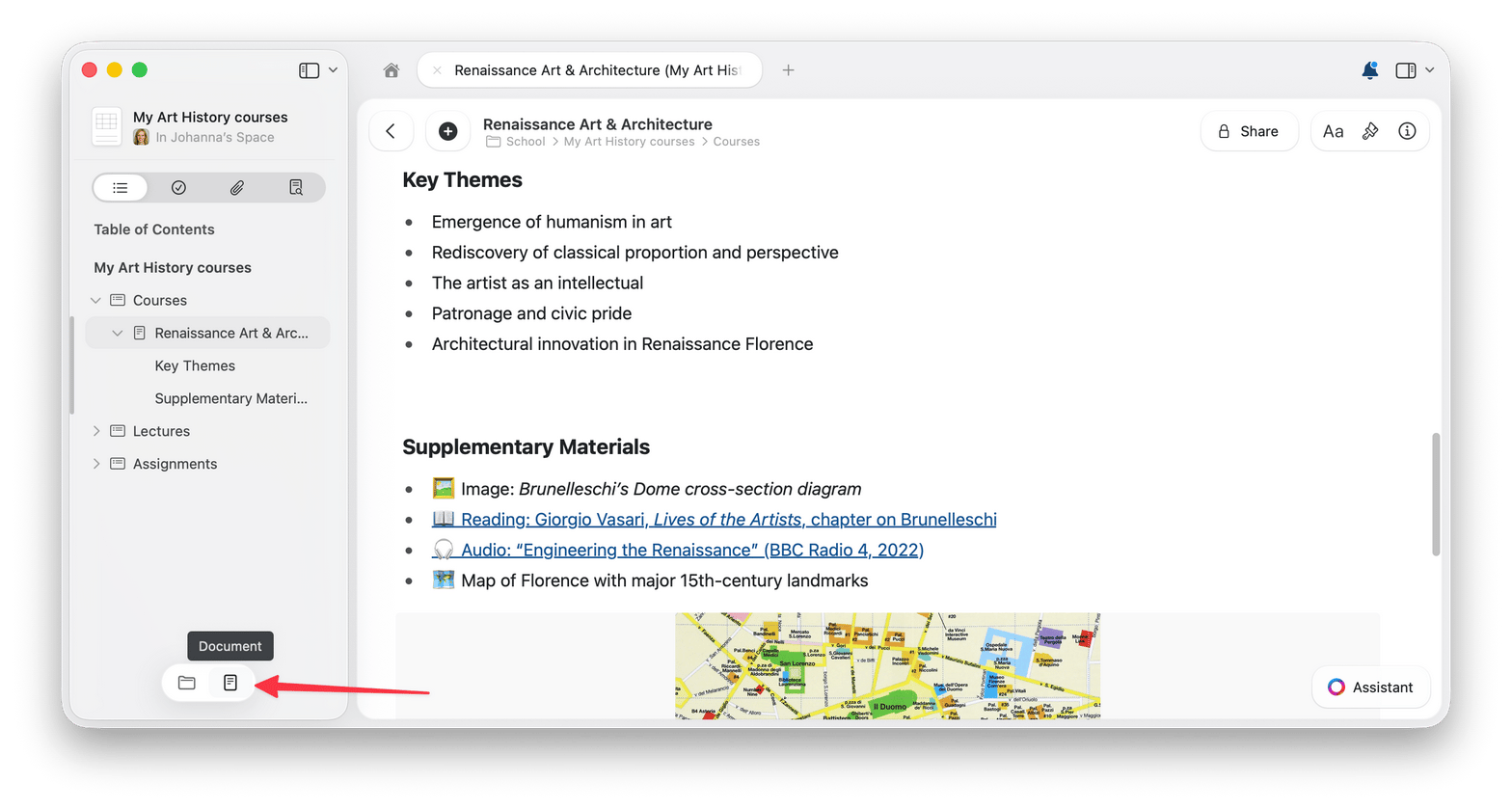
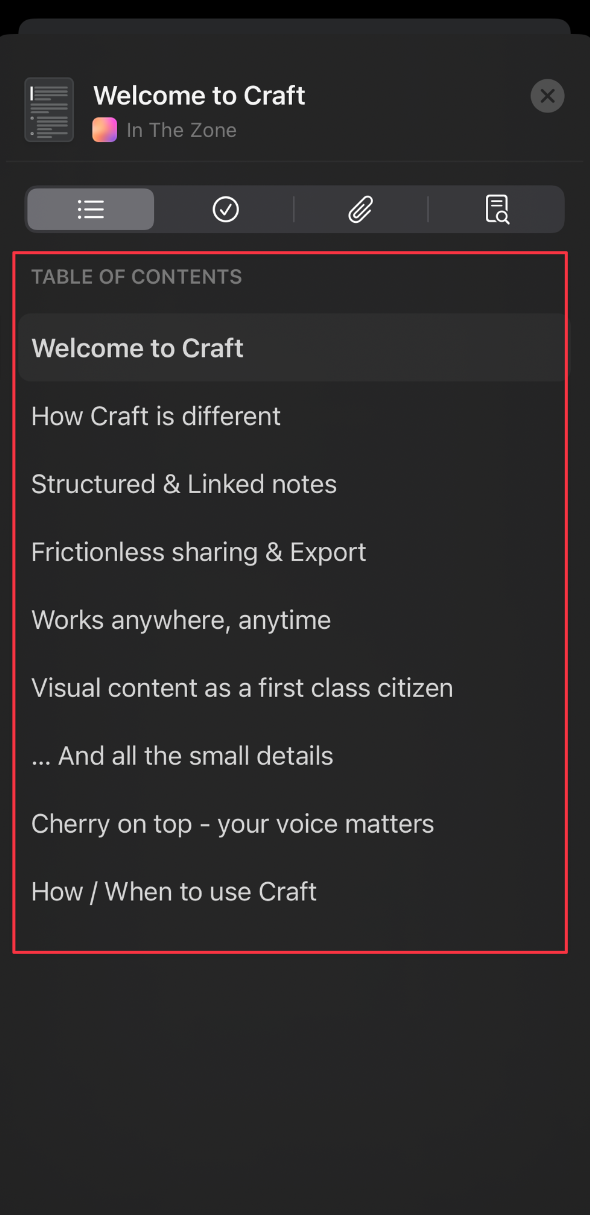
When creating a document with multiple headings and sections, a Table of Contents will be automatically outlined for you in the left sidebar. You can easily navigate between each Title, Subtitle, Heading, and Subpage created in your document.
Each Table of Contents is document-specific. Here's how to switch between folder and Table of Contents view:
Move your cursor to the bottom of the left sidebar to reveal the view switcher.
Select the **Document** icon to open the Table of Contents view, or select the **Folders** icon to return to your folder list.
**Table of Contents View:**
* Zoom affects only document content, not the app interface
* Zoom level applies to all open Craft windows
* This is separate from font size settings in document styling
## Tab Management
Craft supports multiple tabs to help you work with several documents simultaneously. Learn more about opening, organizing, and navigating between tabs.
Work with multiple documents using tabs
## Comments and Notifications
Stay connected with collaborators through comments and real-time notifications on shared documents.
Collaborate with comments and manage notifications
## Table of Contents
When creating a document with multiple headings and sections, a Table of Contents will be automatically outlined for you in the left sidebar. You can easily navigate between each Title, Subtitle, Heading, and Subpage created in your document.
Each Table of Contents is document-specific. Here's how to switch between folder and Table of Contents view:
Move your cursor to the bottom of the left sidebar to reveal the view switcher.
Select the **Document** icon to open the Table of Contents view, or select the **Folders** icon to return to your folder list.
**Table of Contents View:**
 **Folders View:**
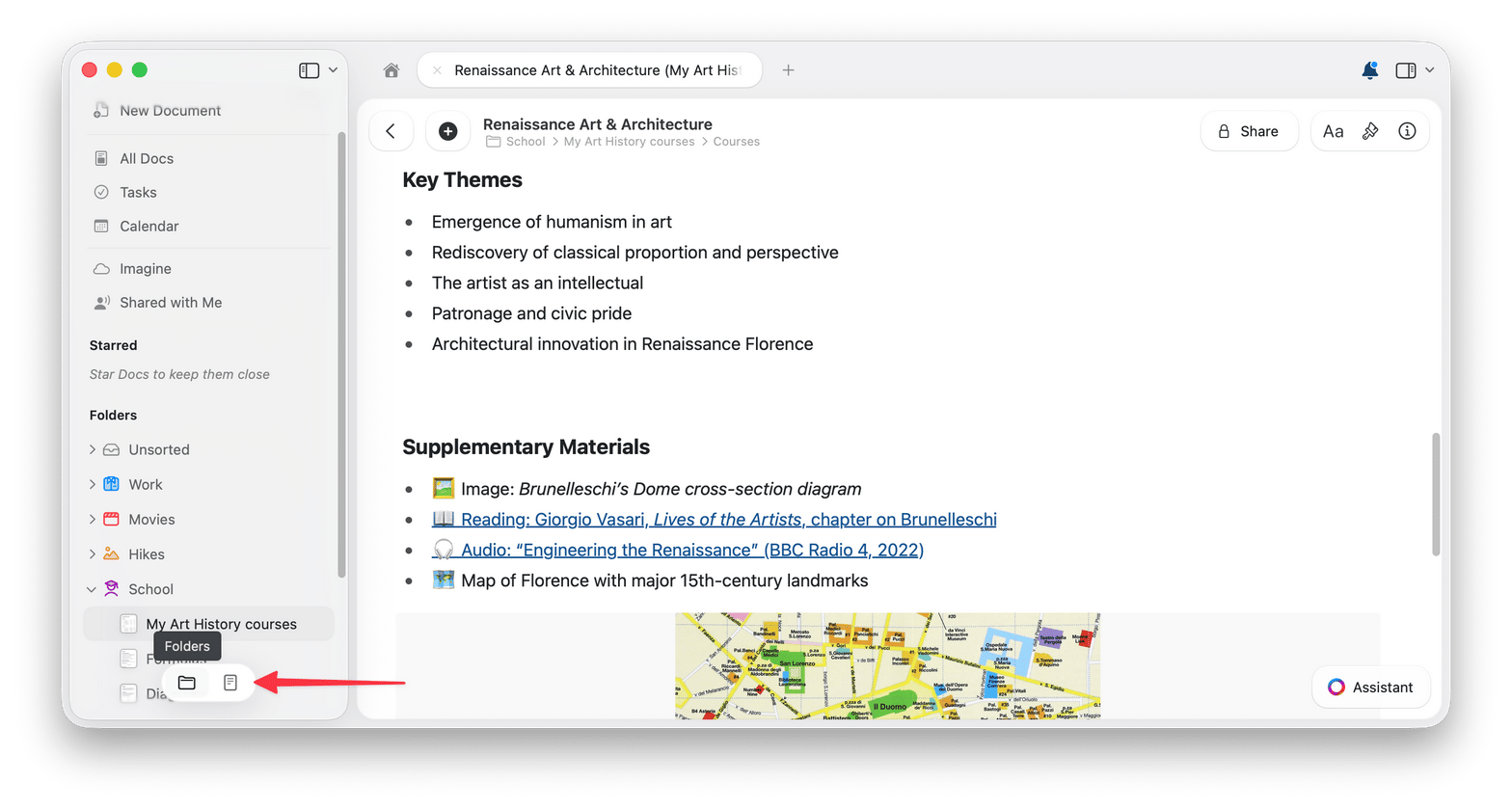 You can easily switch between the **Table of Contents** view for your document and the standard **Folders** view, where you can navigate across your folders and each document created within them.
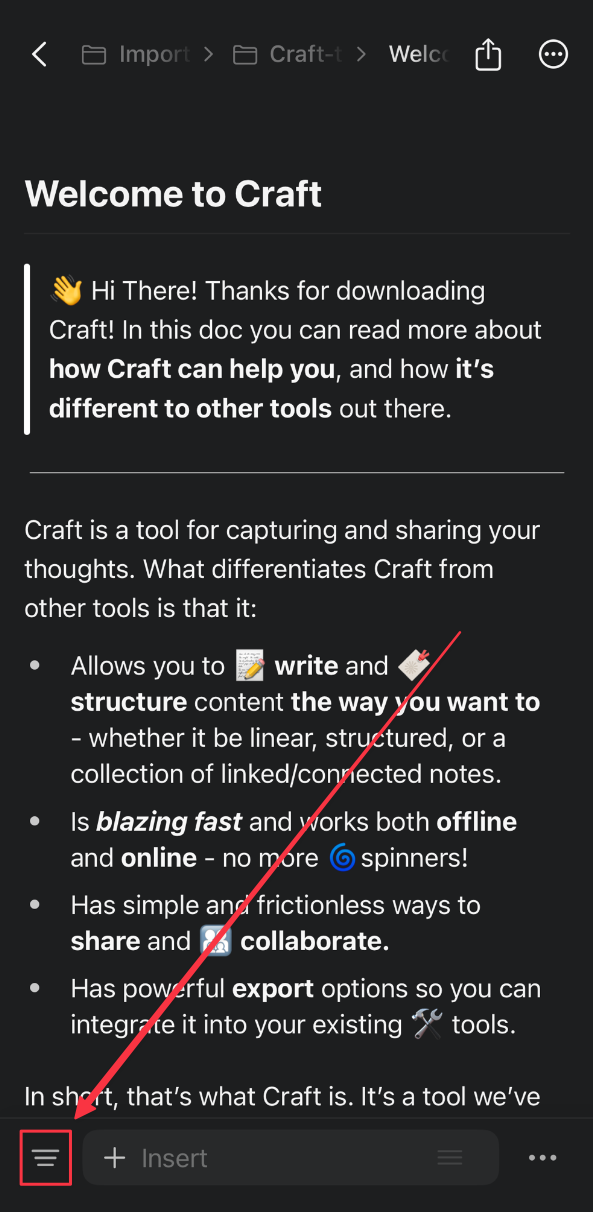
On iOS, you'll find the Table of Contents view at the bottom left of the screen, next to the insert button:
You can easily switch between the **Table of Contents** view for your document and the standard **Folders** view, where you can navigate across your folders and each document created within them.
On iOS, you'll find the Table of Contents view at the bottom left of the screen, next to the insert button:
 ## Starring Documents
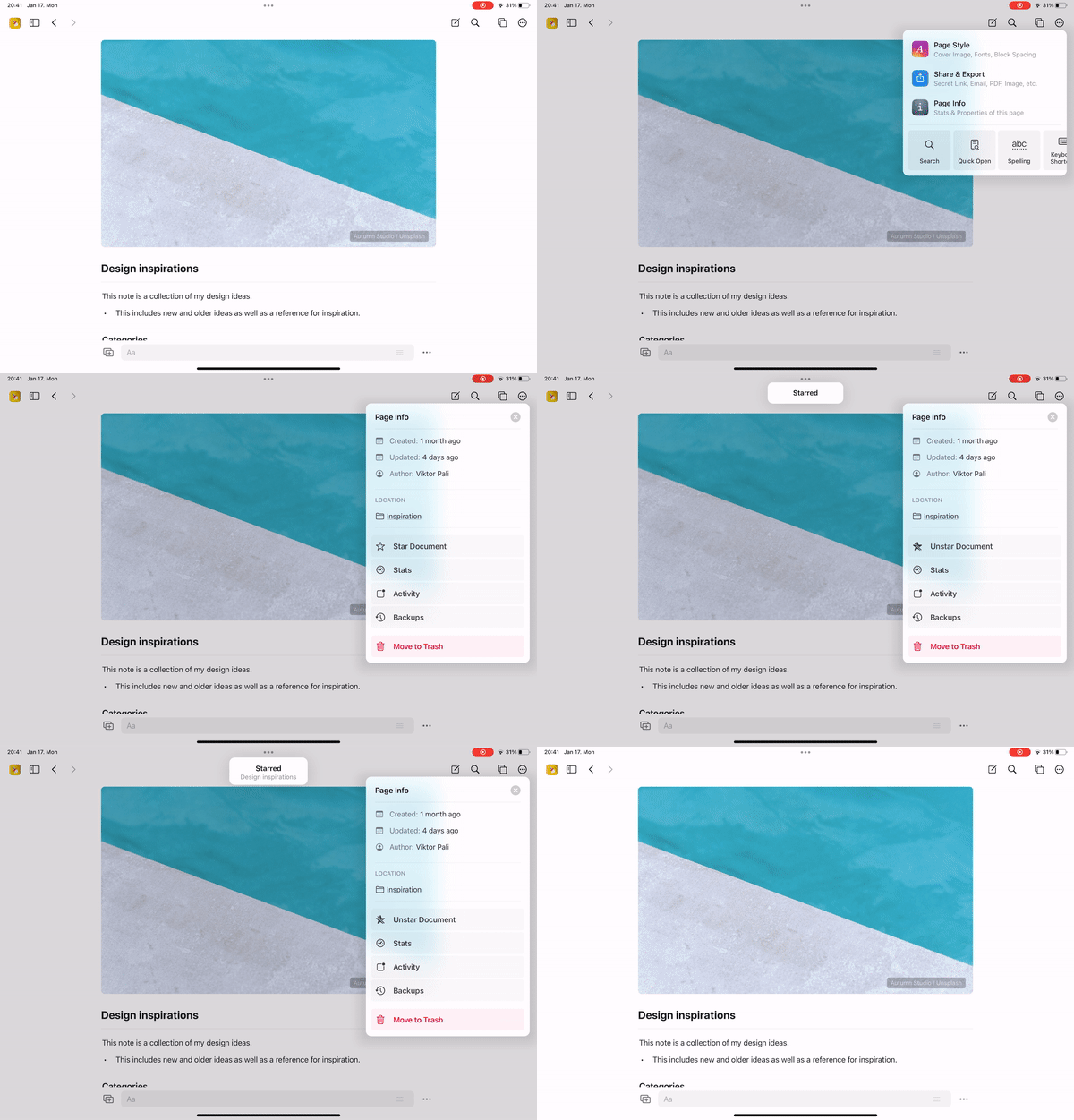
Star important documents to keep them easily accessible from the Starred section in your sidebar.
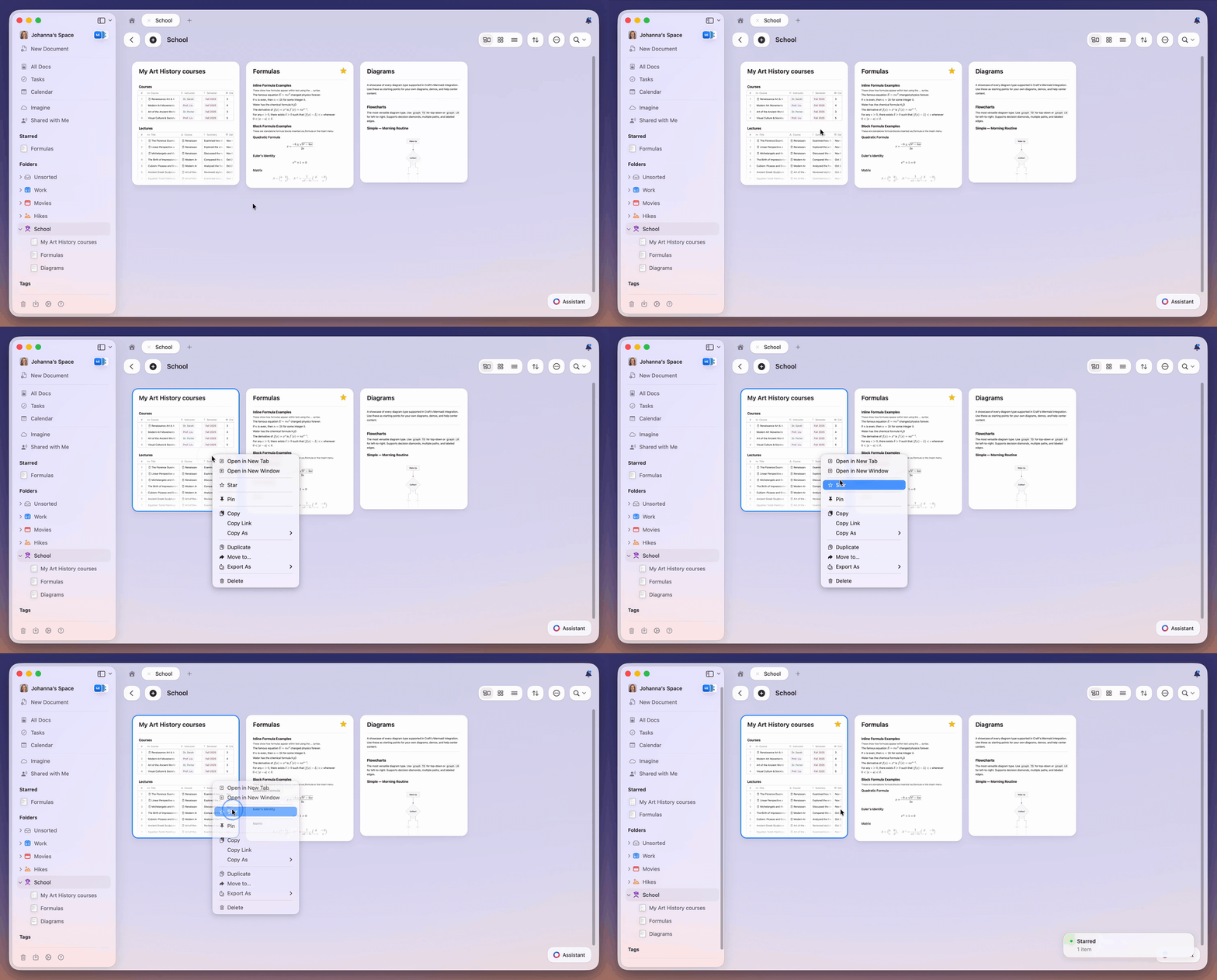
**Method 1: Right-click Menu**
Right-click on any document and select **Star**.
## Starring Documents
Star important documents to keep them easily accessible from the Starred section in your sidebar.
**Method 1: Right-click Menu**
Right-click on any document and select **Star**.
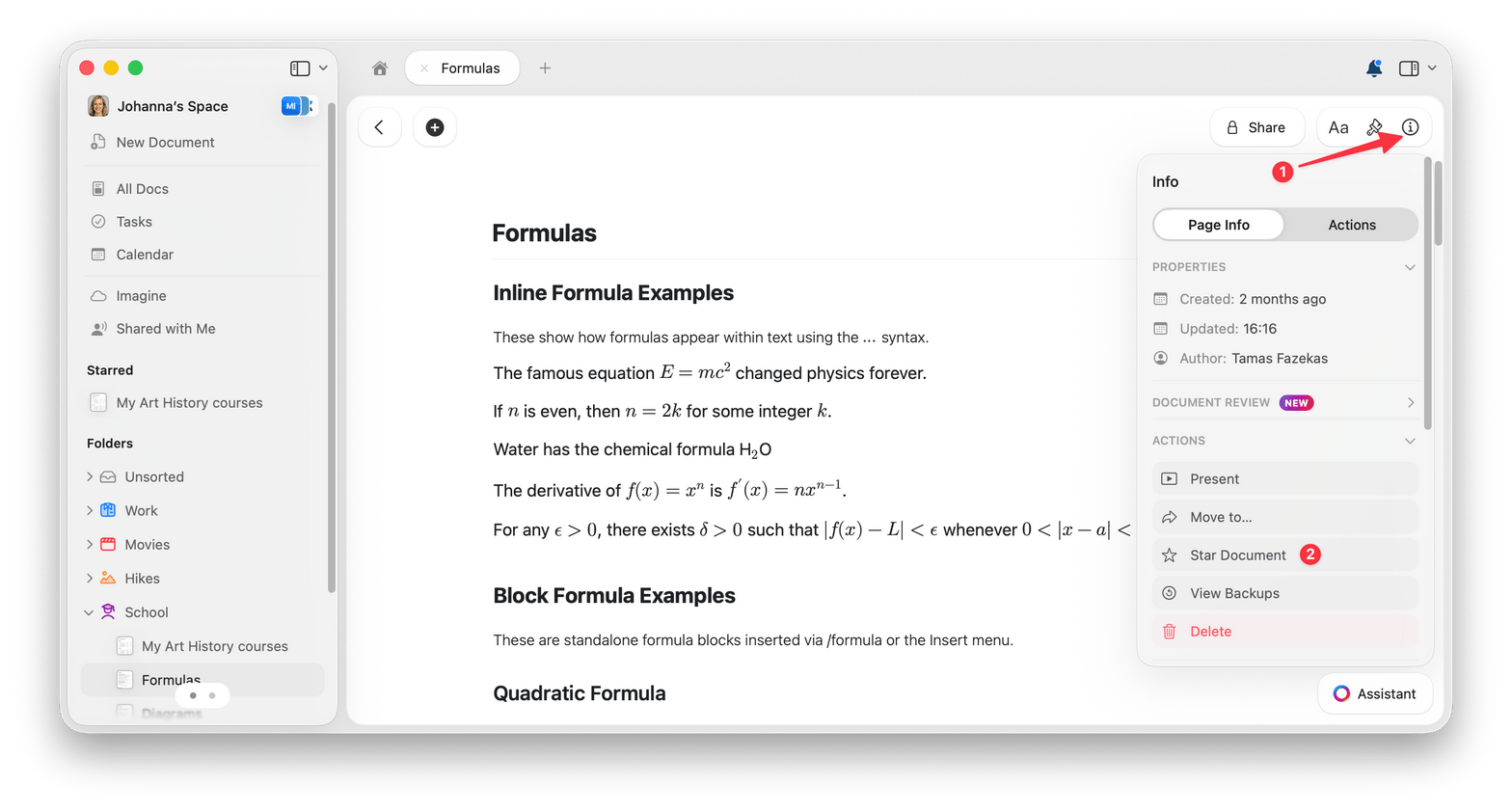
 **Method 2: Page Info**
While viewing a document, go to your sidebar → **Page Info** → **Actions** → **Star Document**.
**Method 2: Page Info**
While viewing a document, go to your sidebar → **Page Info** → **Actions** → **Star Document**.
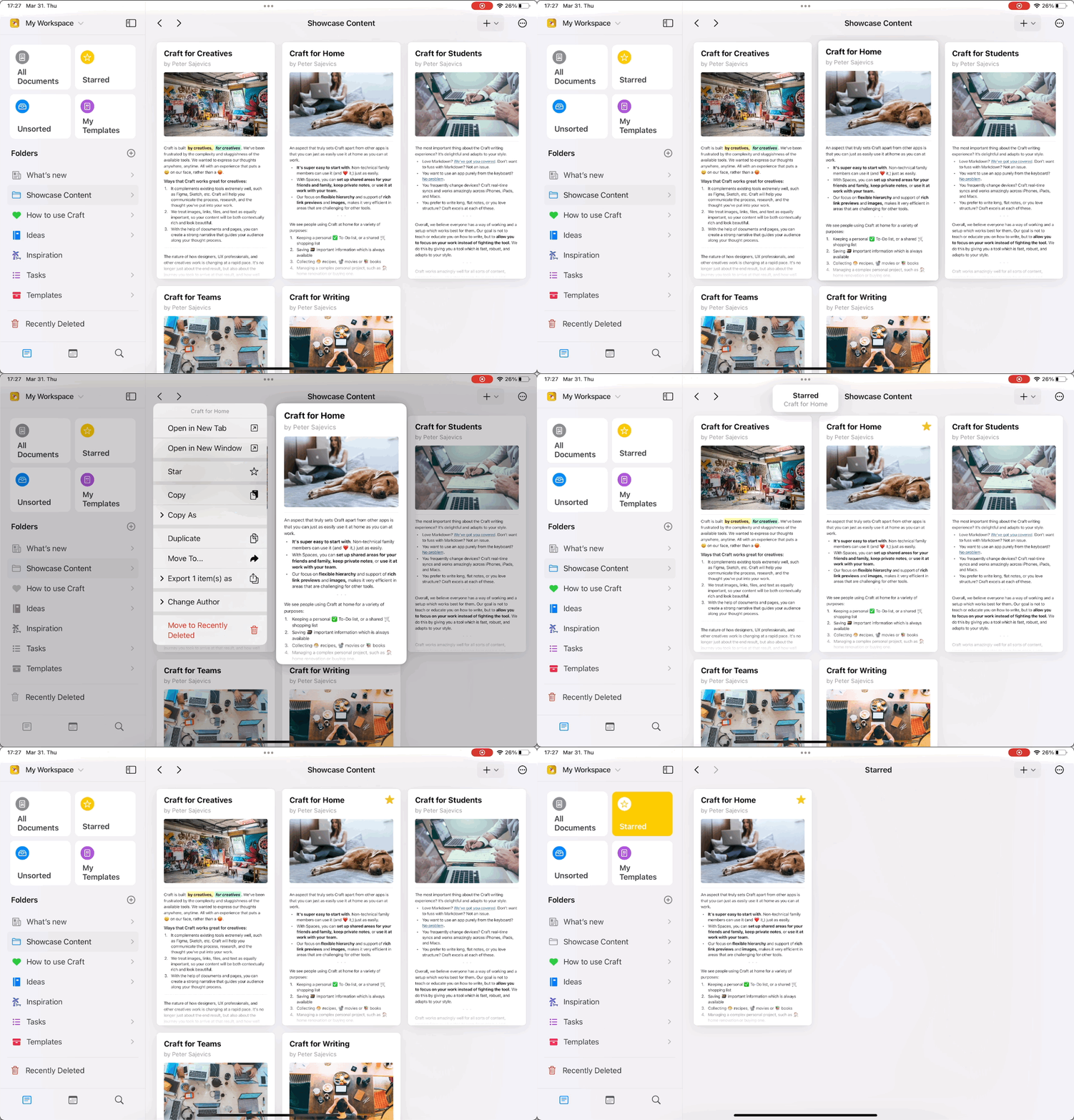
 **Method 1: Long Press**
Long press on any of your documents and select the **Star** option from the pop-up list.
**Method 1: Long Press**
Long press on any of your documents and select the **Star** option from the pop-up list.
 **Method 2: Document Menu**
In a document view, use the three-dot menu in the upper right corner → **Page Info** → **Star Document**.
**Method 2: Document Menu**
In a document view, use the three-dot menu in the upper right corner → **Page Info** → **Star Document**.
 ## Customizing the Sidebar
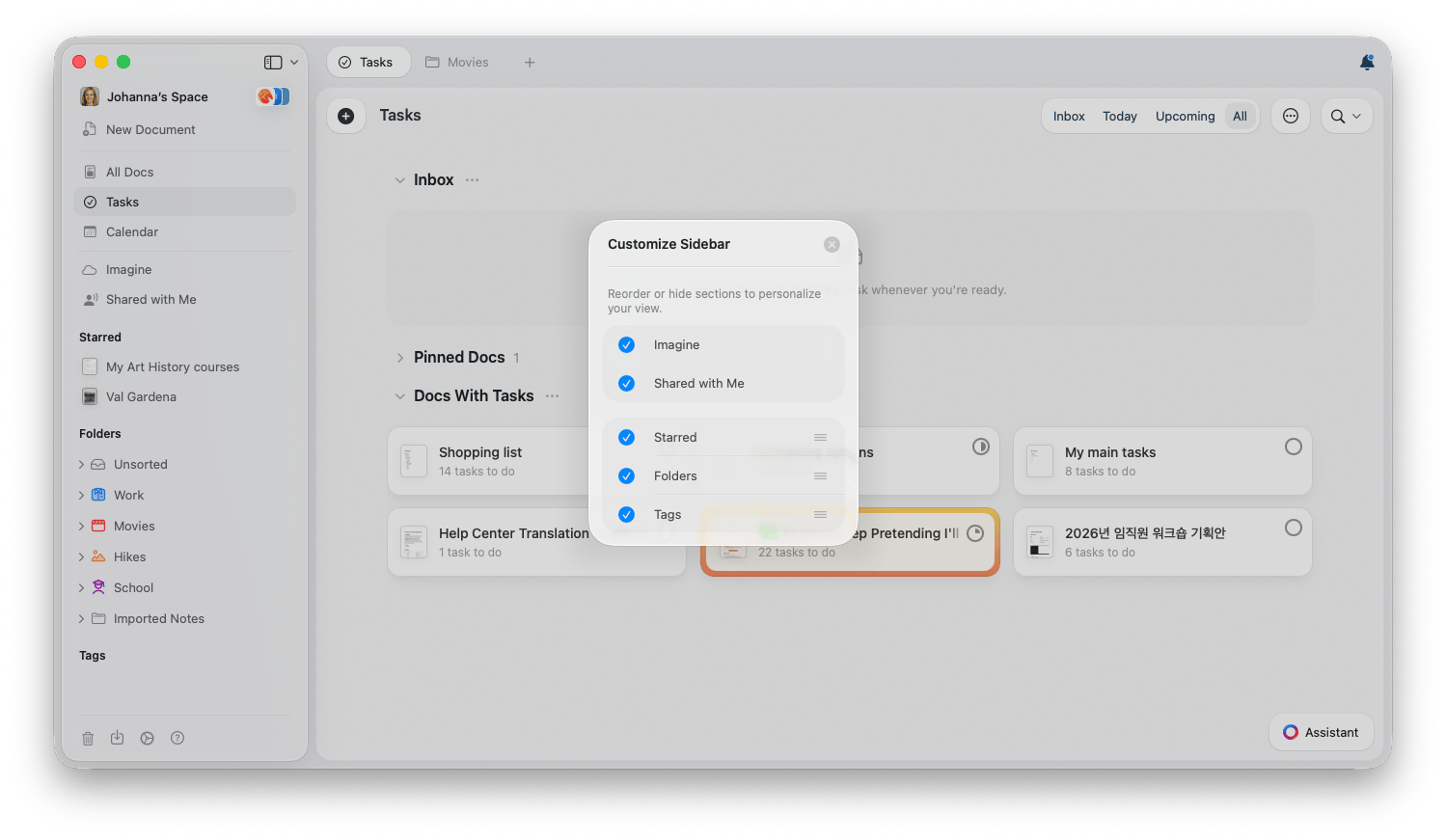
You can hide sidebar sections you don't use and reorder them to match how you work. This applies to sections like **Imagine**, **Shared with Me**, **Tags**, **Starred**, and **Folders**.
Right-click on one of the customizable sidebar sections (**Imagine**, **Shared with Me**, **Tags**, **Starred**, or **Folders**).
Select **Customize Sidebar** to open the customization popup.
Toggle a section off to hide it, and use the drag handles to reorder the Starred, Folders, and Tags sections.
## Customizing the Sidebar
You can hide sidebar sections you don't use and reorder them to match how you work. This applies to sections like **Imagine**, **Shared with Me**, **Tags**, **Starred**, and **Folders**.
Right-click on one of the customizable sidebar sections (**Imagine**, **Shared with Me**, **Tags**, **Starred**, or **Folders**).
Select **Customize Sidebar** to open the customization popup.
Toggle a section off to hide it, and use the drag handles to reorder the Starred, Folders, and Tags sections.
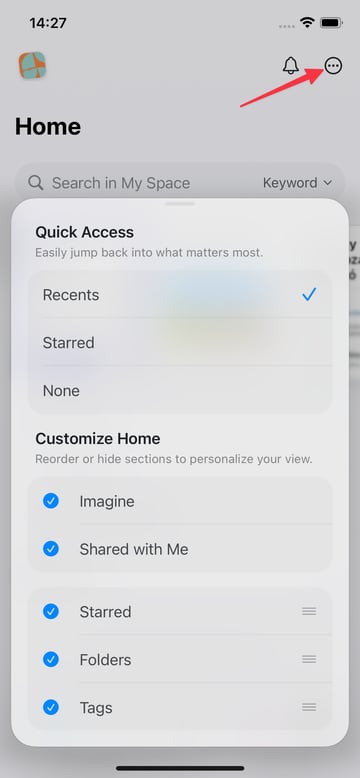
 On iOS, these sections live on your Home screen and are customized from the **Customize Home** menu.
On the Home screen, tap the three-dot menu (⋯) in the top right corner.
Under **Customize Home**, toggle a section off to hide it, and use the drag handles to reorder the Starred, Folders, and Tags sections.
Use **Quick Access** to choose what shows at the top: **Recents**, **Starred**, or **None**.
On iOS, these sections live on your Home screen and are customized from the **Customize Home** menu.
On the Home screen, tap the three-dot menu (⋯) in the top right corner.
Under **Customize Home**, toggle a section off to hide it, and use the drag handles to reorder the Starred, Folders, and Tags sections.
Use **Quick Access** to choose what shows at the top: **Recents**, **Starred**, or **None**.
 You can also reach these options from the chevron (⌄) next to the sidebar toggle button at the top of the sidebar, then select **Customize**.
Sidebar customization is saved locally and applies only to the device where you set it. It does not sync across your devices.
## Duplicating and Moving Documents
Sometimes when navigating you end up on a document you want to take an action upon that's not available from within the document itself. These actions include duplicating the document or moving it to a new folder.
All of these actions on the document are available from the folder view (e.g., by long pressing on the document in the folder on iOS or right-clicking on macOS). If you don't know which folder the document is in, here's a quick solution:
Edit the document somehow (you can make a change like adding a blank line and removing it again so you're not really altering it if you want).
From the folder list on the left (or, on iPhone, hold the **\<** in the top left corner and then swipe left-to-right), select **All Documents**.
If the document isn't at the top of the page, press the three-dot menu (⋯) in the top right, then tap **Date Updated** until the arrow points down so the documents are sorted with the most recent changes document at the top.
## Quick Navigation Tips
### Document Search
Press `Cmd + O` (macOS) or tap the search icon to quickly open any document by name.
### Block Navigation
Use `Cmd + F` to search within a document and jump to specific content.
### Sidebar Toggle
Press `Cmd + \` to show or hide the sidebar for a distraction-free writing experience.
## Related Articles
Complete list of keyboard shortcuts for faster navigation
Learn advanced search techniques to find anything
You can also reach these options from the chevron (⌄) next to the sidebar toggle button at the top of the sidebar, then select **Customize**.
Sidebar customization is saved locally and applies only to the device where you set it. It does not sync across your devices.
## Duplicating and Moving Documents
Sometimes when navigating you end up on a document you want to take an action upon that's not available from within the document itself. These actions include duplicating the document or moving it to a new folder.
All of these actions on the document are available from the folder view (e.g., by long pressing on the document in the folder on iOS or right-clicking on macOS). If you don't know which folder the document is in, here's a quick solution:
Edit the document somehow (you can make a change like adding a blank line and removing it again so you're not really altering it if you want).
From the folder list on the left (or, on iPhone, hold the **\<** in the top left corner and then swipe left-to-right), select **All Documents**.
If the document isn't at the top of the page, press the three-dot menu (⋯) in the top right, then tap **Date Updated** until the arrow points down so the documents are sorted with the most recent changes document at the top.
## Quick Navigation Tips
### Document Search
Press `Cmd + O` (macOS) or tap the search icon to quickly open any document by name.
### Block Navigation
Use `Cmd + F` to search within a document and jump to specific content.
### Sidebar Toggle
Press `Cmd + \` to show or hide the sidebar for a distraction-free writing experience.
## Related Articles
Complete list of keyboard shortcuts for faster navigation
Learn advanced search techniques to find anything