> ## Documentation Index
> Fetch the complete documentation index at: https://craft-support.mintlify.site/llms.txt
> Use this file to discover all available pages before exploring further.
# Comments and Notifications
> Collaborate with comments and stay informed with notifications on shared documents.
Comments and notifications help you communicate with collaborators on shared documents, whether you're working with family, friends, or teammates.
## Adding Comments
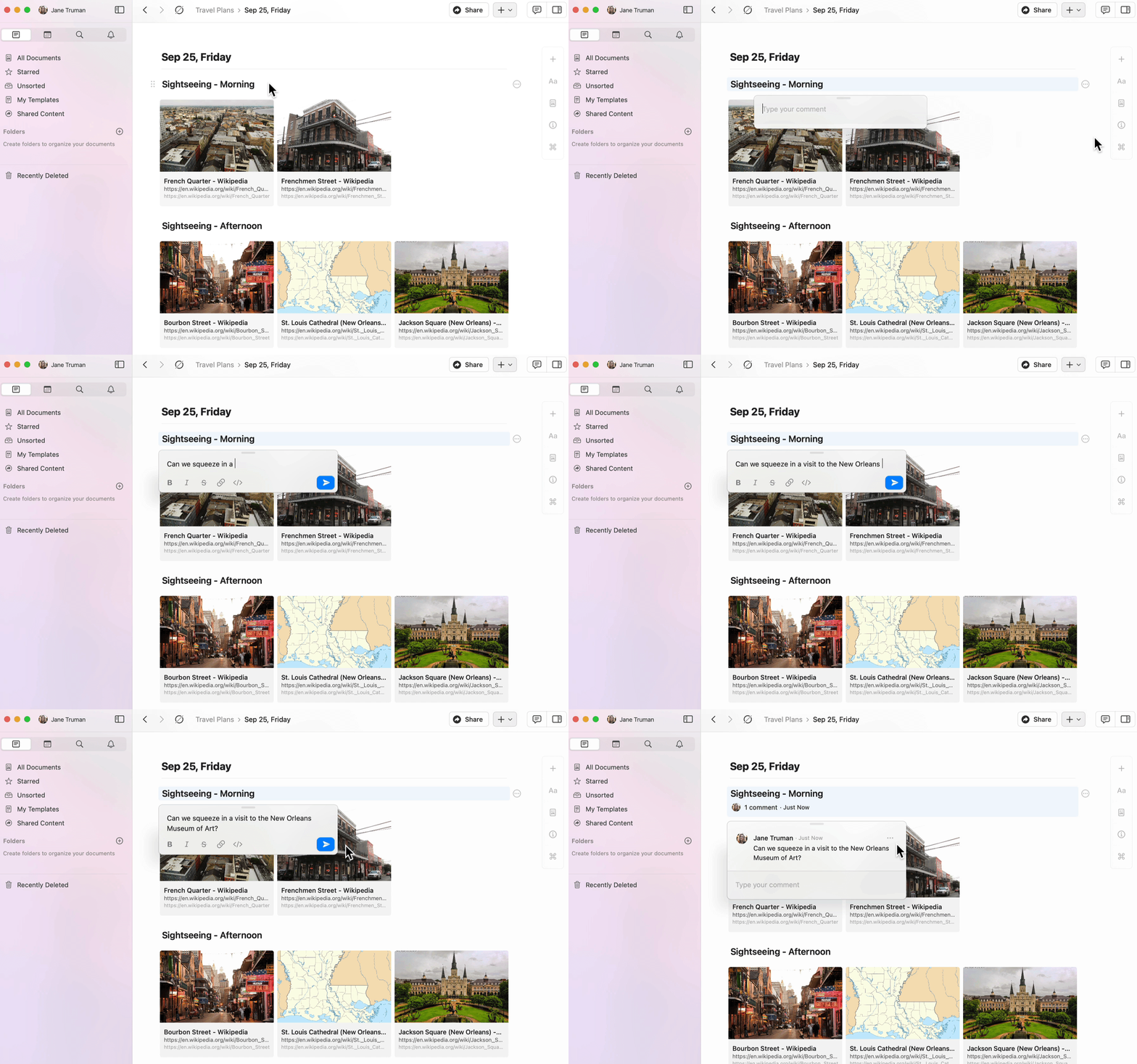
You can add comments to any block in a shared document.
Select a block of content.
Click the three-dot menu (⋯) in the block menu.
Select **Add comment**.
 ## Formatting Comments
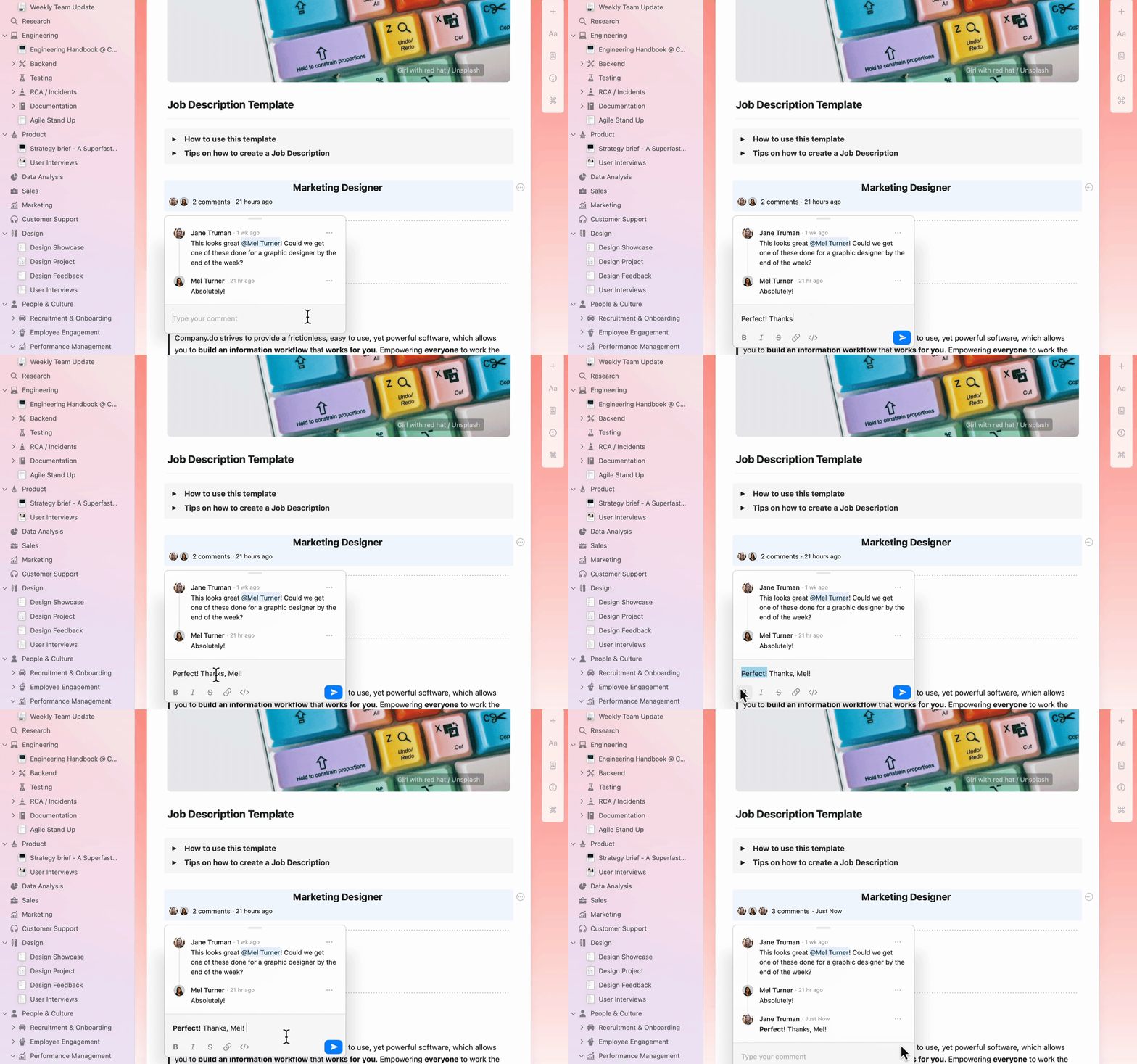
Comments support basic text formatting to help you communicate more effectively:
* **Bold**, *italic*, and ~~strikethrough~~
* Links
* Inline code
## Formatting Comments
Comments support basic text formatting to help you communicate more effectively:
* **Bold**, *italic*, and ~~strikethrough~~
* Links
* Inline code
 ## Viewing Notifications
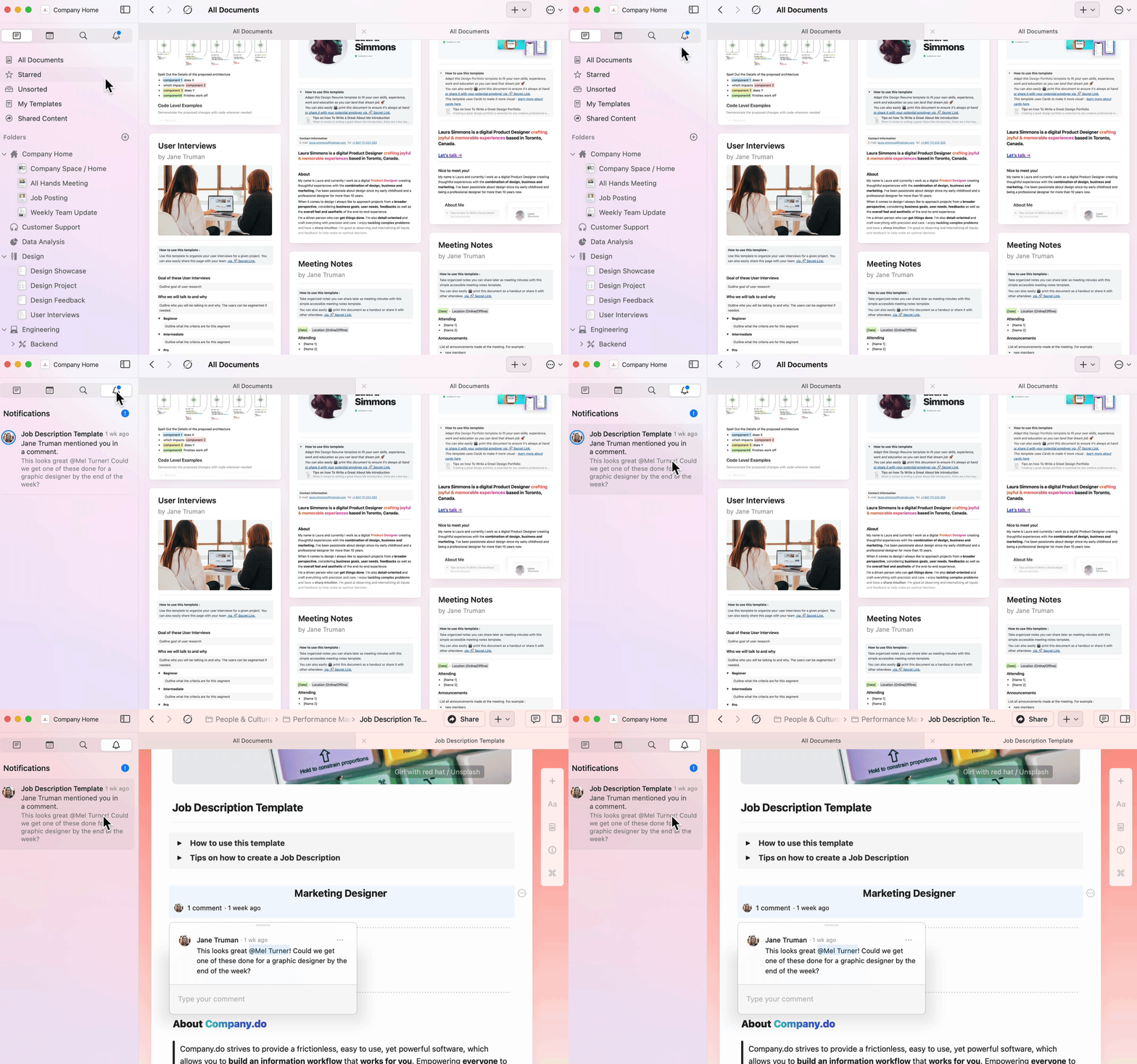
The notifications panel gives you a quick overview of all activity on your shared documents.
Navigate to the notification bell icon in the sidebar.
View all unread notifications across your spaces.
Click into any notification to jump directly to the relevant document and comment.
The app icon will display a badge showing the number of unread notifications across all your spaces.
## Viewing Notifications
The notifications panel gives you a quick overview of all activity on your shared documents.
Navigate to the notification bell icon in the sidebar.
View all unread notifications across your spaces.
Click into any notification to jump directly to the relevant document and comment.
The app icon will display a badge showing the number of unread notifications across all your spaces.
 You'll receive notifications when:
* Someone comments on a block you created
* Someone mentions you in a comment or document
## Replying to Comments
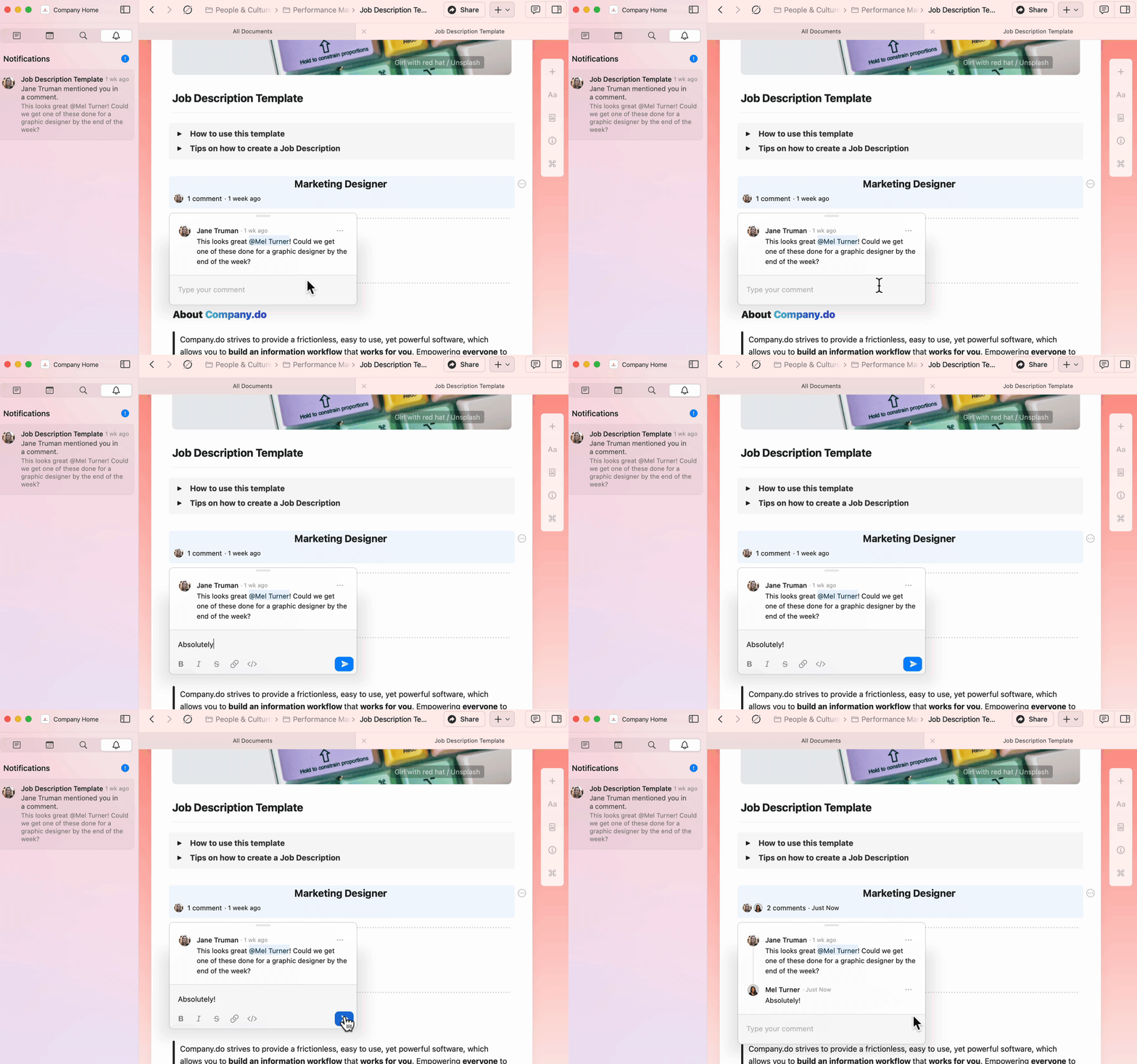
Navigate directly to comments from the notifications panel and reply in-line.
You'll receive notifications when:
* Someone comments on a block you created
* Someone mentions you in a comment or document
## Replying to Comments
Navigate directly to comments from the notifications panel and reply in-line.
 ## Email Notifications
Email notifications are sent hourly and contain all unread notifications from the previous time period.
To enable or disable email notifications:
Go to **Preferences** (macOS) or **Settings** (iOS, Web app, or Windows).
Under **Space Management**, select the space you want to configure.
Go to **Space Settings**.
Toggle **Email notifications** on or off.
## Email Notifications
Email notifications are sent hourly and contain all unread notifications from the previous time period.
To enable or disable email notifications:
Go to **Preferences** (macOS) or **Settings** (iOS, Web app, or Windows).
Under **Space Management**, select the space you want to configure.
Go to **Space Settings**.
Toggle **Email notifications** on or off.
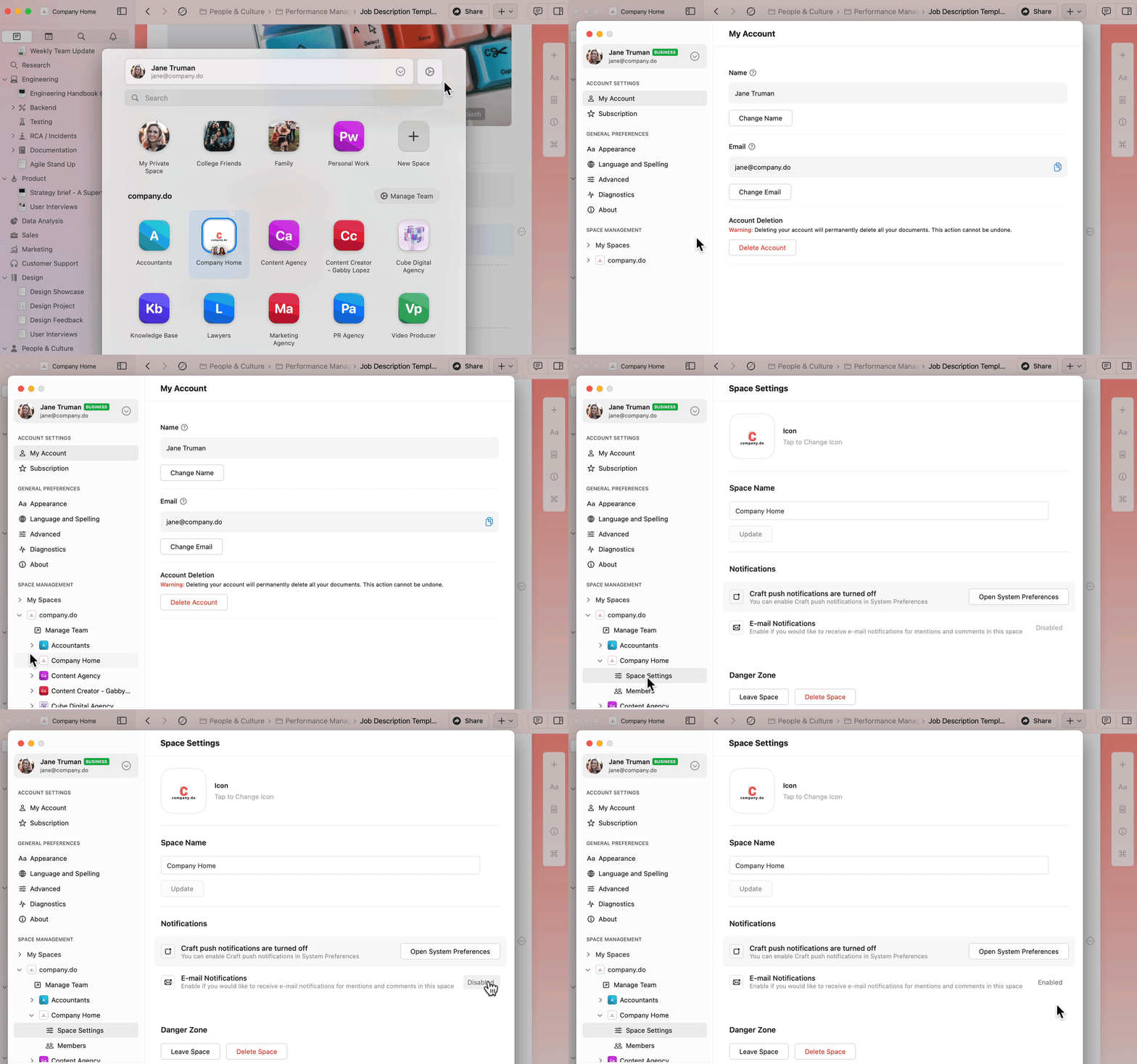 To enable or disable email notifications for multiple spaces, repeat these steps for each space individually.
## Push Notifications
Push notifications provide real-time alerts for:
* Comments on blocks you created
* Mentions in documents or comment threads
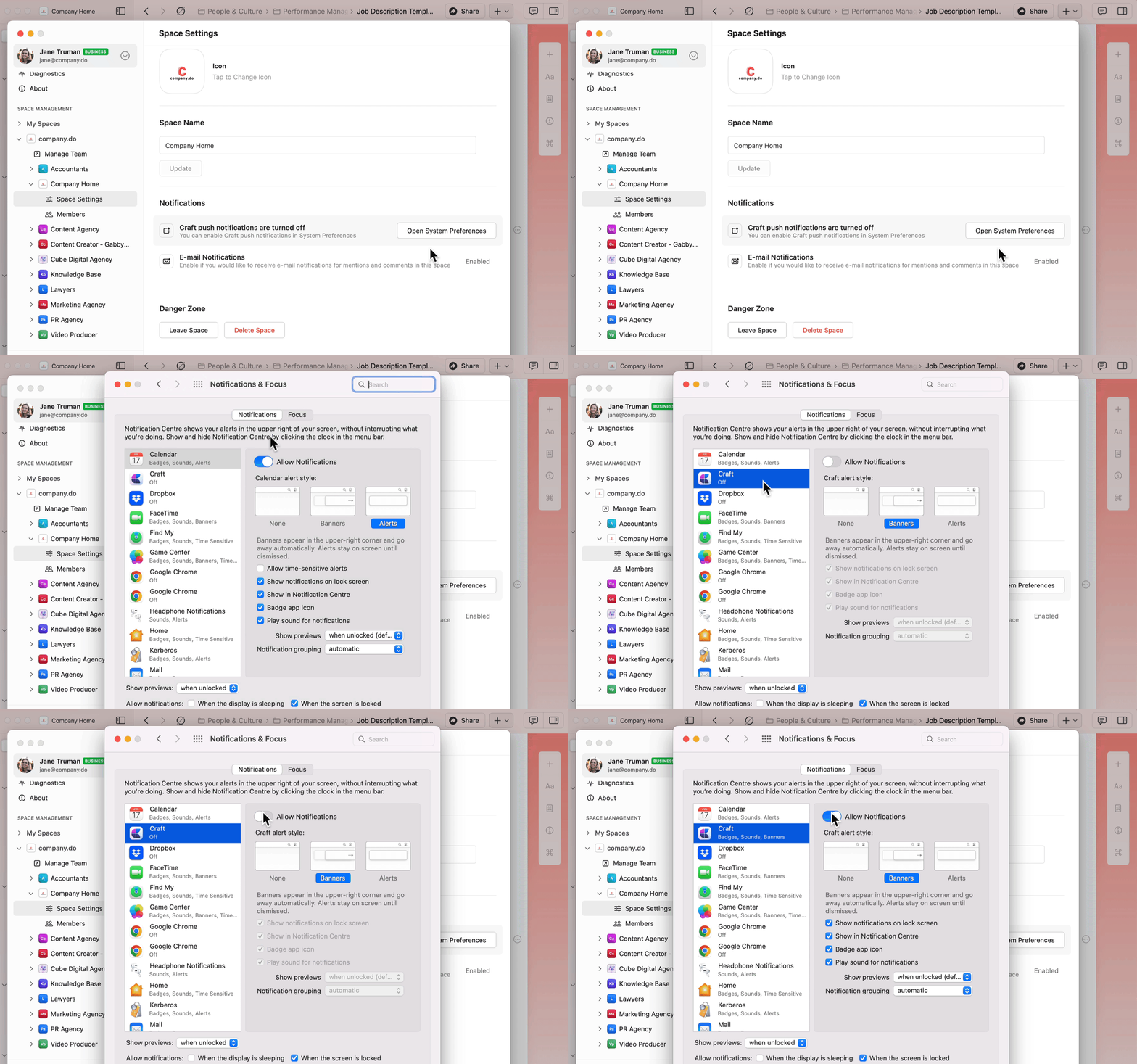
To enable push notifications:
Go to **Preferences** in Craft.
Under **Space Management**, select your space.
Go to **Space Settings**.
Click **Open System Preferences**.
Navigate to **Craft** in System Settings.
Turn on **Allow Notifications**.
To enable or disable email notifications for multiple spaces, repeat these steps for each space individually.
## Push Notifications
Push notifications provide real-time alerts for:
* Comments on blocks you created
* Mentions in documents or comment threads
To enable push notifications:
Go to **Preferences** in Craft.
Under **Space Management**, select your space.
Go to **Space Settings**.
Click **Open System Preferences**.
Navigate to **Craft** in System Settings.
Turn on **Allow Notifications**.
 Open iOS **Settings** app.
Scroll to **Craft**.
Tap **Notifications**.
Turn on **Allow Notifications**.
Configure your preferred notification style (banners, sounds, badges).
Notification sounds are currently disabled in the app, but system-level notification sounds will still work if enabled in your device settings.
## Related Articles
Learn how to share and collaborate on documents
Work together with team spaces and permissions
Open iOS **Settings** app.
Scroll to **Craft**.
Tap **Notifications**.
Turn on **Allow Notifications**.
Configure your preferred notification style (banners, sounds, badges).
Notification sounds are currently disabled in the app, but system-level notification sounds will still work if enabled in your device settings.
## Related Articles
Learn how to share and collaborate on documents
Work together with team spaces and permissions