> ## Documentation Index
> Fetch the complete documentation index at: https://craft-support.mintlify.site/llms.txt
> Use this file to discover all available pages before exploring further.
# Working Offline
> Work on your Craft documents without an internet connection. Offline editing works across all platforms with automatic syncing.
Craft works offline across all platforms. Your documents are available without an internet connection, and changes sync automatically when you reconnect.
## How Offline Works on Your Platform
Offline editing works **out of the box** — no setup needed.
All your documents sync in the background, so they're always available even without a connection. When you reconnect, changes upload automatically.
Offline editing works **out of the box** — no setup needed.
All your documents sync in the background, so they're always available even without a connection. When you reconnect, changes upload automatically.
Offline mode needs to be enabled in Settings:
Click your **Space name** in the top-left corner.
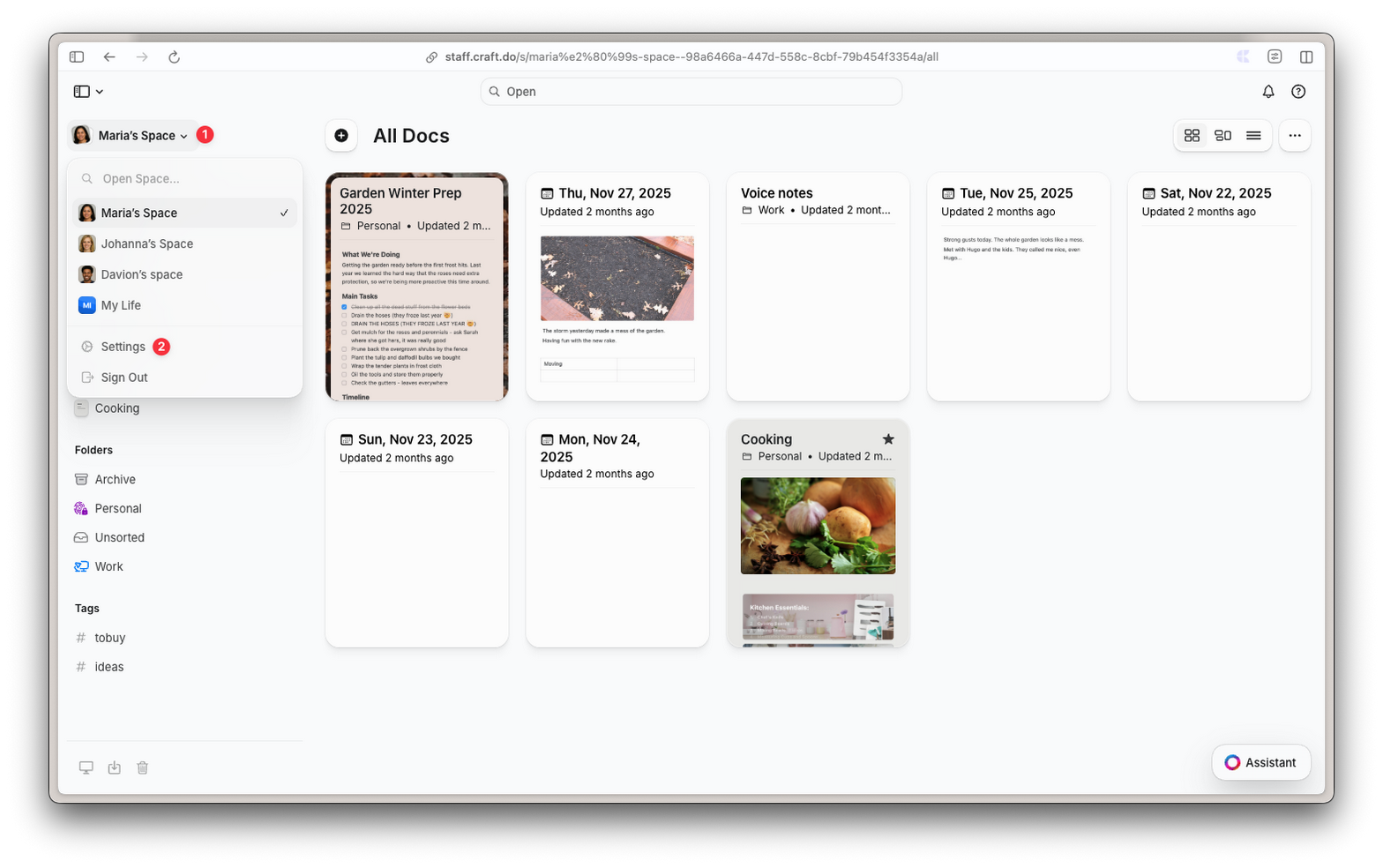 Click **Settings** in the dropdown.
Select **Advanced** under General Settings.
Click **Settings** in the dropdown.
Select **Advanced** under General Settings.
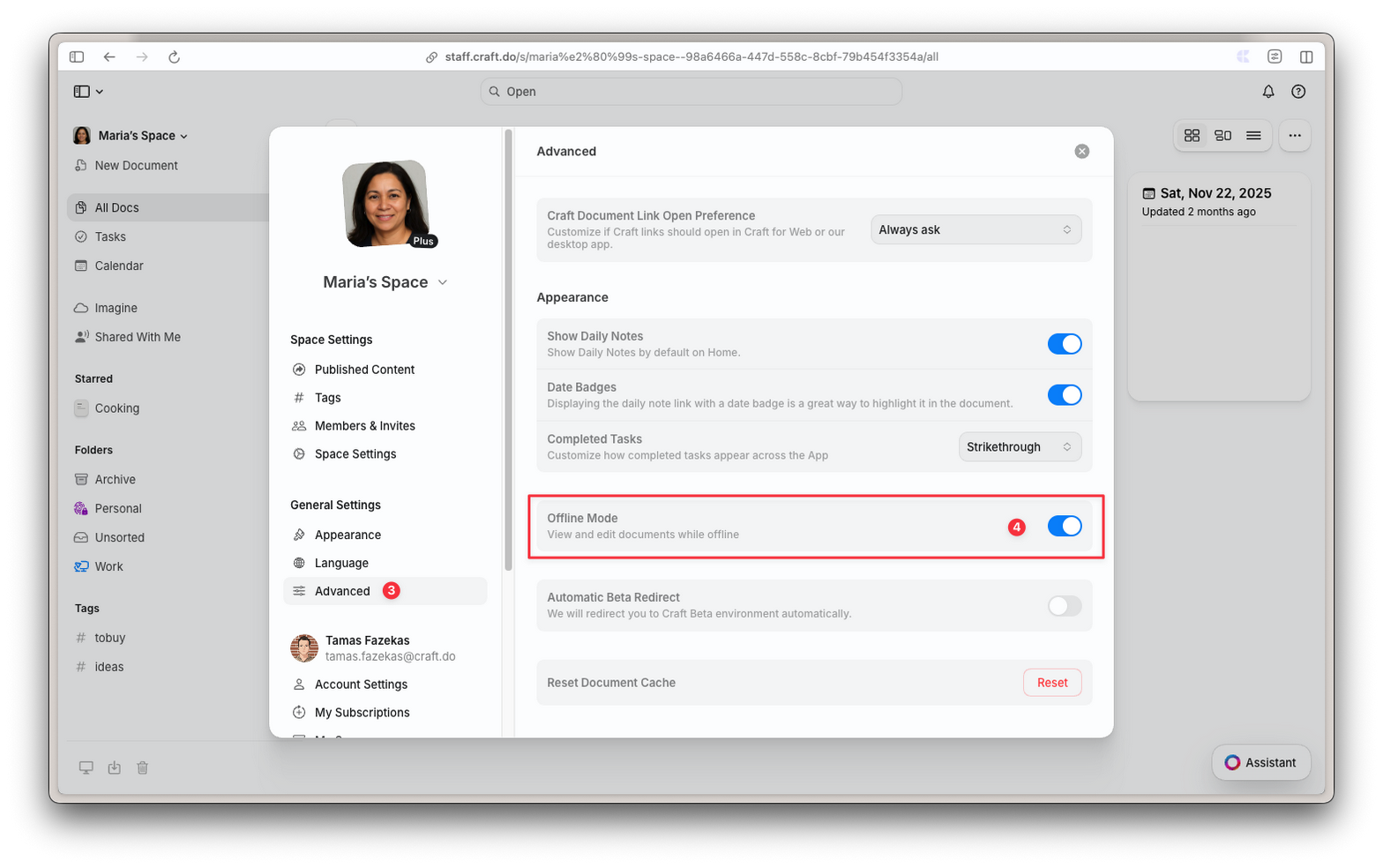 Toggle **Offline Mode** on.
Once enabled, documents are saved locally as you open them. Unlike native apps, closed documents don't sync in the background — you need to open a document while online to get the latest version.
Offline mode needs to be enabled in Settings:
Tap the **Settings** icon.
Select **Advanced** under General Settings.
Toggle **Offline Mode** on.
Once enabled, documents are saved locally as you open them. Unlike native apps, closed documents don't sync in the background — you need to open a document while online to get the latest version.
## What You Can Do Offline
When working offline, you can:
* Read and edit any document you've previously opened
* Create and format text with all styling options
* Add and organize blocks
* Work with tables, lists, and headings
* Check off tasks
* Rearrange and restructure content
### What Requires an Internet Connection
Some features are only available while online:
* Creating new documents or folders
* Search
* Adding comments and reactions
* Uploading new images or files
* Changing sharing or publish settings
* Using AI Assistant and Imagine features
* Managing documents (starring, pinning, duplicating, moving, deleting)
* Tasks view (inbox, upcoming, and active tasks)
## Syncing and Reconnecting
### When You Lose Connection
Craft continues working without interruption. All your edits are saved locally, and the app automatically attempts to reconnect in the background.
### When You Reconnect
* Unsynced changes automatically upload
* If the document is open, it syncs immediately
* If the document is closed, it will sync when you next open it
### Working on Multiple Devices
If you edit the same document on different devices while offline, each device won't see the other's changes until both are online and you reopen the document.
When working across multiple devices, make sure to sync and reload documents before making further edits.
## Web and Windows Notes
These details apply specifically to the web, Windows, and Android apps.
### Document Storage
Documents are saved locally as you open them (not your entire space at once). Your browser or app manages storage automatically. If storage runs low, older cached documents may be removed — you can always access them again by opening them while online.
### Multiple Tabs
Offline mode works across multiple browser tabs or windows. When you enable or disable it, the setting applies to all open tabs automatically.
### Page Reloads
If you reload your browser while you have unsynced offline changes, Craft will show a warning. Wait for changes to sync before reloading.
## Troubleshooting
* Make sure you opened the document at least once while online
* On Web/Windows/Android: check that Offline Mode is enabled in **Settings → Advanced**
* Verify your browser hasn't cleared its storage
* Try opening the document again while online to refresh the local copy
* Check your internet connection
* Reopen the document to trigger a sync
* On Web: make sure you haven't reloaded the page before changes synced
## Frequently Asked Questions
On macOS and iOS, all documents sync automatically. On Web, Windows, and Android, documents are saved as you open them — just enable Offline Mode in Settings and Craft handles the rest.
The main difference is background syncing. Native macOS and iOS apps sync all documents in the background, even when closed. Web, Windows, and Android only sync documents when you have them open. This means you need to open a document while online to get the latest changes from other devices.
Your browser automatically manages storage. If space runs low, older or less frequently used documents may be removed from local storage. You can always access them again by opening them while online.
No, unsynced changes are safely stored locally. They will sync automatically when you reopen Craft and have an internet connection.
Yes, but each device won't see the other's changes until both are online and you reopen the document. To avoid conflicts, try to work on different documents on each device, or sync before switching.
Toggle **Offline Mode** on.
Once enabled, documents are saved locally as you open them. Unlike native apps, closed documents don't sync in the background — you need to open a document while online to get the latest version.
Offline mode needs to be enabled in Settings:
Tap the **Settings** icon.
Select **Advanced** under General Settings.
Toggle **Offline Mode** on.
Once enabled, documents are saved locally as you open them. Unlike native apps, closed documents don't sync in the background — you need to open a document while online to get the latest version.
## What You Can Do Offline
When working offline, you can:
* Read and edit any document you've previously opened
* Create and format text with all styling options
* Add and organize blocks
* Work with tables, lists, and headings
* Check off tasks
* Rearrange and restructure content
### What Requires an Internet Connection
Some features are only available while online:
* Creating new documents or folders
* Search
* Adding comments and reactions
* Uploading new images or files
* Changing sharing or publish settings
* Using AI Assistant and Imagine features
* Managing documents (starring, pinning, duplicating, moving, deleting)
* Tasks view (inbox, upcoming, and active tasks)
## Syncing and Reconnecting
### When You Lose Connection
Craft continues working without interruption. All your edits are saved locally, and the app automatically attempts to reconnect in the background.
### When You Reconnect
* Unsynced changes automatically upload
* If the document is open, it syncs immediately
* If the document is closed, it will sync when you next open it
### Working on Multiple Devices
If you edit the same document on different devices while offline, each device won't see the other's changes until both are online and you reopen the document.
When working across multiple devices, make sure to sync and reload documents before making further edits.
## Web and Windows Notes
These details apply specifically to the web, Windows, and Android apps.
### Document Storage
Documents are saved locally as you open them (not your entire space at once). Your browser or app manages storage automatically. If storage runs low, older cached documents may be removed — you can always access them again by opening them while online.
### Multiple Tabs
Offline mode works across multiple browser tabs or windows. When you enable or disable it, the setting applies to all open tabs automatically.
### Page Reloads
If you reload your browser while you have unsynced offline changes, Craft will show a warning. Wait for changes to sync before reloading.
## Troubleshooting
* Make sure you opened the document at least once while online
* On Web/Windows/Android: check that Offline Mode is enabled in **Settings → Advanced**
* Verify your browser hasn't cleared its storage
* Try opening the document again while online to refresh the local copy
* Check your internet connection
* Reopen the document to trigger a sync
* On Web: make sure you haven't reloaded the page before changes synced
## Frequently Asked Questions
On macOS and iOS, all documents sync automatically. On Web, Windows, and Android, documents are saved as you open them — just enable Offline Mode in Settings and Craft handles the rest.
The main difference is background syncing. Native macOS and iOS apps sync all documents in the background, even when closed. Web, Windows, and Android only sync documents when you have them open. This means you need to open a document while online to get the latest changes from other devices.
Your browser automatically manages storage. If space runs low, older or less frequently used documents may be removed from local storage. You can always access them again by opening them while online.
No, unsynced changes are safely stored locally. They will sync automatically when you reopen Craft and have an internet connection.
Yes, but each device won't see the other's changes until both are online and you reopen the document. To avoid conflicts, try to work on different documents on each device, or sync before switching.