> ## Documentation Index
> Fetch the complete documentation index at: https://craft-support.mintlify.site/llms.txt
> Use this file to discover all available pages before exploring further.
# Troubleshooting
> Solutions to common issues with sync, performance, login, connectivity, storage, and platform-specific problems in Craft.
This guide covers common issues you might encounter while using Craft and how to resolve them. Expand the sections below to find the topic that matches your issue.
Some troubleshooting topics live in their feature documentation:
* [Calendar issues](/en/plan-and-do/calendar#troubleshooting)
* [Custom domain issues](/en/share-and-publish/publish/domains#troubleshooting)
* [Sharing issues](/en/share-and-publish/share#troubleshooting)
* [Subscription issues](/en/account-and-subscription/billing#troubleshooting)
* [Whiteboard migration](/en/write-and-edit/whiteboards#updating-legacy-whiteboards)
## Sync Issues
Most sync problems can be diagnosed and fixed from the **Diagnostics** panel. Open **Settings → Diagnostics** to see your current sync status, trigger a manual sync, or report a sync error directly to our team.
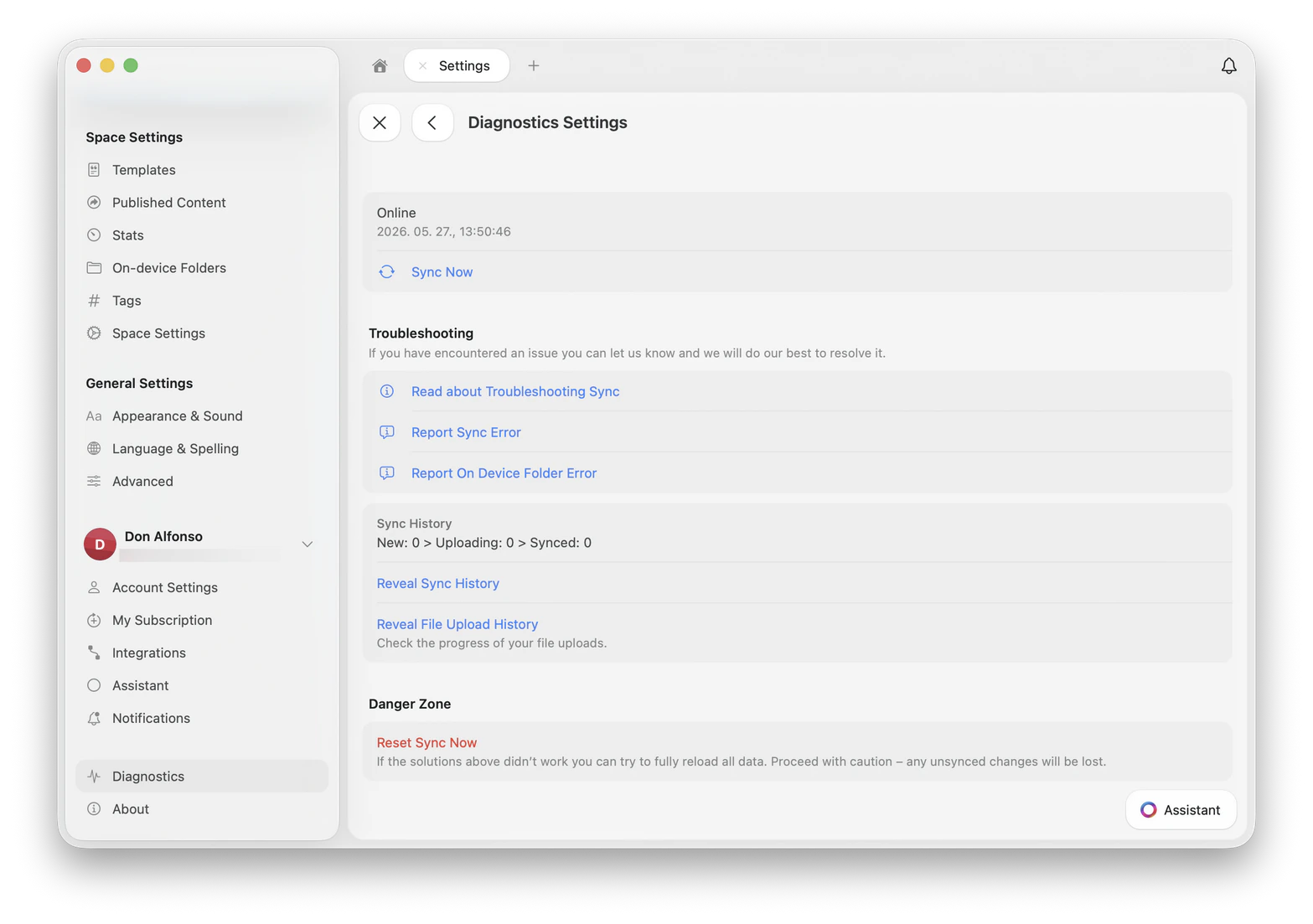 The fastest fix is to fully close and restart Craft.
1. Open **Activity Monitor** (Spotlight search, or Applications → Utilities)
2. Find **Craft** in the list
3. Select it and click the **Stop** (⊗) button at the top
4. Reopen Craft
1. Force quit Craft (swipe up and flick the Craft card away)
2. Wait about 30 seconds
3. Reopen Craft
1. Right-click the Craft icon in the taskbar and choose **Close window**
2. If it's still running, open **Task Manager**, find **Craft**, and click **End task**
3. Reopen Craft
After restarting, open **Settings → Diagnostics** and check the sync status at the top of the panel.
First, confirm you're signed in with the **same account and login method** on every device. Email and **Sign in with Apple** create different accounts even if the email looks the same.
To check your email address:
Your email is shown at the top-left corner of the Documents list, next to your avatar.
Tap the avatar at the top-left of the Documents list to open the Spaces list.
Tap the avatar at the bottom-right of the Documents list to open the Spaces list.
If your email ends with `@privaterelay.appleid.com`, you signed up using **Sign in with Apple**. That's a relay address generated by Apple, not your real email. Make sure you use the same Apple ID on every device.
Open **Settings → Diagnostics** and tap **Sync Now**. The app will attempt to restart the sync process.
If **Sync Now** doesn't resolve the issue:
1. Sign out of Craft (**Settings → Account → Sign Out**)
2. Force quit the app
3. Wait 30 seconds, reopen Craft, and sign back in
1. Restart the app (Windows) or clear your browser cache (Web)
2. Check your internet connection, ideally try a different network
3. Sign out and back in
If documents appear on one device but not another, double-check the account and login method on both (see **Documents not syncing across devices** above).
VPNs, ad blockers (e.g., **AdGuard**), and network monitoring tools (e.g., **Little Snitch**) can prevent Craft from syncing.
1. Temporarily disable the tool
2. Restart Craft
3. Check whether sync is restored
Browser extensions like **Hush** and **Plume Guard** can also block access to Craft's servers.
Corporate firewalls and privacy programs can block traffic to Craft. If you're on a work network, ask your IT department to allow these domains:
* `api.craft.do`
* `docs.craft.do`
* `res.craft.do`
See also: [Can't access Craft on Web app or Windows](#cant-access-craft-on-web-app-or-windows).
## Login Issues
When you choose **Continue with Apple** on your Mac, you'll be prompted for a password. This is Apple's security measure.
Enter the password of your **macOS user account**, not the password for your Apple ID. If you type the Apple ID password, the prompt simply reappears without an error.
Some browser extensions, ad blockers, or private networks may prevent you from reaching Craft. Common symptoms include **"Server Not Found"** or pages that simply don't load.
Apps known to cause this:
* [Hush](https://oblador.github.io/hush/)
* **Plume Guard** (the Secure DNS feature in the Plume HomePass app)
**Try these steps:**
1. Disable the extension or tool temporarily
2. Mark Craft's domain as secure in the tool's configuration
3. Try a different network
If the issue persists across networks and cellular data, please contact support.
## Performance Issues
**Quick fixes:**
1. Restart the app via **Activity Monitor** (see [Sync shows as 'Offline'](#sync-shows-as-offline-in-diagnostics) above for steps)
2. Close unused tabs and windows
3. Check whether window management apps (e.g., **Magnet**, **Rectangle**) are up to date
**Information to include when contacting support:**
* Are you using an **External Storage** space?
* Any window management apps in use?
* Any third-party text editing tools?
* Screenshot of **System Settings → Privacy & Security → Accessibility**
* Does restarting the app help?
* Do multiple tabs and windows trigger the issue?
For persistent slowdowns, send us a **Spindump**. See [Capture diagnostic data](#capture-diagnostic-data) under *Reporting bugs* for steps.
Check the following:
1. Which **Windows version** are you running?
2. Are you connected to a company network or VPN?
3. Does restarting the app restore normal performance?
4. Does restarting the computer restore normal performance?
If the issue persists, record a full-screen video of the problem and share it with support. See [Capture diagnostic data](#capture-diagnostic-data) under *Reporting bugs* for additional logs you can include.
To use the Grammarly desktop app with Craft on macOS:
Get the desktop app from [grammarly.com/desktop](https://www.grammarly.com/desktop).
Open the app after installation.
Follow the in-app guide to enable Grammarly in **System Settings → Privacy & Security → Accessibility**.
Quit and reopen the Craft app.
The Grammarly widget should appear whenever you select a block.
## macOS-Specific Issues
If you only see an **Open** button in the App Store instead of the update:
Click the app title to enter the full detail view.
This message appears when leftover files from a previous installation remain on your Mac. It typically happens when Craft was installed from multiple sources (e.g., both the App Store and Setapp).
In Finder, go to **Go → Go to Folder** and paste these paths one at a time, then delete the contents:
```
~/Library/Group Containers/group.com.lukilabs.lukiapp.share/
~/Library/Containers/com.lukilabs.lukiapp
```
If the message persists, search both **Group Containers** and **Containers** folders for any items containing `craft`, `lukilabs`, or `lukiapp` and delete them.
Install Craft fresh from your preferred source.
## iOS / iPadOS-Specific Issues
You can share **text and links** to Craft via the Share Sheet. Sharing **photos or files** directly can result in an unusable link.
**Option 1: Copy and paste**
1. Choose **Copy** in the Share Sheet
2. Open Craft
3. Paste into the target document
**Option 2: Download and add**
1. Save the file to your device
2. In Craft, tap the **+** button at the bottom-left
3. Choose **Files**
4. Select the file
## Windows and Web App Issues
On a company device or network, your company's proxy may be blocking access.
Ask your IT department to allow these domains:
* `api.craft.do`
* `docs.craft.do`
* `res.craft.do`
This message means the app has lost its connection to the internet or our servers. It will automatically attempt to reconnect.
**What to do:**
* **Check your internet connection.** Make sure it's active and stable.
* **Pause editing.** Avoid making changes until the connection is restored, to prevent potential data loss.
* **Reload the page.** If your connection is stable and you have no unsaved changes, refresh the page.
The message disappears as soon as the connection is back.
On the Web app, some pasted links (e.g., LinkedIn) may show **"Failed to fetch data"** instead of a thumbnail.
The third-party service we use to fetch link previews is blocked by some providers. This is an external issue we can't control directly.
**What still works:**
* Clicking the link opens it normally
* Only the **Web app** is affected
* Only **personal LinkedIn profile links** are affected
* **Company LinkedIn links** display correctly
* All LinkedIn thumbnails render correctly on **macOS, iOS, and iPad**
Craft for Windows updates automatically when you quit and reopen the app. A notification appears in the Windows notification panel (bottom-right) when a new version is available.
To update manually:
1. Uninstall Craft for Windows
2. Download the latest version from [craft.do/download](https://www.craft.do/download) or the [Microsoft Store](https://apps.microsoft.com/store/detail/craft/9P9K8RN4TV3H)
## Subscription Issues
If you recently upgraded but Craft still shows the free tier limit (1,500 blocks), the app may not have refreshed your subscription status yet.
1. Sign out of Craft (**Settings → Account → Sign Out**)
2. Close the app completely
3. Reopen Craft and sign back in
Your upgraded plan should now apply. If not, make sure you're signed in with the **same account** you used to purchase the subscription.
## Data & Storage Issues
The **Recently Deleted** folder can disappear for two reasons:
1. The deleted documents are older than **30 days**
2. The content of the deleted folder was emptied manually
If you deleted something by accident, check the [Storage and Recovery](/en/account-and-subscription/storage-and-recovery) documentation for available options.
If you keep getting **"External location already added"** when re-adding an external location, but it doesn't appear as a space:
If the message persists:
1. Delete the Craft app from your device
2. Reinstall the app
3. Try adding the external location again
The reliability and performance of **iCloud Drive** sync are outside our control. If syncing isn't working, these steps usually help.
We do not recommend using External spaces across multiple devices. It can lead to data conflicts and data loss. If you're unsure how to use your spaces, please contact support.
**Troubleshooting steps:**
1. **Trigger sync manually.** Open Finder (macOS) or the Files app (iOS) and navigate to your iCloud Drive folder.
2. **Edit a document.** Changing content kicks off syncing.
3. **Check internet access.** Use Wi-Fi or a fast cellular connection. Make sure your device is charged.
4. **Toggle Airplane Mode.** Reconnecting can restart iCloud Drive sync.
5. **Check cellular sync settings:**
* Enable **System Services** under **Settings → Cellular Data**
* Enable **Use Cellular Data** under **Settings → iCloud → iCloud Drive**
6. **Check battery level.** Low battery slows sync to preserve power.
7. **Check iCloud storage limit.** Sync stops if you've hit your storage quota.
8. **Restart your devices.** Ensures iCloud services are running.
9. **Verify iCloud is enabled:**
* **iOS:** Sign in to iCloud and enable iCloud Drive
* **macOS:** Sign in to iCloud and enable iCloud Drive in Apple ID settings
10. **Disable 'Optimize Mac Storage'.** With this on, your Mac offloads files to the cloud, which can cause missing files.
11. **Be patient.** First-time syncing can take up to a day.
12. **Sign out and back in.** If iCloud Drive is hanging, sign out of iCloud and back in.
13. **Set time automatically.** Make sure all devices have automatic time enabled.
14. **Update your OS.** Apple improves iCloud with each OS version.
15. **Check Apple's [System Status](https://www.apple.com/support/icloud/systemstatus/) page.**
## Reporting bugs
If you've encountered a bug in Craft, we'd love your help tracking it down. Clear reports help us investigate and resolve issues faster.
### Before you report
* Make sure you're using the **latest version** of Craft
* Restart the app, or refresh the Web version
* If the issue persists, continue below
### What to include
Mention the exact version number you're running.
* **Device model** (e.g., MacBook Pro M2, iPhone 15, Windows laptop)
* **Operating system and version** (e.g., macOS Sequoia 15.4, iOS 18.5, Windows 11 23H2)
* **Platform** (desktop app, mobile app, or Web)
List the exact actions that led to the problem. Example: *"Opened a document → added a new page → inserted an image → issue happened."*
Keep it short and focused on the issue, record the entire screen (not a crop), and use the highest resolution available. Screenshots also work for visual bugs and error messages. See [how to record your screen](#how-to-record-your-screen) below.
For crashes, freezes, or persistent sync issues, include a Spindump, sysdiagnose, or browser console log. See [Capture diagnostic data](#capture-diagnostic-data) below.
### How to record your screen
* Enable **Screen Recording** in **Settings → Control Center**
* Open Control Center and tap **Record**
* Stop the recording by tapping the red status bar
* [Apple's official guide](https://support.apple.com/en-us/HT207935)
* Press **⌘ + Shift + 5**
* Choose **Record Entire Screen** or **Record Selected Portion**
* [Apple's official guide](https://support.apple.com/en-us/HT208721)
* Press **Windows key + G** to open the Xbox Game Bar
* Use the **Capture** widget to record
* [Microsoft's official guide](https://www.microsoft.com/en-us/windows/learning-center/how-to-record-screen-windows-11)
### Capture diagnostic data
For persistent crashes, freezes, or sync issues, our team may ask for a diagnostic file. The exact format depends on your platform, but the goal is always the same: capture what your system was doing when the problem happened.
A **Spindump** captures a snapshot of all running processes. It's the most useful file you can send us for hangs, beachballs, or slowness on macOS.
Trigger the slow or unresponsive behavior in Craft, and leave it in that state.
Find it in **Applications → Utilities**, or search with Spotlight (**⌘ + Space**).
Click the three-dot menu **(⋯)** in the toolbar, then choose **Spindump**.
Wait a few seconds for the report to generate, then **Save** the file to your Desktop.
Attach the `.txt` file to your support ticket along with a short description of what you did right before the issue.
A **sysdiagnose** is Apple's built-in diagnostic snapshot. It's the iOS equivalent of a Spindump.
* **iPhone (Face ID):** Press and quickly release **Volume Up**, then **Volume Down**, then press and hold the **Side button** + **both Volume buttons** for about 1 second.
* **iPhone with Home button:** Press and hold the **Home button** + **both Volume buttons** for about 1 second.
* **iPad:** Press and hold the **Top button** + **both Volume buttons** for about 1 second.
You'll feel a short vibration. No notification appears, this is normal.
Wait about **10 minutes**. The system needs time to compile the report in the background.
Open **Settings → Privacy & Security → Analytics & Improvements → Analytics Data**. Scroll to find an entry starting with `sysdiagnose_` and today's date.
Tap the entry, tap the **share icon** at the top-right, and send it to support via Mail or Files.
The file is large (often 100+ MB). Sharing via Mail or AirDrop to your Mac, then attaching to a support email usually works best.
The quickest way to help us on Windows is a **screen recording** of the issue, plus your **system information**.
Press **Windows key + G** to open the Xbox Game Bar, then use the **Capture** widget to record. Keep the recording short and focused on the problem.
Open **Settings → System → About** and take a screenshot of the **Device specifications** and **Windows specifications** sections.
For repeat crashes, open **Event Viewer** (search the Start menu), expand **Windows Logs → Application**, find the recent **Error** entries related to Craft, right-click → **Save All Events As…** and save as a `.evtx` file.
Attach the recording, screenshots, and any logs to your support ticket.
For Web app issues, the **browser console** usually shows what went wrong.
* **Chrome, Edge, Brave:** Press **F12** (Windows) or **⌘ + Option + I** (Mac)
* **Safari:** Enable the Develop menu first (**Safari → Settings → Advanced → Show Develop menu**), then press **⌘ + Option + C**
* **Firefox:** Press **F12** (Windows) or **⌘ + Option + I** (Mac)
Click **Console** at the top of the DevTools panel.
With the Console open, repeat the steps that caused the problem so any errors are captured.
Take a screenshot of the Console showing any red error messages, and include your browser and version (e.g., Chrome 124, Safari 17).
### What happens after you report
* **One-off issues:** We log it and monitor for related cases
* **Reproducible bugs:** We escalate internally for investigation and resolution
Thank you for taking the time to report bugs. Your input helps us make Craft better for everyone.
***
## Still need help?
If you can't find a solution here, we're here to help:
Get help directly from our support team
Learn about all the ways to get support and share feedback
The fastest fix is to fully close and restart Craft.
1. Open **Activity Monitor** (Spotlight search, or Applications → Utilities)
2. Find **Craft** in the list
3. Select it and click the **Stop** (⊗) button at the top
4. Reopen Craft
1. Force quit Craft (swipe up and flick the Craft card away)
2. Wait about 30 seconds
3. Reopen Craft
1. Right-click the Craft icon in the taskbar and choose **Close window**
2. If it's still running, open **Task Manager**, find **Craft**, and click **End task**
3. Reopen Craft
After restarting, open **Settings → Diagnostics** and check the sync status at the top of the panel.
First, confirm you're signed in with the **same account and login method** on every device. Email and **Sign in with Apple** create different accounts even if the email looks the same.
To check your email address:
Your email is shown at the top-left corner of the Documents list, next to your avatar.
Tap the avatar at the top-left of the Documents list to open the Spaces list.
Tap the avatar at the bottom-right of the Documents list to open the Spaces list.
If your email ends with `@privaterelay.appleid.com`, you signed up using **Sign in with Apple**. That's a relay address generated by Apple, not your real email. Make sure you use the same Apple ID on every device.
Open **Settings → Diagnostics** and tap **Sync Now**. The app will attempt to restart the sync process.
If **Sync Now** doesn't resolve the issue:
1. Sign out of Craft (**Settings → Account → Sign Out**)
2. Force quit the app
3. Wait 30 seconds, reopen Craft, and sign back in
1. Restart the app (Windows) or clear your browser cache (Web)
2. Check your internet connection, ideally try a different network
3. Sign out and back in
If documents appear on one device but not another, double-check the account and login method on both (see **Documents not syncing across devices** above).
VPNs, ad blockers (e.g., **AdGuard**), and network monitoring tools (e.g., **Little Snitch**) can prevent Craft from syncing.
1. Temporarily disable the tool
2. Restart Craft
3. Check whether sync is restored
Browser extensions like **Hush** and **Plume Guard** can also block access to Craft's servers.
Corporate firewalls and privacy programs can block traffic to Craft. If you're on a work network, ask your IT department to allow these domains:
* `api.craft.do`
* `docs.craft.do`
* `res.craft.do`
See also: [Can't access Craft on Web app or Windows](#cant-access-craft-on-web-app-or-windows).
## Login Issues
When you choose **Continue with Apple** on your Mac, you'll be prompted for a password. This is Apple's security measure.
Enter the password of your **macOS user account**, not the password for your Apple ID. If you type the Apple ID password, the prompt simply reappears without an error.
Some browser extensions, ad blockers, or private networks may prevent you from reaching Craft. Common symptoms include **"Server Not Found"** or pages that simply don't load.
Apps known to cause this:
* [Hush](https://oblador.github.io/hush/)
* **Plume Guard** (the Secure DNS feature in the Plume HomePass app)
**Try these steps:**
1. Disable the extension or tool temporarily
2. Mark Craft's domain as secure in the tool's configuration
3. Try a different network
If the issue persists across networks and cellular data, please contact support.
## Performance Issues
**Quick fixes:**
1. Restart the app via **Activity Monitor** (see [Sync shows as 'Offline'](#sync-shows-as-offline-in-diagnostics) above for steps)
2. Close unused tabs and windows
3. Check whether window management apps (e.g., **Magnet**, **Rectangle**) are up to date
**Information to include when contacting support:**
* Are you using an **External Storage** space?
* Any window management apps in use?
* Any third-party text editing tools?
* Screenshot of **System Settings → Privacy & Security → Accessibility**
* Does restarting the app help?
* Do multiple tabs and windows trigger the issue?
For persistent slowdowns, send us a **Spindump**. See [Capture diagnostic data](#capture-diagnostic-data) under *Reporting bugs* for steps.
Check the following:
1. Which **Windows version** are you running?
2. Are you connected to a company network or VPN?
3. Does restarting the app restore normal performance?
4. Does restarting the computer restore normal performance?
If the issue persists, record a full-screen video of the problem and share it with support. See [Capture diagnostic data](#capture-diagnostic-data) under *Reporting bugs* for additional logs you can include.
To use the Grammarly desktop app with Craft on macOS:
Get the desktop app from [grammarly.com/desktop](https://www.grammarly.com/desktop).
Open the app after installation.
Follow the in-app guide to enable Grammarly in **System Settings → Privacy & Security → Accessibility**.
Quit and reopen the Craft app.
The Grammarly widget should appear whenever you select a block.
## macOS-Specific Issues
If you only see an **Open** button in the App Store instead of the update:
Click the app title to enter the full detail view.
This message appears when leftover files from a previous installation remain on your Mac. It typically happens when Craft was installed from multiple sources (e.g., both the App Store and Setapp).
In Finder, go to **Go → Go to Folder** and paste these paths one at a time, then delete the contents:
```
~/Library/Group Containers/group.com.lukilabs.lukiapp.share/
~/Library/Containers/com.lukilabs.lukiapp
```
If the message persists, search both **Group Containers** and **Containers** folders for any items containing `craft`, `lukilabs`, or `lukiapp` and delete them.
Install Craft fresh from your preferred source.
## iOS / iPadOS-Specific Issues
You can share **text and links** to Craft via the Share Sheet. Sharing **photos or files** directly can result in an unusable link.
**Option 1: Copy and paste**
1. Choose **Copy** in the Share Sheet
2. Open Craft
3. Paste into the target document
**Option 2: Download and add**
1. Save the file to your device
2. In Craft, tap the **+** button at the bottom-left
3. Choose **Files**
4. Select the file
## Windows and Web App Issues
On a company device or network, your company's proxy may be blocking access.
Ask your IT department to allow these domains:
* `api.craft.do`
* `docs.craft.do`
* `res.craft.do`
This message means the app has lost its connection to the internet or our servers. It will automatically attempt to reconnect.
**What to do:**
* **Check your internet connection.** Make sure it's active and stable.
* **Pause editing.** Avoid making changes until the connection is restored, to prevent potential data loss.
* **Reload the page.** If your connection is stable and you have no unsaved changes, refresh the page.
The message disappears as soon as the connection is back.
On the Web app, some pasted links (e.g., LinkedIn) may show **"Failed to fetch data"** instead of a thumbnail.
The third-party service we use to fetch link previews is blocked by some providers. This is an external issue we can't control directly.
**What still works:**
* Clicking the link opens it normally
* Only the **Web app** is affected
* Only **personal LinkedIn profile links** are affected
* **Company LinkedIn links** display correctly
* All LinkedIn thumbnails render correctly on **macOS, iOS, and iPad**
Craft for Windows updates automatically when you quit and reopen the app. A notification appears in the Windows notification panel (bottom-right) when a new version is available.
To update manually:
1. Uninstall Craft for Windows
2. Download the latest version from [craft.do/download](https://www.craft.do/download) or the [Microsoft Store](https://apps.microsoft.com/store/detail/craft/9P9K8RN4TV3H)
## Subscription Issues
If you recently upgraded but Craft still shows the free tier limit (1,500 blocks), the app may not have refreshed your subscription status yet.
1. Sign out of Craft (**Settings → Account → Sign Out**)
2. Close the app completely
3. Reopen Craft and sign back in
Your upgraded plan should now apply. If not, make sure you're signed in with the **same account** you used to purchase the subscription.
## Data & Storage Issues
The **Recently Deleted** folder can disappear for two reasons:
1. The deleted documents are older than **30 days**
2. The content of the deleted folder was emptied manually
If you deleted something by accident, check the [Storage and Recovery](/en/account-and-subscription/storage-and-recovery) documentation for available options.
If you keep getting **"External location already added"** when re-adding an external location, but it doesn't appear as a space:
If the message persists:
1. Delete the Craft app from your device
2. Reinstall the app
3. Try adding the external location again
The reliability and performance of **iCloud Drive** sync are outside our control. If syncing isn't working, these steps usually help.
We do not recommend using External spaces across multiple devices. It can lead to data conflicts and data loss. If you're unsure how to use your spaces, please contact support.
**Troubleshooting steps:**
1. **Trigger sync manually.** Open Finder (macOS) or the Files app (iOS) and navigate to your iCloud Drive folder.
2. **Edit a document.** Changing content kicks off syncing.
3. **Check internet access.** Use Wi-Fi or a fast cellular connection. Make sure your device is charged.
4. **Toggle Airplane Mode.** Reconnecting can restart iCloud Drive sync.
5. **Check cellular sync settings:**
* Enable **System Services** under **Settings → Cellular Data**
* Enable **Use Cellular Data** under **Settings → iCloud → iCloud Drive**
6. **Check battery level.** Low battery slows sync to preserve power.
7. **Check iCloud storage limit.** Sync stops if you've hit your storage quota.
8. **Restart your devices.** Ensures iCloud services are running.
9. **Verify iCloud is enabled:**
* **iOS:** Sign in to iCloud and enable iCloud Drive
* **macOS:** Sign in to iCloud and enable iCloud Drive in Apple ID settings
10. **Disable 'Optimize Mac Storage'.** With this on, your Mac offloads files to the cloud, which can cause missing files.
11. **Be patient.** First-time syncing can take up to a day.
12. **Sign out and back in.** If iCloud Drive is hanging, sign out of iCloud and back in.
13. **Set time automatically.** Make sure all devices have automatic time enabled.
14. **Update your OS.** Apple improves iCloud with each OS version.
15. **Check Apple's [System Status](https://www.apple.com/support/icloud/systemstatus/) page.**
## Reporting bugs
If you've encountered a bug in Craft, we'd love your help tracking it down. Clear reports help us investigate and resolve issues faster.
### Before you report
* Make sure you're using the **latest version** of Craft
* Restart the app, or refresh the Web version
* If the issue persists, continue below
### What to include
Mention the exact version number you're running.
* **Device model** (e.g., MacBook Pro M2, iPhone 15, Windows laptop)
* **Operating system and version** (e.g., macOS Sequoia 15.4, iOS 18.5, Windows 11 23H2)
* **Platform** (desktop app, mobile app, or Web)
List the exact actions that led to the problem. Example: *"Opened a document → added a new page → inserted an image → issue happened."*
Keep it short and focused on the issue, record the entire screen (not a crop), and use the highest resolution available. Screenshots also work for visual bugs and error messages. See [how to record your screen](#how-to-record-your-screen) below.
For crashes, freezes, or persistent sync issues, include a Spindump, sysdiagnose, or browser console log. See [Capture diagnostic data](#capture-diagnostic-data) below.
### How to record your screen
* Enable **Screen Recording** in **Settings → Control Center**
* Open Control Center and tap **Record**
* Stop the recording by tapping the red status bar
* [Apple's official guide](https://support.apple.com/en-us/HT207935)
* Press **⌘ + Shift + 5**
* Choose **Record Entire Screen** or **Record Selected Portion**
* [Apple's official guide](https://support.apple.com/en-us/HT208721)
* Press **Windows key + G** to open the Xbox Game Bar
* Use the **Capture** widget to record
* [Microsoft's official guide](https://www.microsoft.com/en-us/windows/learning-center/how-to-record-screen-windows-11)
### Capture diagnostic data
For persistent crashes, freezes, or sync issues, our team may ask for a diagnostic file. The exact format depends on your platform, but the goal is always the same: capture what your system was doing when the problem happened.
A **Spindump** captures a snapshot of all running processes. It's the most useful file you can send us for hangs, beachballs, or slowness on macOS.
Trigger the slow or unresponsive behavior in Craft, and leave it in that state.
Find it in **Applications → Utilities**, or search with Spotlight (**⌘ + Space**).
Click the three-dot menu **(⋯)** in the toolbar, then choose **Spindump**.
Wait a few seconds for the report to generate, then **Save** the file to your Desktop.
Attach the `.txt` file to your support ticket along with a short description of what you did right before the issue.
A **sysdiagnose** is Apple's built-in diagnostic snapshot. It's the iOS equivalent of a Spindump.
* **iPhone (Face ID):** Press and quickly release **Volume Up**, then **Volume Down**, then press and hold the **Side button** + **both Volume buttons** for about 1 second.
* **iPhone with Home button:** Press and hold the **Home button** + **both Volume buttons** for about 1 second.
* **iPad:** Press and hold the **Top button** + **both Volume buttons** for about 1 second.
You'll feel a short vibration. No notification appears, this is normal.
Wait about **10 minutes**. The system needs time to compile the report in the background.
Open **Settings → Privacy & Security → Analytics & Improvements → Analytics Data**. Scroll to find an entry starting with `sysdiagnose_` and today's date.
Tap the entry, tap the **share icon** at the top-right, and send it to support via Mail or Files.
The file is large (often 100+ MB). Sharing via Mail or AirDrop to your Mac, then attaching to a support email usually works best.
The quickest way to help us on Windows is a **screen recording** of the issue, plus your **system information**.
Press **Windows key + G** to open the Xbox Game Bar, then use the **Capture** widget to record. Keep the recording short and focused on the problem.
Open **Settings → System → About** and take a screenshot of the **Device specifications** and **Windows specifications** sections.
For repeat crashes, open **Event Viewer** (search the Start menu), expand **Windows Logs → Application**, find the recent **Error** entries related to Craft, right-click → **Save All Events As…** and save as a `.evtx` file.
Attach the recording, screenshots, and any logs to your support ticket.
For Web app issues, the **browser console** usually shows what went wrong.
* **Chrome, Edge, Brave:** Press **F12** (Windows) or **⌘ + Option + I** (Mac)
* **Safari:** Enable the Develop menu first (**Safari → Settings → Advanced → Show Develop menu**), then press **⌘ + Option + C**
* **Firefox:** Press **F12** (Windows) or **⌘ + Option + I** (Mac)
Click **Console** at the top of the DevTools panel.
With the Console open, repeat the steps that caused the problem so any errors are captured.
Take a screenshot of the Console showing any red error messages, and include your browser and version (e.g., Chrome 124, Safari 17).
### What happens after you report
* **One-off issues:** We log it and monitor for related cases
* **Reproducible bugs:** We escalate internally for investigation and resolution
Thank you for taking the time to report bugs. Your input helps us make Craft better for everyone.
***
## Still need help?
If you can't find a solution here, we're here to help:
Get help directly from our support team
Learn about all the ways to get support and share feedback