> ## Documentation Index
> Fetch the complete documentation index at: https://craft-support.mintlify.site/llms.txt
> Use this file to discover all available pages before exploring further.
# Gallery View for Collections
> Display your Collection entries as visual cards with image previews. Ideal for portfolios, media libraries, and visual project tracking in Craft.
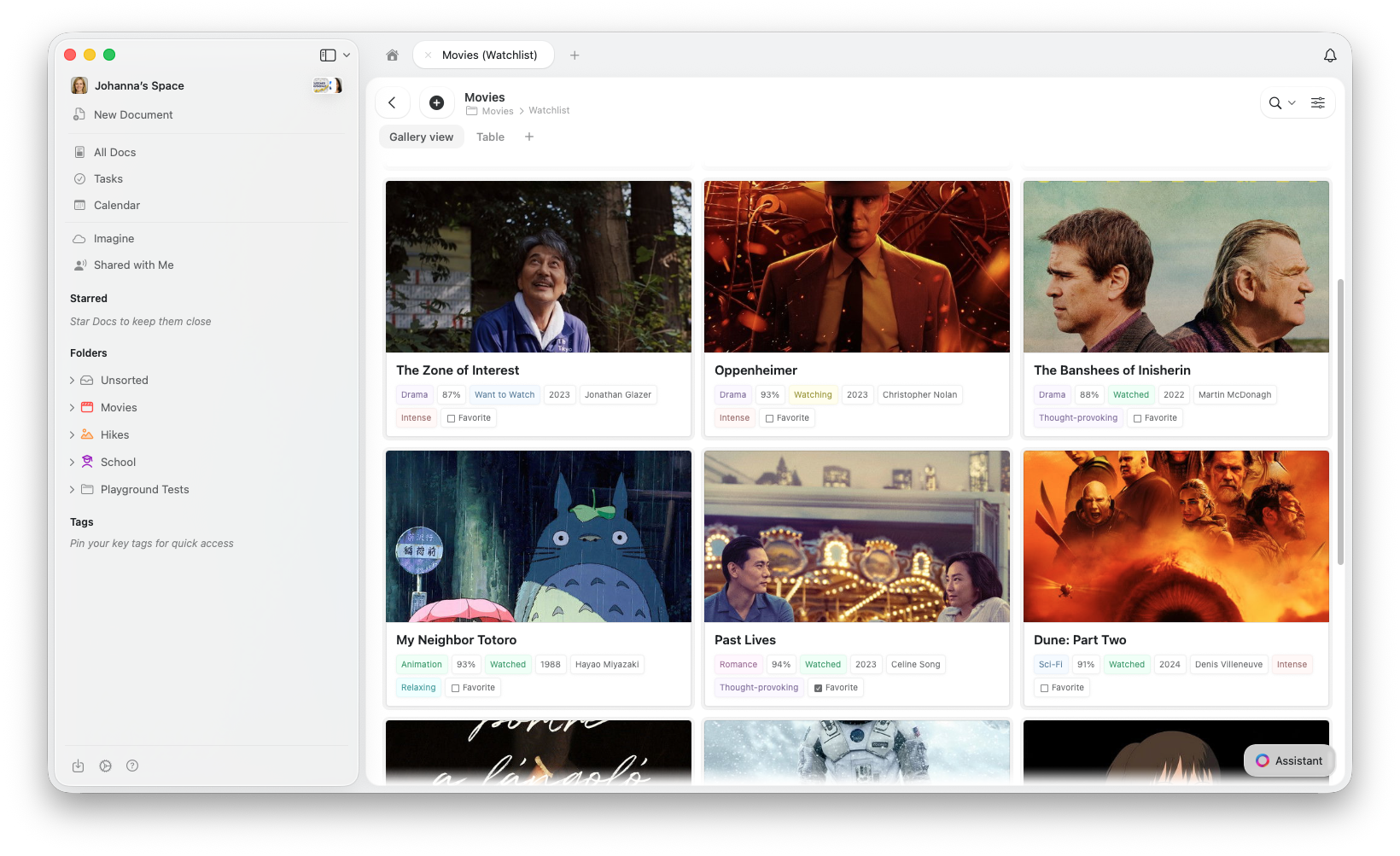
Gallery View displays your Collection entries as a grid of visual cards, each showing a preview image and key properties at a glance.
## Gallery View vs. Other Views
All views share the same data, so switching between them never deletes or modifies your entries.
| Use Gallery when... | Use Table when... | Use Kanban when... |
| --------------------------------------------------------- | ---------------------------------- | -------------------------------------------- |
| Entries have images or visual content | Comparing many fields side by side | Tracking items through stages (to do → done) |
| Visual browsing matters (portfolios, media, mood boards) | Spreadsheet-style editing | You want a visual workflow board |
| You want a compact overview with fewer visible properties | Bulk data entry | Status changes happen often |
## Creating a Gallery View
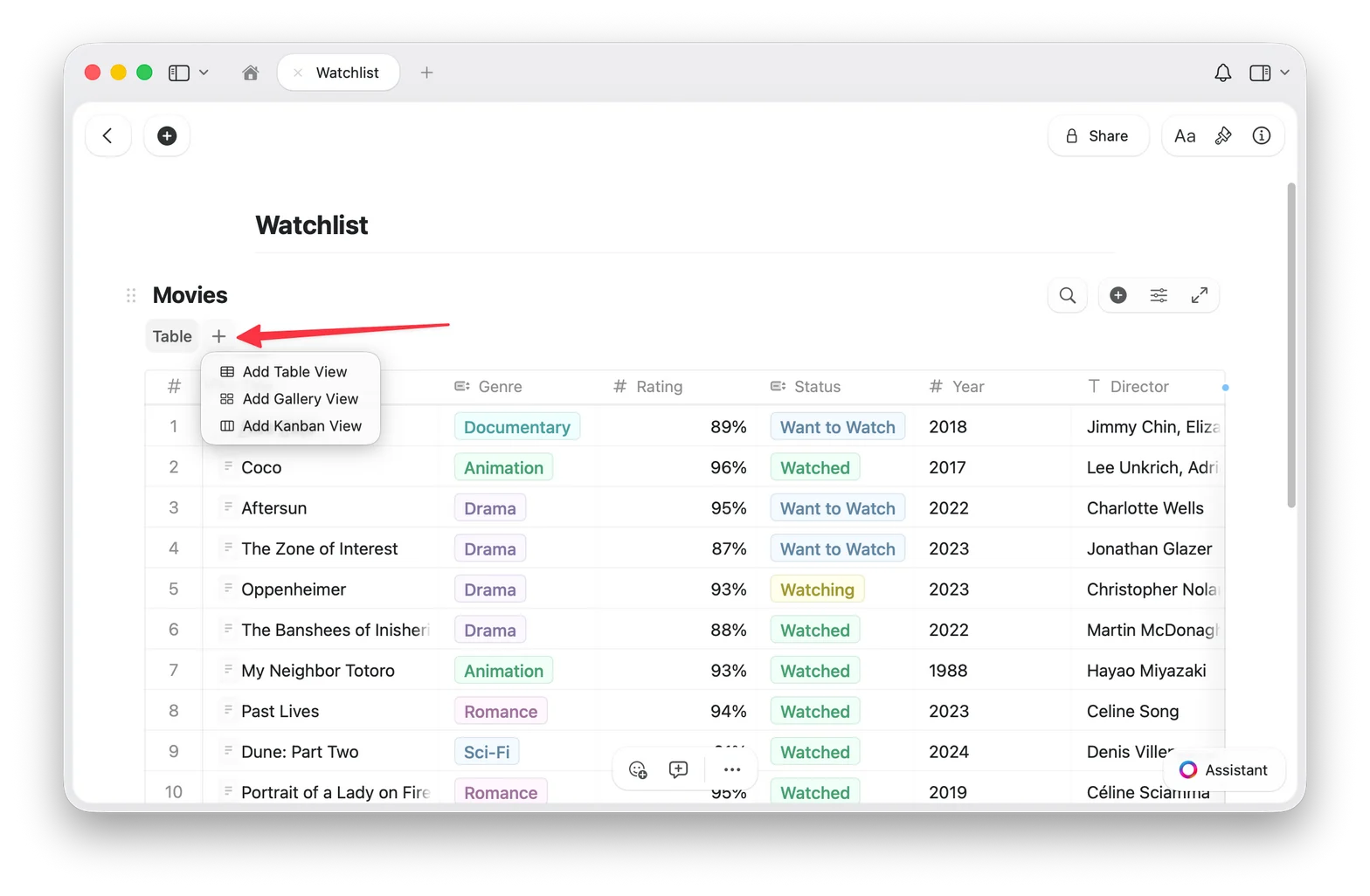
Click the **+** button next to the view tabs at the top of your Collection
Select **Add Gallery View**
Your new Gallery View appears as a tab at the top of the Collection
## Switching Back to Table View
If you have multiple views, click the **Table** view tab at the top of your Collection. If you only have one Gallery View, use the configure menu (⋯) to add a Table view.
Your data is always safe: switching views never changes your entries.
## Preview Types
Gallery View pulls preview images from the **content inside each entry's page**. To add an image to a card's preview, open the entry and add an image block to its content.
Open any entry in your Collection and add an image to its page content. Gallery View automatically uses that image as the card preview.
You can control how each card's preview area is displayed:
* **Document** (default): shows a preview of the entry's page content
* **Fill**: fills the card's preview area with the entry's image
* **Immersive**: uses the image as a full-bleed card background
* **No preview**: hides the preview area entirely, showing only properties
Change the preview type in **Gallery Options** (see below).
## Card Sizes
Gallery View offers two card sizes:
* **Small**: compact grid, more cards visible at once
* **Large**: bigger previews, fewer cards per row
## Gallery Options
Access Gallery Options from the configure menu (⋯) to customize your view:
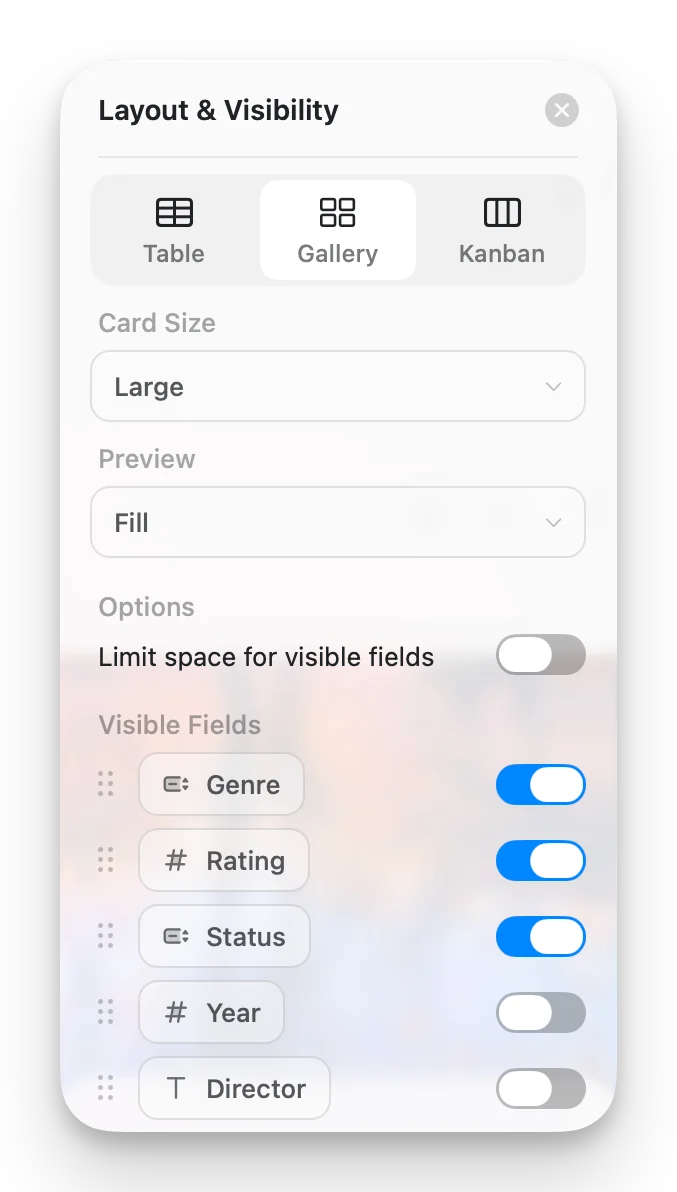
* **Card Size**: Small or Large
* **Preview**: Document, Fill, Immersive, or No preview
* **Limit visible fields**: when enabled (default), cards show a limited number of properties with a "+n" indicator for the rest. Turn this off to show every enabled field on each card.
* **Fields**: choose which fields appear on each card and toggle their visibility
## Working with Gallery Cards
* **Open an entry**: click a card to open its full page
* **Context menu**: right-click (Mac) or long-press (iOS) for more options
* **Select cards**: click to select, Shift+click for multi-select
## Sorting, Filtering, and Grouping
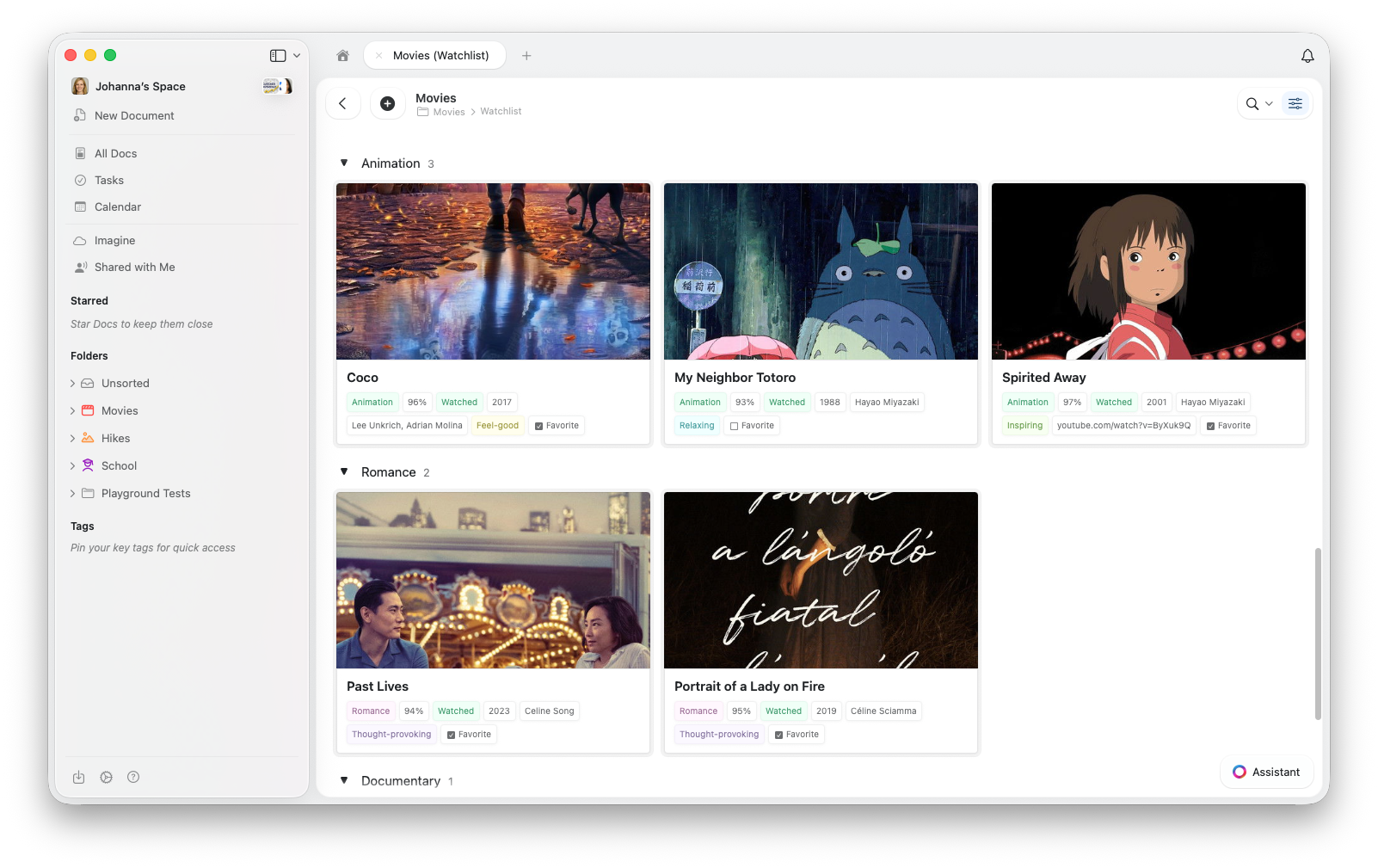
Gallery View supports sorting, filtering, and grouping, the same options available in Table View. Grouped galleries display section headers between card groups.
For detailed instructions on sorting, filtering, and grouping, see [Collection Views](/en/organize-and-find/collections/views).
## Troubleshooting
Gallery View pulls preview images from the **content inside each entry's page**. To add an image, click a card to open the entry, then add an image block to the page content.
Also check your Preview setting in Gallery Options and set it to **Document** or **Fill**.
Make sure your app is up to date. Check for updates in your app store or refresh your browser.
Gallery View loads image previews as you scroll. If performance feels sluggish, try reducing the number of visible properties on each card.
## Related Articles
Learn about Craft Collections and field types
Create views with sorting, filtering, and grouping
Organize items into drag-and-drop columns by status or any select field
Customize field and column order in your Collections
Touch-optimized Collections on iPhone and iPad
 ## Gallery View vs. Other Views
All views share the same data, so switching between them never deletes or modifies your entries.
| Use Gallery when... | Use Table when... | Use Kanban when... |
| --------------------------------------------------------- | ---------------------------------- | -------------------------------------------- |
| Entries have images or visual content | Comparing many fields side by side | Tracking items through stages (to do → done) |
| Visual browsing matters (portfolios, media, mood boards) | Spreadsheet-style editing | You want a visual workflow board |
| You want a compact overview with fewer visible properties | Bulk data entry | Status changes happen often |
## Creating a Gallery View
## Gallery View vs. Other Views
All views share the same data, so switching between them never deletes or modifies your entries.
| Use Gallery when... | Use Table when... | Use Kanban when... |
| --------------------------------------------------------- | ---------------------------------- | -------------------------------------------- |
| Entries have images or visual content | Comparing many fields side by side | Tracking items through stages (to do → done) |
| Visual browsing matters (portfolios, media, mood boards) | Spreadsheet-style editing | You want a visual workflow board |
| You want a compact overview with fewer visible properties | Bulk data entry | Status changes happen often |
## Creating a Gallery View
 ## Working with Gallery Cards
* **Open an entry**: click a card to open its full page
* **Context menu**: right-click (Mac) or long-press (iOS) for more options
* **Select cards**: click to select, Shift+click for multi-select
## Sorting, Filtering, and Grouping
Gallery View supports sorting, filtering, and grouping, the same options available in Table View. Grouped galleries display section headers between card groups.
## Working with Gallery Cards
* **Open an entry**: click a card to open its full page
* **Context menu**: right-click (Mac) or long-press (iOS) for more options
* **Select cards**: click to select, Shift+click for multi-select
## Sorting, Filtering, and Grouping
Gallery View supports sorting, filtering, and grouping, the same options available in Table View. Grouped galleries display section headers between card groups.
 For detailed instructions on sorting, filtering, and grouping, see [Collection Views](/en/organize-and-find/collections/views).
## Troubleshooting
For detailed instructions on sorting, filtering, and grouping, see [Collection Views](/en/organize-and-find/collections/views).
## Troubleshooting