> ## Documentation Index
> Fetch the complete documentation index at: https://craft-support.mintlify.site/llms.txt
> Use this file to discover all available pages before exploring further.
# Using Collections on iOS
> Create and manage Collections on iPhone and iPad — including Gallery View, touch gestures, and fullscreen mode.
Collections on iOS are fully featured and optimized for touch. This guide covers the iOS-specific interactions for working with Collections on iPhone and iPad.
For general Collections concepts like field types, views, and sorting, see the [Collections Overview](/en/organize-and-find/collections) and [Collection Views](/en/organize-and-find/collections/views) articles.
## Getting Started
Create a Collection inside any document using the slash menu or the block menu. On iOS, the creation flow lets you configure your fields and start adding entries right away.
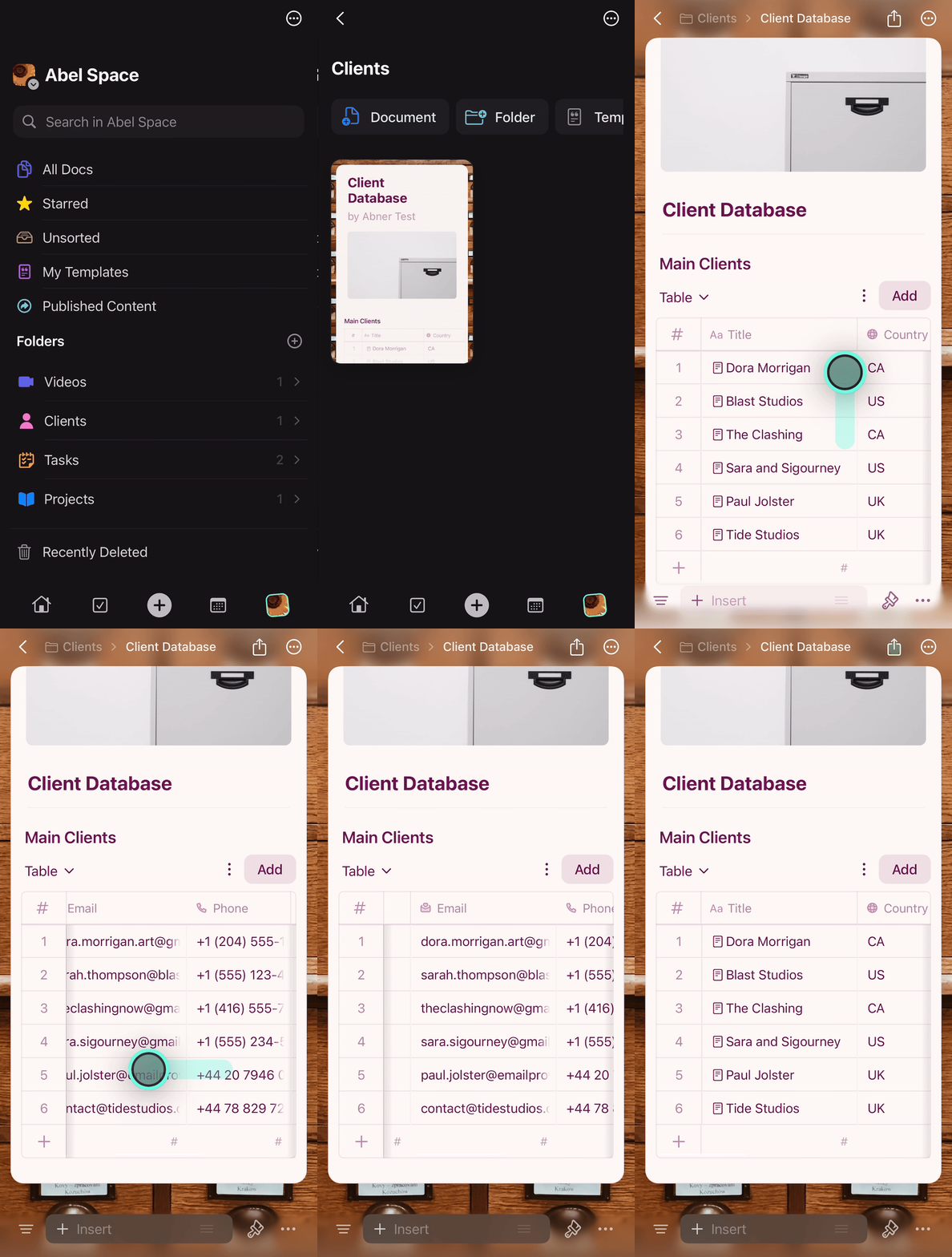 Set up your fields first — having predefined categories and tags makes data entry much faster on mobile.
## Creating and Editing Entries
### Adding Entries
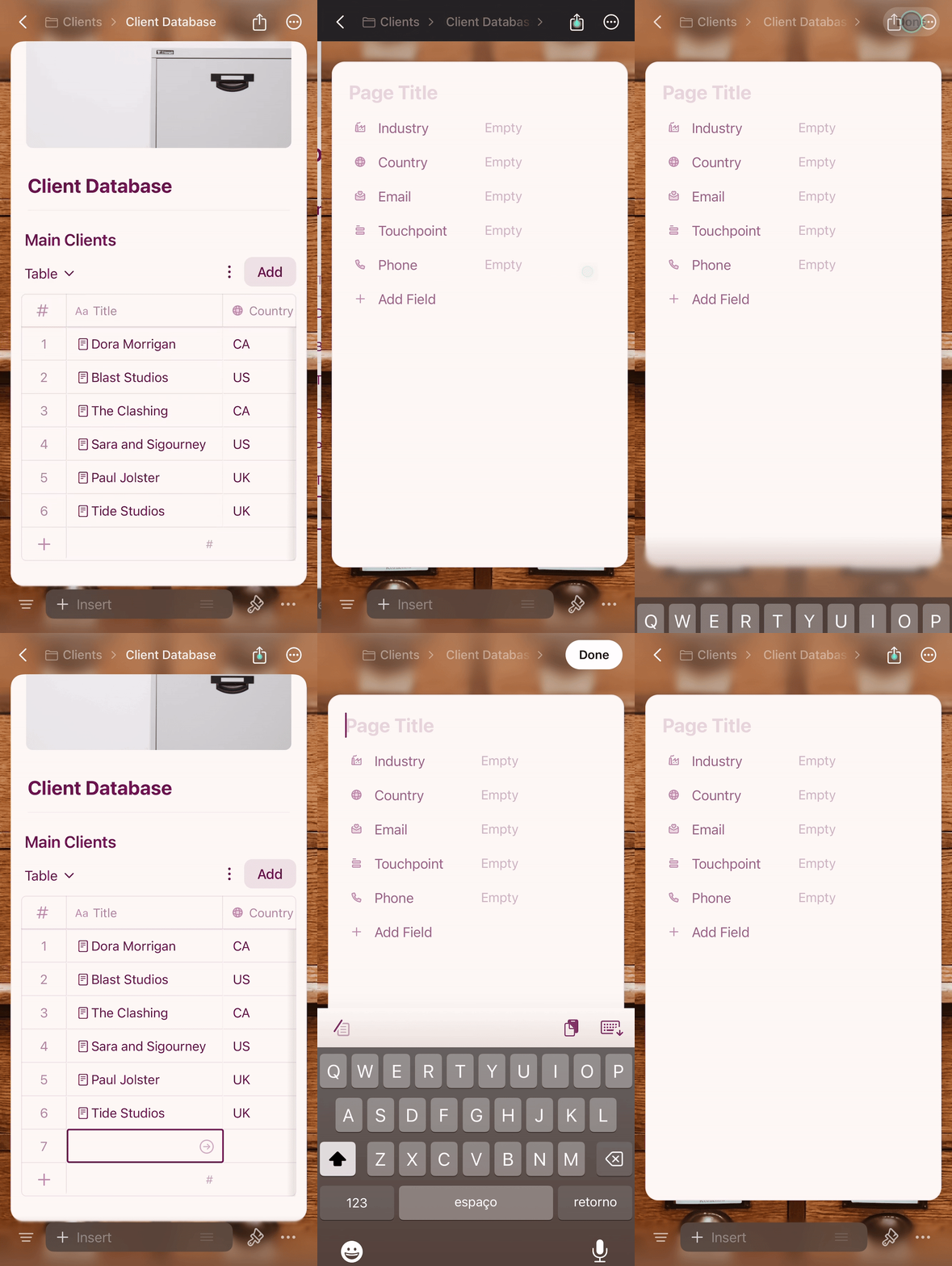
Use the **Add** button at the top right or the **+** button at the bottom left to create new entries.
Set up your fields first — having predefined categories and tags makes data entry much faster on mobile.
## Creating and Editing Entries
### Adding Entries
Use the **Add** button at the top right or the **+** button at the bottom left to create new entries.
 ### Filling in Data
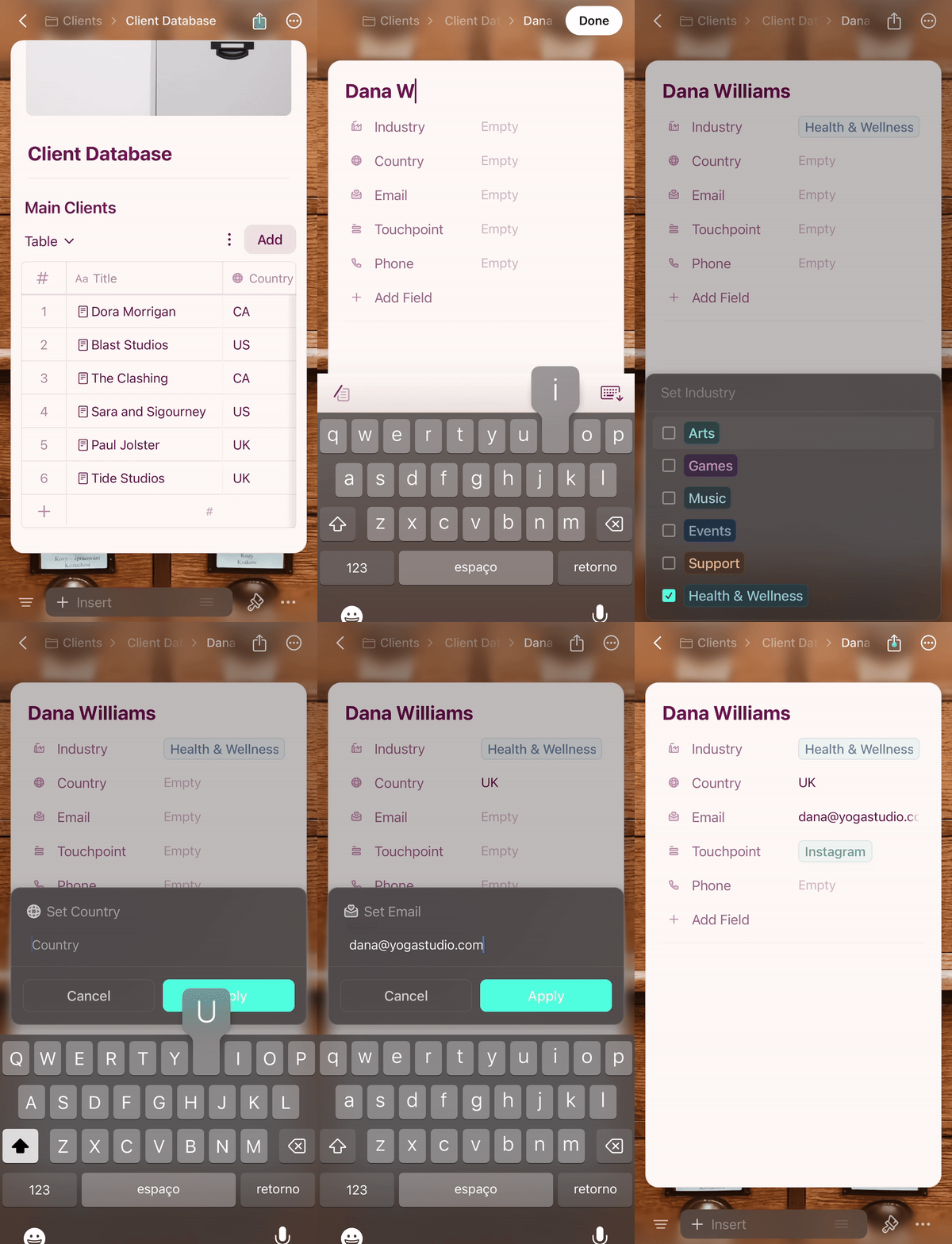
Tap any cell to edit it. Select fields show your predefined options for quick input.
### Filling in Data
Tap any cell to edit it. Select fields show your predefined options for quick input.
 ### Adding Content to Entries
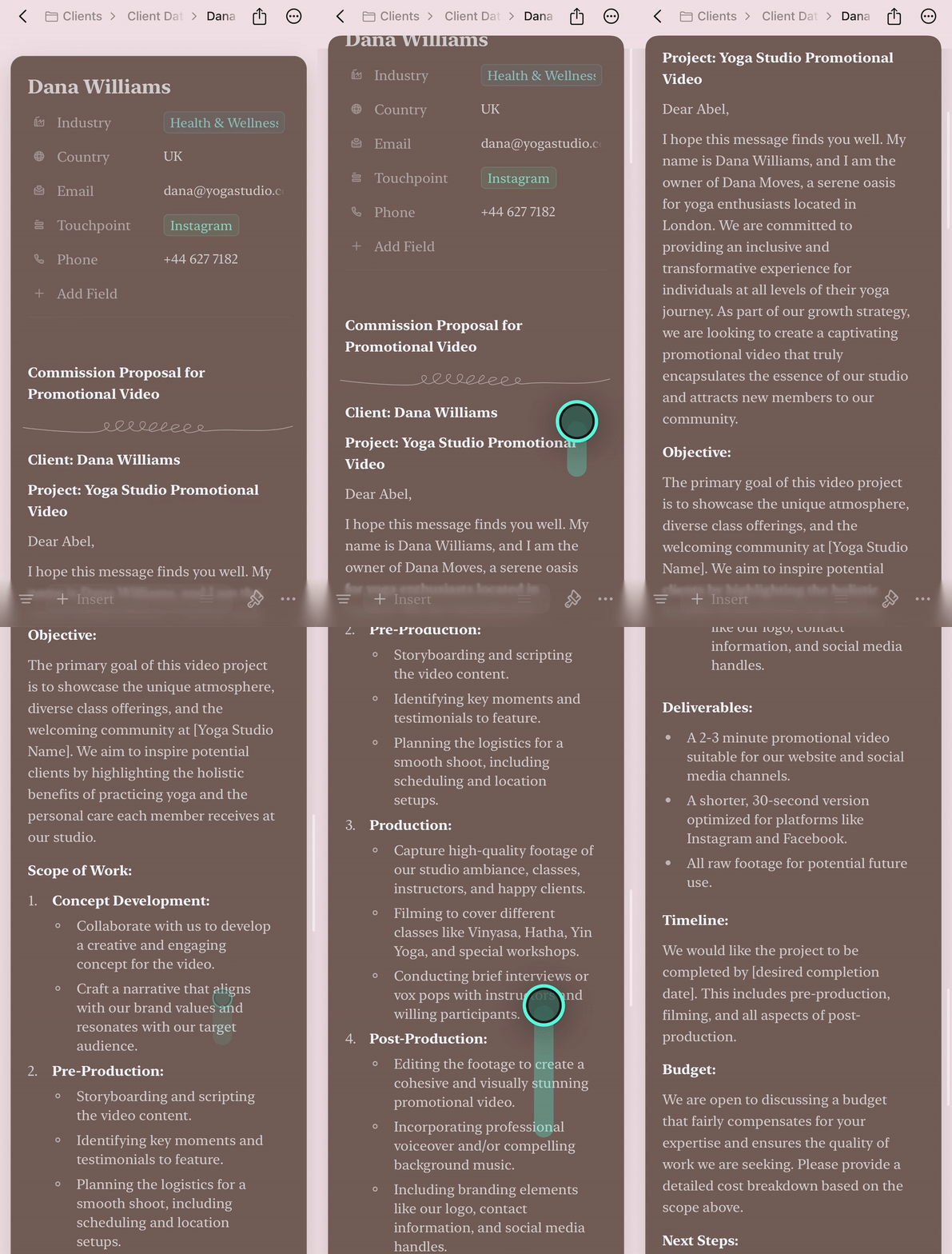
Each entry in a Collection is its own page in Craft. Tap the entry title to open it and add any content — text, images, links, or nested pages.
### Adding Content to Entries
Each entry in a Collection is its own page in Craft. Tap the entry title to open it and add any content — text, images, links, or nested pages.
 ### Deleting Entries
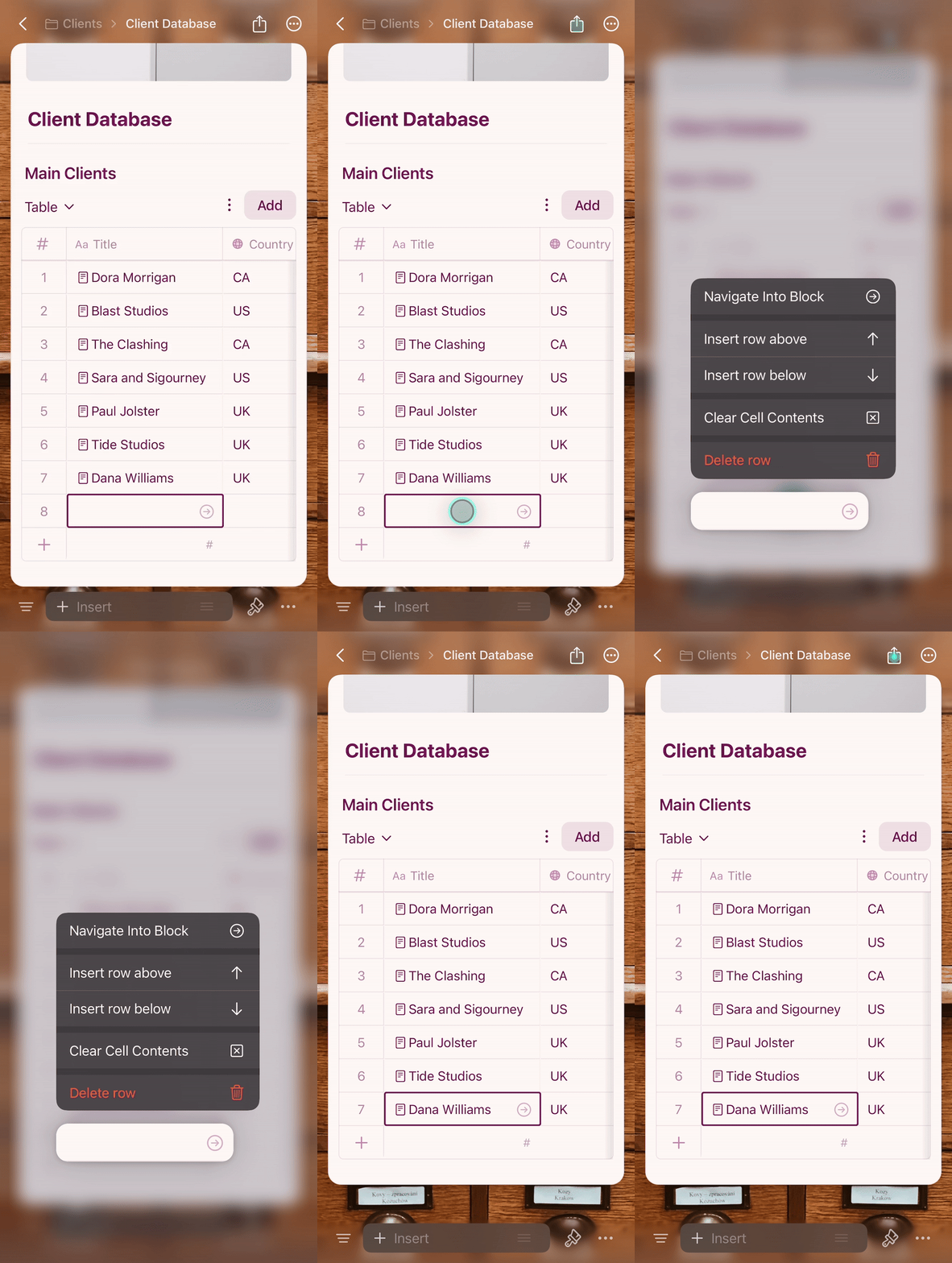
Long-press on any row to access the context menu. You can delete the entire entry or clear specific cell content.
### Deleting Entries
Long-press on any row to access the context menu. You can delete the entire entry or clear specific cell content.
 ### Managing Select Field Options
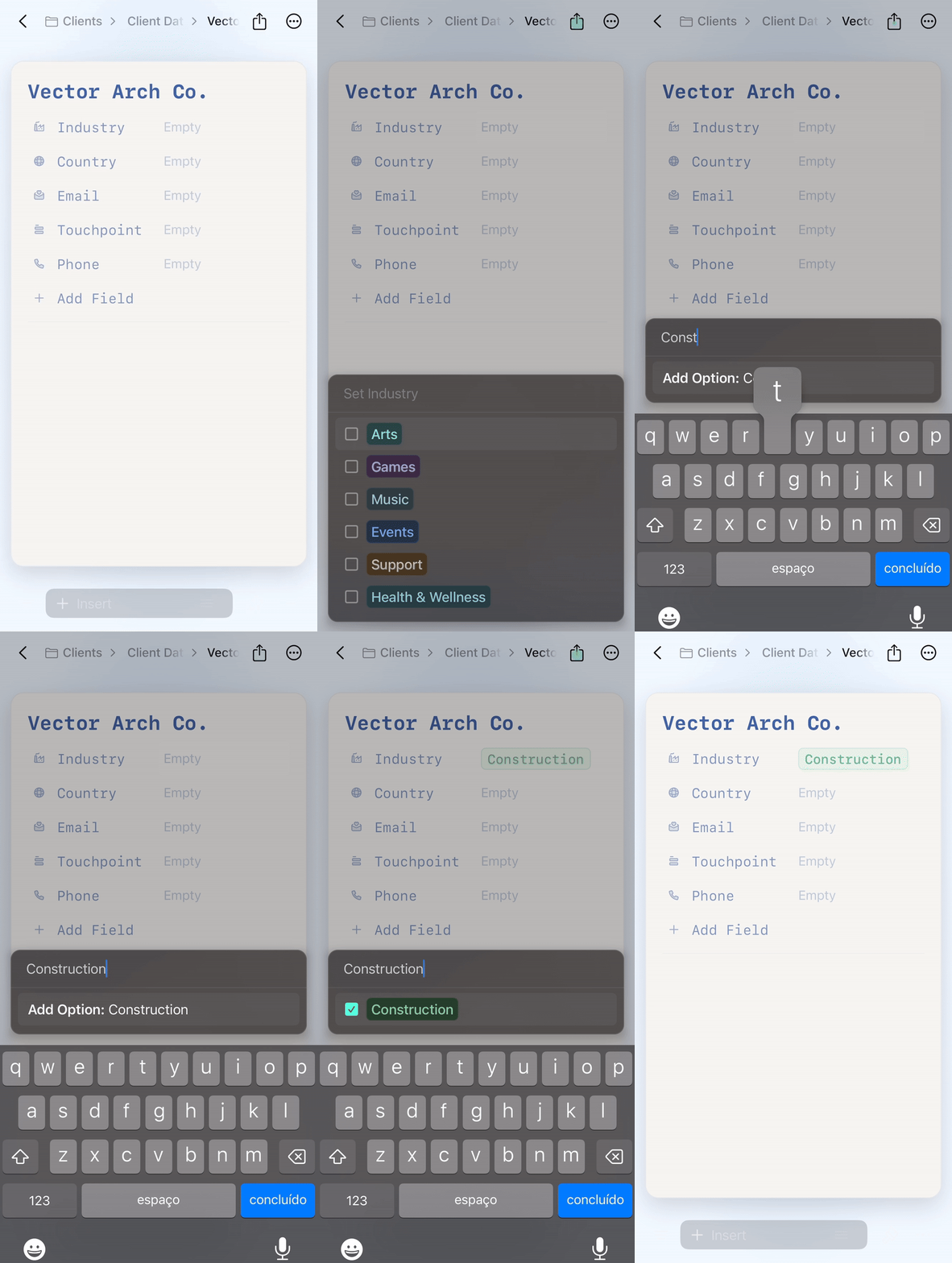
When you need a new option for a select field, type it directly and tap **Add Option**.
### Managing Select Field Options
When you need a new option for a select field, type it directly and tap **Add Option**.
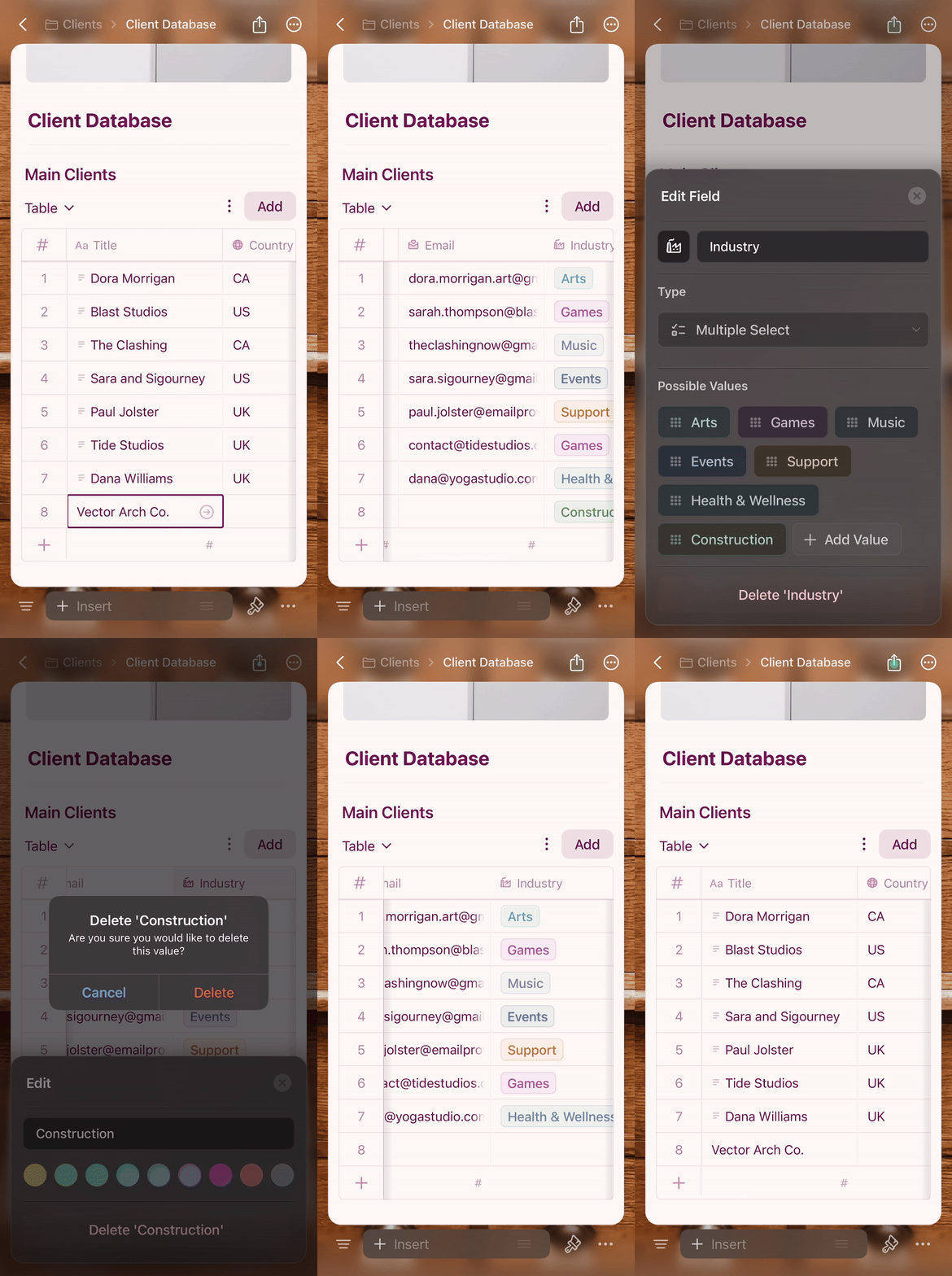
 To remove a value from a select field:
Tap on the field header to open field settings
Tap the value you want to delete
Select **Delete** from the options
Tap **Apply** to save changes
To remove a value from a select field:
Tap on the field header to open field settings
Tap the value you want to delete
Select **Delete** from the options
Tap **Apply** to save changes
 ## Table View on iOS
Table View on iOS works like a spreadsheet with touch-optimized interactions:
* **Scroll horizontally** to see more columns
* **Tap a cell** to edit its value
* **Long-press a row** for the context menu (delete, duplicate)
* **Resize columns** by dragging column borders
## Gallery View on iOS
Gallery View displays your entries as visual cards with image previews, optimized for touch.
## Table View on iOS
Table View on iOS works like a spreadsheet with touch-optimized interactions:
* **Scroll horizontally** to see more columns
* **Tap a cell** to edit its value
* **Long-press a row** for the context menu (delete, duplicate)
* **Resize columns** by dragging column borders
## Gallery View on iOS
Gallery View displays your entries as visual cards with image previews, optimized for touch.
 * **Tap a card** to open the entry
* **Long-press a card** for the context menu with options to select, delete, or manage the card
### Fullscreen Mode (iPhone)
On iPhone, tap an inline collection to open it in **fullscreen mode** with a smooth zoom transition. This gives you the full screen for browsing your collection without the surrounding document.
In landscape orientation, the fullscreen view uses the entire screen — the view selector moves to the top bar, and you can scroll to hide and show the toolbars for more space.
* **Tap a card** to open the entry
* **Long-press a card** for the context menu with options to select, delete, or manage the card
### Fullscreen Mode (iPhone)
On iPhone, tap an inline collection to open it in **fullscreen mode** with a smooth zoom transition. This gives you the full screen for browsing your collection without the surrounding document.
In landscape orientation, the fullscreen view uses the entire screen — the view selector moves to the top bar, and you can scroll to hide and show the toolbars for more space.
 ## Switching Between Views
When your Collection has multiple views, view tabs appear at the top. Tap any tab to switch.
To convert a view type or add a new view, use the configure menu (⋯):
* **Add View** — create a new Table or Gallery view
* **Turn Into** — convert the current view between Table and Gallery
## Switching Between Views
When your Collection has multiple views, view tabs appear at the top. Tap any tab to switch.
To convert a view type or add a new view, use the configure menu (⋯):
* **Add View** — create a new Table or Gallery view
* **Turn Into** — convert the current view between Table and Gallery
 ## Filtering, Sorting, and Grouping
Access these options through the configure menu (⋯) at the top of your Collection.
### Filter
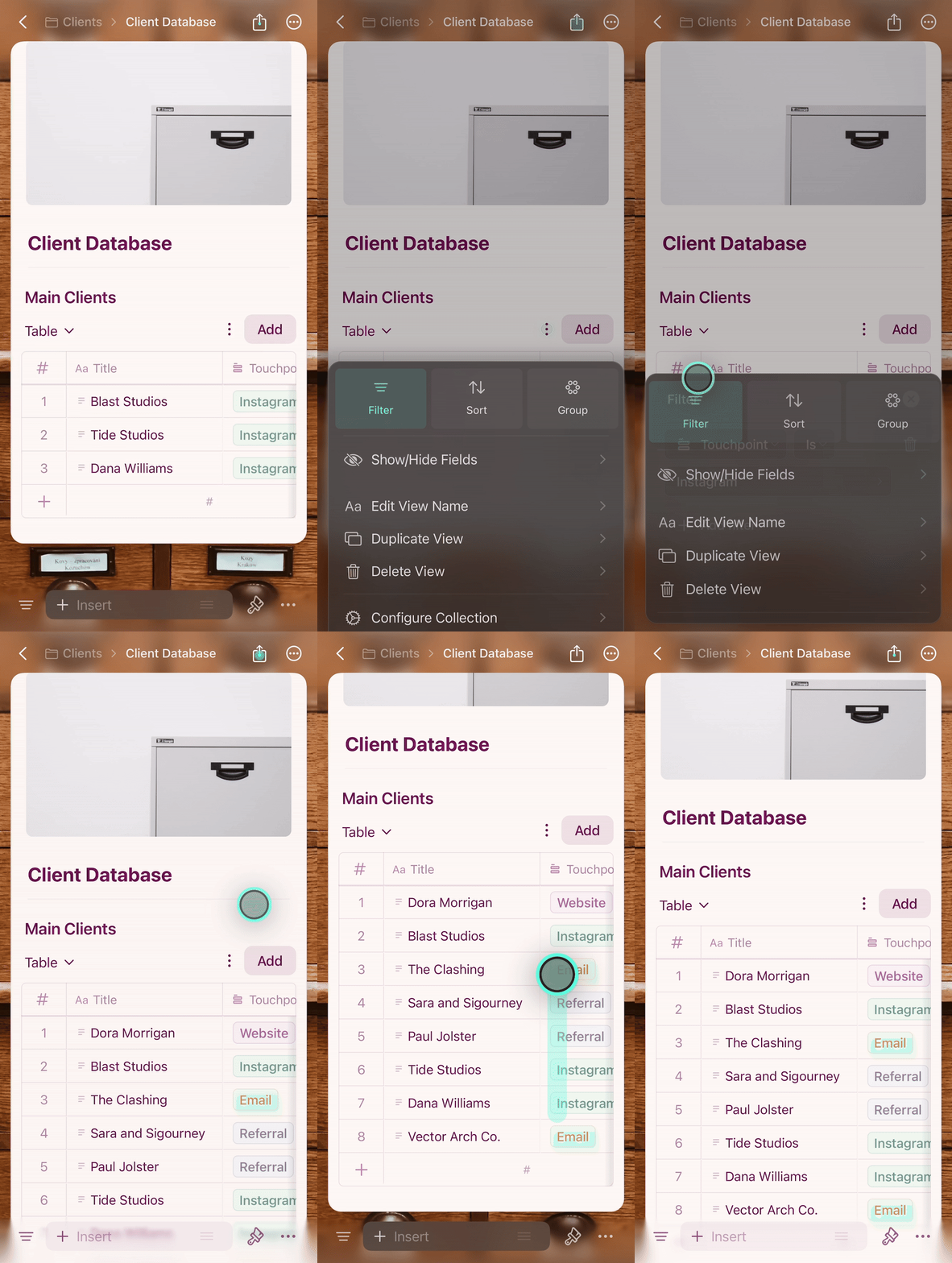
Show only entries that match specific criteria.
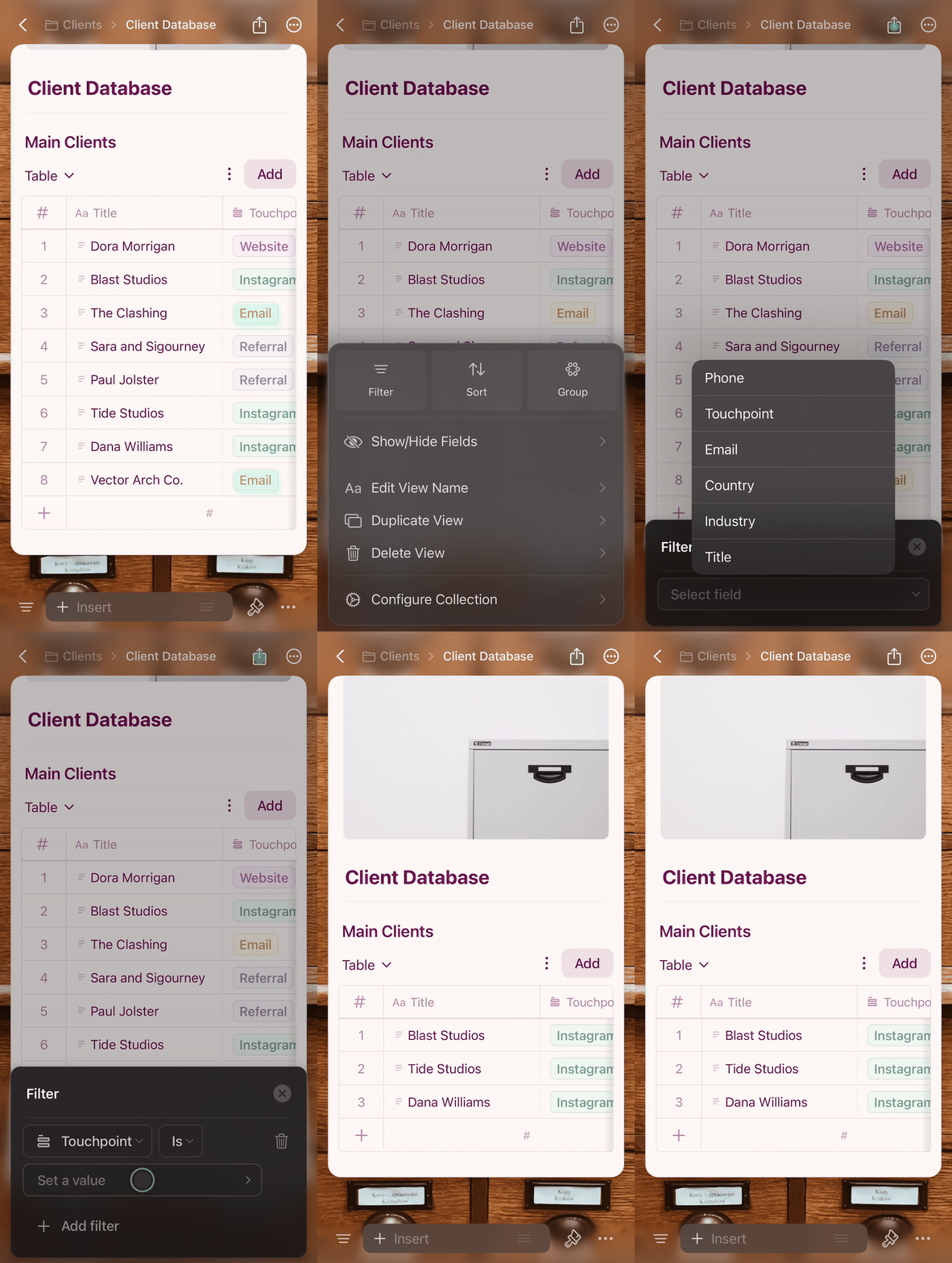
Tap the configure menu **(⋯)**
Select **Filter** and choose your field
Set your filter conditions
Tap outside the panel to apply
## Filtering, Sorting, and Grouping
Access these options through the configure menu (⋯) at the top of your Collection.
### Filter
Show only entries that match specific criteria.
Tap the configure menu **(⋯)**
Select **Filter** and choose your field
Set your filter conditions
Tap outside the panel to apply
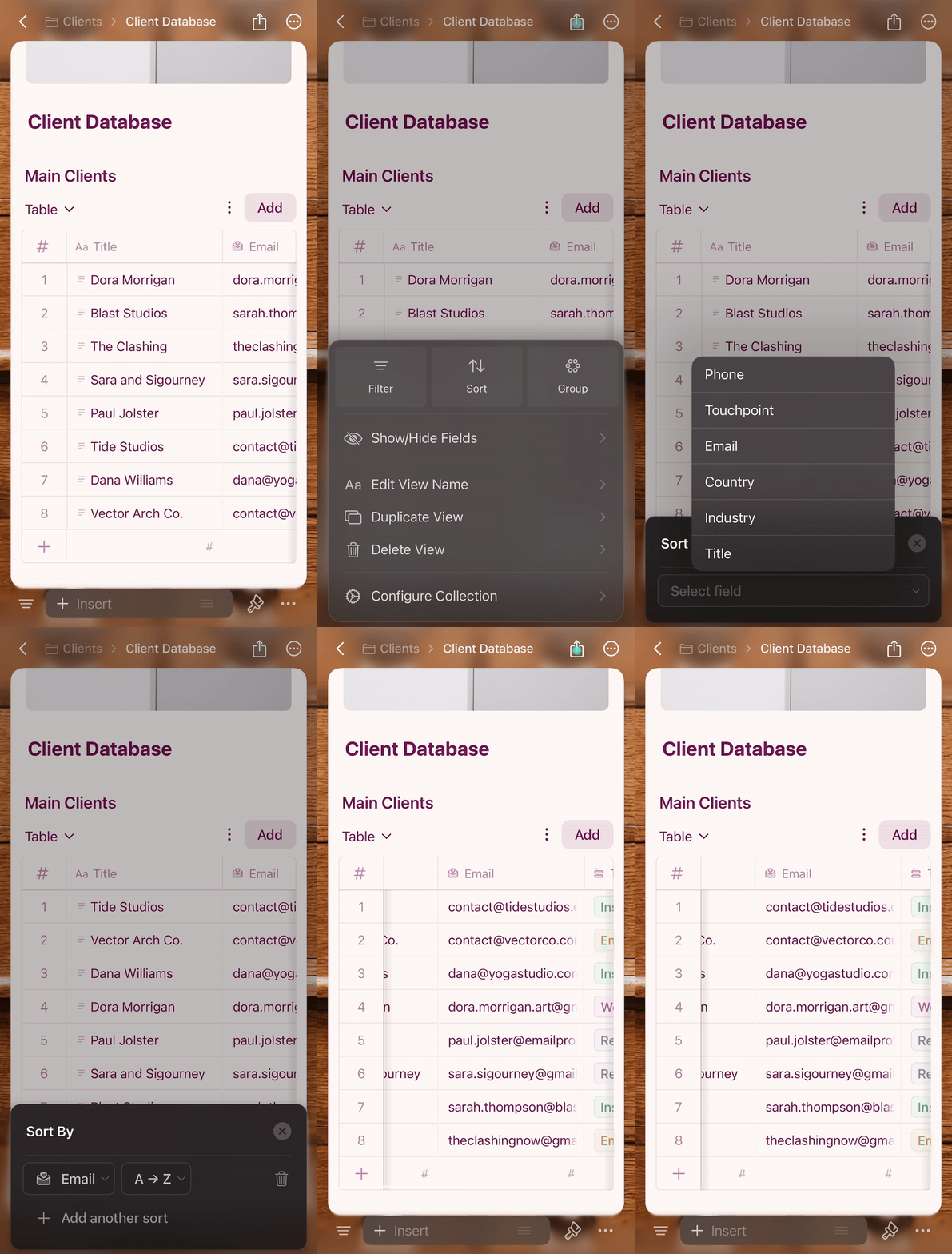
 ### Sort
Arrange entries based on field values.
Tap the configure menu **(⋯)**
Select **Sort** and choose your field
Choose ascending or descending order
Tap outside to apply
### Sort
Arrange entries based on field values.
Tap the configure menu **(⋯)**
Select **Sort** and choose your field
Choose ascending or descending order
Tap outside to apply
 ### Group
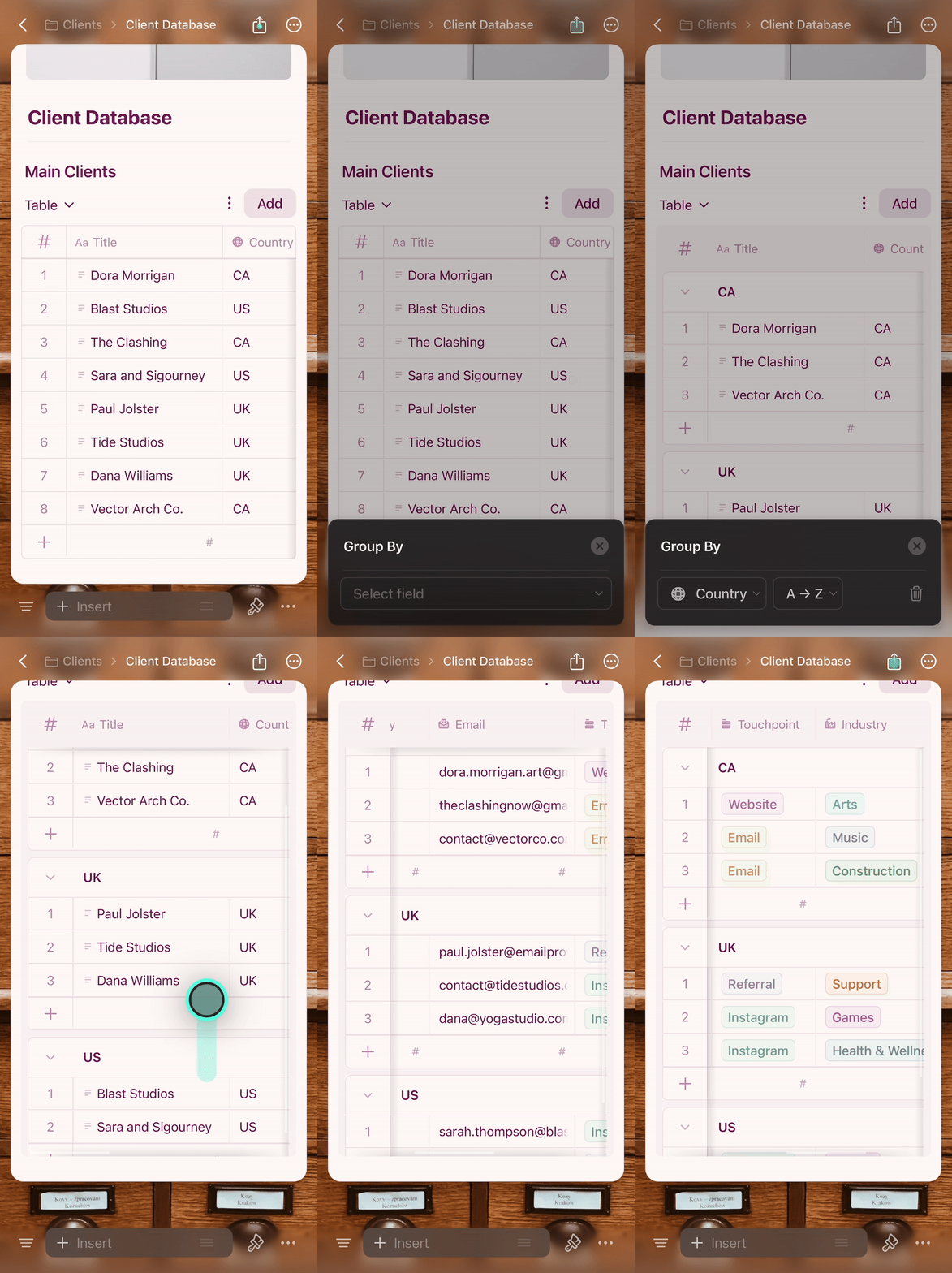
Organize entries into groups based on field values.
Tap the configure menu **(⋯)**
Select **Group** and choose your field
Tap outside to apply — groups are automatically created and labeled
### Group
Organize entries into groups based on field values.
Tap the configure menu **(⋯)**
Select **Group** and choose your field
Tap outside to apply — groups are automatically created and labeled
 ### Removing Filters, Sorts, or Groups
Open the configure menu (⋯) and tap the **trash icon** next to the active filter, sort, or group.
### Removing Filters, Sorts, or Groups
Open the configure menu (⋯) and tap the **trash icon** next to the active filter, sort, or group.
 ## iOS Tips
* **Long-press** is your right-click — use it on rows, cards, and cells for contextual actions
* **Swipe gestures** let you quickly navigate between entries
* For the best experience on iPhone, keep Collections focused — iPad handles larger datasets more comfortably.
* Gallery View is great for one-handed browsing on iPhone, especially in fullscreen mode
## Related Articles
Learn about Collections and their core features
Display your Collection as visual cards with image previews
Create and manage different views of your data
Customize field and column order
## iOS Tips
* **Long-press** is your right-click — use it on rows, cards, and cells for contextual actions
* **Swipe gestures** let you quickly navigate between entries
* For the best experience on iPhone, keep Collections focused — iPad handles larger datasets more comfortably.
* Gallery View is great for one-handed browsing on iPhone, especially in fullscreen mode
## Related Articles
Learn about Collections and their core features
Display your Collection as visual cards with image previews
Create and manage different views of your data
Customize field and column order