> ## Documentation Index
> Fetch the complete documentation index at: https://craft-support.mintlify.site/llms.txt
> Use this file to discover all available pages before exploring further.
# Reordering Fields and Columns
> Customize how your Collection fields and columns appear in different views.
Keep your Collections organized by customizing how your fields and columns appear. You can control the **default order of fields** in your Collection, as well as the **column order in specific views**.
## Reorder Fields in Your Collection
Changing the order of fields affects how they're displayed on **individual item pages** and sets the **default order** for all new views.
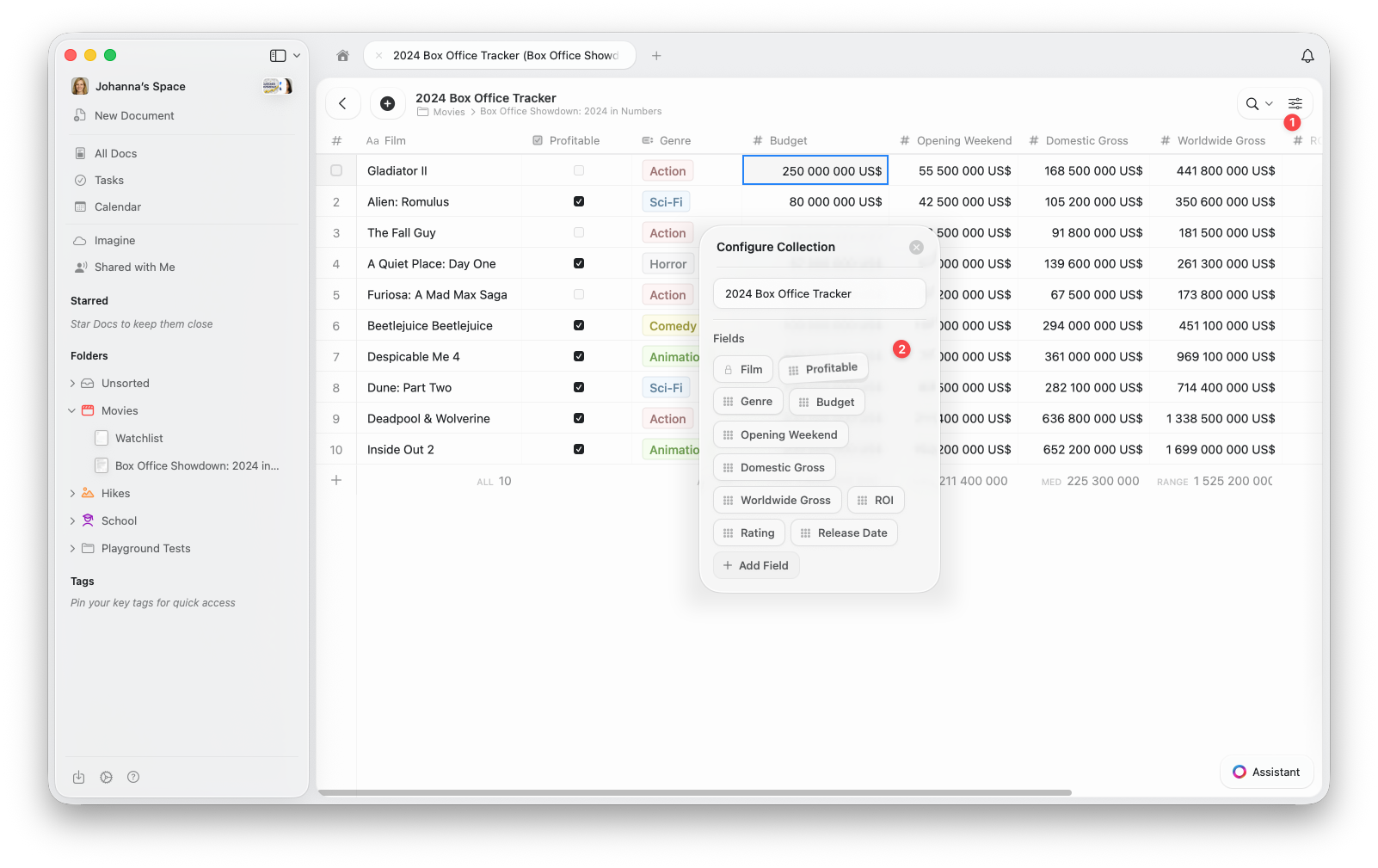 Open the configure menu **(⋯)** at the top of your Collection
Select **Configure Collection** from the menu
In the Configure Collection window, **drag and drop** your fields to reorder them. You can also add new fields or remove existing ones here.
Your new order will apply automatically across all items in the Collection and to any new views you create.
## Reorder Columns in a View
You can also rearrange columns for a **specific view**. This gives you flexibility to customize what's visible and how it's arranged without changing your Collection's default field order.
Open the configure menu **(⋯)**
Select **Show/Hide Fields**
**Drag and drop** the fields to reorder the columns as you like. You can toggle which fields you'd like to display in your view here.
Open the configure menu **(⋯)** at the top of your Collection
Select **Configure Collection** from the menu
In the Configure Collection window, **drag and drop** your fields to reorder them. You can also add new fields or remove existing ones here.
Your new order will apply automatically across all items in the Collection and to any new views you create.
## Reorder Columns in a View
You can also rearrange columns for a **specific view**. This gives you flexibility to customize what's visible and how it's arranged without changing your Collection's default field order.
Open the configure menu **(⋯)**
Select **Show/Hide Fields**
**Drag and drop** the fields to reorder the columns as you like. You can toggle which fields you'd like to display in your view here.
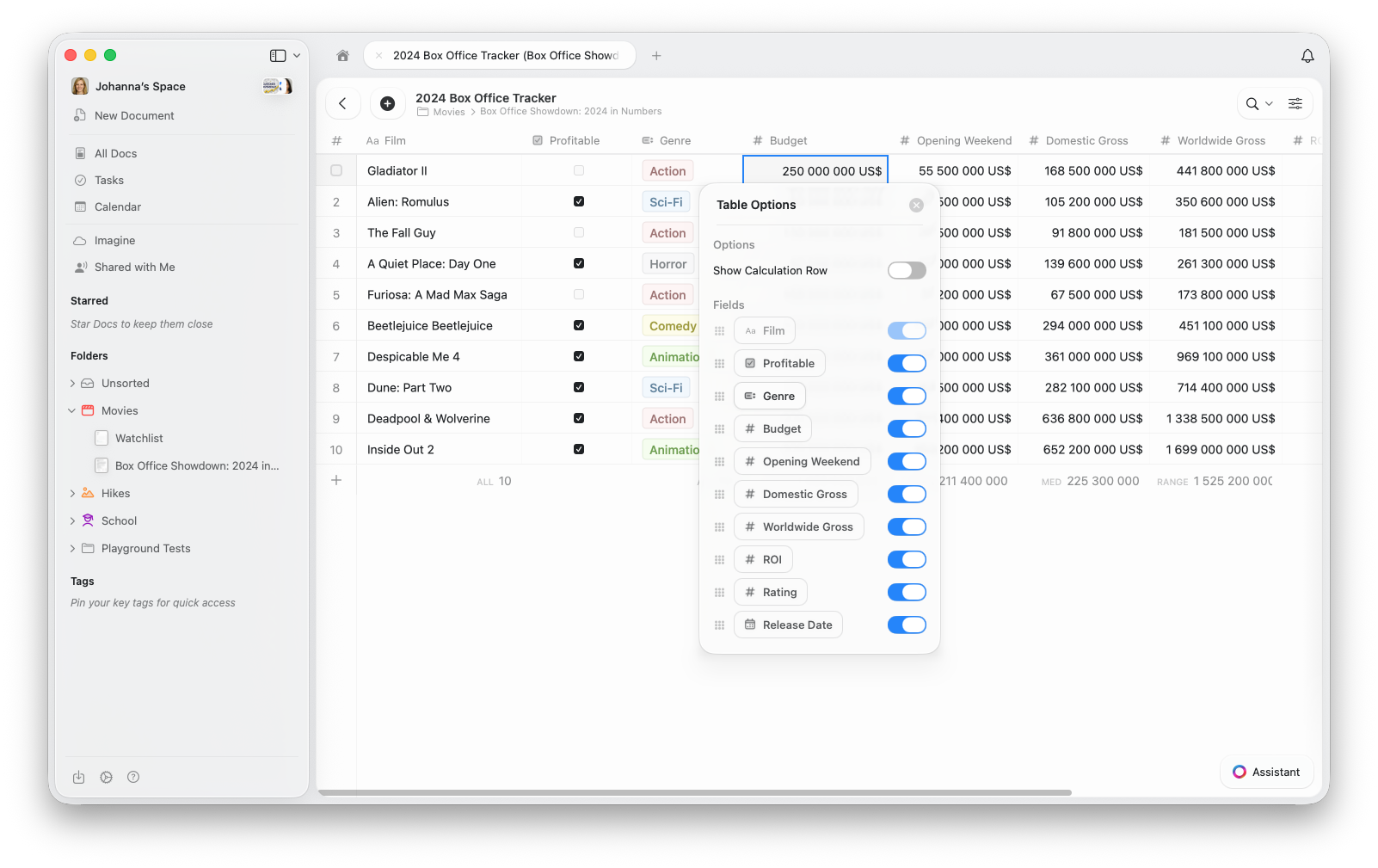 This only changes the layout for the current view – your default field order and other views remain the same.
In Gallery View, field visibility controls which properties appear on each card. The order in Show/Hide Fields determines the display order on each card.
Use **field reordering** to create a consistent structure across your Collection, and **column reordering** when you want a tailored layout for a particular view.
## Related Articles
Learn about sorting, filtering, and grouping in Collection views
Display your Collection as visual cards with image previews
Learn about Craft Collections and field types
This only changes the layout for the current view – your default field order and other views remain the same.
In Gallery View, field visibility controls which properties appear on each card. The order in Show/Hide Fields determines the display order on each card.
Use **field reordering** to create a consistent structure across your Collection, and **column reordering** when you want a tailored layout for a particular view.
## Related Articles
Learn about sorting, filtering, and grouping in Collection views
Display your Collection as visual cards with image previews
Learn about Craft Collections and field types