> ## Documentation Index
> Fetch the complete documentation index at: https://craft-support.mintlify.site/llms.txt
> Use this file to discover all available pages before exploring further.
# Links and Backlinks
> Create connections between documents and blocks with internal links, and discover relationships with automatic backlinks.
## Sharing & Publishing
In Craft, you can share or publish your documents with just a few clicks. Whether you want to invite collaborators or create a public link, sharing is built right into every document.
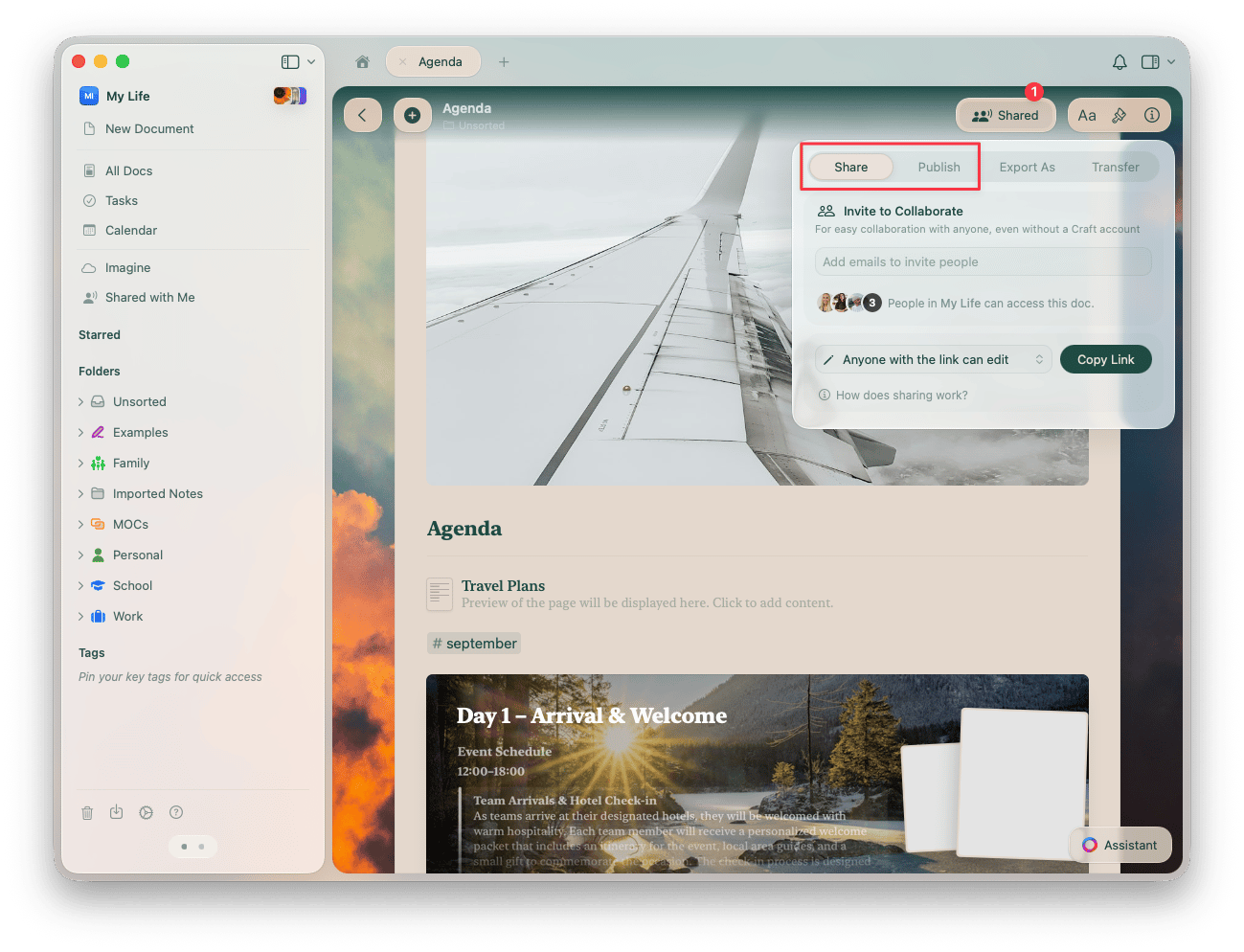 You can read more about sharing and publishing in the [Sharing Documents](/en/share-and-publish/share#sharing-documents) article.
## Link to a Craft Document or Block
You can link another document or block inside the same Space. This is really powerful when you want to reference another piece of information. There are two ways to do this:
### Using the @ Command
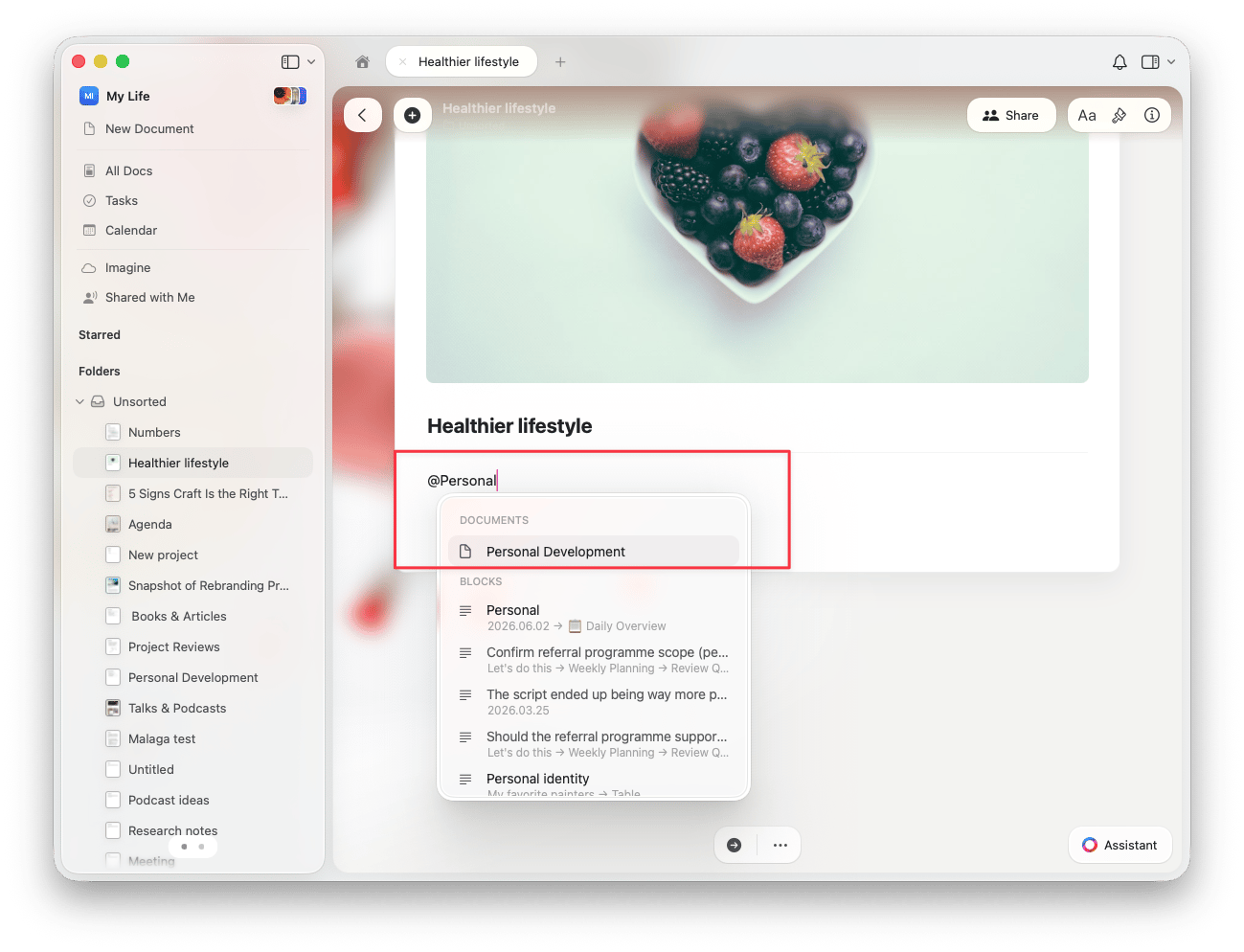
After typing **@** you will see a dropdown of options to link. Typing the first few characters will help you to find the block / page / document you are looking for. You can also create a new page with a link by typing a title not currently in this Space.
You can read more about sharing and publishing in the [Sharing Documents](/en/share-and-publish/share#sharing-documents) article.
## Link to a Craft Document or Block
You can link another document or block inside the same Space. This is really powerful when you want to reference another piece of information. There are two ways to do this:
### Using the @ Command
After typing **@** you will see a dropdown of options to link. Typing the first few characters will help you to find the block / page / document you are looking for. You can also create a new page with a link by typing a title not currently in this Space.
 ### Using the \[\[ Command
Typing **\[\[** will convert to **@**, and the same dropdown will appear.
## Backlinks
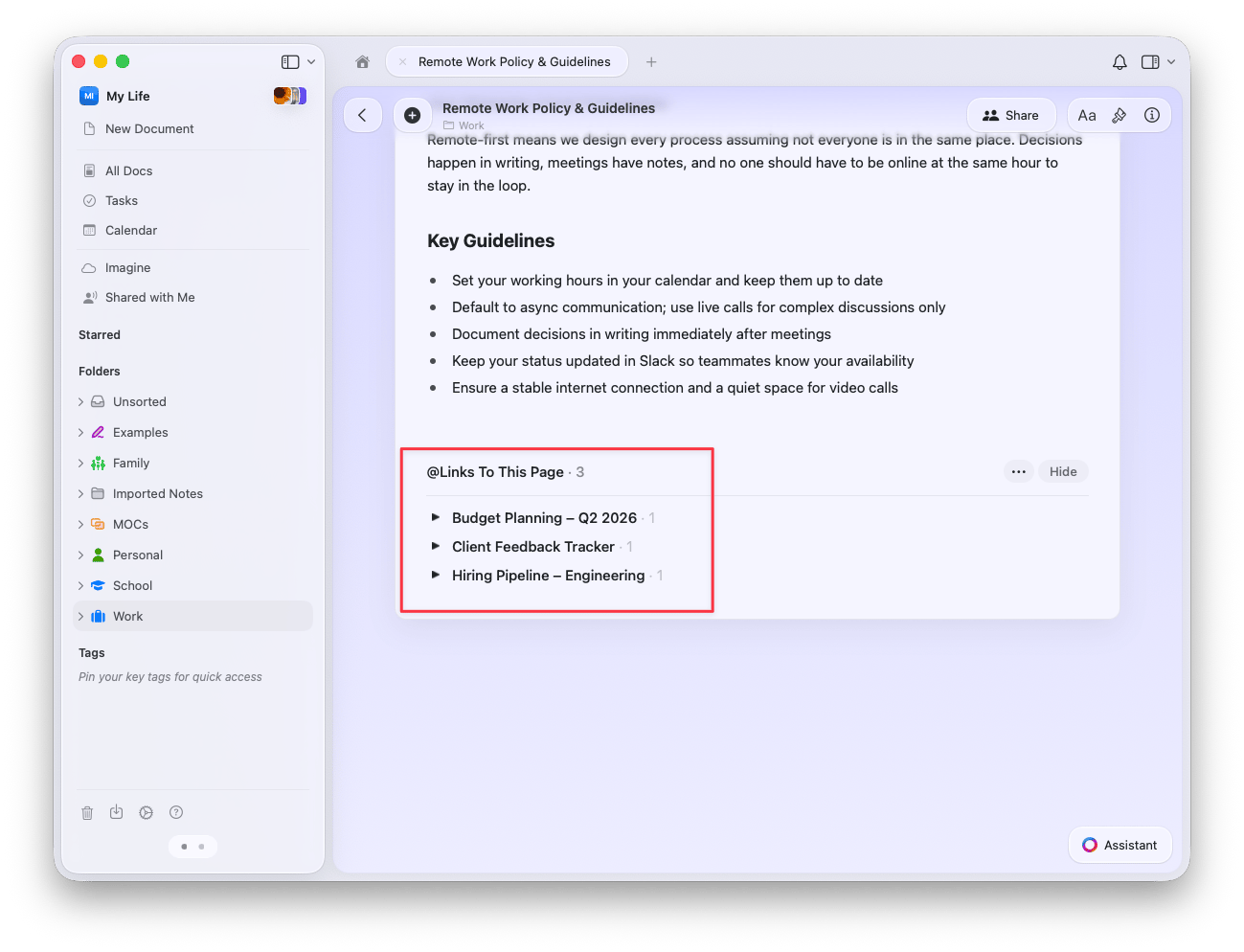
Backlinks show you all the blocks linked to the current document. You can use these to quickly navigate around your Space and see the connections between your documents and blocks.
* Backlinks are created automatically! Anytime you @-mention a document / block, a backlink will be added to the content that you linked.
* Backlinks appear at the bottom of the linked content under **Links To This Page**. If a document doesn't have any links, this section is not visible.
You can navigate quickly to the document or exact block where the link is located.
### Using the \[\[ Command
Typing **\[\[** will convert to **@**, and the same dropdown will appear.
## Backlinks
Backlinks show you all the blocks linked to the current document. You can use these to quickly navigate around your Space and see the connections between your documents and blocks.
* Backlinks are created automatically! Anytime you @-mention a document / block, a backlink will be added to the content that you linked.
* Backlinks appear at the bottom of the linked content under **Links To This Page**. If a document doesn't have any links, this section is not visible.
You can navigate quickly to the document or exact block where the link is located.
 You can move the linked block into any other documents with the drag & drop method to preserve the connection. However, a "cut & paste" action will delete the connection.
## Related Articles
Create direct links to specific pages and blocks
Embed Google Maps into your documents
Learn how blocks and pages create the foundation for linking
Share linked content with collaborators
Link collection entries to other documents and blocks
You can move the linked block into any other documents with the drag & drop method to preserve the connection. However, a "cut & paste" action will delete the connection.
## Related Articles
Create direct links to specific pages and blocks
Embed Google Maps into your documents
Learn how blocks and pages create the foundation for linking
Share linked content with collaborators
Link collection entries to other documents and blocks