> ## Documentation Index
> Fetch the complete documentation index at: https://craft-support.mintlify.site/llms.txt
> Use this file to discover all available pages before exploring further.
# Deeplinks
> Create direct links to documents, pages, or specific blocks that open directly in the Craft app.
## What are Deeplinks?
Deeplinks create a URL that can directly link to a document, page, or even a specific block inside the Craft app itself – clicking on them from anywhere on your system should open the Craft app to that point.
They have the form `craftdocs://open...` and will work on iOS/iPadOS/macOS. They can be shared between anyone who has access to edit that space.
Deeplinks are typically used to connect other apps back into Craft – for example, a Things project can have a link in the notes section that opens the Craft document you're keeping notes on that project in. They are not to be confused with Secret Links, which open a page on the web for your document for viewing/commenting, not in the Craft editor.
Deeplinks are only available for Craft on macOS, iOS, and iPad.
## Getting Deeplinks
While viewing a document on macOS, click the **share button** in the top-right corner, select **Export as**, then scroll to **Advanced** and choose **Copy Deeplink** or **Copy Markdown Deeplink**.
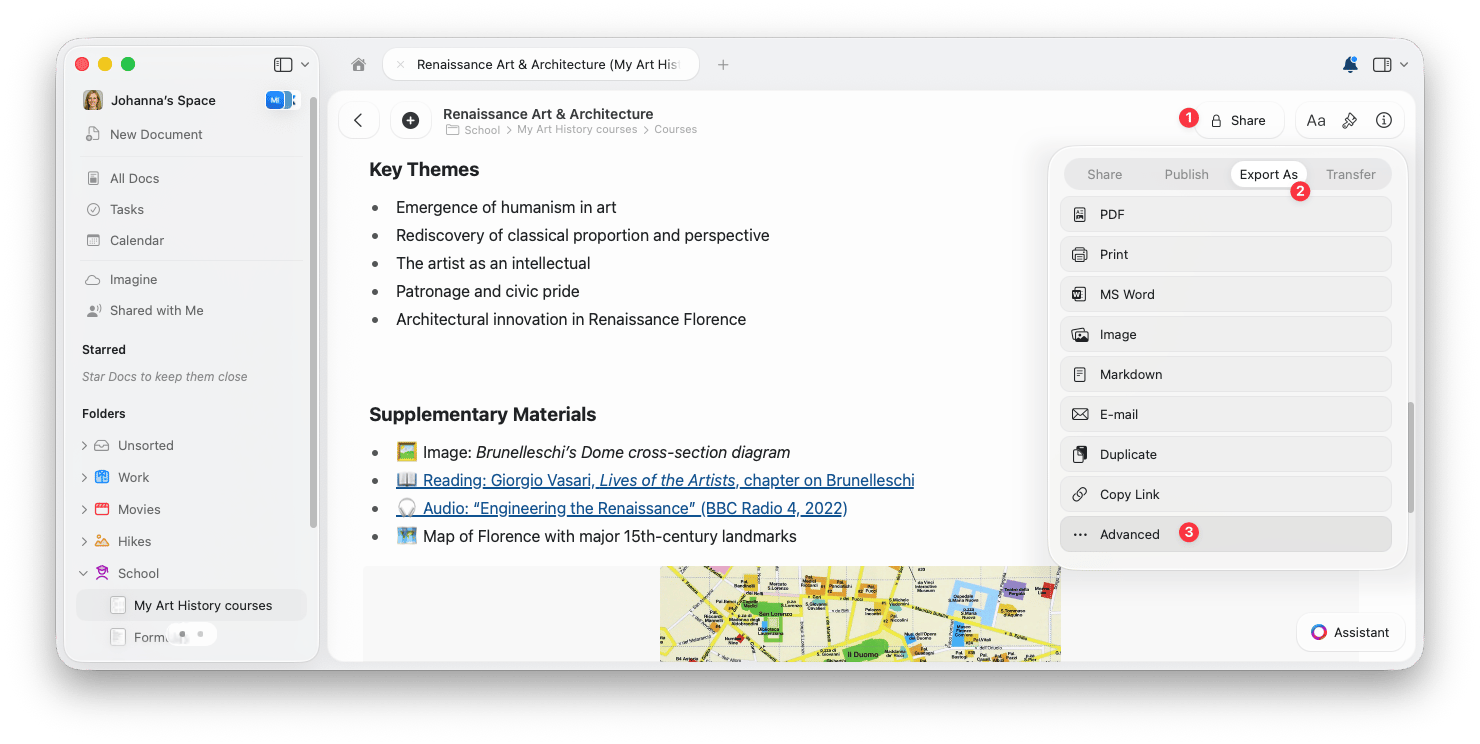 As an alternative, Deeplinks are also available from the **File** menu on macOS.
If at the time you activate this you've got a particular block highlighted (or you're editing that block), then the Deeplink will point to that. Otherwise, the link will point to the page/document you're looking at.
On iOS and iPadOS you can get the Deeplink by following these steps:
This same **Export as → Advanced** flow also works from the share menu on macOS, where you can choose **Copy Deeplink** or **Copy Markdown Deeplink**.
Tap the **share icon** on the top right to open the share menu
Select **Export as**
As an alternative, Deeplinks are also available from the **File** menu on macOS.
If at the time you activate this you've got a particular block highlighted (or you're editing that block), then the Deeplink will point to that. Otherwise, the link will point to the page/document you're looking at.
On iOS and iPadOS you can get the Deeplink by following these steps:
This same **Export as → Advanced** flow also works from the share menu on macOS, where you can choose **Copy Deeplink** or **Copy Markdown Deeplink**.
Tap the **share icon** on the top right to open the share menu
Select **Export as**
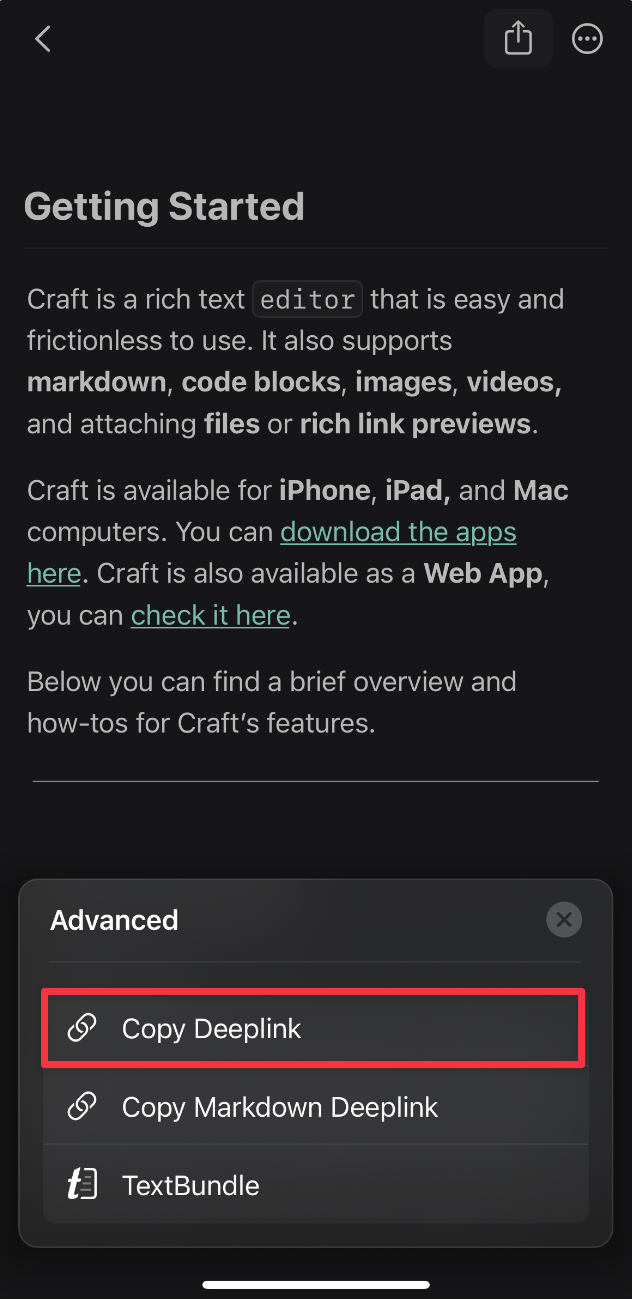
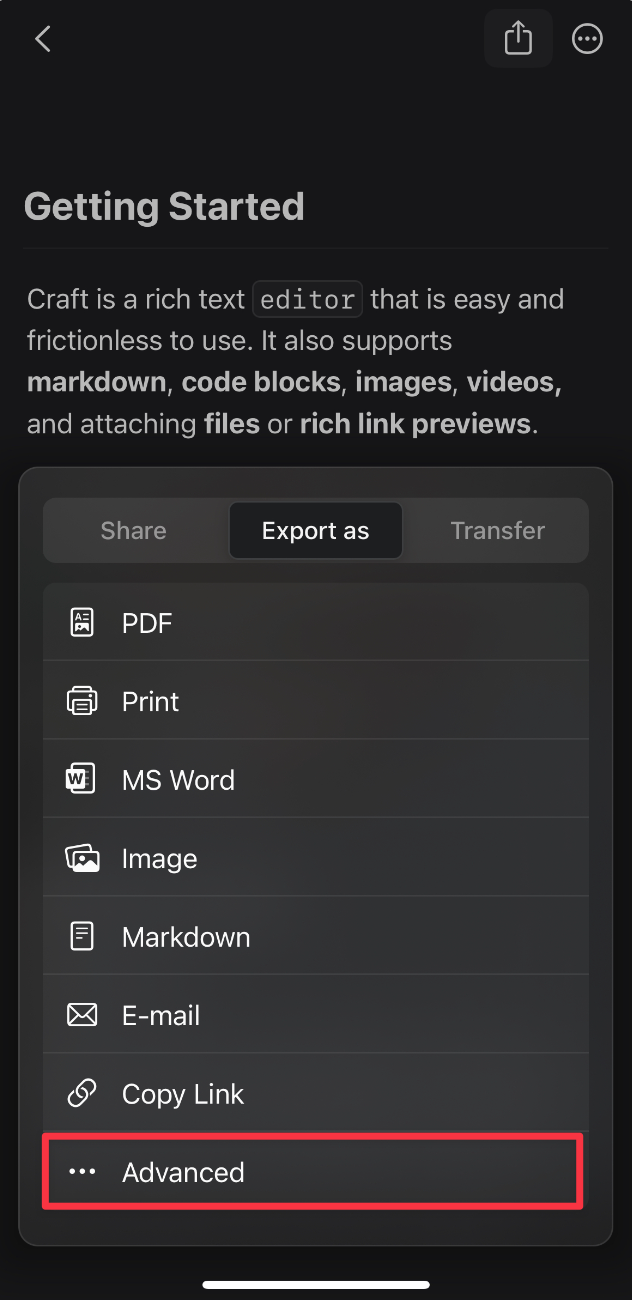 Scroll down to **Advanced** and tap **Copy Deeplink**
 ## Using Deeplinks
Deeplinks can be used pretty much anywhere that highlights links. For example:
* Copying and pasting the Deeplink URL into the URL bar of your browser will open Craft
* Placing the link in a Stickies note will allow you to quickly access the document from there
* You can Slack your co-workers or Message your contacts the Deeplink URL, and as long as they have access to that space, they'll be able to click on it
## Markdown Deeplinks
A Markdown Deeplink is the same Craft Deeplink formatted with standard Markdown link syntax. Instead of showing the full `craftdocs://open...` URL, the link can appear as readable text in apps that support Markdown.
For example:
```markdown theme={null}
[Project notes](craftdocs://open?spaceId=&blockId=)
```
Use Markdown Deeplinks when you want to paste a cleaner-looking link into a Markdown-friendly app or document. If you choose **Copy Markdown Deeplink**, Craft copies the link already formatted this way. Markdown Deeplinks behave the same as regular Deeplinks: clicking the link opens Craft, and the person opening it still needs access to the space.
Deeplinks only work for people who have access to edit the space. Make sure your collaborators are members of the space before sharing deeplinks with them.
## Using Deeplinks
Deeplinks can be used pretty much anywhere that highlights links. For example:
* Copying and pasting the Deeplink URL into the URL bar of your browser will open Craft
* Placing the link in a Stickies note will allow you to quickly access the document from there
* You can Slack your co-workers or Message your contacts the Deeplink URL, and as long as they have access to that space, they'll be able to click on it
## Markdown Deeplinks
A Markdown Deeplink is the same Craft Deeplink formatted with standard Markdown link syntax. Instead of showing the full `craftdocs://open...` URL, the link can appear as readable text in apps that support Markdown.
For example:
```markdown theme={null}
[Project notes](craftdocs://open?spaceId=&blockId=)
```
Use Markdown Deeplinks when you want to paste a cleaner-looking link into a Markdown-friendly app or document. If you choose **Copy Markdown Deeplink**, Craft copies the link already formatted this way. Markdown Deeplinks behave the same as regular Deeplinks: clicking the link opens Craft, and the person opening it still needs access to the space.
Deeplinks only work for people who have access to edit the space. Make sure your collaborators are members of the space before sharing deeplinks with them.