> ## Documentation Index
> Fetch the complete documentation index at: https://craft-support.mintlify.site/llms.txt
> Use this file to discover all available pages before exploring further.
# Search in a Document
> Find and replace text within a specific document and its subpages.
Craft offers two ways to search, and it's important to know the difference:
* **Global Search** helps you find content across all your documents, spaces, and pages. [Learn more](/en/organize-and-find/search)
* **Document Search** lets you find text within a specific document (and optionally its subpages).
This article focuses on using **Document Search**.
## How to Access Document Search
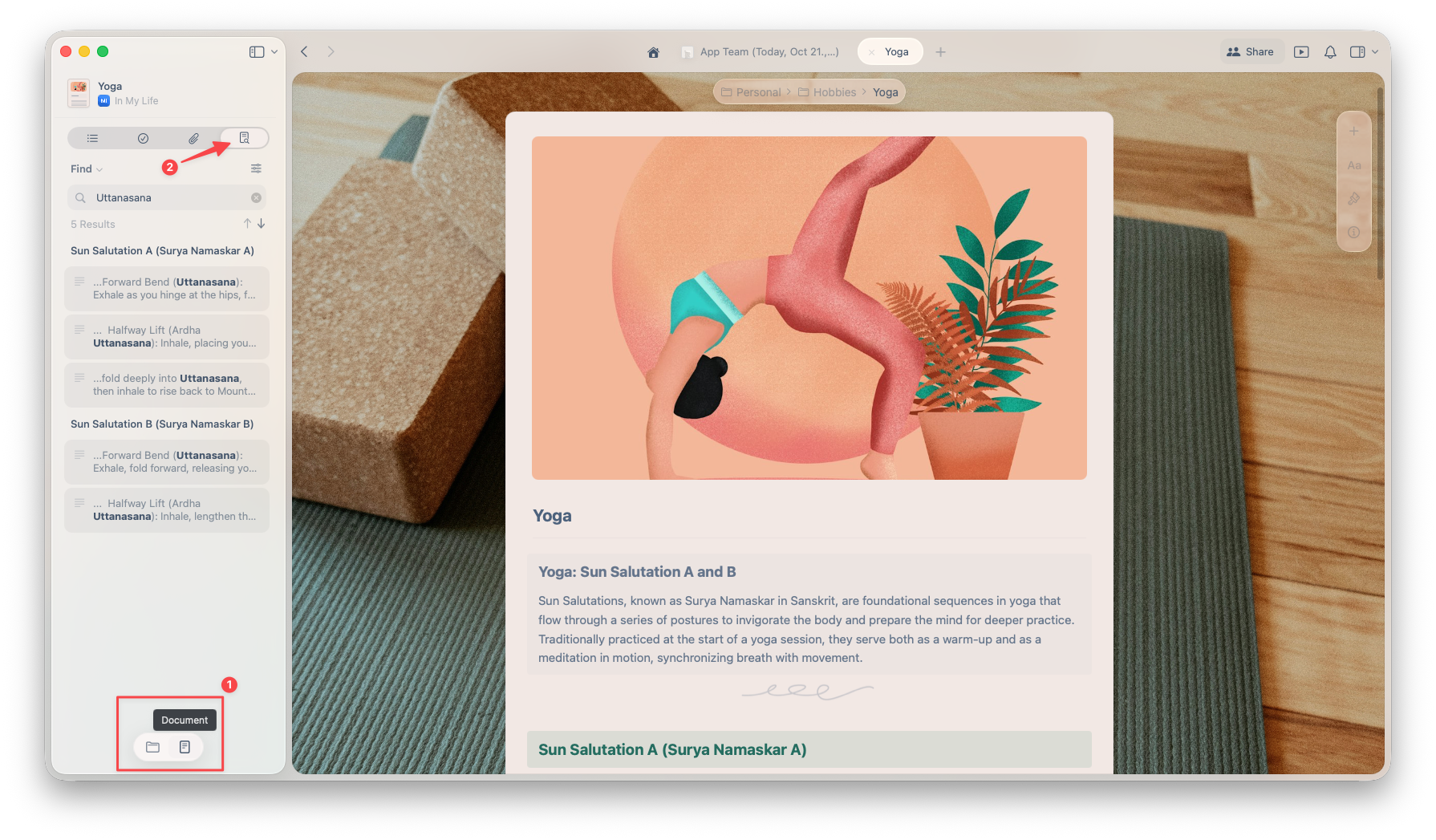
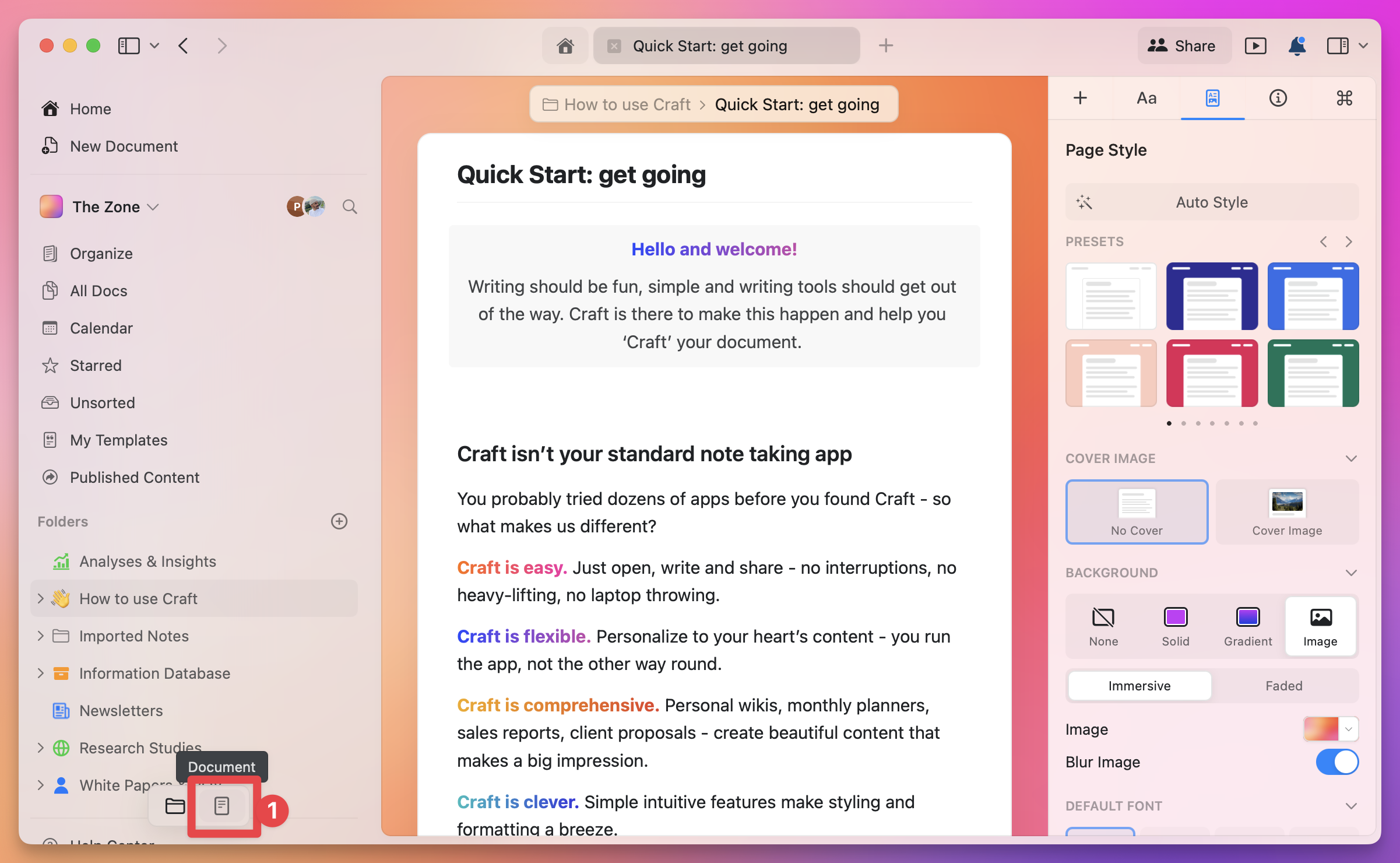
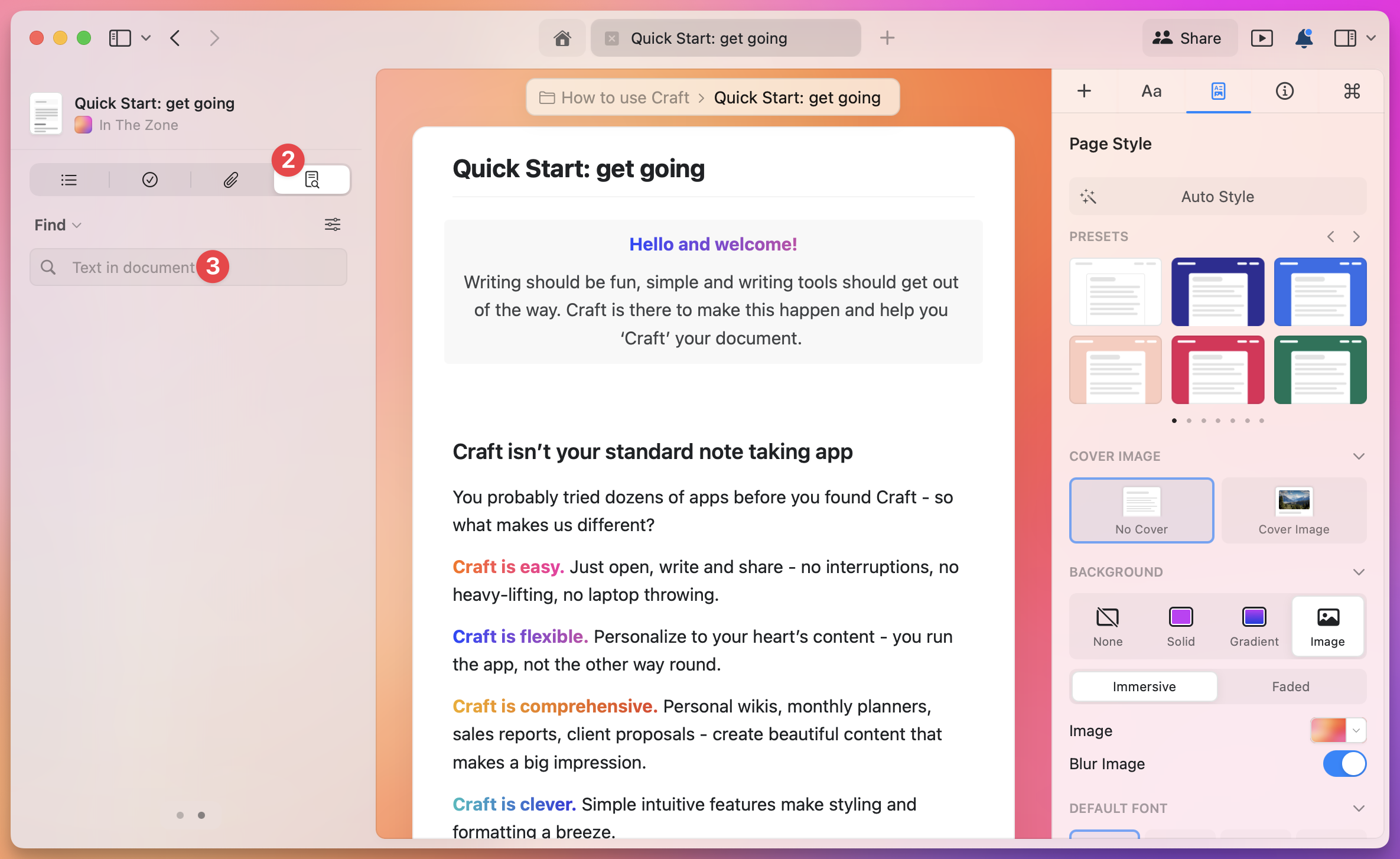
You can open search from the left sidebar in **Document View**:
* Click the **magnifying glass icon** (the last tab)
* Or use the keyboard shortcut **Cmd + F**
* Click the **magnifying glass icon** (the last tab)
* Or use the keyboard shortcut **Ctrl + F**
 ## Search Options
Once the search panel opens, you'll see several useful options.
## Search Options
Once the search panel opens, you'll see several useful options.
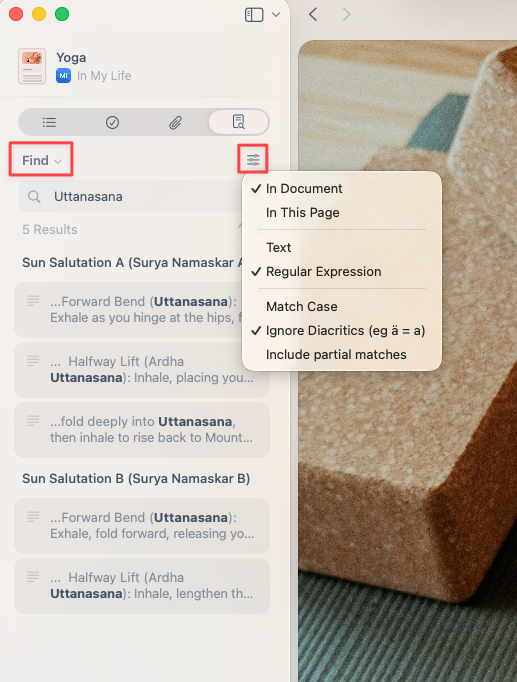 ### Regular Find or Find & Replace
You can simply search for text within the document or use **Find and Replace** to update multiple matches in bulk.
### Search Scope
Click the **filter icon** on the right to choose *where* you want to search:
* **This Document only** – searches just the current document
* **This Document + Subpages** – includes all subpages nested under it
### Search Mode
You can choose between:
* **Simple text** – standard keyword search
* **Regex** – for advanced, pattern-based searches
### Additional Filters
You'll also find these toggles to refine your search results:
* **Match case** – distinguish between uppercase and lowercase letters
* **Ignore diacritics** – treat accented and non-accented characters as the same
* **Include partial matches** – find words that contain your search term
## Example: Using the Document Search
### Regular Find or Find & Replace
You can simply search for text within the document or use **Find and Replace** to update multiple matches in bulk.
### Search Scope
Click the **filter icon** on the right to choose *where* you want to search:
* **This Document only** – searches just the current document
* **This Document + Subpages** – includes all subpages nested under it
### Search Mode
You can choose between:
* **Simple text** – standard keyword search
* **Regex** – for advanced, pattern-based searches
### Additional Filters
You'll also find these toggles to refine your search results:
* **Match case** – distinguish between uppercase and lowercase letters
* **Ignore diacritics** – treat accented and non-accented characters as the same
* **Include partial matches** – find words that contain your search term
## Example: Using the Document Search
 ## Tip: Regex is Really Powerful
Regex (short for *regular expressions*) lets you search using patterns instead of exact text. It's perfect for more advanced find and replace operations.
**Example**:
If you've used `#todo`, `#inprogress`, and `#done` tags, and want to rename them all to `#task`, regex can do that in one go.
Search for:
```
#(todo|inprogress|done)
```
and simply replace with:
```
#task
```
Regular expressions are incredibly powerful for pattern matching. Consider learning the basics to unlock advanced search capabilities.
## Tip: Regex is Really Powerful
Regex (short for *regular expressions*) lets you search using patterns instead of exact text. It's perfect for more advanced find and replace operations.
**Example**:
If you've used `#todo`, `#inprogress`, and `#done` tags, and want to rename them all to `#task`, regex can do that in one go.
Search for:
```
#(todo|inprogress|done)
```
and simply replace with:
```
#task
```
Regular expressions are incredibly powerful for pattern matching. Consider learning the basics to unlock advanced search capabilities.