> ## Documentation Index
> Fetch the complete documentation index at: https://craft-support.mintlify.app/llms.txt
> Use this file to discover all available pages before exploring further.

# Spaces

> Organize your work with spaces for different projects, topics, or contexts.

Spaces in Craft let you separate your work into distinct areas – whether for different projects, teams, personal notes, or work contexts. Each space has its own documents, folders, and organization.

## Switching Between Spaces

To switch between spaces:

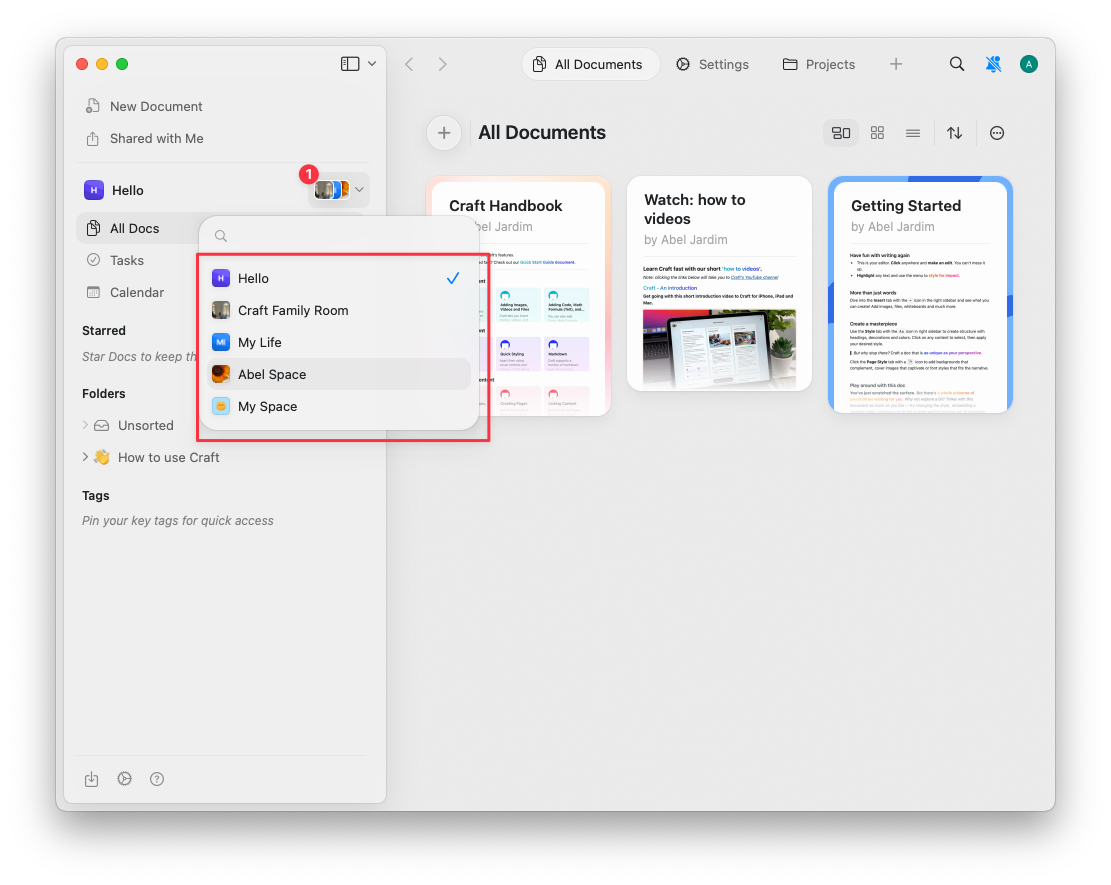
While in Home view, use the **space dropdown** in the top left part of the sidebar to switch between spaces.

<img src="https://mintcdn.com/craft-support/i6CE6W2a4t-4UUEp/images/organize-and-find/spaces/en/content/space-dropdown.png?fit=max&auto=format&n=i6CE6W2a4t-4UUEp&q=85&s=d1f8caad341dcf7fde4b6e2585d57e15" alt="Space dropdown menu showing available spaces" width="1111" height="885" data-path="images/organize-and-find/spaces/en/content/space-dropdown.png" />

## Moving Documents Between Accounts

You can transfer documents between Craft accounts easily **while on macOS, iOS, or iPad**. Follow these steps:

### Add the Account to Craft

<Steps>
  <Step>
    Open Craft and navigate to the account menu.
  </Step>

  <Step>
    Select **Add Account** and log in with the additional account.

    <img src="https://mintcdn.com/craft-support/i6CE6W2a4t-4UUEp/images/organize-and-find/spaces/en/content/add-account.png?fit=max&auto=format&n=i6CE6W2a4t-4UUEp&q=85&s=d8304e6daf73c2111ee03294222efcb3" alt="Add account option" width="1193" height="1005" data-path="images/organize-and-find/spaces/en/content/add-account.png" />
  </Step>
</Steps>

### Move Documents to Another Account

<Steps>
  <Step>
    **Right-click** on the document(s) you wish to move.
  </Step>

  <Step>
    Select **Move to…** and then **To Another Space**.

    <img src="https://mintcdn.com/craft-support/i6CE6W2a4t-4UUEp/images/organize-and-find/spaces/en/content/move-document.png?fit=max&auto=format&n=i6CE6W2a4t-4UUEp&q=85&s=9530bd876e017154517d6c2e3042f7be" alt="Move document menu option" width="1149" height="961" data-path="images/organize-and-find/spaces/en/content/move-document.png" />
  </Step>

  <Step>
    Choose the desired account to complete the transfer.

    <img src="https://mintcdn.com/craft-support/i6CE6W2a4t-4UUEp/images/organize-and-find/spaces/en/content/move-to-account.png?fit=max&auto=format&n=i6CE6W2a4t-4UUEp&q=85&s=1ef61f31755336899b733806bb5f0775" alt="Select target account" width="1193" height="1005" data-path="images/organize-and-find/spaces/en/content/move-to-account.png" />
  </Step>
</Steps>

<Info title="Tip">
  To move multiple documents at once, hold down the **Shift** key while selecting them.
</Info>

<Warning title="Important Notes">
  * **Folders cannot be moved** between accounts.
  * Moving documents across accounts **breaks block links** and **published page URLs**.
  * **Comments** within the documents will not be transferred.
</Warning>

## Related Articles

<CardGroup cols={2}>
  <Card title="Teams" href="/en/organize-and-find/teams">
    Collaborate with team members and manage shared team spaces
  </Card>

  <Card title="Sharing Documents" href="/en/share-and-publish/share">
    Share documents with others
  </Card>

  <Card title="Account Setup" href="/en/introduction/account-setup">
    Learn about creating and managing spaces
  </Card>
</CardGroup>