> ## Documentation Index
> Fetch the complete documentation index at: https://craft-support.mintlify.site/llms.txt
> Use this file to discover all available pages before exploring further.
# Daily notes
> Capture thoughts and plans with automatically organized daily pages.
Daily notes in Craft provide a dedicated space for each day where you can capture thoughts, plan your day, track tasks, and organize meeting notes. Each daily note is automatically created and organized by date, making it easy to reflect on past days and plan for the future.
## Accessing daily notes
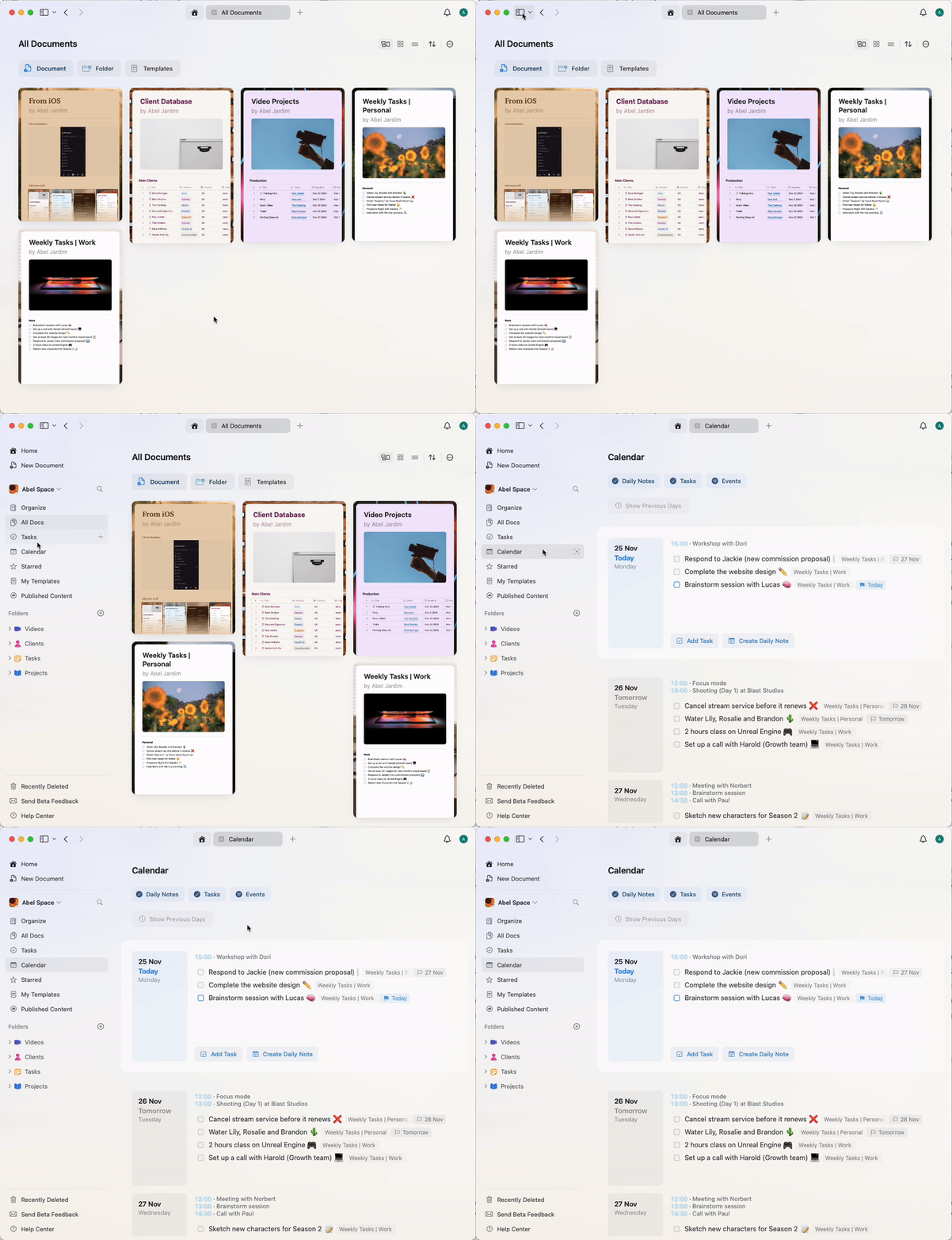
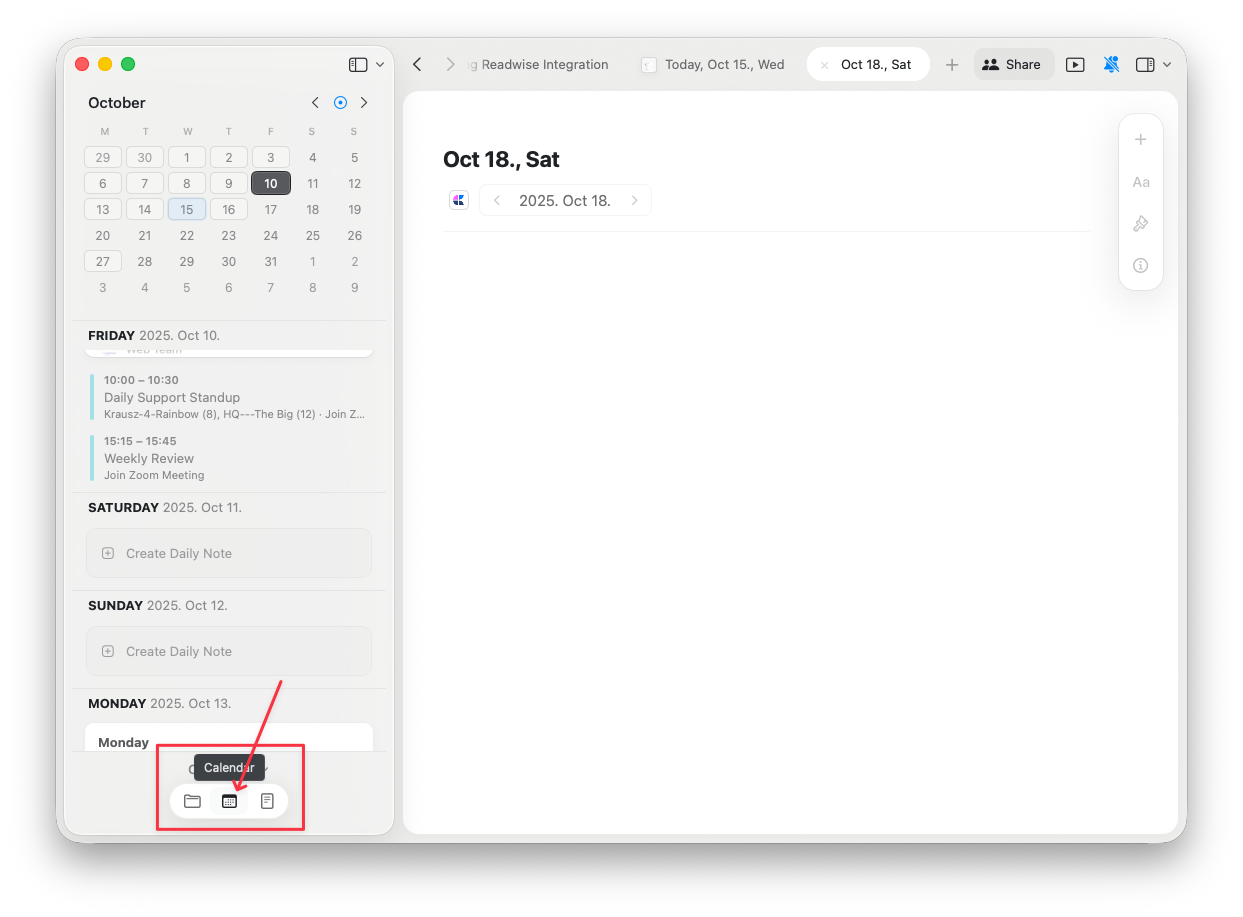
Daily notes can be accessed through the Calendar view in the sidebar. Simply select a date to view or create the daily note for that day.
The date picker for navigating to a specific day is inside the Calendar view in the sidebar — tap or click a date there to open that day's note. It is not a separate button; it's the calendar grid itself.
 ## Using templates with daily notes
You can add templates to your daily notes to maintain a consistent structure for your daily planning. This is useful for creating daily routines, recurring sections, or structured planning formats.
To add a template to a daily note:
Open the daily note for the desired date
Type `/template` or use the slash command menu
Select from custom or default templates
## Using templates with daily notes
You can add templates to your daily notes to maintain a consistent structure for your daily planning. This is useful for creating daily routines, recurring sections, or structured planning formats.
To add a template to a daily note:
Open the daily note for the desired date
Type `/template` or use the slash command menu
Select from custom or default templates
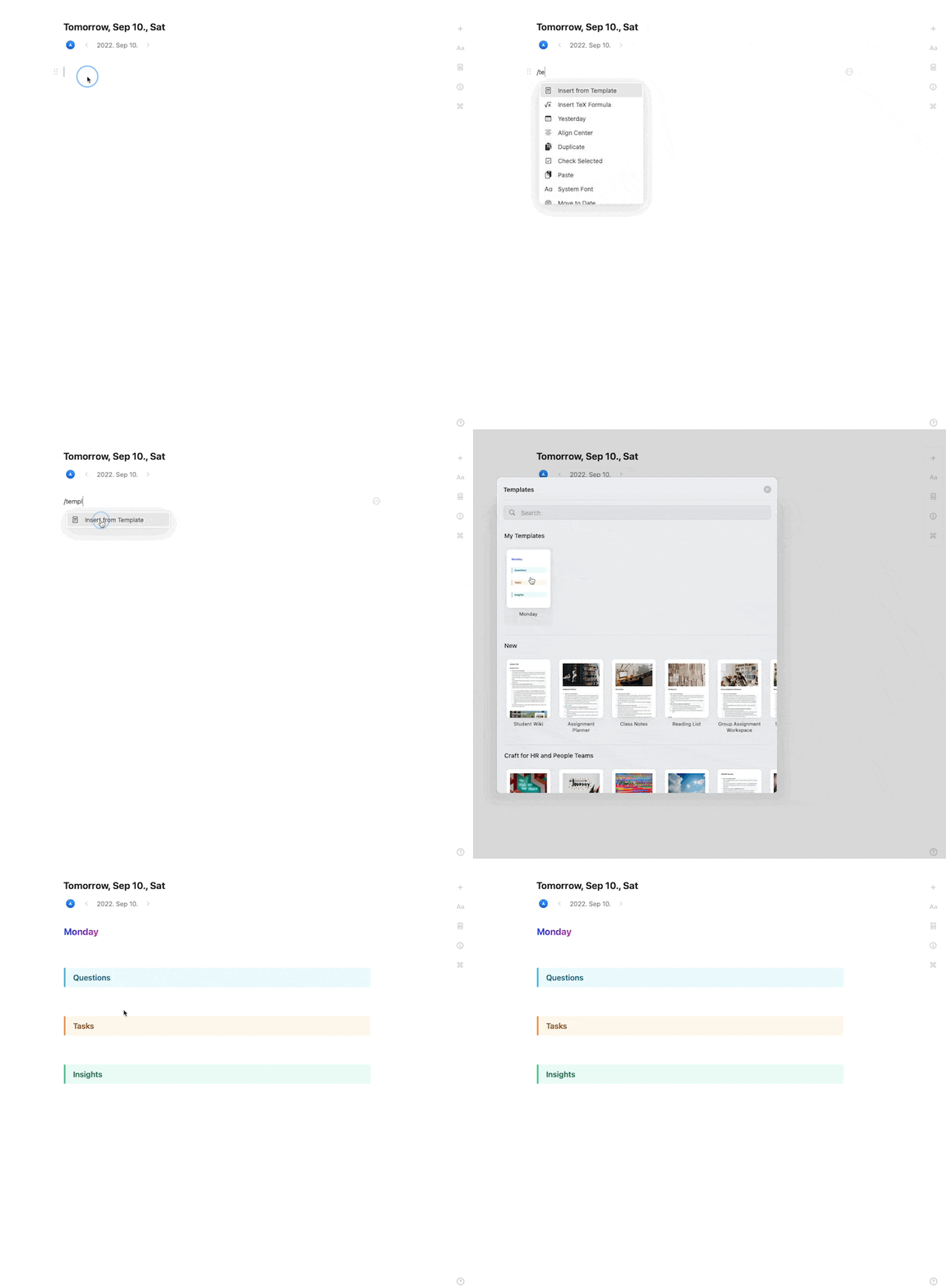 Create a custom daily note template with sections like "Today's Goals", "Notes", and "Reflections" to maintain a consistent structure across all your daily notes.
## Organizing daily notes
Daily notes are automatically organized in chronological order. You can:
* **Navigate between days**: Use the calendar view to jump to any date
* **Add subpages**: Create event notes or meeting notes as subpages of your daily note
* **Link between days**: Reference previous or future daily notes using the `@` mention to link to other dates
### Event notes as subpages
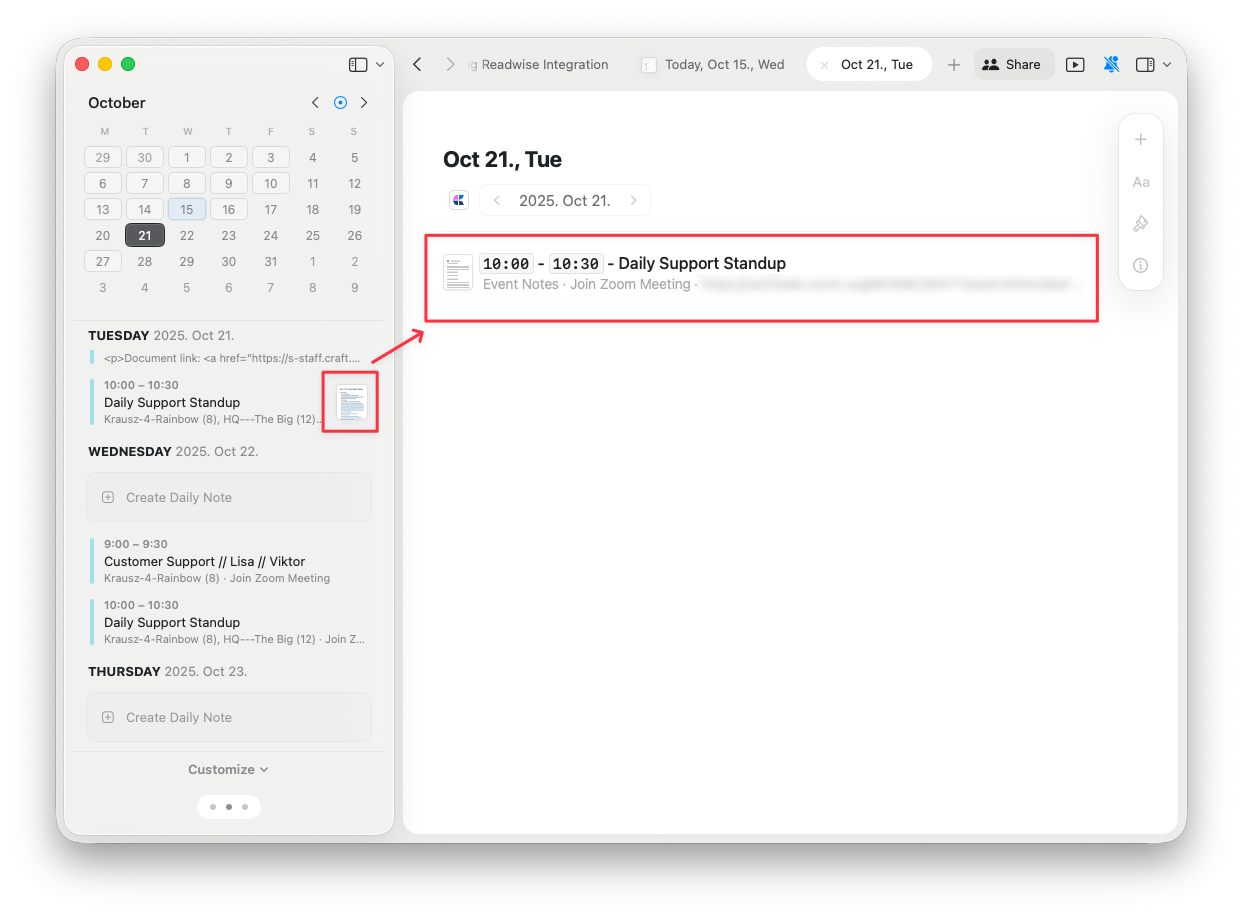
When you create event notes from your calendar integration, they are automatically added as subpages under the corresponding daily note. This keeps all information related to a specific day organized in one place.
Create a custom daily note template with sections like "Today's Goals", "Notes", and "Reflections" to maintain a consistent structure across all your daily notes.
## Organizing daily notes
Daily notes are automatically organized in chronological order. You can:
* **Navigate between days**: Use the calendar view to jump to any date
* **Add subpages**: Create event notes or meeting notes as subpages of your daily note
* **Link between days**: Reference previous or future daily notes using the `@` mention to link to other dates
### Event notes as subpages
When you create event notes from your calendar integration, they are automatically added as subpages under the corresponding daily note. This keeps all information related to a specific day organized in one place.
 ## Daily notes in the Calendar view
In the Calendar view, daily notes appear alongside your tasks and events, providing a complete overview of your day:
* **Tasks**: See all scheduled tasks for the day
* **Events**: View synced calendar events
* **Daily Note**: Access your daily note to capture thoughts and plans
## Daily notes in the Calendar view
In the Calendar view, daily notes appear alongside your tasks and events, providing a complete overview of your day:
* **Tasks**: See all scheduled tasks for the day
* **Events**: View synced calendar events
* **Daily Note**: Access your daily note to capture thoughts and plans
 ## Best practices for daily notes
### Morning planning
Start your day by opening your daily note and:
* Review your scheduled tasks
* Check calendar events
* Write down key priorities
* Add any quick capture items from the night before
### Throughout the day
Use your daily note to:
* Capture meeting notes as subpages
* Add quick thoughts and ideas
* Update task status
* Document decisions and learnings
### Evening reflection
End your day by:
* Reviewing what you accomplished
* Moving incomplete tasks to future days
* Writing reflections or learnings
* Planning for tomorrow
Building a daily note habit helps you stay organized, reflect on progress, and maintain focus on what matters most.
## Related articles
View your daily notes, tasks, and events all in one place
Manage tasks across your documents with a centralized hub
Create reusable structures for your documents
Connect Apple Calendar to view events in your daily notes
Learn how subpages work with daily notes and event notes
## Best practices for daily notes
### Morning planning
Start your day by opening your daily note and:
* Review your scheduled tasks
* Check calendar events
* Write down key priorities
* Add any quick capture items from the night before
### Throughout the day
Use your daily note to:
* Capture meeting notes as subpages
* Add quick thoughts and ideas
* Update task status
* Document decisions and learnings
### Evening reflection
End your day by:
* Reviewing what you accomplished
* Moving incomplete tasks to future days
* Writing reflections or learnings
* Planning for tomorrow
Building a daily note habit helps you stay organized, reflect on progress, and maintain focus on what matters most.
## Related articles
View your daily notes, tasks, and events all in one place
Manage tasks across your documents with a centralized hub
Create reusable structures for your documents
Connect Apple Calendar to view events in your daily notes
Learn how subpages work with daily notes and event notes