> ## Documentation Index
> Fetch the complete documentation index at: https://craft-support.mintlify.site/llms.txt
> Use this file to discover all available pages before exploring further.
# Reminders
> Create, schedule, and manage Craft reminders for tasks, blocks, and standalone follow-ups.
Craft Reminders help you remember tasks, ideas, and follow-ups at the right time. You can add a reminder to a block or task in a document, or create a standalone reminder that is not connected to any document.
This article is about Craft's built-in reminders. To import tasks from Apple Reminders into Craft, see the [Apple Reminders integration](/en/integrate/reminders) guide.
## Types of reminders
Craft supports two main reminder types:
* **Block or task reminders**: Attached to a block or task. Opening the reminder takes you back to the related content.
* **Standalone reminders**: Created from the Reminders panel. Use these for quick follow-ups that do not need to be connected to a document.
## Create reminders
There are several ways to create reminders in Craft. Use the method that fits where you are working.
### From the Reminders panel
Use the Reminders panel for standalone reminders that are not tied to a specific document, block, or task.
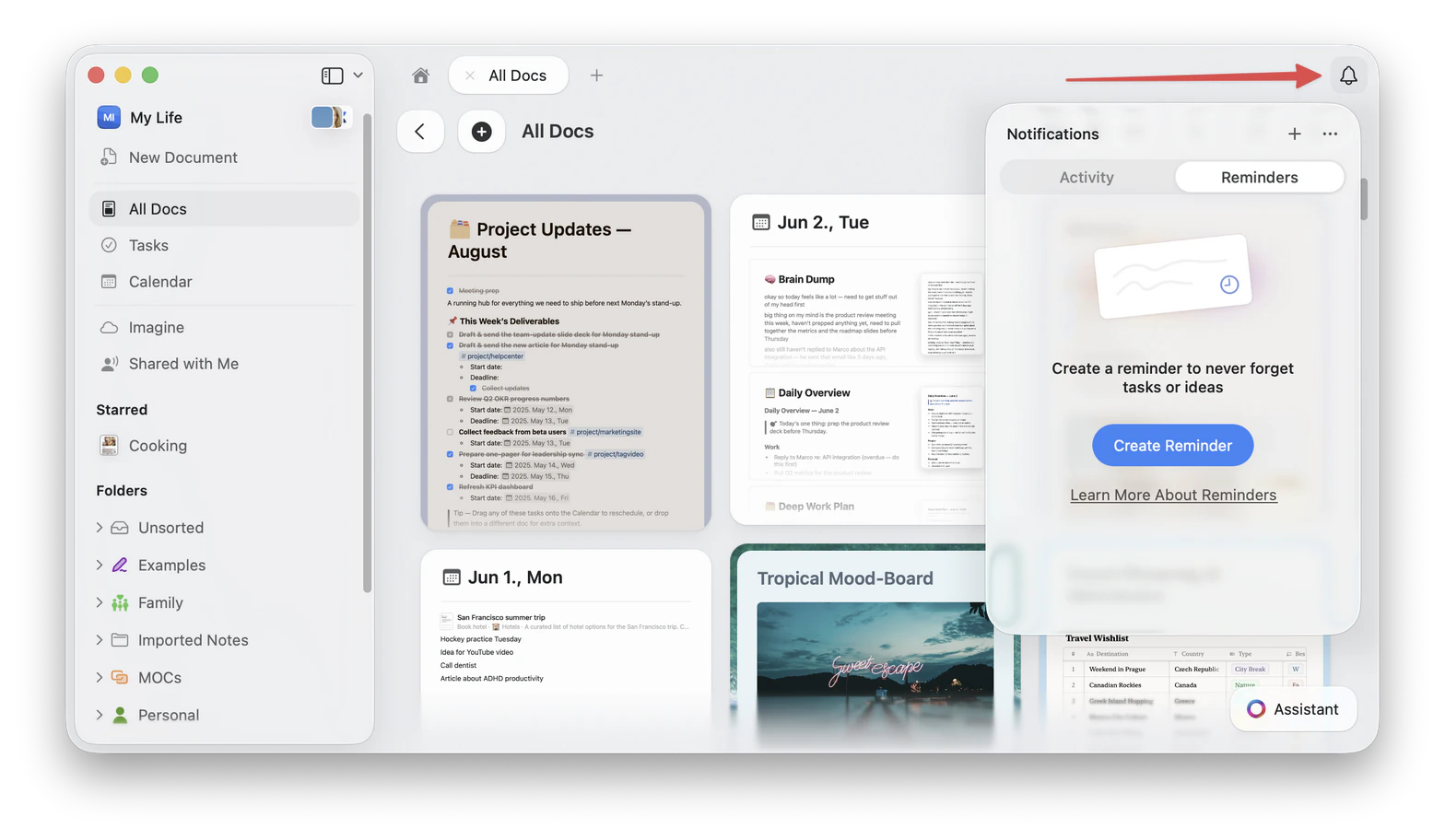 Click the **bell icon** to open **Notifications**.
Select the **Reminders** tab.
Click the **+** button or **Create Reminder**.
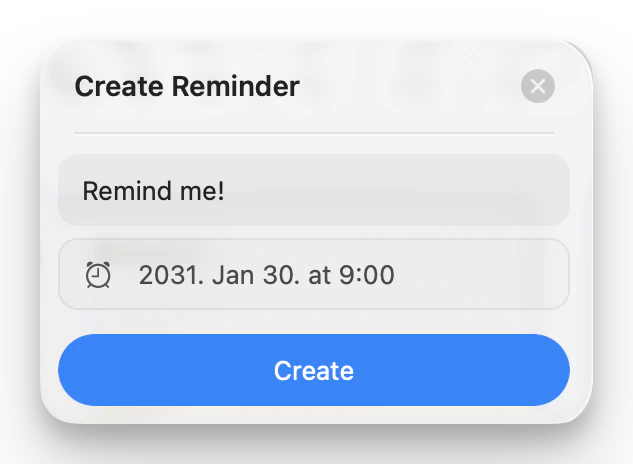
Enter a reminder title and choose when Craft should remind you.
Click **Create**.
Open **Notifications**.
Switch to the **Reminders** tab.
Tap **+** or **Create Reminder**.
Enter a title, choose a date and time, then tap **Create**.
Click the **bell icon** to open **Notifications**.
Select the **Reminders** tab.
Click the **+** button or **Create Reminder**.
Enter a reminder title and choose when Craft should remind you.
Click **Create**.
Open **Notifications**.
Switch to the **Reminders** tab.
Tap **+** or **Create Reminder**.
Enter a title, choose a date and time, then tap **Create**.
 ### From a block menu
Use the block menu when the reminder should bring you back to a specific line, note, image, link, or other block.
Hover over or select the block you want to be reminded about.
Open the block's **•••** menu or context menu.
Choose a **Remind me** or **Reminder** action.
Pick a quick time or choose a custom date and time.
### From a block menu
Use the block menu when the reminder should bring you back to a specific line, note, image, link, or other block.
Hover over or select the block you want to be reminded about.
Open the block's **•••** menu or context menu.
Choose a **Remind me** or **Reminder** action.
Pick a quick time or choose a custom date and time.
 When the reminder is due, selecting it opens the related content.
### From the slash or command menu
You can also create block reminders from Craft's slash or command menu.
Select the block where you want to add a reminder.
Open the slash or command menu, then search for **reminder** or **remind me**.
Choose the reminder time you want to apply.
When the reminder is due, selecting it opens the related content.
### From the slash or command menu
You can also create block reminders from Craft's slash or command menu.
Select the block where you want to add a reminder.
Open the slash or command menu, then search for **reminder** or **remind me**.
Choose the reminder time you want to apply.
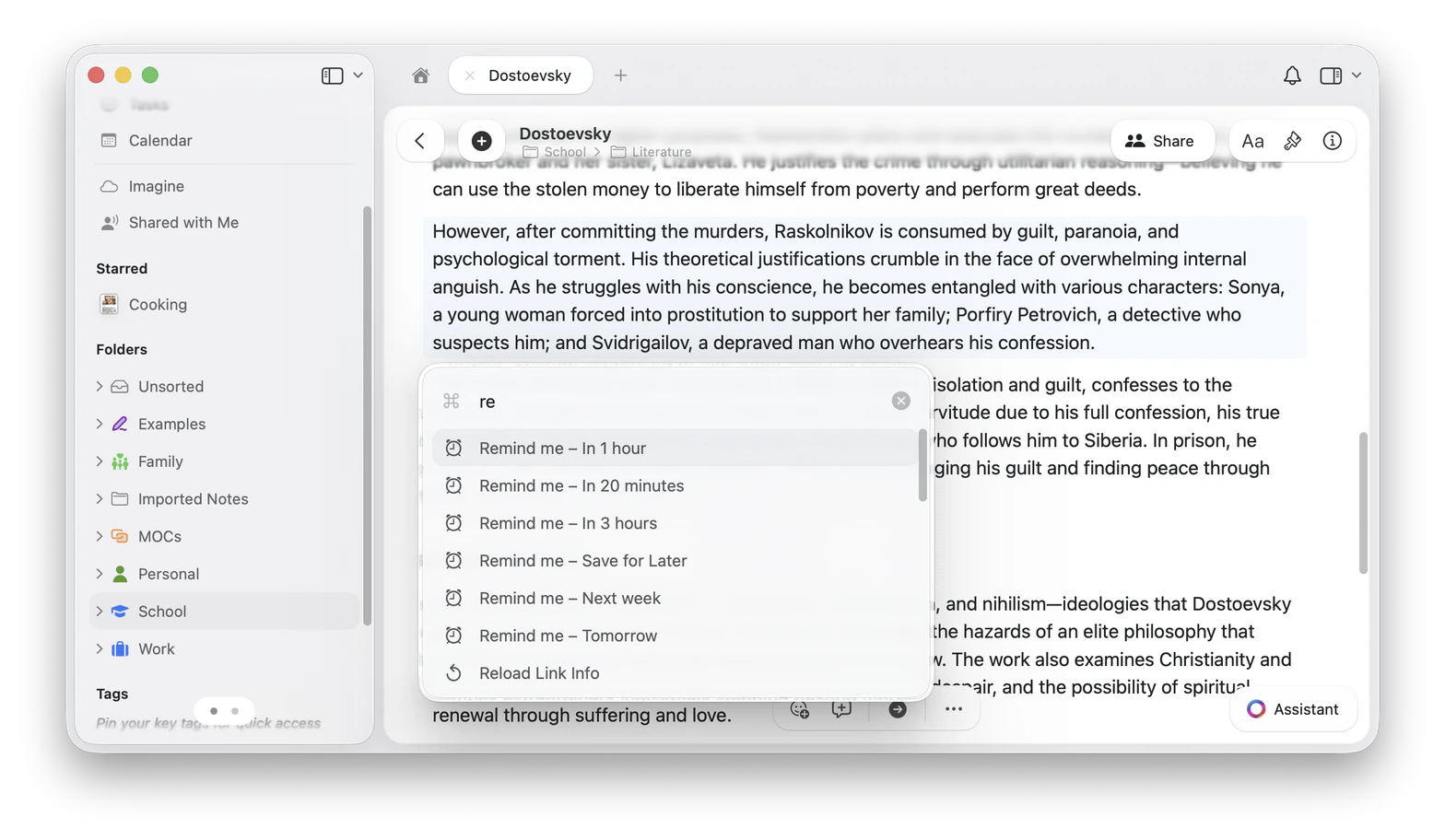 Slash and command menus are best for creating reminders. To reschedule, resolve, or remove an existing reminder, use the reminder badge or context menu.
### From a task
Tasks can have their own reminders. You can add or change a task reminder from task-related menus and date controls, including:
* The task's context menu.
* The task schedule or date picker.
* The reminder badge shown on a task that already has a reminder.
* Task views such as **Tasks**, **Calendar**, and task panels where reminder controls are available.
If you are already planning a task's schedule or deadline, use the same task date controls to add a reminder without leaving the task flow.
## Choose a reminder time
When creating or rescheduling a reminder, Craft offers quick options and custom scheduling.
Common quick options include:
* **In 20 minutes**
* **In 1 hour**
* **In 3 hours**
* **Tomorrow**
* **Next week**
* **Custom...**
* **Save for Later**
**Save for Later** keeps the reminder in your reminder list without scheduling a due-time notification. Add a date and time later when you are ready to be notified.
## Manage reminders
From the Reminders tab, use the checkbox or context menu to manage each reminder.
Slash and command menus are best for creating reminders. To reschedule, resolve, or remove an existing reminder, use the reminder badge or context menu.
### From a task
Tasks can have their own reminders. You can add or change a task reminder from task-related menus and date controls, including:
* The task's context menu.
* The task schedule or date picker.
* The reminder badge shown on a task that already has a reminder.
* Task views such as **Tasks**, **Calendar**, and task panels where reminder controls are available.
If you are already planning a task's schedule or deadline, use the same task date controls to add a reminder without leaving the task flow.
## Choose a reminder time
When creating or rescheduling a reminder, Craft offers quick options and custom scheduling.
Common quick options include:
* **In 20 minutes**
* **In 1 hour**
* **In 3 hours**
* **Tomorrow**
* **Next week**
* **Custom...**
* **Save for Later**
**Save for Later** keeps the reminder in your reminder list without scheduling a due-time notification. Add a date and time later when you are ready to be notified.
## Manage reminders
From the Reminders tab, use the checkbox or context menu to manage each reminder.
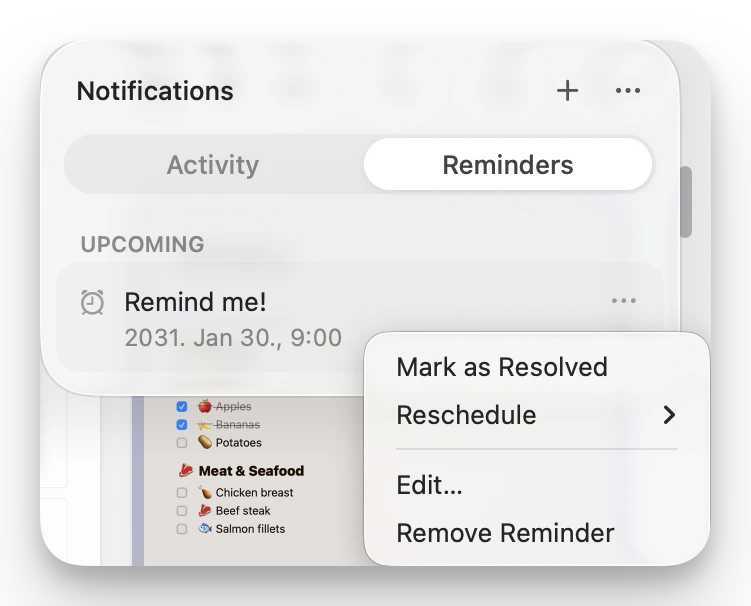 Available actions can include:
* **Mark as Resolved**: Complete the reminder and move it to resolved reminders.
* **Reschedule**: Choose a new reminder time.
* **Edit...**: Change the title or time of a standalone reminder.
* **Remove Reminder**: Delete the reminder.
For reminders attached to blocks or tasks, you can also manage the reminder from the reminder badge or the block/task context menu.
Available actions can include:
* **Mark as Resolved**: Complete the reminder and move it to resolved reminders.
* **Reschedule**: Choose a new reminder time.
* **Edit...**: Change the title or time of a standalone reminder.
* **Remove Reminder**: Delete the reminder.
For reminders attached to blocks or tasks, you can also manage the reminder from the reminder badge or the block/task context menu.
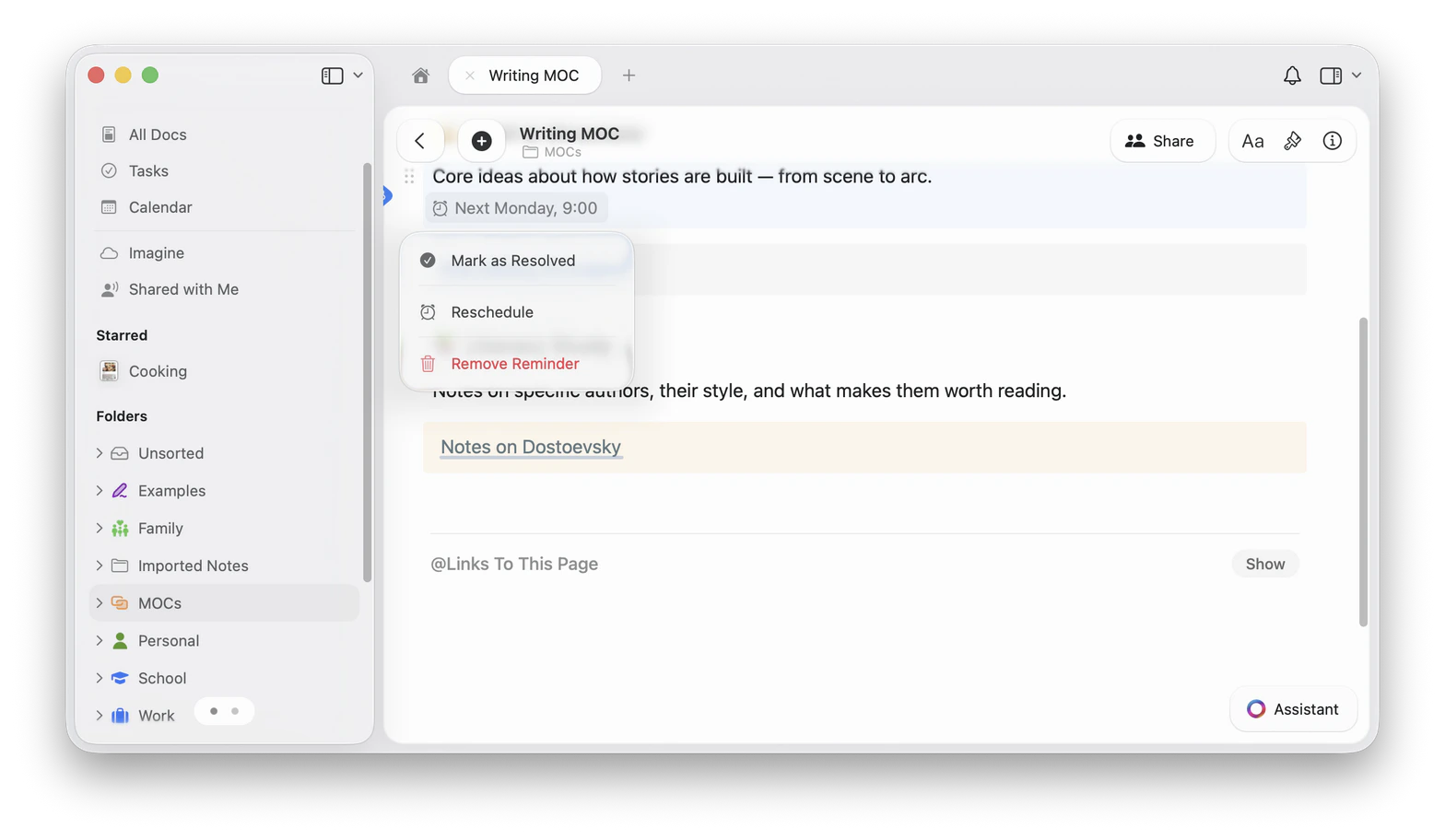 Reminder creation commands are available from the slash or command menu. Resolve and remove actions may also appear in some apps when the selected block already has an active reminder, but the context menu is the most reliable place to manage an existing reminder.
## Open a reminder's content
If a reminder is attached to a block or task, selecting it from the Reminders panel opens the related content. For linked blocks, Craft uses the block or link title where available so the reminder is easier to recognize.
Standalone reminders are not linked to a document. Selecting them opens the reminder actions instead.
## Reminder notifications
Craft can notify you when a reminder is due with push notifications and, if enabled, email notifications.
### Push notifications
Push notifications appear through your operating system. Make sure notifications are allowed for Craft on the device where you want to receive them.
Open **System Settings > Notifications**, then make sure notifications are enabled for Craft.
Open **Settings > Notifications > Craft**, then make sure notifications are enabled.
Open Windows notification settings and make sure notifications are enabled for Craft.
### Email notifications
You can enable email notifications for reminders in Craft settings. When enabled, Craft can send you an email when a reminder is due.
Reminder creation commands are available from the slash or command menu. Resolve and remove actions may also appear in some apps when the selected block already has an active reminder, but the context menu is the most reliable place to manage an existing reminder.
## Open a reminder's content
If a reminder is attached to a block or task, selecting it from the Reminders panel opens the related content. For linked blocks, Craft uses the block or link title where available so the reminder is easier to recognize.
Standalone reminders are not linked to a document. Selecting them opens the reminder actions instead.
## Reminder notifications
Craft can notify you when a reminder is due with push notifications and, if enabled, email notifications.
### Push notifications
Push notifications appear through your operating system. Make sure notifications are allowed for Craft on the device where you want to receive them.
Open **System Settings > Notifications**, then make sure notifications are enabled for Craft.
Open **Settings > Notifications > Craft**, then make sure notifications are enabled.
Open Windows notification settings and make sure notifications are enabled for Craft.
### Email notifications
You can enable email notifications for reminders in Craft settings. When enabled, Craft can send you an email when a reminder is due.
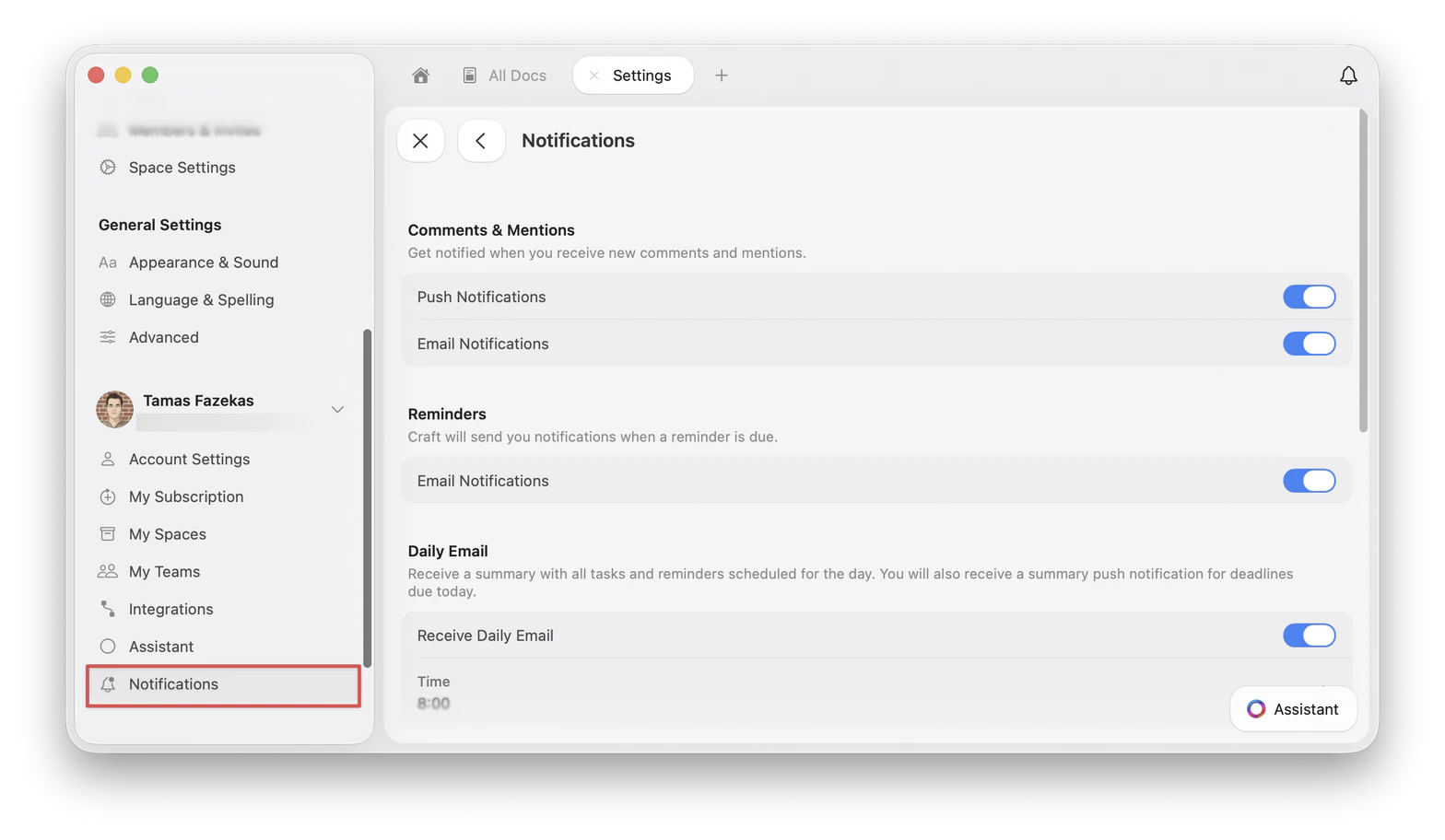 To change this setting, open **Settings > Notifications**, then use the **Reminders > Email Notifications** toggle.
### Daily Email
The **Daily Email** setting sends a summary of tasks and reminders scheduled for the day. You can enable or disable it and choose the delivery time from **Settings > Notifications**.
## Troubleshooting
Check that the reminder has a date and time, Craft notifications are allowed in your system settings, and reminder email notifications are enabled if you expected an email.
A reminder saved for later does not have a due time, so Craft will not send a due-time notification yet. Reschedule it to add a date and time.
Open the reminder badge or the block/task context menu, then choose **Remove Reminder**.
## Related articles
Import tasks from Apple Reminders into Craft
Manage tasks across your documents with a centralized hub
Set up tasks that repeat on a schedule
View tasks and reminders in the calendar view
To change this setting, open **Settings > Notifications**, then use the **Reminders > Email Notifications** toggle.
### Daily Email
The **Daily Email** setting sends a summary of tasks and reminders scheduled for the day. You can enable or disable it and choose the delivery time from **Settings > Notifications**.
## Troubleshooting
Check that the reminder has a date and time, Craft notifications are allowed in your system settings, and reminder email notifications are enabled if you expected an email.
A reminder saved for later does not have a due time, so Craft will not send a due-time notification yet. Reschedule it to add a date and time.
Open the reminder badge or the block/task context menu, then choose **Remove Reminder**.
## Related articles
Import tasks from Apple Reminders into Craft
Manage tasks across your documents with a centralized hub
Set up tasks that repeat on a schedule
View tasks and reminders in the calendar view