> ## Documentation Index
> Fetch the complete documentation index at: https://craft-support.mintlify.site/llms.txt
> Use this file to discover all available pages before exploring further.
# Recurring tasks
> Automate your workflow with tasks that repeat on a daily, weekly, or custom schedule.
Repeating tasks help you automate your workflow by scheduling tasks that repeat on a daily, weekly, or custom basis. You can create recurring tasks from the **Tasks section** or directly inside **any document**.
## Creating recurring tasks from the Tasks section
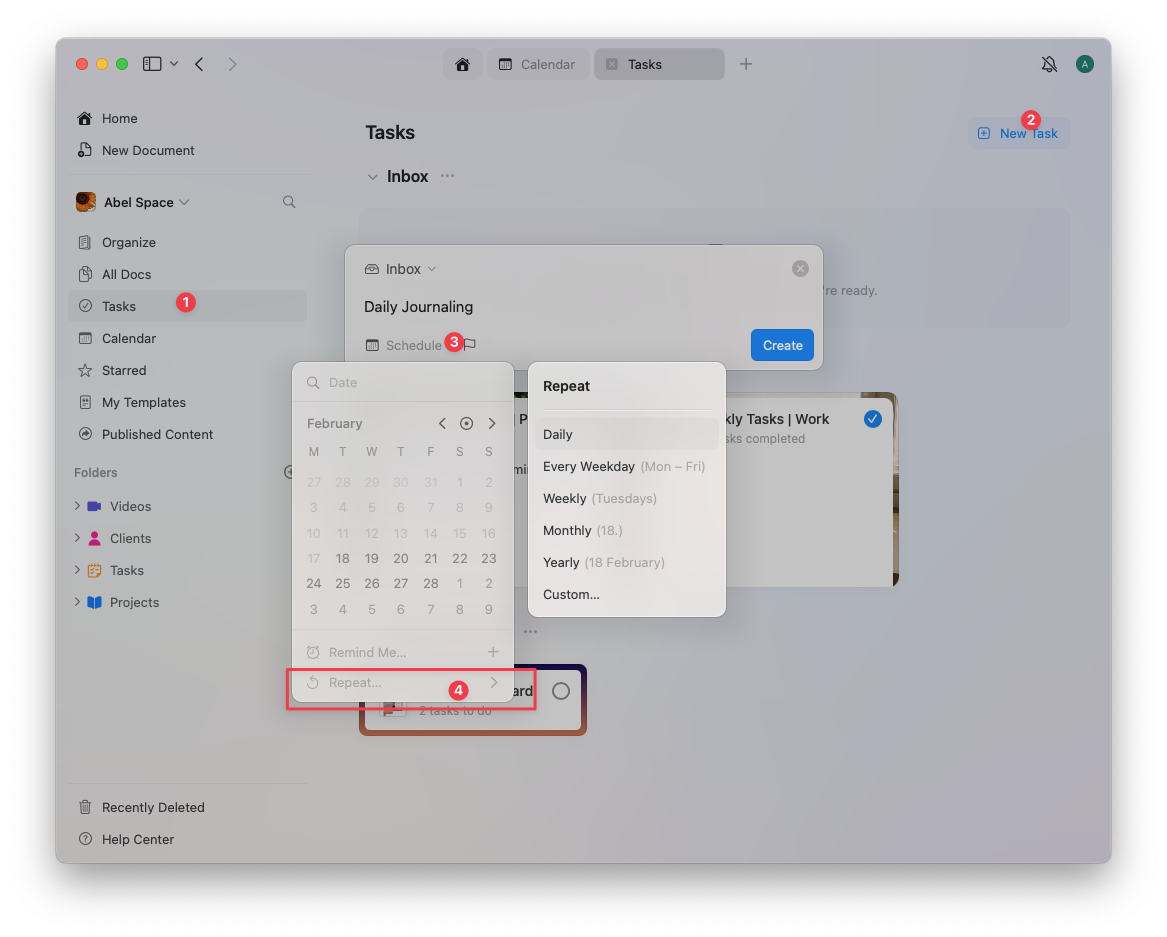 Open the Tasks section in the sidebar
Click **New Task** and enter the task name
Click the **Schedule** icon (calendar symbol)
Select **Repeat**, then choose how often the task should repeat:
* **Daily** - Task repeats every day
* **Every weekday** - Task repeats Monday to Friday
* **Weekly** - Task repeats on a specific day of the week
* **Monthly** - Task repeats on the same day each month
* **Yearly** - Task repeats on the same date each year
* **Custom** - Set a custom recurrence pattern (e.g., every 3 days, every second Tuesday)
Once set, your task will automatically reappear based on the selected recurrence
## Making any task recurring in a document
Open the Tasks section in the sidebar
Click **New Task** and enter the task name
Click the **Schedule** icon (calendar symbol)
Select **Repeat**, then choose how often the task should repeat:
* **Daily** - Task repeats every day
* **Every weekday** - Task repeats Monday to Friday
* **Weekly** - Task repeats on a specific day of the week
* **Monthly** - Task repeats on the same day each month
* **Yearly** - Task repeats on the same date each year
* **Custom** - Set a custom recurrence pattern (e.g., every 3 days, every second Tuesday)
Once set, your task will automatically reappear based on the selected recurrence
## Making any task recurring in a document
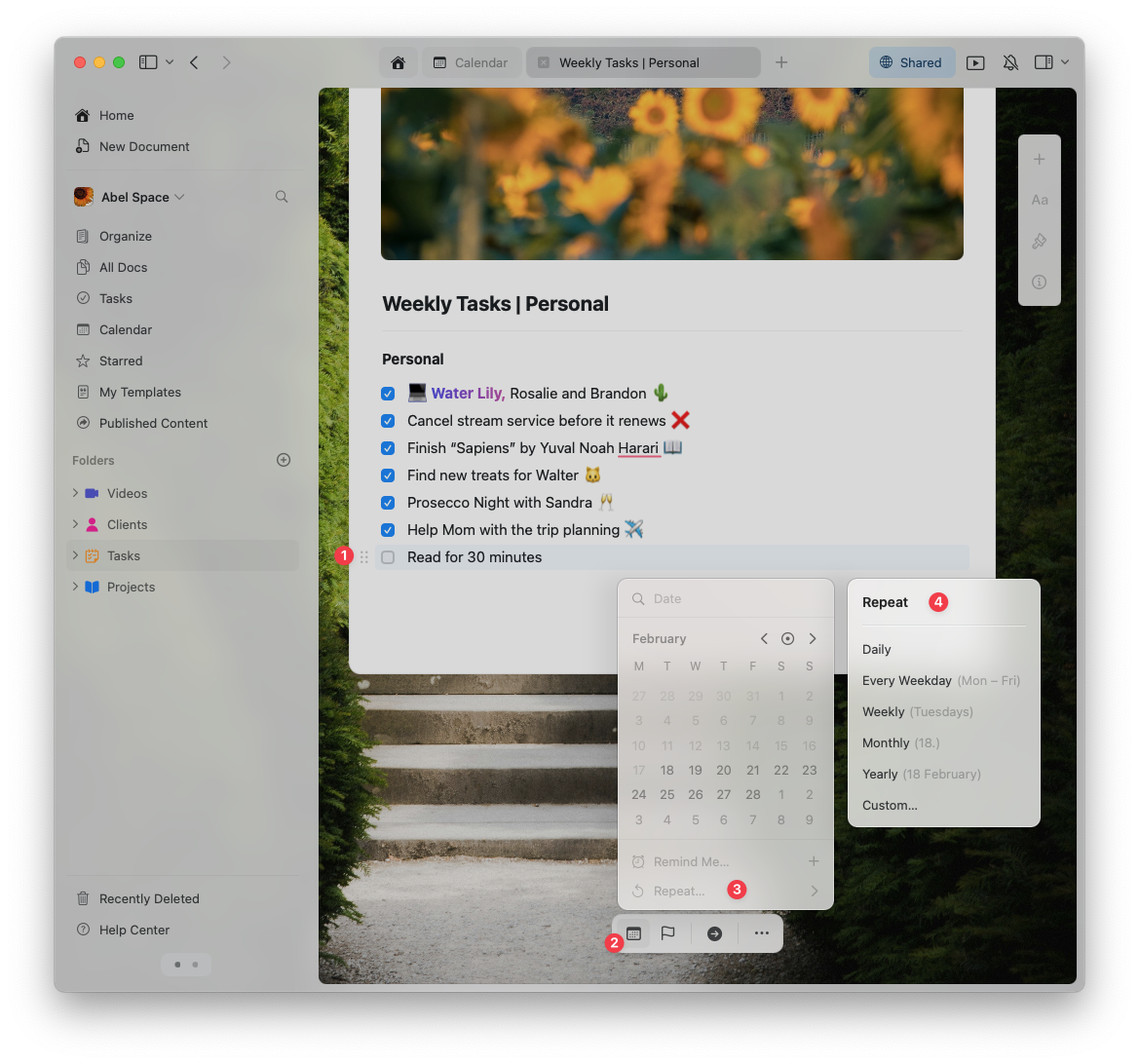 You can also make any task inside a **document** recurring:
Click on any existing task or create a new one in a document
Click the **Schedule** icon
Click **Repeat** and choose the desired repeat option
Your task will now automatically reappear based on the schedule you've set.
## How recurrence works after completion
Understanding how Craft handles recurring tasks helps you plan effectively:
* When you **complete a recurring task**, Craft automatically schedules the **next occurrence** using your chosen repeat configuration, based on the **completed task's schedule**
* This means if you're viewing your **calendar**, you will only see the **next instance** of a recurring task **after completing the current one**
* Completed instances are stored with completion dates, so you can review your history in the task list
### Example workflow
If you have a task "Review weekly metrics" set to repeat every Monday:
1. Complete the task on Monday, December 18
2. Craft immediately creates the next instance scheduled for Monday, December 25
3. The completed task shows in your task history with the December 18 completion date
4. Your calendar now displays the December 25 instance
## Practical use cases
Recurring tasks work brilliantly for maintaining routines and staying on top of responsibilities. Here are proven applications:
### Daily routines
**Morning review** - Set a daily task to appear each morning:
* Review yesterday's progress
* Plan today's priorities
* Check calendar for meetings
**Evening wrap-up** - Create a weekday task for end-of-day reflection:
* Complete time-sensitive items
* File notes and documents
* Prepare tomorrow's task list
### Weekly maintenance
**Content planning** - Weekly task every Monday:
* Draft blog post topics
* Review analytics
* Schedule social media
**Team check-ins** - Weekly task every Friday:
* Review team progress
* Address blockers
* Plan next week's sprint
**Home maintenance** - Weekly task every Saturday:
* Grocery shopping
* Meal prep
* Clean common areas
### Monthly responsibilities
**Financial review** - Monthly task on the 1st:
* Review budget and expenses
* Categorize transactions
* Update financial goals
**Equipment checks** - Monthly task on the 15th:
* Test smoke detectors
* Check emergency supplies
* Inspect important equipment
**Content audit** - Monthly task on the last day:
* Review published content
* Update outdated information
* Archive completed projects
### Custom schedules
**Quarterly goals** - Every 3 months on the 1st:
* Review quarterly objectives
* Assess progress and challenges
* Set next quarter's priorities
**Medication refills** - Every 28 days:
* Order prescription refills
* Schedule doctor appointments
* Update health records
**Seasonal prep** - Yearly on specific dates:
* March 1: Garden planning and seed orders
* June 1: Summer vacation prep
* September 1: Back-to-school setup
* December 1: Holiday planning
## Reminders for custom repeating tasks
For tasks with **custom recurrence** (like every 3 days or every second Tuesday), Craft automatically sets a **reminder** to ensure you don't miss them. You can:
* **Customize the reminder time** - Choose when you want to be notified (morning of, day before, etc.)
* **Adjust reminder settings** - Set multiple reminders for critical tasks
* **Disable reminders entirely** - Remove notifications if you check your task list regularly
Set reminder times that align with your workflow. For morning tasks, try 7:00 AM. For evening tasks, try 5:00 PM. This helps you act on tasks when you're most likely to have time.
## Troubleshooting common issues
### Task not appearing after completion
**Problem**: You completed a recurring task, but the next instance isn't showing.
**Solution**: Check your calendar view date range. The next instance may be scheduled beyond your current view. Also verify the task's recurrence settings haven't changed.
### Too many task instances
**Problem**: Multiple instances of the same task appear on your calendar.
**Solution**: This can happen if you accidentally created multiple recurring tasks with the same name. Find and delete duplicates from the Tasks section.
### Missed task instances
**Problem**: You skipped several instances of a recurring task.
**Solution**: Recurring tasks don't "pile up." If you miss an instance, simply complete or delete it, and the next instance will appear according to schedule. Consider adjusting the recurrence pattern if tasks are too frequent.
### Changing recurrence patterns
**Problem**: You need to change how often a task repeats.
**Solution**: Click the task, select the schedule icon, and update the repeat settings. Changes apply to future instances only; past completed tasks remain unchanged.
Recurring tasks ensure that important actions don't get lost, making it easier to stay organized and on track. Start with a few essential recurring tasks and expand as you identify more patterns in your workflow.
## Related articles
Manage tasks across your documents with a centralized hub
Get notified about important tasks and deadlines
View your tasks, events, and daily notes in one place
You can also make any task inside a **document** recurring:
Click on any existing task or create a new one in a document
Click the **Schedule** icon
Click **Repeat** and choose the desired repeat option
Your task will now automatically reappear based on the schedule you've set.
## How recurrence works after completion
Understanding how Craft handles recurring tasks helps you plan effectively:
* When you **complete a recurring task**, Craft automatically schedules the **next occurrence** using your chosen repeat configuration, based on the **completed task's schedule**
* This means if you're viewing your **calendar**, you will only see the **next instance** of a recurring task **after completing the current one**
* Completed instances are stored with completion dates, so you can review your history in the task list
### Example workflow
If you have a task "Review weekly metrics" set to repeat every Monday:
1. Complete the task on Monday, December 18
2. Craft immediately creates the next instance scheduled for Monday, December 25
3. The completed task shows in your task history with the December 18 completion date
4. Your calendar now displays the December 25 instance
## Practical use cases
Recurring tasks work brilliantly for maintaining routines and staying on top of responsibilities. Here are proven applications:
### Daily routines
**Morning review** - Set a daily task to appear each morning:
* Review yesterday's progress
* Plan today's priorities
* Check calendar for meetings
**Evening wrap-up** - Create a weekday task for end-of-day reflection:
* Complete time-sensitive items
* File notes and documents
* Prepare tomorrow's task list
### Weekly maintenance
**Content planning** - Weekly task every Monday:
* Draft blog post topics
* Review analytics
* Schedule social media
**Team check-ins** - Weekly task every Friday:
* Review team progress
* Address blockers
* Plan next week's sprint
**Home maintenance** - Weekly task every Saturday:
* Grocery shopping
* Meal prep
* Clean common areas
### Monthly responsibilities
**Financial review** - Monthly task on the 1st:
* Review budget and expenses
* Categorize transactions
* Update financial goals
**Equipment checks** - Monthly task on the 15th:
* Test smoke detectors
* Check emergency supplies
* Inspect important equipment
**Content audit** - Monthly task on the last day:
* Review published content
* Update outdated information
* Archive completed projects
### Custom schedules
**Quarterly goals** - Every 3 months on the 1st:
* Review quarterly objectives
* Assess progress and challenges
* Set next quarter's priorities
**Medication refills** - Every 28 days:
* Order prescription refills
* Schedule doctor appointments
* Update health records
**Seasonal prep** - Yearly on specific dates:
* March 1: Garden planning and seed orders
* June 1: Summer vacation prep
* September 1: Back-to-school setup
* December 1: Holiday planning
## Reminders for custom repeating tasks
For tasks with **custom recurrence** (like every 3 days or every second Tuesday), Craft automatically sets a **reminder** to ensure you don't miss them. You can:
* **Customize the reminder time** - Choose when you want to be notified (morning of, day before, etc.)
* **Adjust reminder settings** - Set multiple reminders for critical tasks
* **Disable reminders entirely** - Remove notifications if you check your task list regularly
Set reminder times that align with your workflow. For morning tasks, try 7:00 AM. For evening tasks, try 5:00 PM. This helps you act on tasks when you're most likely to have time.
## Troubleshooting common issues
### Task not appearing after completion
**Problem**: You completed a recurring task, but the next instance isn't showing.
**Solution**: Check your calendar view date range. The next instance may be scheduled beyond your current view. Also verify the task's recurrence settings haven't changed.
### Too many task instances
**Problem**: Multiple instances of the same task appear on your calendar.
**Solution**: This can happen if you accidentally created multiple recurring tasks with the same name. Find and delete duplicates from the Tasks section.
### Missed task instances
**Problem**: You skipped several instances of a recurring task.
**Solution**: Recurring tasks don't "pile up." If you miss an instance, simply complete or delete it, and the next instance will appear according to schedule. Consider adjusting the recurrence pattern if tasks are too frequent.
### Changing recurrence patterns
**Problem**: You need to change how often a task repeats.
**Solution**: Click the task, select the schedule icon, and update the repeat settings. Changes apply to future instances only; past completed tasks remain unchanged.
Recurring tasks ensure that important actions don't get lost, making it easier to stay organized and on track. Start with a few essential recurring tasks and expand as you identify more patterns in your workflow.
## Related articles
Manage tasks across your documents with a centralized hub
Get notified about important tasks and deadlines
View your tasks, events, and daily notes in one place