> ## Documentation Index
> Fetch the complete documentation index at: https://craft-support.mintlify.site/llms.txt
> Use this file to discover all available pages before exploring further.
# The Tasks views
> Move through your tasks by view. The Inbox, Today, Upcoming, and All tabs each show your tasks from a different angle, with their own sorting, grouping, and display options.
Open Tasks from the sidebar (or press `Cmd` + `Option` + `4` on Mac) and everything is organized into four tabs, left to right: **Inbox**, **Today**, **Upcoming**, and **All**. Each one shows your tasks from a different angle, and each has its own view options in the menu at the top-right of the list.
## Inbox
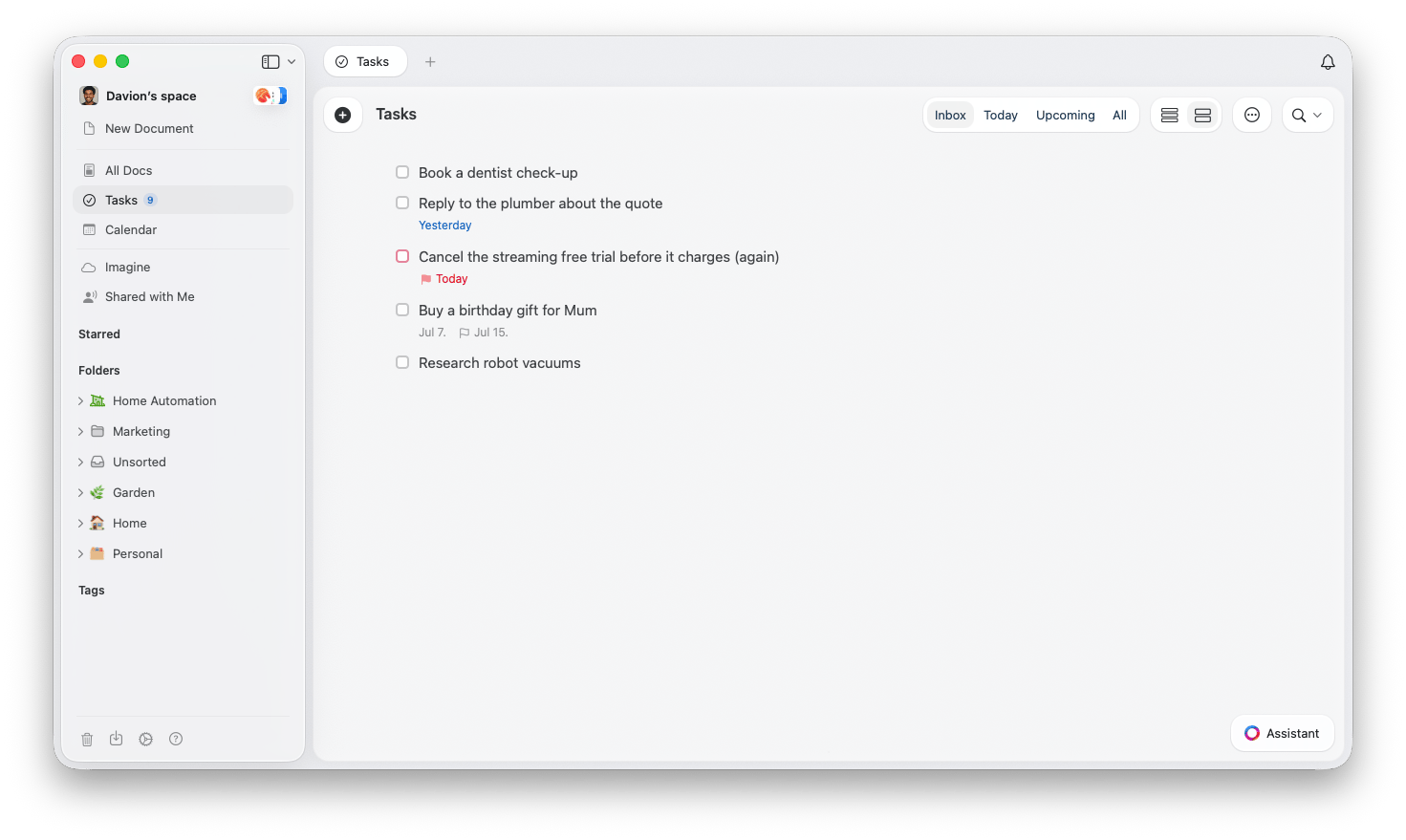
The **Inbox** is the first tab and holds tasks that are not attached to any document. It is built for fast capture, so it is where quick thoughts land before you sort them. When you are ready, move an Inbox task into any document and it drops in at the top.
For all the ways to add to it, see [Creating tasks](/en/plan-and-do/tasks/creating-tasks).
 ## Today
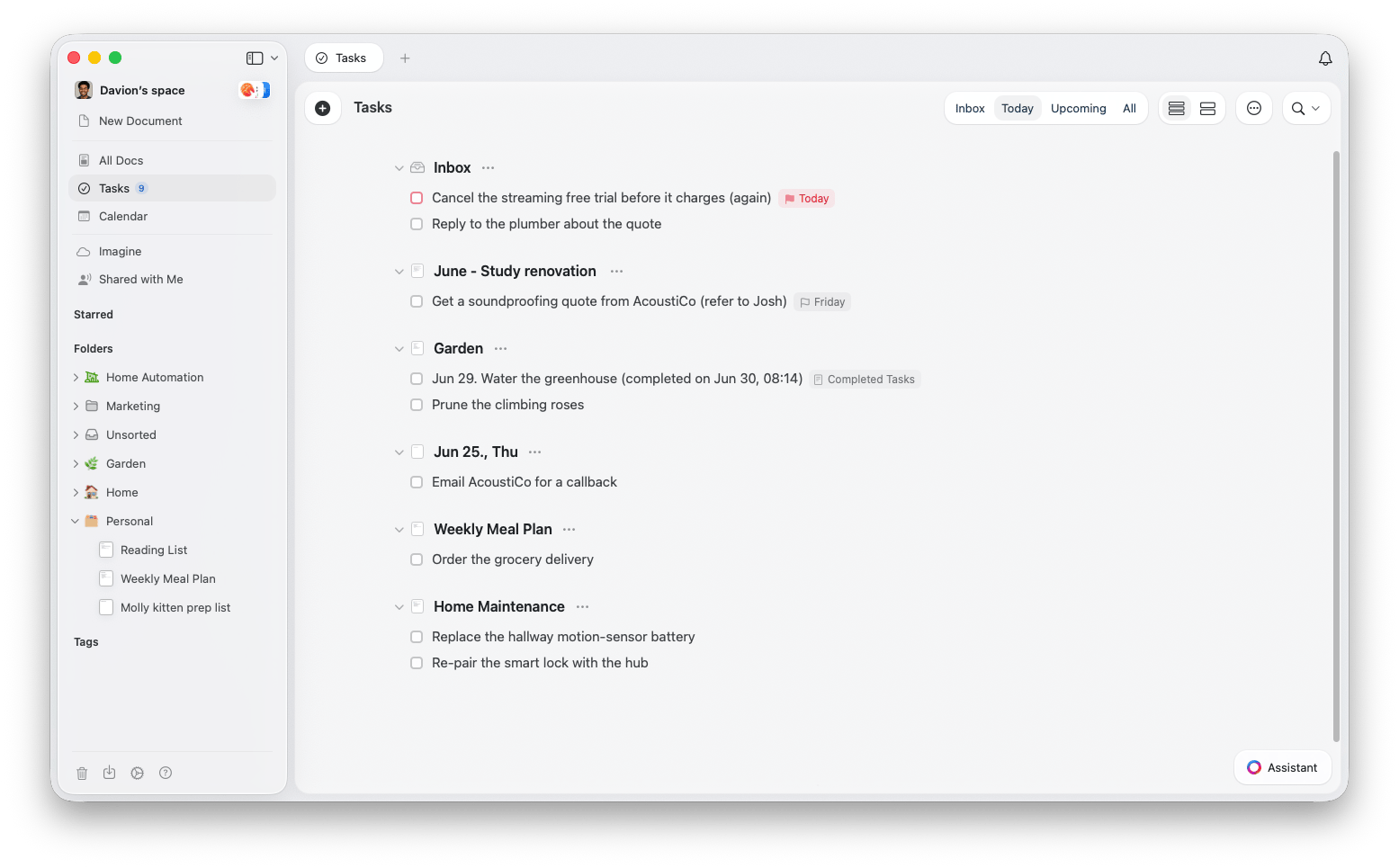
The **Today** tab is your daily command center. It shows everything scheduled for today, so you can focus on what actually needs to happen now.
It is essentially the same list you see for today on the **Calendar**, and inside today's **daily note** if you show tasks there. Check one off in any of these places and it updates everywhere, and the order you arrange your tasks in is kept in sync too.
* **Rollover, not overdue** - Scheduled tasks from earlier dates that you have not finished roll forward into Today automatically, so nothing slips through the cracks
* **Show Tasks from Past Dates** - Turn this on to see those earlier, still-open tasks listed with their original dates
* **Show Completed** - Toggle whether finished tasks stay visible
* **Group By** - Group the list by **None** or **Document**
## Today
The **Today** tab is your daily command center. It shows everything scheduled for today, so you can focus on what actually needs to happen now.
It is essentially the same list you see for today on the **Calendar**, and inside today's **daily note** if you show tasks there. Check one off in any of these places and it updates everywhere, and the order you arrange your tasks in is kept in sync too.
* **Rollover, not overdue** - Scheduled tasks from earlier dates that you have not finished roll forward into Today automatically, so nothing slips through the cracks
* **Show Tasks from Past Dates** - Turn this on to see those earlier, still-open tasks listed with their original dates
* **Show Completed** - Toggle whether finished tasks stay visible
* **Group By** - Group the list by **None** or **Document**
 In **Settings > Notifications** you can turn on a daily summary email that sends you all of your tasks for the day.
## Upcoming
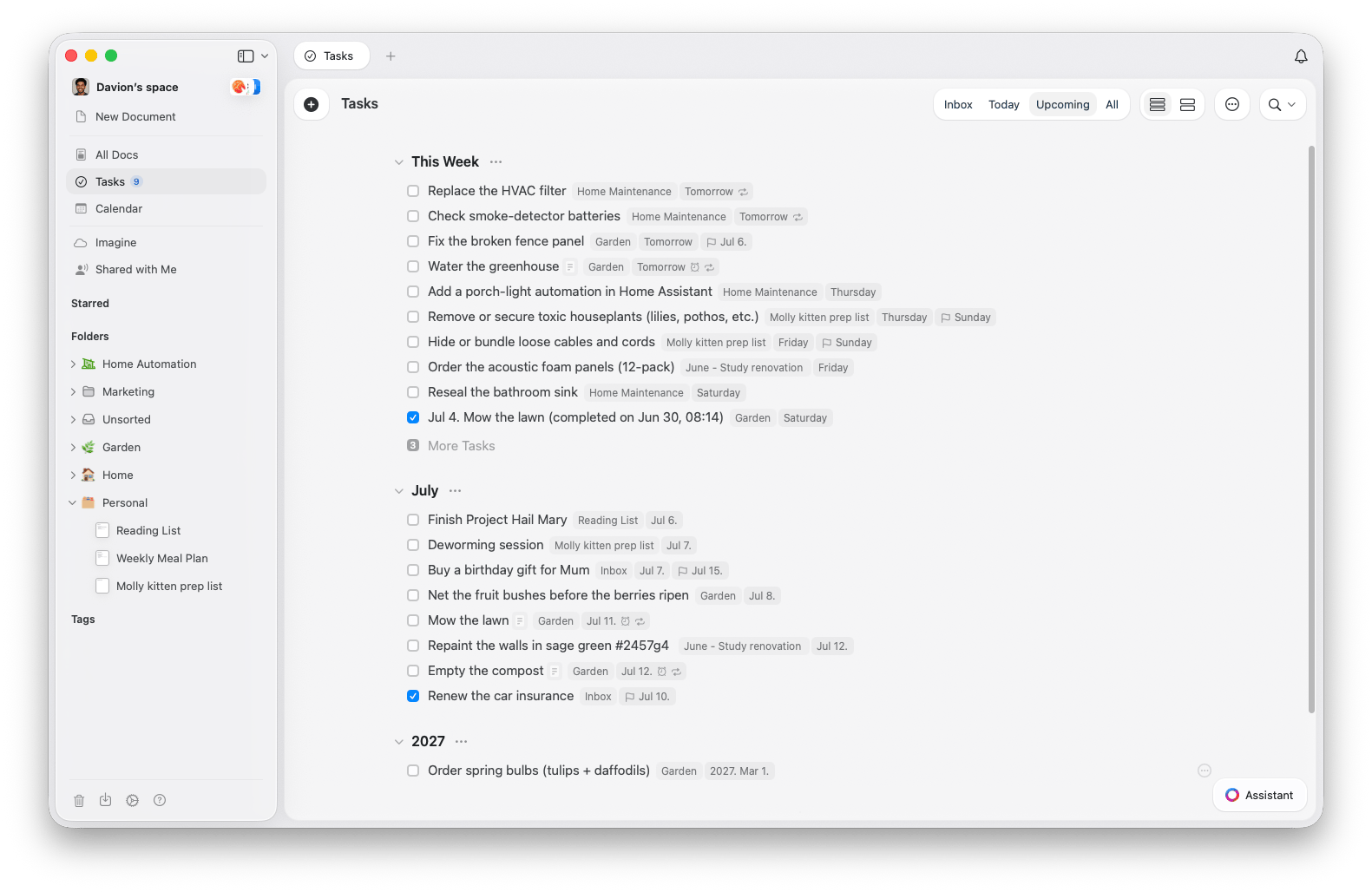
The **Upcoming** tab looks ahead, showing tasks scheduled for the coming days, weeks, and months. Tasks scheduled for next year and beyond are grouped under a year header so the list stays tidy.
You can group Upcoming by **Schedule**, **Deadline**, or **Document** to match how you plan.
In **Settings > Notifications** you can turn on a daily summary email that sends you all of your tasks for the day.
## Upcoming
The **Upcoming** tab looks ahead, showing tasks scheduled for the coming days, weeks, and months. Tasks scheduled for next year and beyond are grouped under a year header so the list stays tidy.
You can group Upcoming by **Schedule**, **Deadline**, or **Document** to match how you plan.
 ## All
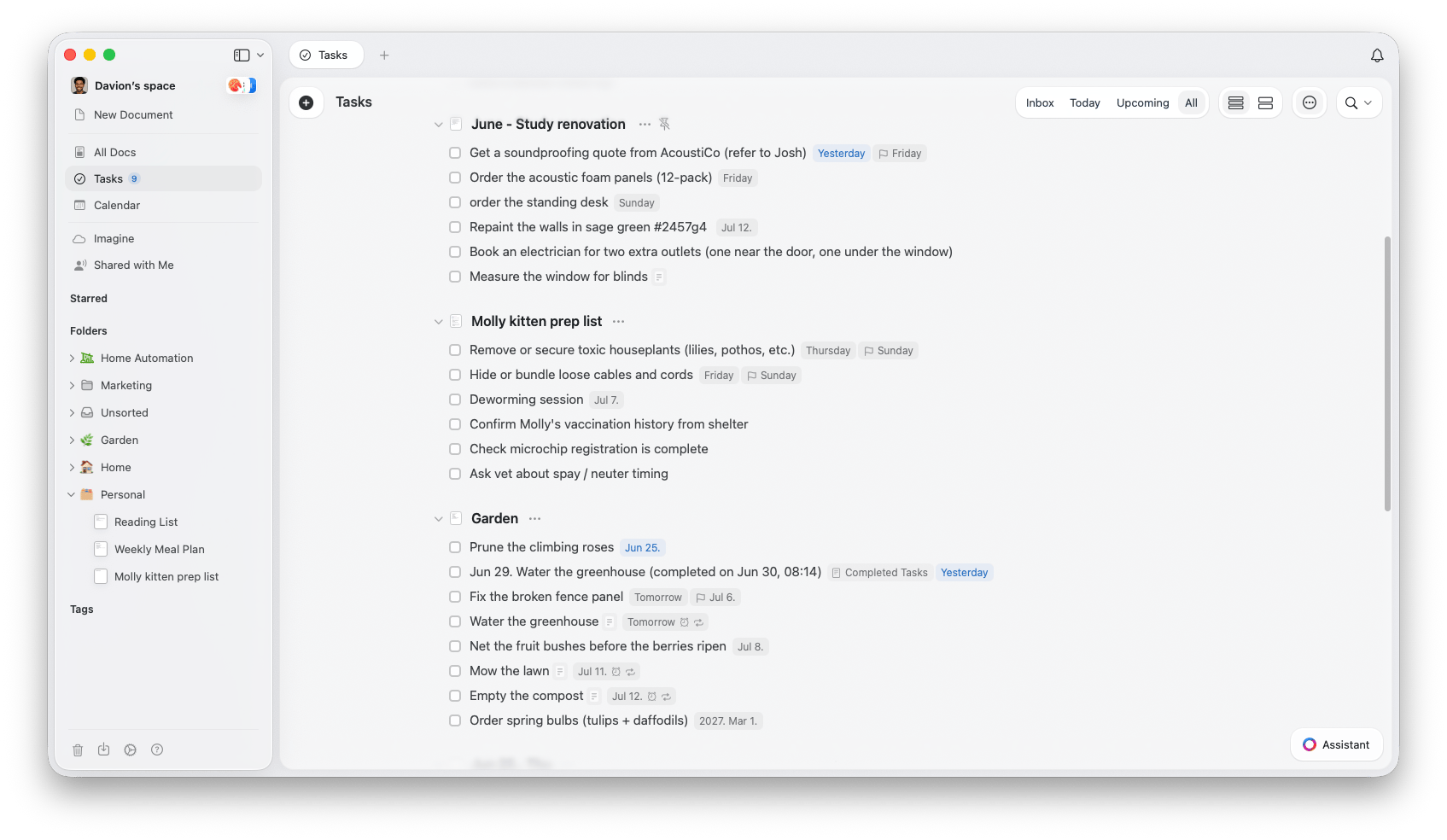
The **All** tab (labeled **All Tasks** on iPhone and iPad) is the catch-all: every task across your entire space in one continuous list. It is less a separate feature than everything together, kept grouped under the document each task belongs to so you never lose context. The list runs in this order:
1. **Inbox** - Tasks that are not attached to any document
2. **Pinned documents** - Documents you have pinned for quick access
3. **Documents with tasks** - Every other document that contains tasks, including daily notes
## All
The **All** tab (labeled **All Tasks** on iPhone and iPad) is the catch-all: every task across your entire space in one continuous list. It is less a separate feature than everything together, kept grouped under the document each task belongs to so you never lose context. The list runs in this order:
1. **Inbox** - Tasks that are not attached to any document
2. **Pinned documents** - Documents you have pinned for quick access
3. **Documents with tasks** - Every other document that contains tasks, including daily notes
 ### Pinned documents
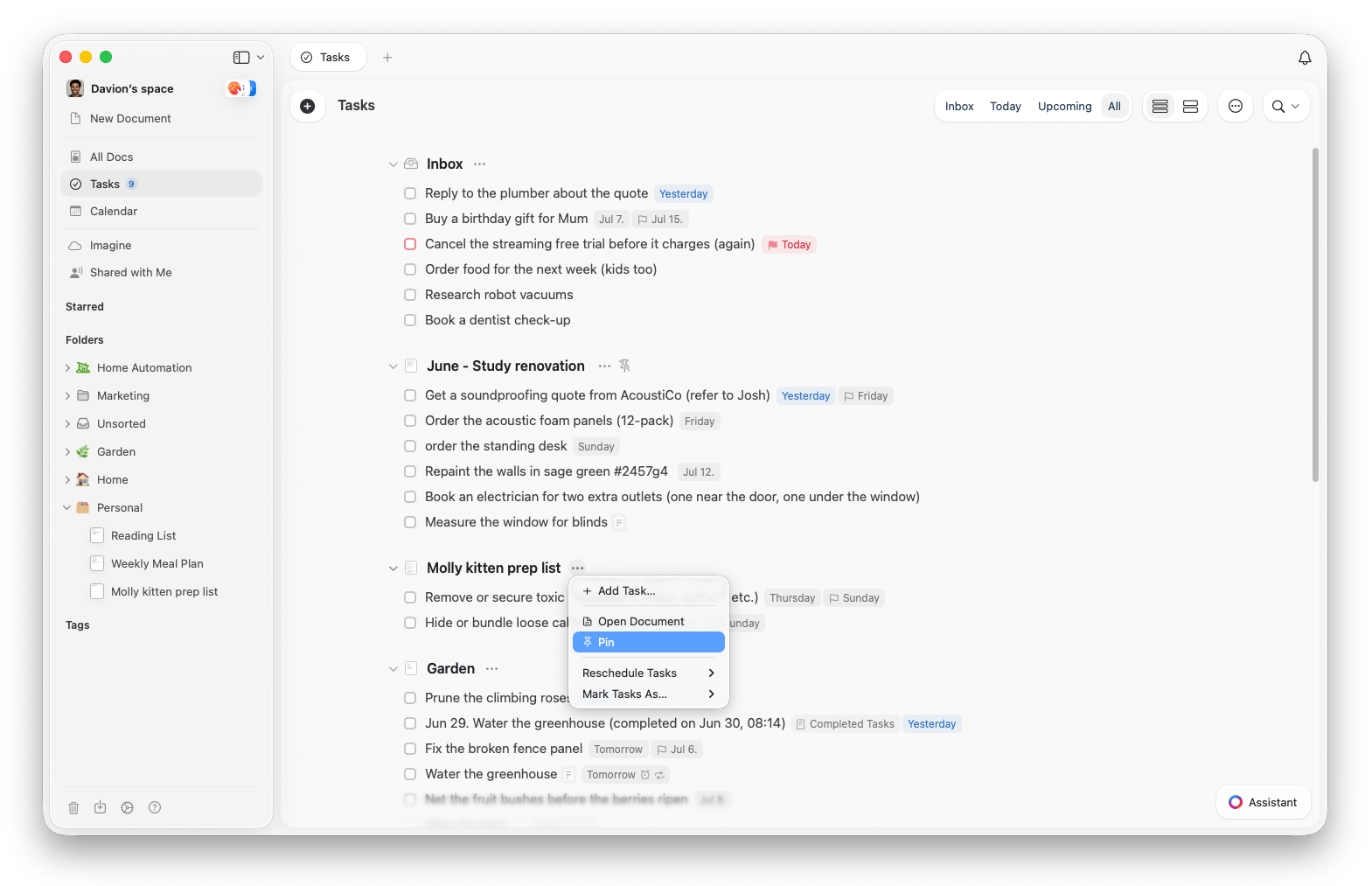
Have documents you reference or update constantly? Pin them so they always sit near the top of the **All** tab. Whether it is a project plan or a running to-do list, your most important documents stay within reach.
* **Pin a document** - Use **Pin Document** to add the current one, or **Pin Existing Document** to choose one
* **Unpin** - Use **Unpin Document** to remove it from the pinned section
* **Manage tasks in place** - Check off, uncheck, or add tasks directly inside a pinned document
You can pin up to 20 documents to your Tasks view. The Inbox always stays pinned at the very top.
### Pinned documents
Have documents you reference or update constantly? Pin them so they always sit near the top of the **All** tab. Whether it is a project plan or a running to-do list, your most important documents stay within reach.
* **Pin a document** - Use **Pin Document** to add the current one, or **Pin Existing Document** to choose one
* **Unpin** - Use **Unpin Document** to remove it from the pinned section
* **Manage tasks in place** - Check off, uncheck, or add tasks directly inside a pinned document
You can pin up to 20 documents to your Tasks view. The Inbox always stays pinned at the very top.
 ### Sorting and display
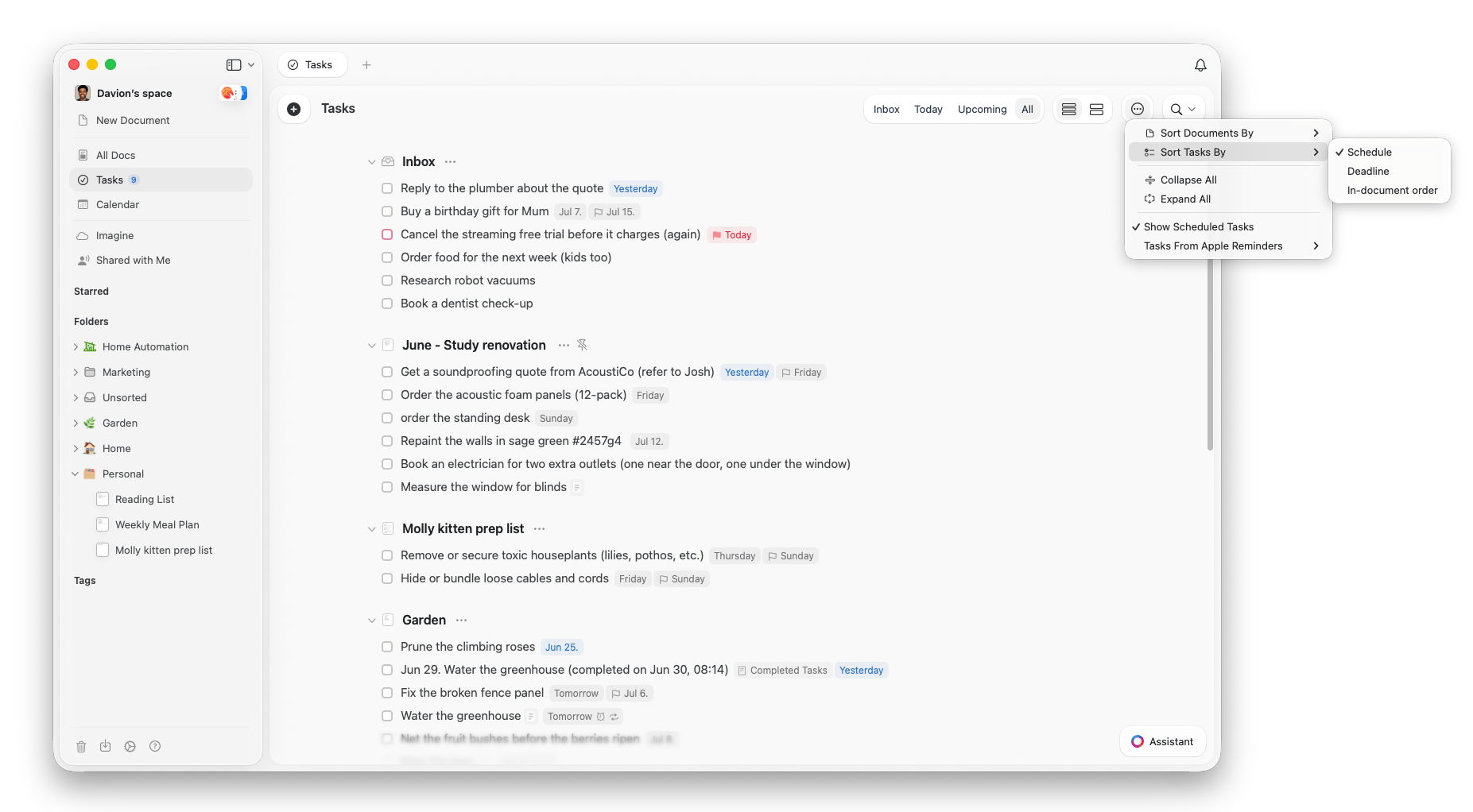
In the **All** tab, open the options menu to control how the list is organized:
* **Sort Documents By** - **Name**, **Date Updated**, or **Date Created**
* **Sort Tasks By** - **Schedule**, **Deadline**, or **In-document order** (the order the tasks appear inside their document)
* **Collapse All** / **Expand All** - Fold every document section down to its header, or open them all back up
* **Display Style** - Switch between **Compact** and **Expanded** to fit more on screen or give each task more room
### Sorting and display
In the **All** tab, open the options menu to control how the list is organized:
* **Sort Documents By** - **Name**, **Date Updated**, or **Date Created**
* **Sort Tasks By** - **Schedule**, **Deadline**, or **In-document order** (the order the tasks appear inside their document)
* **Collapse All** / **Expand All** - Fold every document section down to its header, or open them all back up
* **Display Style** - Switch between **Compact** and **Expanded** to fit more on screen or give each task more room
 For now, these task features live in the Mac and iPhone/iPad apps. Tasks also work on Windows and the web app, with similar functionality but a reduced set of capabilities and view options.
## Related articles
Select, bulk edit, complete, and review the Logbook
Give tasks dates, reminders, and repeat rules
View your tasks, events, and daily notes in one place
Back to the Tasks overview
For now, these task features live in the Mac and iPhone/iPad apps. Tasks also work on Windows and the web app, with similar functionality but a reduced set of capabilities and view options.
## Related articles
Select, bulk edit, complete, and review the Logbook
Give tasks dates, reminders, and repeat rules
View your tasks, events, and daily notes in one place
Back to the Tasks overview