> ## Documentation Index
> Fetch the complete documentation index at: https://craft-support.mintlify.site/llms.txt
> Use this file to discover all available pages before exploring further.
# Publishing Documents
> Make your documents publicly accessible on the web with customizable URLs, security options, and engagement controls.
Transform your Craft documents into beautiful web pages that anyone can access from any browser. Publishing makes your content publicly available while giving you complete control over access, appearance, and engagement.
## Publishing a Document
Create a web link to make your document accessible to anyone on the internet.
Click the **Share** button in the top-right corner of your document
Select **Publish**
Click **Create Link** to instantly generate and copy the web URL
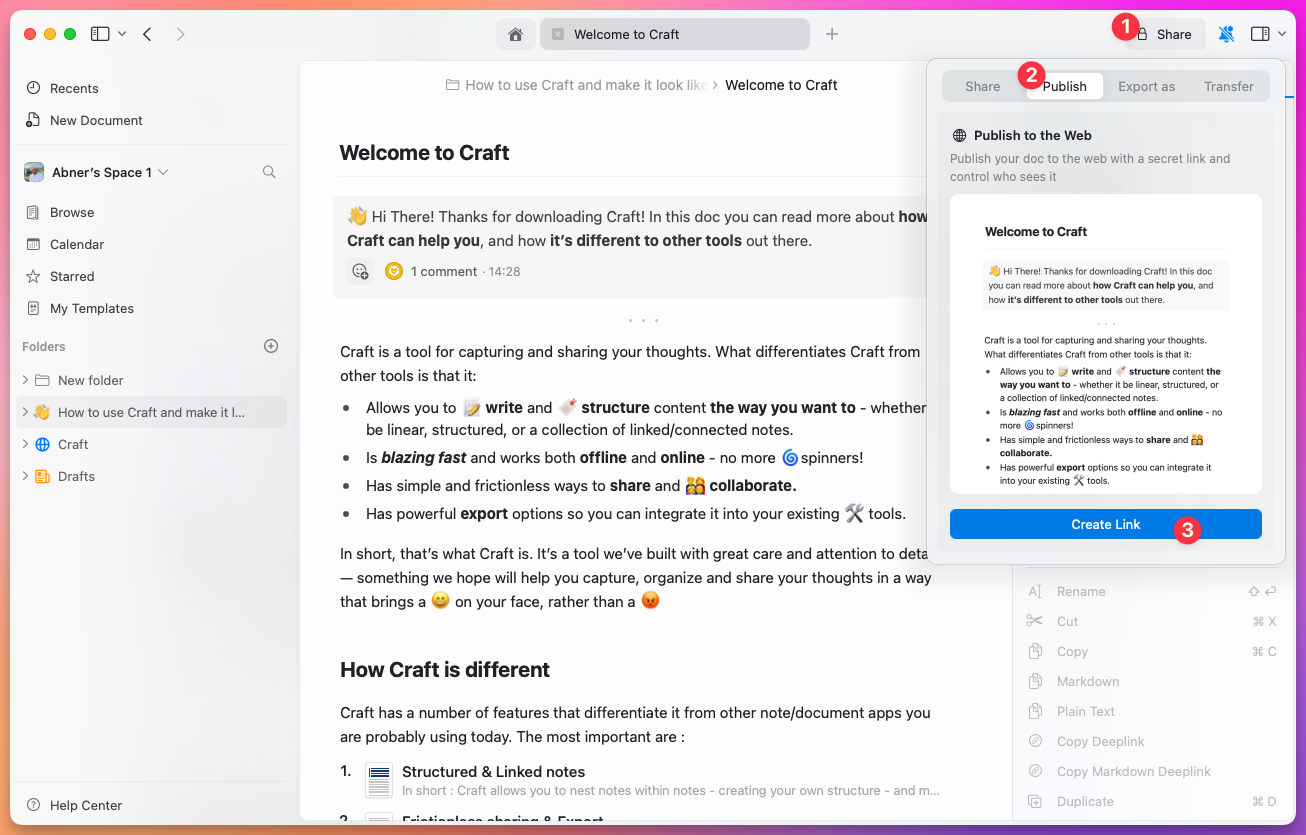 Your document is now live on the web and can be accessed from any browser. The default URL format is `craft.me/s/abc123`, but you can customize this.
## Published Page Settings
Once a document is published, you can manage various settings to control access and appearance:
Your document is now live on the web and can be accessed from any browser. The default URL format is `craft.me/s/abc123`, but you can customize this.
## Published Page Settings
Once a document is published, you can manage various settings to control access and appearance:
 ### URL Customization
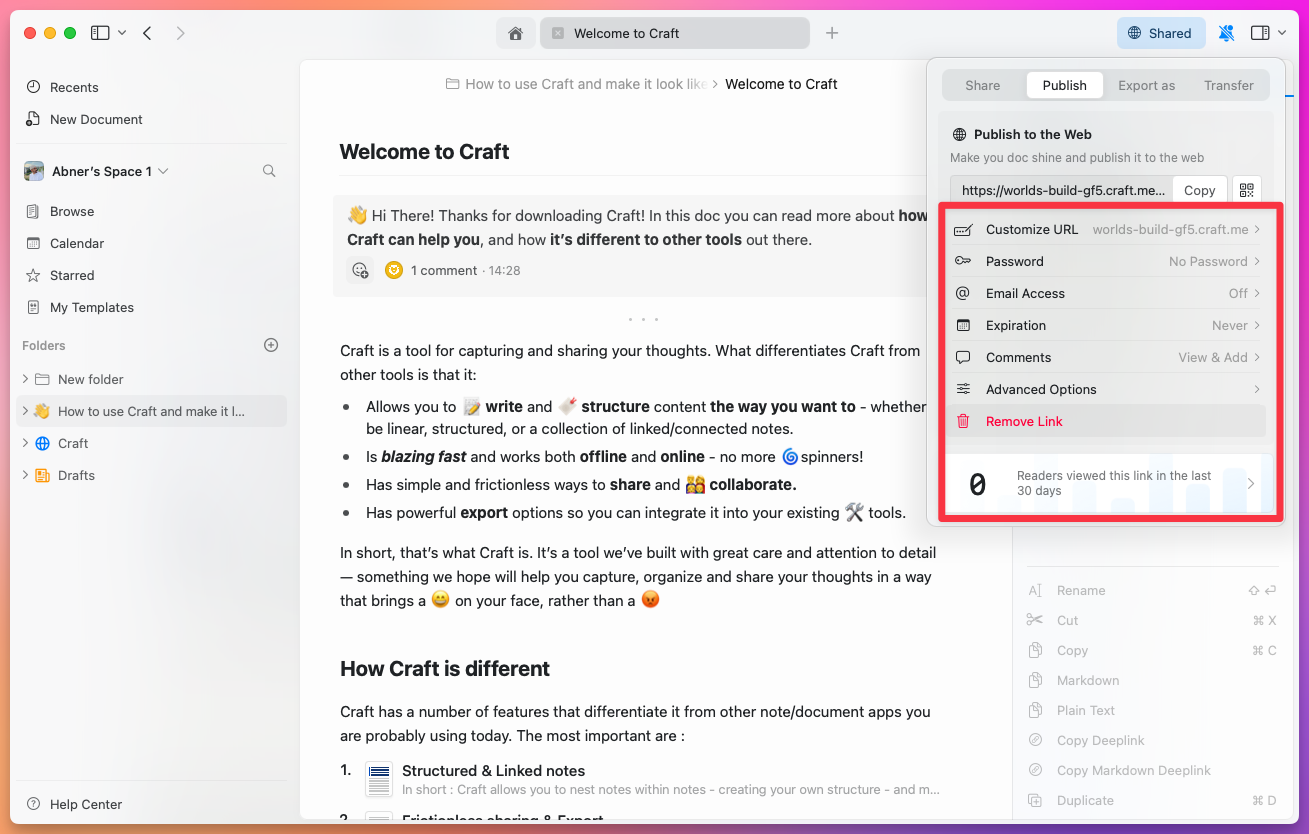
**Craft Domain** - Personalize your Craft domain from the default random format (e.g., `brave-lion-456.craft.me`) to something memorable like `yourname.craft.me`. Available on all plans including Starter.
**Custom URL Path** - Define a personalized pathway for your link (e.g., `/amazing-content` instead of `/s/abc123`)
**Custom Domain** - Connect your own domain to publish under your brand (e.g., `blog.yourcompany.com`). Requires Plus or higher plan.
**QR Code** - Generate a QR code for the published link, useful for sharing in print or on screen.
### Security Options
**Password Protection** - Require a password to access the document. Only people with the password can view the page.
**Email Domain Restriction** - Limit access to specific email domains (e.g., only `@yourcompany.com` addresses)
**Expiration Date** - Set a date when the link automatically becomes unavailable
**Search Engine Indexing** - Control whether search engines can index your published page. This is separate from the search option under Advanced Options, which controls search within the page itself.
### Engagement Controls
**Comments** - Enable or disable the ability for readers to comment on the published page
**Advanced Options** - Control visual appearance and user interaction features:
* Table of contents visibility
* Search functionality
* Print options
* Page navigation
### Management
**Remove Link** - Unpublish the page to immediately make the web link unavailable. The document remains in your Craft workspace.
## Presentation Mode
Transform your documents into engaging slide presentations directly within Craft.
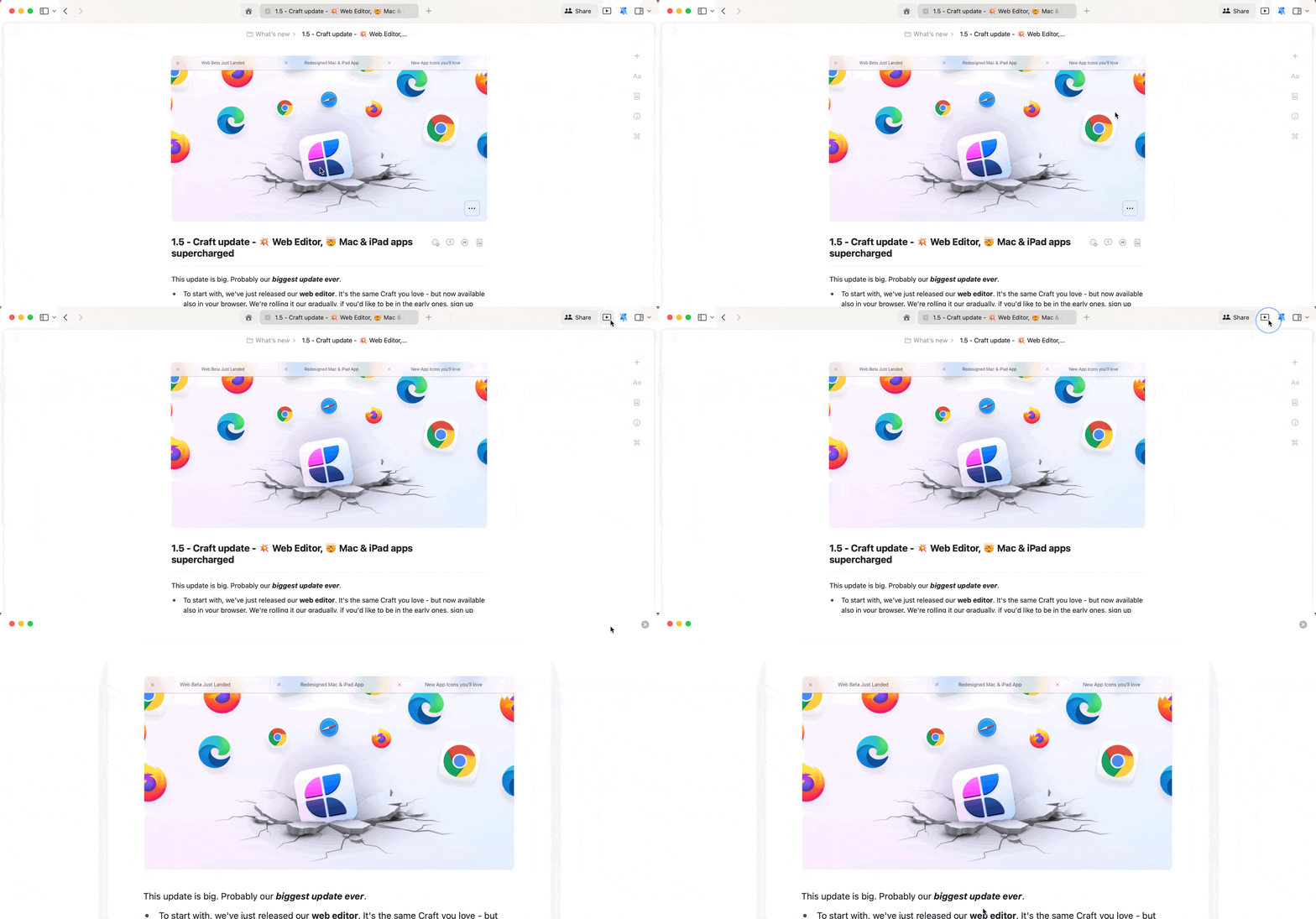
On published documents, click the play icon in the top-right corner to start presenting. On Mac, you can also present directly from the editor: open the Info ⓘ panel and choose **Present** in the Actions tab.
### URL Customization
**Craft Domain** - Personalize your Craft domain from the default random format (e.g., `brave-lion-456.craft.me`) to something memorable like `yourname.craft.me`. Available on all plans including Starter.
**Custom URL Path** - Define a personalized pathway for your link (e.g., `/amazing-content` instead of `/s/abc123`)
**Custom Domain** - Connect your own domain to publish under your brand (e.g., `blog.yourcompany.com`). Requires Plus or higher plan.
**QR Code** - Generate a QR code for the published link, useful for sharing in print or on screen.
### Security Options
**Password Protection** - Require a password to access the document. Only people with the password can view the page.
**Email Domain Restriction** - Limit access to specific email domains (e.g., only `@yourcompany.com` addresses)
**Expiration Date** - Set a date when the link automatically becomes unavailable
**Search Engine Indexing** - Control whether search engines can index your published page. This is separate from the search option under Advanced Options, which controls search within the page itself.
### Engagement Controls
**Comments** - Enable or disable the ability for readers to comment on the published page
**Advanced Options** - Control visual appearance and user interaction features:
* Table of contents visibility
* Search functionality
* Print options
* Page navigation
### Management
**Remove Link** - Unpublish the page to immediately make the web link unavailable. The document remains in your Craft workspace.
## Presentation Mode
Transform your documents into engaging slide presentations directly within Craft.
On published documents, click the play icon in the top-right corner to start presenting. On Mac, you can also present directly from the editor: open the Info ⓘ panel and choose **Present** in the Actions tab.
 ### Creating Slides
Use separators to divide your document into individual slides:
1. Navigate through your document and decide where slides should split
2. Insert a separator at these points using the slash menu (type `/` and pick a separator style)
Use `Cmd + Arrow` keys on keyboard or swipe on touch devices to navigate between slides during presentations.
### Presentation Best Practices
* **Keep It Simple** - Use bullet points and concise language
* **Visual Appeal** - Incorporate images, graphs, and tables
* **Consistent Styling** - Maintain uniform fonts, colors, and sizes
Presentation Mode is available on all platforms including Web and Windows.
## Privacy and Analytics
All published pages can track basic engagement metrics to help you understand your audience. Analytics are available on all paid plans.
Track views and engagement on published documents
Connect your own domain for professional branding
Customize the appearance with logos and brand elements
Make published pages beautiful with custom styling
Help readers find content in published pages
Publish structured databases as interactive pages
### Creating Slides
Use separators to divide your document into individual slides:
1. Navigate through your document and decide where slides should split
2. Insert a separator at these points using the slash menu (type `/` and pick a separator style)
Use `Cmd + Arrow` keys on keyboard or swipe on touch devices to navigate between slides during presentations.
### Presentation Best Practices
* **Keep It Simple** - Use bullet points and concise language
* **Visual Appeal** - Incorporate images, graphs, and tables
* **Consistent Styling** - Maintain uniform fonts, colors, and sizes
Presentation Mode is available on all platforms including Web and Windows.
## Privacy and Analytics
All published pages can track basic engagement metrics to help you understand your audience. Analytics are available on all paid plans.
Track views and engagement on published documents
Connect your own domain for professional branding
Customize the appearance with logos and brand elements
Make published pages beautiful with custom styling
Help readers find content in published pages
Publish structured databases as interactive pages