> ## Documentation Index
> Fetch the complete documentation index at: https://craft-support.mintlify.site/llms.txt
> Use this file to discover all available pages before exploring further.
# Sharing Documents
> Invite collaborators to view and edit documents with flexible access controls and real-time collaboration.
Share your documents with team members, clients, or anyone who needs access to your content. Craft offers flexible sharing options that let you control exactly who can view or edit your documents.
## Sharing Methods
You can share documents in Craft using two main approaches:
### Invite by Email
Invite specific people to collaborate on your documents:
Click the **Share** button in the top-right corner of your document
Enter the email addresses of people you want to invite
Choose their access level: **Viewer** or **Editor**
Click **Invite** to send them an email notification
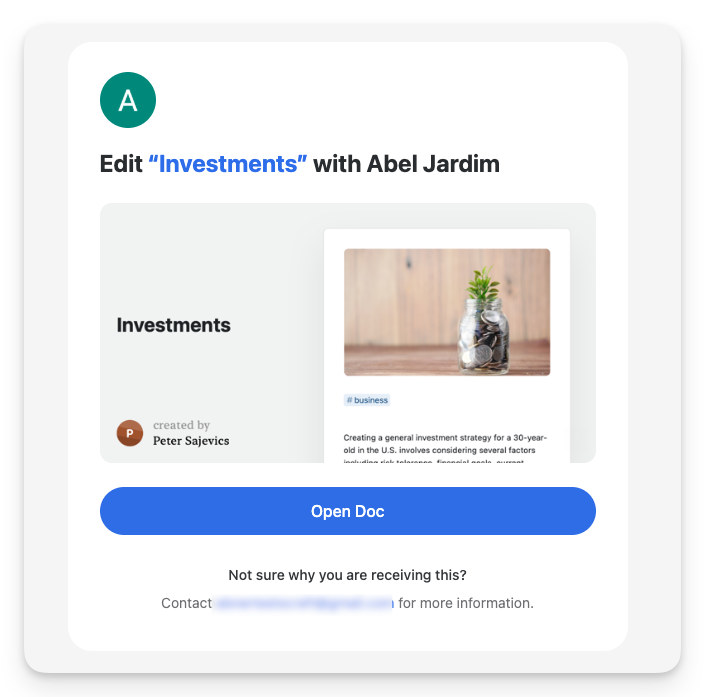
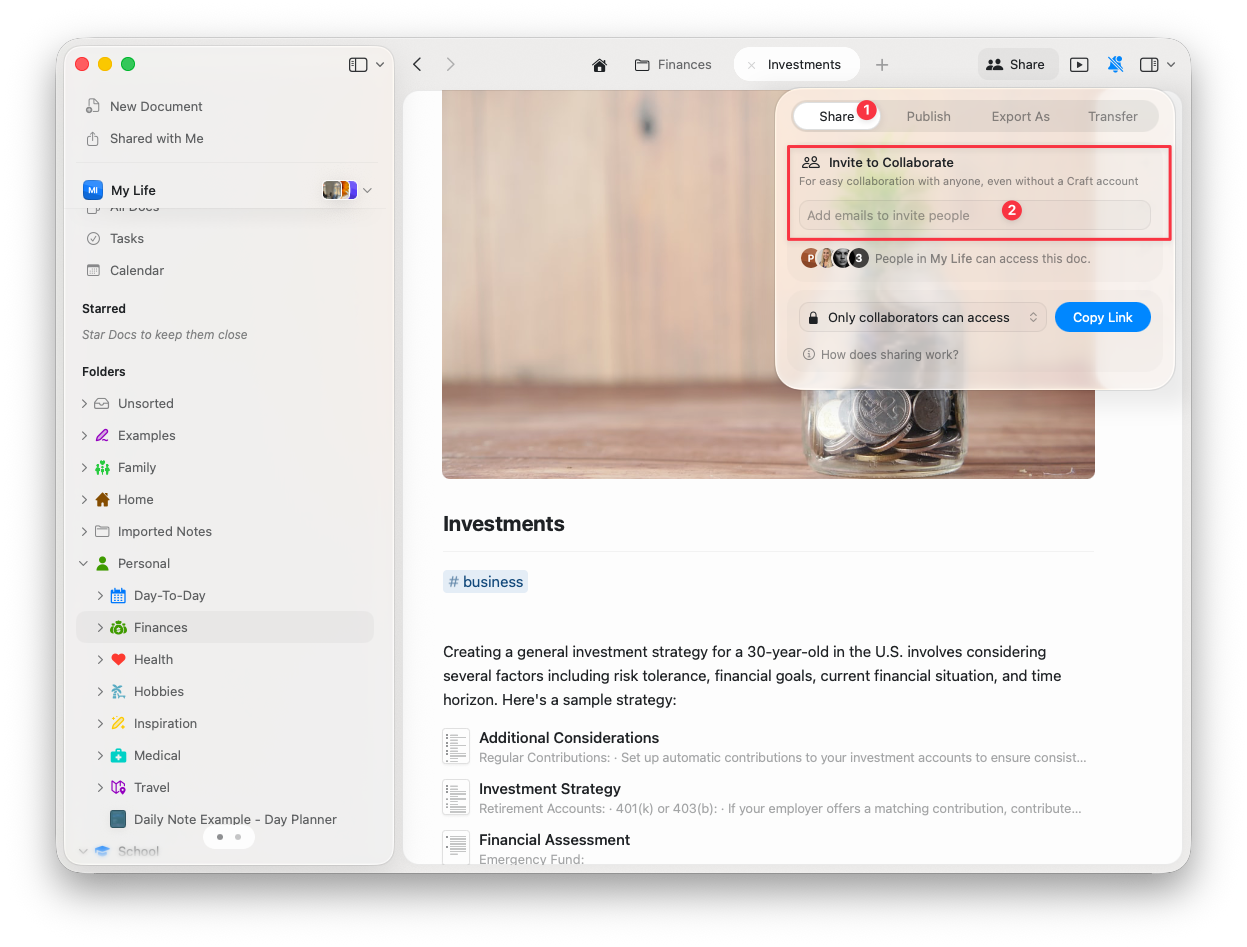 The invitee will receive an email from Craft with a link to open the document immediately.
 **Collaboration limits:**
* **Paid plans**: Unlimited collaborators
* **Starter (Free)**: Up to 50 people per day (maximum 10 in any 24-hour period)
### Invitation Links
Generate a shareable link that grants access to anyone who has it:
Click the **Share** button on your document
Select the access level the link should provide (**View** or **Edit**)
Copy the invitation link and share it wherever needed
**Collaboration limits:**
* **Paid plans**: Unlimited collaborators
* **Starter (Free)**: Up to 50 people per day (maximum 10 in any 24-hour period)
### Invitation Links
Generate a shareable link that grants access to anyone who has it:
Click the **Share** button on your document
Select the access level the link should provide (**View** or **Edit**)
Copy the invitation link and share it wherever needed
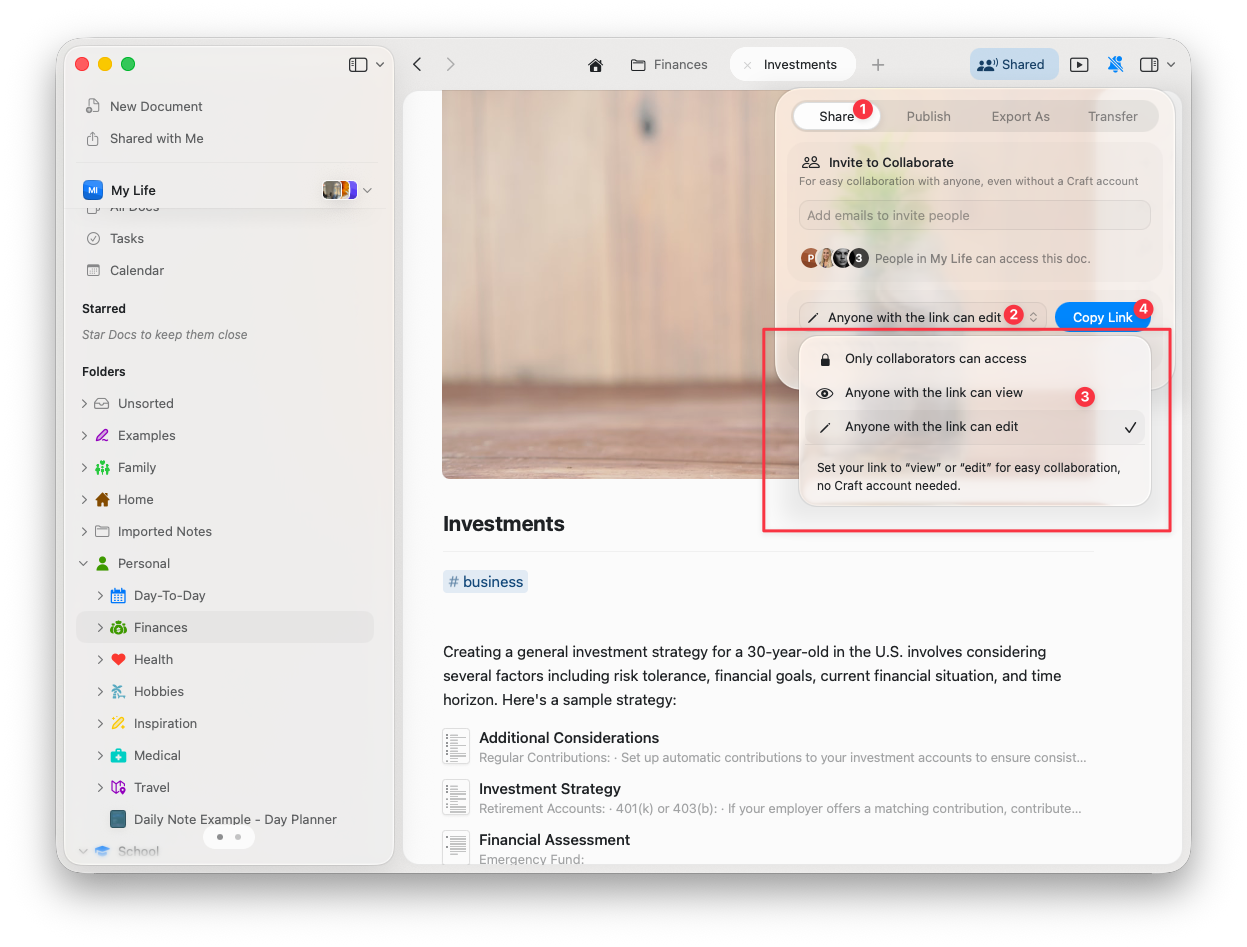 This allows anyone with the link to access the document with the permissions you've set, without requiring you to know their email address in advance.
## Access Levels
When sharing documents, you can assign two types of access:
**Viewer** - Can read the document and add comments, but cannot make edits
**Editor** - Can make changes to the document content and structure
To **edit** a shared document, collaborators must sign in with a Craft account. However, **viewing** access works without requiring login.
## Real-Time Collaboration
Craft supports real-time editing, allowing multiple users to work on the same document simultaneously. Changes appear instantly for all collaborators, making it easy to work together without delays or version conflicts.
## Collaborator Identity
### Temporary Profiles
If someone joins a document without signing in to Craft, a random name will be assigned to their temporary profile. Any comments and edits will be tied to this temporary identity.
This allows anyone with the link to access the document with the permissions you've set, without requiring you to know their email address in advance.
## Access Levels
When sharing documents, you can assign two types of access:
**Viewer** - Can read the document and add comments, but cannot make edits
**Editor** - Can make changes to the document content and structure
To **edit** a shared document, collaborators must sign in with a Craft account. However, **viewing** access works without requiring login.
## Real-Time Collaboration
Craft supports real-time editing, allowing multiple users to work on the same document simultaneously. Changes appear instantly for all collaborators, making it easy to work together without delays or version conflicts.
## Collaborator Identity
### Temporary Profiles
If someone joins a document without signing in to Craft, a random name will be assigned to their temporary profile. Any comments and edits will be tied to this temporary identity.
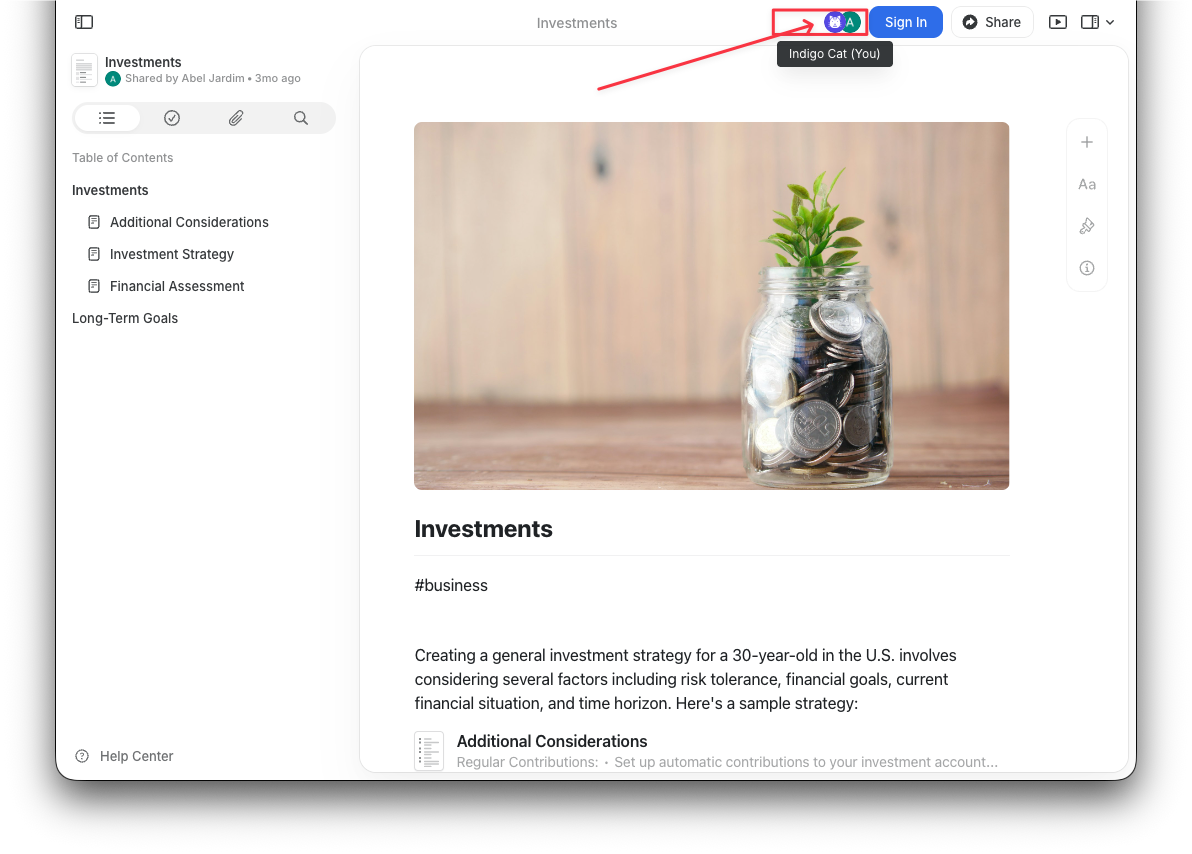 A new temporary profile is generated whenever they refresh or reopen the document, making it difficult to track who made specific changes.
### Permanent Profiles
If tracking authorship is important for your workflow, ensure all collaborators sign in to Craft and set their names in their profile. This creates a permanent identity tied to all their actions across documents.
## Comments
All collaborators - whether they have viewer or editor access - can always comment on documents. Comments are a great way to provide feedback without directly editing content.
If you want to completely disable comments on a document, publish it as a web link instead of sharing it for collaboration. Published pages have a separate comments setting you can control.
## Folder Sharing
Currently, Craft does not support folder sharing. Collaboration is limited to individual documents, meaning you must share each document separately.
## Team vs. Individual Collaboration
You **do not need a Team plan** to collaborate on documents. You can share documents with anyone, even if they're not on your subscription plan.
However, the **Family, Team, or Business** plans offer additional collaboration features:
* **Shared Spaces** for organizing team projects
* **Centralized billing and team management**
* **Administrative controls** for managing team access
* **Team member permissions** at the space level
For individual collaboration, the **Plus** or **Pro** plans provide everything you need to share and edit documents with others.
## Troubleshooting
**Problem**: When clicking on a page, subpage, or a block link in an email, you get an error message.
**Solution**: You need to enable the secret link feature before exporting your document into an email.
Open the document you want to share via email
Click the Share button
Enable the **Secret Link** option
If your document contains block links, also enable **Visitors Can Follow Block Links**
Export the content to email
Retroactively enabling the secret link won't change the results. Once you've enabled the secret link feature, you need to export the content again for the changes to take effect.
For general troubleshooting, sync, or platform-specific issues, see the [Troubleshooting Guide](/docs/introduction/troubleshooting).
***
Learn how to add and manage team members in shared spaces
Make your documents publicly accessible on the web
Create internal links within shared documents
Organize shared content with spaces
Make shared documents visually appealing
A new temporary profile is generated whenever they refresh or reopen the document, making it difficult to track who made specific changes.
### Permanent Profiles
If tracking authorship is important for your workflow, ensure all collaborators sign in to Craft and set their names in their profile. This creates a permanent identity tied to all their actions across documents.
## Comments
All collaborators - whether they have viewer or editor access - can always comment on documents. Comments are a great way to provide feedback without directly editing content.
If you want to completely disable comments on a document, publish it as a web link instead of sharing it for collaboration. Published pages have a separate comments setting you can control.
## Folder Sharing
Currently, Craft does not support folder sharing. Collaboration is limited to individual documents, meaning you must share each document separately.
## Team vs. Individual Collaboration
You **do not need a Team plan** to collaborate on documents. You can share documents with anyone, even if they're not on your subscription plan.
However, the **Family, Team, or Business** plans offer additional collaboration features:
* **Shared Spaces** for organizing team projects
* **Centralized billing and team management**
* **Administrative controls** for managing team access
* **Team member permissions** at the space level
For individual collaboration, the **Plus** or **Pro** plans provide everything you need to share and edit documents with others.
## Troubleshooting
**Problem**: When clicking on a page, subpage, or a block link in an email, you get an error message.
**Solution**: You need to enable the secret link feature before exporting your document into an email.
Open the document you want to share via email
Click the Share button
Enable the **Secret Link** option
If your document contains block links, also enable **Visitors Can Follow Block Links**
Export the content to email
Retroactively enabling the secret link won't change the results. Once you've enabled the secret link feature, you need to export the content again for the changes to take effect.
For general troubleshooting, sync, or platform-specific issues, see the [Troubleshooting Guide](/docs/introduction/troubleshooting).
***
Learn how to add and manage team members in shared spaces
Make your documents publicly accessible on the web
Create internal links within shared documents
Organize shared content with spaces
Make shared documents visually appealing