> ## Documentation Index
> Fetch the complete documentation index at: https://craft-support.mintlify.site/llms.txt
> Use this file to discover all available pages before exploring further.
# Team Collaboration
> Add and manage team members across your Craft team and individual spaces.
Craft makes it easy to invite team members to collaborate within your organization. With Family, Team, or Business subscriptions, you can create a shared environment for teamwork and maintain visibility across projects.
Adding team members requires a **Family, Team, or Business** subscription. The Plus plan is designed for solo users only.
## Understanding Teams and Spaces
In Craft, there's an important distinction between **Teams** and **Spaces**:
* **Team** — The overall organization or group that shares a subscription
* **Space** — An individual workspace within a team for organizing projects, departments, or areas of work
**You must invite someone to your Team first.** Only after they've joined your Team can you add them to specific Spaces.
## Opening Settings
All team and space management happens inside **Settings**. The entry point depends on your platform — follow the instructions for yours:
Click the **Space name** at the top of the sidebar to open Settings.
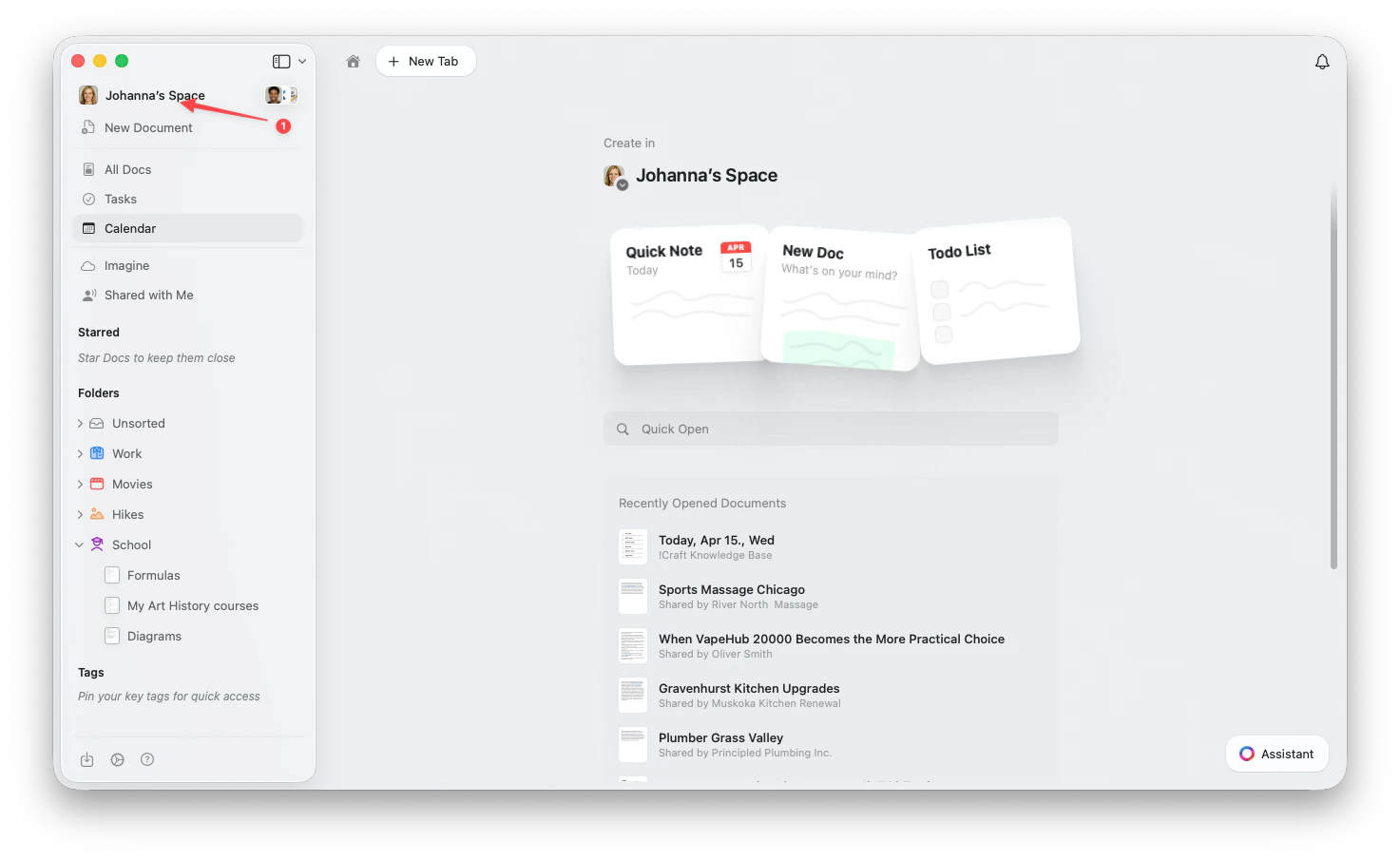 Click the **Space name** in the top-left corner.
Click **Settings** at the bottom of the dropdown.
Click the **Space name** in the top-left corner.
Click **Settings** at the bottom of the dropdown.
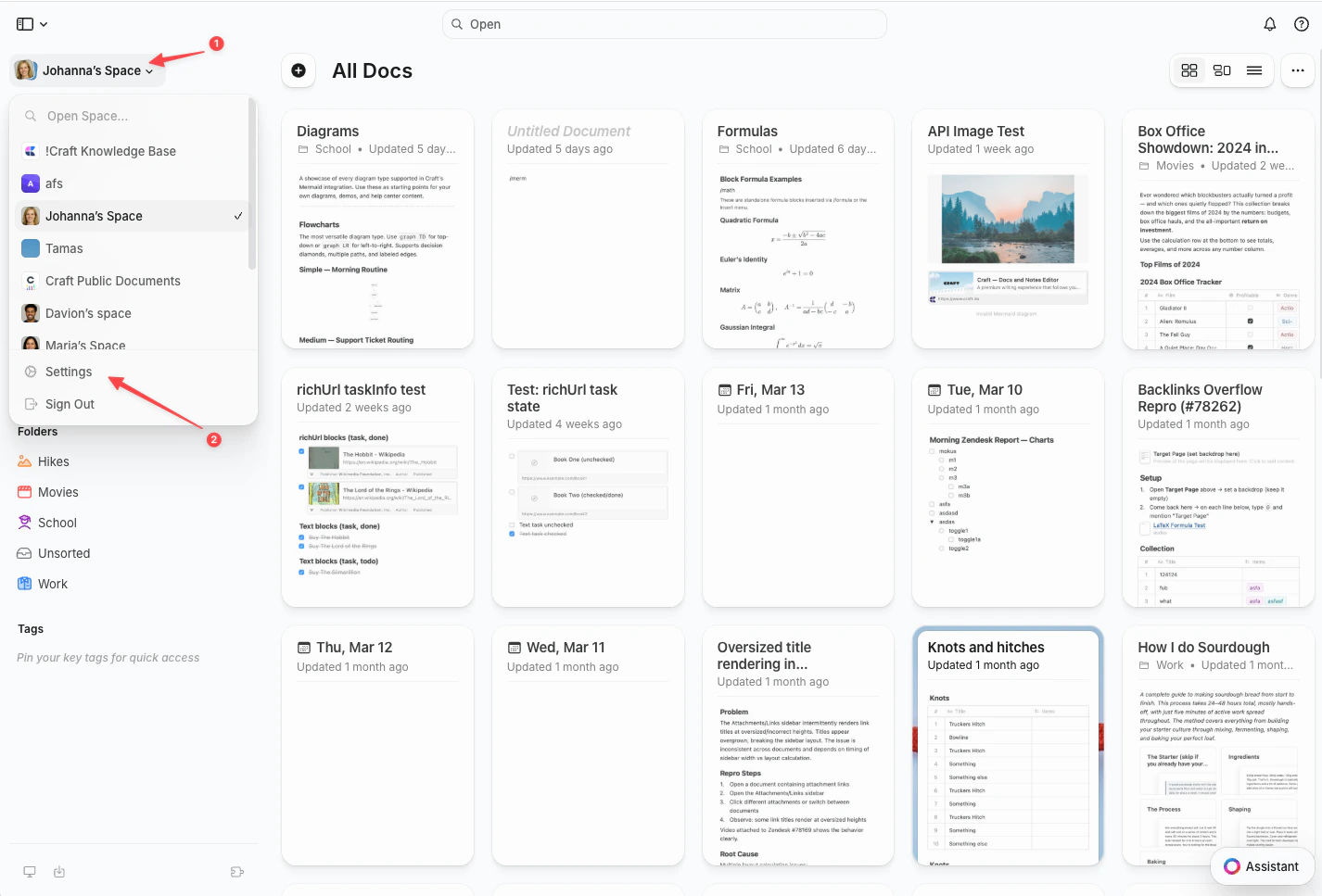 Tap the **Space icon** in the top-left corner.
 Tap **Settings**.
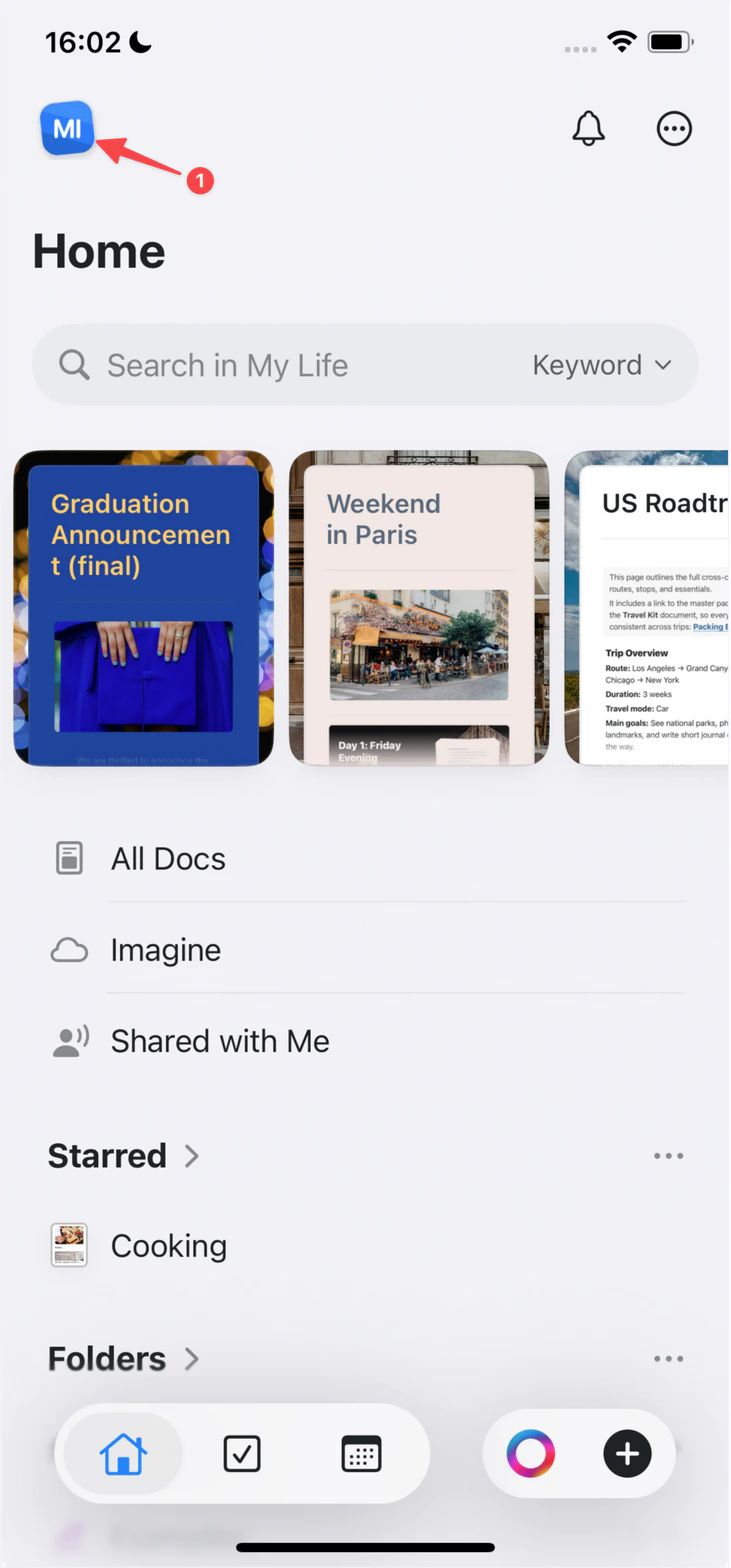
Tap your **profile picture** in the top-right corner.
Tap **Settings**.
Tap **Settings**.
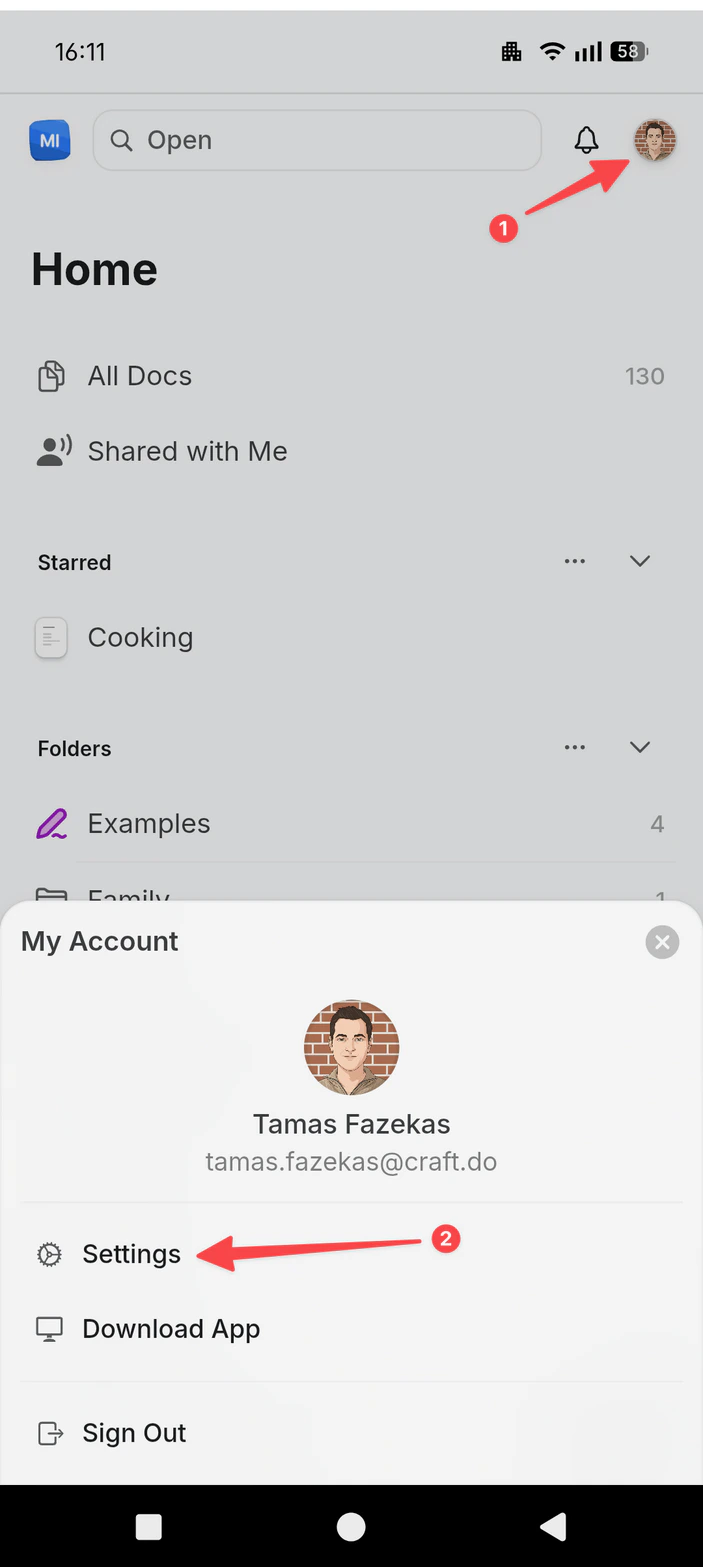
Tap your **profile picture** in the top-right corner.
Tap **Settings**.
 Once Settings is open, use the instructions below for the task you want to accomplish.
## Adding Members to Your Team
Team members have access to your account and can utilize the benefits of your subscription.
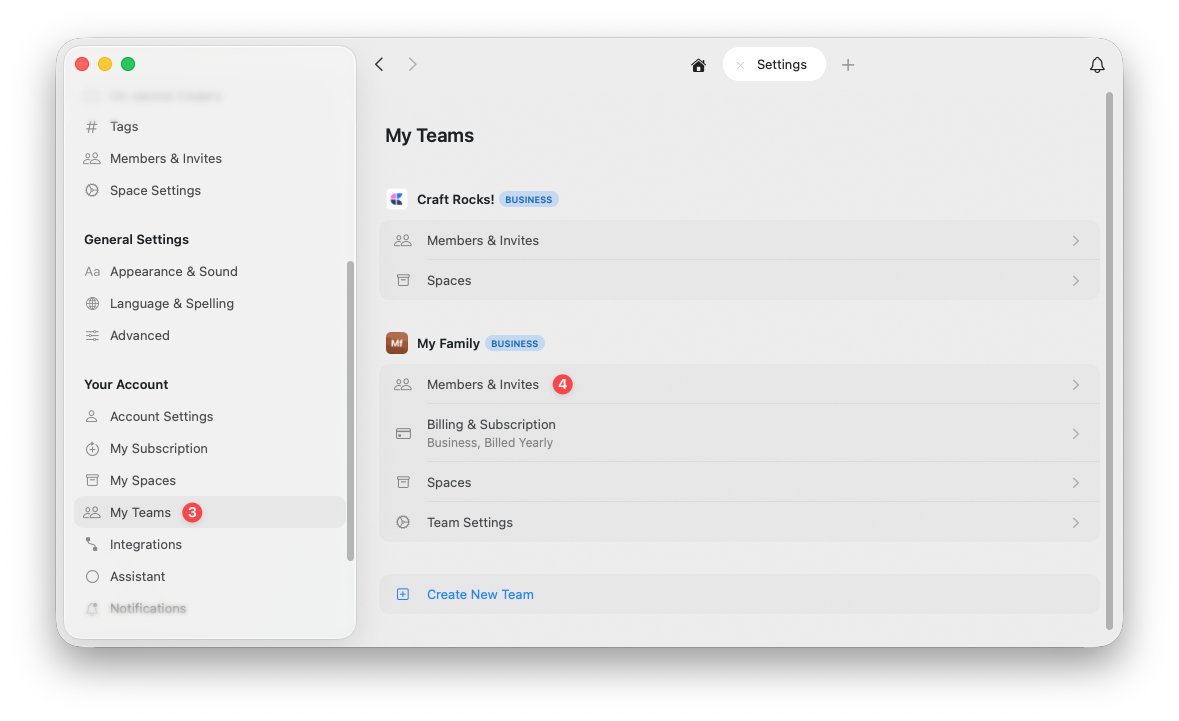
Select the **My Teams** tab from the left sidebar.
Under the team you want to manage, click **Members & Invites**.
Click **Invite to Team** and enter the email addresses you'd like to invite.
Once Settings is open, use the instructions below for the task you want to accomplish.
## Adding Members to Your Team
Team members have access to your account and can utilize the benefits of your subscription.
Select the **My Teams** tab from the left sidebar.
Under the team you want to manage, click **Members & Invites**.
Click **Invite to Team** and enter the email addresses you'd like to invite.
 Once invited, team members receive an email notification with instructions to join your team.
## Adding Members to Spaces
After someone accepts your team invitation, you can add them to specific spaces where they'll collaborate.
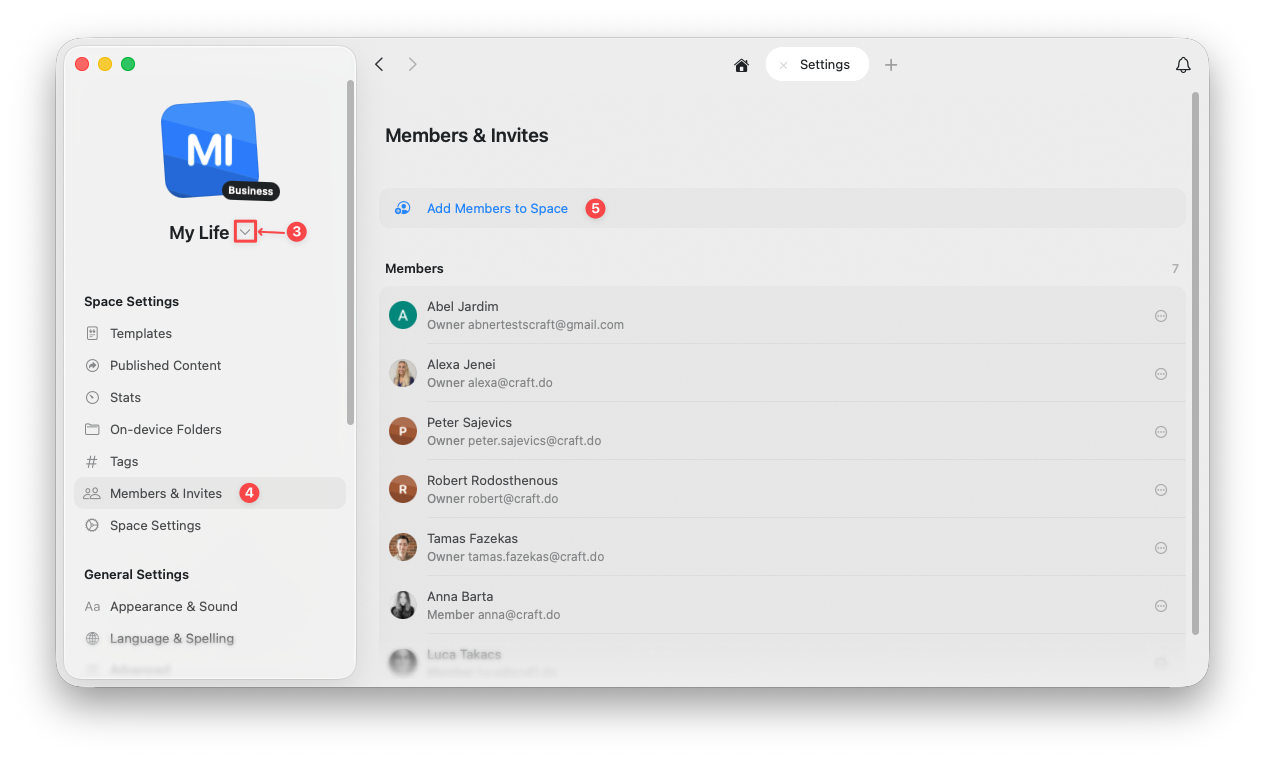
Use the space selector at the top of the left sidebar to switch to the space you want to manage.
Under **Space Settings**, select **Members & Invites**.
Click **Add Members to Space** and select the team members you want to add.
Once invited, team members receive an email notification with instructions to join your team.
## Adding Members to Spaces
After someone accepts your team invitation, you can add them to specific spaces where they'll collaborate.
Use the space selector at the top of the left sidebar to switch to the space you want to manage.
Under **Space Settings**, select **Members & Invites**.
Click **Add Members to Space** and select the team members you want to add.
 ## Space Member Permissions
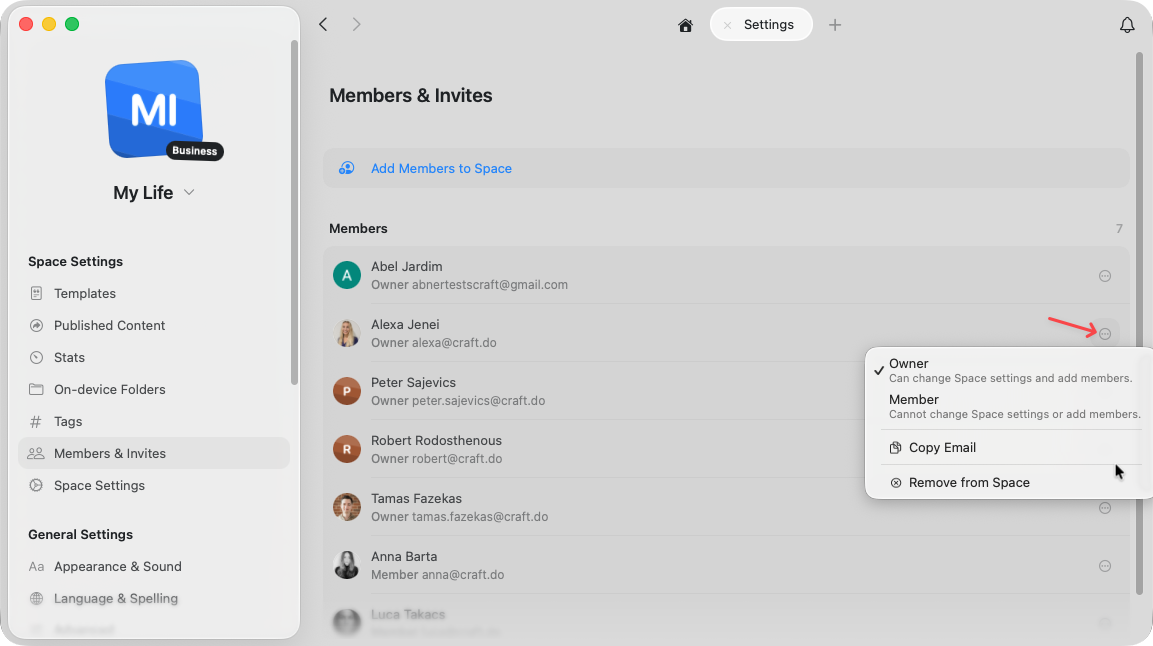
Once members are added to a space, you can assign them one of two roles:
* **Owner** — Can change space settings and invite new members to the space
* **Member** — Can access and work in the space but cannot change settings or invite others
You can change a member's role or remove them from the space at any time using the three-dot menu (⋯) next to their name.
## Space Member Permissions
Once members are added to a space, you can assign them one of two roles:
* **Owner** — Can change space settings and invite new members to the space
* **Member** — Can access and work in the space but cannot change settings or invite others
You can change a member's role or remove them from the space at any time using the three-dot menu (⋯) next to their name.
 ## Removing Team Members
You can remove members from either your entire Team or from a specific Space.
### Removing from a Space
Removing someone from a space only affects that specific space — they remain a team member and can still access other spaces they've been added to.
Use the space selector at the top of the left sidebar to switch to the space you want to manage.
Under **Space Settings**, select **Members & Invites**.
Locate the member you want to remove and click the three-dot menu (⋯) on the right side of their row.
## Removing Team Members
You can remove members from either your entire Team or from a specific Space.
### Removing from a Space
Removing someone from a space only affects that specific space — they remain a team member and can still access other spaces they've been added to.
Use the space selector at the top of the left sidebar to switch to the space you want to manage.
Under **Space Settings**, select **Members & Invites**.
Locate the member you want to remove and click the three-dot menu (⋯) on the right side of their row.
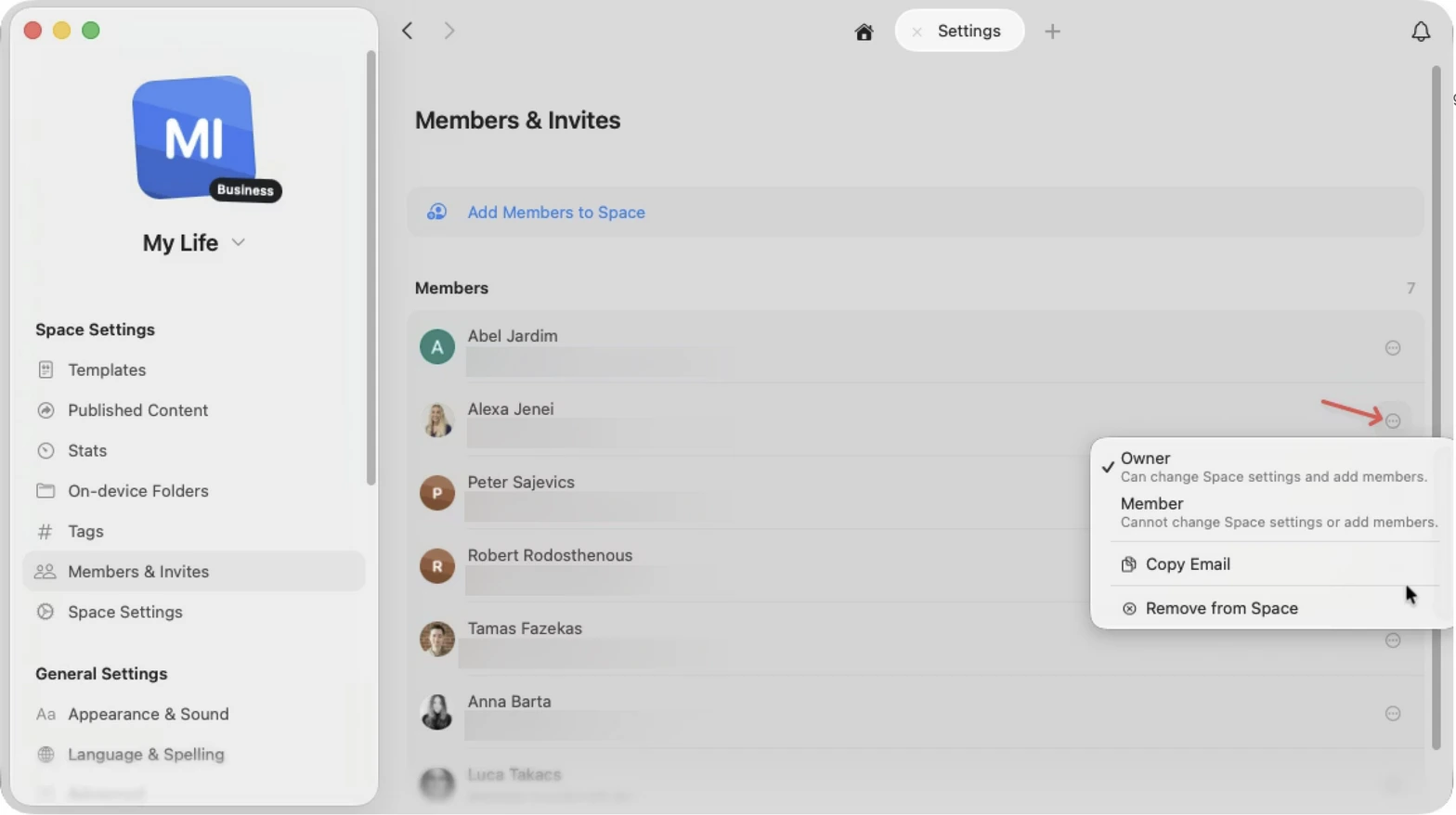 Select **Remove from Space** from the menu.
### Removing from Your Team
Removing someone from your team removes them from all spaces and revokes their access to team benefits.
Select the **My Teams** tab from the left sidebar. Each of your teams is listed with its management options.
Under the team you want to manage, click **Members & Invites**.
Locate the member you want to remove and click the three-dot menu (⋯) on the right side of their row.
Select **Remove from Team** from the menu.
Only team owners or admins can remove members. This action cannot be undone — the removed person will lose access to all team spaces immediately.
***
Learn how to share individual documents with collaborators
Understand how to organize content across multiple spaces
Select **Remove from Space** from the menu.
### Removing from Your Team
Removing someone from your team removes them from all spaces and revokes their access to team benefits.
Select the **My Teams** tab from the left sidebar. Each of your teams is listed with its management options.
Under the team you want to manage, click **Members & Invites**.
Locate the member you want to remove and click the three-dot menu (⋯) on the right side of their row.
Select **Remove from Team** from the menu.
Only team owners or admins can remove members. This action cannot be undone — the removed person will lose access to all team spaces immediately.
***
Learn how to share individual documents with collaborators
Understand how to organize content across multiple spaces