> ## Documentation Index
> Fetch the complete documentation index at: https://craft-support.mintlify.site/llms.txt
> Use this file to discover all available pages before exploring further.
# Deleting Blocks
> Remove blocks, images, and other content from your Craft documents.
You can delete any block, including images, text, tables, and other content from your documents.
## How to Delete
Select the block you want to delete
Press **Delete** or **Backspace**
To delete multiple blocks at once:
* Hold Shift and click to select a range
* Or drag your cursor across multiple blocks
* Then press Delete
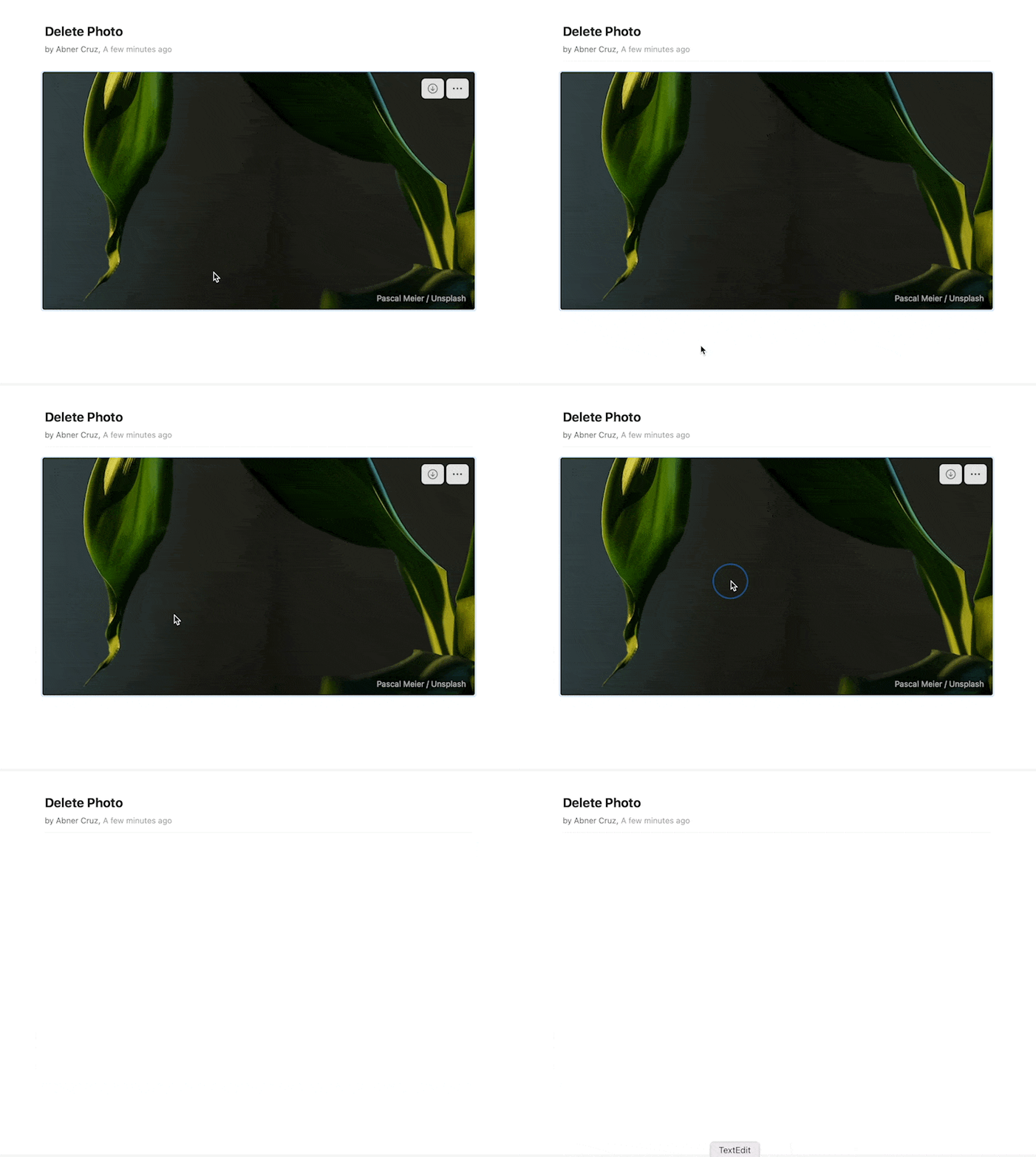 Select the block you want to delete
Press **Delete** or **Backspace**
To delete multiple blocks at once:
* Hold Shift and click to select a range
* Or drag your cursor across multiple blocks
* Then press Delete
Select the block you want to delete
Press **Delete** or **Backspace**
To delete multiple blocks at once:
* Hold Shift and click to select a range
* Or drag your cursor across multiple blocks
* Then press Delete
Long press the block you want to delete
Tap **Delete** from the menu
To delete multiple blocks at once:
* Long press one block to select it
* Tap additional blocks to add them to selection
* Tap **Delete**
Select the block you want to delete
Press **Delete** or **Backspace**
To delete multiple blocks at once:
* Hold Shift and click to select a range
* Or drag your cursor across multiple blocks
* Then press Delete
Select the block you want to delete
Press **Delete** or **Backspace**
To delete multiple blocks at once:
* Hold Shift and click to select a range
* Or drag your cursor across multiple blocks
* Then press Delete
Long press the block you want to delete
Tap **Delete** from the menu
To delete multiple blocks at once:
* Long press one block to select it
* Tap additional blocks to add them to selection
* Tap **Delete**
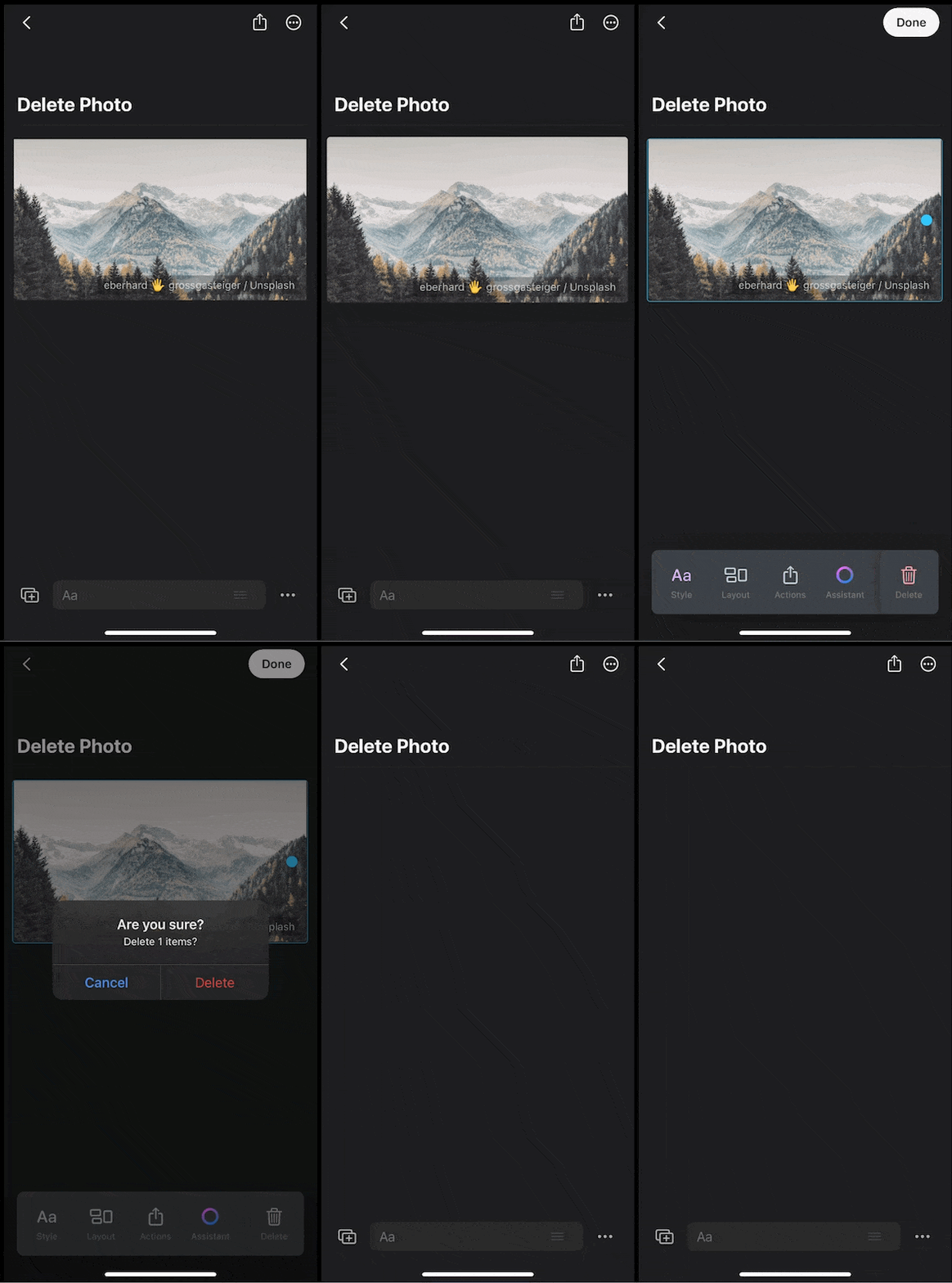 Deleting blocks works the same way for all content types – text, images, media, tables, and more.