> ## Documentation Index
> Fetch the complete documentation index at: https://craft-support.mintlify.site/llms.txt
> Use this file to discover all available pages before exploring further.
# Files and Links
> Attach files, create links, and embed rich link previews in your documents.
Craft lets you attach files and create rich link previews that make your documents more informative and visually appealing.
## File Attachments
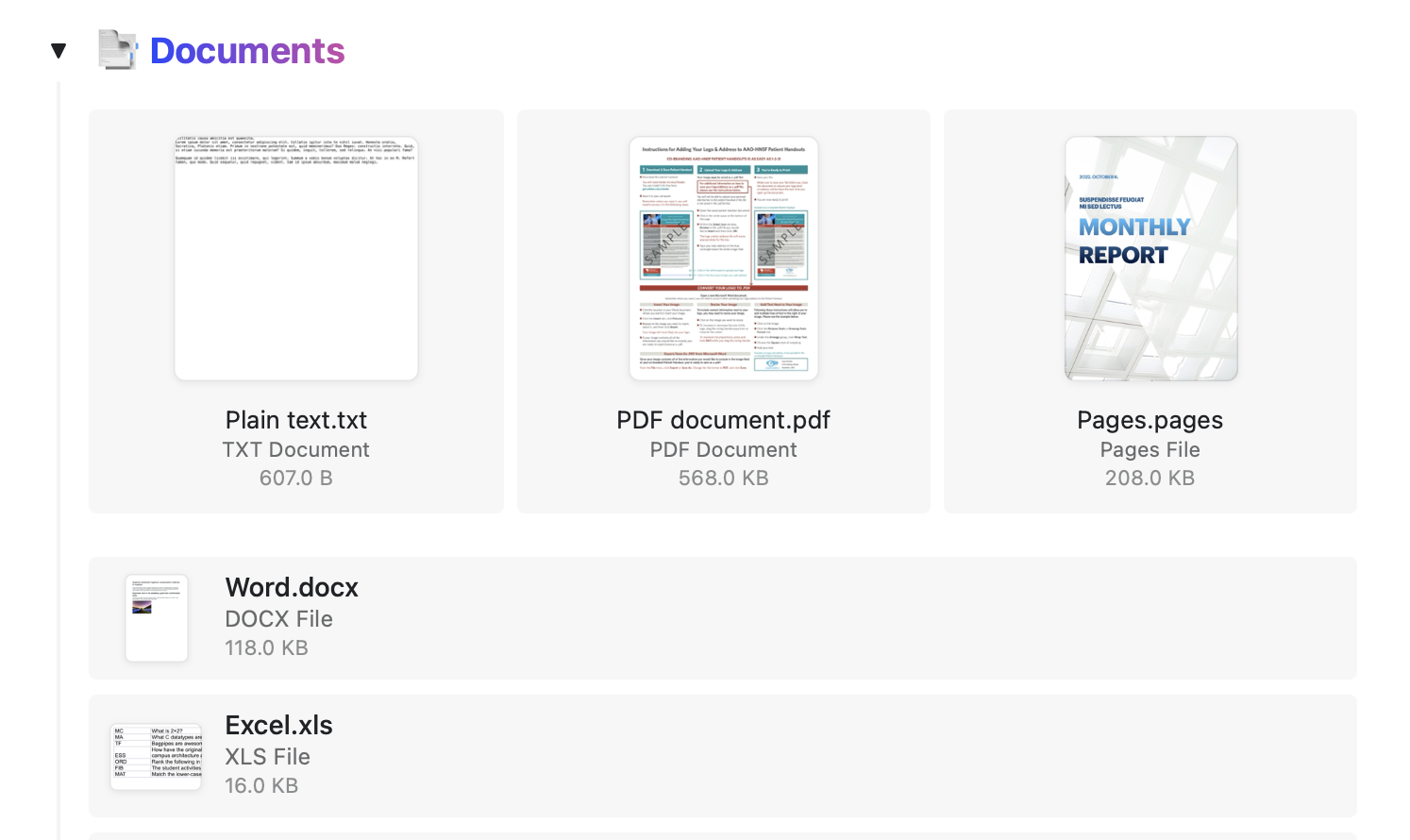
You can upload any type of document to a Craft document – Word files, PDFs, Excel spreadsheets, and more.
 ### Opening Files
Editable documents such as Word, PDF, or Excel files can be opened directly from the Craft app. Files open in their respective applications.
Files open in a separate tab in your browser.
It is currently not possible to open document files from the Craft Windows app.
Craft will not save any changes made to a document you open from the app. To preserve edits, save the edited document on your device after making changes.
## Links
Craft provides powerful link handling with automatic rich previews and customization options.
### Automatic Rich Links
When you paste a link into an empty block, Craft automatically creates a rich link with a thumbnail, title, and description.
### Opening Files
Editable documents such as Word, PDF, or Excel files can be opened directly from the Craft app. Files open in their respective applications.
Files open in a separate tab in your browser.
It is currently not possible to open document files from the Craft Windows app.
Craft will not save any changes made to a document you open from the app. To preserve edits, save the edited document on your device after making changes.
## Links
Craft provides powerful link handling with automatic rich previews and customization options.
### Automatic Rich Links
When you paste a link into an empty block, Craft automatically creates a rich link with a thumbnail, title, and description.
 ### Link Layouts
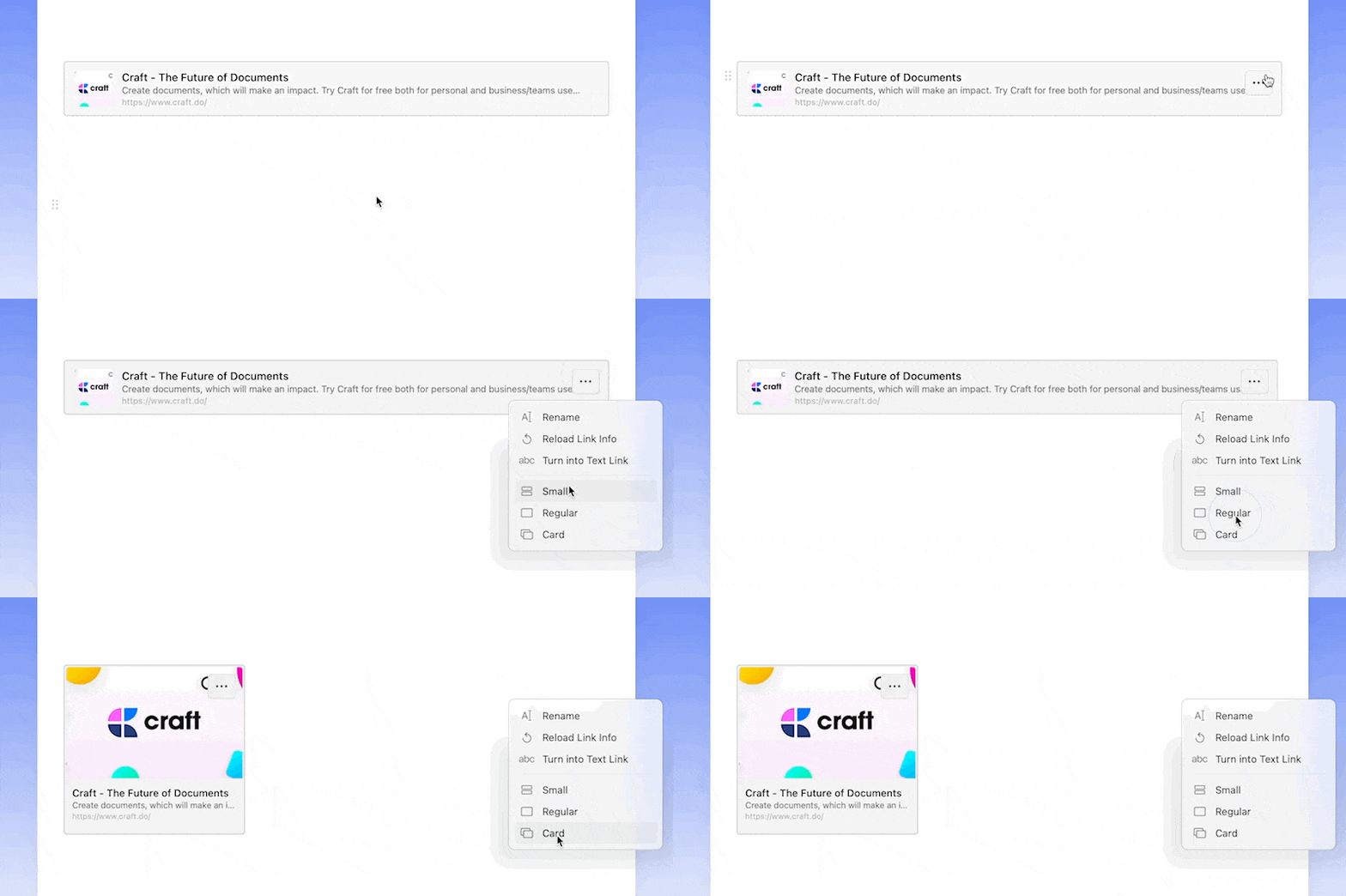
Change the visual appearance of rich links using the **...** menu. Choose from three layouts:
* **Small** – Compact preview
* **Regular** – Standard size with thumbnail
* **Card** – Full-width card layout
### Link Layouts
Change the visual appearance of rich links using the **...** menu. Choose from three layouts:
* **Small** – Compact preview
* **Regular** – Standard size with thumbnail
* **Card** – Full-width card layout
 ### Customizing Links
Edit the title and description of rich links to make them more relevant to your content. Use the **...** menu to customize these fields.
### Customizing Links
Edit the title and description of rich links to make them more relevant to your content. Use the **...** menu to customize these fields.
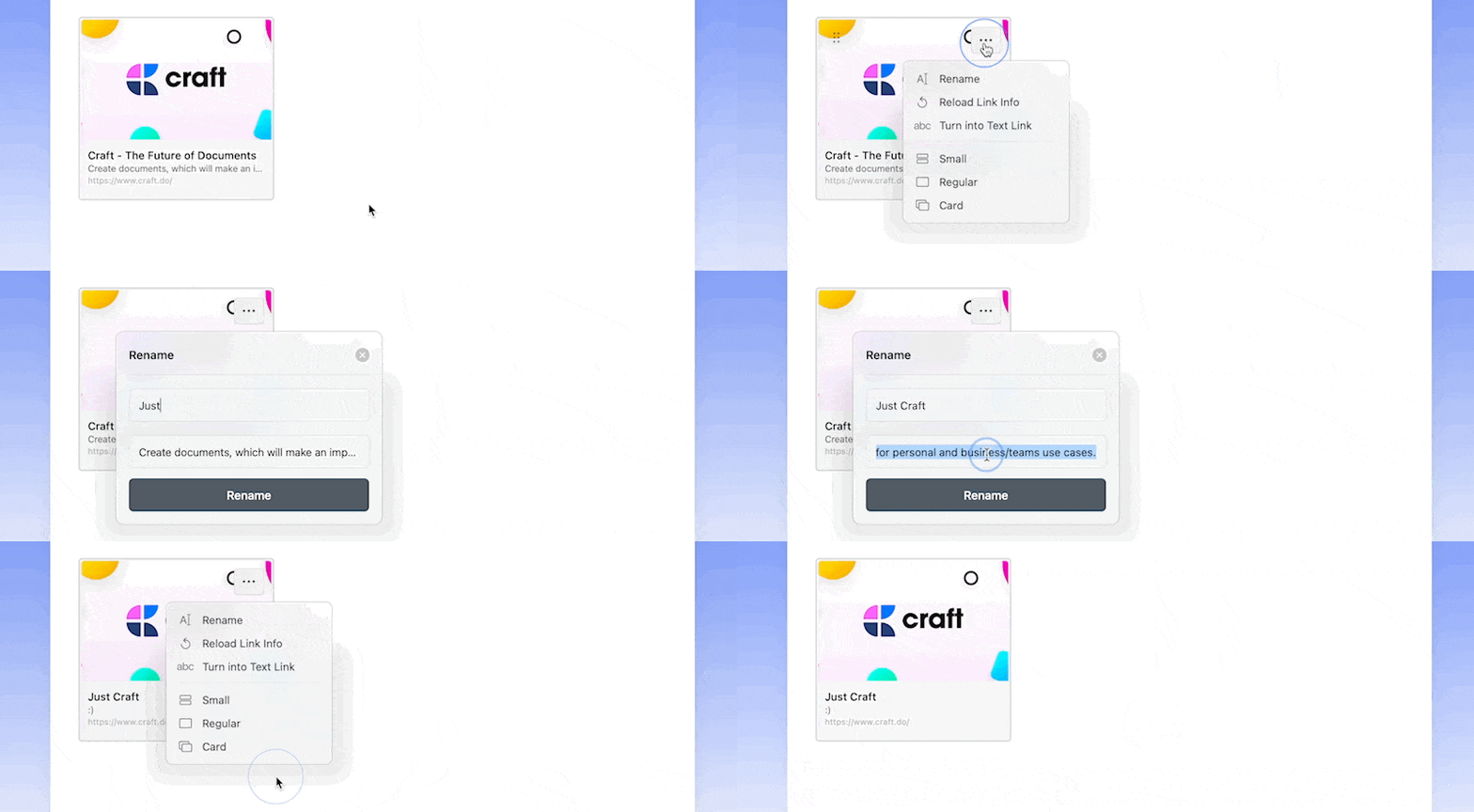 To reset a rich link to its original title and description, select **Reload Link Info** from the **...** menu.
 ### Preventing Rich Links
If you prefer plain text links, you can prevent Craft from automatically creating rich links:
* Insert the link in the middle of a sentence
* Hit space before pasting the link in an empty block
* Convert a rich link to text using the **...** menu
### Preventing Rich Links
If you prefer plain text links, you can prevent Craft from automatically creating rich links:
* Insert the link in the middle of a sentence
* Hit space before pasting the link in an empty block
* Convert a rich link to text using the **...** menu
 ### Creating Text Links
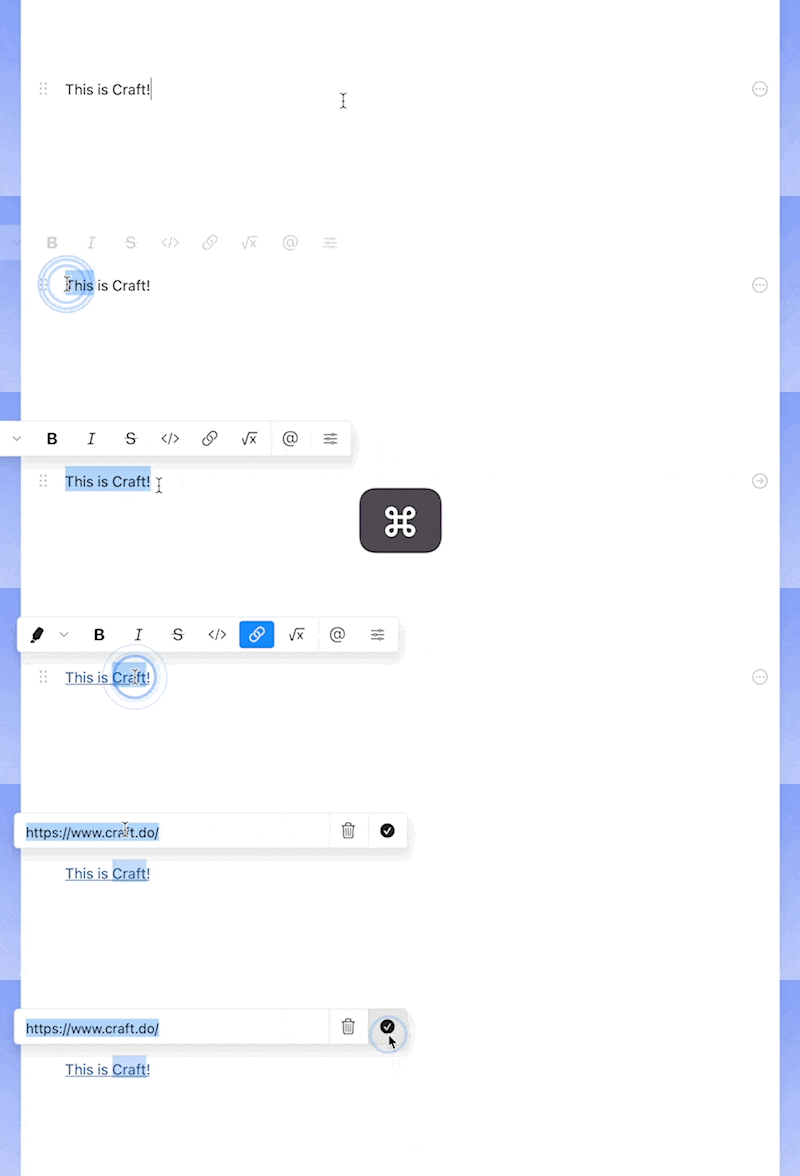
Paste a link into highlighted text using `Cmd+V` (macOS) or `Ctrl+V` (Windows) to instantly turn it into an inline link.
### Creating Text Links
Paste a link into highlighted text using `Cmd+V` (macOS) or `Ctrl+V` (Windows) to instantly turn it into an inline link.
 ### Link Color Customization
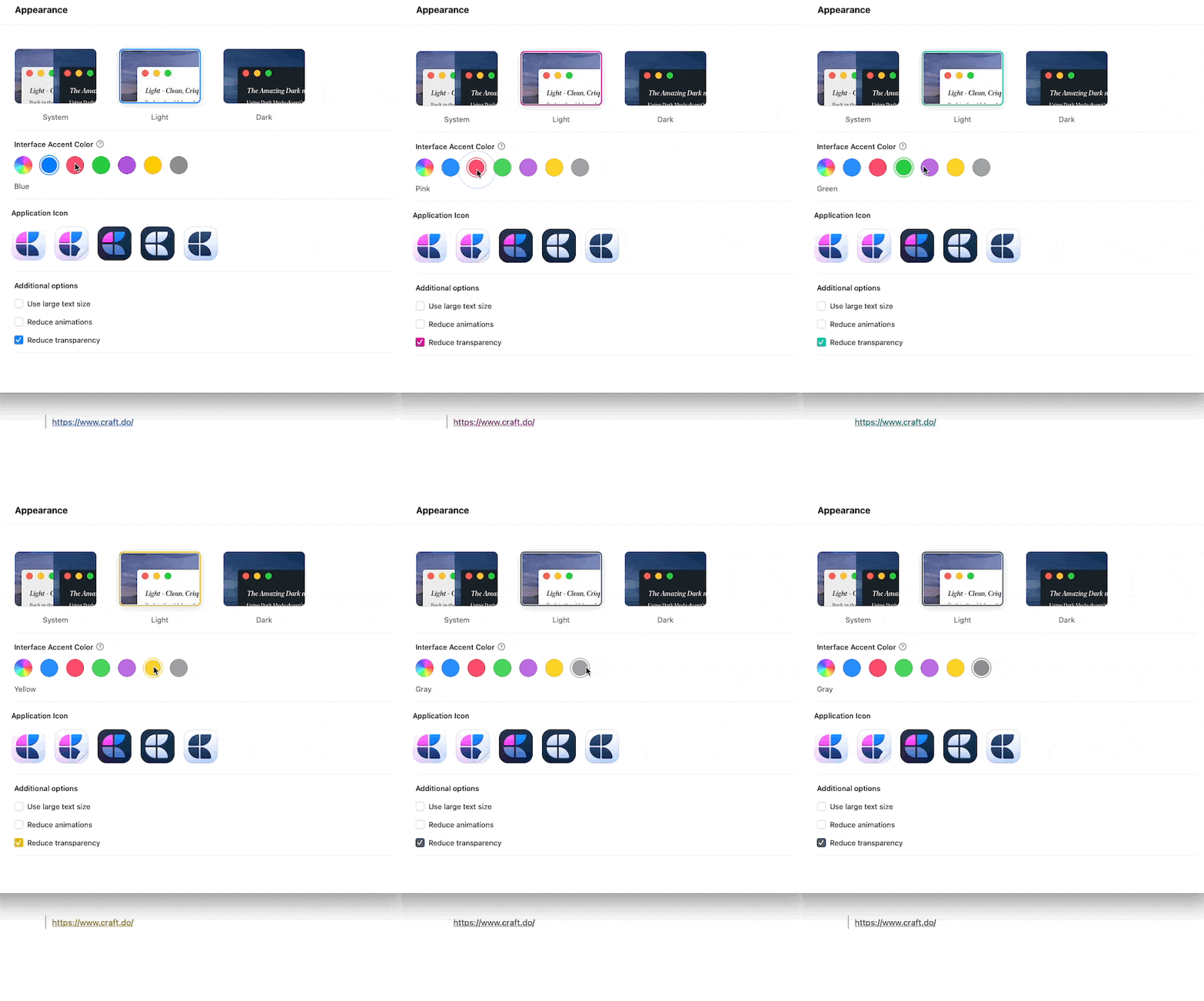
Change the color of text links by navigating to **Account → Preferences → Appearance → Accent color**.
### Link Color Customization
Change the color of text links by navigating to **Account → Preferences → Appearance → Accent color**.
 Craft for Windows does not currently create rich links automatically. Links appear as standard text links.
## Converting Between Link Types
You can easily convert between rich links and text links:
* **Rich to text**: Use the **...** menu and select **Change to Text Link**
* **Text to rich**: Right-click on a plain link and select **Change to Preview Link**
To convert a text link to a rich preview, the link must be placed without any other text in a paragraph.
Craft for Windows does not currently create rich links automatically. Links appear as standard text links.
## Converting Between Link Types
You can easily convert between rich links and text links:
* **Rich to text**: Use the **...** menu and select **Change to Text Link**
* **Text to rich**: Right-click on a plain link and select **Change to Preview Link**
To convert a text link to a rich preview, the link must be placed without any other text in a paragraph.