> ## Documentation Index
> Fetch the complete documentation index at: https://craft-support.mintlify.site/llms.txt
> Use this file to discover all available pages before exploring further.
# Adding Dates
> Insert date badges that link to daily notes for quick time references in your documents.
Date badges in Craft serve double duty: they mark time references in your content and link directly to the corresponding daily note for that date.
## Inserting Dates
You can add dates in multiple ways:
### Using the Slash Menu
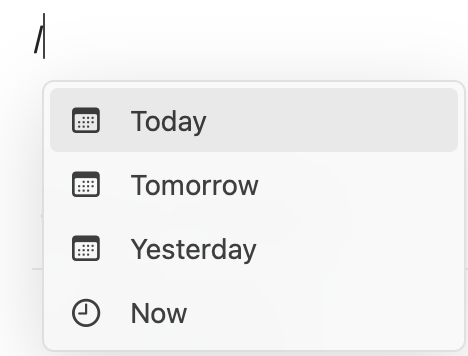
Type `/` and then either:
* Type **Date & Time** to access the date picker
* Type natural language like **Today**, **Tomorrow**, or **Yesterday**
* Type a month name followed by the day (e.g., **December 15**)
 ### Using the @ Symbol
For specific dates, type `@` followed by the date in **YYYY.MM.DD** format:
### Using the @ Symbol
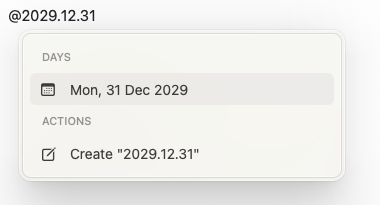
For specific dates, type `@` followed by the date in **YYYY.MM.DD** format:
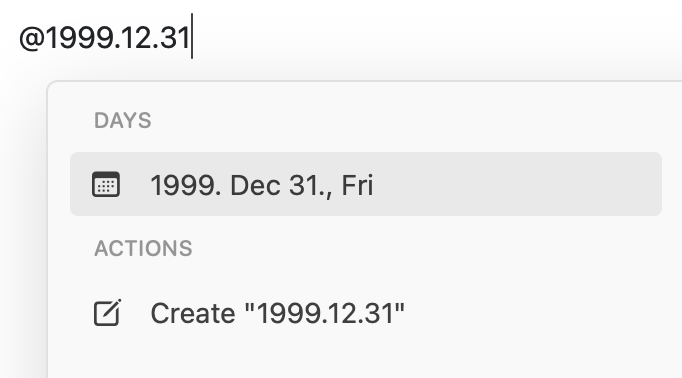 The date picker will appear, allowing you to select or adjust the date:
 ## Date Badges and Daily Notes
Each date badge is also a clickable link to the corresponding [daily note](/en/plan-and-do/daily-notes). Click any date badge to:
* View existing content for that date
* Add new notes or tasks
* Navigate through your daily notes
Date badges automatically connect to daily notes, making it easy to reference and navigate time-based content across your workspace.
## Date Badges and Daily Notes
Each date badge is also a clickable link to the corresponding [daily note](/en/plan-and-do/daily-notes). Click any date badge to:
* View existing content for that date
* Add new notes or tasks
* Navigate through your daily notes
Date badges automatically connect to daily notes, making it easy to reference and navigate time-based content across your workspace.