> ## Documentation Index
> Fetch the complete documentation index at: https://craft-support.mintlify.site/llms.txt
> Use this file to discover all available pages before exploring further.
# Find and Replace
> Quickly find and replace text across your documents to fix typos or update content.
Need to quickly fix misspelled words across a document or update multiple instances of the same term? The Find and Replace tool makes it easy to search and edit content in bulk.
## Accessing Find and Replace
While editing a document, open the right sidebar and look for the Find and Replace panel.
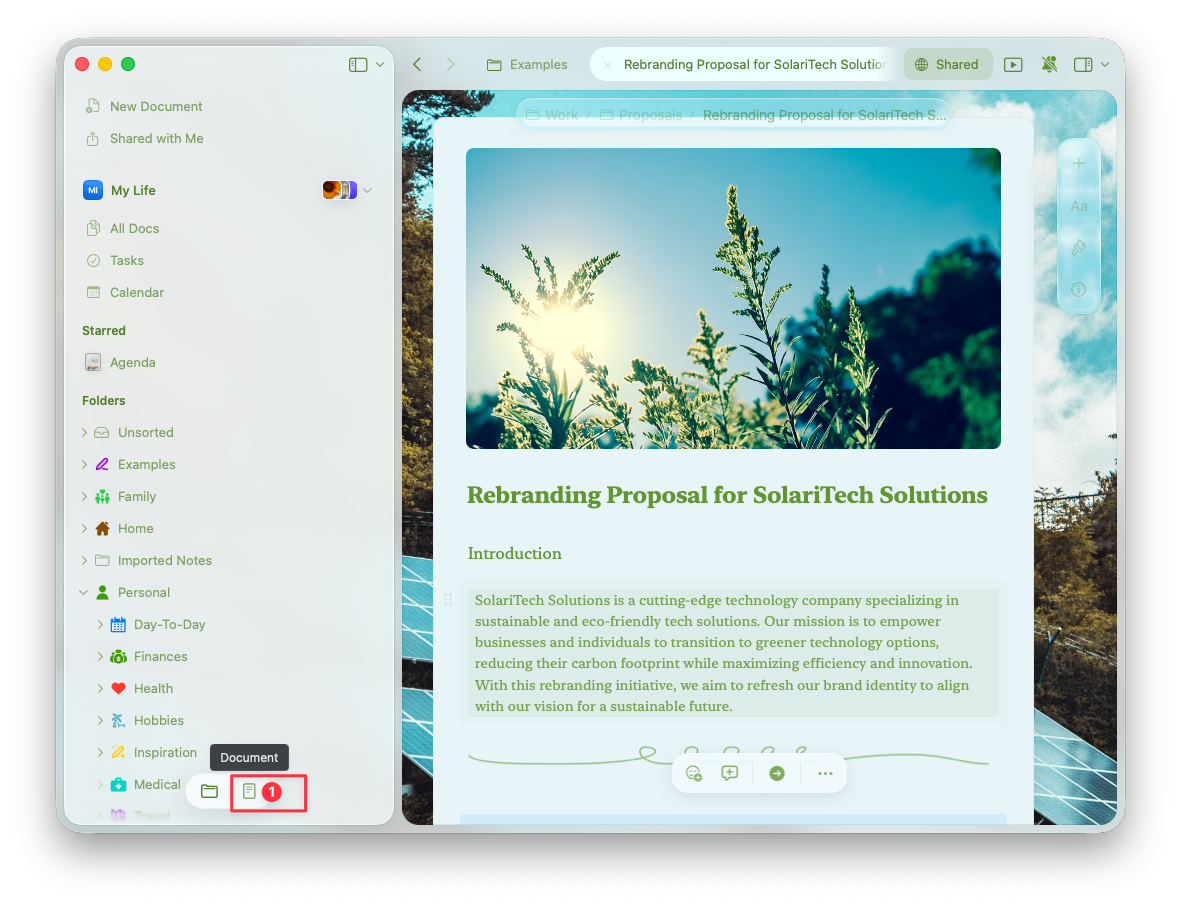
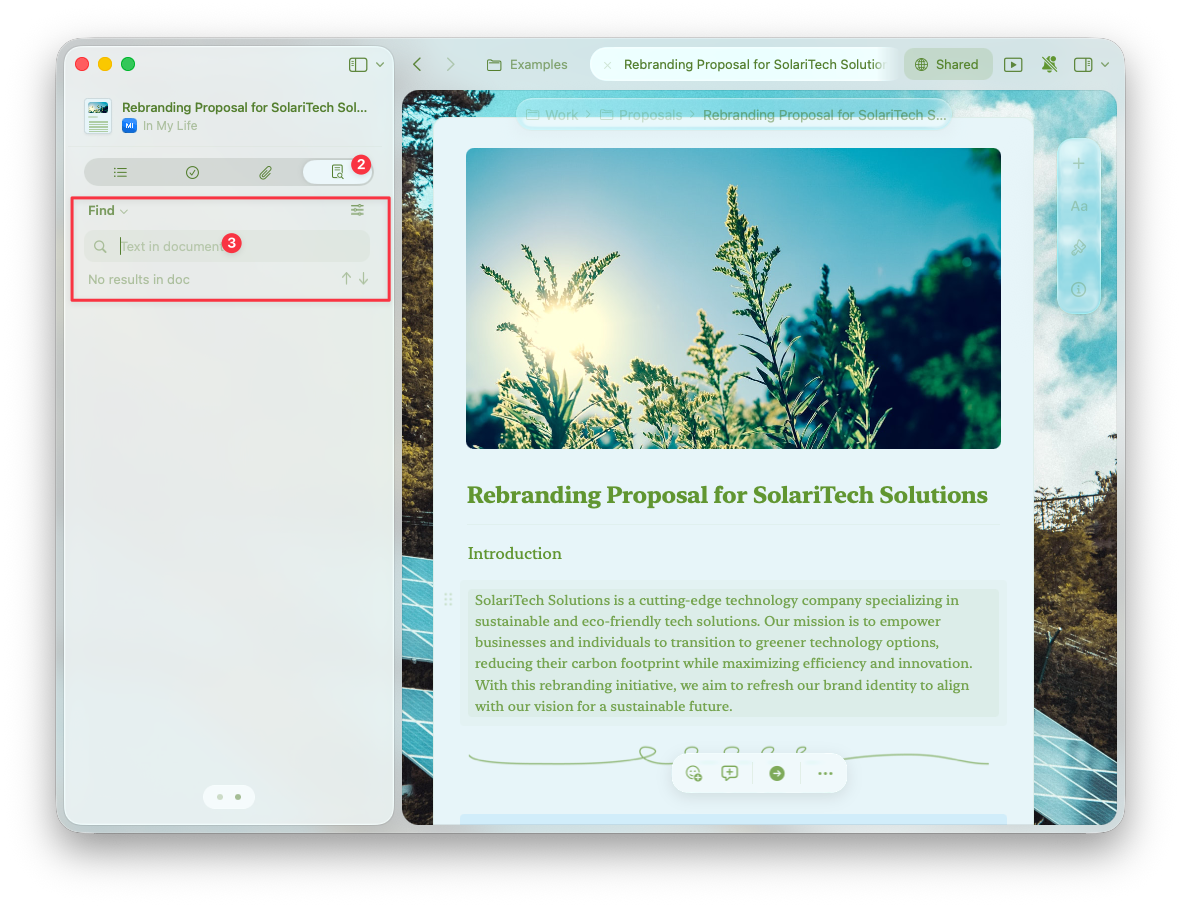 While editing a document, open the right sidebar and look for the Find and Replace panel.
While editing a document, tap the find button in the bottom toolbar to access Find and Replace.
While editing a document, open the right sidebar and look for the Find and Replace panel.
While editing a document, tap the find button in the bottom toolbar to access Find and Replace.
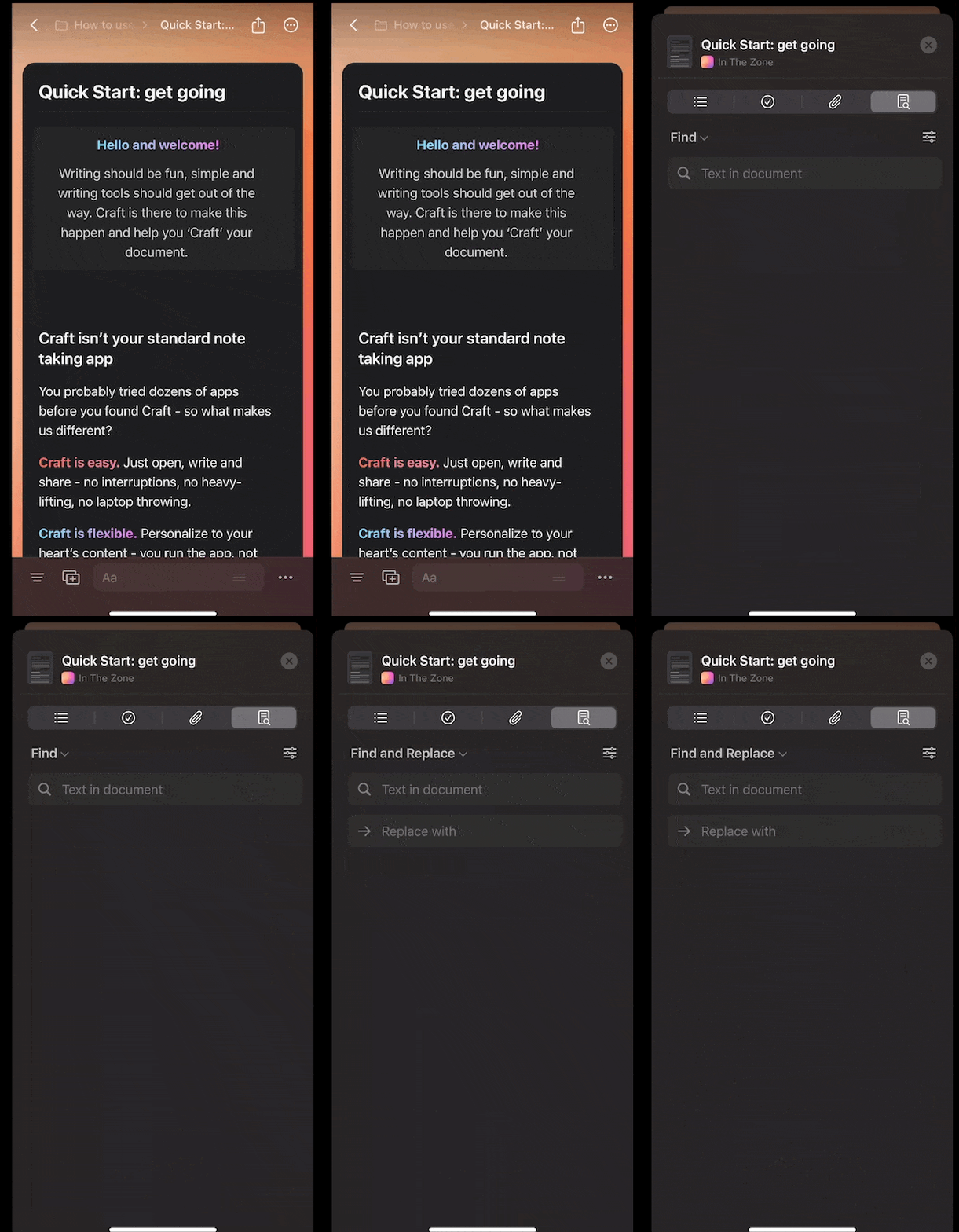 While editing a document, open the right sidebar and look for the Find and Replace panel.
## Features and Scope
The Find and Replace tool searches across:
* The main document content
* All subpages within the document
* Tables and embedded content
The Find and Replace tool searches across:
* The main document content
* All subpages within the document
* Tables and embedded content
The "Replace All" function is not yet available on iOS.
The Find and Replace tool searches across:
* The main document content
- Subpages within documents cannot be searched
- Find and replace is not available inside tables
The Find and Replace tool searches across:
* The main document content
- Subpages within documents cannot be searched
- Find and replace is not available inside tables
While editing a document, open the right sidebar and look for the Find and Replace panel.
While editing a document, open the right sidebar and look for the Find and Replace panel.
## Features and Scope
The Find and Replace tool searches across:
* The main document content
* All subpages within the document
* Tables and embedded content
The Find and Replace tool searches across:
* The main document content
* All subpages within the document
* Tables and embedded content
The "Replace All" function is not yet available on iOS.
The Find and Replace tool searches across:
* The main document content
- Subpages within documents cannot be searched
- Find and replace is not available inside tables
The Find and Replace tool searches across:
* The main document content
- Subpages within documents cannot be searched
- Find and replace is not available inside tables