> ## Documentation Index
> Fetch the complete documentation index at: https://craft-support.mintlify.site/llms.txt
> Use this file to discover all available pages before exploring further.
# Math Formulas
> Write mathematical equations using LaTeX notation — inline within text or as standalone formula blocks.
Craft supports LaTeX math notation for everything from simple subscripts to complex multiline equations. Formulas render natively across all platforms and look the same in the editor, in block previews, and in exports.
There are two ways to use formulas: **block formulas** for standalone equations, and **inline formulas** for math within your text.
## Block Formulas
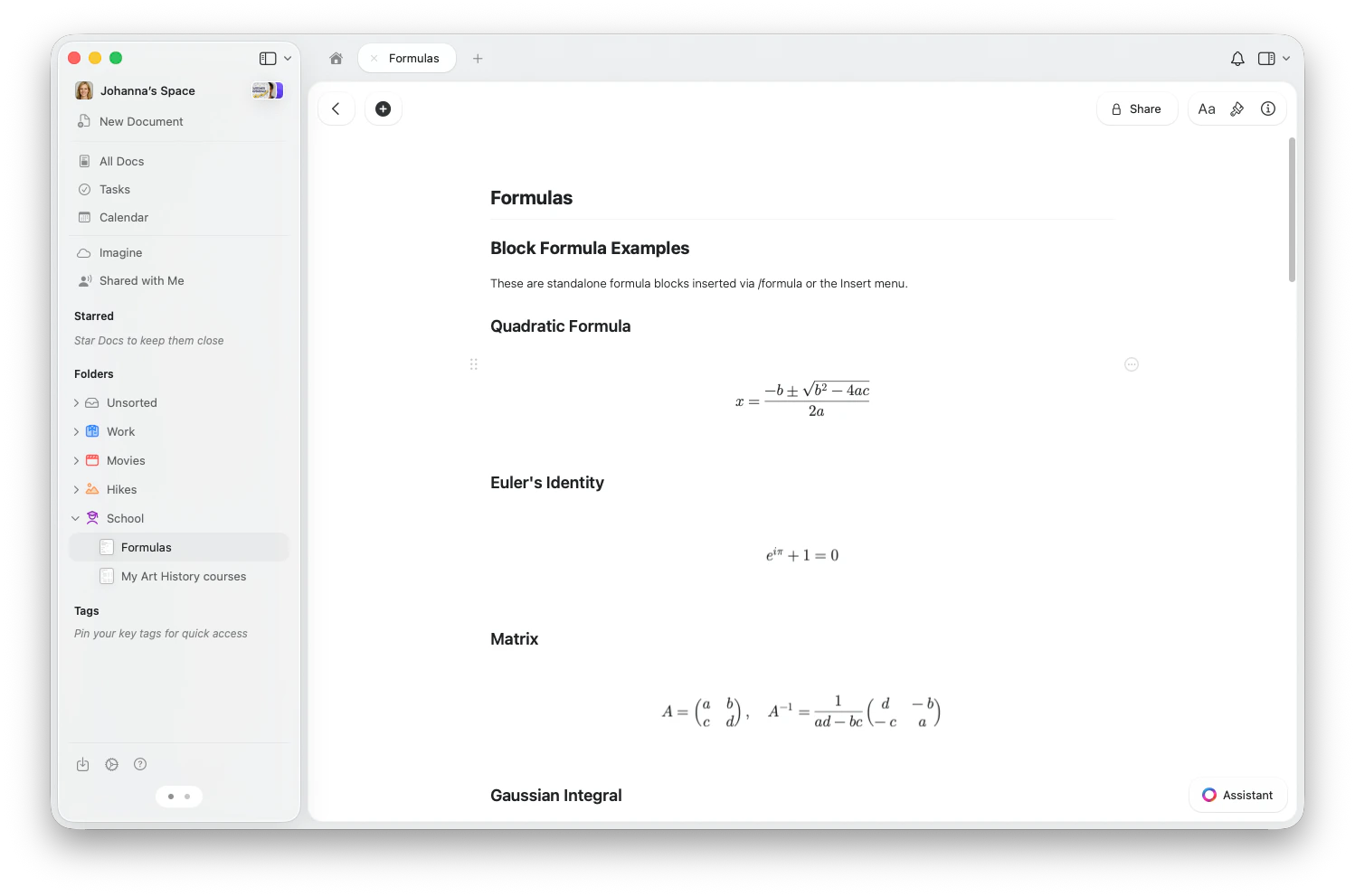
Block formulas are standalone equation blocks that display centered on their own line. They're ideal for important equations, derivations, and multiline math.
 ### Inserting a Block Formula
* Type `/formula` and select **Insert Formula (TeX)** from the slash menu
* Or open the **Insert menu** from the toolbar and choose **Formula (TeX)**
* Tap **+** in the toolbar and choose **Formula (TeX)**
* Or type `/formula` and select it from the slash menu
* Type `/formula` and select **Insert Formula (TeX)** from the slash menu
* Or use the **Insert menu** in the sidebar and choose **Formula (TeX)**
### Editing a Block Formula
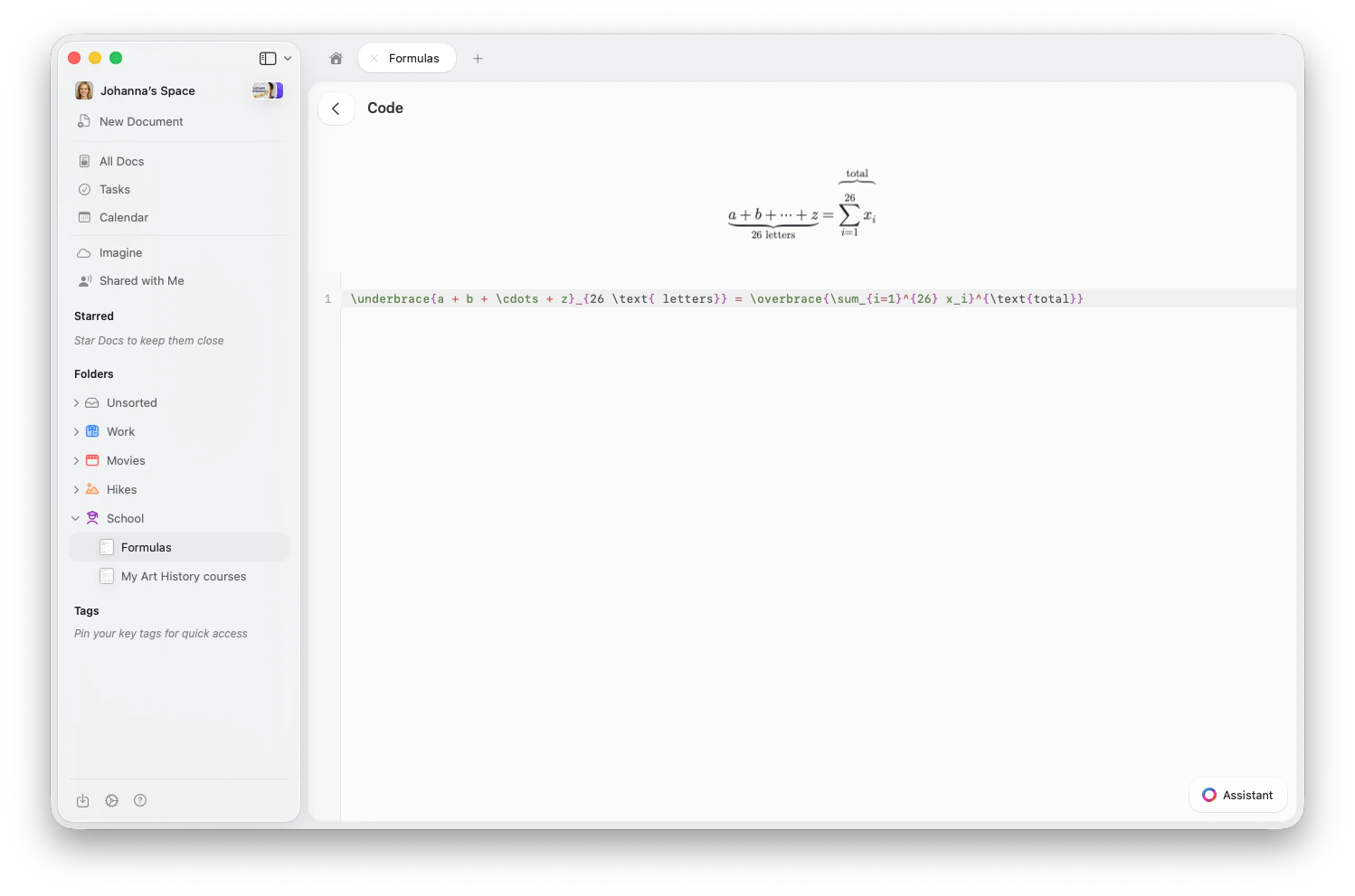
Click on a block formula to open the formula editor. Type your LaTeX code in the input field — the rendered formula updates live above it.
### Inserting a Block Formula
* Type `/formula` and select **Insert Formula (TeX)** from the slash menu
* Or open the **Insert menu** from the toolbar and choose **Formula (TeX)**
* Tap **+** in the toolbar and choose **Formula (TeX)**
* Or type `/formula` and select it from the slash menu
* Type `/formula` and select **Insert Formula (TeX)** from the slash menu
* Or use the **Insert menu** in the sidebar and choose **Formula (TeX)**
### Editing a Block Formula
Click on a block formula to open the formula editor. Type your LaTeX code in the input field — the rendered formula updates live above it.
 ## Inline Formulas
Inline formulas render within your text, making it easy to reference variables, expressions, and short equations without breaking the reading flow.
## Inline Formulas
Inline formulas render within your text, making it easy to reference variables, expressions, and short equations without breaking the reading flow.
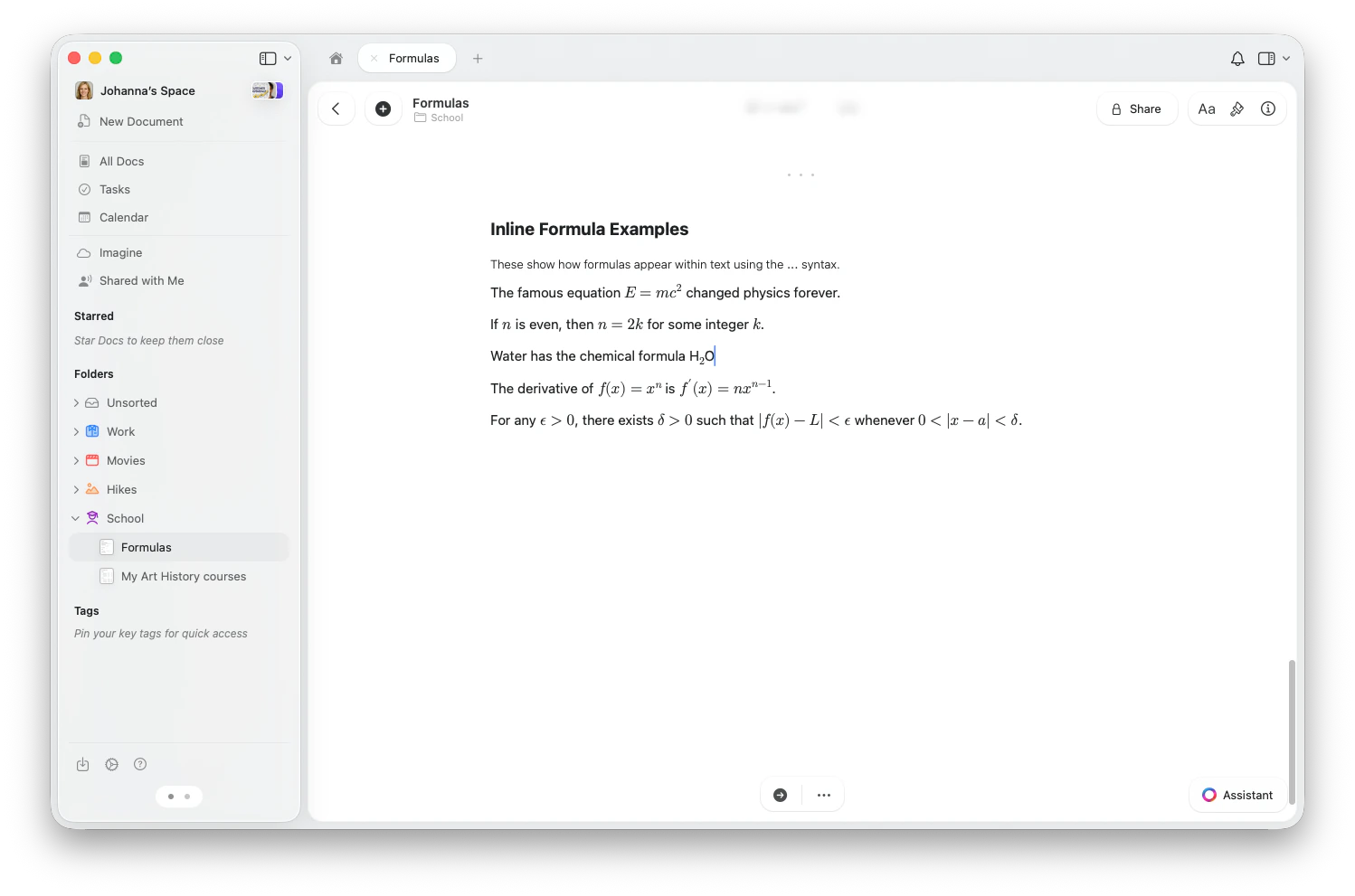 To insert an inline formula:
1. Type `$$` to open the formula editor
2. Enter your LaTeX notation (e.g., `E = mc^2`)
3. Type `$$` again to close and render the formula
Use inline formulas for variables and short expressions within sentences. Use block formulas for important standalone equations, derivations, or anything with multiple lines.
## LaTeX Quick Reference
Here are the most commonly used LaTeX commands in Craft.
### Basic Math
| What you want | LaTeX | Result |
| ------------- | ---------------------------- | ---------- |
| Fraction | `\frac{a}{b}` | a/b |
| Square root | `\sqrt{x}` | √x |
| nth root | `\sqrt[3]{x}` | ∛x |
| Superscript | `x^2` | x² |
| Subscript | `x_i` | xᵢ |
| Both | `x_i^2` | xᵢ² |
| Greek letter | `\alpha, \beta, \pi, \Sigma` | α, β, π, Σ |
| Infinity | `\infty` | ∞ |
### Operators and Relations
| What you want | LaTeX |
| --------------------- | --------------------- |
| Sum | `\sum_{i=1}^{n}` |
| Product | `\prod_{i=1}^{n}` |
| Integral | `\int_a^b` |
| Limit | `\lim_{x \to \infty}` |
| Not equal | `\neq` |
| Less/greater or equal | `\leq, \geq` |
| Approximately | `\approx` |
| Plus-minus | `\pm` |
### Structures
Use `\begin{pmatrix}...\end{pmatrix}` for parenthesized matrices, or `bmatrix` for square brackets:
```
\begin{pmatrix} a & b \\ c & d \end{pmatrix}
```
Other matrix types: `vmatrix` (vertical bars), `Vmatrix` (double bars), `Bmatrix` (curly braces).
```
f(x) = \begin{cases} x & \text{if } x \geq 0 \\ -x & \text{if } x < 0 \end{cases}
```
Use `align*` to align equations at the `&` symbol:
```
\begin{align*}
(a + b)^2 &= (a + b)(a + b) \\
&= a^2 + 2ab + b^2
\end{align*}
```
Use `\begin{array}{lcr}` with column alignment specifiers (l, c, r) and `\\` for rows:
```
\begin{array}{c|c}
x & f(x) \\ \hline
0 & 1 \\
1 & 2
\end{array}
```
### Decorations
* `\cancel{x}` — diagonal strikethrough
* `\bcancel{x}` — back diagonal
* `\xcancel{x}` — X strikethrough
* `\boxed{expression}` — draw a box around a result
* `\overbrace{a+b+c}^{\text{label}}` — brace above
* `\underbrace{a+b+c}_{\text{label}}` — brace below
* `\overrightarrow{AB}` — arrow above
* `\overleftarrow{AB}` — arrow above (left)
Arrows that stretch to fit their labels:
* `\xrightarrow[\text{below}]{\text{above}}` — right arrow with labels
* `\xleftarrow{\text{label}}` — left arrow
* `\xRightarrow{}` — double right arrow
* `\xleftrightarrow{}` — bidirectional arrow
Adjust delimiter sizes manually:
* `\big( \Big( \bigg( \Bigg(` — increasing sizes of parentheses
* Works with all delimiter types: `()`, `[]`, `\{\}`, `|`, `\|`
### Colors
Add color to parts of your formulas:
* `\color{blue}{x+y}` — color a subexpression
* `\textcolor{red}{x}` — color text
* `\colorbox{yellow}{expression}` — colored background
Shorthand color commands are also available: `\red{x}`, `\blue{x}`, `\green{x}`, `\purple{x}`, and more.
Supported named colors: red, blue, green, cyan, magenta, yellow, orange, purple, brown, black, white, gray, teal, pink, olive, violet.
### Specialized Notation
Craft includes built-in physics notation commands:
* `\abs{x}` — absolute value
* `\norm{x}` — norm
* `\dd{x}` — differential
* `\dv{f}{x}` — total derivative
* `\pdv{f}{x}` — partial derivative
* `\grad`, `\curl`, `\divergence`, `\cross` — vector calculus operators
* `\vb{F}` — vector bold
* `\bra{\psi}` — bra ⟨ψ|
* `\ket{\phi}` — ket |φ⟩
* `\braket{\psi | \phi}` — inner product ⟨ψ|φ⟩
Quick access to common sets using blackboard bold:
* `\R` — real numbers ℝ
* `\N` — natural numbers ℕ
* `\Z` — integers ℤ
* `\Q` — rationals ℚ
* `\C` — complex numbers ℂ
Or use `\mathbb{X}` for any letter.
Define reusable commands within a formula using standard TeX macro syntax:
```
\def\RR{\mathbb{R}}
\def\norm#1{\left\| #1 \right\|}
f: \RR \to \RR, \quad \norm{x} < 1
```
You can also use `\newcommand{\cmd}[n]{definition}` syntax.
### Equation Tags
Label equations with `\tag{n}`:
```
E = mc^2 \tag{1}
```
Use `\tag*{text}` for tags without parentheses, or `\notag` to suppress numbering in aligned environments.
## Examples
Here are some common real-world formulas to get you started:
| Formula | LaTeX |
| -------------------- | ----------------------------------------------------- |
| Quadratic formula | `x = \frac{-b \pm \sqrt{b^2 - 4ac}}{2a}` |
| Euler's identity | `e^{i\pi} + 1 = 0` |
| Gaussian integral | `\int_{-\infty}^{\infty} e^{-x^2} dx = \sqrt{\pi}` |
| Basel series | `\sum_{n=1}^{\infty} \frac{1}{n^2} = \frac{\pi^2}{6}` |
| Binomial coefficient | `\binom{n}{k} = \frac{n!}{k!(n-k)!}` |
| Chemical formula | `2\text{H}_2 + \text{O}_2 \to 2\text{H}_2\text{O}` |
Quick subscript and superscript formatting with inline formulas
Insert and format code blocks with syntax highlighting
Format text with markdown-style shortcuts including inline equations
To insert an inline formula:
1. Type `$$` to open the formula editor
2. Enter your LaTeX notation (e.g., `E = mc^2`)
3. Type `$$` again to close and render the formula
Use inline formulas for variables and short expressions within sentences. Use block formulas for important standalone equations, derivations, or anything with multiple lines.
## LaTeX Quick Reference
Here are the most commonly used LaTeX commands in Craft.
### Basic Math
| What you want | LaTeX | Result |
| ------------- | ---------------------------- | ---------- |
| Fraction | `\frac{a}{b}` | a/b |
| Square root | `\sqrt{x}` | √x |
| nth root | `\sqrt[3]{x}` | ∛x |
| Superscript | `x^2` | x² |
| Subscript | `x_i` | xᵢ |
| Both | `x_i^2` | xᵢ² |
| Greek letter | `\alpha, \beta, \pi, \Sigma` | α, β, π, Σ |
| Infinity | `\infty` | ∞ |
### Operators and Relations
| What you want | LaTeX |
| --------------------- | --------------------- |
| Sum | `\sum_{i=1}^{n}` |
| Product | `\prod_{i=1}^{n}` |
| Integral | `\int_a^b` |
| Limit | `\lim_{x \to \infty}` |
| Not equal | `\neq` |
| Less/greater or equal | `\leq, \geq` |
| Approximately | `\approx` |
| Plus-minus | `\pm` |
### Structures
Use `\begin{pmatrix}...\end{pmatrix}` for parenthesized matrices, or `bmatrix` for square brackets:
```
\begin{pmatrix} a & b \\ c & d \end{pmatrix}
```
Other matrix types: `vmatrix` (vertical bars), `Vmatrix` (double bars), `Bmatrix` (curly braces).
```
f(x) = \begin{cases} x & \text{if } x \geq 0 \\ -x & \text{if } x < 0 \end{cases}
```
Use `align*` to align equations at the `&` symbol:
```
\begin{align*}
(a + b)^2 &= (a + b)(a + b) \\
&= a^2 + 2ab + b^2
\end{align*}
```
Use `\begin{array}{lcr}` with column alignment specifiers (l, c, r) and `\\` for rows:
```
\begin{array}{c|c}
x & f(x) \\ \hline
0 & 1 \\
1 & 2
\end{array}
```
### Decorations
* `\cancel{x}` — diagonal strikethrough
* `\bcancel{x}` — back diagonal
* `\xcancel{x}` — X strikethrough
* `\boxed{expression}` — draw a box around a result
* `\overbrace{a+b+c}^{\text{label}}` — brace above
* `\underbrace{a+b+c}_{\text{label}}` — brace below
* `\overrightarrow{AB}` — arrow above
* `\overleftarrow{AB}` — arrow above (left)
Arrows that stretch to fit their labels:
* `\xrightarrow[\text{below}]{\text{above}}` — right arrow with labels
* `\xleftarrow{\text{label}}` — left arrow
* `\xRightarrow{}` — double right arrow
* `\xleftrightarrow{}` — bidirectional arrow
Adjust delimiter sizes manually:
* `\big( \Big( \bigg( \Bigg(` — increasing sizes of parentheses
* Works with all delimiter types: `()`, `[]`, `\{\}`, `|`, `\|`
### Colors
Add color to parts of your formulas:
* `\color{blue}{x+y}` — color a subexpression
* `\textcolor{red}{x}` — color text
* `\colorbox{yellow}{expression}` — colored background
Shorthand color commands are also available: `\red{x}`, `\blue{x}`, `\green{x}`, `\purple{x}`, and more.
Supported named colors: red, blue, green, cyan, magenta, yellow, orange, purple, brown, black, white, gray, teal, pink, olive, violet.
### Specialized Notation
Craft includes built-in physics notation commands:
* `\abs{x}` — absolute value
* `\norm{x}` — norm
* `\dd{x}` — differential
* `\dv{f}{x}` — total derivative
* `\pdv{f}{x}` — partial derivative
* `\grad`, `\curl`, `\divergence`, `\cross` — vector calculus operators
* `\vb{F}` — vector bold
* `\bra{\psi}` — bra ⟨ψ|
* `\ket{\phi}` — ket |φ⟩
* `\braket{\psi | \phi}` — inner product ⟨ψ|φ⟩
Quick access to common sets using blackboard bold:
* `\R` — real numbers ℝ
* `\N` — natural numbers ℕ
* `\Z` — integers ℤ
* `\Q` — rationals ℚ
* `\C` — complex numbers ℂ
Or use `\mathbb{X}` for any letter.
Define reusable commands within a formula using standard TeX macro syntax:
```
\def\RR{\mathbb{R}}
\def\norm#1{\left\| #1 \right\|}
f: \RR \to \RR, \quad \norm{x} < 1
```
You can also use `\newcommand{\cmd}[n]{definition}` syntax.
### Equation Tags
Label equations with `\tag{n}`:
```
E = mc^2 \tag{1}
```
Use `\tag*{text}` for tags without parentheses, or `\notag` to suppress numbering in aligned environments.
## Examples
Here are some common real-world formulas to get you started:
| Formula | LaTeX |
| -------------------- | ----------------------------------------------------- |
| Quadratic formula | `x = \frac{-b \pm \sqrt{b^2 - 4ac}}{2a}` |
| Euler's identity | `e^{i\pi} + 1 = 0` |
| Gaussian integral | `\int_{-\infty}^{\infty} e^{-x^2} dx = \sqrt{\pi}` |
| Basel series | `\sum_{n=1}^{\infty} \frac{1}{n^2} = \frac{\pi^2}{6}` |
| Binomial coefficient | `\binom{n}{k} = \frac{n!}{k!(n-k)!}` |
| Chemical formula | `2\text{H}_2 + \text{O}_2 \to 2\text{H}_2\text{O}` |
Quick subscript and superscript formatting with inline formulas
Insert and format code blocks with syntax highlighting
Format text with markdown-style shortcuts including inline equations