> ## Documentation Index
> Fetch the complete documentation index at: https://craft-support.mintlify.site/llms.txt
> Use this file to discover all available pages before exploring further.
# Media
> Add and manage images, videos, audio files, and rich media content in your documents.
Craft lets you insert photos, videos, and audio files from your camera, photo library, files, or from Unsplash. Media content looks beautiful in your documents, and Craft automatically arranges them in the best possible layout.
## Inserting Media
Add media to your documents using the slash menu, the plus button, or drag and drop.
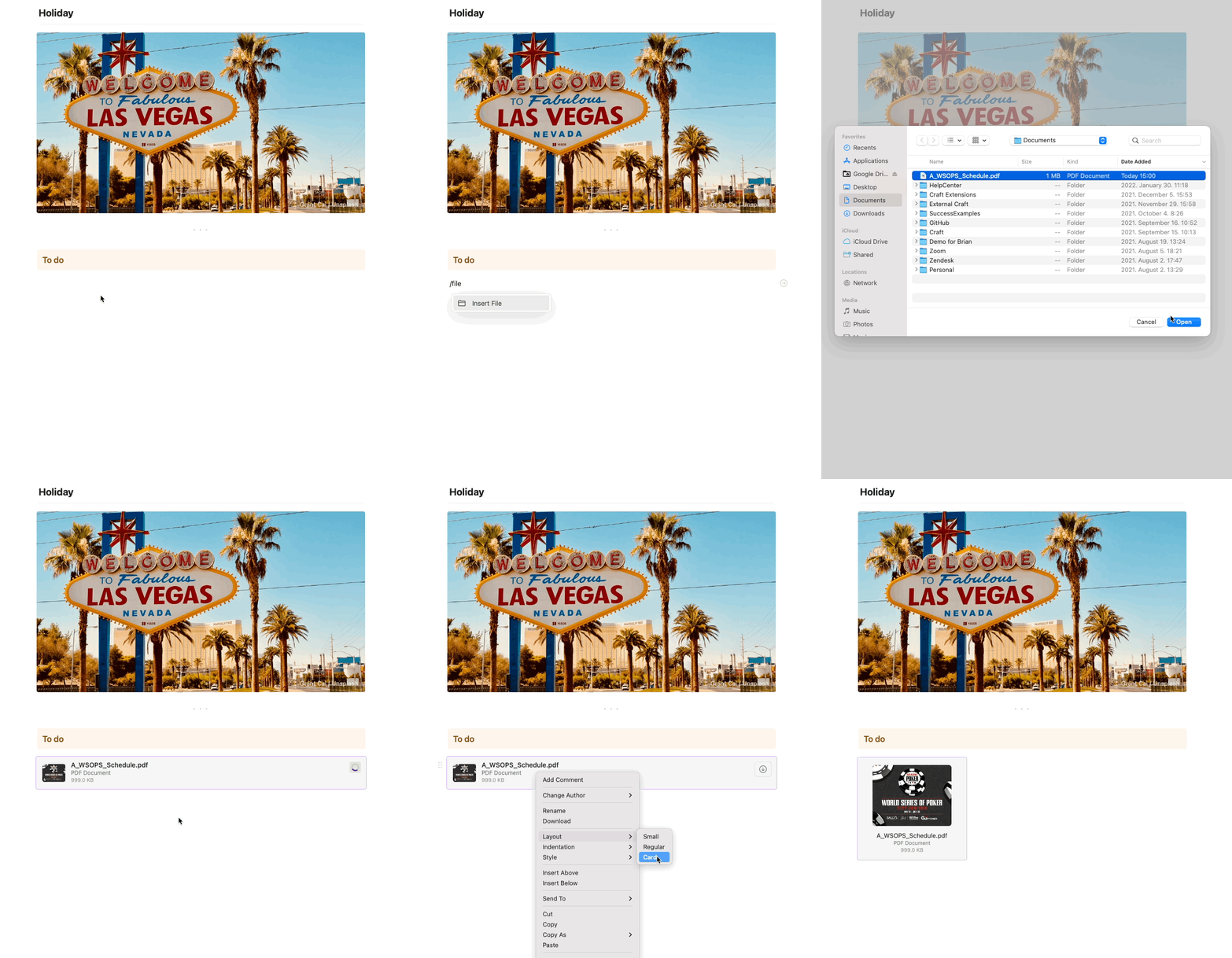
Type `/` and select the desired media type from the menu. You can also drag and drop images into the Mac app from your folders or from any website.
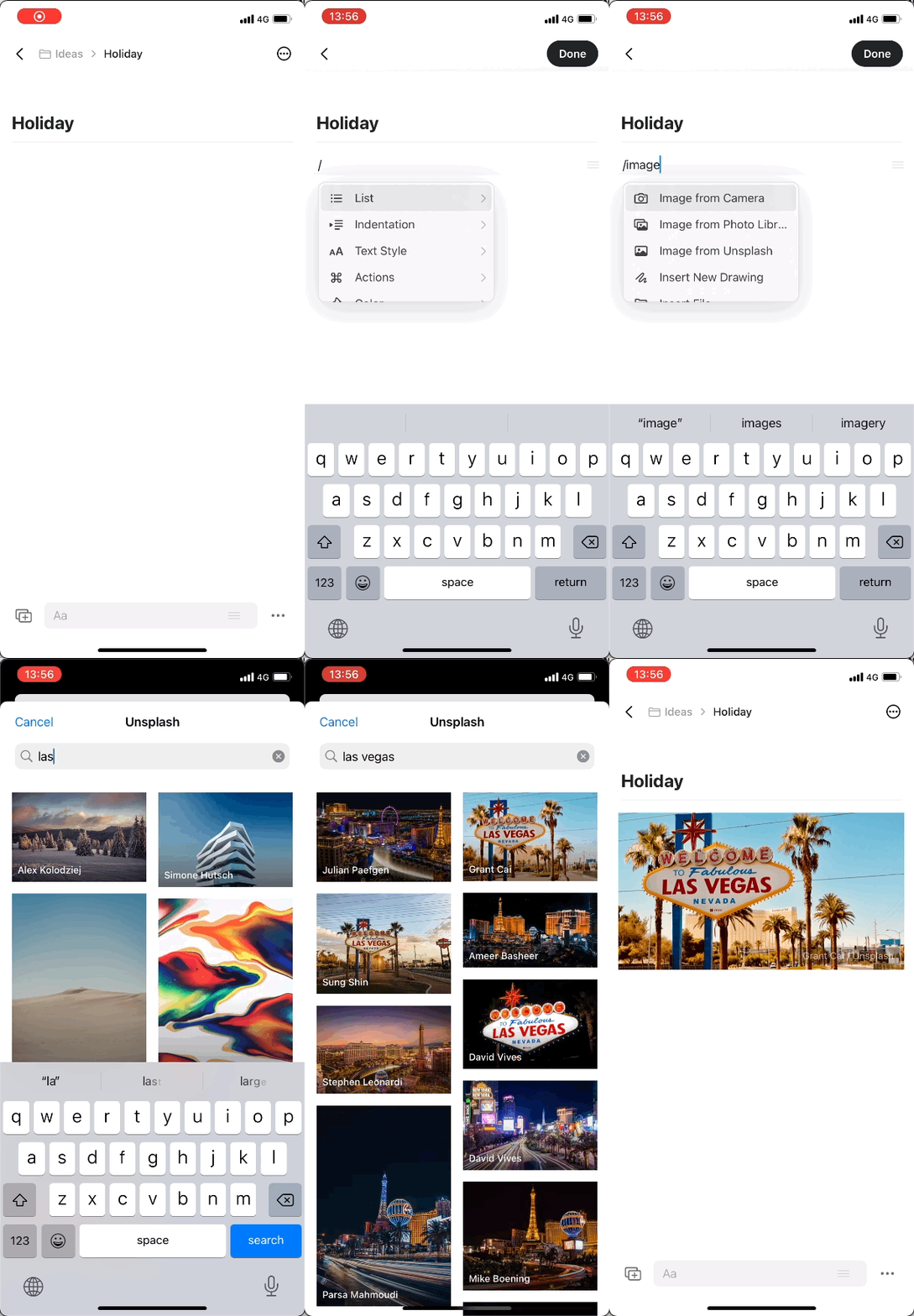
 Type `/` while editing and select the desired option from the menu. You can also tap the **+** button in the bottom left corner to see the list of options.
 Use the forward slash symbol, the insert tab, or drag and drop a media file into your document.
For header images, we recommend using a 1200 x 630 image size for optimal display.
## Images
Craft preserves the original quality of your images. Opening an image in preview (by tapping or double-clicking) always renders the full quality, as does downloading the image from Craft.
Use the forward slash symbol, the insert tab, or drag and drop a media file into your document.
For header images, we recommend using a 1200 x 630 image size for optimal display.
## Images
Craft preserves the original quality of your images. Opening an image in preview (by tapping or double-clicking) always renders the full quality, as does downloading the image from Craft.
 ### Supported Image Formats
Craft supports all standard image formats including:
* **PNG, JPEG, GIF** - Traditional web formats
* **WebP** - Modern web format with better compression
* **AVIF** (Advanced Video Image Format) - Next-generation format with superior compression
* **SVG** - Vector graphics (preserved as vector data, shown as attachment blocks)
* **HEIC** - iOS native format (when uploaded from iOS/Mac)
**AVIF Benefits:**
* Up to 50% smaller file sizes compared to JPEG
* Better quality at smaller file sizes
* Ideal for documents with many images, reducing storage usage
**.webp** and **.heic** images uploaded through Web or Windows apps may appear as attachment blocks. For best compatibility across all platforms, use PNG or JPEG formats.
### Automatic Layout
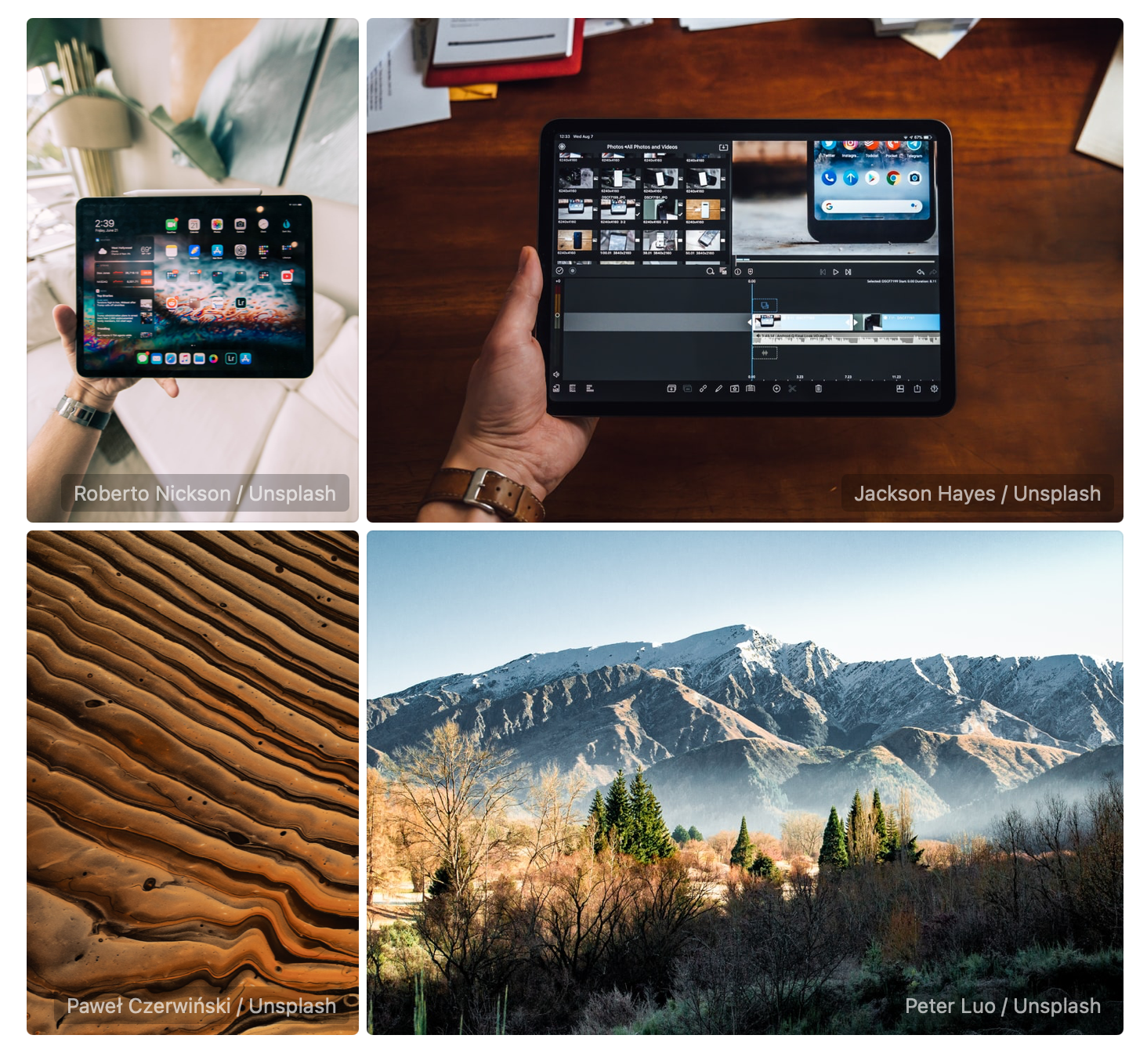
Craft intuitively arranges images with similar sizes together when you place them side by side. The thumbnail in your document may have a lower resolution to preserve app performance, but the original quality is always maintained.
### Rearranging Images
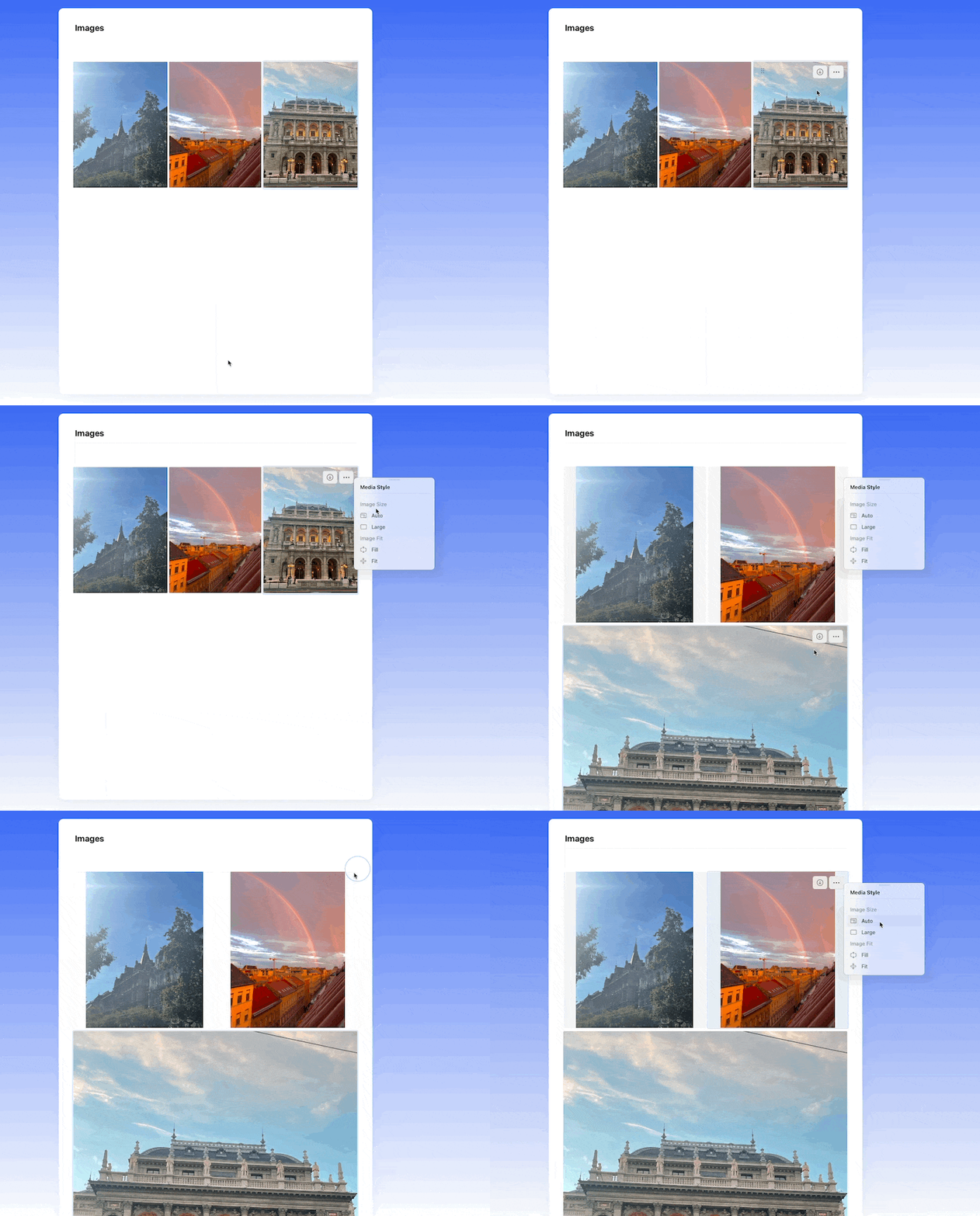
To rearrange automatically grouped images, you can:
* Move them to other blocks in the document
* Change the "Image Size" configuration from "Auto" to "Large" in the **...** menu
### Supported Image Formats
Craft supports all standard image formats including:
* **PNG, JPEG, GIF** - Traditional web formats
* **WebP** - Modern web format with better compression
* **AVIF** (Advanced Video Image Format) - Next-generation format with superior compression
* **SVG** - Vector graphics (preserved as vector data, shown as attachment blocks)
* **HEIC** - iOS native format (when uploaded from iOS/Mac)
**AVIF Benefits:**
* Up to 50% smaller file sizes compared to JPEG
* Better quality at smaller file sizes
* Ideal for documents with many images, reducing storage usage
**.webp** and **.heic** images uploaded through Web or Windows apps may appear as attachment blocks. For best compatibility across all platforms, use PNG or JPEG formats.
### Automatic Layout
Craft intuitively arranges images with similar sizes together when you place them side by side. The thumbnail in your document may have a lower resolution to preserve app performance, but the original quality is always maintained.
### Rearranging Images
To rearrange automatically grouped images, you can:
* Move them to other blocks in the document
* Change the "Image Size" configuration from "Auto" to "Large" in the **...** menu
 It is currently not possible to crop or edit uploaded images within Craft.
### Gallery View
Double-click an image (or tap it on touch devices) to open it in the gallery viewer. The viewer takes over the full app window (or browser tab) and includes every image from your document, so you can browse them one after another without scrolling through the page. Images placed on subpages are not included.
It is currently not possible to crop or edit uploaded images within Craft.
### Gallery View
Double-click an image (or tap it on touch devices) to open it in the gallery viewer. The viewer takes over the full app window (or browser tab) and includes every image from your document, so you can browse them one after another without scrolling through the page. Images placed on subpages are not included.
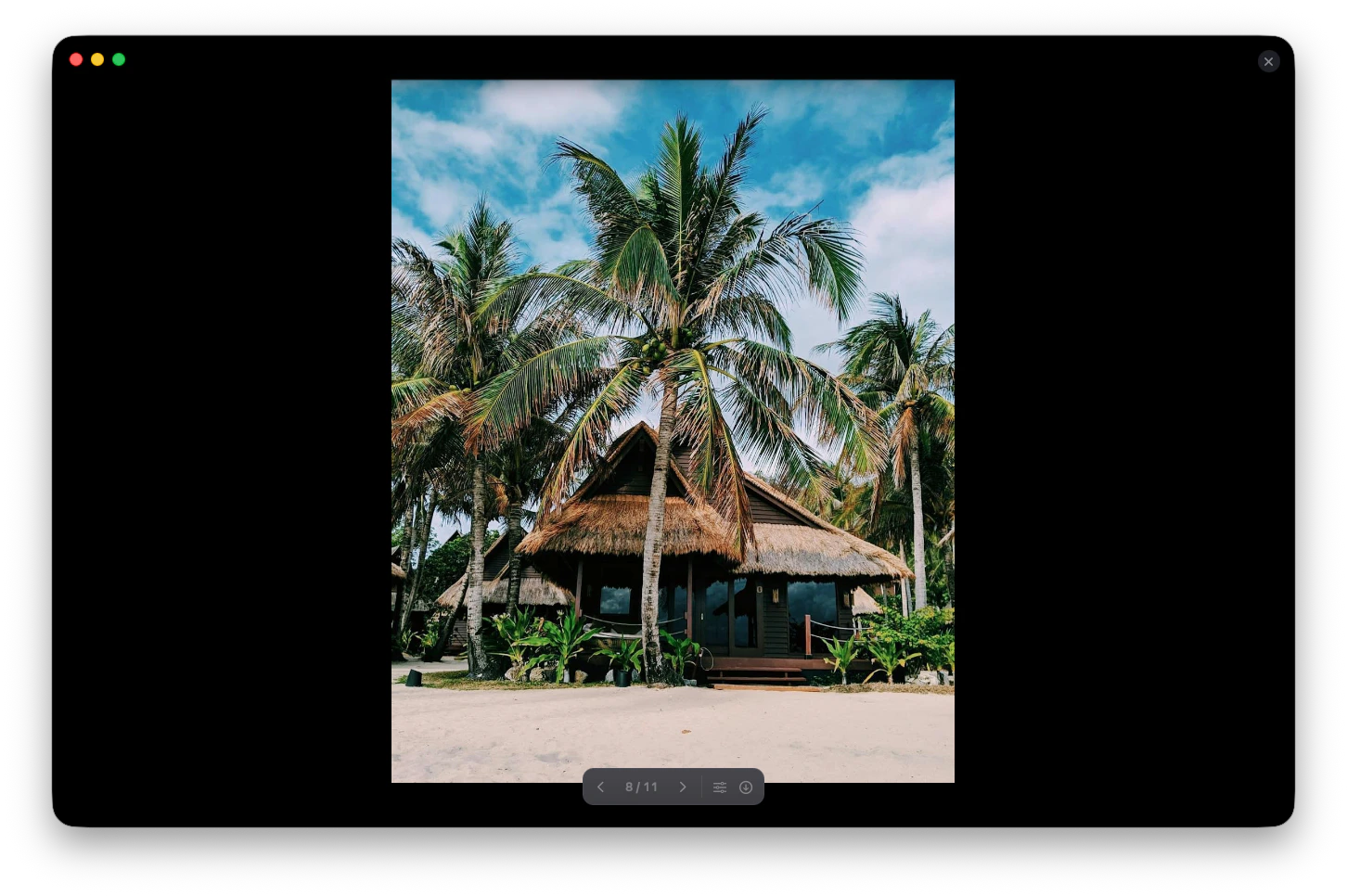 Use the arrows and the counter at the bottom of the viewer to step back and forth between images, and download the image you are currently viewing to your device.
On macOS, the viewer also has an edit option that opens the image in Preview, where you can mark it up or adjust it. When you save your changes, the edited version is uploaded back to Craft.
Saving an edited image overwrites the original in your document, and this cannot be undone. Duplicate the image first if you want to keep the unedited version.
## Videos
Craft does not convert or compress video files - the original quality is preserved. You can upload any video format into a Craft document.
### Video Formats
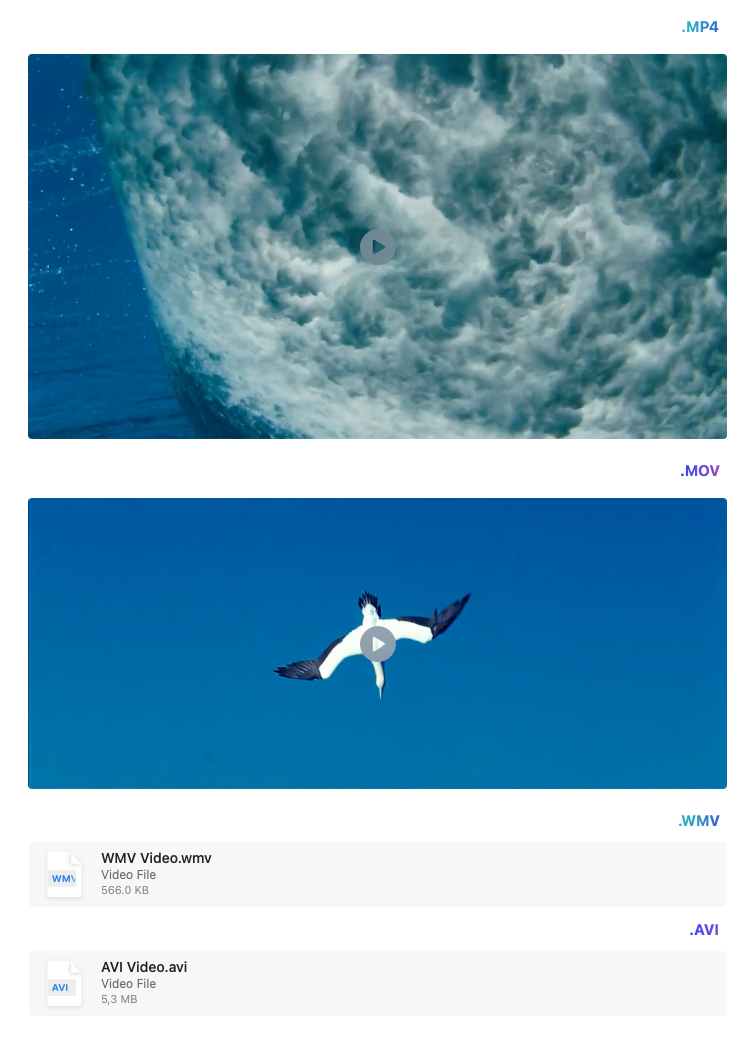
* **Supported previews** - *.mp4* and *.mov* files display a thumbnail preview
* **Attachment blocks** - Other formats like *.avi*, *.wmv*, and less common formats are displayed as standard attachment blocks
Use the arrows and the counter at the bottom of the viewer to step back and forth between images, and download the image you are currently viewing to your device.
On macOS, the viewer also has an edit option that opens the image in Preview, where you can mark it up or adjust it. When you save your changes, the edited version is uploaded back to Craft.
Saving an edited image overwrites the original in your document, and this cannot be undone. Duplicate the image first if you want to keep the unedited version.
## Videos
Craft does not convert or compress video files - the original quality is preserved. You can upload any video format into a Craft document.
### Video Formats
* **Supported previews** - *.mp4* and *.mov* files display a thumbnail preview
* **Attachment blocks** - Other formats like *.avi*, *.wmv*, and less common formats are displayed as standard attachment blocks
 ### Playing Videos
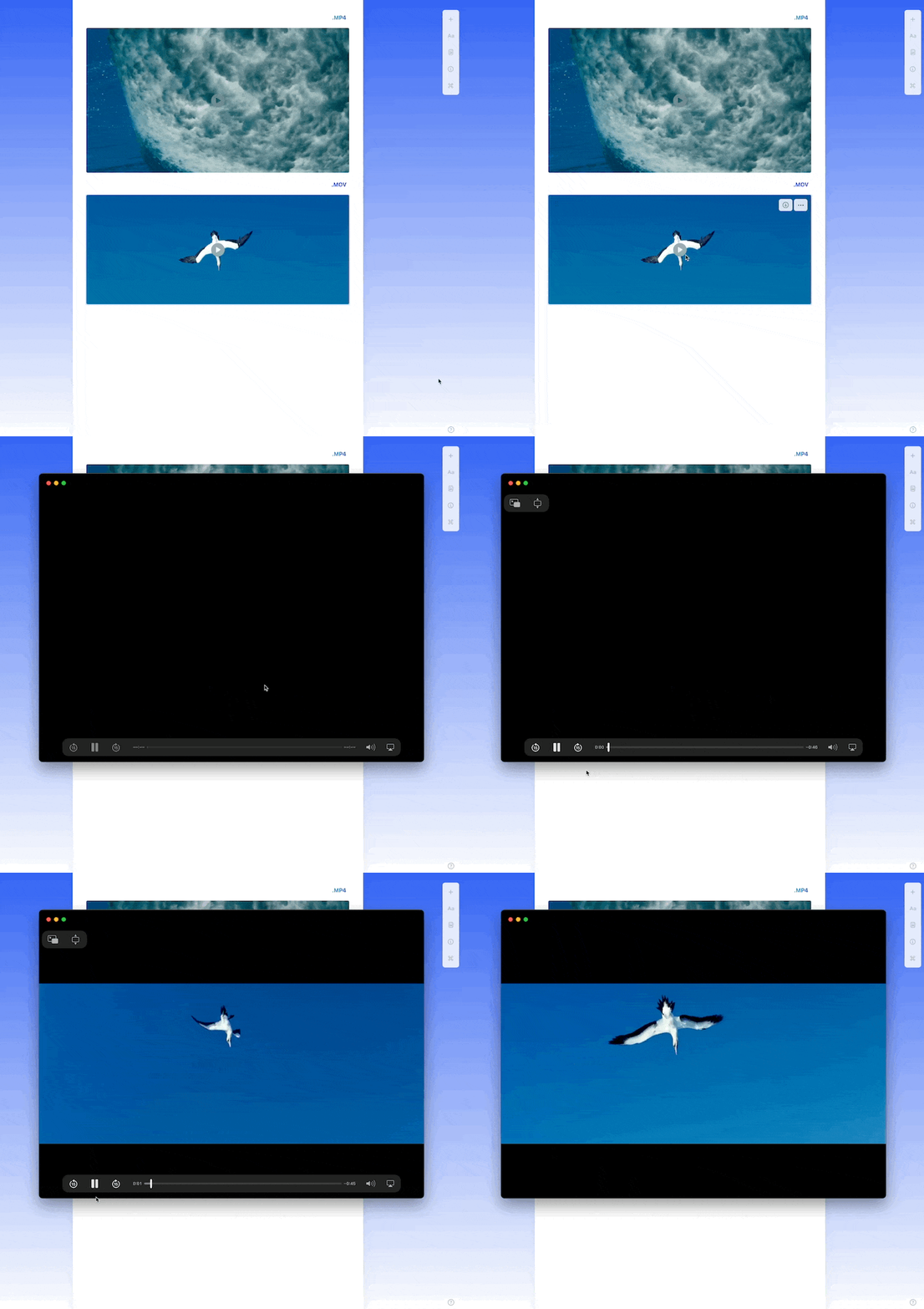
Videos with thumbnail previews open in a separate player within Craft. Videos displayed as attachment blocks need to be downloaded first and played with a compatible program.
### Playing Videos
Videos with thumbnail previews open in a separate player within Craft. Videos displayed as attachment blocks need to be downloaded first and played with a compatible program.
 Craft does not yet have an embedding feature for videos from external platforms like YouTube or Vimeo.
## Audio Files
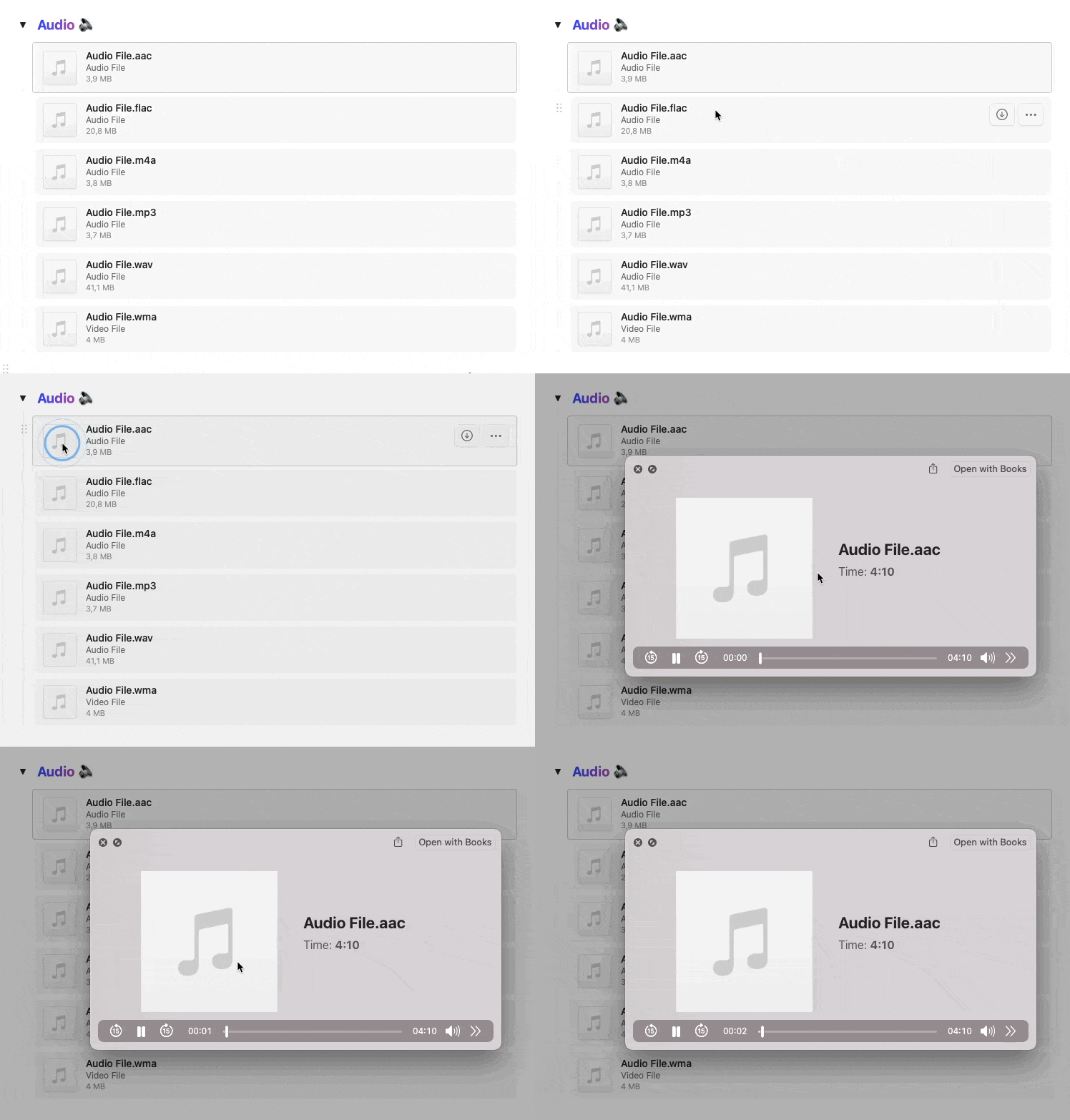
Audio files are displayed as standard attachment blocks in your documents. When you click or tap on an audio file, it opens in a separate player window.
Craft does not yet have an embedding feature for videos from external platforms like YouTube or Vimeo.
## Audio Files
Audio files are displayed as standard attachment blocks in your documents. When you click or tap on an audio file, it opens in a separate player window.
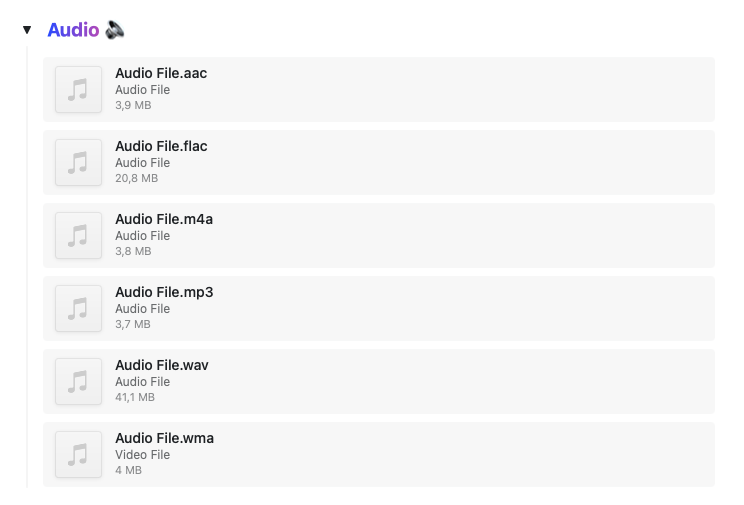 The audio player provides playback controls for your audio content.
 ## Unsplash Integration
Craft integrates with Unsplash, giving you access to millions of high-quality, free photos. When inserting an image, select the Unsplash option to browse and search for professional photos directly within Craft.
This is particularly useful for:
* Header images
* Visual inspiration
* Professional-looking documents
* Presentations and published pages
## Image Playground
On devices with Apple Intelligence (iOS 18.2+, macOS 15.2+), you can generate custom images directly in Craft using Image Playground. Create AI-generated images from text descriptions in Animation, Illustration, or Sketch styles - perfect for visual brainstorming, placeholder images, and creative projects.
[Learn more about Image Playground](/en/write-and-edit/image-playground)
## Unsplash Integration
Craft integrates with Unsplash, giving you access to millions of high-quality, free photos. When inserting an image, select the Unsplash option to browse and search for professional photos directly within Craft.
This is particularly useful for:
* Header images
* Visual inspiration
* Professional-looking documents
* Presentations and published pages
## Image Playground
On devices with Apple Intelligence (iOS 18.2+, macOS 15.2+), you can generate custom images directly in Craft using Image Playground. Create AI-generated images from text descriptions in Animation, Illustration, or Sketch styles - perfect for visual brainstorming, placeholder images, and creative projects.
[Learn more about Image Playground](/en/write-and-edit/image-playground)