> ## Documentation Index
> Fetch the complete documentation index at: https://craft-support.mintlify.site/llms.txt
> Use this file to discover all available pages before exploring further.
# Mermaid Diagrams
> Use Mermaid to create flowcharts, sequence diagrams, ER diagrams, and other text-based diagrams in Craft.
Craft supports Mermaid diagrams — a way to create visual diagrams by writing simple text syntax. Type a few lines of code, and Craft renders it as a crisp, sharp diagram right inside your document.
Diagrams update live as you type, work across all platforms, and render on shared and published pages.
 ## Inserting a Mermaid Diagram
Add a Mermaid diagram using one of these methods:
* Type `/mermaid` and select **Mermaid Diagram**
* Choose **Mermaid Diagram** from the **Insert** panel in the sidebar (under Rich Blocks)
* Paste markdown containing a ` ```mermaid ` code fence — Craft converts it automatically
## Editing
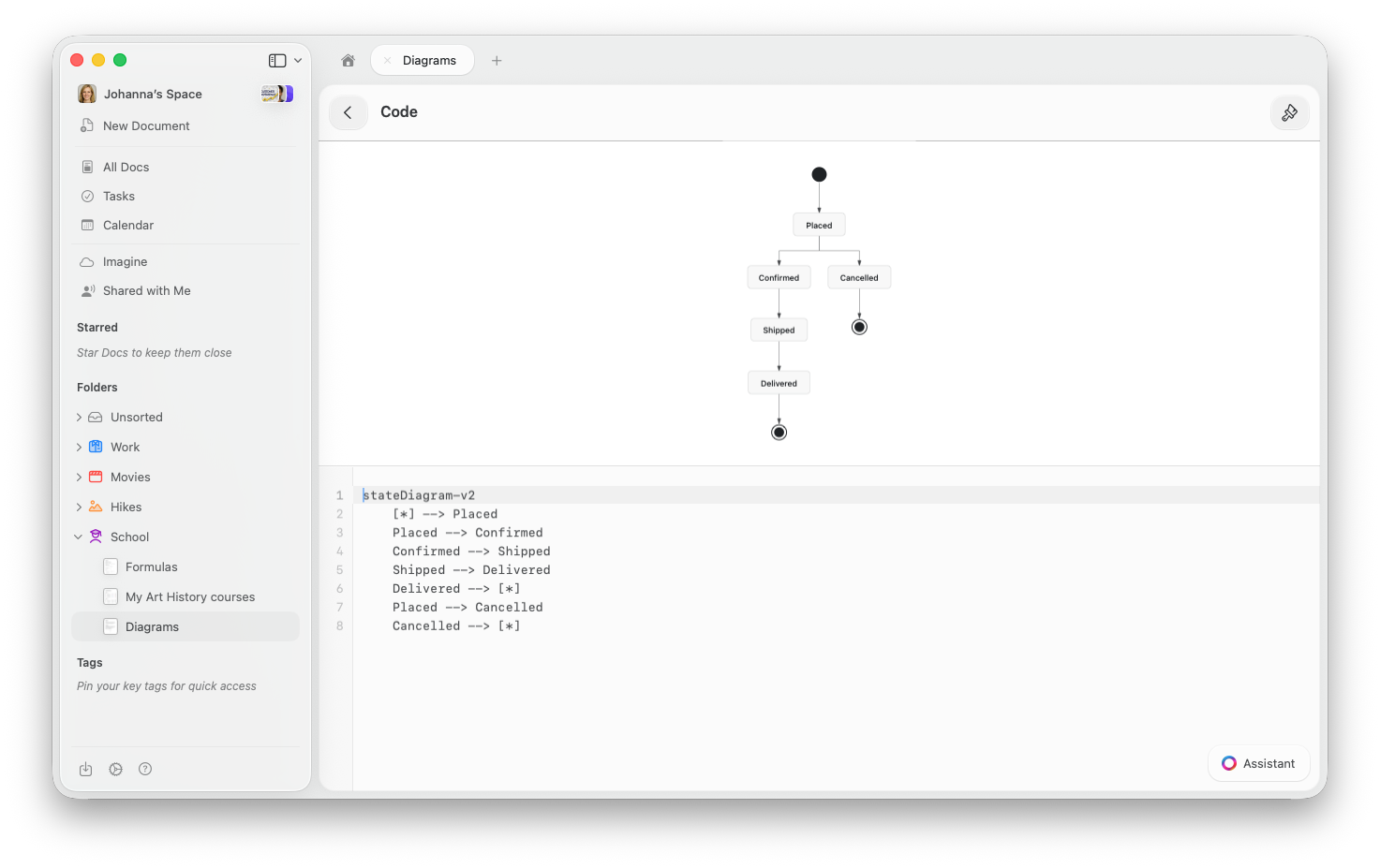
When you open a Mermaid block, it shows a split view — the rendered diagram on top, your code below. The preview updates live as you type.
## Inserting a Mermaid Diagram
Add a Mermaid diagram using one of these methods:
* Type `/mermaid` and select **Mermaid Diagram**
* Choose **Mermaid Diagram** from the **Insert** panel in the sidebar (under Rich Blocks)
* Paste markdown containing a ` ```mermaid ` code fence — Craft converts it automatically
## Editing
When you open a Mermaid block, it shows a split view — the rendered diagram on top, your code below. The preview updates live as you type.
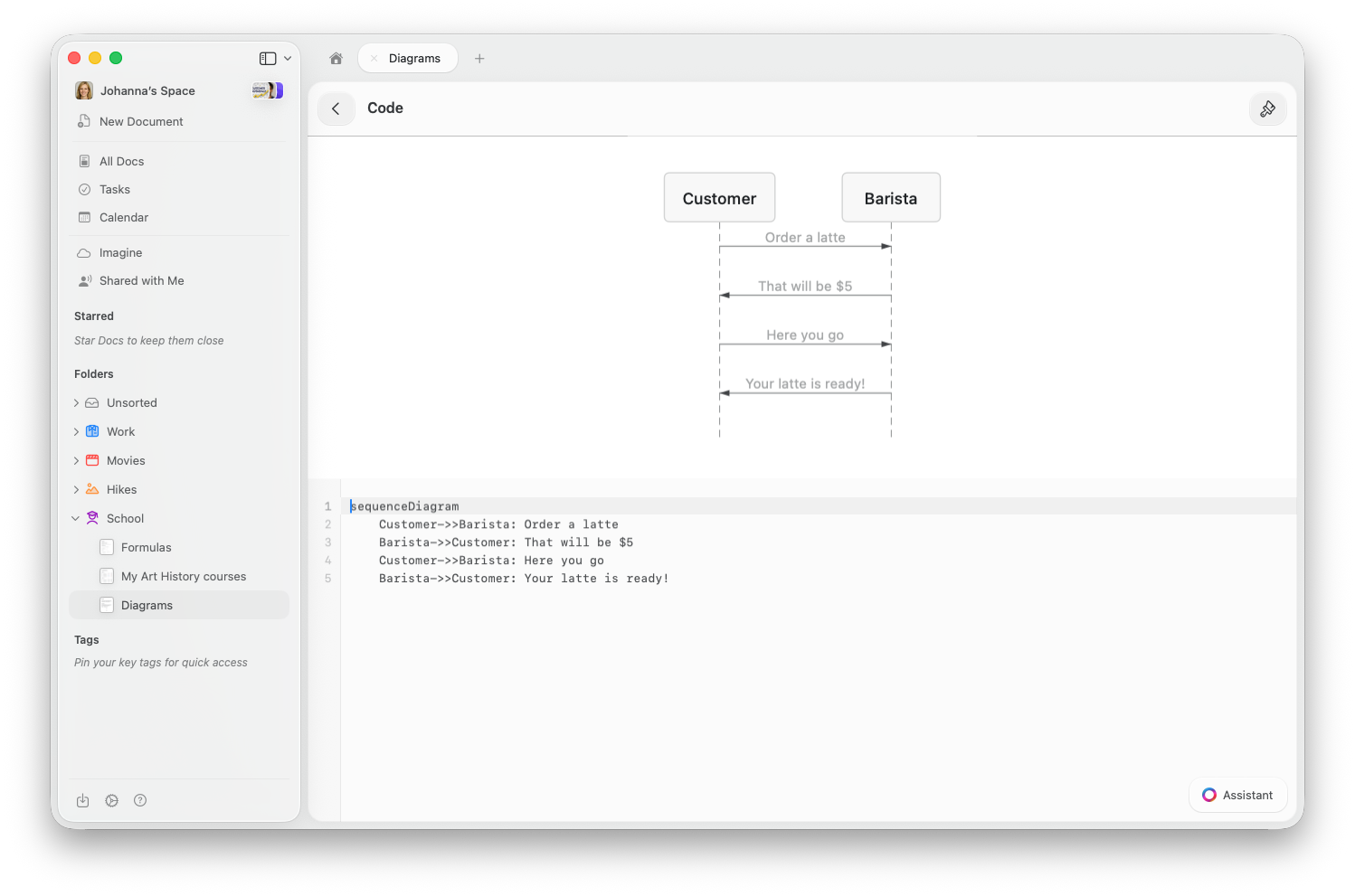 Click the Mermaid block to open it in split view. The diagram preview appears on top with the code editor below. Double-tap the preview to zoom in.
Tap the block to open the code editor with a live preview above. On iPhone, dismiss the keyboard to see the diagram. Double-tap the preview to zoom.
Click the block to edit. Use the view mode menu in the block's context menu to switch between Edit, Preview, and Split View.
You don't need to know Mermaid syntax by heart — the Craft AI Assistant can generate diagrams for you. Just describe what you want and it will write the code.
## Supported Diagram Types
### Flowcharts
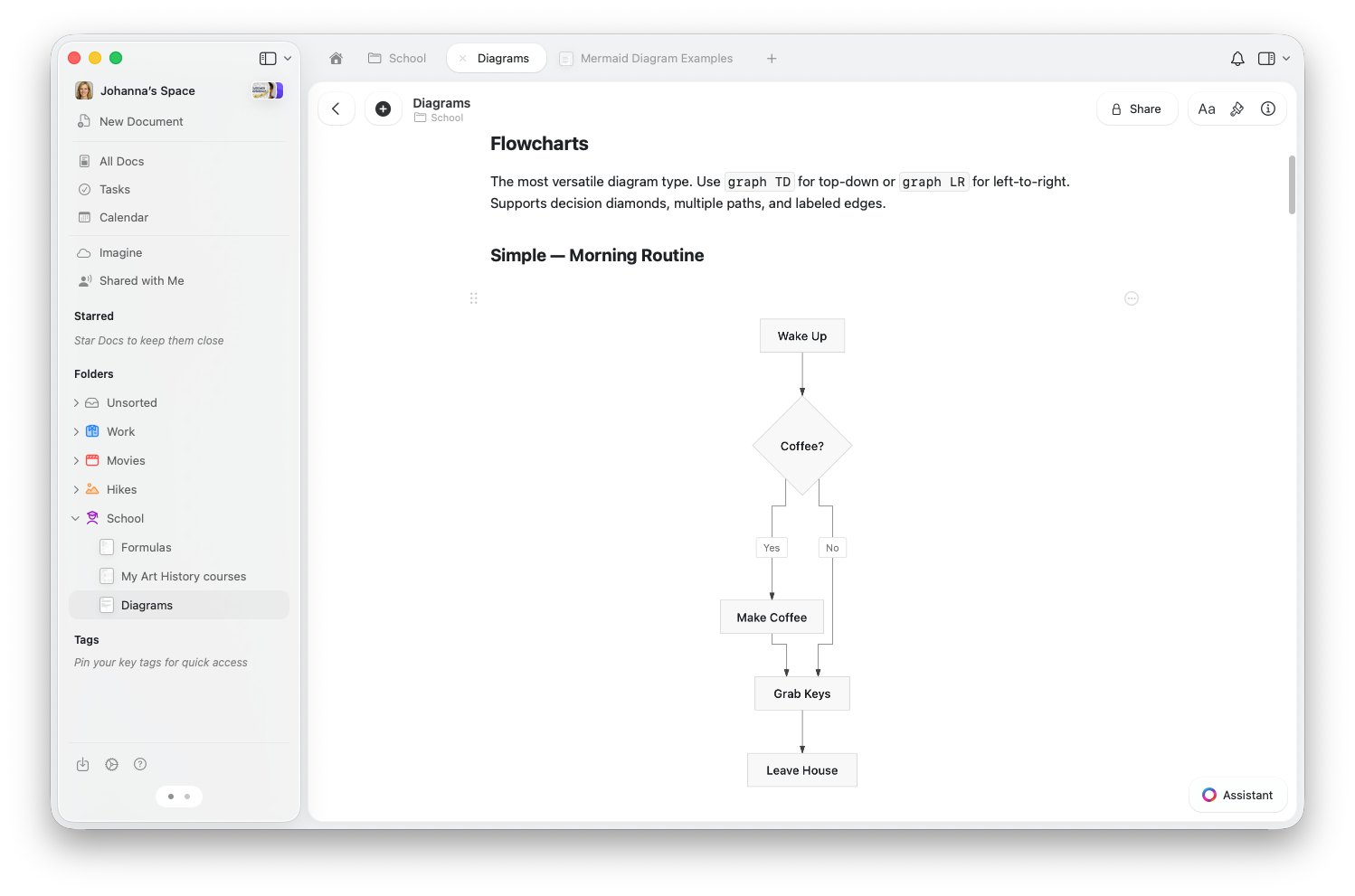
Map out processes, decisions, and workflows. Use `graph TD` for top-down or `graph LR` for left-to-right layouts.
```
graph TD
A[Start] --> B{Decision}
B -->|Yes| C[Do This]
B -->|No| D[Do That]
C --> E[Done]
D --> E
```
### Sequence Diagrams
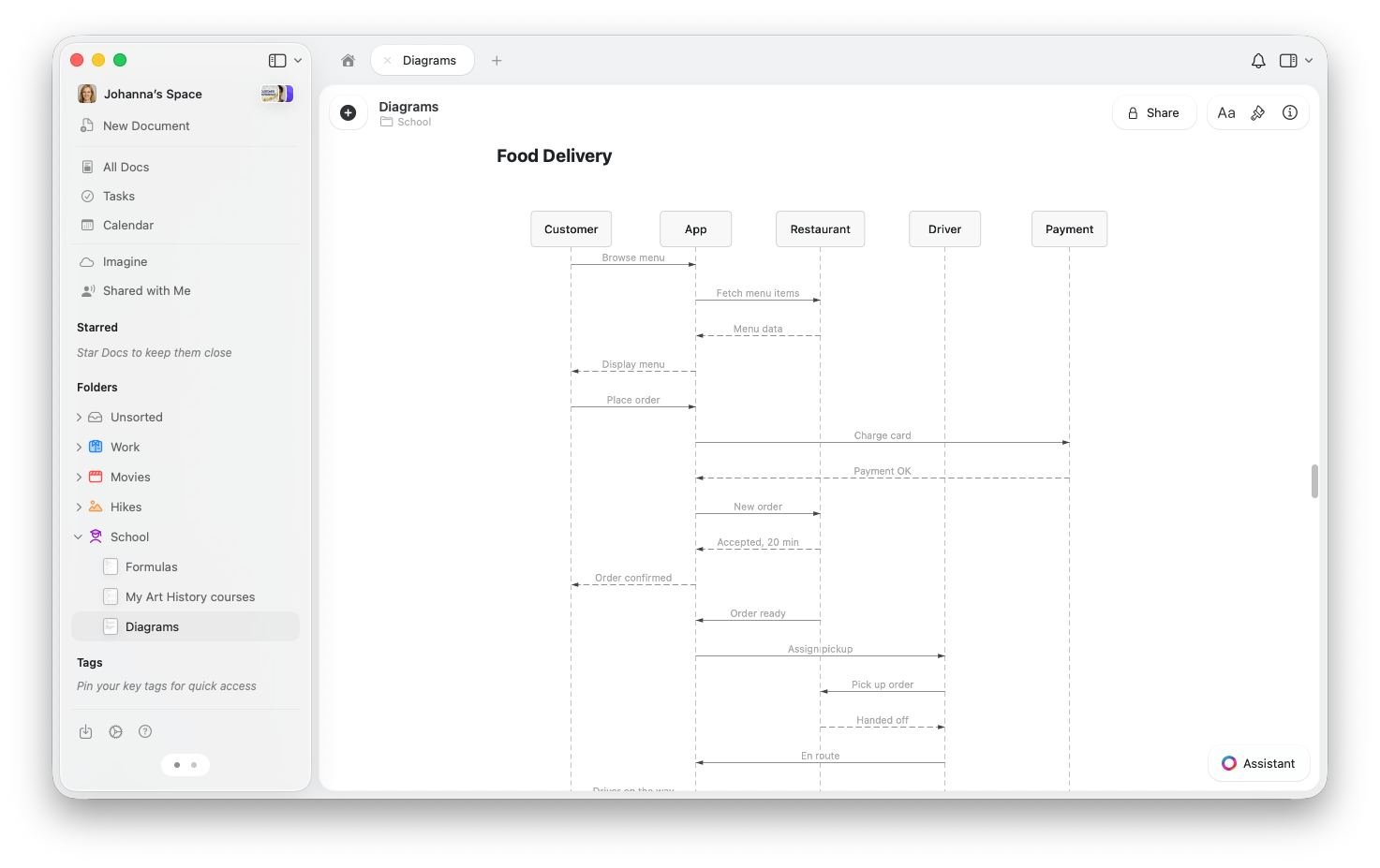
Show interactions between people or systems over time.
Click the Mermaid block to open it in split view. The diagram preview appears on top with the code editor below. Double-tap the preview to zoom in.
Tap the block to open the code editor with a live preview above. On iPhone, dismiss the keyboard to see the diagram. Double-tap the preview to zoom.
Click the block to edit. Use the view mode menu in the block's context menu to switch between Edit, Preview, and Split View.
You don't need to know Mermaid syntax by heart — the Craft AI Assistant can generate diagrams for you. Just describe what you want and it will write the code.
## Supported Diagram Types
### Flowcharts
Map out processes, decisions, and workflows. Use `graph TD` for top-down or `graph LR` for left-to-right layouts.
```
graph TD
A[Start] --> B{Decision}
B -->|Yes| C[Do This]
B -->|No| D[Do That]
C --> E[Done]
D --> E
```
### Sequence Diagrams
Show interactions between people or systems over time.
 ```
sequenceDiagram
User->>App: Place order
App->>Payment: Charge card
Payment-->>App: Confirmed
App-->>User: Order placed
```
### State Diagrams
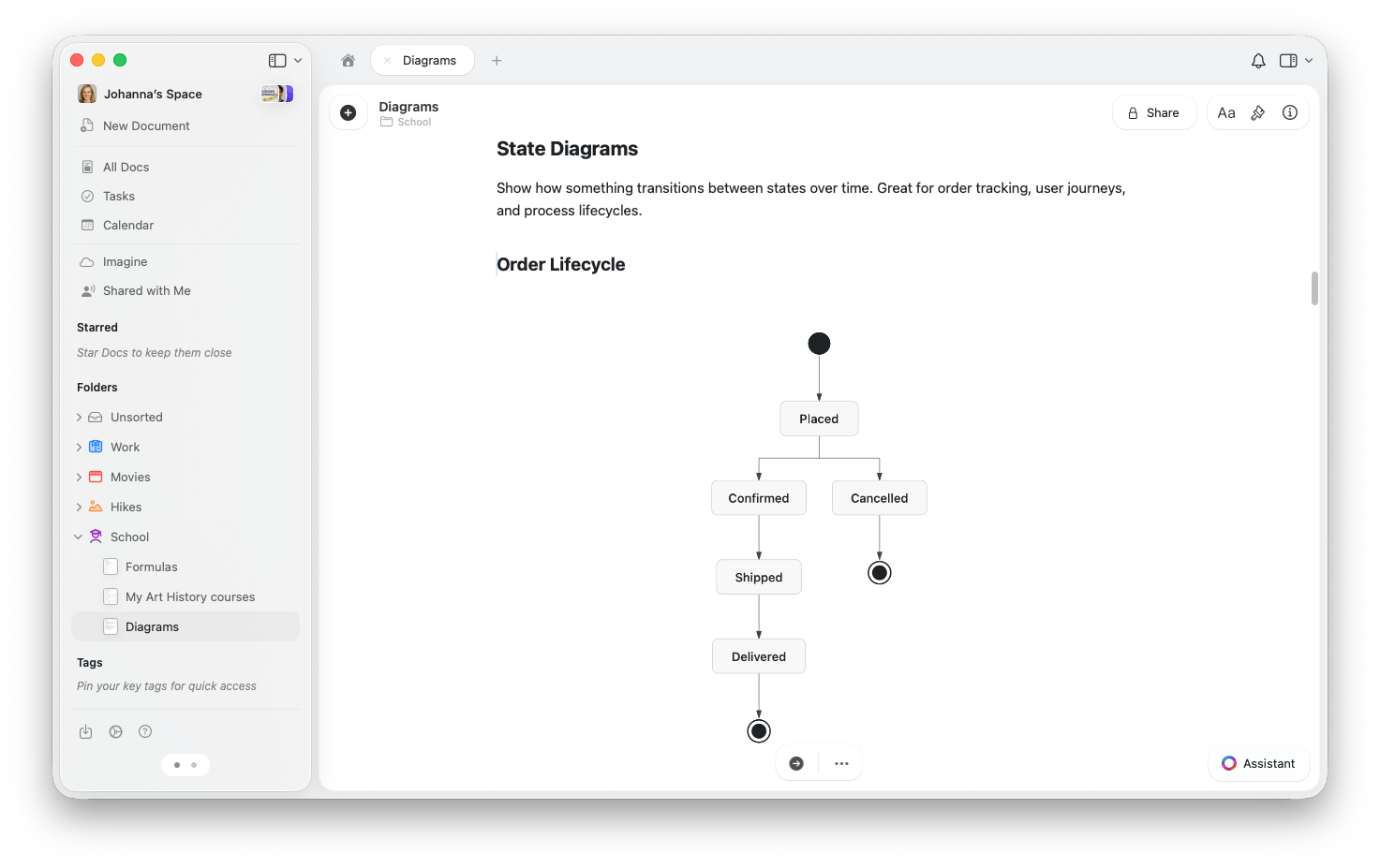
Visualize how something transitions between states — perfect for order tracking, workflows, or processes.
```
sequenceDiagram
User->>App: Place order
App->>Payment: Charge card
Payment-->>App: Confirmed
App-->>User: Order placed
```
### State Diagrams
Visualize how something transitions between states — perfect for order tracking, workflows, or processes.
 ```
stateDiagram-v2
[*] --> Draft
Draft --> Review
Review --> Published
Review --> Draft : Needs changes
Published --> [*]
```
### Class Diagrams
Show the structure of a system — what things exist, their properties, and how they relate.
```
classDiagram
class Document {
+String title
+Date created
+publish()
}
class Folder {
+String name
+getDocuments()
}
Folder "1" --> "*" Document : contains
```
### ER Diagrams
Model data relationships — great for database design and planning.
```
erDiagram
AUTHOR ||--o{ POST : writes
POST ||--o{ COMMENT : has
```
### Charts
Create bar charts, line charts, or a combination of both.
```
xychart-beta
title "Monthly Revenue ($K)"
x-axis [Jan, Feb, Mar, Apr, May, Jun]
y-axis "Revenue" 0 --> 120
bar [45, 62, 78, 55, 89, 105]
```
## Changing the Theme
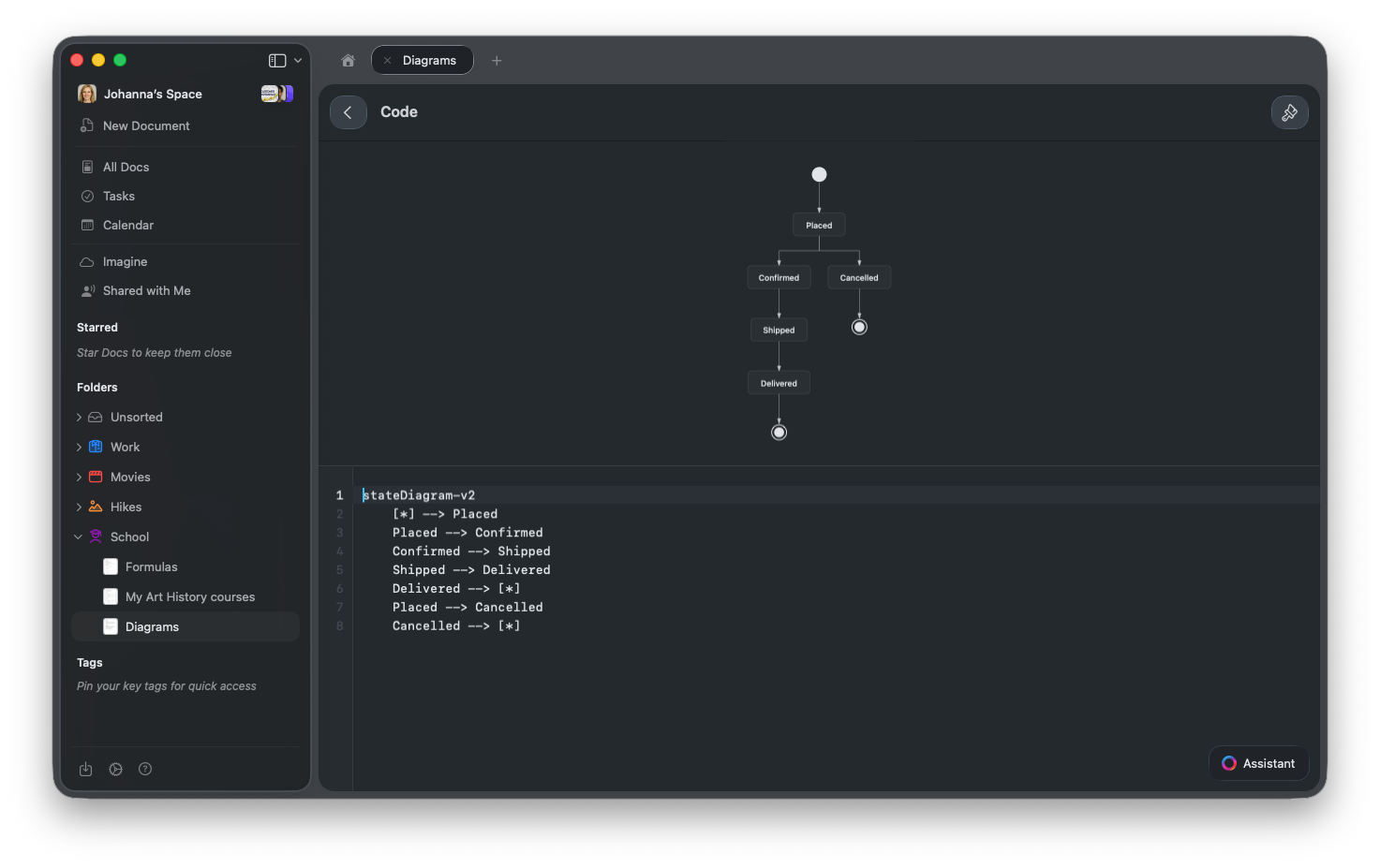
Mermaid diagrams adapt to your code editor theme. To change the look, tap the **paintbrush icon** in the toolbar and choose a theme — options include Tokyo Night, Dracula, Nord, GitHub, and more.
The diagram updates instantly. Diagrams also respect your document's light or dark mode.
```
stateDiagram-v2
[*] --> Draft
Draft --> Review
Review --> Published
Review --> Draft : Needs changes
Published --> [*]
```
### Class Diagrams
Show the structure of a system — what things exist, their properties, and how they relate.
```
classDiagram
class Document {
+String title
+Date created
+publish()
}
class Folder {
+String name
+getDocuments()
}
Folder "1" --> "*" Document : contains
```
### ER Diagrams
Model data relationships — great for database design and planning.
```
erDiagram
AUTHOR ||--o{ POST : writes
POST ||--o{ COMMENT : has
```
### Charts
Create bar charts, line charts, or a combination of both.
```
xychart-beta
title "Monthly Revenue ($K)"
x-axis [Jan, Feb, Mar, Apr, May, Jun]
y-axis "Revenue" 0 --> 120
bar [45, 62, 78, 55, 89, 105]
```
## Changing the Theme
Mermaid diagrams adapt to your code editor theme. To change the look, tap the **paintbrush icon** in the toolbar and choose a theme — options include Tokyo Night, Dracula, Nord, GitHub, and more.
The diagram updates instantly. Diagrams also respect your document's light or dark mode.
 ## Sharing and Publishing
Mermaid diagrams render on shared and published pages — anyone viewing the link sees the rendered diagram, not the code. No special setup needed.
## Importing and Exporting
* **Markdown import**: Paste or import markdown with ` ```mermaid ` code fences and Craft creates Mermaid blocks automatically.
* **Markdown export**: Mermaid blocks export as standard ` ```mermaid ` code fences, compatible with other tools.
## Tips
This usually means a syntax error in your code. Check for typos or missing arrows. If you're copying syntax from another tool, note that Craft supports flowcharts, sequence diagrams, state diagrams, class diagrams, ER diagrams, and XY charts — other types like pie charts, Gantt charts, or mindmaps are not currently supported.
Yes. Describe the diagram you want and the Craft AI Assistant will generate the Mermaid code for you. You can also ask it to modify or extend an existing diagram.
On Mac and iPad, double-tap the diagram preview to zoom in. On the web, use the fullscreen view for larger diagrams.
Mermaid is an open standard used across many tools. Visit [mermaid.js.org](https://mermaid.js.org/intro/) to learn the full syntax for each diagram type.
## Sharing and Publishing
Mermaid diagrams render on shared and published pages — anyone viewing the link sees the rendered diagram, not the code. No special setup needed.
## Importing and Exporting
* **Markdown import**: Paste or import markdown with ` ```mermaid ` code fences and Craft creates Mermaid blocks automatically.
* **Markdown export**: Mermaid blocks export as standard ` ```mermaid ` code fences, compatible with other tools.
## Tips
This usually means a syntax error in your code. Check for typos or missing arrows. If you're copying syntax from another tool, note that Craft supports flowcharts, sequence diagrams, state diagrams, class diagrams, ER diagrams, and XY charts — other types like pie charts, Gantt charts, or mindmaps are not currently supported.
Yes. Describe the diagram you want and the Craft AI Assistant will generate the Mermaid code for you. You can also ask it to modify or extend an existing diagram.
On Mac and iPad, double-tap the diagram preview to zoom in. On the web, use the fullscreen view for larger diagrams.
Mermaid is an open standard used across many tools. Visit [mermaid.js.org](https://mermaid.js.org/intro/) to learn the full syntax for each diagram type.