> ## Documentation Index
> Fetch the complete documentation index at: https://craft-support.mintlify.site/llms.txt
> Use this file to discover all available pages before exploring further.
# App Styles
> Extend your document's styling to the app interface for a more immersive and cohesive experience.
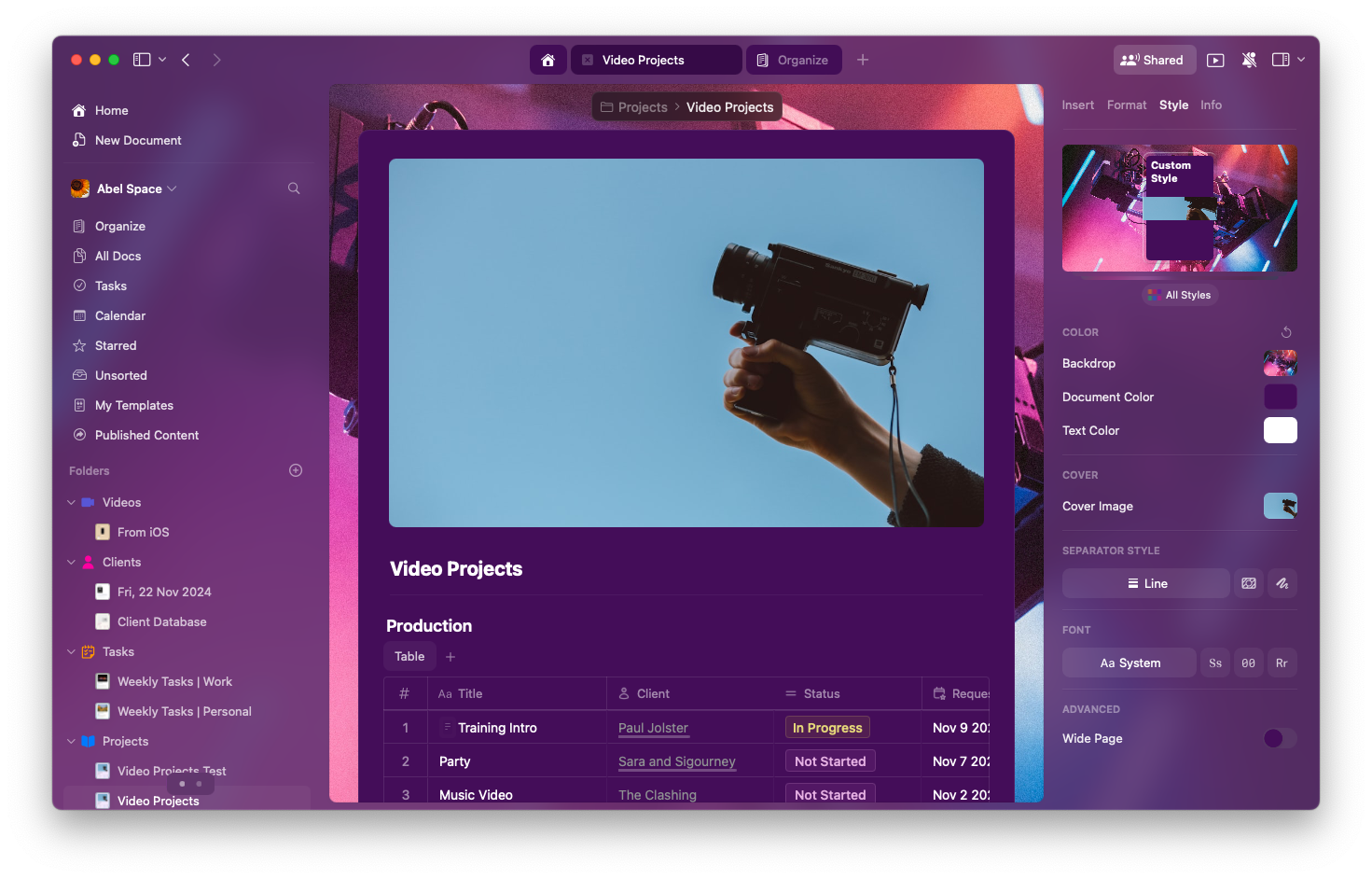
App Styles brings your document's colors into the surrounding app interface, creating a more unified and immersive editing experience. When enabled, the sidebar, toolbar, and other UI elements reflect your document's theme.
## What Is App Style?
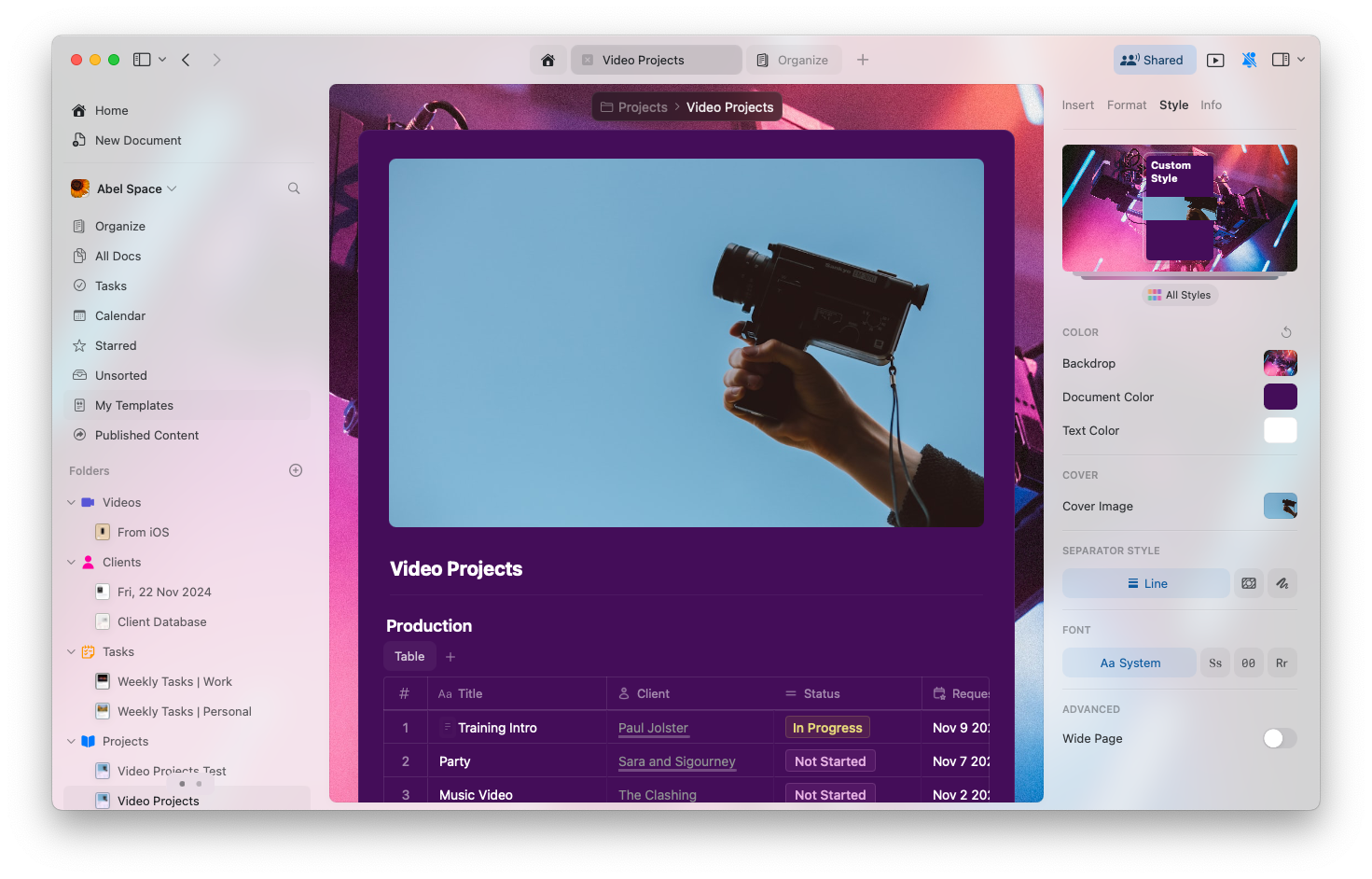
App Style applies your document's **text and background colors** to parts of the Craft interface. This creates visual consistency between your content and the editing environment.
### Example Comparison
**App Style disabled:**
 **App Style enabled:**
 ## Platform Availability
App Styles are fully supported on Mac:
* **Available in**: Editor view only (Home and Browse use system default)
* **Applies to**: Sidebar, toolbar, and UI chrome
* **Uses**: Document text and background colors
* **Fonts**: System fonts are maintained for readability and performance
App Styles are fully supported on iPad:
* **Available in**: Editor view only (Home and Browse use system default)
* **Applies to**: Sidebar, toolbar, and UI chrome
* **Uses**: Document text and background colors
* **Fonts**: System fonts are maintained for readability and performance
App Styles are not yet available on iPhone. This feature is planned for a future update.
## Enabling or Disabling App Styles
You have full control over this feature:
Click the **Space name** at the top of the sidebar to open Settings.
## Platform Availability
App Styles are fully supported on Mac:
* **Available in**: Editor view only (Home and Browse use system default)
* **Applies to**: Sidebar, toolbar, and UI chrome
* **Uses**: Document text and background colors
* **Fonts**: System fonts are maintained for readability and performance
App Styles are fully supported on iPad:
* **Available in**: Editor view only (Home and Browse use system default)
* **Applies to**: Sidebar, toolbar, and UI chrome
* **Uses**: Document text and background colors
* **Fonts**: System fonts are maintained for readability and performance
App Styles are not yet available on iPhone. This feature is planned for a future update.
## Enabling or Disabling App Styles
You have full control over this feature:
Click the **Space name** at the top of the sidebar to open Settings.
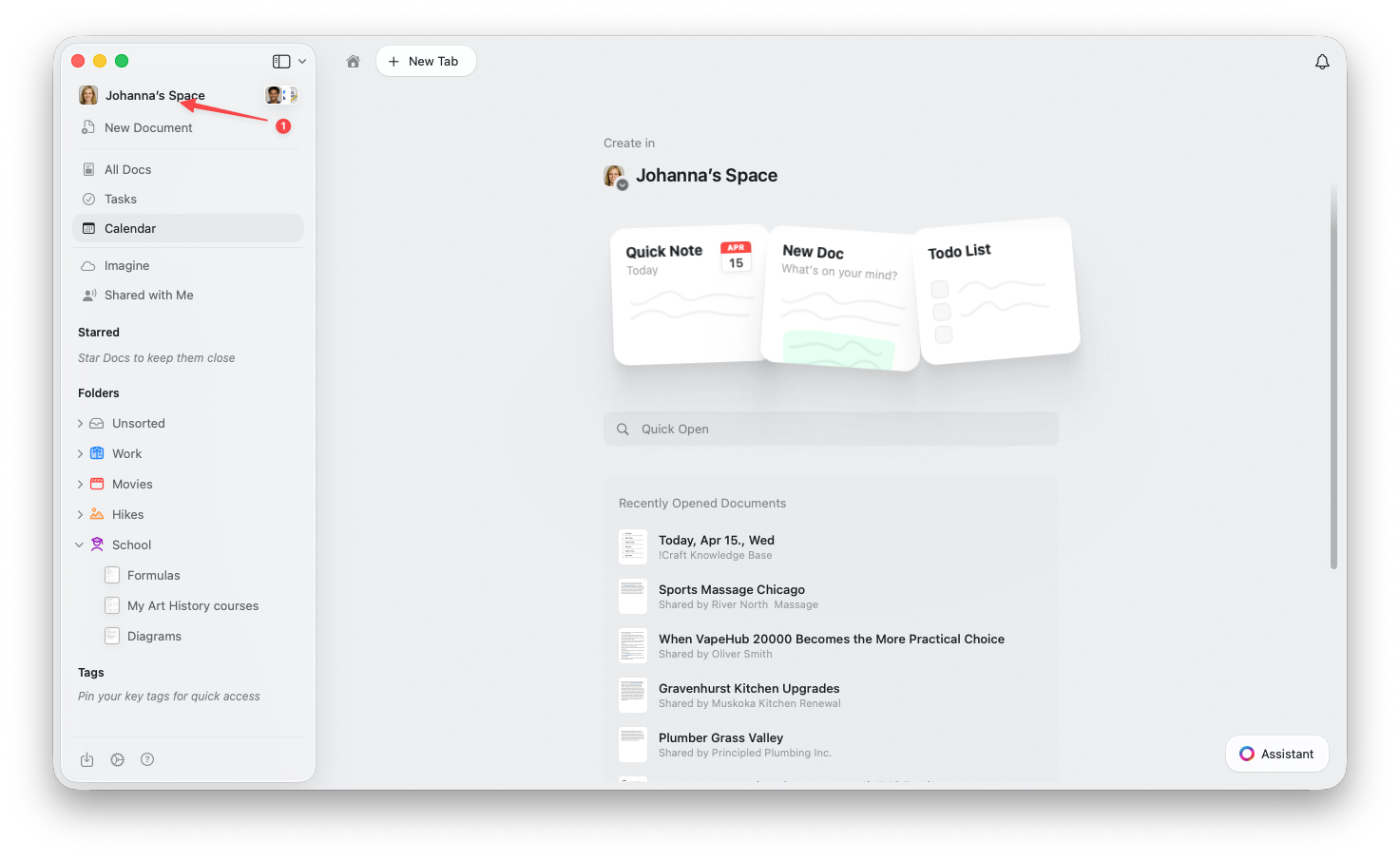 Click the **Space name** in the top-left corner.
Click **Settings** at the bottom of the dropdown.
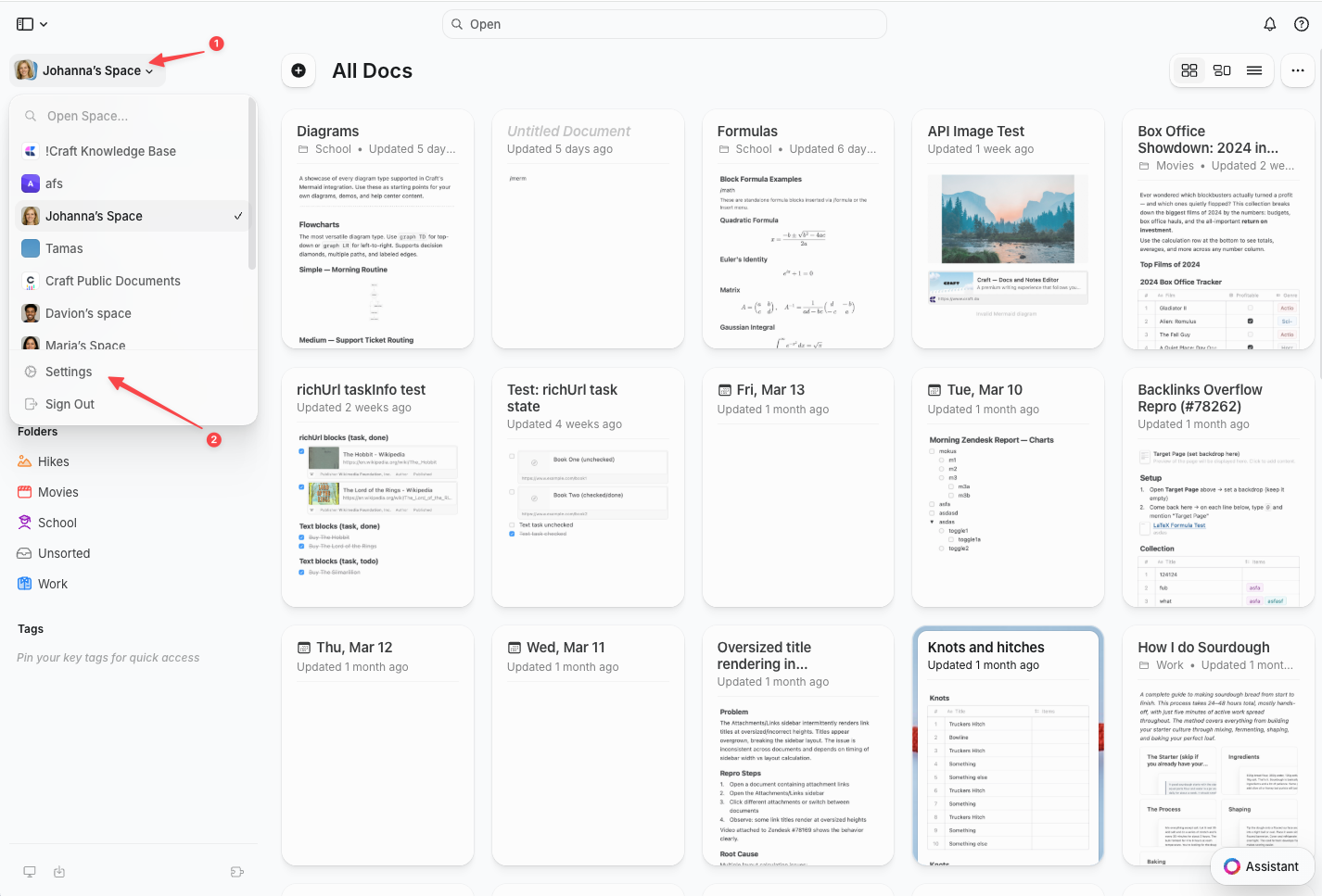
Click the **Space name** in the top-left corner.
Click **Settings** at the bottom of the dropdown.
 Tap the **Space icon** in the top-left corner.
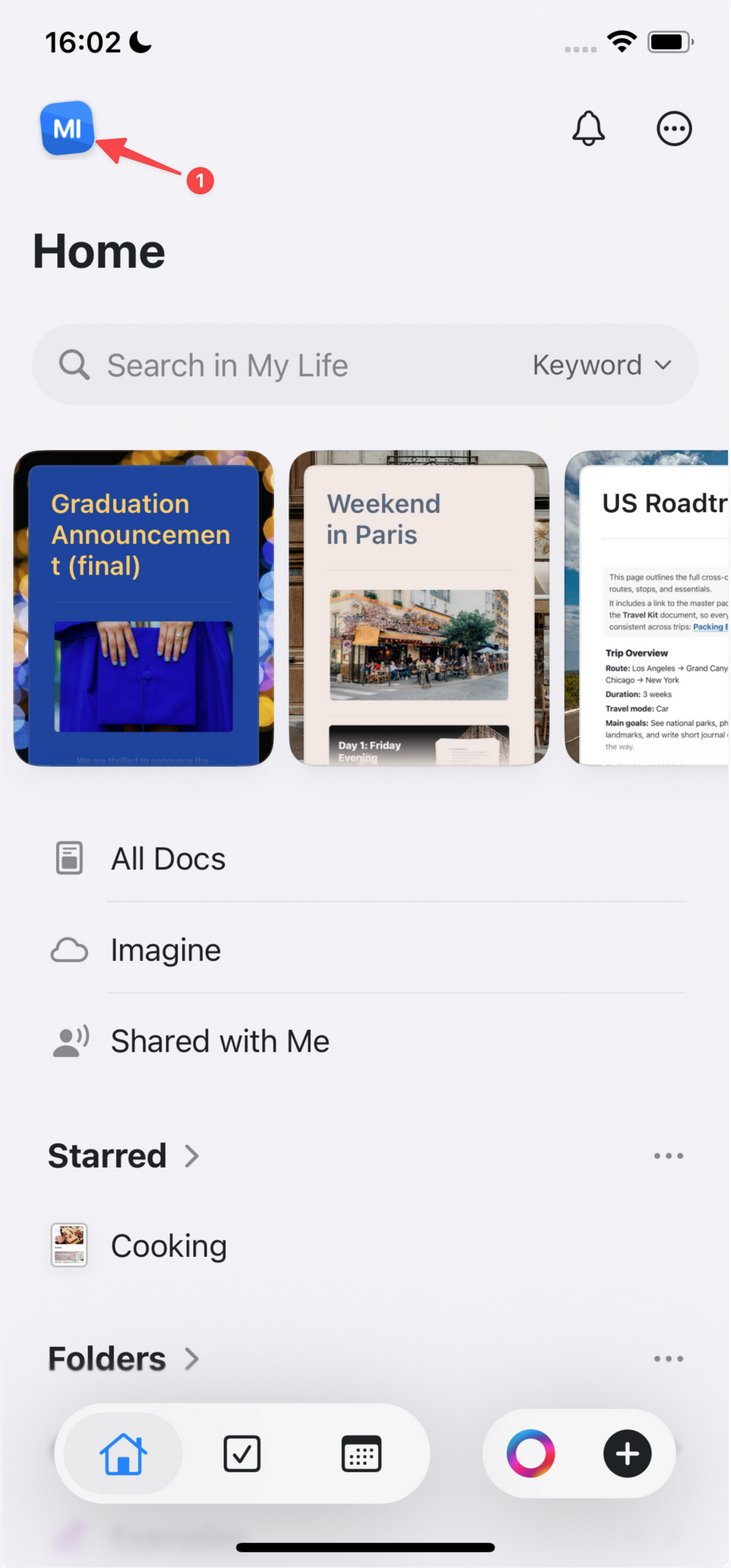 Tap **Settings**.
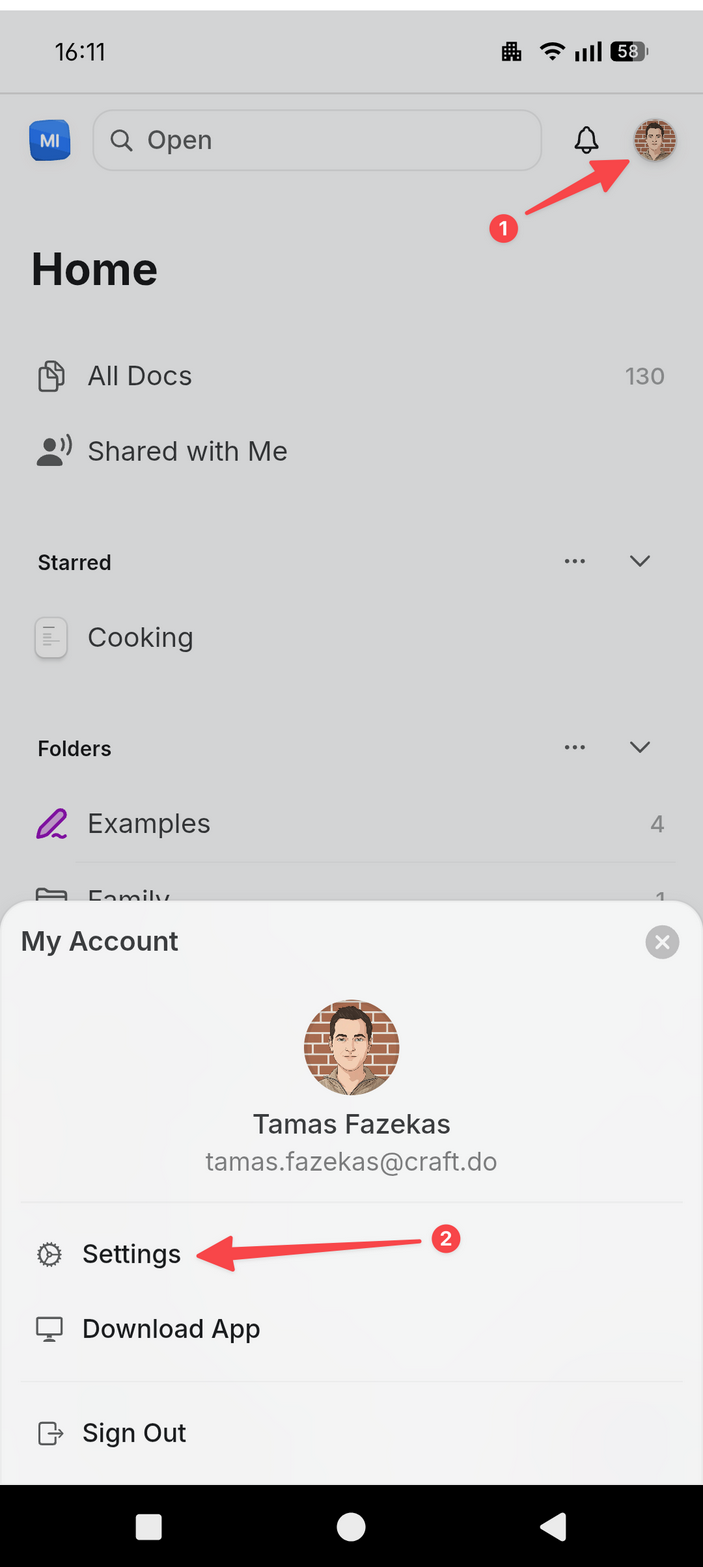
Tap your **profile picture** in the top-right corner.
Tap **Settings**.
Tap **Settings**.
Tap your **profile picture** in the top-right corner.
Tap **Settings**.
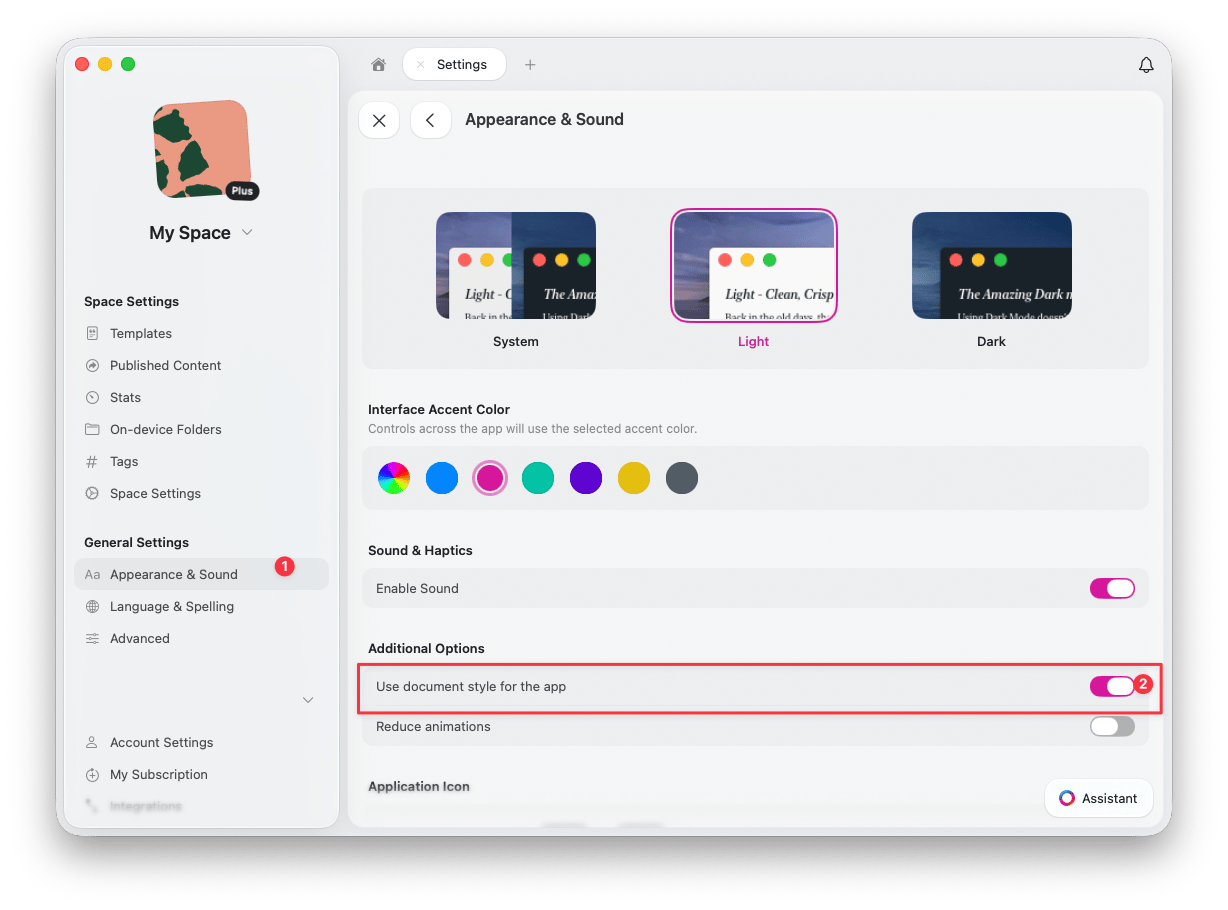
 Navigate to **Appearance and Sound**
Toggle **"Use document style for the app"** on or off
Navigate to **Appearance and Sound**
Toggle **"Use document style for the app"** on or off
 ## Why Use App Styles?
App Styles offers several benefits:
* **Immersive experience** – Create a cohesive visual environment
* **Mood matching** – Align the interface with your content's tone
* **Reduced distraction** – Minimize visual breaks between content and interface
* **Personalization** – Make Craft feel more like your own workspace
## Limitations
* **Fonts** – The UI continues to use system fonts for readability
* **Other views** – Home, Browse, and other sections use the default UI
* **Platform** – Currently not available on iPhone
## Related Articles
Comprehensive guide to all styling features
Set your preferred style as the default
Customize cover images for your documents
## Why Use App Styles?
App Styles offers several benefits:
* **Immersive experience** – Create a cohesive visual environment
* **Mood matching** – Align the interface with your content's tone
* **Reduced distraction** – Minimize visual breaks between content and interface
* **Personalization** – Make Craft feel more like your own workspace
## Limitations
* **Fonts** – The UI continues to use system fonts for readability
* **Other views** – Home, Browse, and other sections use the default UI
* **Platform** – Currently not available on iPhone
## Related Articles
Comprehensive guide to all styling features
Set your preferred style as the default
Customize cover images for your documents