> ## Documentation Index
> Fetch the complete documentation index at: https://craft-support.mintlify.site/llms.txt
> Use this file to discover all available pages before exploring further.
# Default Page Styles
> Set your preferred page style as the default for all new documents.
Create a custom design for your documents that reflects your personal style, then save it as your default. Every new document you create will automatically use your preferred styling.
## Setting a Default Style
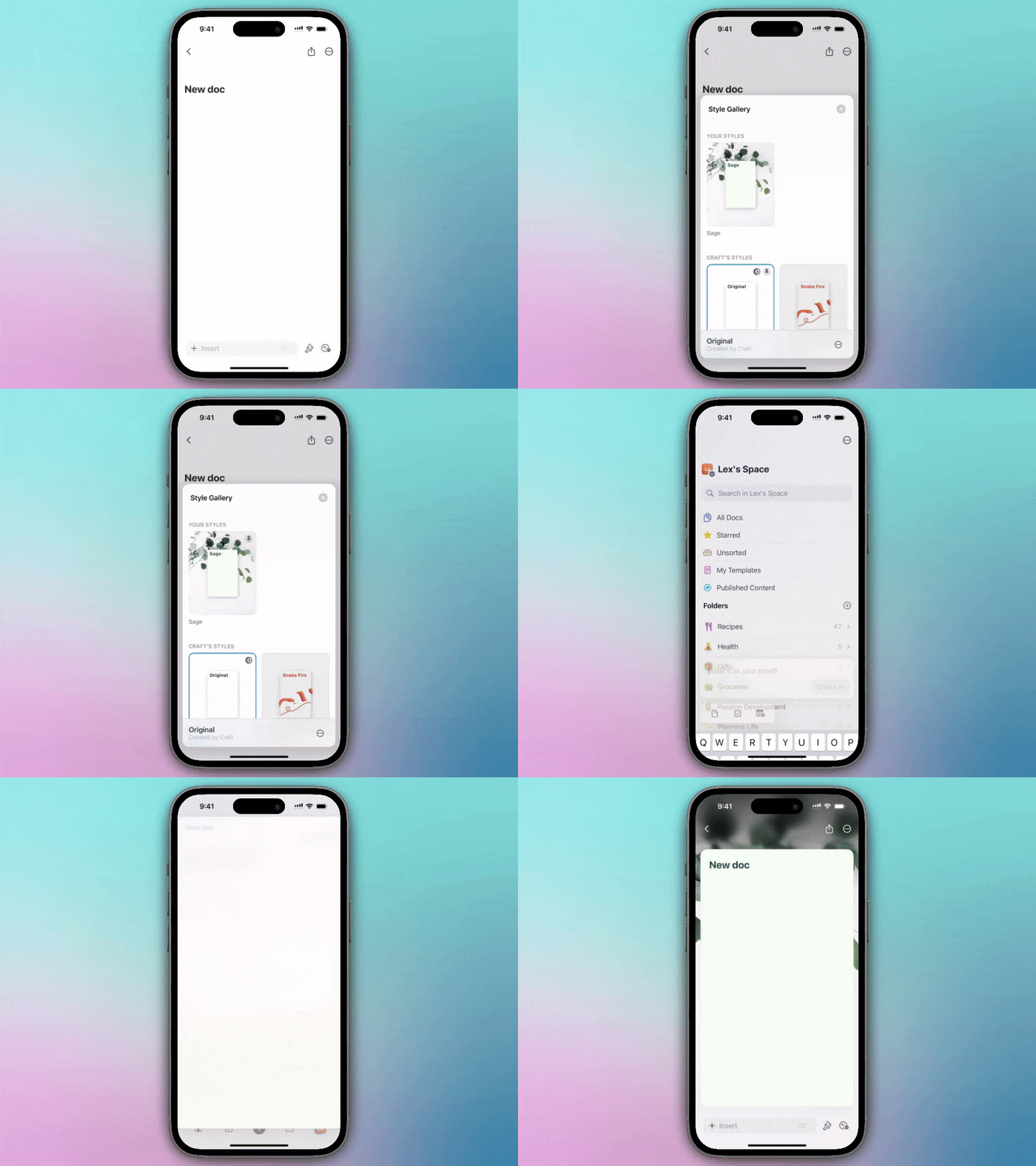
Create a new document or open an existing one
Select the **paintbrush icon** toward the bottom-right of your screen
Select the **Styles** tile
Long press on a page style you like, or create your own custom style
If creating a custom style, tap **Save** before setting it as default
Long press again and select **Set as Default Style**
 Create a new document or open an existing one
Select the **paintbrush icon** in the right sidebar
Create a custom style or choose from the **All Styles** gallery
In the All Styles gallery, hover over your preferred style
Click the **three-dot menu**
Select **Set as Default Style**
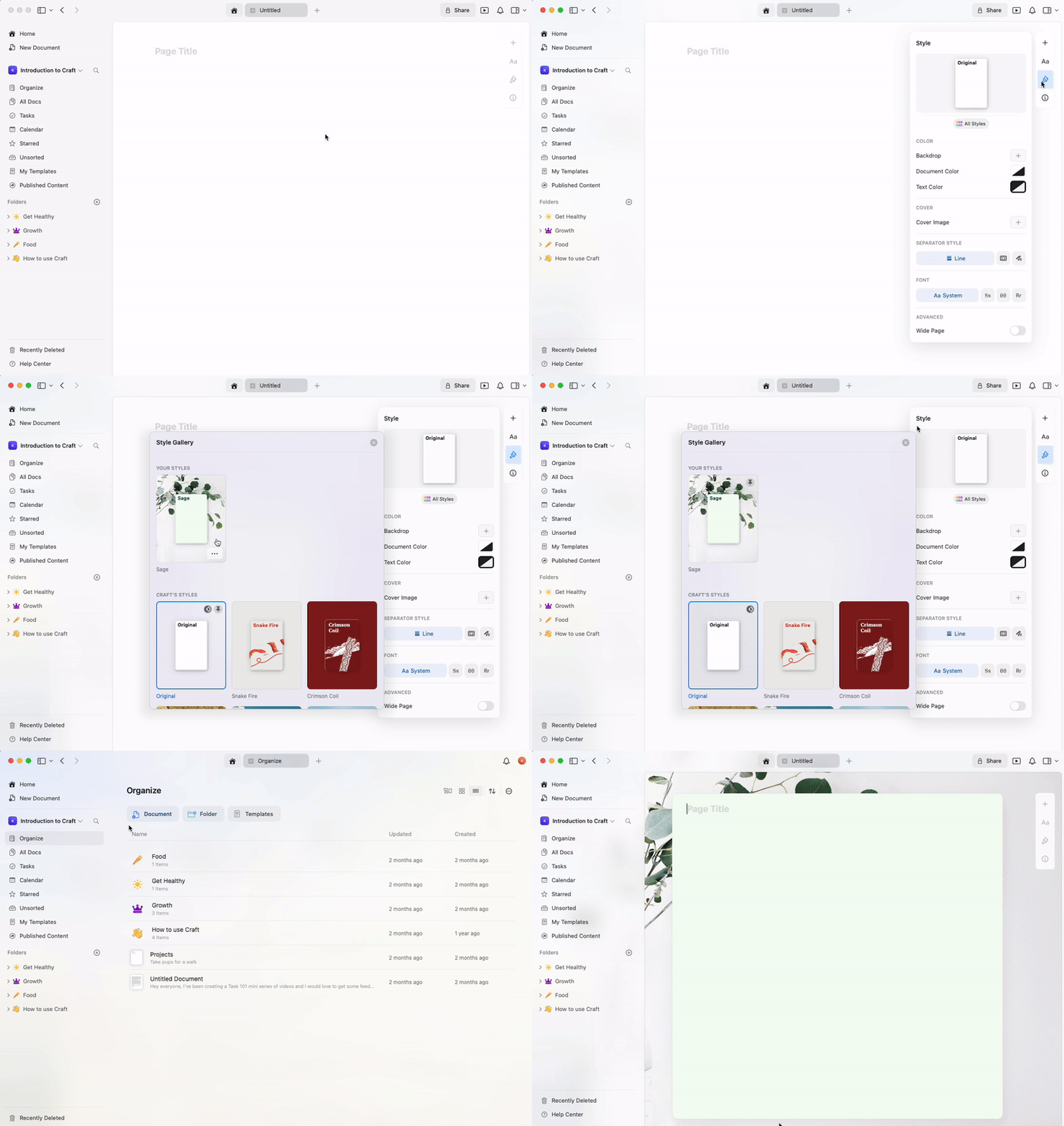
Create a new document or open an existing one
Select the **paintbrush icon** in the right sidebar
Create a custom style or choose from the **All Styles** gallery
In the All Styles gallery, hover over your preferred style
Click the **three-dot menu**
Select **Set as Default Style**
 ## What Gets Saved as Default
Your default page style includes:
* **Font** - System, Serif, Mono, or Rounded
* **Text color** - Custom colors or system default
* **Document color** - Background color
* **Cover image** - If you've added one
* **Backdrop** - Solid color, gradient, or image
You can set your preferred text font in the Style tab of the right sidebar, then save it as your default. Each new document will automatically use your chosen font.
## Creating Custom Styles
Before setting a default, you can create a fully customized style:
Open the Styles menu from the sidebar
Customize your font, colors, backdrop, and cover image
Save your custom style
Set it as your default
Your custom styles are saved and can be reused across different documents.
## Managing Default Styles
* **Change default**: Follow the same steps with a different style to replace your current default
* **Reset to system**: Choose the system default style and set it as your default
* **Per-document override**: You can always change the style of individual documents without affecting your default
## Use Cases
Setting a default style is particularly useful for:
* **Consistent branding** - Keep all your documents visually aligned
* **Personal preference** - Use your favorite font and colors automatically
* **Project templates** - Create different defaults for different workspaces
* **Professional appearance** - Ensure all documents have a polished look
Default styles are set per space. If you work in multiple spaces, you'll need to set the default for each one separately.
## Related Articles
Comprehensive guide to all styling features
Extend document styles to the app interface
Customize cover images for your documents
## What Gets Saved as Default
Your default page style includes:
* **Font** - System, Serif, Mono, or Rounded
* **Text color** - Custom colors or system default
* **Document color** - Background color
* **Cover image** - If you've added one
* **Backdrop** - Solid color, gradient, or image
You can set your preferred text font in the Style tab of the right sidebar, then save it as your default. Each new document will automatically use your chosen font.
## Creating Custom Styles
Before setting a default, you can create a fully customized style:
Open the Styles menu from the sidebar
Customize your font, colors, backdrop, and cover image
Save your custom style
Set it as your default
Your custom styles are saved and can be reused across different documents.
## Managing Default Styles
* **Change default**: Follow the same steps with a different style to replace your current default
* **Reset to system**: Choose the system default style and set it as your default
* **Per-document override**: You can always change the style of individual documents without affecting your default
## Use Cases
Setting a default style is particularly useful for:
* **Consistent branding** - Keep all your documents visually aligned
* **Personal preference** - Use your favorite font and colors automatically
* **Project templates** - Create different defaults for different workspaces
* **Professional appearance** - Ensure all documents have a polished look
Default styles are set per space. If you work in multiple spaces, you'll need to set the default for each one separately.
## Related Articles
Comprehensive guide to all styling features
Extend document styles to the app interface
Customize cover images for your documents