> ## Documentation Index
> Fetch the complete documentation index at: https://craft-support.mintlify.site/llms.txt
> Use this file to discover all available pages before exploring further.
# Styles Quick Guide
> Comprehensive guide to customizing fonts, colors, backgrounds, cover images, and decorative elements in your documents.
Craft makes it easy to create visually stunning documents without any design expertise. The Styles feature lets you customize backdrops, cover images, text colors, and even the color of your entire document. Washi tape separators add a unique, decorative touch to your pages.
For a deeper understanding of how styling works, start with our article on [Documents, Pages, and Blocks](/en/introduction/documents).
## Styles Menu
In the Mac app, find the **Styles** tab in the left sidebar:
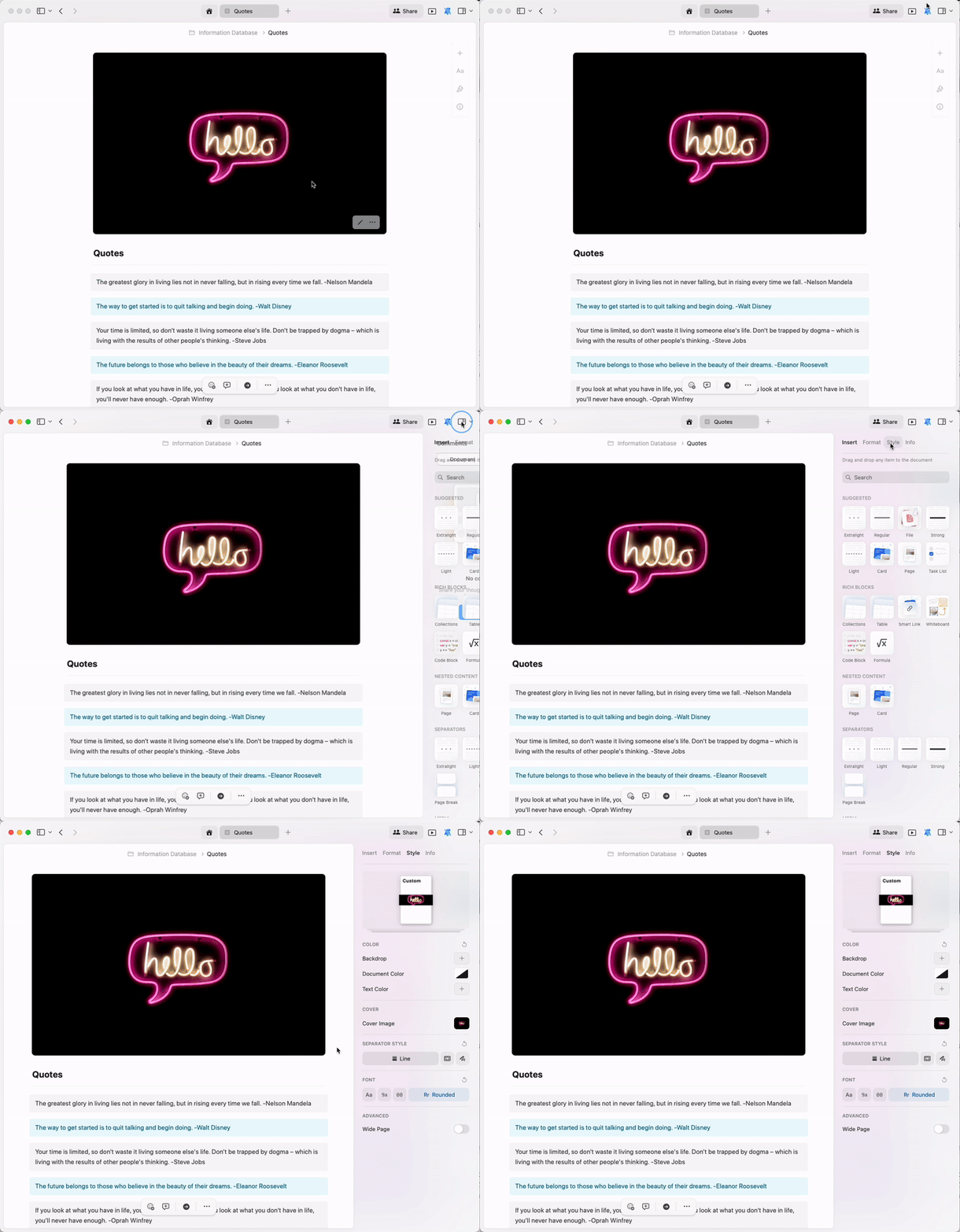 In the Web app, find the **Styles** tab in the left sidebar:
## Style Preview and Styles Gallery
The Styles menu shows a minimalistic preview of your current font, cover, and backdrop settings - a quick visual reference of how your document's style elements work together.
In the Web app, find the **Styles** tab in the left sidebar:
## Style Preview and Styles Gallery
The Styles menu shows a minimalistic preview of your current font, cover, and backdrop settings - a quick visual reference of how your document's style elements work together.
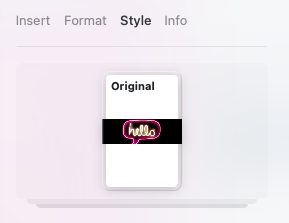
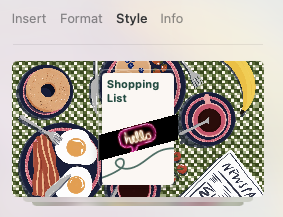
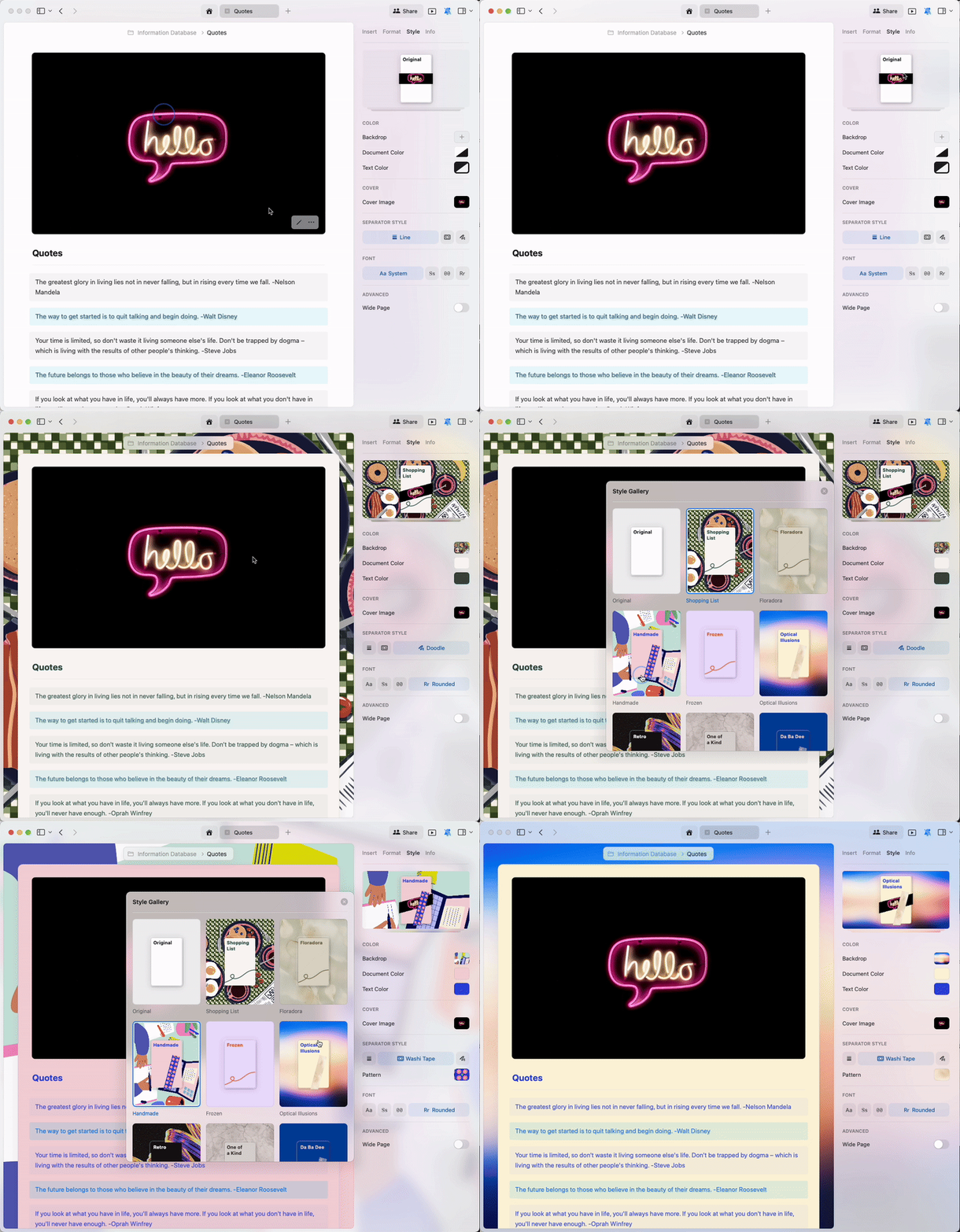
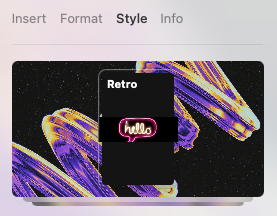 Click on the **Style Preview** to access the **Styles Gallery** and browse our curated collection of preset styles for your documents.
 ## Custom Styling
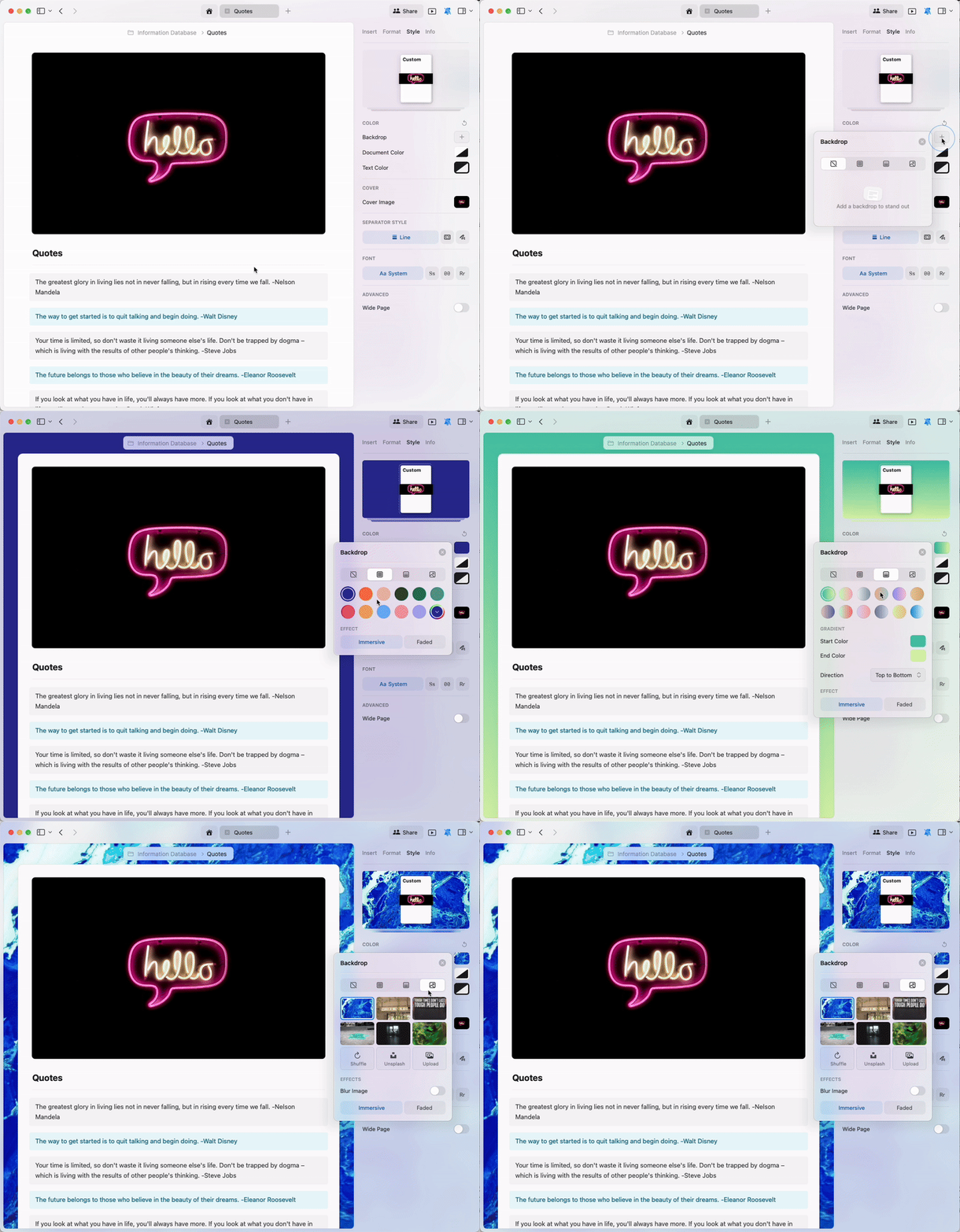
Beyond preset styles, you can create your own custom colors for the backdrop, text, and document itself.
The backdrop function offers a wide range of options:
* **Solid Colors** - Choose from a color palette or create custom colors
* **Gradients** - Blend two or more colors
* **Images** - Upload your own or select from Unsplash
## Custom Styling
Beyond preset styles, you can create your own custom colors for the backdrop, text, and document itself.
The backdrop function offers a wide range of options:
* **Solid Colors** - Choose from a color palette or create custom colors
* **Gradients** - Blend two or more colors
* **Images** - Upload your own or select from Unsplash
 ## Uploading Custom Images
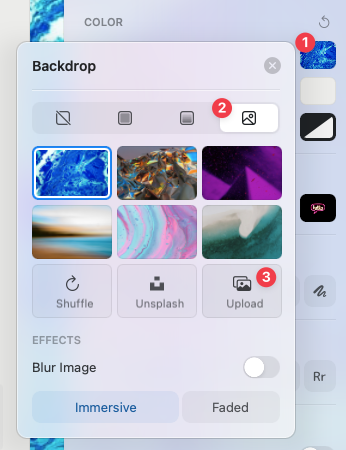
You can upload any image from your device as a backdrop or cover image.
**For backdrops:**
Select the **image** option in the backdrop settings
Choose **Upload** and select your image
## Uploading Custom Images
You can upload any image from your device as a backdrop or cover image.
**For backdrops:**
Select the **image** option in the backdrop settings
Choose **Upload** and select your image
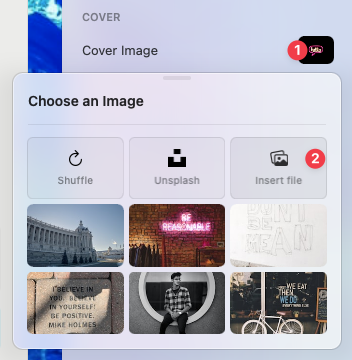
 **For cover images:**
Click the cover image area
Select **Insert File** and choose your image
**For cover images:**
Click the cover image area
Select **Insert File** and choose your image
 ## Unsplash Integration
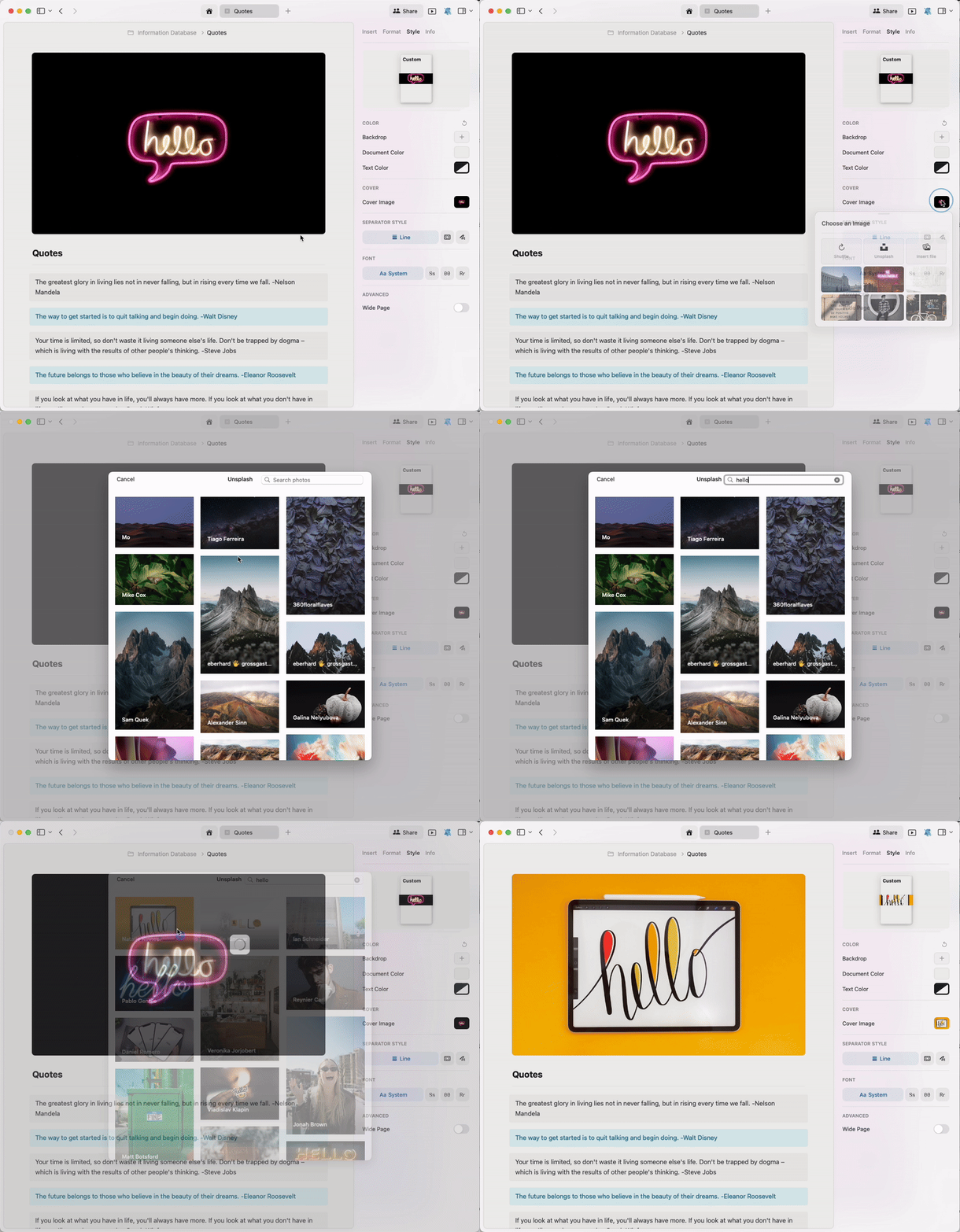
Don't have time to search the internet for the perfect cover image or backdrop? Craft's integration with Unsplash makes it easy to find professional photos with just a few clicks.
When setting your backdrop or cover image, select the **Unsplash** button to access the Unsplash database. Search for keywords to find images that match your theme.
## Unsplash Integration
Don't have time to search the internet for the perfect cover image or backdrop? Craft's integration with Unsplash makes it easy to find professional photos with just a few clicks.
When setting your backdrop or cover image, select the **Unsplash** button to access the Unsplash database. Search for keywords to find images that match your theme.
 ## Separators and Washi Tapes
Separators help structure content within a document. Craft takes this to the next level with Washi tapes - uniquely decorated strips that serve as visual separators.
Choose from:
* **Standard lines** - Classic separator style
* **Washi tapes** - Decorative patterned separators
* **Doodles** - Hand-drawn style separators
## Separators and Washi Tapes
Separators help structure content within a document. Craft takes this to the next level with Washi tapes - uniquely decorated strips that serve as visual separators.
Choose from:
* **Standard lines** - Classic separator style
* **Washi tapes** - Decorative patterned separators
* **Doodles** - Hand-drawn style separators
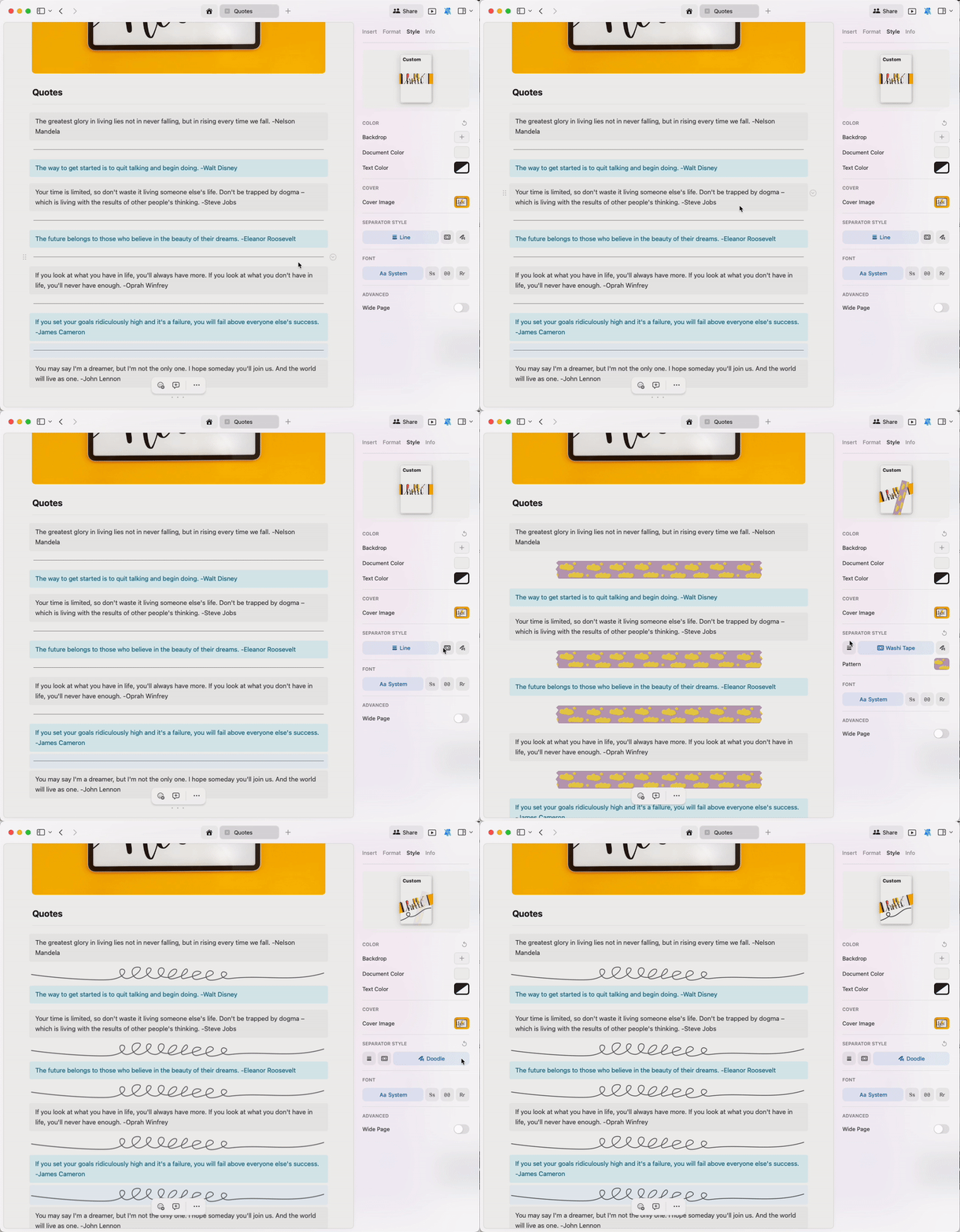 Type three dashes (`---`) to instantly add a separator in whatever style you have set for your document.
### Washi Tape Styling
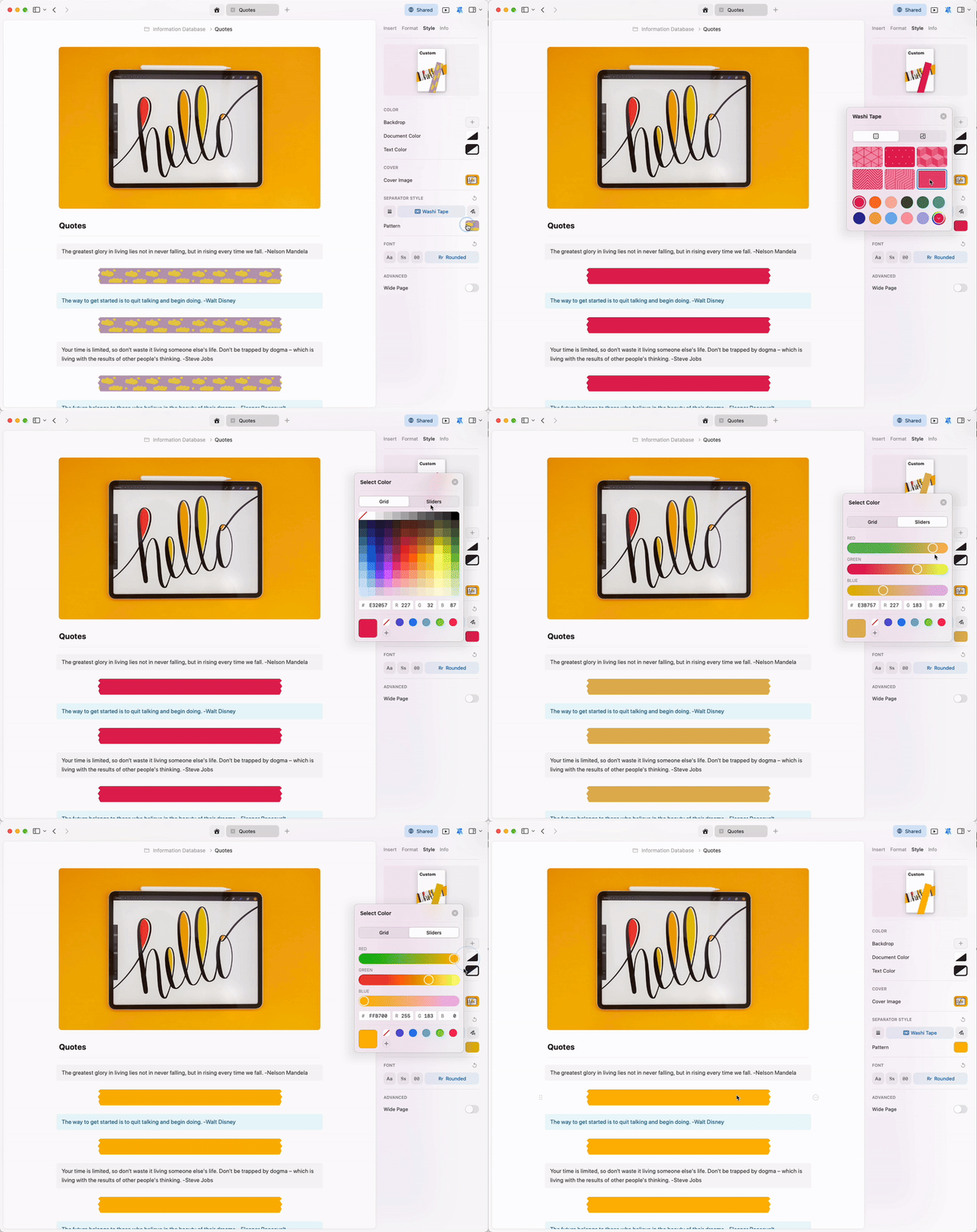
Similar to backdrop and cover image options, you can customize Washi tape separators with solid colors or patterns.
Type three dashes (`---`) to instantly add a separator in whatever style you have set for your document.
### Washi Tape Styling
Similar to backdrop and cover image options, you can customize Washi tape separators with solid colors or patterns.
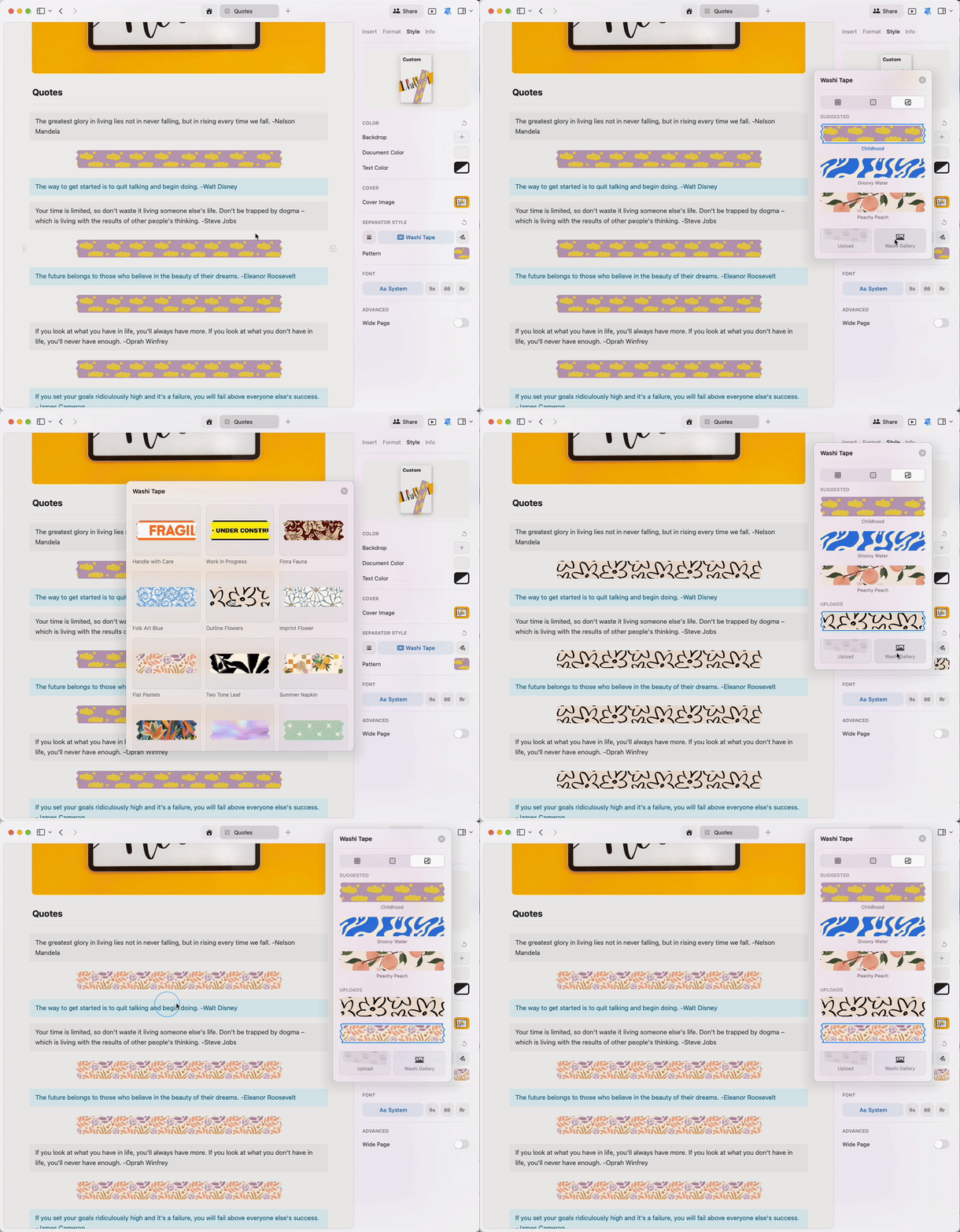
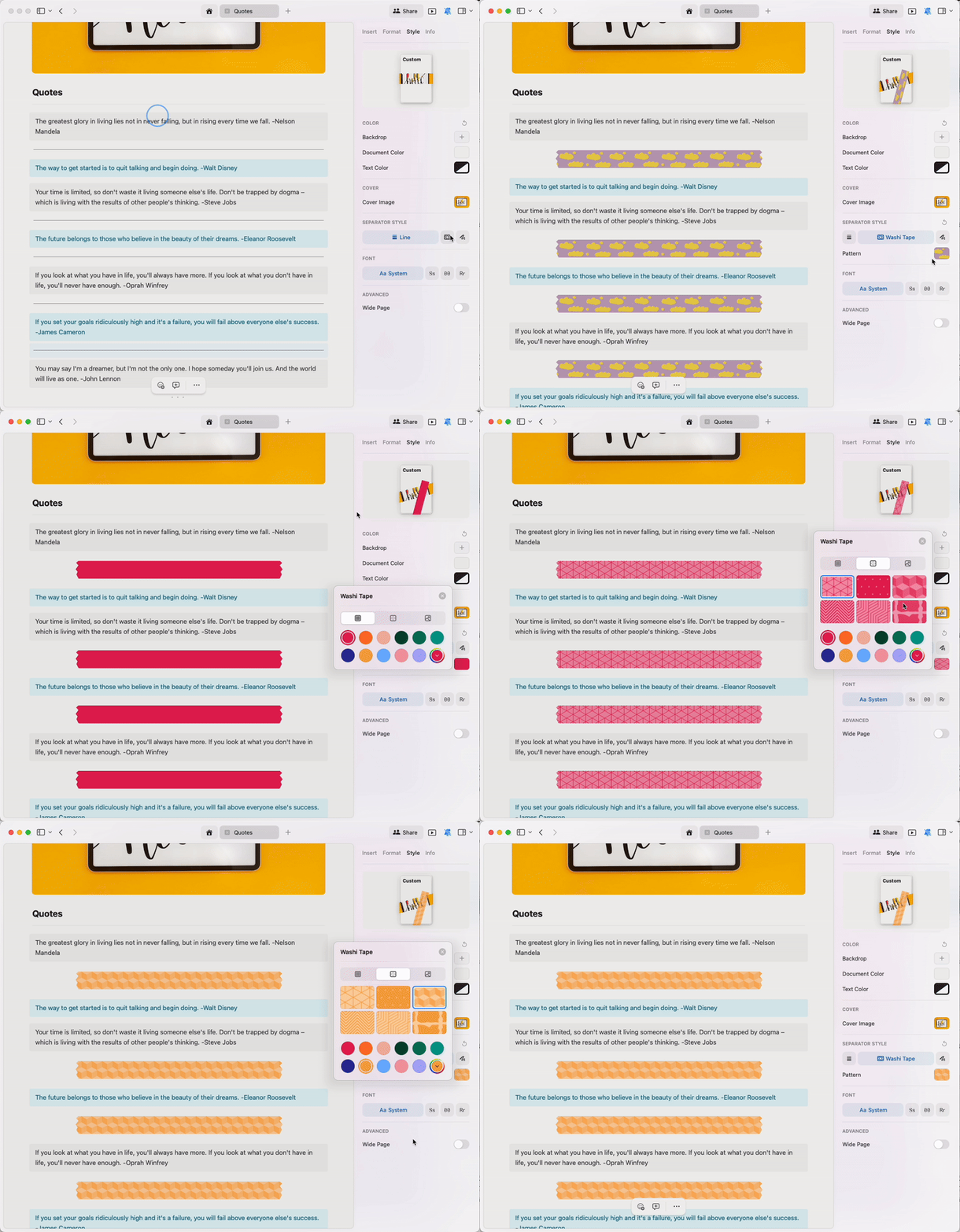 Access the **Washi Tapes Gallery** to find beautiful preset patterns:
 You can be as specific as you like with your Washi tape colors. Create your preferred shade manually or input the RGB color code in the color picker.
 ## Text and Document Color
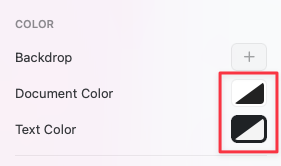
Craft documents use the **system default** color by default - black in Dark Mode or white in Light Mode. This is represented by the black and white icon in the color selector.
## Text and Document Color
Craft documents use the **system default** color by default - black in Dark Mode or white in Light Mode. This is represented by the black and white icon in the color selector.
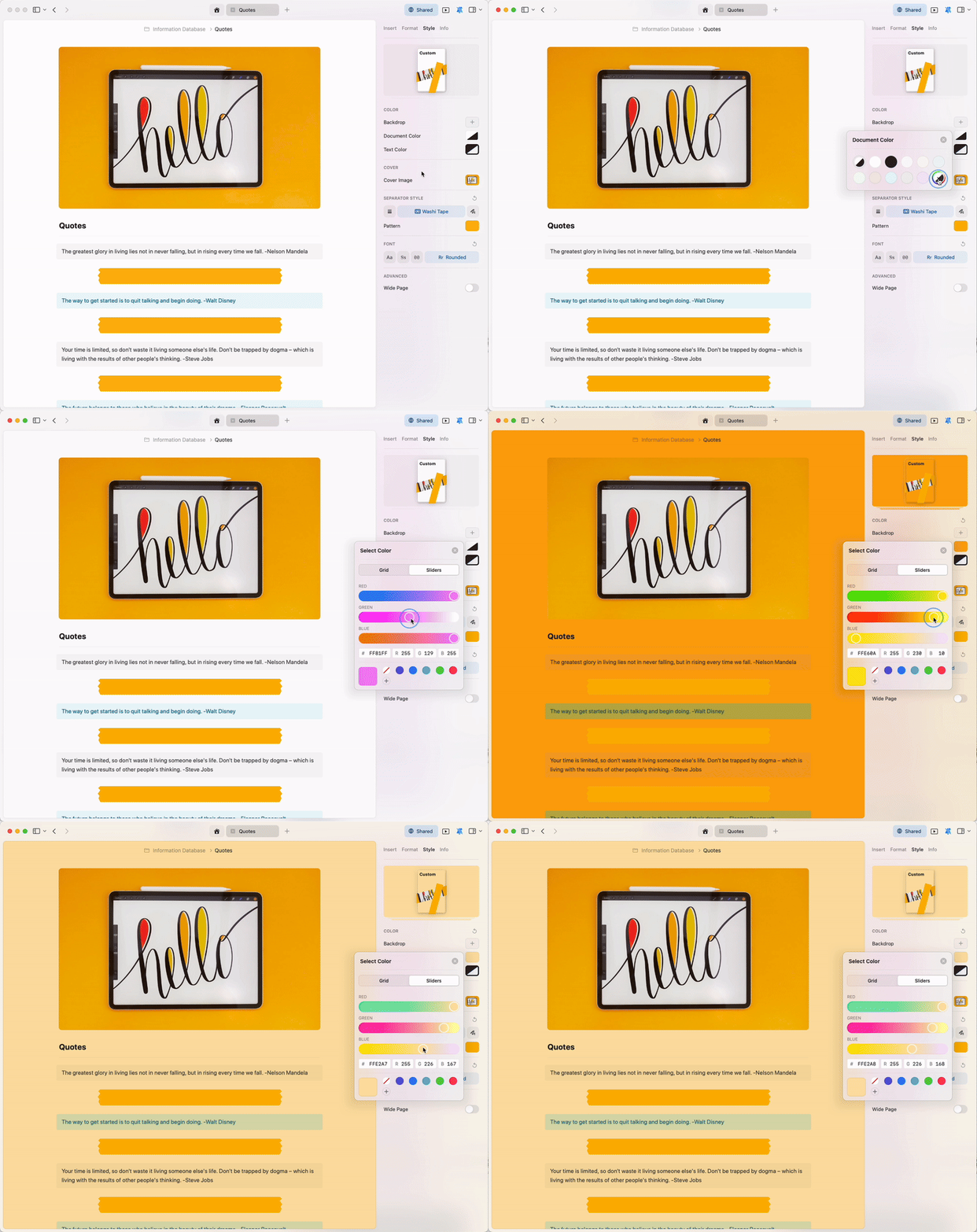
 However, you have full control over your document and text colors. Choose your preferred shade manually or insert the RGB code in the color picker to get the exact color you want.
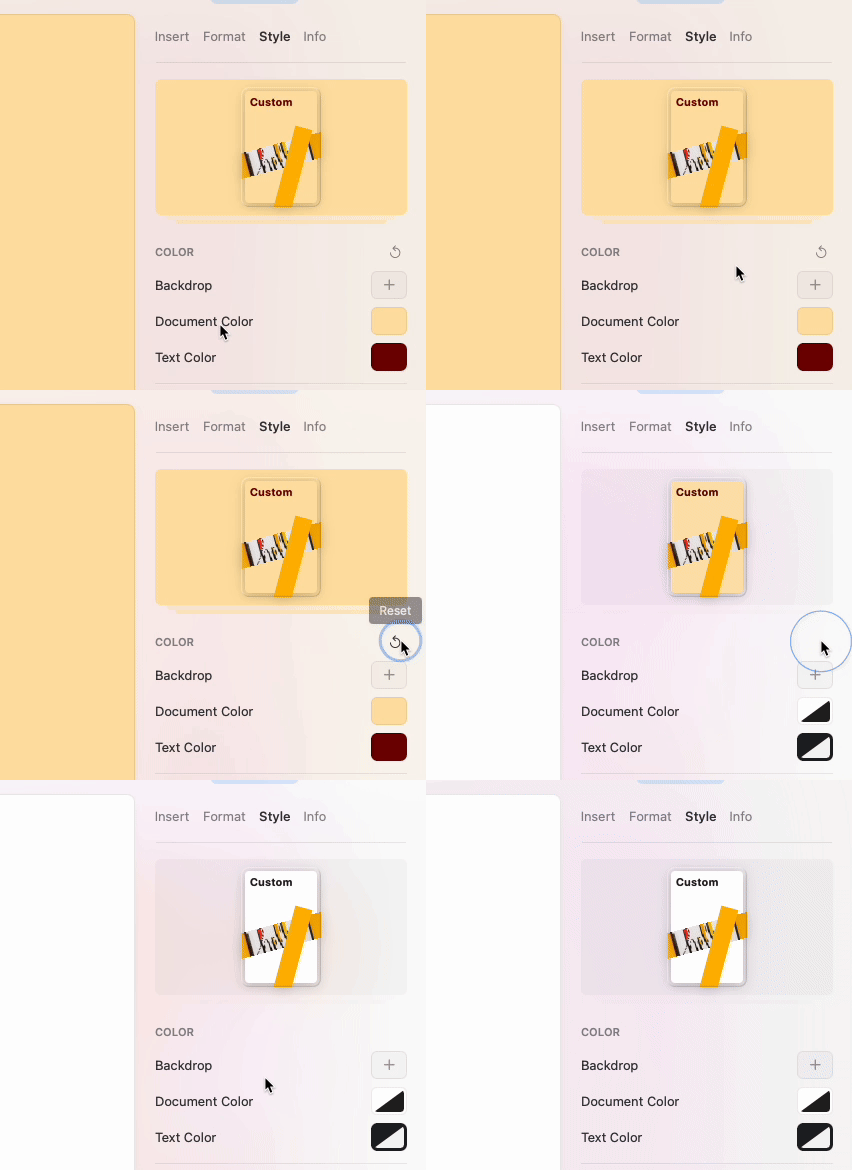
 Use the reset button to instantly return your document to the default system color.
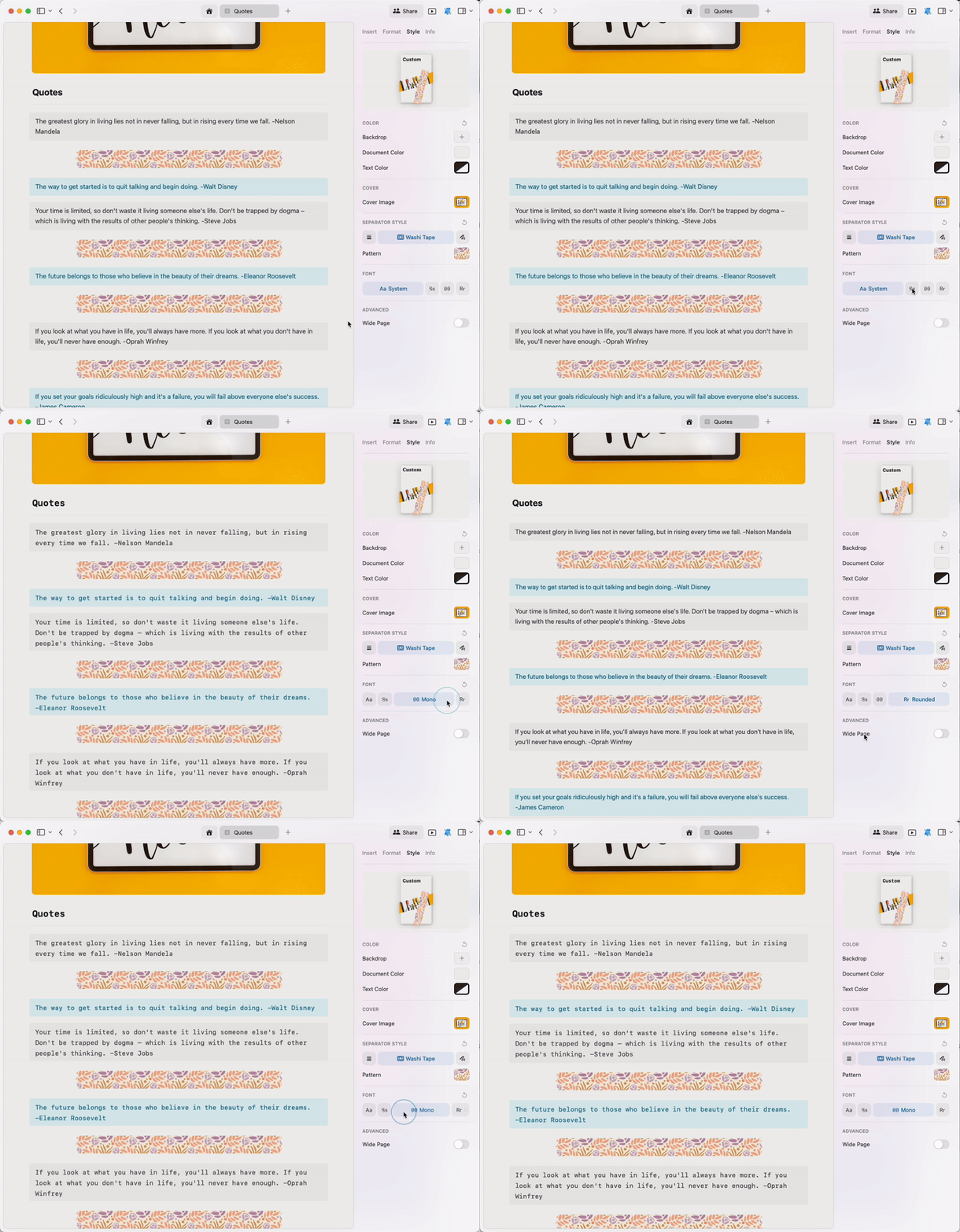
 ## Fonts
Change the font style of your entire document with one click. Choose from:
* **System** – Uses your device's default font
* **Serif** – Traditional, readable serif font
* **Mono** – Monospaced font for code or technical content
* **Rounded** – Friendly, modern rounded font
## Fonts
Change the font style of your entire document with one click. Choose from:
* **System** – Uses your device's default font
* **Serif** – Traditional, readable serif font
* **Mono** – Monospaced font for code or technical content
* **Rounded** – Friendly, modern rounded font
 It is currently not possible to upload custom fonts into Craft.
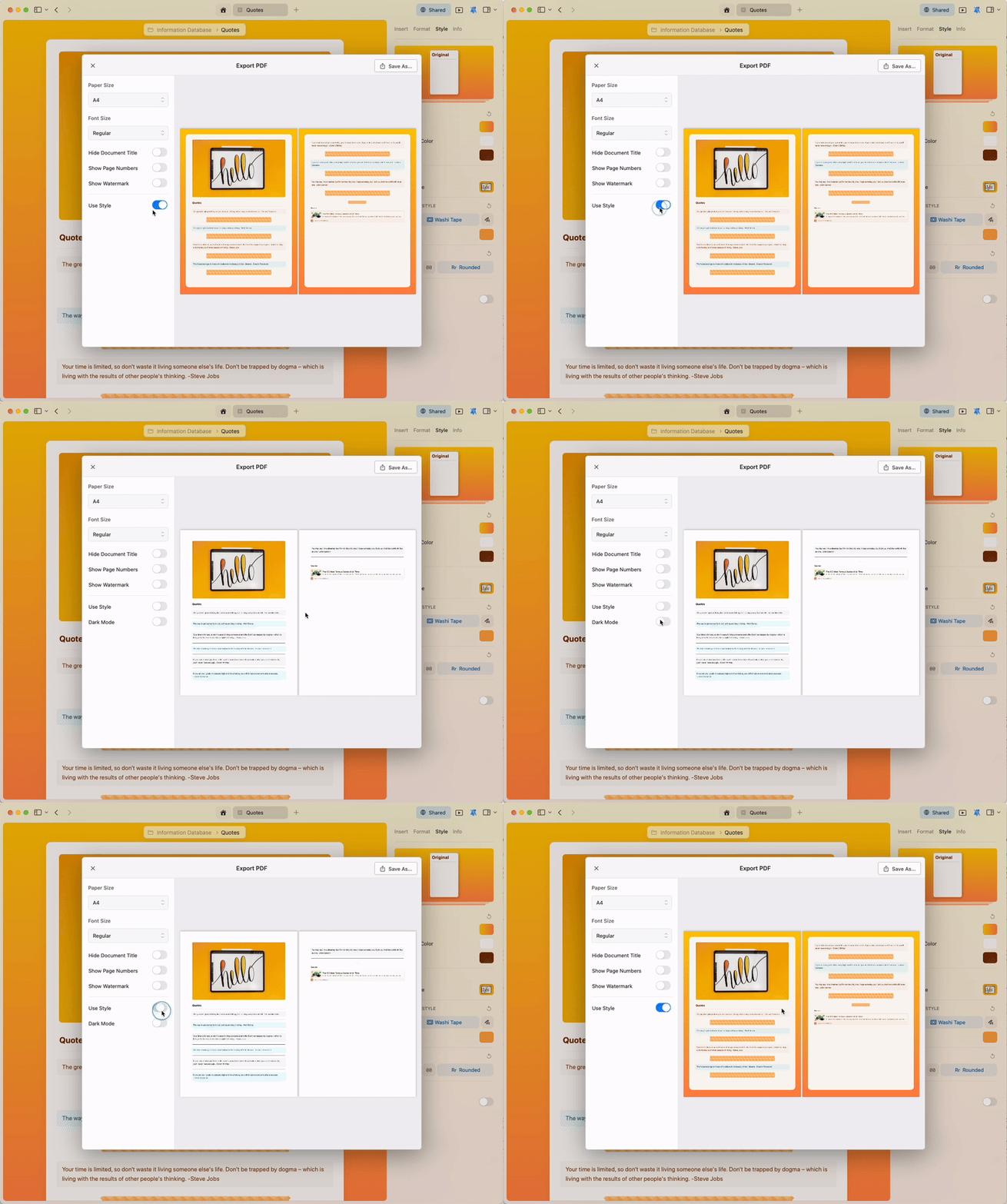
## Exporting Styled Documents to PDF
The Styles feature is designed to help you express yourself and create your preferred visual environment when editing. If you need to disable styling when exporting your content to PDF, you can easily do so in the export options.
It is currently not possible to upload custom fonts into Craft.
## Exporting Styled Documents to PDF
The Styles feature is designed to help you express yourself and create your preferred visual environment when editing. If you need to disable styling when exporting your content to PDF, you can easily do so in the export options.
 ## Related Articles
Customize cover images for your documents
Turn pages into visual card layouts
Extend document styles to the app interface
Set your preferred style as the default
## Related Articles
Customize cover images for your documents
Turn pages into visual card layouts
Extend document styles to the app interface
Set your preferred style as the default