> ## Documentation Index
> Fetch the complete documentation index at: https://craft-support.mintlify.site/llms.txt
> Use this file to discover all available pages before exploring further.
# Version History
> Track changes, restore previous versions, and manage document history.
Craft automatically creates backups of your documents, allowing you to restore previous versions if needed. This feature ensures that you can recover your content in case of accidental changes or deletions.
## How Version History Works
Craft creates automatic snapshots of your documents while you're actively making changes.
* **Automatic backups every hour**: A snapshot is created every 60 minutes while you're actively editing
* **Timer-based**: After you make an edit, the system starts a timer. If you continue making changes, a snapshot is automatically saved once one hour has passed
* **Continuous tracking**: The process repeats as long as you keep editing – new snapshots are created every hour
### Example Timeline
* You update a document at **10:00 AM** → The timer starts
* You continue making changes until **11:00 AM** → A backup is saved
* The timer resets and tracks your changes until **12:00 PM**, when the next backup is saved
## Viewing Document Backups
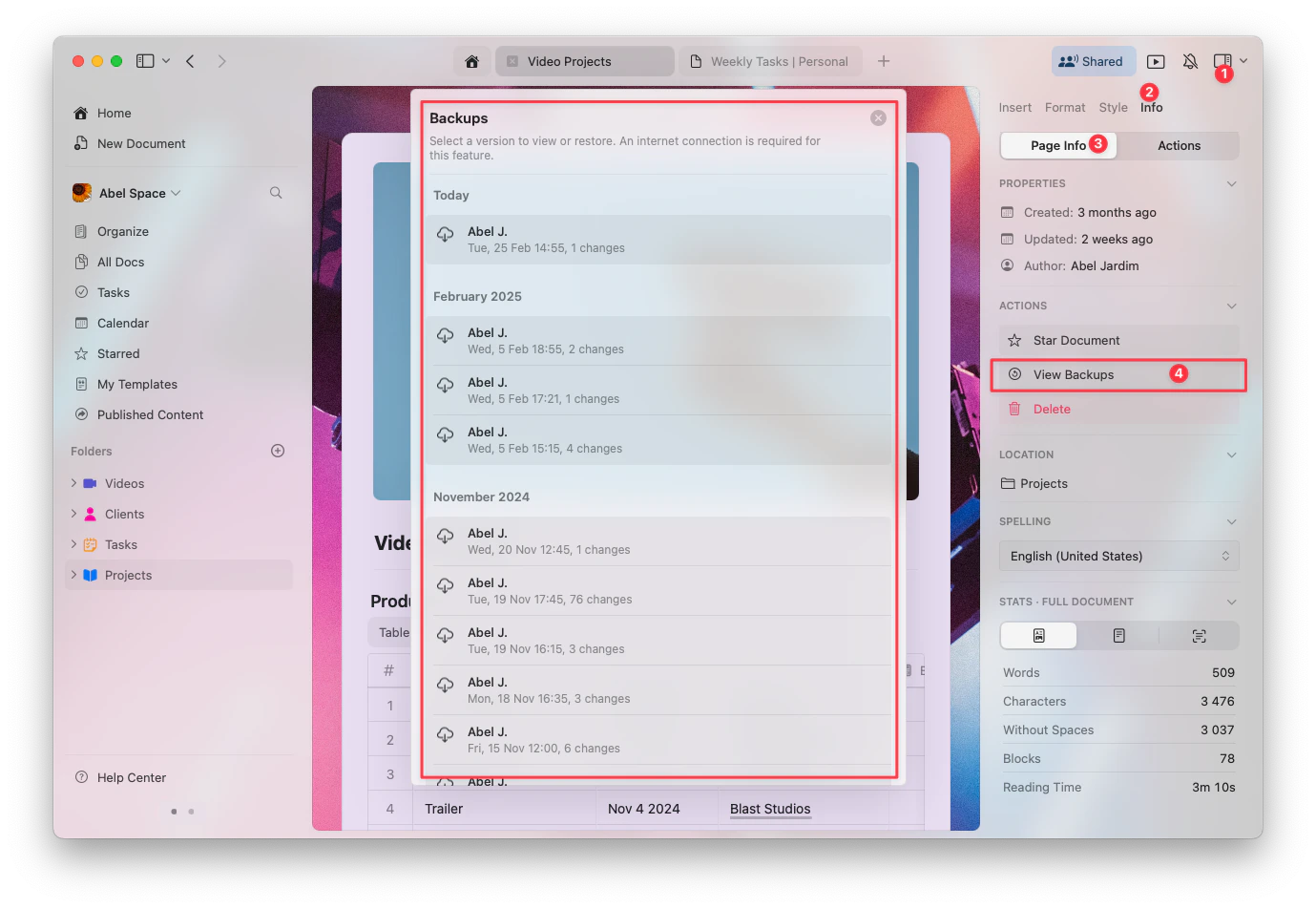
Access previous versions of your documents through the Info tab.
Open the document you want to review.
Click on the **Info tab** in the right sidebar.
Select **View Backups** to access the list of saved versions.
Choose a backup from the list to preview and restore it if needed.
 ## Backup Retention by Plan
The number of days your document versions are available depends on your Craft subscription plan:
| Plan | Version History Retention |
| ------------------ | ------------------------- |
| **Starter (Free)** | 7 days |
| **Plus, Family** | 30 days |
| **Team, Business** | 180 days |
After the retention period for your plan, older backups are automatically deleted and no longer accessible.
Backups are only kept for the duration specified by your plan. Consider upgrading to a higher plan if you need longer version history retention.
## Why You Might Not See a Previous Version
Several factors could prevent you from seeing a previous version of your document:
### 1. Backup Outside Retention Period
If the version you're looking for is older than your plan's retention period, it will no longer be accessible.
### 2. Insufficient Editing Time
Craft creates a snapshot every 60 minutes while you're actively making changes. If you didn't continue editing the document for a full hour, a backup may not have been created.
For example, if you made quick edits and closed the document within a few minutes, no backup would have been saved.
### 3. No Changes Since Last Backup
Version history is only created when there are active changes to a document. If you only viewed the document or made minor changes that didn't meet the system's threshold, a new version may not have been saved.
### 4. Recently Created Document
If the document is new and hasn't been edited for at least 60 minutes, there may not be any saved versions yet. The first backup will only occur after one hour of continued editing.
### 5. Document or Space Deleted
If the entire document or space was deleted, version history will no longer be available unless restored from **Recently Deleted** within the allowed timeframe.
### 6. Sync Issues
Version history might not display correctly if there was an interruption in syncing between devices. Check your internet connection and make sure Craft is up to date to avoid potential syncing problems.
If you still can't find a version, verify your subscription plan to ensure your retention period covers the timeframe you need. Contact support if you suspect an issue with syncing or backups.
## Backup Retention by Plan
The number of days your document versions are available depends on your Craft subscription plan:
| Plan | Version History Retention |
| ------------------ | ------------------------- |
| **Starter (Free)** | 7 days |
| **Plus, Family** | 30 days |
| **Team, Business** | 180 days |
After the retention period for your plan, older backups are automatically deleted and no longer accessible.
Backups are only kept for the duration specified by your plan. Consider upgrading to a higher plan if you need longer version history retention.
## Why You Might Not See a Previous Version
Several factors could prevent you from seeing a previous version of your document:
### 1. Backup Outside Retention Period
If the version you're looking for is older than your plan's retention period, it will no longer be accessible.
### 2. Insufficient Editing Time
Craft creates a snapshot every 60 minutes while you're actively making changes. If you didn't continue editing the document for a full hour, a backup may not have been created.
For example, if you made quick edits and closed the document within a few minutes, no backup would have been saved.
### 3. No Changes Since Last Backup
Version history is only created when there are active changes to a document. If you only viewed the document or made minor changes that didn't meet the system's threshold, a new version may not have been saved.
### 4. Recently Created Document
If the document is new and hasn't been edited for at least 60 minutes, there may not be any saved versions yet. The first backup will only occur after one hour of continued editing.
### 5. Document or Space Deleted
If the entire document or space was deleted, version history will no longer be available unless restored from **Recently Deleted** within the allowed timeframe.
### 6. Sync Issues
Version history might not display correctly if there was an interruption in syncing between devices. Check your internet connection and make sure Craft is up to date to avoid potential syncing problems.
If you still can't find a version, verify your subscription plan to ensure your retention period covers the timeframe you need. Contact support if you suspect an issue with syncing or backups.