> ## Documentation Index
> Fetch the complete documentation index at: https://craft-support.mintlify.site/llms.txt
> Use this file to discover all available pages before exploring further.
# Find and Replace
> Trouvez et remplacez rapidement du texte dans vos Documents pour corriger des fautes de frappe ou mettre à jour du contenu.
Besoin de corriger rapidement des mots mal orthographiés dans un Document ou de mettre à jour plusieurs occurrences d’un même terme ? L’outil Find and Replace facilite la recherche et la modification de contenu en masse.
## Accéder à Find and Replace
Pendant que vous éditez un Document, ouvrez le sidebar à droite et recherchez le panneau Find and Replace.
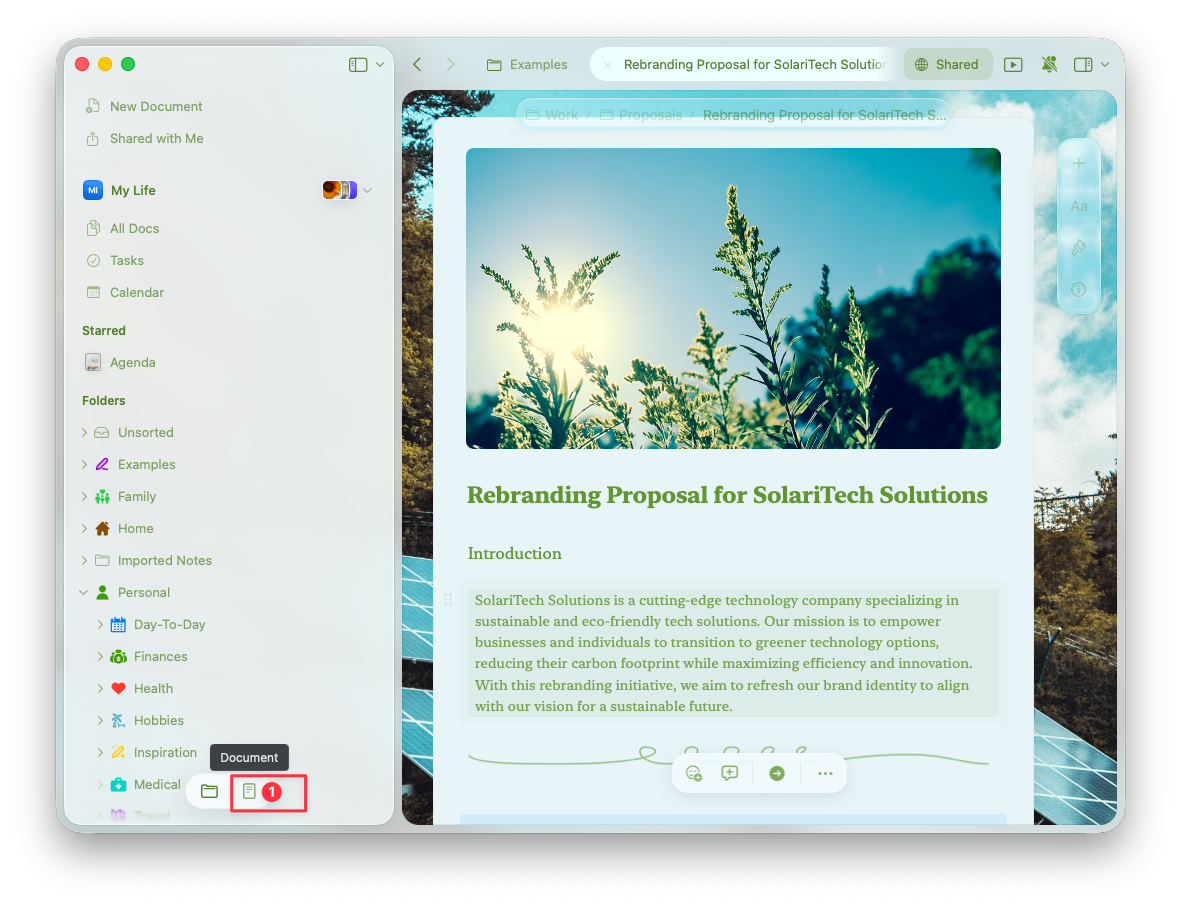
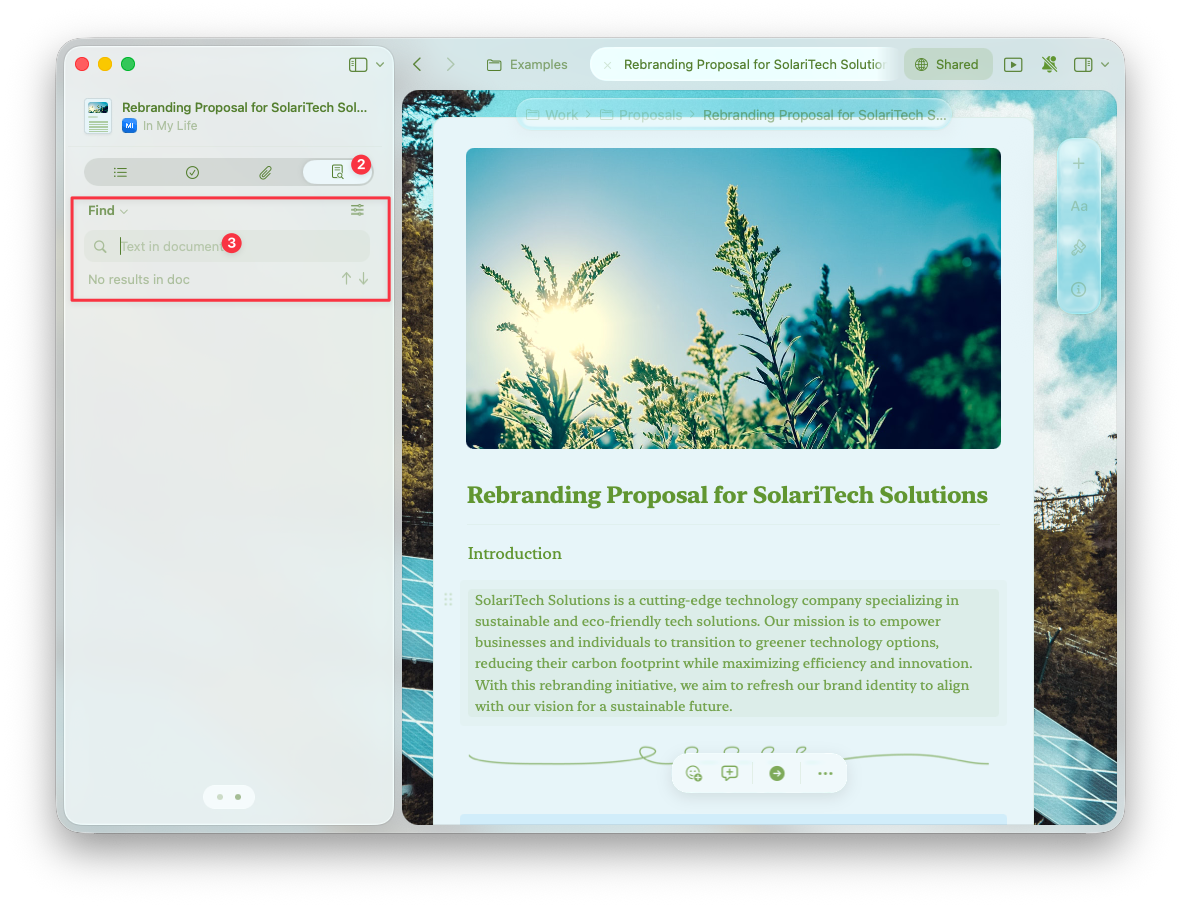 Pendant que vous éditez un Document, ouvrez le sidebar à droite et recherchez le panneau Find and Replace.
Pendant que vous éditez un Document, Tap le
Pendant que vous éditez un Document, ouvrez le sidebar à droite et recherchez le panneau Find and Replace.
Pendant que vous éditez un Document, Tap le
 bouton dans la barre d’outils inférieure pour accéder à Find and Replace.
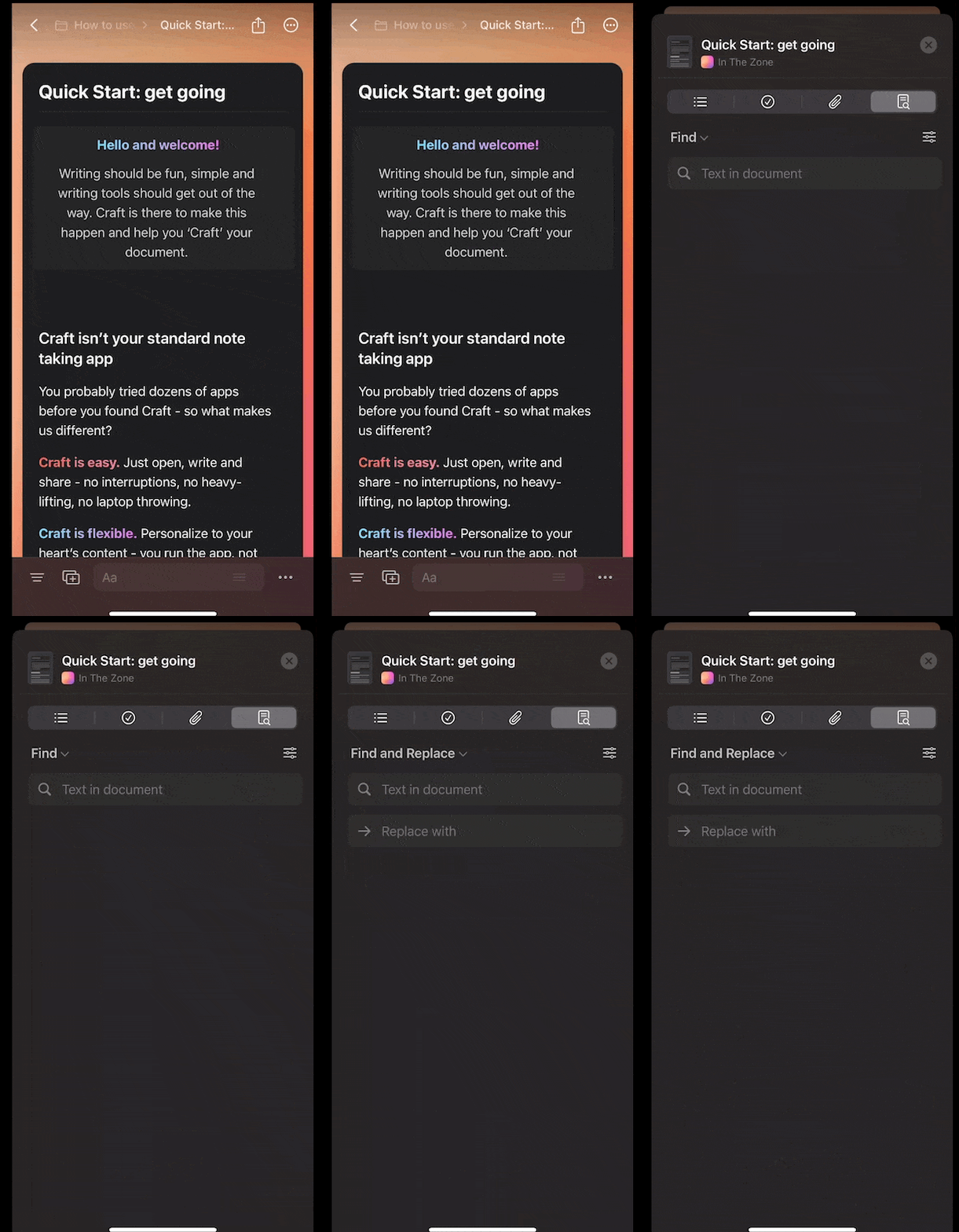 Pendant que vous éditez un Document, ouvrez le sidebar à droite et recherchez le panneau Find and Replace.
## Fonctionnalités et portée
L’outil Find and Replace recherche dans :
* Le contenu principal du Document
* Toutes les sous-pages du Document
* Les tableaux et le contenu intégré
L’outil Find and Replace recherche dans :
* Le contenu principal du Document
* Toutes les sous-pages du Document
* Les tableaux et le contenu intégré
La fonction "Replace All" n’est pas encore disponible sur iOS.
L’outil Find and Replace recherche dans :
* Le contenu principal du Document
- Les sous-pages d’un Document ne peuvent pas être recherchées
- Find and Replace n’est pas disponible à l’intérieur des tableaux
L’outil Find and Replace recherche dans :
* Le contenu principal du Document
- Les sous-pages d’un Document ne peuvent pas être recherchées
- Find and Replace n’est pas disponible à l’intérieur des tableaux
Pendant que vous éditez un Document, ouvrez le sidebar à droite et recherchez le panneau Find and Replace.
Pendant que vous éditez un Document, ouvrez le sidebar à droite et recherchez le panneau Find and Replace.
## Fonctionnalités et portée
L’outil Find and Replace recherche dans :
* Le contenu principal du Document
* Toutes les sous-pages du Document
* Les tableaux et le contenu intégré
L’outil Find and Replace recherche dans :
* Le contenu principal du Document
* Toutes les sous-pages du Document
* Les tableaux et le contenu intégré
La fonction "Replace All" n’est pas encore disponible sur iOS.
L’outil Find and Replace recherche dans :
* Le contenu principal du Document
- Les sous-pages d’un Document ne peuvent pas être recherchées
- Find and Replace n’est pas disponible à l’intérieur des tableaux
L’outil Find and Replace recherche dans :
* Le contenu principal du Document
- Les sous-pages d’un Document ne peuvent pas être recherchées
- Find and Replace n’est pas disponible à l’intérieur des tableaux