> ## Documentation Index
> Fetch the complete documentation index at: https://craft-support.mintlify.site/llms.txt
> Use this file to discover all available pages before exploring further.
# スペース
> スペース全体をエクスポートして、バックアップに保存するか別の Craft アカウントへ移行できます。
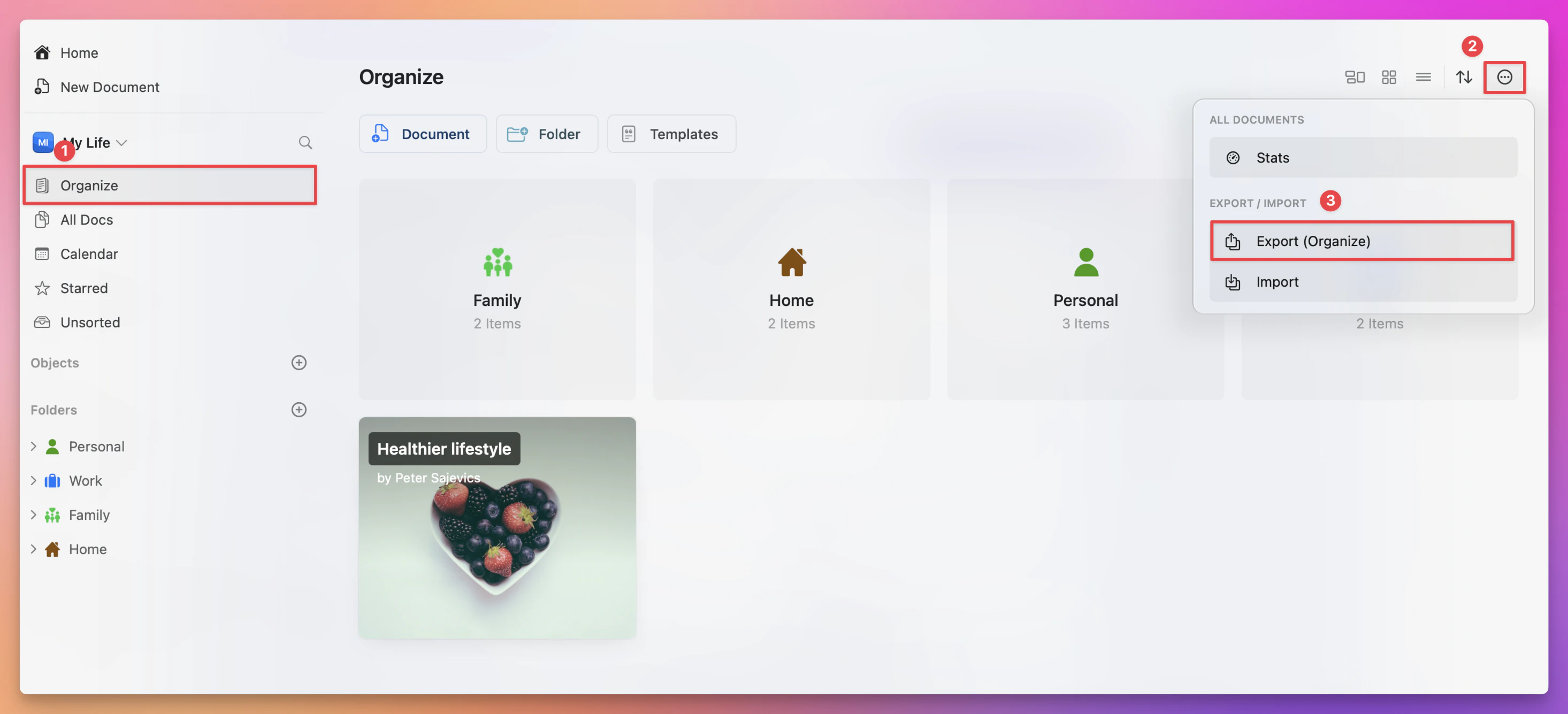
次の手順に従って、コンテンツをすばやくバックアップするか、他のプラットフォームへエクスポートしてください:
**アプリで Organize または All Documents ビューを開きます。**
**右上の three-dot menu (⋯) をクリックします。**
**Export オプションを選択します。**
**希望の形式を選択し**、ファイルをデバイスに保存します。
 この操作により、コンテンツは安全にバックアップされ、別の環境へ簡単に移行できるようになります。
エクスポート中に問題が発生した場合は、アプリが最新であることを確認し、必要に応じて小分けにしてエクスポートしてみてください。
この操作により、コンテンツは安全にバックアップされ、別の環境へ簡単に移行できるようになります。
エクスポート中に問題が発生した場合は、アプリが最新であることを確認し、必要に応じて小分けにしてエクスポートしてみてください。