> ## Documentation Index
> Fetch the complete documentation index at: https://craft-support.mintlify.site/llms.txt
> Use this file to discover all available pages before exploring further.

# スペースの使い方

> Craft のスペースを作成・カスタマイズ・管理して、コンテンツを整理できます。

スペースは Craft でコンテンツを整理する主要な方法です。各スペースは独立した作業領域として機能し、それぞれにドキュメント、設定、メンバーが割り当てられます。

## 新しいスペースを作成する

<Tabs>
  <Tab title="Mac">
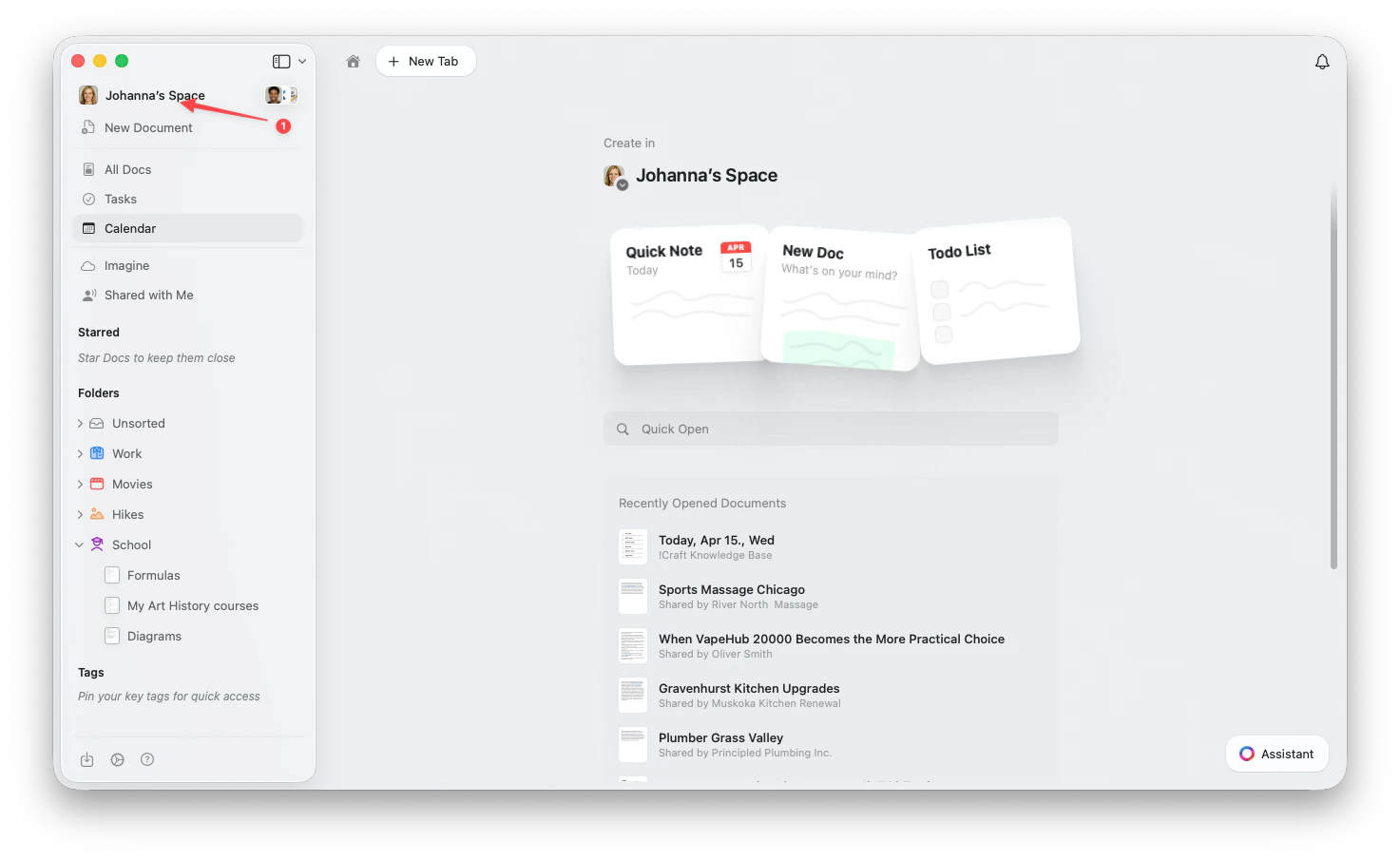
    サイドバー上部の**スペース名**をクリックして、設定を開きます。

    <Frame>
      <img src="https://mintcdn.com/craft-support/uCmTok0gNp17u6Tw/images/snippets/open-settings/en/content/mac-space-name.png?fit=max&auto=format&n=uCmTok0gNp17u6Tw&q=85&s=b2a80ae0eb9e67d830298c30f3046f02" alt="サイドバーのスペース名をクリック" width="1473" height="905" data-path="images/snippets/open-settings/en/content/mac-space-name.png" />
    </Frame>
  </Tab>

  <Tab title="Web / Windows">
    <Steps>
      <Step title="Spaceのドロップダウンを開く">
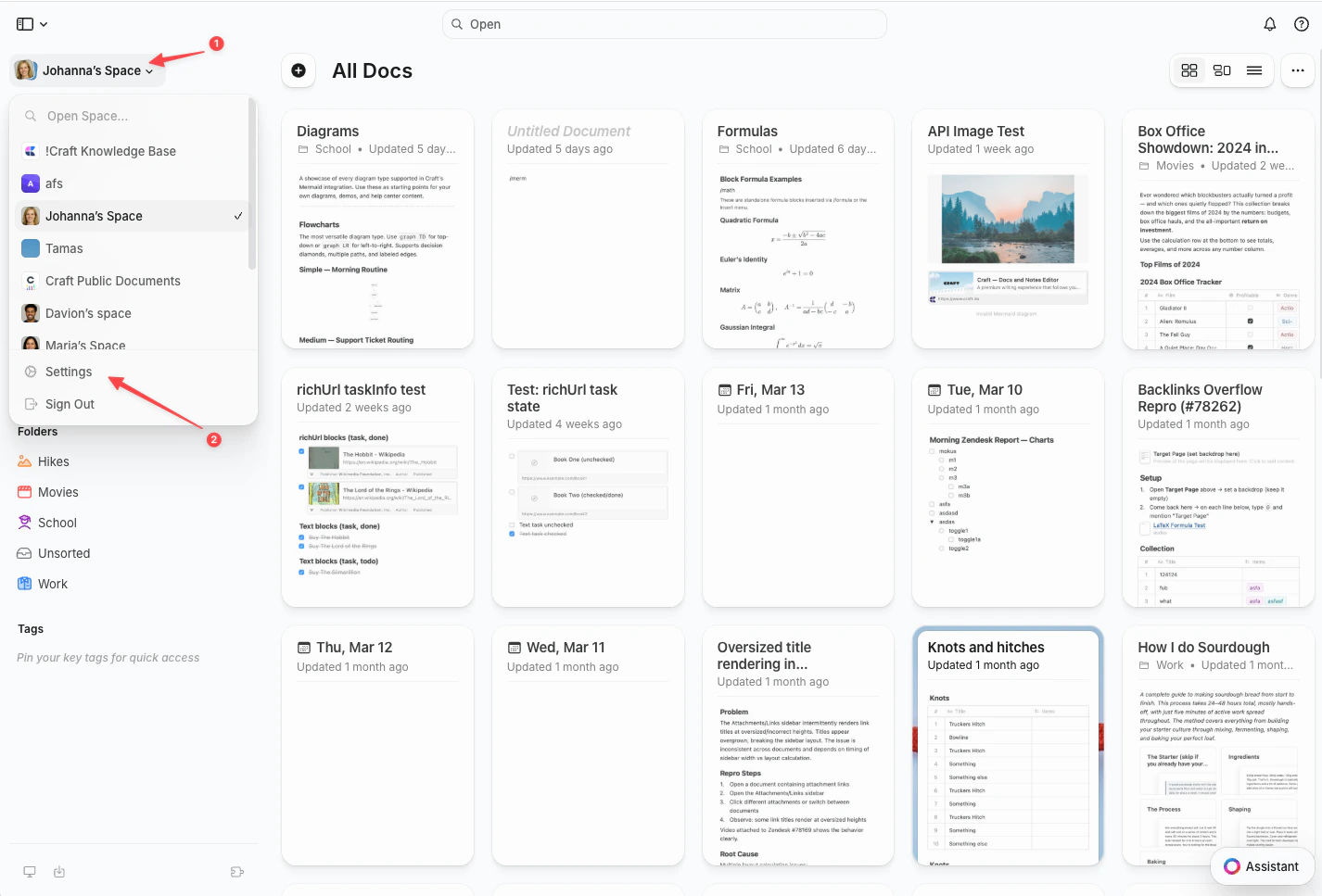
        左上隅の**スペース名**をクリックします。
      </Step>

      <Step title="設定を選択する">
        ドロップダウンの下部にある**設定**をクリックします。

        <Frame>
          <img src="https://mintcdn.com/craft-support/uCmTok0gNp17u6Tw/images/snippets/open-settings/en/content/web-space-dropdown.png?fit=max&auto=format&n=uCmTok0gNp17u6Tw&q=85&s=8fe2f1b7ca147ccd7de2d4851d2857e1" alt="設定オプションが表示されたSpaceドロップダウン" width="1426" height="967" data-path="images/snippets/open-settings/en/content/web-space-dropdown.png" />
        </Frame>
      </Step>
    </Steps>
  </Tab>

  <Tab title="iOS">
    <Steps>
      <Step title="Spaceアイコンをタップする">
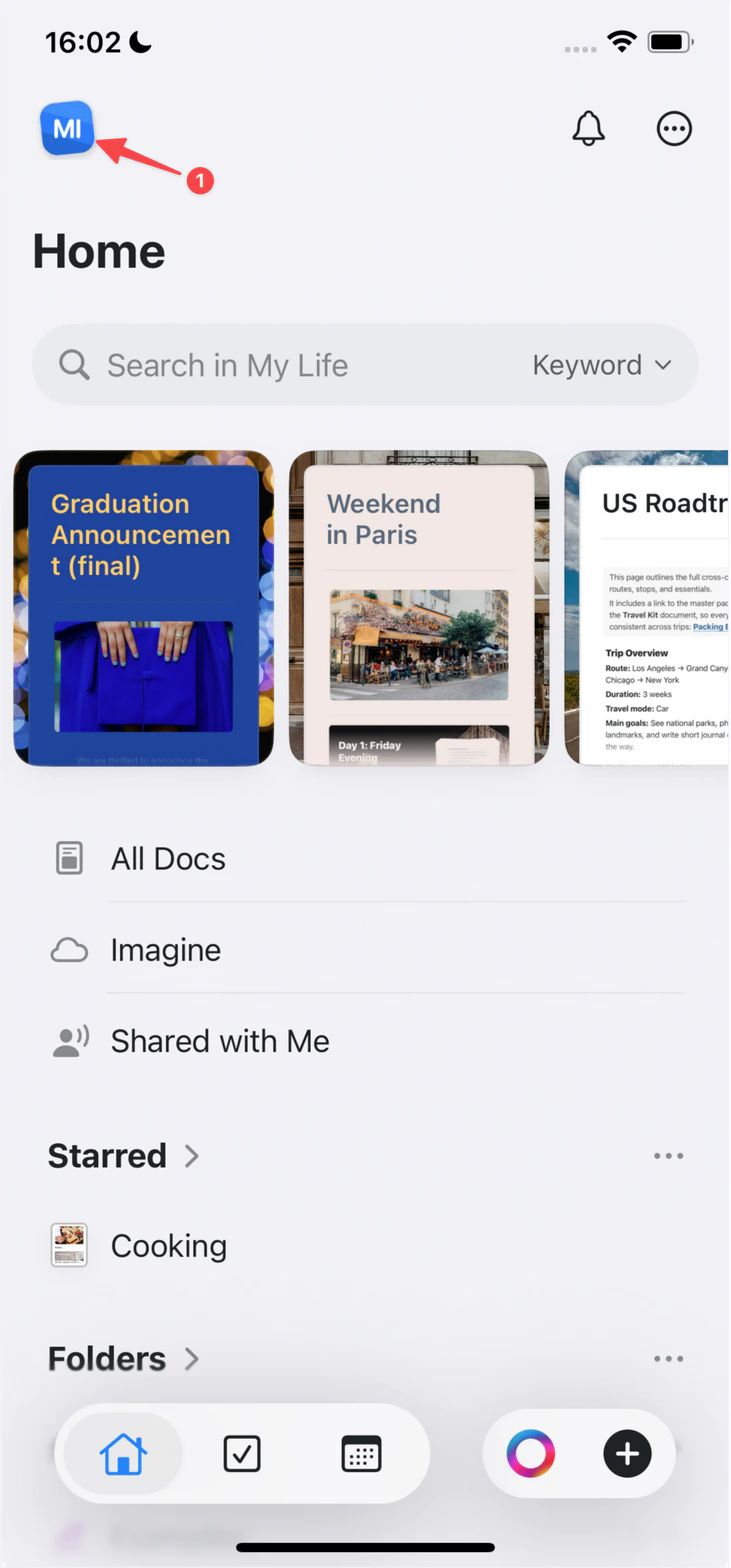
        左上隅の**スペースアイコン**をタップします。

        <Frame>
          <img src="https://mintcdn.com/craft-support/uCmTok0gNp17u6Tw/images/snippets/open-settings/en/content/ios-space-icon.png?fit=max&auto=format&n=uCmTok0gNp17u6Tw&q=85&s=82ed814971491d12743fb924294f595a" alt="左上隅のSpaceアイコン" width="731" height="1568" data-path="images/snippets/open-settings/en/content/ios-space-icon.png" />
        </Frame>
      </Step>

      <Step title="設定を開く">
        **設定**をタップします。
      </Step>
    </Steps>
  </Tab>

  <Tab title="Android">
    <Steps>
      <Step title="プロフィール写真をタップする">
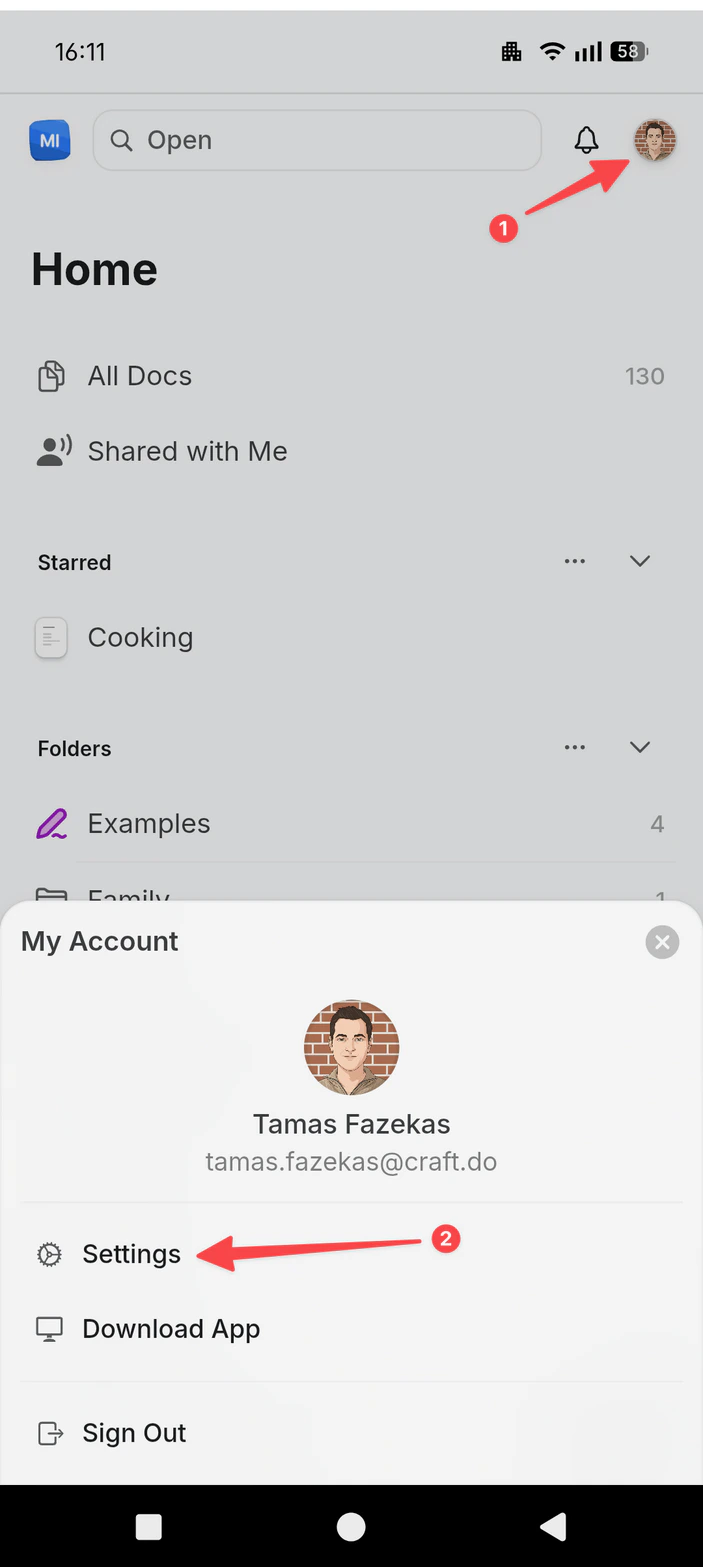
        右上隅の**プロフィール写真**をタップします。
      </Step>

      <Step title="設定を開く">
        **設定**をタップします。

        <Frame>
          <img src="https://mintcdn.com/craft-support/uCmTok0gNp17u6Tw/images/snippets/open-settings/en/content/android-profile-menu.png?fit=max&auto=format&n=uCmTok0gNp17u6Tw&q=85&s=04626672ba7545613f9b039a5d363698" alt="設定オプションが表示されたプロフィールメニュー" width="703" height="1567" data-path="images/snippets/open-settings/en/content/android-profile-menu.png" />
        </Frame>
      </Step>
    </Steps>
  </Tab>
</Tabs>

<Steps>
  <Step>
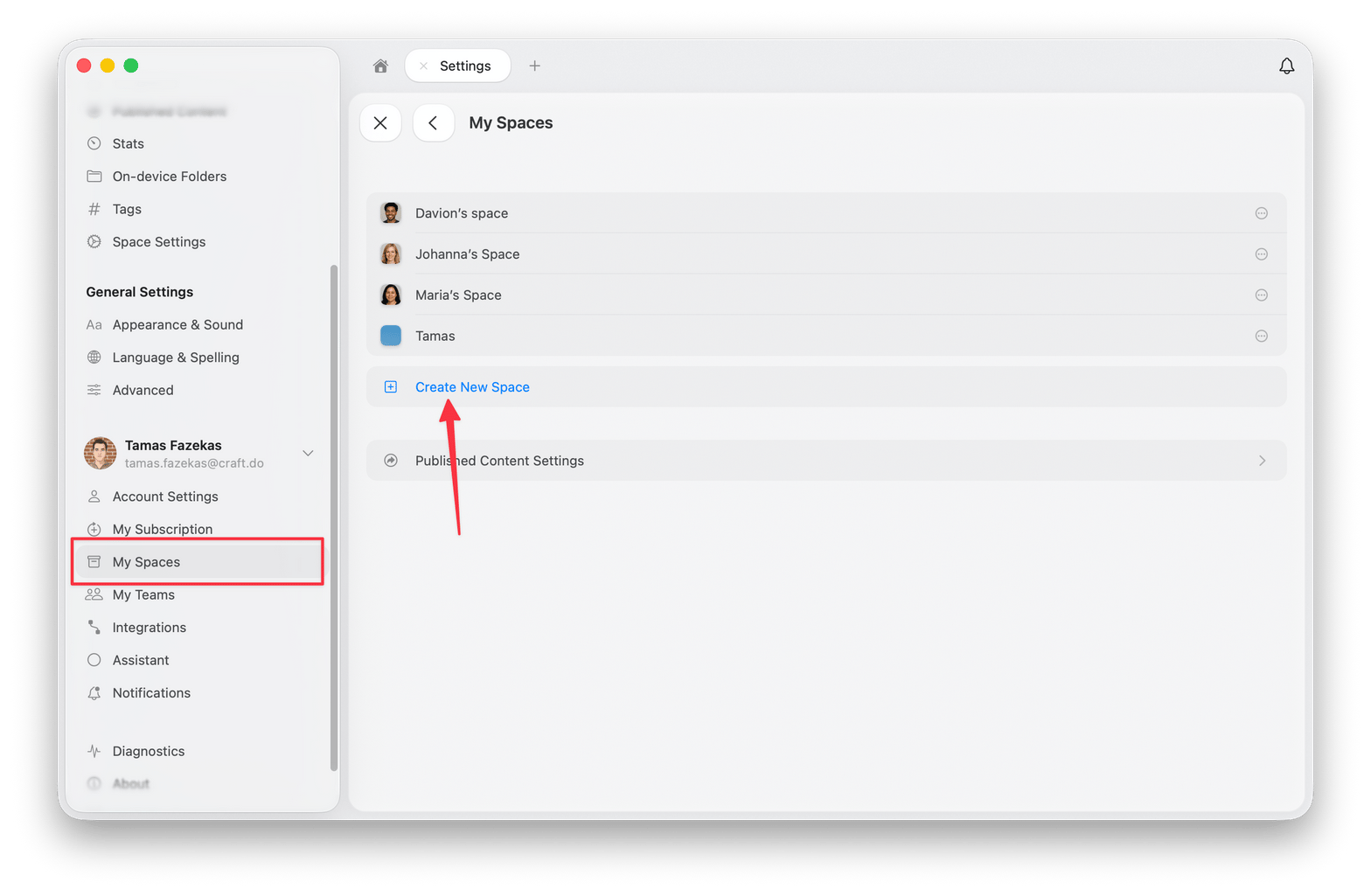
    設定パネルで **My Spaces** を選択します。
  </Step>

  <Step>
    **Create New Space** をクリックします。
  </Step>

  <Step>
    スペースに名前を付け、初期設定を行います。
  </Step>
</Steps>

<img src="https://mintcdn.com/craft-support/oJhhIFrpZpKRpF8f/images/introduction/account-setup/spaces/en/content/create-new-space.png?fit=max&auto=format&n=oJhhIFrpZpKRpF8f&q=85&s=1d6346e15b23b7ca9c8d8ee658356589" alt="Create New Space ダイアログ" width="1568" height="1025" data-path="images/introduction/account-setup/spaces/en/content/create-new-space.png" />

## スペース設定

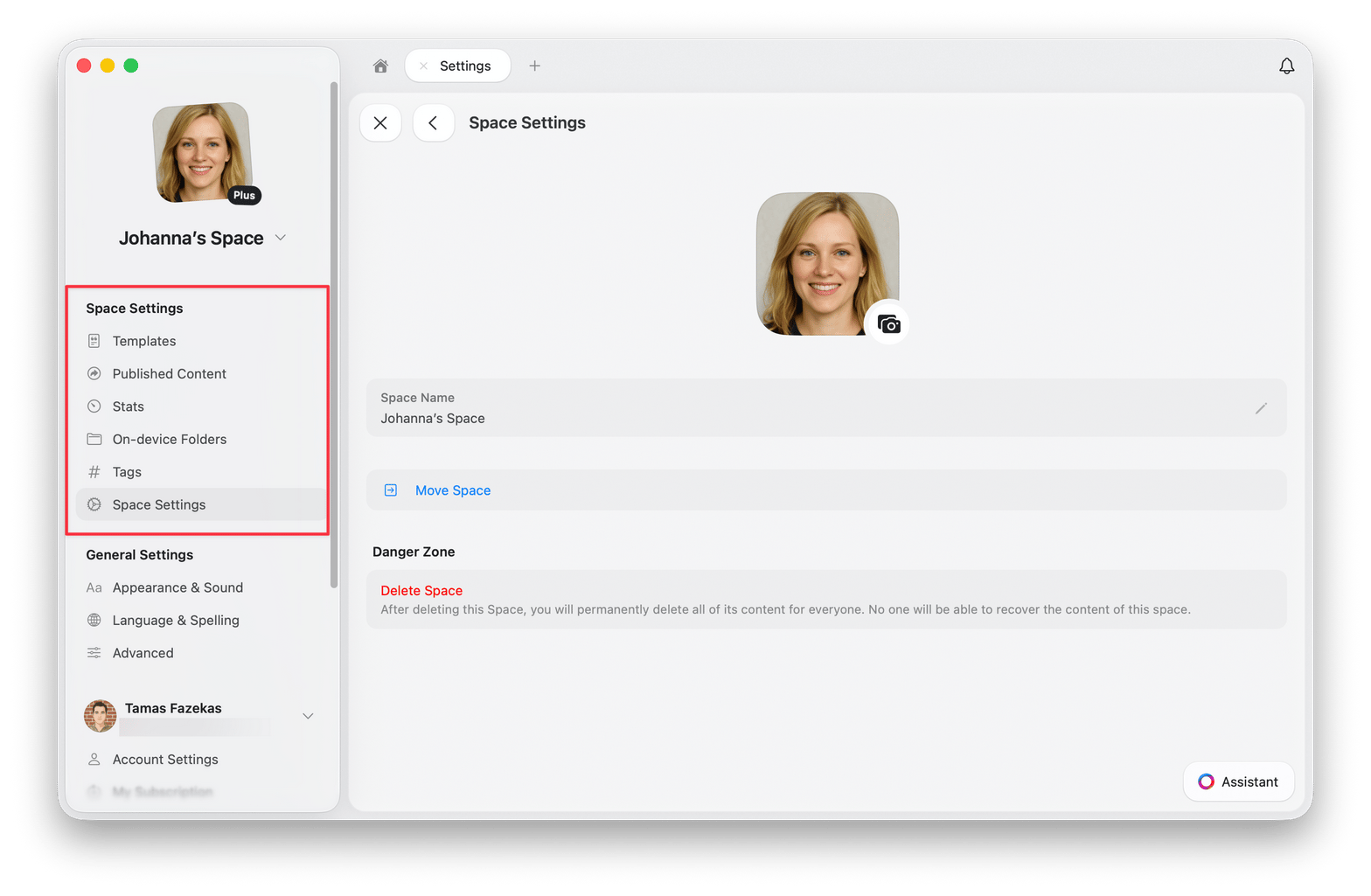
スペース設定には **設定 → Space Settings** からアクセスします。設定を開くと、Space Settings パネルが最初のセクションとして表示されます。
<img src="https://mintcdn.com/craft-support/oJhhIFrpZpKRpF8f/images/introduction/account-setup/spaces/en/content/space-settings-panel.png?fit=max&auto=format&n=oJhhIFrpZpKRpF8f&q=85&s=34bcab59ba93bd3d2397ba3ad8a31655" alt="Space Settings パネルの各種設定オプション" width="1568" height="1025" data-path="images/introduction/account-setup/spaces/en/content/space-settings-panel.png" />

### 利用可能なオプション

* **Templates** – このスペースで作成されたすべてのテンプレートを表示・編集します。
* **Published Content** – 公開されたページを管理し、分析を確認します。
* **Stats** – ストレージ使用量、ドキュメント数、ブロック、ページ数、単語数、文字数、推定読了時間を確認します。
* **On-device Folders** – ローカルにダウンロードされているフォルダを確認します。
* **Tags** – タグの有効/無効を切り替え、カスタムタグルールを追加します。
* **Members & Invites** – スペースのメンバーおよび保留中の招待を管理します。
* **Space Settings** – スペース名の変更、アクセス管理、スペースの移動、スペースからの退出、またはスペースの削除を行います。

## スペース間でドキュメントを移動する

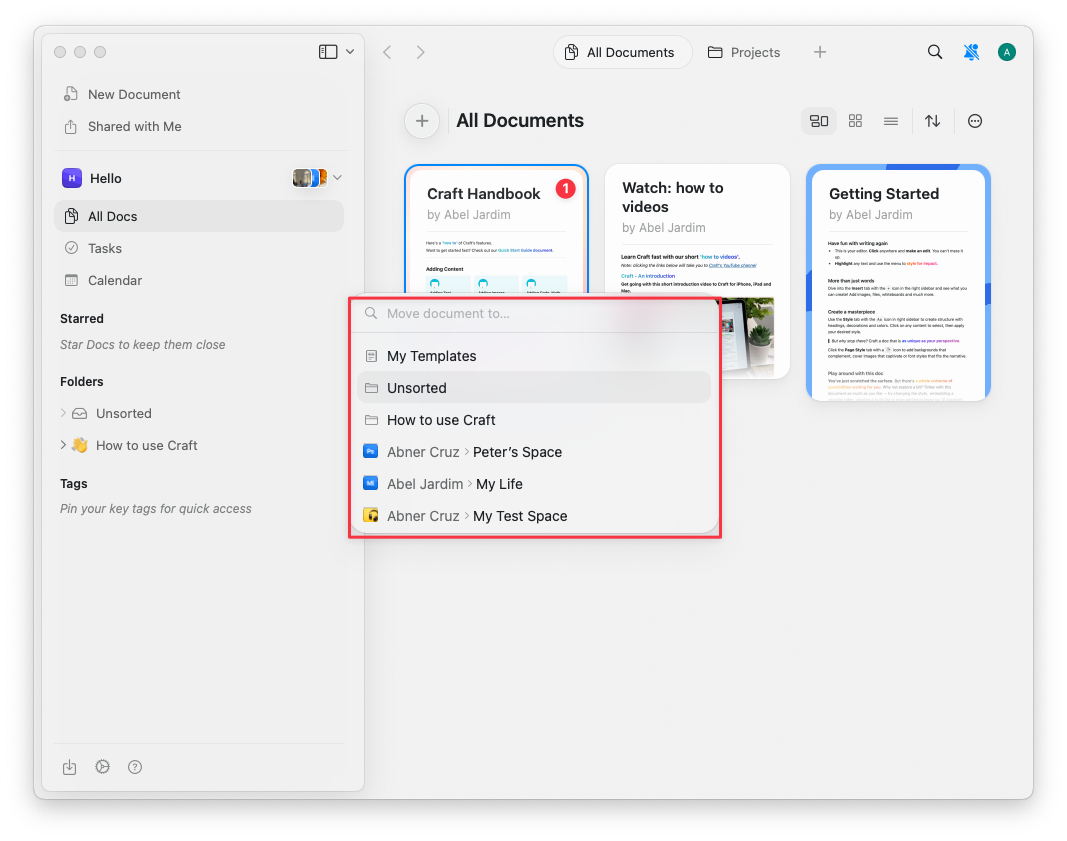
コンテンツの整理のため、個別のドキュメントを別のスペースに移動できます。

<Tabs>
  <Tab title="macOS">
    <Tabs>
      <Tab title="Mac">
        サイドバー上部の**スペース名**をクリックして、設定を開きます。

        <Frame>
          <img src="https://mintcdn.com/craft-support/uCmTok0gNp17u6Tw/images/snippets/open-settings/en/content/mac-space-name.png?fit=max&auto=format&n=uCmTok0gNp17u6Tw&q=85&s=b2a80ae0eb9e67d830298c30f3046f02" alt="サイドバーのスペース名をクリック" width="1473" height="905" data-path="images/snippets/open-settings/en/content/mac-space-name.png" />
        </Frame>
      </Tab>

      <Tab title="Web / Windows">
        <Steps>
          <Step title="Spaceのドロップダウンを開く">
            左上隅の**スペース名**をクリックします。
          </Step>

          <Step title="設定を選択する">
            ドロップダウンの下部にある**設定**をクリックします。

            <Frame>
              <img src="https://mintcdn.com/craft-support/uCmTok0gNp17u6Tw/images/snippets/open-settings/en/content/web-space-dropdown.png?fit=max&auto=format&n=uCmTok0gNp17u6Tw&q=85&s=8fe2f1b7ca147ccd7de2d4851d2857e1" alt="設定オプションが表示されたSpaceドロップダウン" width="1426" height="967" data-path="images/snippets/open-settings/en/content/web-space-dropdown.png" />
            </Frame>
          </Step>
        </Steps>
      </Tab>

      <Tab title="iOS">
        <Steps>
          <Step title="Spaceアイコンをタップする">
            左上隅の**スペースアイコン**をタップします。

            <Frame>
              <img src="https://mintcdn.com/craft-support/uCmTok0gNp17u6Tw/images/snippets/open-settings/en/content/ios-space-icon.png?fit=max&auto=format&n=uCmTok0gNp17u6Tw&q=85&s=82ed814971491d12743fb924294f595a" alt="左上隅のSpaceアイコン" width="731" height="1568" data-path="images/snippets/open-settings/en/content/ios-space-icon.png" />
            </Frame>
          </Step>

          <Step title="設定を開く">
            **設定**をタップします。
          </Step>
        </Steps>
      </Tab>

      <Tab title="Android">
        <Steps>
          <Step title="プロフィール写真をタップする">
            右上隅の**プロフィール写真**をタップします。
          </Step>

          <Step title="設定を開く">
            **設定**をタップします。

            <Frame>
              <img src="https://mintcdn.com/craft-support/uCmTok0gNp17u6Tw/images/snippets/open-settings/en/content/android-profile-menu.png?fit=max&auto=format&n=uCmTok0gNp17u6Tw&q=85&s=04626672ba7545613f9b039a5d363698" alt="設定オプションが表示されたプロフィールメニュー" width="703" height="1567" data-path="images/snippets/open-settings/en/content/android-profile-menu.png" />
            </Frame>
          </Step>
        </Steps>
      </Tab>
    </Tabs>

    <Steps>
      <Step>
        コンテキストメニューから **Move To** を選択します。
      </Step>

      <Step>
        移動先のスペースを選択します。
      </Step>
    </Steps>
  </Tab>

  <Tab title="iOS">
    <Steps>
      <Step>
        サイドバーでドキュメントを長押しします。
      </Step>

      <Step>
        メニューから **Move To** を選択します。
      </Step>

      <Step>
        移動先のスペースを選択します。
      </Step>
    </Steps>
  </Tab>

  <Tab title="iPad">
    <Steps>
      <Step>
        サイドバーでドキュメントを長押しします。
      </Step>

      <Step>
        メニューから **Move To** を選択します。
      </Step>

      <Step>
        移動先のスペースを選択します。
      </Step>
    </Steps>
  </Tab>
</Tabs>

<img src="https://mintcdn.com/craft-support/4lRkwRvDwE7Wr43k/images/introduction/account-setup/spaces/en/content/move-document.png?fit=max&auto=format&n=4lRkwRvDwE7Wr43k&q=85&s=e4bfcebdd93446bf729c87edeb41a280" alt="Move To メニューに表示された移動先のスペース" width="1067" height="841" data-path="images/introduction/account-setup/spaces/en/content/move-document.png" />

<Warning title="移動に関する制限">
  * フォルダはスペース間で移動できません（個別のドキュメントのみ移動可能）
  * 移動されたドキュメントは移動先のスペースの **All Documents** と **Unsorted** に表示されます
  * ブロックリンクは保持されますが、共有リンクやコメントは失われます
</Warning>

## スペースを削除する

スペースを削除するには、次の手順を実行します。

<Steps>
  <Step>
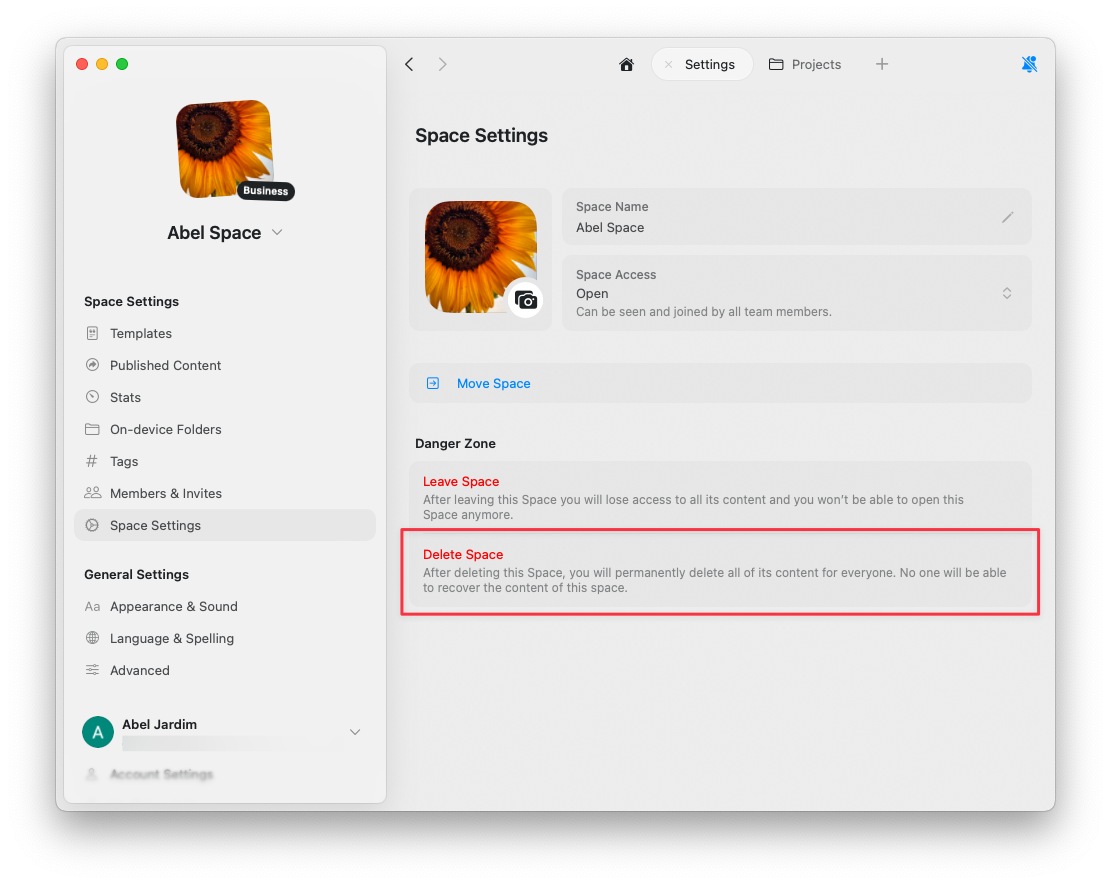
    **設定 → Space Settings** を開きます。
  </Step>

  <Step>
    一番下までスクロールし、**Delete Space** をクリックします。
  </Step>

  <Step>
    削除を確認します（この操作は元に戻せません）。
  </Step>
</Steps>

<img src="https://mintcdn.com/craft-support/4lRkwRvDwE7Wr43k/images/introduction/account-setup/spaces/en/content/delete-space.png?fit=max&auto=format&n=4lRkwRvDwE7Wr43k&q=85&s=c746800f2e4b21b8ebb9cd6ffc729af9" alt="Space Settings の Delete Space オプション" width="1111" height="885" data-path="images/introduction/account-setup/spaces/en/content/delete-space.png" />

<Danger title="デフォルトスペースは削除できません">
  もし **Delete Space** オプションがグレー表示されている場合、それはデフォルトスペースを表示しているためです。デフォルトスペースは（サインアップ時に自動で作成されるもので）アカウント構造の中核を成すため、削除できません。
</Danger>