> ## Documentation Index
> Fetch the complete documentation index at: https://craft-support.mintlify.site/llms.txt
> Use this file to discover all available pages before exploring further.
# コメントと通知
> コメントで共同作業し、共有ドキュメントの通知で最新情報を確認できます。
コメントと通知は、家族や友人、チームメンバーと共有ドキュメント上でやり取りする際のコミュニケーションを助けます。
## コメントの追加
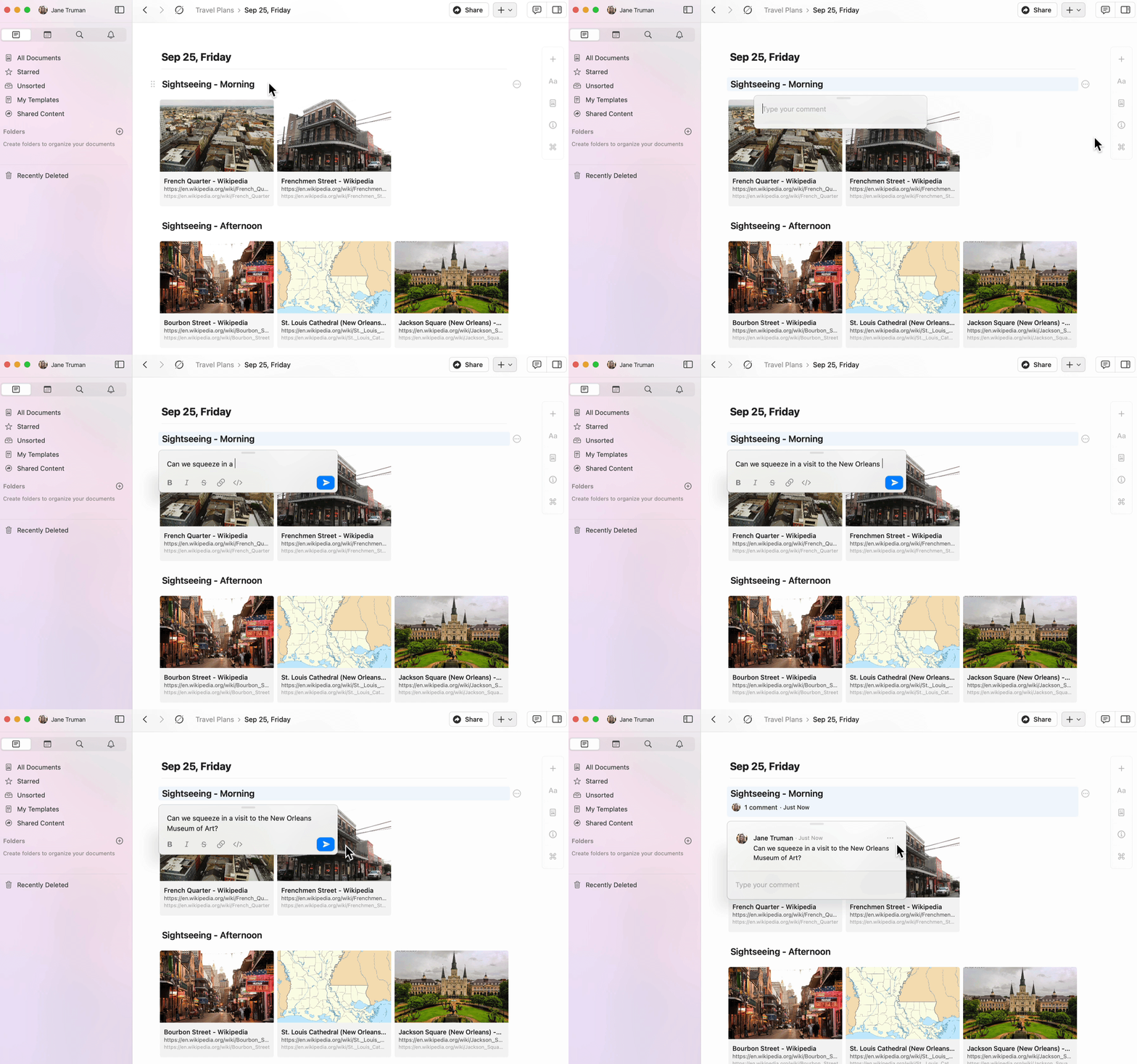
共有ドキュメントの任意のブロックにコメントを追加できます。
コンテンツのブロックをクリックして選択します。
ブロックメニューの three-dot menu (⋯) をタップします。
**Add comment** を選択します。
 ## コメントの書式設定
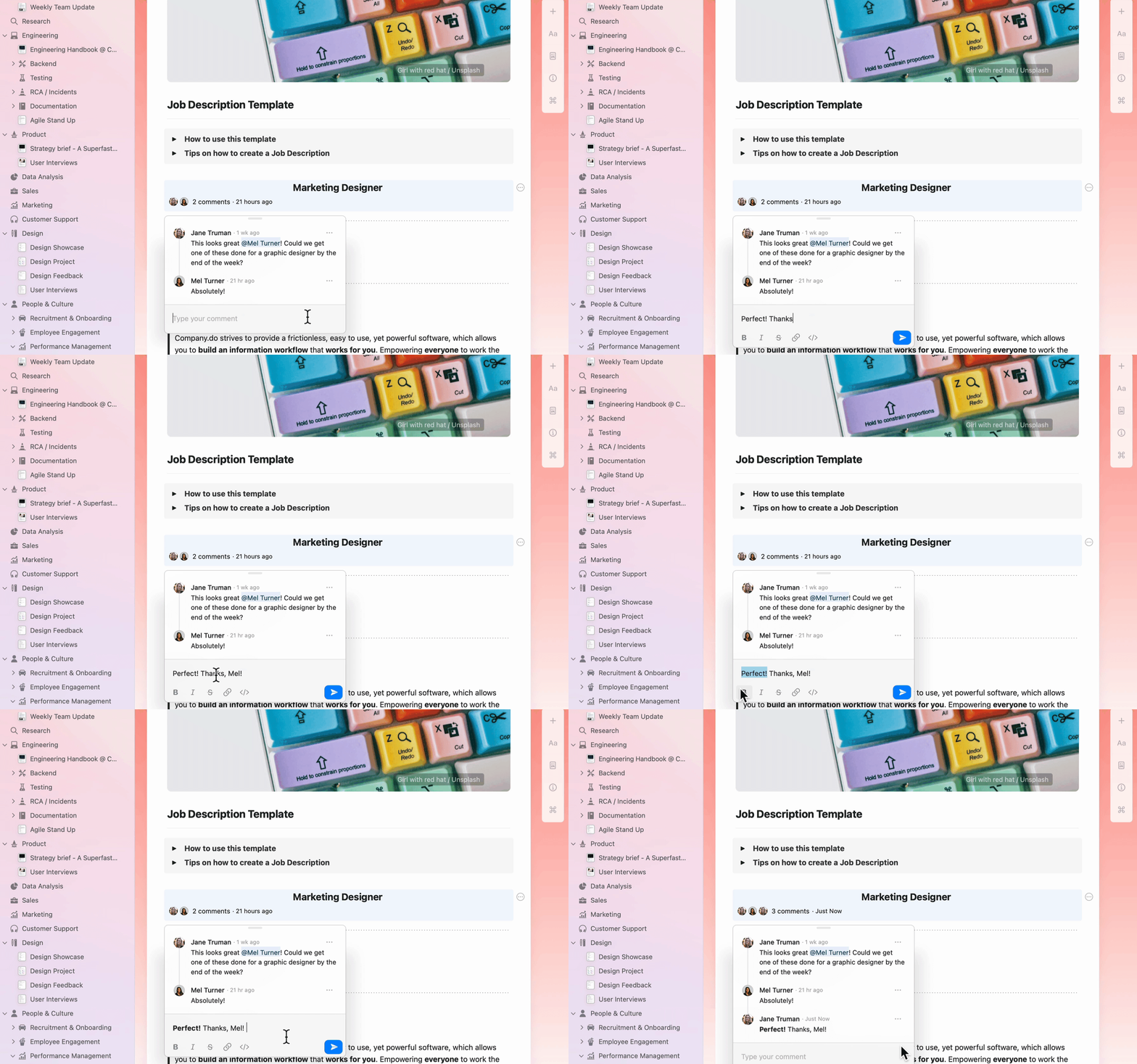
コメントは次の基本的な書式設定に対応しており、より効果的に伝えられます:
* **太字**、*斜体*、~~取り消し線~~
* リンク
* インラインコード
## コメントの書式設定
コメントは次の基本的な書式設定に対応しており、より効果的に伝えられます:
* **太字**、*斜体*、~~取り消し線~~
* リンク
* インラインコード
 ## 通知の確認
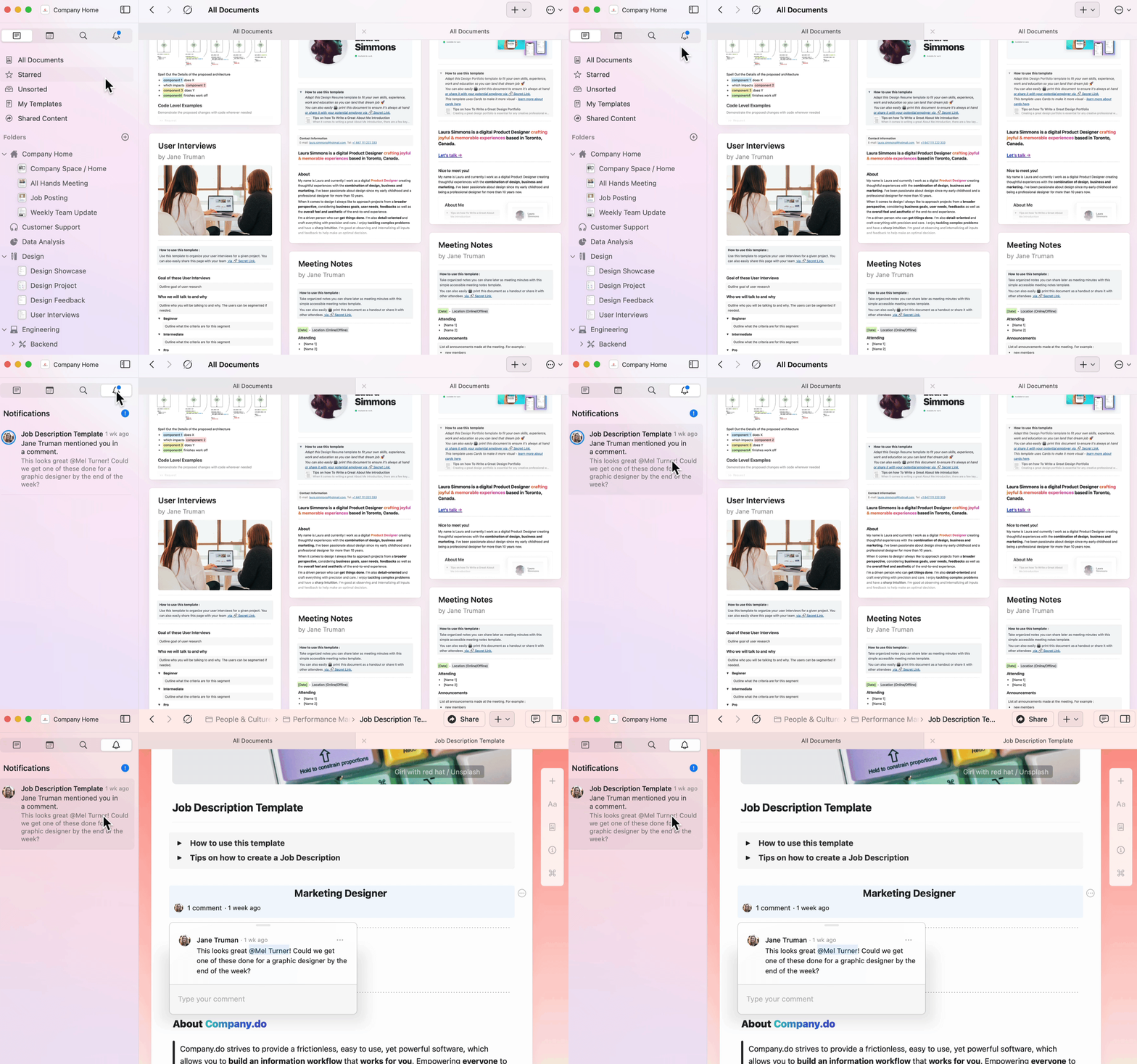
通知パネルでは、共有ドキュメント上のすべてのアクティビティを素早く確認できます。
サイドバーの通知ベルアイコンに移動します。
スペース全体の未読通知をすべて表示します。
任意の通知をクリックすると、該当するドキュメントとコメントに直接ジャンプします。
アプリアイコンには、すべてのスペースにまたがる未読通知の件数を示すバッジが表示されます。
## 通知の確認
通知パネルでは、共有ドキュメント上のすべてのアクティビティを素早く確認できます。
サイドバーの通知ベルアイコンに移動します。
スペース全体の未読通知をすべて表示します。
任意の通知をクリックすると、該当するドキュメントとコメントに直接ジャンプします。
アプリアイコンには、すべてのスペースにまたがる未読通知の件数を示すバッジが表示されます。
 次の場合に通知を受け取ります:
* あなたが作成したブロックに誰かがコメントしたとき
* コメントまたはドキュメントであなたがメンションされたとき
## コメントへの返信
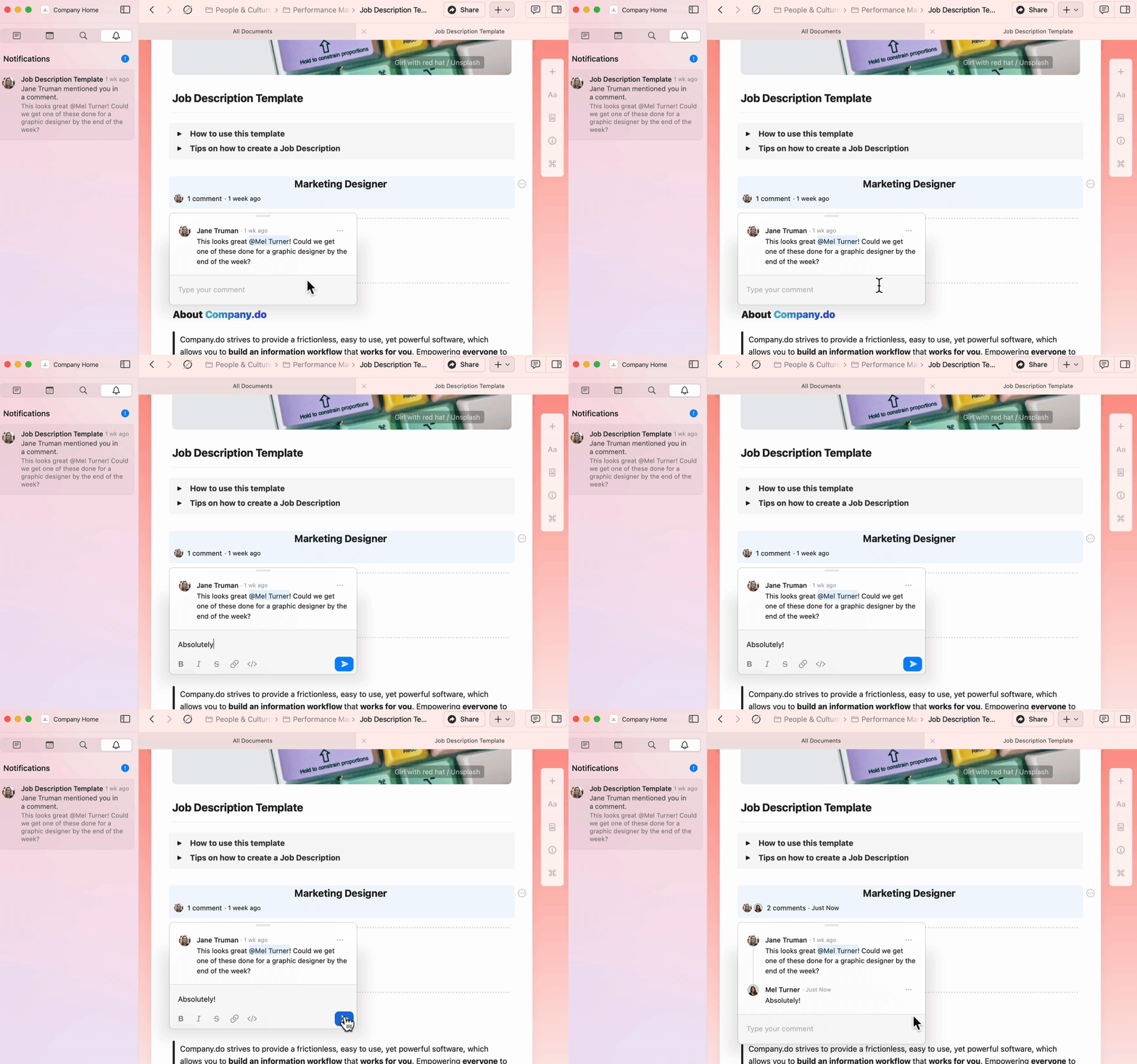
通知パネルから直接コメントに移動し、インラインで返信できます。
次の場合に通知を受け取ります:
* あなたが作成したブロックに誰かがコメントしたとき
* コメントまたはドキュメントであなたがメンションされたとき
## コメントへの返信
通知パネルから直接コメントに移動し、インラインで返信できます。
 ## メール通知
メール通知は毎時送信され、前回の期間からの未読通知をすべて含みます。
メール通知をオンまたはオフにするには:
macOSでは**Preferences**に、iOS/Web/Windowsでは**設定**に移動します。
**スペース管理**で、設定したいスペースを選択します。
次に**スペース設定**に移動します。
**メール通知**をオンまたはオフに切り替えます。
## メール通知
メール通知は毎時送信され、前回の期間からの未読通知をすべて含みます。
メール通知をオンまたはオフにするには:
macOSでは**Preferences**に、iOS/Web/Windowsでは**設定**に移動します。
**スペース管理**で、設定したいスペースを選択します。
次に**スペース設定**に移動します。
**メール通知**をオンまたはオフに切り替えます。
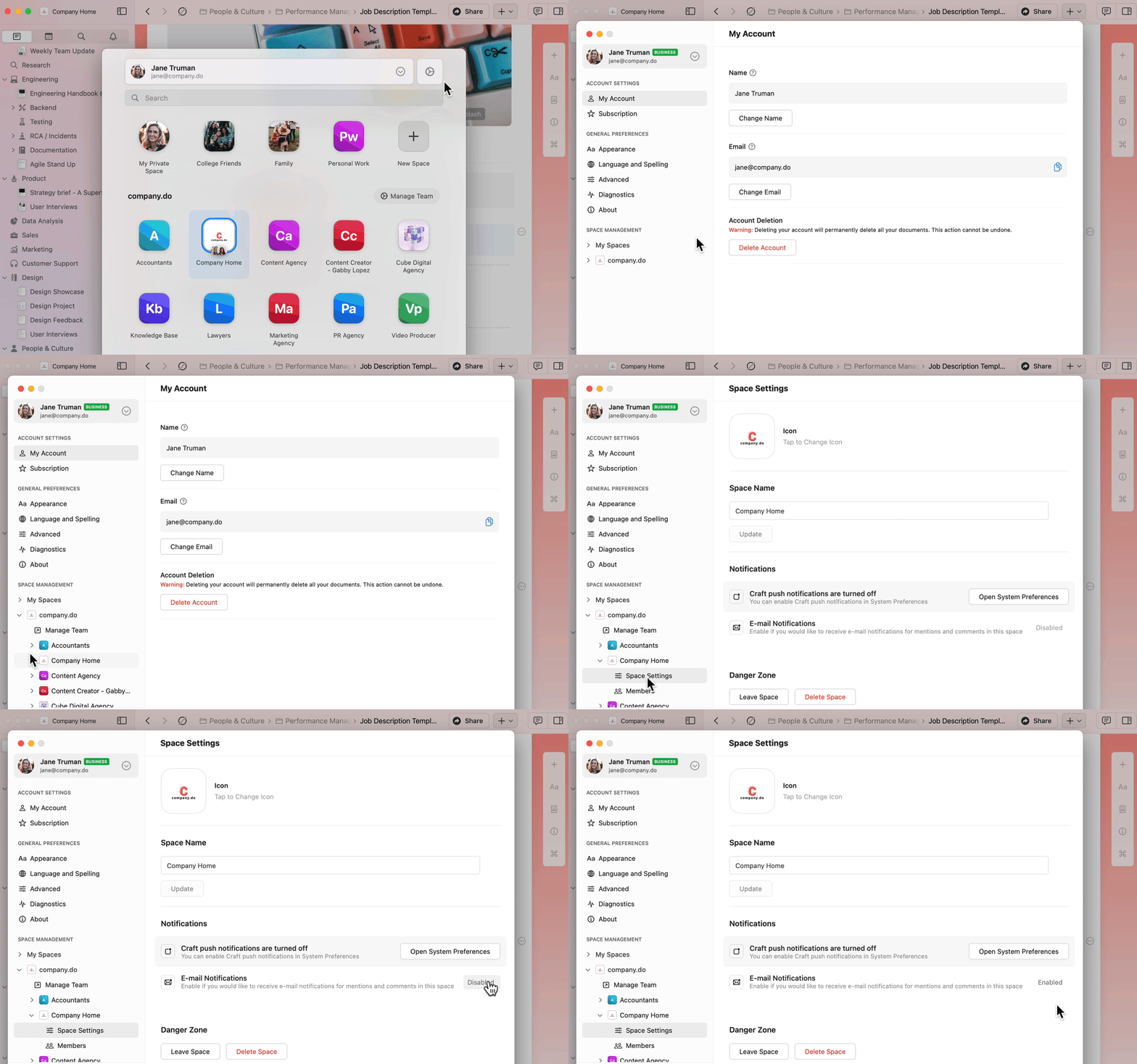 複数のスペースでメール通知を有効または無効にするには、各スペースについてこの手順を個別に繰り返してください。
## プッシュ通知
プッシュ通知はリアルタイムのアラートを提供します:
* あなたが作成したブロックへのコメント
* ドキュメントまたはコメントスレッドでのメンション
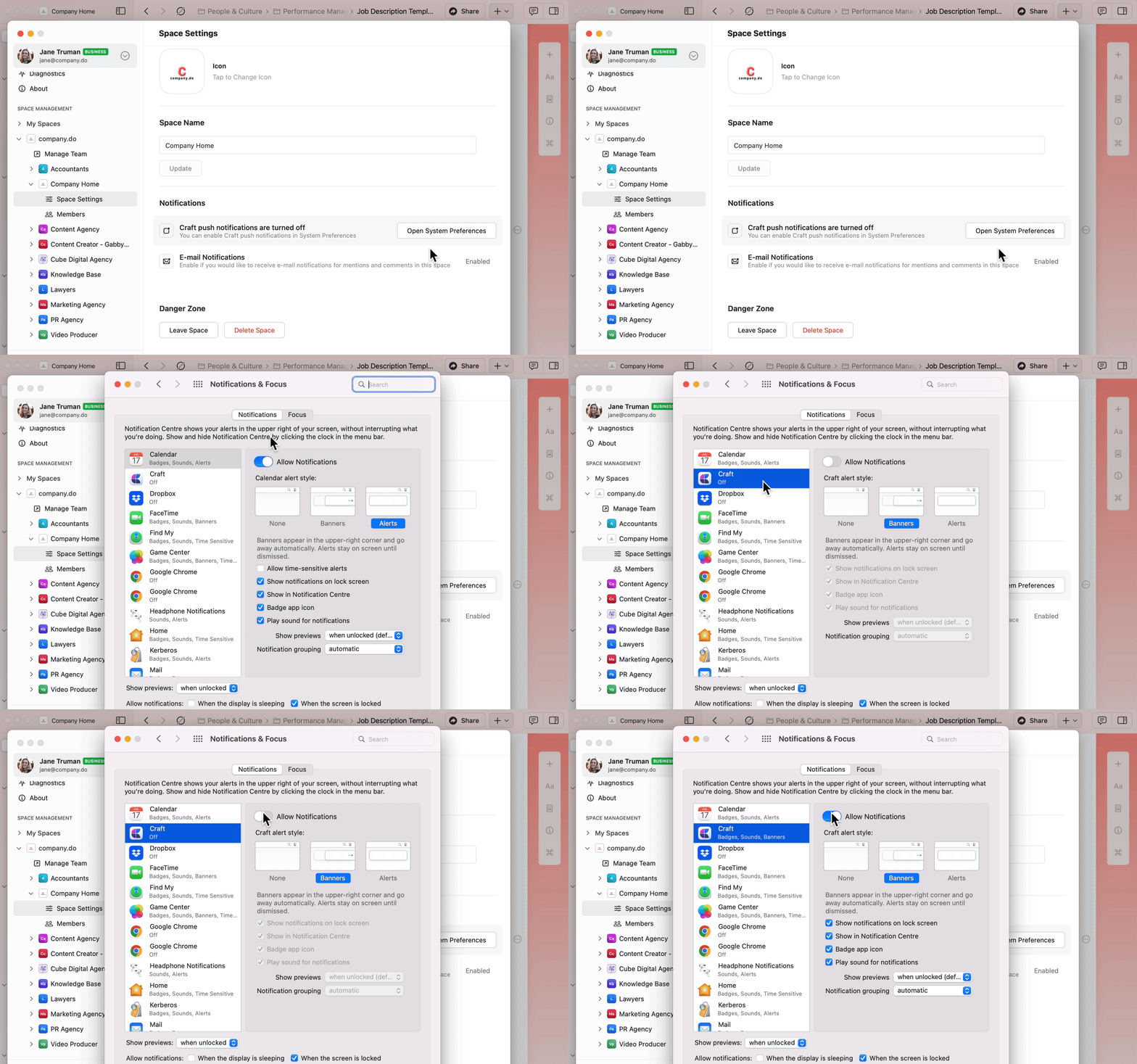
プッシュ通知を有効にするには:
Craftの**Preferences**に移動します。
**スペース管理**で使用するスペースを選択します。
**スペース設定**に移動します。
Click **Open System Preferences**.
システム設定で**Craft**を開きます。
Turn on **Allow Notifications**.
複数のスペースでメール通知を有効または無効にするには、各スペースについてこの手順を個別に繰り返してください。
## プッシュ通知
プッシュ通知はリアルタイムのアラートを提供します:
* あなたが作成したブロックへのコメント
* ドキュメントまたはコメントスレッドでのメンション
プッシュ通知を有効にするには:
Craftの**Preferences**に移動します。
**スペース管理**で使用するスペースを選択します。
**スペース設定**に移動します。
Click **Open System Preferences**.
システム設定で**Craft**を開きます。
Turn on **Allow Notifications**.
 iOSの**設定**アプリを開きます。
**Craft**までスクロールします。
Tap **通知**.
Turn on **Allow Notifications**.
通知スタイル(バナー、サウンド、バッジ)を好みに合わせて設定します。
アプリ内の通知音は現在無効になっていますが、デバイスのシステム設定で通知音が有効になっていれば、システムレベルの通知音は機能します。
## 関連記事
ドキュメントを共有して共同作業する方法を学びます
チームスペースと権限を使って一緒に作業します
iOSの**設定**アプリを開きます。
**Craft**までスクロールします。
Tap **通知**.
Turn on **Allow Notifications**.
通知スタイル(バナー、サウンド、バッジ)を好みに合わせて設定します。
アプリ内の通知音は現在無効になっていますが、デバイスのシステム設定で通知音が有効になっていれば、システムレベルの通知音は機能します。
## 関連記事
ドキュメントを共有して共同作業する方法を学びます
チームスペースと権限を使って一緒に作業します