> ## Documentation Index
> Fetch the complete documentation index at: https://craft-support.mintlify.site/llms.txt
> Use this file to discover all available pages before exploring further.
# 日付の追加
> ドキュメント内で時刻参照を素早く作成できる、デイリーノートにリンクする日付バッジを挿入します。
Craftの日付バッジは二重の役割を果たします。コンテンツ内の時刻参照を示すと同時に、その日付に対応するデイリーノートへ直接リンクします。
## 日付の挿入
日付は複数の方法で追加できます:
### スラッシュメニューを使う
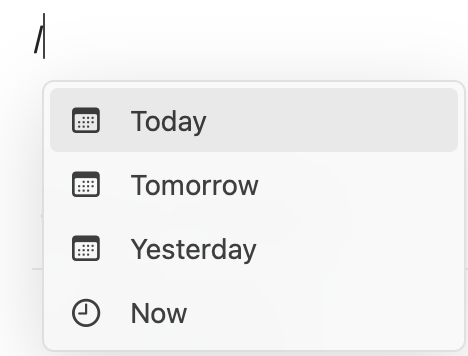
`/` を入力し、次のいずれかを行います:
* **Date & Time** を入力して日付ピッカーを開きます
* **Today**、**Tomorrow**、**Yesterday** のような自然言語を入力します
* 月名と日(例:**December 15**)を入力します
 ### 「@」記号を使う
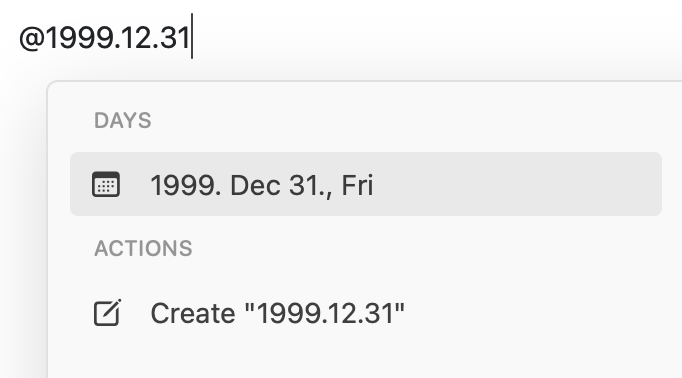
特定の日付を指定する場合は、`@` を入力し、その後に **YYYY.MM.DD** 形式で日付を入力します:
### 「@」記号を使う
特定の日付を指定する場合は、`@` を入力し、その後に **YYYY.MM.DD** 形式で日付を入力します:
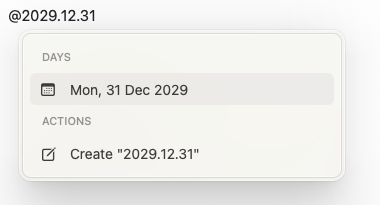
 日付ピッカーが表示され、日付を選択または調整できます:
 ## 日付バッジとデイリーノート
各日付バッジは該当する [デイリーノート](/ja/plan-and-do/daily-notes) へのクリック可能なリンクでもあります。日付バッジをクリックすると、次の操作ができます:
* その日の既存のコンテンツを表示します
* 新しいノートやタスクを追加します
* デイリーノートを移動して閲覧できます
日付バッジは自動的にデイリーノートと接続され、ワークスペース全体で時間ベースのコンテンツを参照および移動するのが簡単になります。
## 日付バッジとデイリーノート
各日付バッジは該当する [デイリーノート](/ja/plan-and-do/daily-notes) へのクリック可能なリンクでもあります。日付バッジをクリックすると、次の操作ができます:
* その日の既存のコンテンツを表示します
* 新しいノートやタスクを追加します
* デイリーノートを移動して閲覧できます
日付バッジは自動的にデイリーノートと接続され、ワークスペース全体で時間ベースのコンテンツを参照および移動するのが簡単になります。