> ## Documentation Index
> Fetch the complete documentation index at: https://craft-support.mintlify.site/llms.txt
> Use this file to discover all available pages before exploring further.
# Apple Calendar 연동
> Mac에서 Apple Calendar를 Craft와 연동하면 Apple Calendar, Google Calendar, Outlook의 이벤트가 캘린더 보기에 동기화됩니다. Windows 또는 Web에서는 사용할 수 없습니다.
Apple Calendar 연동은 Mac에서 Craft의 캘린더 보기에 이벤트를 표시합니다. Google Calendar와 Outlook 이벤트도 지원되며, 해당 계정을 먼저 Apple Calendar에 연결하면 Craft가 자동으로 이벤트를 가져옵니다. 이 문서에서는 연동 방법, 권한 부여, 문제 해결을 다룹니다.
Craft는 Mac에서 Apple Calendar와 직접 연결됩니다. 이 통합은 Windows 또는 Web에서는 사용할 수 없습니다. Google Calendar 또는 Outlook 이벤트를 동기화하려면 해당 계정을 먼저 Apple Calendar에 추가하세요. 자세한 내용은 캘린더 보기 문서의 [Google 및 Outlook 연결 단계](/ko/plan-and-do/calendar#using-google-calendar)를 참조하세요.
## 사이드바에서 캘린더 보기 활성화하기
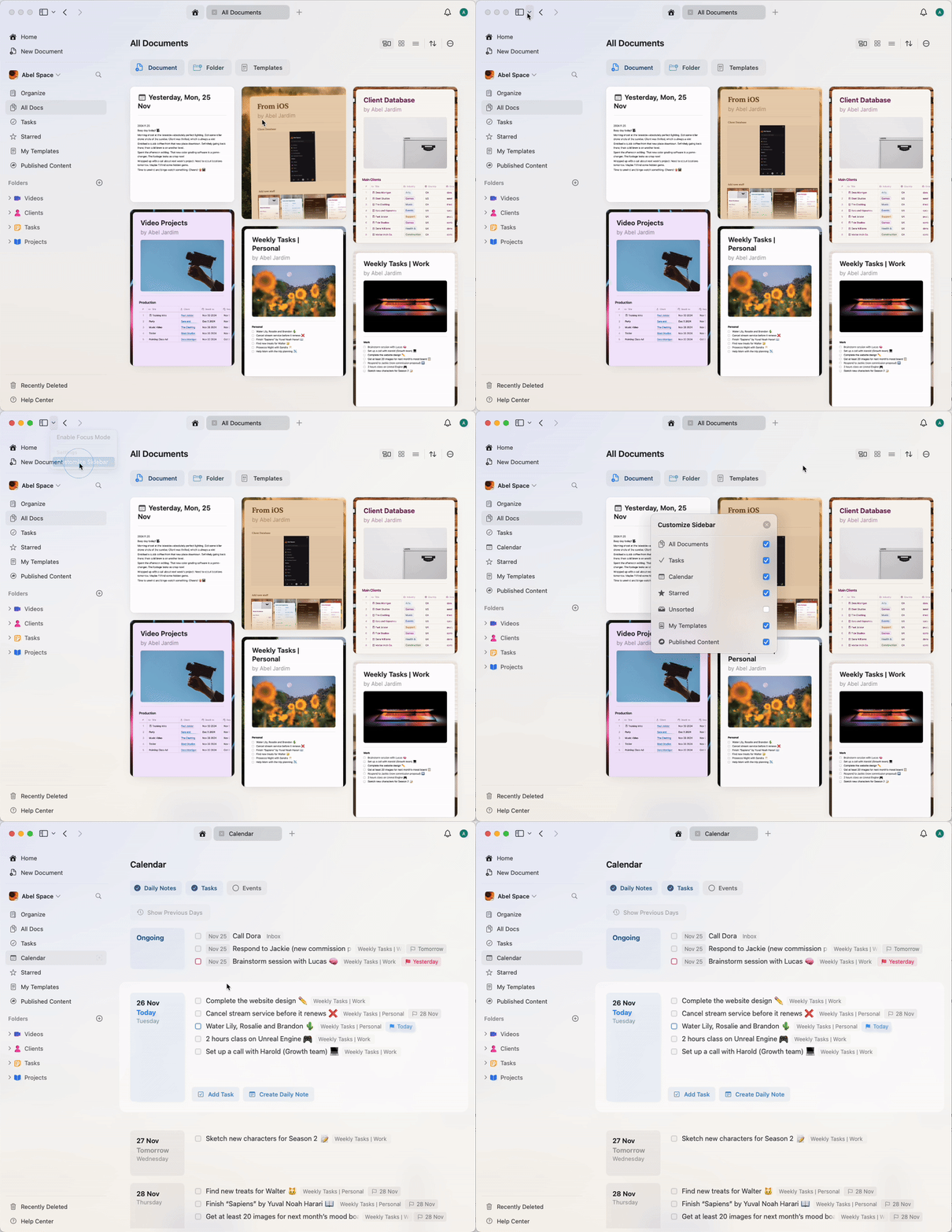
왼쪽 sidebar에 캘린더 보기가 보이지 않는다면, sidebar 드롭다운의 맞춤 설정 옵션에서 해당 보기를 활성화했는지 확인하세요.
 ## 캘린더 통합 설정하기
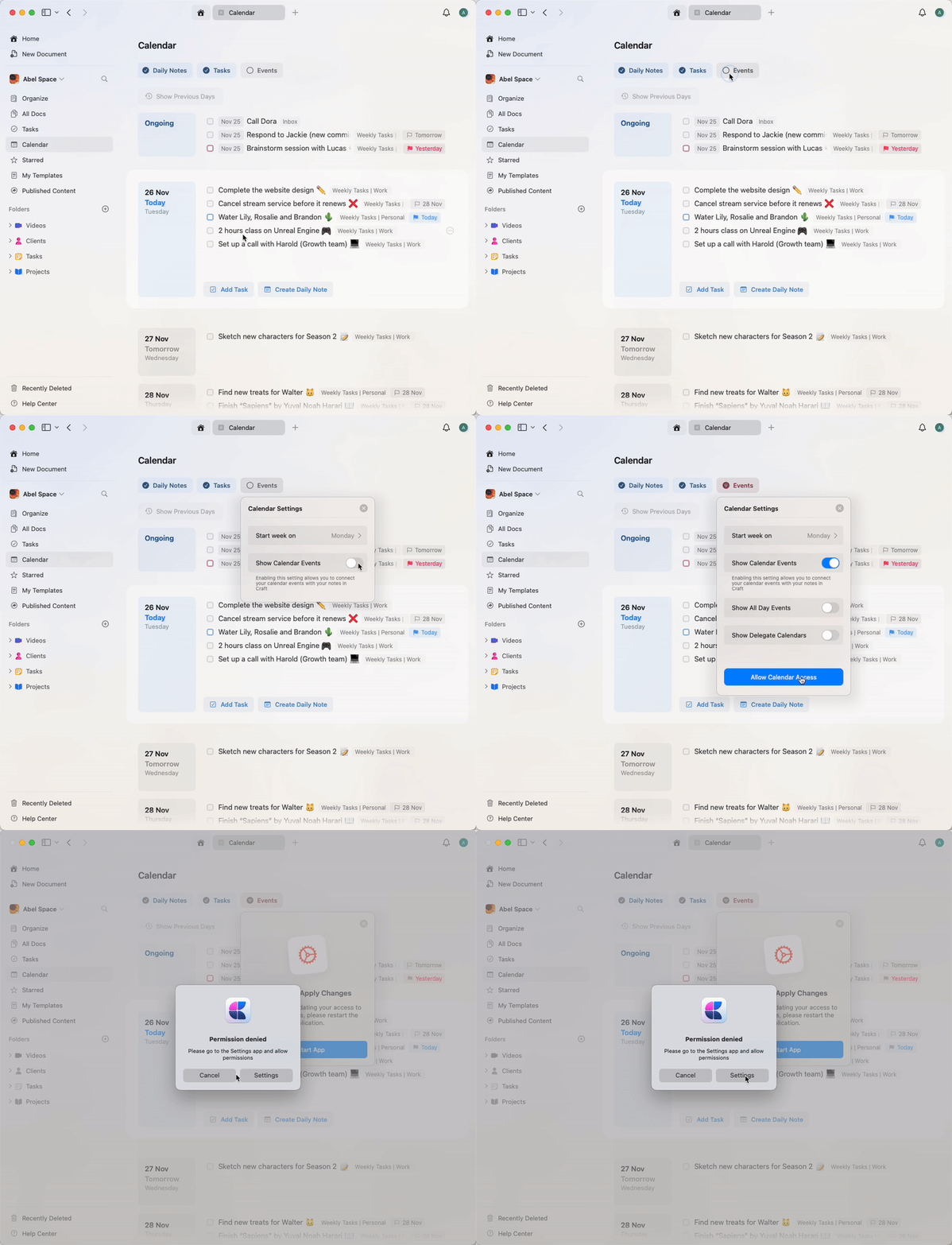
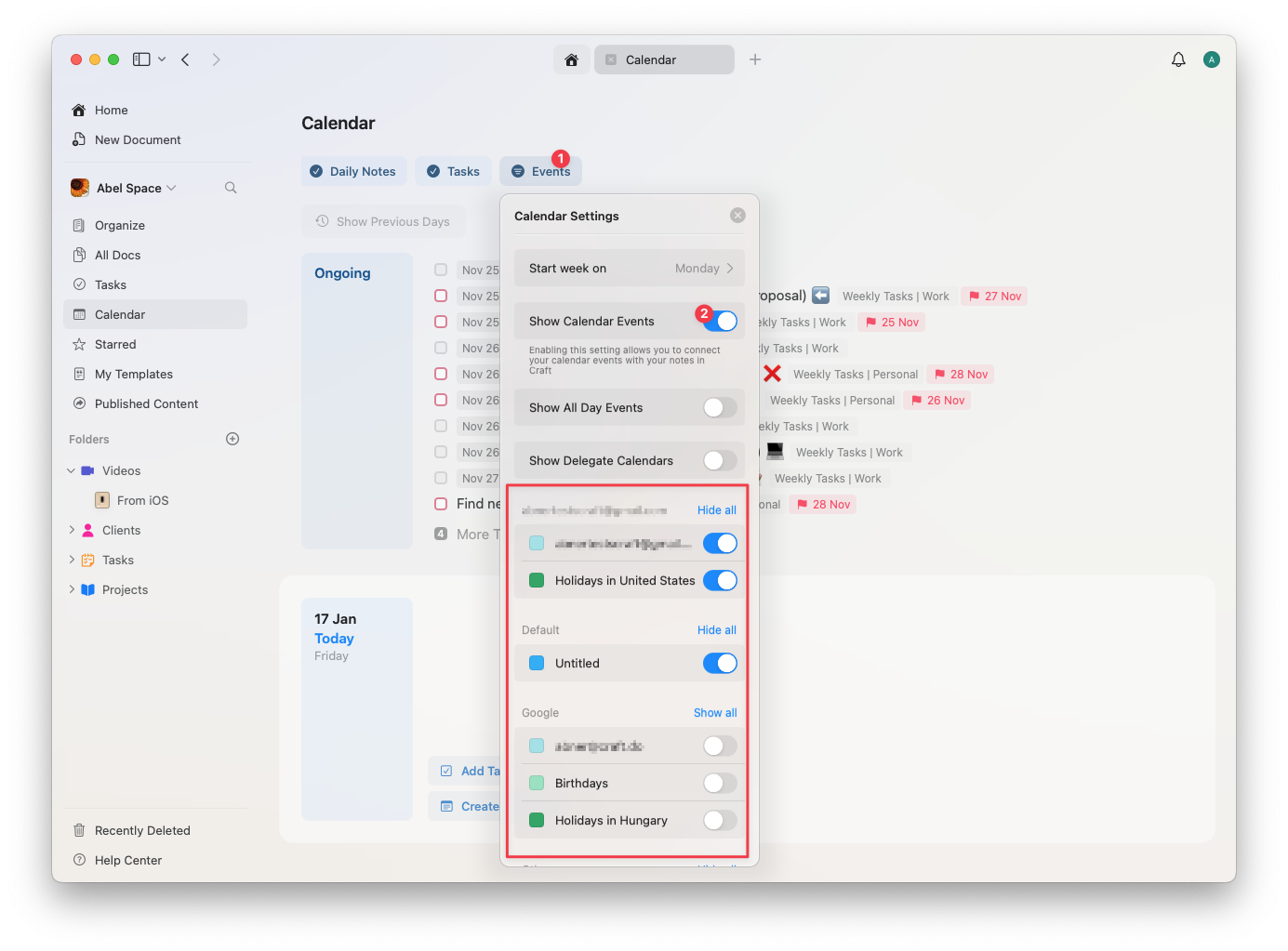
캘린더 보기에 있는 상태에서 Events 버튼을 클릭한 뒤 **Show Calendar Events**를 활성화하면 캘린더 통합을 시작할 수 있습니다. 그러면 Mac의 설정을 통해 Craft가 캘린더에 접근하도록 허용하라는 요청이 표시됩니다.
## 캘린더 통합 설정하기
캘린더 보기에 있는 상태에서 Events 버튼을 클릭한 뒤 **Show Calendar Events**를 활성화하면 캘린더 통합을 시작할 수 있습니다. 그러면 Mac의 설정을 통해 Craft가 캘린더에 접근하도록 허용하라는 요청이 표시됩니다.
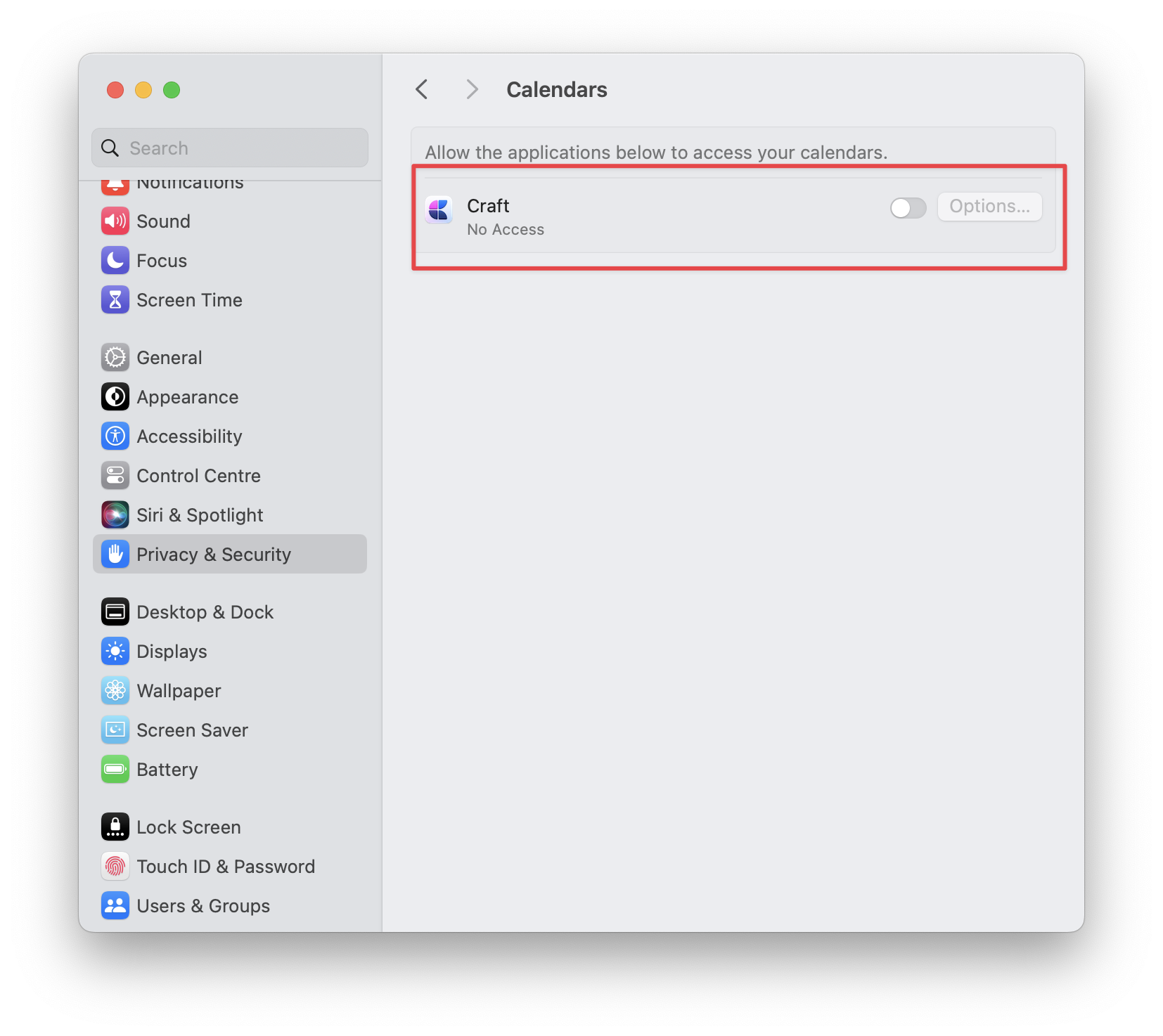 캘린더 접근을 허용한 후에는 변경 사항을 적용하려면 Craft를 재시작해야 합니다.
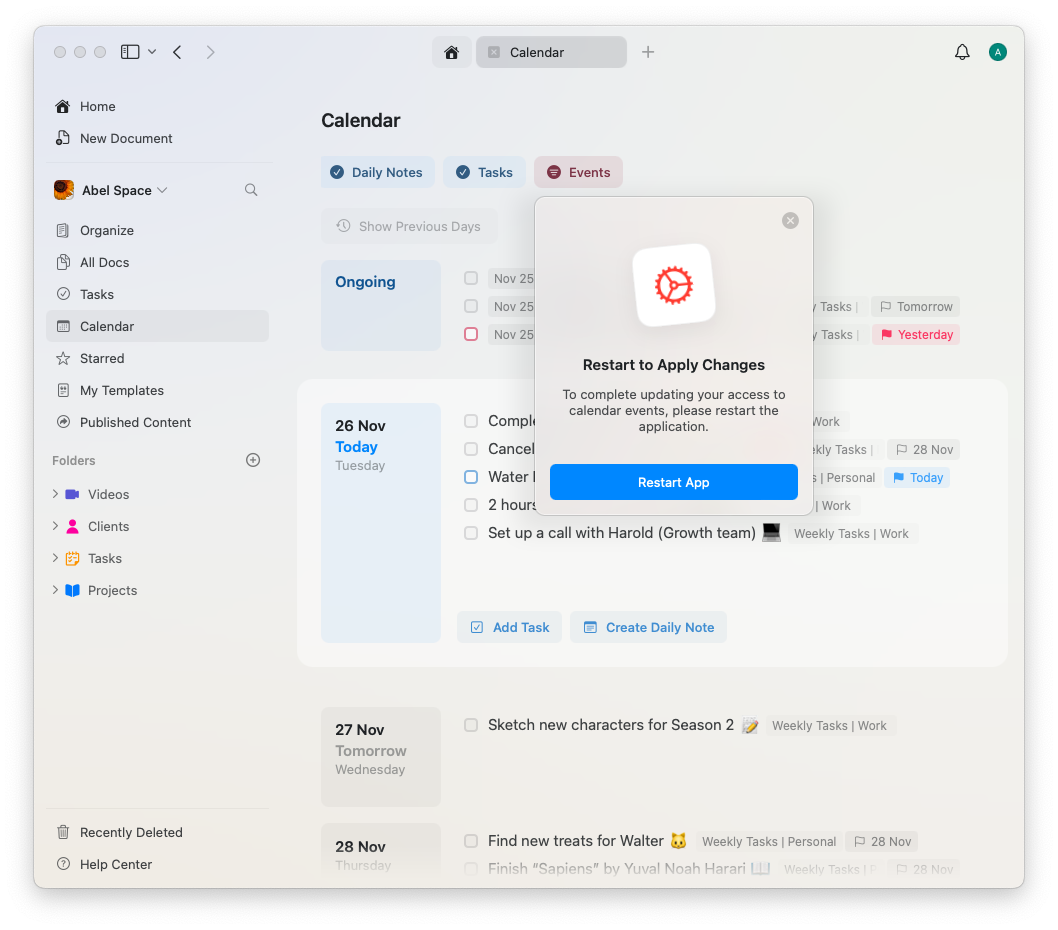 변경 사항을 적용하기 위해 앱을 재시작한 뒤 캘린더 보기로 돌아가 events를 활성화하여 캘린더를 동기화하세요. Apple Calendar에 여러 캘린더가 연결되어 있다면, 표시할 캘린더를 선택하여 더 세부적으로 조정할 수 있습니다.
 ## 활용 사례
캘린더 통합을 활성화하면 다음을 할 수 있습니다:
* **노트와 함께 이벤트 보기** - Craft에서 작업하는 동안 일정 확인
* **캘린더 필터링** - 표시할 캘린더 선택
* **날짜 이동** - 특정 날짜로 빠르게 이동하여 해당 날짜의 이벤트 확인
* **이벤트 노트 생성** - 노트를 캘린더 이벤트에 연결 (자세한 내용은 데일리 노트 참조)
* **정리 유지** - 일정과 노트를 동기화하여 정리 상태 유지
## 캘린더와 데일리 노트 함께 사용하기
캘린더 통합은 데일리 노트와 원활하게 작동합니다. 다음과 같은 작업이 가능합니다:
* 각 날짜의 캘린더 이벤트를 데일리 노트에서 보기
* 특정 캘린더 이벤트에 연결된 노트 생성
* 하루를 계획할 때 다가오는 이벤트 확인
* 이전 데일리 노트를 보며 과거 이벤트 검토
캘린더 이벤트에서 이벤트 노트를 생성하면 해당 노트는 자동으로 해당 날짜의 데일리 노트에 나타납니다. 이렇게 하면 회의 노트와 이벤트 세부 정보를 날짜별로 정리할 수 있습니다.
## 캘린더 접근 권한 관리하기
Craft의 캘린더 접근 권한을 취소하거나 수정해야 하는 경우:
Mac에서 System Settings(이전 이름: System Preferences)를 엽니다.
Privacy & Security → Calendars로 이동합니다.
목록에서 Craft를 찾아 접근 권한을 켜거나 끕니다.
## 문제 해결
캘린더 이벤트가 Craft에 표시되지 않는 경우:
* 캘린더 보기에서 **Show Calendar Events**가 활성화되어 있는지 확인하세요.
* Mac의 System Settings에서 Craft가 캘린더에 접근할 권한이 있는지 확인하세요.
* 권한을 부여한 후 Craft를 재시작해 보세요.
* Craft의 캘린더 설정에서 보고자 하는 캘린더가 활성화되어 있는지 확인하세요.
캘린더 통합과 함께 데일리 노트를 사용하는 방법 알아보기
할 일 보기에서 캘린더 이벤트 보기
캘린더 이벤트와 함께 할 일을 관리하기
이벤트 노트가 하위 페이지로 작동하는 방식을 이해하기
## 활용 사례
캘린더 통합을 활성화하면 다음을 할 수 있습니다:
* **노트와 함께 이벤트 보기** - Craft에서 작업하는 동안 일정 확인
* **캘린더 필터링** - 표시할 캘린더 선택
* **날짜 이동** - 특정 날짜로 빠르게 이동하여 해당 날짜의 이벤트 확인
* **이벤트 노트 생성** - 노트를 캘린더 이벤트에 연결 (자세한 내용은 데일리 노트 참조)
* **정리 유지** - 일정과 노트를 동기화하여 정리 상태 유지
## 캘린더와 데일리 노트 함께 사용하기
캘린더 통합은 데일리 노트와 원활하게 작동합니다. 다음과 같은 작업이 가능합니다:
* 각 날짜의 캘린더 이벤트를 데일리 노트에서 보기
* 특정 캘린더 이벤트에 연결된 노트 생성
* 하루를 계획할 때 다가오는 이벤트 확인
* 이전 데일리 노트를 보며 과거 이벤트 검토
캘린더 이벤트에서 이벤트 노트를 생성하면 해당 노트는 자동으로 해당 날짜의 데일리 노트에 나타납니다. 이렇게 하면 회의 노트와 이벤트 세부 정보를 날짜별로 정리할 수 있습니다.
## 캘린더 접근 권한 관리하기
Craft의 캘린더 접근 권한을 취소하거나 수정해야 하는 경우:
Mac에서 System Settings(이전 이름: System Preferences)를 엽니다.
Privacy & Security → Calendars로 이동합니다.
목록에서 Craft를 찾아 접근 권한을 켜거나 끕니다.
## 문제 해결
캘린더 이벤트가 Craft에 표시되지 않는 경우:
* 캘린더 보기에서 **Show Calendar Events**가 활성화되어 있는지 확인하세요.
* Mac의 System Settings에서 Craft가 캘린더에 접근할 권한이 있는지 확인하세요.
* 권한을 부여한 후 Craft를 재시작해 보세요.
* Craft의 캘린더 설정에서 보고자 하는 캘린더가 활성화되어 있는지 확인하세요.
캘린더 통합과 함께 데일리 노트를 사용하는 방법 알아보기
할 일 보기에서 캘린더 이벤트 보기
캘린더 이벤트와 함께 할 일을 관리하기
이벤트 노트가 하위 페이지로 작동하는 방식을 이해하기